Disclosure: TechDeskZone is reader-supported. When you buy through links on our site, we may earn an affiliate commission at no additional cost to you. See our affiliate disclosure for details.
The best home office setup 2026 starts with one honest answer: your chair and your monitor decide whether you are comfortable, not your desk. Working through the evidence across every category, the setup worth building first combines a used Herman Miller Aeron chair, a Dell U2724D monitor, and the Logitech MX Keys S + MX Master pair, at around £830 / ~$1,000. This guide works through every category in priority order, so you know exactly what to buy first, what to skip, and where the money actually changes your day.
- The Best Home Office Setup for 2026
- Three Home Office Builds, Compared
- The Chair Problem: Start Here, Not With the Desk
- Monitor Strategy: One Good Screen Beats Two Bad Ones
- Desk: The Foundation, But Not the First Purchase
- Keyboard and Mouse: Your Primary Interfaces
- Docks and Hubs: The Part Everyone Gets Wrong
- Lighting: The Overlooked Productivity Variable
- Audio: What Actually Matters for Calls
- Cable Management: The 20-Minute Fix
- Laptop Stands: If Your Laptop Is Your Main Screen
- The Setup Order: What to Buy First
- What to Build Today With £1,500 / ~$1,920
- Complete Home Office Setup Guides on TechDeskZone
- The Verdict: Your Home Office Setup in Priority Order
- The best home office setup 2026 for most people: used Herman Miller Aeron (£350 / ~$445) + Dell U2724D monitor (£280 / ~$300) + Logitech MX Keys S + MX Master pair (£175-230 / ~$224-294). Around £830 / ~$1,000 total.
- Chair, monitor, keyboard, and mouse account for the overwhelming majority of comfort and productivity problems. The desk comes third.
- For all-day document work, a 1440p 120 Hz panel (U2724D) is the better buy than a cheaper 60 Hz office monitor.
- Every category below links to a full roundup, so you can compare before you buy. The six full complete setups live in the new best desk setups guide.
The Best Home Office Setup for 2026
The best home office setup 2026 is the all-rounder build: a used Herman Miller Aeron to support your back, a Dell U2724D 27-inch monitor for sharpness and smoothness, and the Logitech MX Keys S + MX Master pair for input. It comes to about £830 / ~$1,000 and covers most office work without extras. This is the same build the full desk-setups guide ranks at number one, minus the standing desk, because in this article the priority is the buying order, not the complete shopping list.
This combination holds up over long working days. The Aeron supports the lower back through eight-hour sessions, the U2724D’s 120 Hz refresh makes long documents feel calmer than a 60 Hz panel, and the MX pair moves between desktop and couch without complaint. None of it is flashy, and none of it needs replacing next year. That is the whole point of the build.
| Component | Pick | Price | Buy |
|---|---|---|---|
| Chair | Used Herman Miller Aeron | £350 / ~$445 | Editorial (used, no single listing). See the best office chair roundup |
| Monitor | Dell U2724D 27″ 1440p 120 Hz | £280 / ~$300 | US / UK |
| Keyboard + mouse | Logitech MX Keys S + MX Master pair | £175-230 / ~$224-294 | US / UK |
| Total | – | ~£830 / ~$1,000 | – |
Budget stretch: add the CalDigit TS4 dock (£299 / ~$380) if you run multiple displays, the BenQ Halo 2 light bar (£149 / ~$179) for evening work, and the Anker PowerConf C200 webcam (£39-49 / ~$49-60) for calls. With those three added, the total lands around £1,320 / ~$1,600, still under the £1,500 / ~$1,920 build budget in the section below.
Three Home Office Builds, Compared
Most readers fall into one of three camps, so here is the whole article in one table. The full component lists for all six setups, including these three, live in the best desk setups 2026 guide.
| Build | Price | Who it is for |
|---|---|---|
| All-Rounder (recommended) | ~£830 / ~$1,000 | Most office workers. Chair, monitor, input pair. |
| Budget Starter | ~£440 / ~$510 | First setup. 27-inch 4K monitor, silent mechanical keyboard, USB-C charging. |
| Developer Dual-Monitor | ~£1,775 / ~$2,210 | Code, analysis, or design across two screens. 32″ 4K + 27″ 1440p + dock + arm. |
The sections below explain the reasoning category by category, and every pick has a roundup link and, where it exists, a dual-region Amazon CTA. The full six-setup builds, including the standing desk and Mac creator setups, are in the new best desk setups guide.
The Chair Problem: Start Here, Not With the Desk
Most home office guides start with the desk. That is backwards. You can work at a kitchen table for months if the chair is right. You cannot work for two hours in a bad chair without your body complaining.
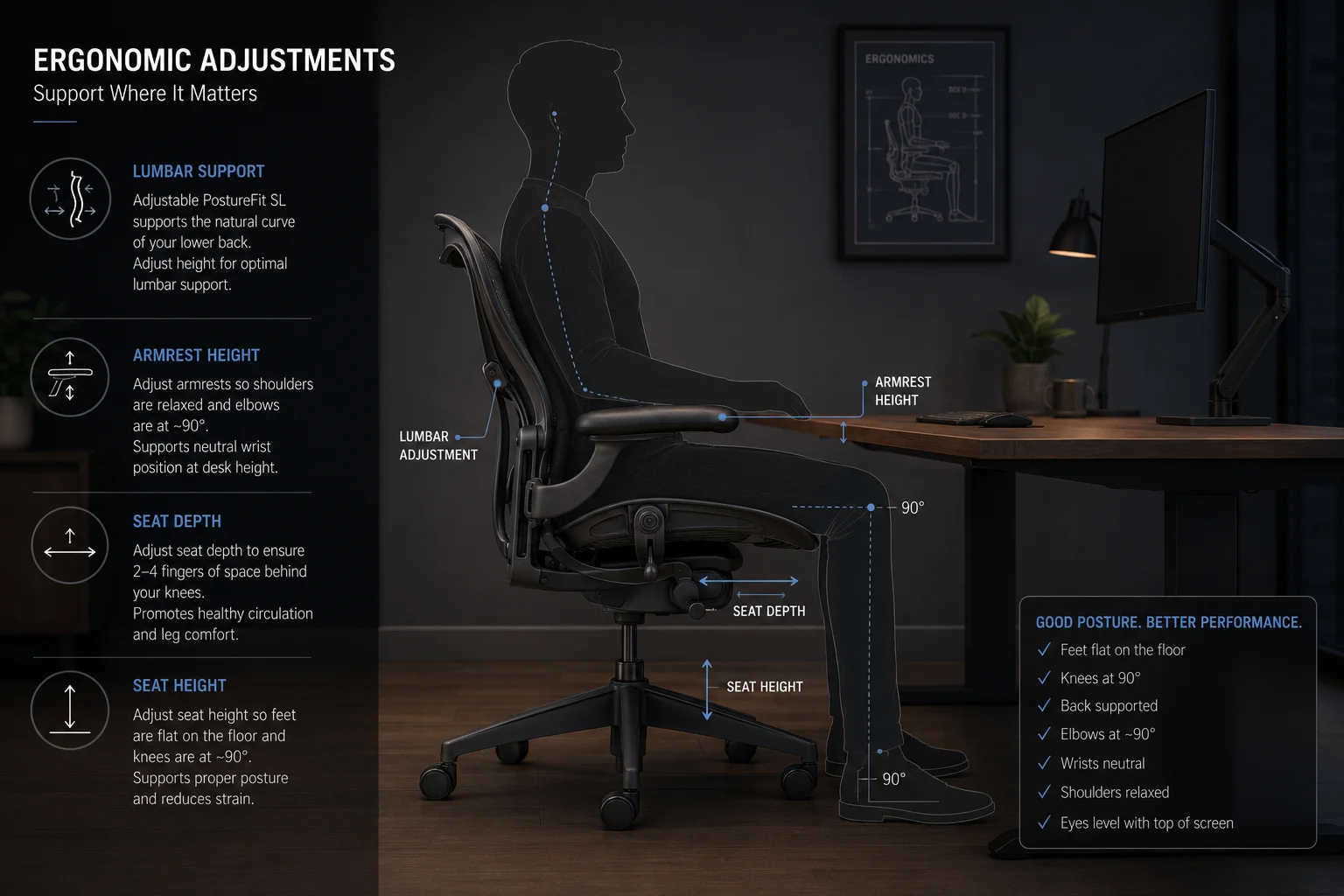
The single most important chair spec is adjustable lumbar support — not “it has lumbar support” but “you can move it up, down, in, and out.” Everyone’s lower back curve sits at a different height. A fixed lumbar bump that hits you in the wrong spot is worse than no lumbar at all. As Cornell University ergonomics professor Alan Hedge put it, if your lower back is not supported by the chair, you need lumbar support.
After that: seat depth adjustment (your thighs should be supported without the front edge digging into the back of your knees), armrests that go low enough to slide under the desk, and a mesh back if your room gets warm.
The Herman Miller Aeron is still the reference point, but there are genuinely good chairs at £300–£500 / ~$380–$640 now. Several are covered in our best office chair roundup.
Is a used office chair worth buying? Yes — more than any other piece of home office equipment. A used Aeron or Steelcase Leap from an office clearance company costs £300–£500 / ~$380–$640 and has another 8-10 years of life left. These chairs are built for 10+ years of commercial use. A 5-year-old Aeron with new arm pads is better than a new £150 / ~$190 Amazon chair every single time. Office furniture liquidators on eBay are your best source — search for “Herman Miller Aeron size B” and filter by refurbished.
Monitor Strategy: One Good Screen Beats Two Bad Ones
A lot of home office guides tell you to buy two monitors. That advice is wrong for most people. A single high-quality 27-inch 4K monitor at the correct height gives you more usable workspace than two cheap 24-inch 1080p panels — and causes fewer neck rotation issues. Also worth considering: opting for 120Hz over 60Hz makes scrolling through long documents and spreadsheets feel substantially smoother, which matters if you spend hours in Excel or code editors.
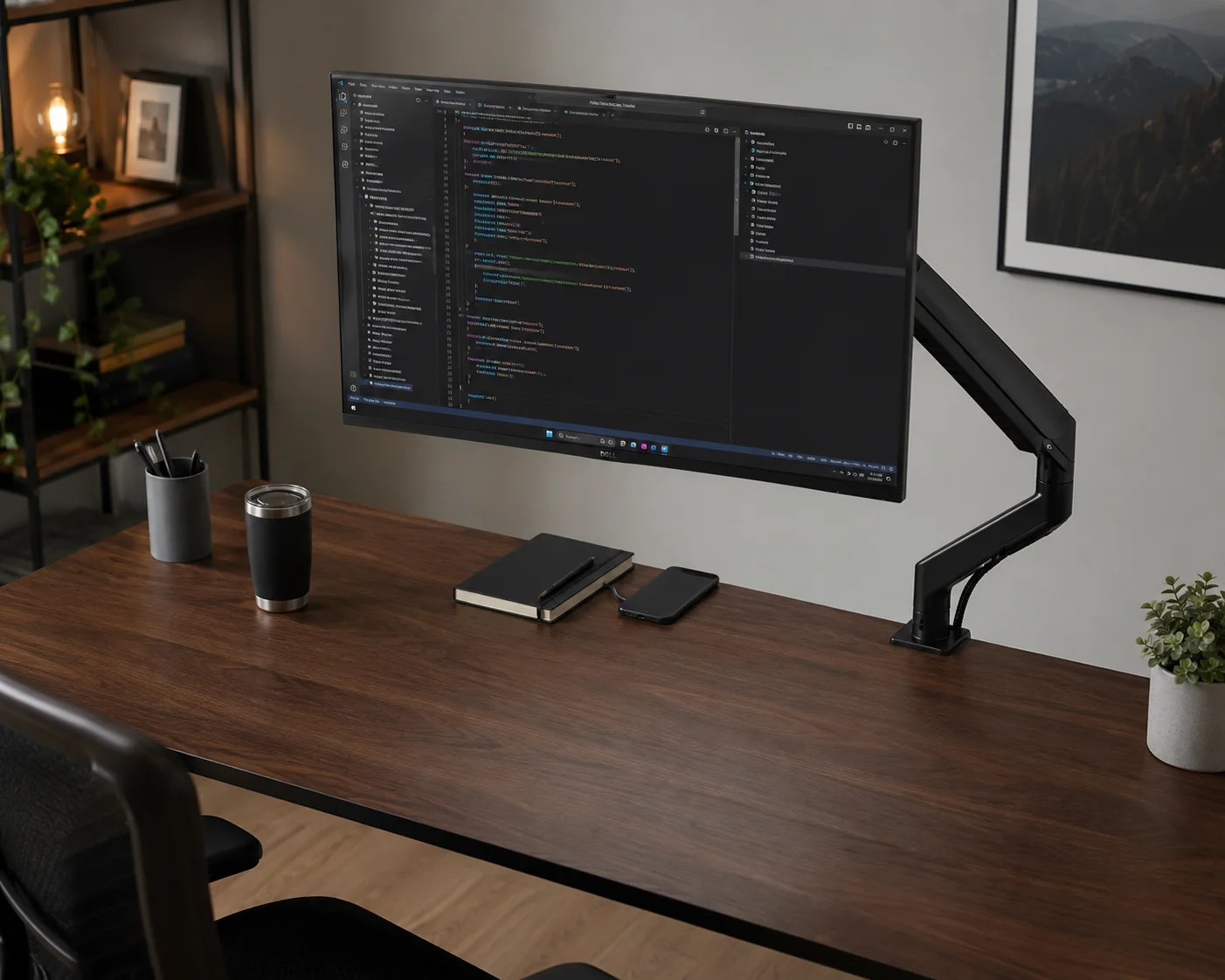
Do I actually need two monitors? It depends on your work. If you write code with documentation open on the side, or design with asset libraries, or trade with multiple charts — dual monitors help. For everyone else, one good 27-inch 4K display with window management shortcuts gives you the same effective workspace without the bezel in the middle. Try a single monitor for two weeks before buying a second one. Our ultrawide vs dual monitor comparison has the full breakdown.
Here is how to think about it:
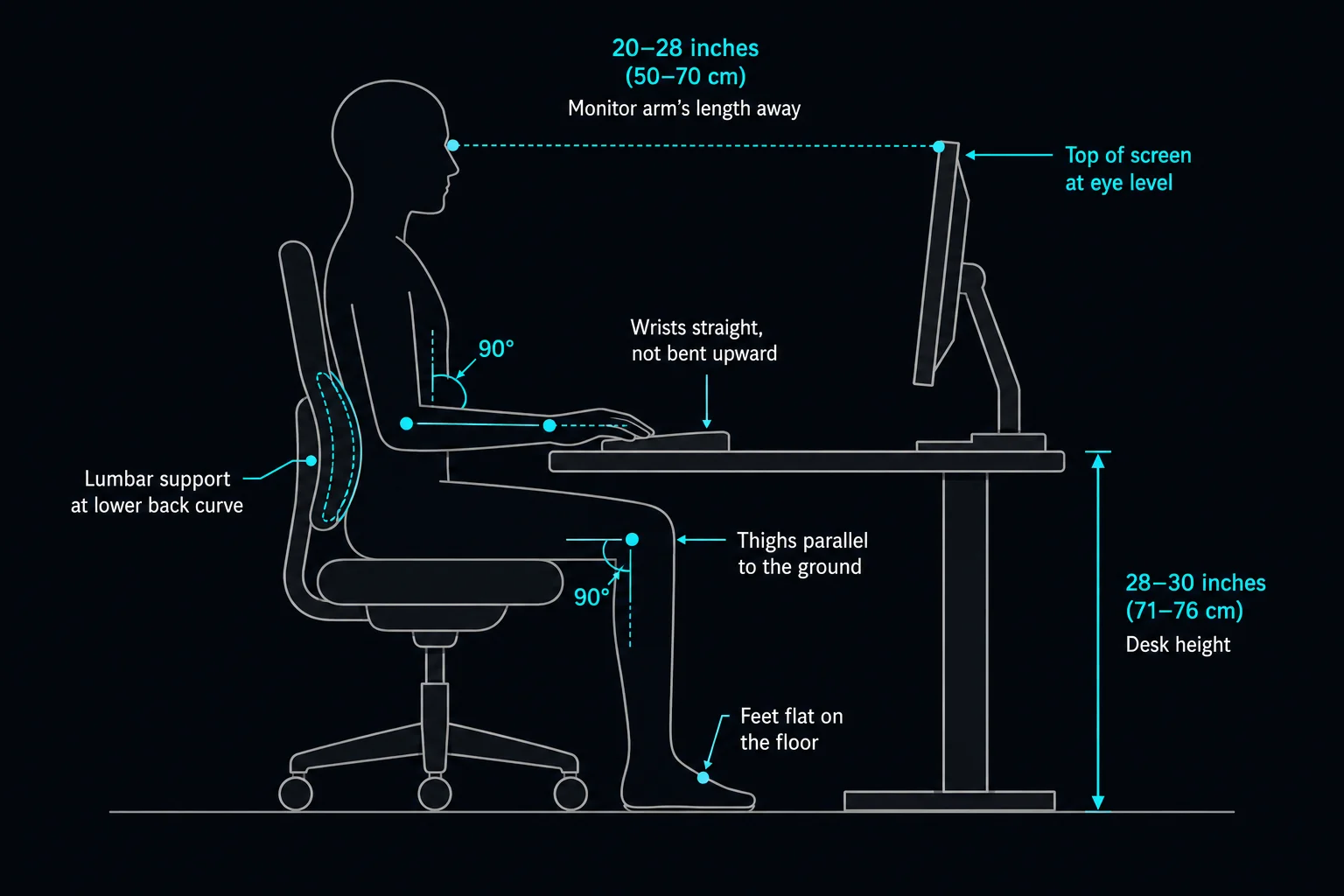
One 27-inch 4K: Best for focused work. Enough resolution to run two documents side by side at readable size. No bezel in the middle. No extra cable.
Two 24-27 inch 1440p: Better for reference-heavy work. But you need the desk width and a consistent monitor pair — mixing resolutions creates constant window-resizing friction.
Ultrawide 34-38 inch: The single-screen experience of dual monitors without the bezel. Great for timeline-based work.
Resolution matters more than most people realise. At 27 inches, 1080p looks soft — text has visible pixel edges. 1440p is the sweet spot for clarity without GPU strain. 4K at 27 inches is beautiful but you will need to use display scaling. The trade-offs are covered in our resolution guide.
Panel type is the other variable. IPS gives you the best colour accuracy and viewing angles — this is the safe default. VA panels have better contrast but slower response. OLED is stunning for media but expensive and has burn-in risk for static taskbars and spreadsheets. Our IPS vs VA vs OLED comparison has the full breakdown. For the complete monitor buying framework, see how to choose a monitor.
For most people, the Dell U2724D at 1440p and 120 Hz is the value pick, and the 27-inch 4K Dell S2722QC is the sharper budget alternative. The U2724D is the monitor most people should buy first.
Monitor Arms: The £30 Upgrade That Changes Everything
A monitor arm frees up desk space, lets you position the screen at the correct height (top of screen at or slightly below eye level), and makes cable management cleaner. Gas-spring arms are smoother than mechanical ones and worth the extra £10–£20 / ~$13–$26. Make sure your monitor has a VESA mount before buying an arm. Our monitor arm roundup covers compatibility and weight limits.
Desk: The Foundation, But Not the First Purchase
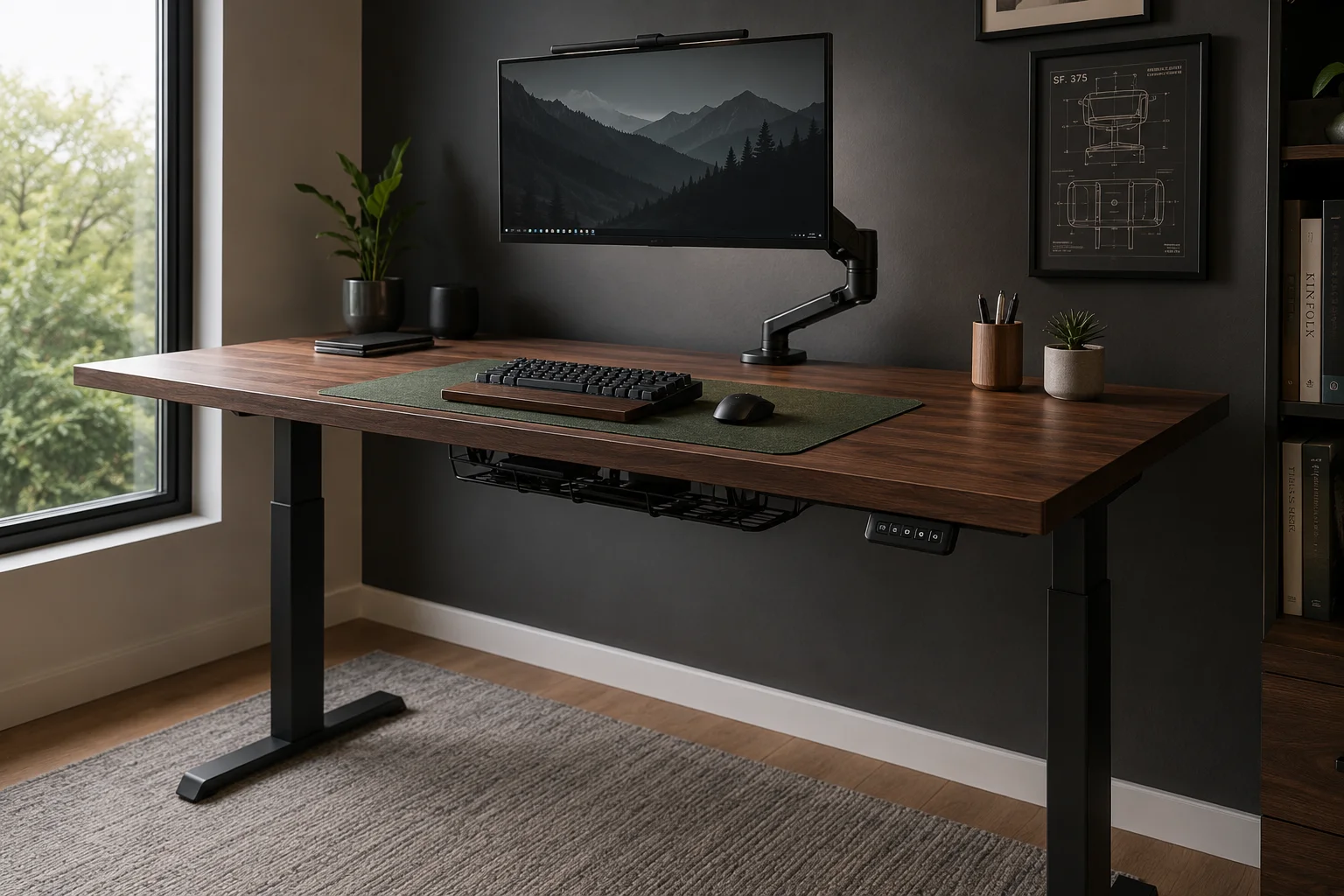
Your desk dictates how everything fits together. If it is too shallow, your monitor is too close. If it is too high, your shoulders hunch. If it wobbles, your typing accuracy drops.
But notice this section comes third, not first. Buy the chair and monitor first, then get a desk that fits both.
Sit-Stand vs Fixed Height
Are standing desks actually worth it? If you work 6+ hours a day at the same workstation — yes. Alternating between sitting and standing reduces lower back pressure and keeps circulation moving. According to Wirecutter’s ergonomic testing, even 15 minutes of standing per hour makes a measurable difference. Electric desks with memory presets are worth the premium — you will actually use the presets. Manual crank desks sound fine in theory and get used approximately never after week two.
If budget is tight, a fixed-height desk at 73cm (standard) with a monitor arm is completely functional. Just make sure the desk is at least 60cm deep — 70-80cm is better for larger monitors.
A 150cm-wide, 75cm-deep desk is comfortable for this, and going narrower than 120cm makes a dual-monitor setup feel cramped. For specific picks, see our best standing desk roundup.
For the desk itself, the FlexiSpot E7 Pro is the standing desk most people should consider first.
Desk Mats: Not Decorative
A desk mat protects the surface, dampens keyboard noise, and defines your workspace zone. Felt mats look good but trap dust. Neoprene is easier to clean. Leather wears best. Our desk mat comparison covers the trade-offs.
Keyboard and Mouse: Your Primary Interfaces
You touch your keyboard more than any other piece of equipment. If you are still using the membrane keyboard that came with your PC, upgrading to a mechanical keyboard is the single biggest feel improvement you can make for under £100 / ~$130.
Switch type matters. Linear switches (red) are smooth and quiet. Tactile switches (brown) have a small bump when the key actuates — good for typists who want feedback. Clicky switches (blue) are satisfying but loud enough to annoy people on calls. Our silent mechanical keyboard guide covers office-safe options.
Layout size is personal. Full-size includes a numpad — useful for spreadsheet work. TKL (tenkeyless) drops the numpad and saves desk space. 75% and 65% layouts are more compact. If you switch between Mac, Windows, and an iPad, a multi-device keyboard with Bluetooth switching saves cable swapping.
For the mouse, shape is the variable most people ignore. A gaming mouse with 12 side buttons is worse for office work than a simple ergonomic mouse that fits your hand. Vertical mice reduce wrist pronation — they look weird but genuinely help if you have RSI issues. Our gaming mouse for productivity guide explains which gaming features actually transfer to office use. Our keyboard and mouse setup guide covers 12 combinations in detail.
The Logitech MX Keys S + MX Master pair is the input combo most office workers should buy first.
If you want silent mechanical keys instead, the Keychron Q1 Max is the quiet option.
Keyboard Shortcuts: The Free Productivity Upgrade
Learning 10-15 keyboard shortcuts saves more time than any hardware upgrade. Our productivity shortcuts guide covers Windows and Mac. If mouse strain is a specific problem, the ergonomic shortcut guide focuses on reducing mouse dependency.
Docks and Hubs: The Part Everyone Gets Wrong
A docking station causes more frustration than any other piece of home office gear because the specs are deliberately confusing. The short version: if you plug one USB-C cable into your laptop and expect it to charge, drive a monitor, and connect your peripherals, you need to understand what your laptop’s USB-C port actually supports. That one port might be Thunderbolt 4, USB4, USB-C with DisplayPort Alt Mode, or plain USB-C data-only — and they all look identical.
Every standard is explained in our Thunderbolt vs USB4 vs USB-C guide. If you are connecting monitors through a dock, also read DisplayLink vs USB-C Alt Mode vs Thunderbolt.
For specific dock recommendations:
– Best USB-C docking stations
– M4 MacBook Pro dual 4K docks
– Best USB-C hubs
If you need one cable to rule them all, the CalDigit TS4 is the Thunderbolt dock to buy.
Lighting: The Overlooked Productivity Variable
How do I reduce eye strain working from home? The answer is not a better monitor — it is better lighting. Bad lighting causes eye strain, and eye strain causes headaches, and headaches cause you to stop working at 2pm. Two things to fix: a monitor light bar that illuminates your desk without screen glare, and a front-facing light source for video calls so your face is not in shadow. Our monitor light bar roundup covers colour temperature, CRI, and mounting compatibility.
For most people, the BenQ Halo 2 is the light bar to buy first.
On a budget, the Xiaomi Mi light bar at £45 / ~$50 covers the same job.
Audio: What Actually Matters for Calls
A good headset with a noise-cancelling microphone matters more than your webcam. People forgive a slightly grainy video feed. They do not forgive not being able to hear you. Wired USB headsets are more reliable than Bluetooth for calls. Our webcam roundup covers cameras, but pay attention to the audio section of any headset review first.
For calls, the Anker PowerConf C200 is the webcam most people should buy first.
Cable Management: The 20-Minute Fix
A tangle of cables under your desk collects dust, makes it harder to clean, and means you cannot easily reposition things. An under-desk cable tray (£15–£25 / ~$20–$32) and some Velcro ties solve 90% of this. Our cable management guide covers trays, raceways, and boxes for different desk types.
Laptop Stands: If Your Laptop Is Your Main Screen
Looking down at a laptop screen for hours compresses your cervical spine. A stand that raises the screen to eye level and pairs with an external keyboard is the minimum viable ergonomic setup. Our laptop stand roundup covers the picks in detail.
The iLevel 2 is the adjustable laptop stand to buy.
The Setup Order: What to Buy First
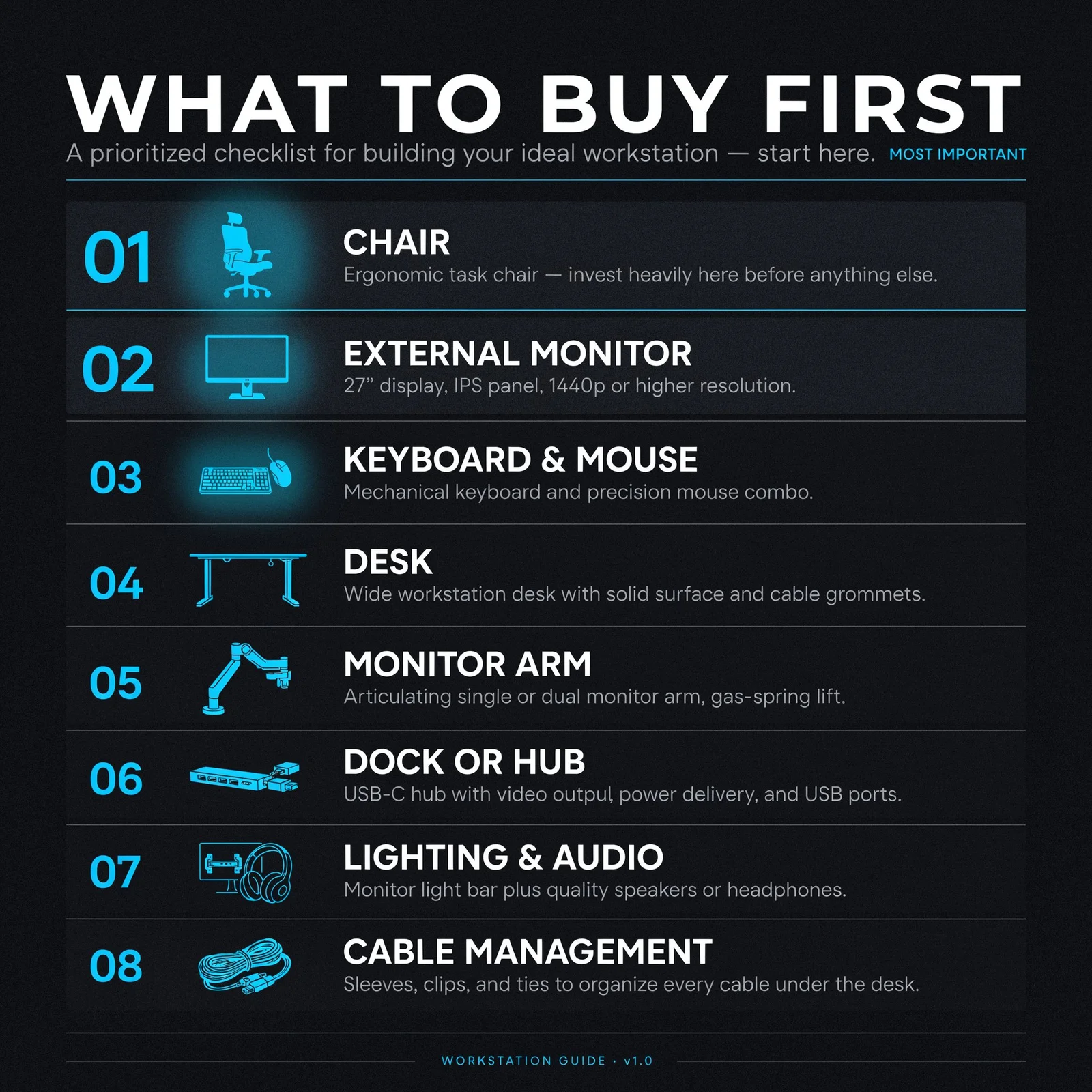
If you are starting from nothing — a laptop on a kitchen table — this is the order to spend money:
1. Chair — Your body notices a bad chair within 2 hours. Everything else can wait.
2. External monitor — A 27-inch 1440p or 4K display at eye level. Laptop screens are too low and too small.
3. External keyboard and mouse — Even a £60 / ~$77 mechanical keyboard is a quality-of-life upgrade over laptop keys.
4. Desk — Now that you have the chair, monitor, and peripherals, you know how much desk space you need.
5. Monitor arm — Frees desk space, fixes screen height precisely.
6. Dock or hub — One-cable connection for everything on your desk.
7. Lighting and audio — Video call quality and eye comfort.
8. Cable management and desk mat — Cleanup and finishing touches.
What to Build Today With £1,500 / ~$1,920
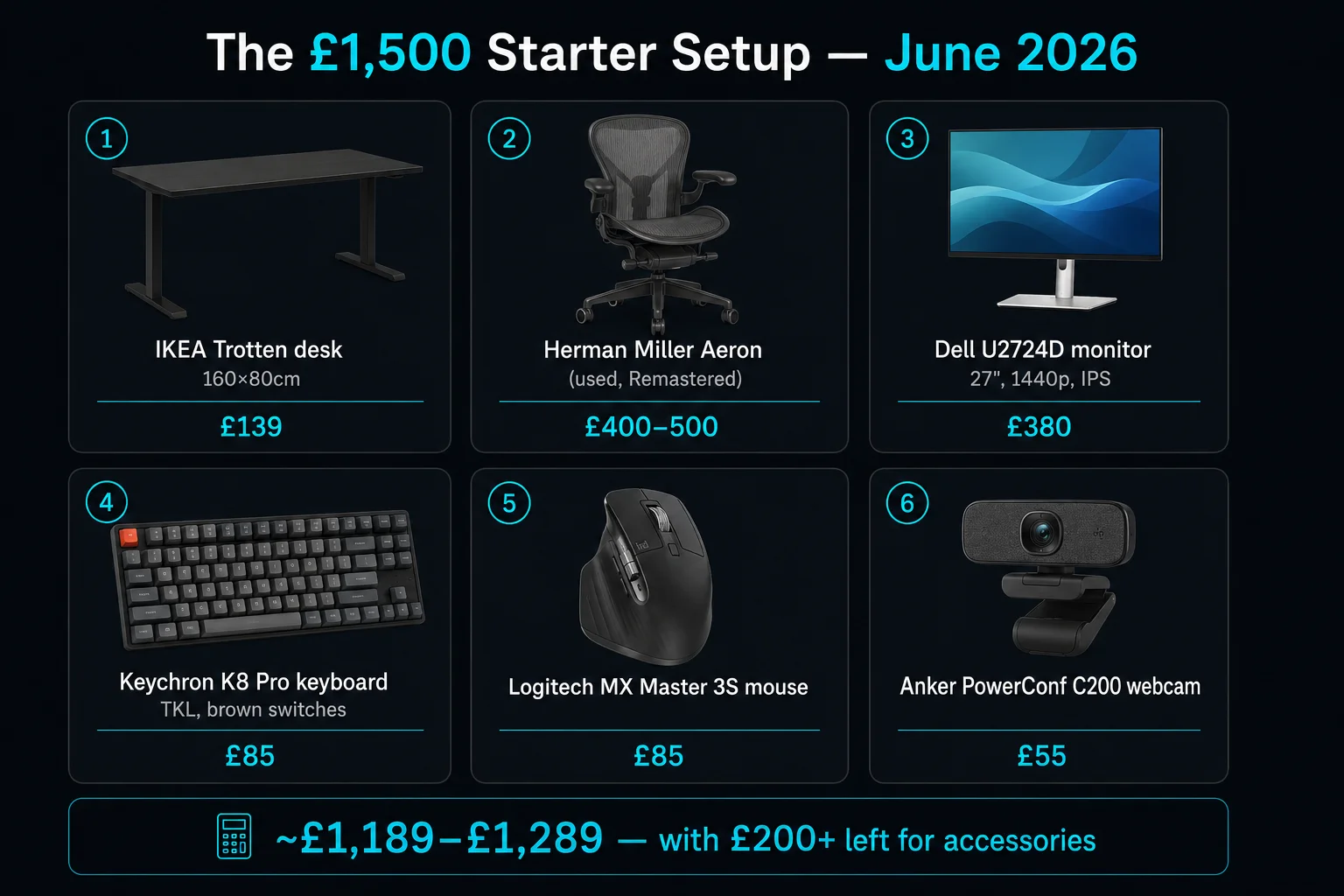
Given £1,500 / ~$1,920 to build a home office from nothing, the sensible move is not to spend it all at once. Here is the exact build, and where the rest of the budget goes.
The core:
- Used Herman Miller Aeron chair: £350 / ~$445. Buying used is the single biggest value move in this guide. New, this chair is over £1,100 / ~$1,400; used, it lands inside the £300-500 / ~$380-640 band this article already covers. The best office chair roundup explains what to check on a used Aeron.
- Dell U2724D 27-inch monitor: £280 / ~$300. 1440p at 120 Hz, and the sharpness-per-pound winner in our 27 vs 32 tests.
- Logitech MX Keys S + MX Master pair: £175-230 / ~$224-294. One keyboard, one mouse, silently handling everything from spreadsheets to code.
Core total: around £830 / ~$1,000.
That leaves roughly £670 / ~$900 of headroom, and here is where the rest goes:
- CalDigit TS4 dock: +£299 / ~$380, if you plan a second display or want every peripheral on one Thunderbolt cable.
- BenQ Halo 2 light bar: +£149 / ~$179, for glare-free evening work.
- Anker PowerConf C200 webcam: +£39-49 / ~$49-60, because calls fill a large part of the working week.
- Or simply keep the change. The core build above is complete on its own, and the desk can be added later from the best standing desk roundup when the budget allows.
Full build with the three upgrades: around £1,320 / ~$1,600, still under the £1,500 / ~$1,920 headline. If you would rather see this as six complete shopping lists instead of a buying sequence, the best desk setups 2026 guide has them all.
The Verdict: Your Home Office Setup in Priority Order
Buy in this exact order: ergonomic chair → monitor → keyboard + mouse → desk → dock → lighting → cable management.
Chairs and monitors account for roughly 80% of your daily comfort. A £1,000 / ~$1,275 standing desk with a bad chair and a 1080p TN panel will feel worse than a £50 / ~$65 IKEA desk with a used Aeron and a good 1440p IPS screen. Get the ergonomics right first, then optimise the desk surface.
For most people, skip the standing desk. A fixed-height desk with a monitor arm and a good chair solves more problems for less money. If you do get a standing desk, get electric with memory presets — you”ll actually use the presets. Manual crank desks get used approximately never after week two.
Recommended starter setup (~£830 / ~$1,000): Used Herman Miller Aeron + Dell U2724D + Logitech MX Keys S + MX Master pair. This setup outlasts your next three laptops and covers 90% of ergonomic needs without a single premium upsell.
Sources
- Wirecutter (The New York Times), “7 Things You Need for an Ergonomically Correct Workstation,” Wirecutter. Retrieved 2026-08-30.
Complete the Setup: Related Guides
- Mobile Device Setup Guide — phone and tablet setup for hybrid workers
- Computer Hardware Basics Guide — understand what’s inside your home office PC
← Back to Ergonomics Hub