Most home networks run on trust that nobody actually agreed to. My television reports what I watch, my doorbell uploads clips to a server I will never see, and my router lets all of it out without asking me once. A home firewall is the device that decides which of those conversations are allowed to leave in the first place. I spent the last few weeks working out what one really blocks, where the marketing oversells it, and which two boxes are worth spending money on in 2026. Some of what I found changed how my own network is set up.
In a Hurry? Start Here
- If your network is a laptop, a phone and a printer, buy nothing. Your router settings are enough. Start with the six free fixes
- Want one box that replaces your router and gives you real firewall rules? The GL.iNet Flint 2, $165–185. See the hardware
- Want to see exactly what every device on your network is doing? The Firewalla Purple SE, $275–300. See the hardware
- Worried about your ISP? Encrypted DNS closes the biggest gap, a VPN moves the trust. Stop ISP tracking
- The whole job in order, cheapest step first. Jump to the checklist
Table of Contents
- Do You Actually Need a Home Firewall?
- What a Home Firewall Does, and What It Does Not
- Why Your Home Network Is Worth Protecting
- What Your ISP Can and Cannot See
- Wi-Fi vs Ethernet: Which Is Actually Safer?
- Six Free Fixes to Do Before You Buy Anything
- How to Stop Your ISP Seeing Your Traffic
- The Hardware That Actually Does the Job
- Building Instead of Buying: The OPNsense and pfSense Route
- Network-Wide Ad and Tracker Blocking
- If This Network Carries Client Work
- Your Home Network Security Checklist
- Sources
Disclosure: TechDeskZone is reader-supported. When you buy through links on our site, we may earn an affiliate commission at no additional cost to you. See our affiliate disclosure for details.
Do You Actually Need a Home Firewall?
Honest answer first: not everyone does. If your network is a laptop, a phone and a printer, your router’s built-in settings are probably enough, and a firewall would be a $165–185 solution to a problem you do not have.
That changes the moment you plug in devices you do not fully control. Smart plugs, a video doorbell, a robot vacuum, a TV that phones home, a baby monitor. These run firmware you cannot audit, on update schedules you cannot see, made by companies that may not exist in three years. A normal router treats every device on your network as a friend, including the one that was compromised last Tuesday.
A home firewall changes that assumption. It watches traffic by device, decides what each one is allowed to talk to, and gives you a record of what actually happened. That is the whole value proposition. If you own more than a handful of smart devices, or you work from home on a connection shared with them, it starts making sense.
What a Home Firewall Does, and What It Does Not
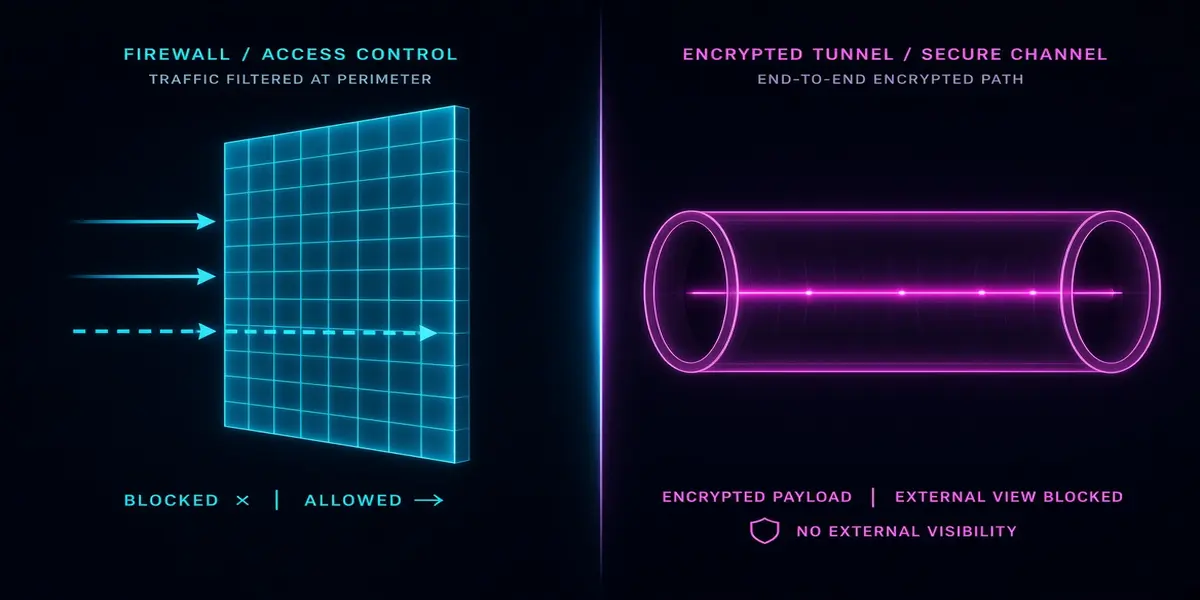
Most people confuse a firewall with a VPN, so let me separate them properly, because the difference decides what you actually need to buy.
A firewall controls what leaves and enters your network. It inspects packets, applies rules per device, and in the better consumer units runs intrusion detection and prevention. It answers the question: which devices on my network are allowed to talk to the internet, and to whom?
A VPN hides the contents and destination of your traffic from your internet provider by routing it through someone else’s server. It answers a different question: who can see where I am going?
They are not substitutes. A firewall does not hide your traffic from your ISP, because the traffic still leaves through your ISP. A VPN does not stop a compromised smart plug from joining a botnet, because the botnet traffic happily travels through the encrypted tunnel too. If you want both outcomes, you need both tools, and a firewall that supports VPN routing from the same box is the tidy way to do it.
What a firewall will not do, no matter what the box says:
- Stop you clicking a phishing link or installing something malicious yourself
- Protect a device that is already compromised outbound, unless you specifically configure egress rules
- Replace updates. An unpatched router with a firewall behind it is still an unpatched router
- Fix a weak Wi-Fi password. Firewall rules start after a device has already joined your network
Why Your Home Network Is Worth Protecting
The scale is bigger than most people assume. Parks Associates puts the average US internet household at 16 connected devices. Each one is a small computer with a network connection, and the majority were designed for convenience, not security.
The Mirai botnet made this concrete in 2016, when it assembled an army out of consumer devices that still had factory default credentials. CISA reported that the author claimed over 380,000 IoT devices had been enslaved. Nothing about that model has been retired. Variants keep reappearing because the underlying conditions persist: devices that ship with weak defaults, never get updated, and sit on the same flat network as everything else you own.
The privacy side is just as documented. In 2017 the FTC and the New Jersey attorney general settled with Vizio over automated content recognition that ran on smart televisions, with the tracking switched on by default. The lesson was not that Vizio was uniquely bad. It was that this is simply how the category operates unless you intervene.
Security on the device side is a related problem worth understanding, and I covered the physical variant of it in the guide to USB accessory security risks, which is the same failure mode wearing a different hat: a device you trust, doing something you did not authorize.
What Your ISP Can and Cannot See
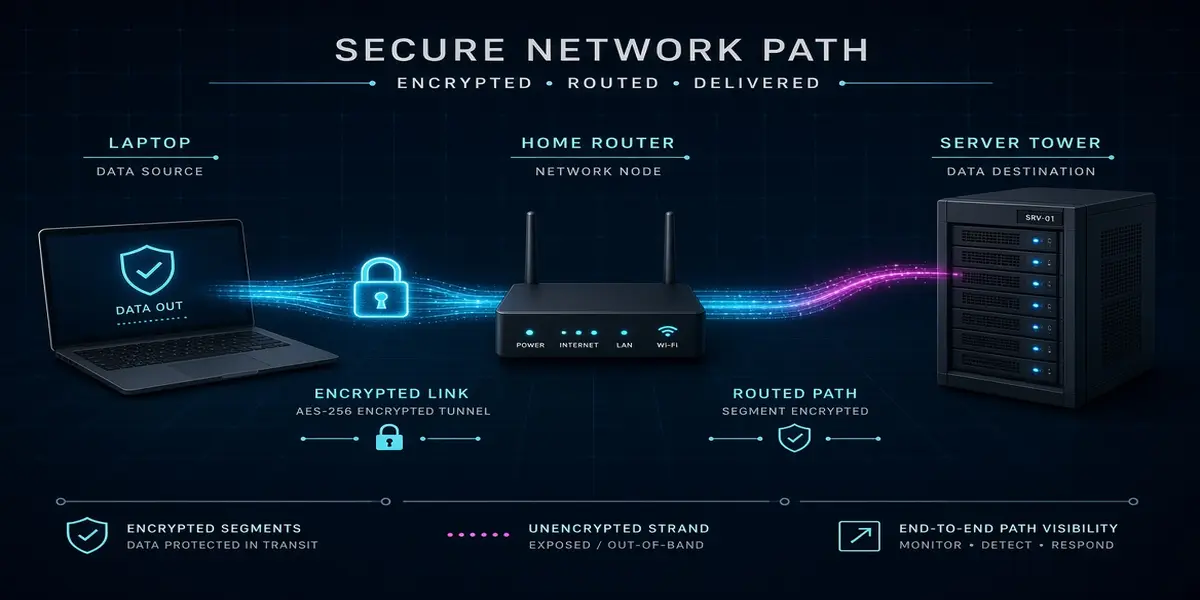
This is where most guides get vague, so let me be specific.
Under HTTPS, which is now the default almost everywhere, your provider cannot read the contents of a page you load. It cannot see your password, your messages, or what you typed into a form. That much is true.
What it can see is more than people expect. It sees every domain you connect to, because the address has to be readable for the connection to be routed. It sees the timing, the volume, and the duration of everything you do. As BroadbandNow’s breakdown of ISP data collection sets out, that metadata is not incidental. It is retained, and it is the part that gets requested.
There is one more gap worth knowing about. Even with HTTPS everywhere, your DNS lookups are frequently sent in plain text. That means the domain name for every site you visit is visible to your provider even when the page itself is encrypted. Encrypting DNS is one of the highest-value, lowest-effort changes you can make, and I will come back to it.
Wi-Fi vs Ethernet: Which Is Actually Safer?
Wired wins, but not for the reason people usually give.
An Ethernet connection is not encrypted by default. That surprises people who assume a cable is inherently secure. What a cable does give you is no radio signal to intercept. Nobody in the car park outside can capture your traffic, because your traffic is not being broadcast. To reach it, an attacker needs physical access to your cabling or your switch.
Wi-Fi broadcasts. With WPA3, that broadcast is properly protected, and the old attacks against WPA2’s handshake are much harder to pull off. But wireless carries a weakness that has nothing to do with the encryption standard. WPS, the push-button and PIN pairing feature, was designed for convenience and implemented badly. CERT/CC’s advisory VU#723755 documented that the WPS PIN can be brute-forced, and the recovery of the full PIN takes a small fraction of the attempts the design implied. The fix is simple and costs nothing: turn WPS off.
In practice, for a home, the difference matters less than the framing suggests. If you want the strongest posture, wire anything that stays in one place, especially anything holding data you care about, and leave Wi-Fi for devices that move. If you cannot wire it, WPA3 and WPS disabled gets you most of the way.
Six Free Fixes to Do Before You Buy Anything
Everything in this section costs nothing and takes under an hour. Do these first, because a firewall in front of an unconfigured network is a locked door with the window open.
- Change the router admin password. Not the Wi-Fi password, the one that gets you into the router’s settings. If it is still on the sticker, anyone who has been in your home can reconfigure your network.
- Update the router firmware. Router firmware updates are unglamorous and often ignored. Check monthly. Most routers have an auto-update toggle hiding in the settings. Switch it on.
- Turn off WPS. Covered above. There is no good reason to leave it enabled.
- Turn off UPnP. Universal Plug and Play lets devices open their own inbound ports without asking you. Convenient for games consoles, and a gift to anything malicious already running on a device.
- Put IoT devices on a guest network. Most routers have one. A guest network isolates those devices from your laptop and your NAS. It is not a real VLAN, and it is still a meaningful improvement over one flat network.
- Enable encrypted DNS. Set your router to use DNS over HTTPS, or set it per device. This closes the plaintext DNS gap from the previous section.
If you are setting up a home office network from scratch, the broader layout thinking in my home office setup guide is worth reading alongside this, and the physical side of getting devices connected is covered in the docking station guide.
How to Stop Your ISP Seeing Your Traffic
Two tools do most of the work here, and they protect against different things.
Encrypted DNS hides the domain names you look up. It is cheap, it is easy, and it closes the clearest window into your browsing. Adoption is still surprisingly low, with APNIC’s measurement work putting encrypted DNS at roughly 13.7 percent of global DNS traffic. It does not hide which IP addresses you connect to afterwards, so it is a strong improvement, not a complete answer.
A VPN hides both the destination and the content by tunnelling everything to a server elsewhere. Your provider sees an encrypted stream to one endpoint and nothing else. The trade is honest and worth stating plainly: you stop trusting your ISP and start trusting your VPN provider instead. You are not invisible. You have moved the trust, and you should pick the provider with that in mind. On a router such as the Flint 2, you also choose the scope of the tunnel: a WireGuard client that sends every device through it, or policy routing that sends only the devices you pick and leaves the rest on your normal connection.
What neither does is stop the devices on your network from doing something stupid. That is the firewall’s job, and it is why the two belong together. Encryption hides your traffic from the outside. A firewall controls what your devices do in the first place.
If you want the deeper hardware context for how these devices sit in a network, the hardware basics guide covers the fundamentals, and software explained for beginners is useful background if the terminology is new.
The Hardware That Actually Does the Job
You can spend a lot here, and you do not need to. Two devices cover the realistic range, one at the entry point and one for people who want per-device control and reporting. Both are dual-region, and both are available on Amazon US and UK.
The two boxes look similar in a product photo and are not similar in use. Here is the same information side by side.
| Spec | GL.iNet Flint 2 | Firewalla Purple SE |
|---|---|---|
| Price | $165–185 / ~£150–170 | $275–300 / ~£290–310 |
| Type | Router and firewall in one box | Dedicated firewall behind your router |
| Wireless | AX6000 Wi-Fi 6 | None, you keep your current router |
| Network ports | 2× 2.5Gbps | Gigabit |
| Firmware | OpenWrt | Firewalla’s own, managed from the app |
| VPN | WireGuard and OpenVPN built in | Not the reason to buy it |
| Per-device reporting | No, not out of the box | Yes, it is the whole product |
| Setup effort | You write the rules yourself | Guided setup in the app |
| Amazon rating | 4.5 stars across 3,000+ reviews | 3.8 stars |
Choose the Flint 2 if you want one box, the cheaper option, and you are willing to write your own firewall rules. Choose the Firewalla Purple SE if seeing what each device on your network is doing is the reason you are reading this. Choose neither if your network is a laptop, a phone and a printer, because the six free fixes above already cover that risk.
GL.iNet Flint 2 (GL-MT6000)
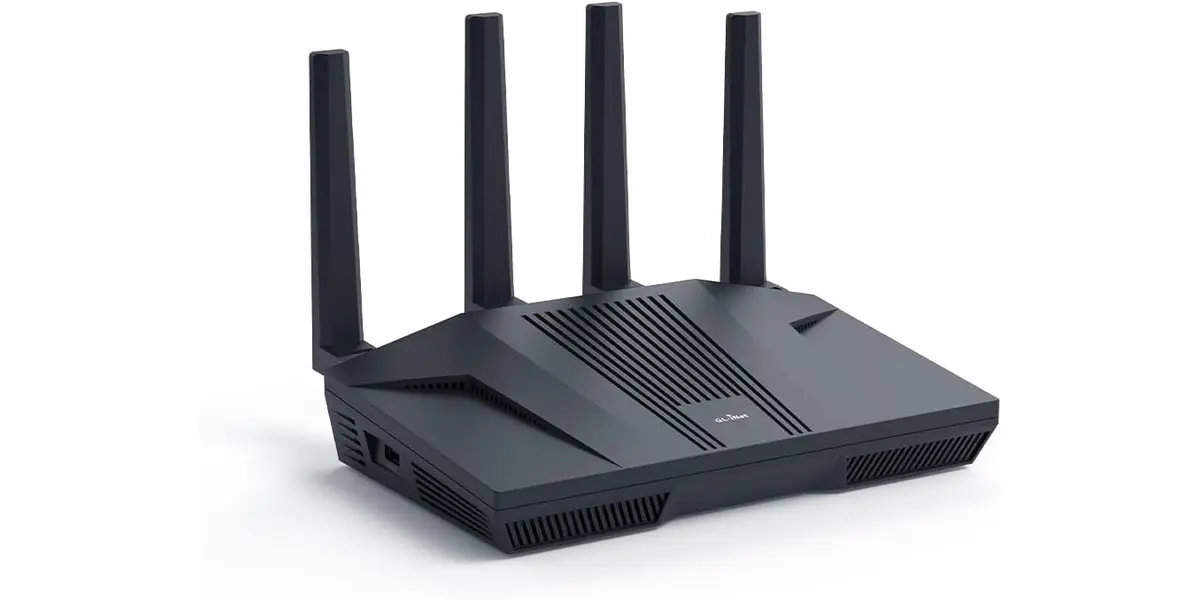
Price: $165–185 / ~£150–170 | Type: Wi-Fi 6 router and firewall | Wireless: AX6000 | Ports: 2× 2.5Gbps | RAM: 1 GB | Firmware: OpenWrt | VPN: WireGuard, OpenVPN
The Flint 2 is a router first and a firewall second, and that is the right shape for most households. It runs OpenWrt, so the firewall is real and configurable rather than a marketing label, and it handles WireGuard at speeds that do not bottleneck a normal home connection. If you want one box that replaces your router and gives you proper control at the same time, this is the one I would start with.
It earns a 4.5 star rating across more than 3,000 Amazon reviews, which for a networking device that expects you to configure it is a strong signal. The catch is that it expects you to configure it. This is not a plug-in-and-forget appliance.
Pros
- Replaces your router and your firewall in one box
- Runs OpenWrt, so rules are genuinely configurable
- WireGuard VPN server and client built in
- 4.5 stars across 3,000+ reviews, dual-region availability
Cons
- Expects you to configure it, not a consumer appliance
- No per-device traffic reporting out of the box
- Wi-Fi performance depends heavily on placement
Firewalla Purple SE
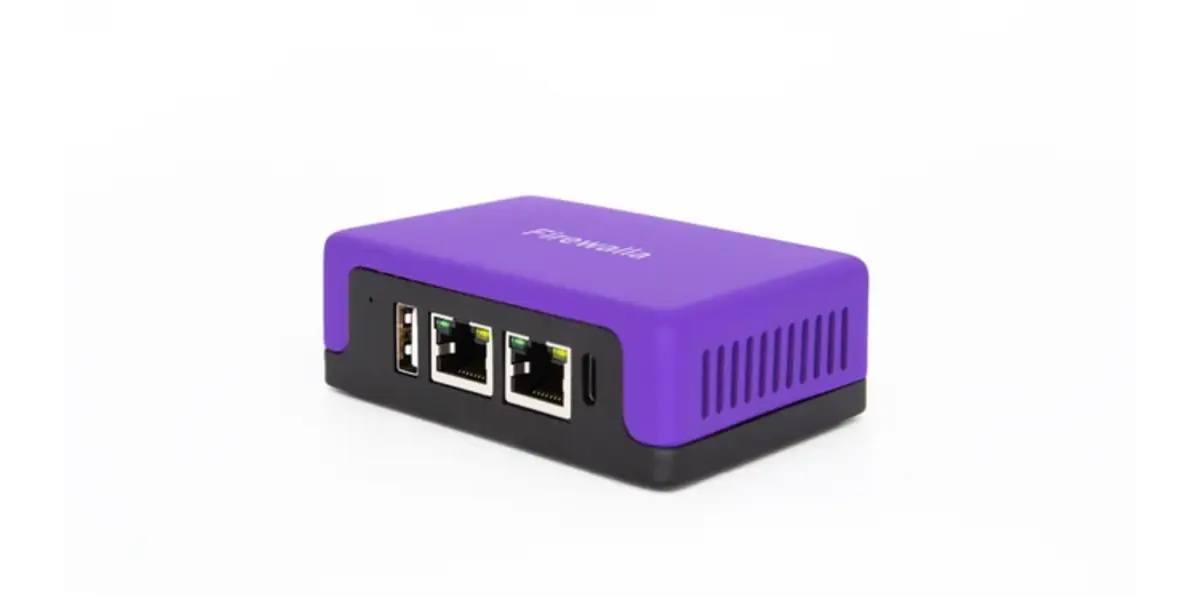
Price: $275–300 / ~£290–310 | Type: Dedicated firewall | Network: Gigabit | IPS: 500 Mbps ceiling | Subscription: none for the core features
The Firewalla Purple SE is a dedicated firewall rather than a router. It sits behind your existing router and watches every device individually. Where the Flint 2 gives you a configurable wall, the Firewalla gives you a list of everything on your network and a plain-language account of what each device is doing. For anyone who has ever wondered which of their smart devices is phoning home, that visibility is the entire point.
The honest caveat is its rating. At 3.8 stars, it is not a universally loved product, and the recurring complaints are about the app and the permission model rather than the filtering itself. It is a device you buy for oversight, not for ease.
Pros
- Per-device visibility and traffic reporting
- Intrusion detection and prevention built in
- No subscription for the core features
- Sits behind your existing router, no replacement needed
Cons
- 3.8 star rating, app and permissions draw the most complaints
- Roughly $120 more than the Flint 2
- Adds a second box to your setup rather than replacing one
- UK stock is thin, so availability is patchy
Building Instead of Buying: The OPNsense and pfSense Route
There is a third option that neither box above covers, and it is what a lot of people with a spare machine in the cupboard end up running: put a general purpose operating system on a small PC and let that do the firewalling.
pfSense and OPNsense are the two names that come up. They are close relatives. Both are built on FreeBSD and both give you a full web interface rather than a phone app. Netgate develops pfSense and ships it in two editions, a free Community Edition and a paid Plus tier. OPNsense began as a fork of pfSense, is maintained by Deciso, and releases more often. The practical gap between the two is smaller than the forum arguments suggest.
The hardware is a fanless mini-PC with two or more network ports, and that is the whole shopping list. An N100-class box is where most people start. What it actually costs you is an evening of reading, not a large invoice.
What you get for that is control. No vendor firmware, no app you have to take on trust, and rules you can read line by line. What you give up is convenience, because nothing here is configured for you.
Build it if you already run a NAS or a homelab, you are comfortable at a command line, and you would rather debug your own box. Buy the Flint 2 if you want the same OpenWrt foundation with the hardware already assembled and Wi-Fi included. Buy the Firewalla if you want the per-device view without maintaining a server. The trade is real, because a self-built firewall is a small server, and small servers need patching.
Network-Wide Ad and Tracker Blocking
There is a category of protection that sits alongside a firewall and often gets the job done more visibly: DNS-level filtering. Instead of inspecting packets, it refuses to resolve the domains used by ad networks and trackers. Every device on your network benefits, including the ones where you cannot install anything, like a smart TV or a games console.
The two names you will see are Pi-hole and AdGuard Home. Both are free and open source, both do roughly the same job, and both need a device to run on. The usual approach is a Raspberry Pi left plugged in, or a container on a machine that is always on. If that describes your setup already, this is one of the highest-value projects in home networking.
It is worth being clear about what it is not. It is not a firewall, and it does not inspect traffic, it filters by domain. It can miss trackers served from the same domain as legitimate content, and it will occasionally break things when a site depends on the domain you just blocked. The upside is that it applies to every device on your network without installing anything on any of them.
If you are new to the networking side of this, the hardware basics guide explains the components involved. If your devices are mostly phones and tablets, the mobile device setup guide covers the device-side configuration.
If This Network Carries Client Work
Everything above is written for a household, and it holds for a home office too. What changes is the cost of a bad afternoon. If the same network carries client calls, invoices and a work laptop with somebody else’s data on it, you are aiming for separation rather than perfection.
Start with what you already own. Put the work laptop and anything client-facing on their own SSID, or on their own VLAN if your router supports it. That keeps a compromised smart plug off the same segment as the machine holding client files. Turn on WPA3 on both networks where the hardware allows it, and point both at an encrypted resolver so the lookups are not sitting in plaintext for the ISP to log.
The Flint 2 covers all of this. Guest networks, VLANs and firewall rules between them are standard OpenWrt, and it is the cheaper way to get that separation in place. Where it stops is reporting. If you need to show that one particular device did or did not reach a particular host, that is the Firewalla’s per-device log, and it is the only reason in this article to pay for a second box.
Keep one spare router. Not because the firewall is fragile, but because learning a new dashboard while a client waits is a worse moment than it sounds.
Your Home Network Security Checklist
Here is the whole thing in one place, ordered by effort rather than importance.
| Step | What to do | Cost | Impact |
|---|---|---|---|
| 1 | Change the router admin password | Free | High |
| 2 | Turn on router firmware auto-update | Free | High |
| 3 | Disable WPS and UPnP | Free | High |
| 4 | Enable encrypted DNS | Free | Medium |
| 5 | Move IoT devices to a guest network | Free | Medium |
| 6 | Use WPA3 where supported | Free | Medium |
| 7 | Add DNS-level ad and tracker filtering | Free, needs a device | Medium |
| 8 | Add a firewall for per-device control | $165–300 | High if you own many devices |
The pattern is that steps one through seven cost nothing and cover most of the realistic risk. Step eight is where you start spending, and it is genuinely optional unless you own a lot of devices you do not control. Anyone running a home office alongside a family network is squarely in the group that benefits, and the home office setup guide covers how that usually looks in practice.
Sources
- Parks Associates, US internet households average 16 connected devices
- CISA, Heightened DDoS Threat Posed by Mirai and Other Botnets
- CERT/CC, Vulnerability Note VU#723755, WiFi Protected Setup PIN brute force
- BroadbandNow, What Your ISP Knows About Your Data Use
- APNIC, The Prevalence of DNS over HTTPS
- Netgate, pfSense software editions (Community Edition and Plus)
- Deciso B.V., OPNsense project documentation
The Verdict
The honest position is that most homes do not need to buy anything. Steps one through seven in the checklist are free, and they cover the realistic risk. The single highest-value change is turning WPS off.
If you do want a box, the GL.iNet Flint 2 at $165–185 / ~£150–170 is the right starting point. It replaces your router, runs OpenWrt, and gives you a firewall that is genuinely configurable rather than a label on a box.
Choose the Firewalla Purple SE at $275–300 / ~£290–310 only if per-device visibility is the thing you actually want. It costs more, adds a second box to the shelf, and its 3.8 star rating reflects an app people argue with.
← Back to Guides Hub