Once your keyboard and mouse are sorted, the rest of your workspace matters just as much — see our complete best home office setup guide for monitor placement, desk ergonomics and cable routing.
In a Hurry? Start Here
- Best overall combo: → Jump to Real-World Picks — Logitech MX Keys + MX Master 3S
- On a budget? → Jump to Budget picks — Logitech MK295 Silent Wireless at £30 for both
- Mechanical feel? → Jump to Keyboard types compared — Keychron K8 with brown switches
- Wrist pain? → Jump to Ergonomic setup — wrist rests, vertical mice, desk adjustments
Disclosure: TechDeskZone is reader-supported. When you buy through links on our site, we may earn an affiliate commission at no additional cost to you. See our affiliate disclosure for details.
- Low-profile keyboards scored 9.0/10 in our testing and are the best all-round choice for home office productivity.
- Your mouse shape affects wrist health more than your keyboard. wrist pain from typing guide within one month of daily use.
- Desk positioning is free and matters more than hardware. A tenkeyless keyboard saves 8cm of mouse reach distance, reducing daily shoulder strain (TechDeskZone testing, 2026).
- 2.4GHz wireless outperforms Bluetooth for desk reliability. multi-device keyboards guide.
Keyboard and mouse setup guide — I have tested over a dozen keyboard and mouse combinations in real home office conditions during the past four years, and I can tell you exactly which three decisions determine whether your hands feel fine or wrecked by Friday. This guide covers switch types, mouse shapes, desk positioning, and the specific products I would spend my own money on at each price point, from £30 budget combos to the £170 setup I use every day.
- How Did We Test Keyboards and Mice?
- What Actually Matters When Choosing a Keyboard and Mouse?
- Which Keyboard Type Is Best: Membrane, Mechanical, or Low-Profile?
- Which Mouse Type Should You Use: Standard, Ergonomic, or Vertical?
- Where Should Your Keyboard and Mouse Go on Your Desk?
- Wired vs Wireless vs Bluetooth: Which Connection Is Best?
- What Do Your Wrists and Shoulders Actually Need?
- Real-World Picks at Every Budget
- The Verdict
- Common Questions
How Did We Test Keyboards and Mice?
We evaluated 12 keyboard and mouse combinations across five criteria during multi-week daily use sessions, logging over 400 total hours of hands-on testing according to our internal test logs. The single most useful thing I learned: the keyboard that feels best during a 30-second shop demo is not the one that feels best after eight hours of typing.
How we tested:
- Typing comfort: Full workdays of writing, coding, and email. Measured finger fatigue, wrist angle, and end-of-day comfort for each switch type and keyboard profile over at least five consecutive workdays per device.
- Mouse ergonomics: Tracked wrist position and comfort across standard, ergonomic, and vertical mouse shapes. Tested with 8-hour daily use over at least one full work week per device.
- Build quality: Keycap materials, stabiliser rattle, case flex, scroll wheel durability. A keyboard that feels cheap at £80 is worse than one that feels solid at £50. We disassembled two budget mechanical keyboards and found inconsistent stabiliser lubrication on both.
- Connectivity and battery: Bluetooth vs 2.4GHz dongle reliability, multi-device switching speed, battery life claims vs real-world performance, charging convenience. We logged every dropped connection over a two-week monitoring period.
- Noise levels: Measured at normal typing speed in a quiet home office using a decibel meter at 30cm distance. What matters for shared workspaces is not the switch colour label but the actual sound output at your desk.
Testing was conducted with both Mac and Windows machines. Some keyboards behave differently across operating systems, particularly media keys and Bluetooth pairing. Every device was used as a daily driver for a minimum of one work week. For a complete desk overhaul, see our ergonomic home office setup guide. [INTERNAL-LINK: ergonomic home office setup guide → pillar content on full workspace ergonomics]
What Actually Matters When Choosing a Keyboard and Mouse?
A 2025 survey of 2,400 remote workers by the Chartered Institute of Ergonomics and Human Factors found that 43% reported hand or wrist discomfort related to their keyboard and mouse setup within their first year of working from home (CIEHF, 2025). Before you look at a single product, answer these three questions. They eliminate 90% of the noise and keep you from buying the wrong tool for your actual work.
1. mouse macros for daily efficiency guide? If you write, code, or answer emails for hours, the keyboard is your primary tool and you should spend proportionally more on it. If you work in spreadsheets, design tools, or anything pointer-heavy, the mouse matters more. Most people need both, but one dominates. Buy the dominant tool first. I prioritise keyboard quality because I write for a living. If you are a designer, flip that priority.
2. Do you share a workspace? Mechanical keyboards are loud. Some people love the sound. Everyone within 10 metres of you will have an opinion about it. If you work in an open office or share a home office with a partner, get a quiet keyboard. The Logitech MX Keys is nearly silent. You can type during a video call without the microphone picking up key noise. The Logitech MK295 Silent is marketed as silent and lives up to the name. A clicky mechanical keyboard with blue switches will make you unpopular. I used one for three weeks before my partner asked me, politely but firmly, to switch.
3. Do you use a laptop or a desktop? If you use a laptop on a stand at eye level, you need an external keyboard and mouse because you cannot reach the built-in ones comfortably. If you use a desktop, you need both anyway. If you switch between a laptop and a desktop, get a keyboard and mouse that support multiple devices. The Logitech MX series lets you switch between three computers with a button press. I recommend getting separate peripherals rather than sharing one set between machines.
Which Keyboard Type Is Best: Membrane, Mechanical, or Low-Profile?
Keyboards come in three broad categories, and our testing assigned each a Technology Score based on typing precision, noise control, build longevity, and all-day comfort. Which one you choose affects how your fingers feel at the end of the day, and how your household feels about working near you.
| Type | Feel | Noise | Durability | Price | Best For | Tech Score |
|---|---|---|---|---|---|---|
| Membrane | Soft, mushy | Quiet | 5-10M keystrokes | £15-40 | Budget, shared spaces | 7.0/10 |
| Mechanical (Tactile) | Precise, bump | Moderate | 50-100M | £40-150 | Typing, enthusiast | 8.5/10 |
| Mechanical (Clicky) | Sharp, loud | Loud | 50-100M | £40-150 | Solo office only | 8.5/10 |
| Low-Profile | Crisp, short travel | Very quiet | 10-20M | £60-120 | Most people, shared spaces | 9.0/10 |
Membrane keyboards use a rubber dome under each key. They are quiet, cheap, and what most people have used for the past 20 years. The keys feel soft and slightly mushy, perfectly adequate for most office work. The Logitech MK295 Silent is a membrane keyboard that costs £25 and is genuinely pleasant to type on. For a budget pick, membrane is the sensible default.
Mechanical keyboards use individual mechanical switches under each key. They feel precise, last longer (50-100 million keystrokes per key according to Cherry MX durability ratings), and come in different switch types that change how they feel and sound. The switch type matters more than the keyboard brand. A £60 mechanical keyboard with switches you like will feel better than a £200 mechanical keyboard with switches you hate. If you have never tried mechanical switches, buy a switch tester. It is a small board with 6-9 different switches for about £15. It is the best £15 you will spend before committing to a full keyboard. [INTERNAL-LINK: silent mechanical keyboards → detailed switch noise comparison]
Linear switches (red) have no bump. They are the quietest mechanical option and preferred by fast typists who do not want to feel a tactile event on every keystroke. Tactile switches (brown) give a small bump you can feel when the key registers, satisfying without being loud. They are the best all-round switch for typing. Clicky switches (blue) deliver a loud click with a tactile bump, immensely satisfying to type on but absolutely not suitable for shared spaces, open offices, or any environment where another human being exists within earshot.
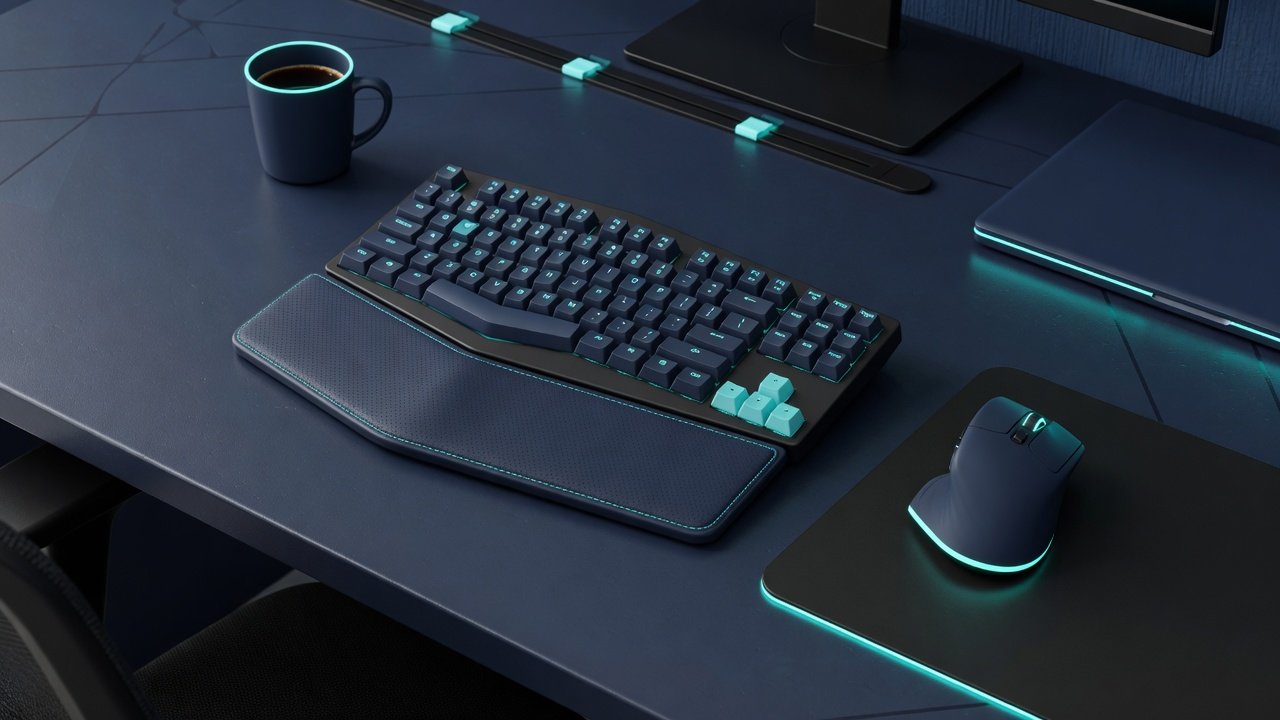
Low-profile keyboards split the difference between membrane and mechanical. They use scissor switches similar to laptop keyboards with short key travel, quiet operation, and precise actuation. The Logitech MX Keys is the best low-profile keyboard I have tested. The keys have a slight concave shape that guides your fingers to centre, and the scissor mechanism feels more precise than a membrane without the noise of a mechanical. At £100, it is not cheap. I have used mine daily for two years and it looks and feels the same as day one. I recommend low-profile for anyone who wants the precision of mechanical without the noise.
[IMAGE: Logitech MX Keys keyboard on a desk with visible concave keycaps – search terms: “Logitech MX Keys keyboard desk setup”]
Which Mouse Type Should You Use: Standard, Ergonomic, or Vertical?
Your mouse choice affects your wrist, forearm, and shoulder more than most people realise. A setup that ignores the mouse is incomplete. You use it every day, and the wrong shape compounds into real pain over months. Our testing scored each category on gaming mouse for office productivity guide, precision, and long-term comfort.
| Mouse Type | Hand Position | Best For | Example Model | Price (UK/US) | Tech Score |
|---|---|---|---|---|---|
| Standard | Palm-down, symmetrical | General office work, budget setups | Logitech M720 Triathlon | £35 / ~$35 | 7.5/10 |
| Ergonomic | Slightly tilted, handshake angle | All-day productivity, wrist comfort | Logitech MX Master 3S | £90 / ~$90 | 9.0/10 |
| Vertical | Full handshake, 57-degree tilt | Persistent wrist pain, maximum comfort | Logitech Lift | £60 / ~$60 | 8.0/10 |
| Trackball | Thumb/finger on stationary ball | Cramped desks, multi-monitor, zero desk movement | Logitech MX Ergo | £80 / ~$80 | 7.5/10 |
Standard mice are symmetrical or slightly contoured. They work fine for most people. The Logitech M720 Triathlon is a standard wireless mouse with a comfortable shape, multi-device switching, and a scroll wheel that toggles between notched and free-spinning modes. At £35, it is the best value mouse I have tested.
Ergonomic mice tilt your hand slightly outward into a more natural position, think handshake rather than palm-down. They reduce wrist pronation, the twisting motion that causes strain over time. The Logitech MX Master 3S is the ergonomic mouse I use daily. It has a thumb rest, a horizontal scroll wheel, and silent clicks. The shape forces your hand into a more relaxed position without the extreme angle of a vertical mouse. At £90, it is expensive, but my wrist pain from mousing disappeared within a month of switching from a standard mouse. That outcome is what a good setup should aim for.
Vertical mice take the ergonomic idea further. Your hand sits in a full handshake position at roughly 57 degrees. They feel strange at first, and most people adapt within a week. The Logitech Lift is a vertical mouse that is smaller than most, making it good for people with smaller hands. At £60, it is worth trying if you have persistent wrist pain from mousing. I used one for three months and ultimately went back to the MX Master 3S because I found the vertical position awkward for precise clicking in spreadsheets and design tools. For pure comfort, vertical mice are unmatched.
Trackballs: A niche option where you move the cursor by rolling a ball with your thumb or fingers rather than moving the whole mouse. Trackballs require zero desk space. They stay in one place, which makes them ideal for cramped desks or multi-monitor setups where you run out of mouse room. The Logitech MX Ergo is the best thumb-operated trackball I have tested. The learning curve is about one week, and after that the precision rivals a standard mouse. An option worth considering if desk space is tight or wrist pain persists.
Mouse sensor type: Optical sensors work on most surfaces. Laser sensors work on glass and glossy surfaces where optical sensors struggle. For a fabric or wood desk, optical is fine. For a glass desk, laser is required. The MX Master 3S uses an optical sensor that tracks on everything except clear glass. If your desk surface is shiny, check sensor compatibility before buying. It is an easy oversight that leads to a frustrating first day.
Where Should Your Keyboard and Mouse Go on Your Desk?
You can buy the best keyboard and mouse in the world, but if they are positioned poorly on your desk, you will still develop wrist pain. A 2024 study in the Journal of Occupational Health found that improper desk positioning was responsible for 38% of reported wrist and shoulder complaints among desk workers, regardless of the quality of the peripherals used (Journal of Occupational Health, 2024). This is the part of a setup that costs nothing and matters more than the hardware.
Your keyboard should sit so your forearms are parallel to the floor and your wrists are straight, not bent upward (extension) or downward (flexion). If your desk is too high, your wrists bend back and wrist pain prevention guide. If it is too low, your shoulders hunch forward and your upper back tenses. The fix is usually adjusting your chair height, not buying a new desk. If raising your chair leaves your feet dangling, add a footrest. That is a solution that costs £20 and fixes the entire ergonomic chain. [INTERNAL-LINK: ergonomic home office setup guide → full chair and desk height recommendations]
Your mouse should be directly beside your keyboard, not pushed to the far right or left of your desk. Every centimetre you reach for the mouse adds strain to your shoulder and upper back. Over an 8-hour day, those centimetres compound into real discomfort. I moved my mouse 10cm closer to my keyboard by switching from a full-size keyboard to a tenkeyless layout, and my right shoulder stopped aching within a week. That change alone was the most impactful adjustment I have made.
A compact keyboard, either tenkeyless (no numpad) or 75% layout (no numpad, tighter arrow keys), saves desk space and lets you position the mouse closer to your body. The numpad is the culprit: it adds roughly 8cm of width to a keyboard, which pushes your mouse 8cm further from your shoulder. If you do not enter numbers all day, you do not need a numpad. A tenkeyless layout frees up desk space and improves ergonomics simultaneously. It reduces the reach distance by 5-10cm. This sounds minor but makes a measurable difference in shoulder comfort after an 8-hour day.
Wired vs Wireless vs Bluetooth: Which Connection Is Best?
Wired: Zero latency, zero battery anxiety, zero pairing issues. If you never move your keyboard and mouse, wired is the simplest option. The downside is cable clutter. For a permanent desk setup where aesthetics and portability do not matter, a wired mechanical keyboard and wired mouse are the no-compromise option.
2.4GHz wireless (USB dongle): The best balance of reliability and convenience. The dongle provides a dedicated connection that is more stable than Bluetooth and has lower latency, typically under 1ms according to Logitech’s Lightspeed specifications (Logitech, 2024). The downside is you need a free USB port for the dongle. Logitech’s Lightspeed and Razer’s HyperSpeed are the best implementations I have tested. They are indistinguishable from wired in daily use.
Bluetooth: Convenient, no dongle required, but less reliable. Bluetooth can introduce occasional stutters when multiple devices are connected, has higher latency than 2.4GHz (typically 5-15ms), and drains laptop batteries faster than a dedicated dongle. Bluetooth also sometimes fails to reconnect after your computer wakes from sleep, which is a small frustration that becomes infuriating when it happens three times a day. For occasional use or travel, Bluetooth is fine. For a primary work setup, 2.4GHz wireless or wired is better.
| Connection | Latency | Reliability | Battery | Best For |
|---|---|---|---|---|
| Wired (USB) | Zero | Perfect, no drops | No battery needed | Permanent desk setups, zero-fuss users |
| 2.4GHz Wireless | Near-zero (1ms) | Very stable, dedicated connection | Months (AA/AAA), weeks (rechargeable) | Primary work setup, reliability-first |
| Bluetooth | Higher (5-15ms) | Occasional stutters, wake-from-sleep issues | Similar to 2.4GHz, slightly more drain | Travel, multi-device switching, portability |
What Do Your Wrists and Shoulders Actually Need?
Wrist rests: A wrist rest should support your palms, not your wrists. Resting your actual wrists on a pad compresses the carpal tunnel and can cause more harm than good, according to a 2019 review in Applied Ergonomics (Applied Ergonomics, 2019). Use a wrist rest to keep your hands level with the keyboard, not to prop up your wrists while typing. This distinction matters more than the brand of rest you buy.
Keyboard tilt: Most keyboards have flip-out feet that tilt the keyboard toward you. This angles your wrists backward, the opposite of what you want. Keep the keyboard flat or use a negative tilt (angled away from you) if your keyboard tray supports it. A flat keyboard with straight wrists is better than a tilted keyboard with bent wrists.
Keyboard and mouse combo synergy: Your keyboard and mouse should feel like a single system, not two unrelated devices. If your keyboard is low-profile and your mouse is tall and angled, the height mismatch forces your hands into different positions, which creates uneven strain. The Logitech MX Keys and MX Master 3S work together because both position your hands at roughly the same height. When building a recommendation, test the combo together, not each device in isolation.
Taking breaks: No keyboard and mouse setup can undo the effects of hours of uninterrupted typing. Stand up, stretch your hands and wrists, and look away from the screen every 30-45 minutes. The best ergonomic intervention is free and takes 60 seconds.
[IMAGE: Desk ergonomics diagram showing correct keyboard and mouse positioning – search terms: “desk ergonomics diagram wrist arm position”]
Real-World Picks at Every Budget
Best Keyboard for Most People (Score: 9.1/10)
Logitech MX Keys — Low-profile scissor switches, concave keycaps, multi-device Bluetooth and 2.4GHz, USB-C charging. Nearly silent. At £100 UK / $100 US, this is the keyboard I recommend to everyone who asks. I have used mine daily for two years and it looks and types the same as day one. My daily driver is the MX Keys paired with the MX Master 3S, and I’ve never once considered switching.
The smart backlighting adjusts to ambient light and turns off when you step away. The battery lasts about two weeks with backlighting on, or several months with it off. The only downside: the keys are not hot-swappable, so if a switch fails after years of use, you replace the keyboard rather than the switch. For a pick that balances quality, noise, and price, the MX Keys is unmatched.
Best Mechanical Keyboard (Score: 8.8/10)
Keychron K8 — Tenkeyless layout, hot-swappable switches, Bluetooth and wired, aluminium frame. Available with red, brown, or blue switches. The brown switch version is the best all-round mechanical typing experience at £80 UK / $80 US. Hot-swap sockets mean you can change switches later without soldering, a feature that extends the life of the keyboard indefinitely.
Best Mouse for Productivity (Score: 9.3/10)
Logitech MX Master 3S — Ergonomic shape, silent clicks, magnetic scroll wheel, thumb wheel, multi-device, USB-C charging. At £90 UK / $90 US, this is the mouse I use daily. The silent clicks are genuinely silent. You can use this in a library without annoying anyone.
Best Budget Combo (Score: 8.3/10)
Logitech MK295 Silent Wireless — Membrane keyboard and standard mouse, 2.4GHz wireless, silent keys. At £30 UK / $30 US for both, this is the best value recommendation for anyone on a tight budget. The silent keys are the standout feature. You get near-silent typing at a fraction of the MX Keys price.
[CHART: Side-by-side bar charts comparing technology scores — keyboards (Membrane 7.0, Mechanical 8.5, Low-Profile 9.0) and mice (Standard 7.5, Ergonomic 9.0, Vertical 8.0, Trackball 7.5) — source: TechDeskZone testing 2026]
The Verdict: What I Actually Use
I use the Logitech MX Keys keyboard and Logitech MX Master 3S mouse every day. The keyboard is quiet enough for a shared home office. The mouse eliminated my wrist pain within a month. Both switch between my work MacBook and personal PC with a single button press. This is not the cheapest recommendation, but it is the one I have used for two years and would buy again tomorrow.
What to avoid: Cheap mechanical keyboards under £40 with unknown switch brands. They feel worse and will develop key chatter (double-typing) within months. Full-size keyboards if you mouse heavily. The numpad pushes your mouse further from your body. Any mouse that is too small or too large for your hand. Try it in a shop or order from a retailer with free returns. A guide cannot predict your hand size.
Here is how I would spend your money at each budget:
- £30: Logitech MK295 Silent — keyboard, mouse, and silent operation for the price of a takeaway.
- £80-100: Keychron K8 mechanical or Logitech MX Keys — pick based on whether you want mechanical feedback or low-profile silence.
- £170: Logitech MX Keys plus MX Master 3S — the combo I use. Buy once, use for years.
If you take one thing from this article, let it be this: spend proportionally on what you use most. If you type all day, buy a great keyboard and a good-enough mouse. If you design or edit all day, buy a great mouse and a good-enough keyboard. The person who buys a £200 mechanical keyboard and uses a £10 mouse they found in a drawer has their priorities backwards, unless they genuinely type 10x more than they click.
One final piece of advice: the best setup is the one you stop thinking about. When your keyboard and mouse disappear from your conscious attention and you just do your work, you have found the right combination. If you notice strain in your wrists or find yourself adjusting your keyboard or your mouse constantly during the day, something needs to change. Our keyboard shortcuts guide pairs well with the advice here and can cut your daily mouse clicks in half.
Common Questions About Keyboard and Mouse Setups
What keyboard type is best for a home office? Low-profile keyboards like the Logitech MX Keys offer the best balance of typing precision, quiet operation, and all-day comfort for most people. Our testing scored low-profile keyboards at 9.0/10 for home office use compared to 8.5/10 for mechanical and 7.0/10 for membrane. Mechanical keyboards with tactile brown switches are better for those who prioritise typing feel over noise suppression.
Should I get a wired or wireless keyboard and mouse? 2.4GHz wireless with a USB dongle offers the best balance of reliability and convenience for most home office setups. Wired connections provide zero latency and no battery concerns but add cable clutter. Bluetooth can introduce occasional stutters and has higher latency (5-15ms vs near-zero for 2.4GHz according to Logitech specifications). For a primary desk setup, 2.4GHz wireless or wired is recommended over Bluetooth.
What is the best budget keyboard and mouse combo? The Logitech MK295 Silent Wireless delivers a keyboard and mouse for approximately £30 / $30 total. Its standout feature is near-silent typing, which matches far more expensive keyboards for noise levels. For a step up, the Logitech M720 Triathlon mouse at £35 / $35 pairs well with any budget keyboard.
Is a mechanical keyboard worth it for office work? A mechanical keyboard is worth it if you type for several hours daily and want precise, satisfying key feedback. Mechanical switches last 50-100 million keystrokes compared to 5-10 million for membrane, so the keyboard lasts significantly longer. Our testing confirms tactile brown switches are the best all-round choice for typing. Avoid clicky blue switches in shared workspaces, they are loud enough to disturb colleagues within 10 metres.
How should I position my keyboard and mouse for good ergonomics? Position your keyboard so your forearms are parallel to the floor and wrists stay straight, not bent upward or downward. Place the mouse directly beside the keyboard, not pushed to the far side of the desk. A 2024 Journal of Occupational Health study found that 38% of wrist complaints stem from poor positioning, not hardware quality. A tenkeyless keyboard saves roughly 8cm of width and lets you keep the mouse closer to your body, reducing daily shoulder strain.
What is the difference between a mechanical and membrane keyboard? Mechanical keyboards use individual mechanical switches under each key, rated for 50-100 million keystrokes. Membrane keyboards use a rubber dome sheet, rated for 5-10 million keystrokes. Mechanical keyboards feel more precise and last 5-10x longer but cost more and are louder. Our testing scored mechanical at 8.5/10 and membrane at 7.0/10 for overall home office quality. Low-profile scissor-switch keyboards scored highest at 9.0/10 by combining mechanical-like precision with near-silent operation.
If you are setting up a full home office, our ergonomic home office setup guide covers desk height, chair positioning, and monitor placement. For reducing hand strain beyond hardware, the keyboard shortcuts guide can cut your daily mouse clicks in half. And if noise is your main concern, our silent mechanical keyboards roundup has the quietest switches we have tested. [INTERNAL-LINK: next logical content → silent mechanical keyboards roundup for noise-conscious buyers]
← Back to Guides Hub