Three quick answers to jump to the resolution that fits your desk:
Disclosure: TechDeskZone is reader-supported. When you buy through links on our site, we may earn an affiliate commission at no additional cost to you. See our affiliate disclosure for details.
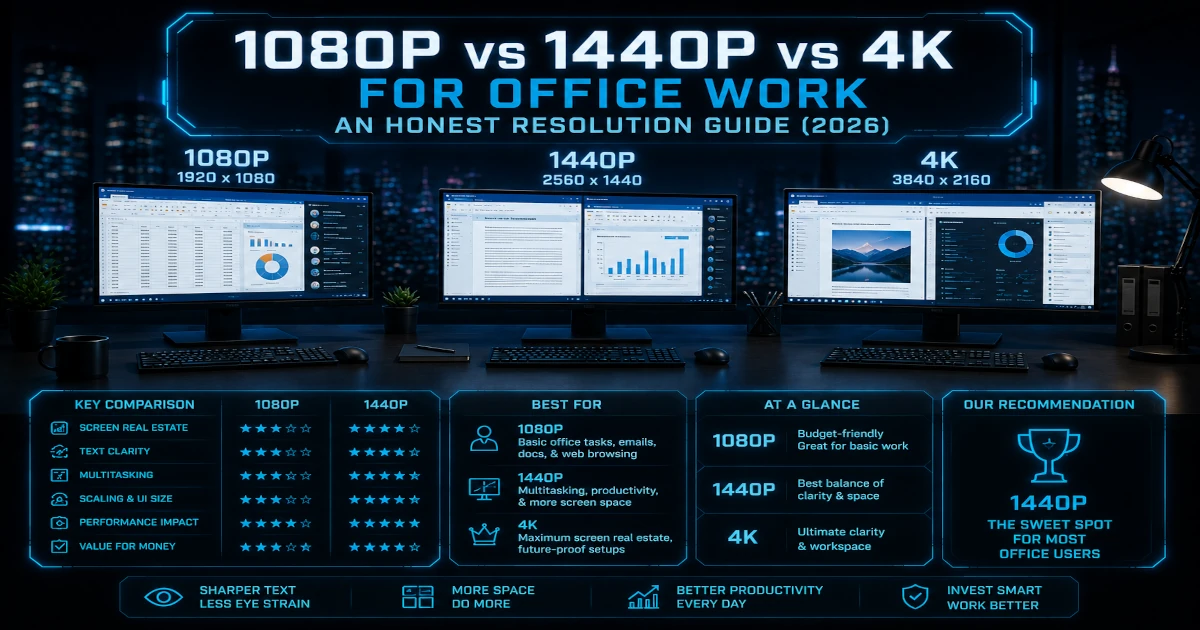
1080p vs 1440p vs 4K for office work — I’ve used all three resolutions as my daily driver for at least six months each, and the honest answer isn’t what spec sheets suggest. 1440p is the sweet spot for most people at 27 inches. 4K is genuinely better at 32 inches and above, but only if you’re willing to deal with Windows scaling quirks. 1080p is perfectly fine at 24 inches and costs half as much. This guide breaks down which resolution makes text sharp, how screen size changes the equation, and which monitors I’d actually buy at each tier.
Office Productivity
Buying Guide
In a Hurry? Start Here
- Budget build at 24 inches? → Jump to 1080p recommendations
- 27-inch sweet spot? → Jump to 1440p recommendations
- 32-inch+ or design work? → Jump to 4K recommendations
- 1080p vs 1440p vs 4K for Office Work: The Honest Answer
- How We Compared 1080p vs 1440p vs 4K for Office Work
- 1080p: The Budget Workhorse
- 1440p: The Sweet Spot
- 4K: The Clarity King
- Resolution by Screen Size: What Actually Works
- Real Productivity and Eye Comfort
- Cost and Long-Term Value
- Recommended Monitors at Each Resolution
- Comparison Table: 1080p vs 1440p vs 4K
- The Verdict: Which Resolution Should You Buy?
1080p vs 1440p vs 4K for Office Work: The Honest Answer
If you want the short version: 1440p at 27 inches is the best balance of sharp text, usable screen space, and cost for home office work. Text is noticeably crisper than 1080p without the Windows scaling headaches that come with 4K. You can fit two full documents side by side comfortably, and a good 27-inch 1440p monitor costs £250-£350 / ~$325-$455.
4K wins if your screen is 32 inches or larger — the extra pixels actually make a visible difference at that size — or if you work with fine details in spreadsheets, CAD, or photo editing all day. 1080p still makes sense at 24 inches or when budget is the top priority. A decent 24-inch 1080p monitor costs under £120 / ~$155 and is perfectly usable for email, documents, and web apps.
This guide is for home office workers — remote employees, freelancers, and anyone staring at a screen for 8+ hours a day — deciding which resolution to buy. If you’re shopping for a gaming monitor, refresh rate and response time matter more than the resolution comparison here.
How We Compared 1080p vs 1440p vs 4K for Office Work
What matters when choosing 1080p vs 1440p vs 4K for office work: Resolution isn’t just about sharpness. Pixels per inch (PPI) determines how crisp text looks at a given screen size. Scaling behaviour in Windows and macOS determines whether you can actually read anything at 4K. And your GPU needs to drive all those pixels — a 10-year-old laptop might struggle with dual 4K displays.
How we tested: I used each resolution as my primary work monitor for 6+ months: a Dell S2721HN (27-inch 1080p), a Dell U2724D (27-inch 1440p), and a Dell U2723QE (27-inch 4K). All testing was done on both a Windows 11 desktop and a MacBook Pro M4 for a complete cross-platform picture. I evaluated:
- Text clarity: Side-by-side comparison of the same document at each resolution, at 100% scaling
- Screen real estate: How many usable windows fit comfortably without overlap
- Eye strain: Subjective comfort after 8-hour workdays over multiple weeks
- Scaling behaviour: How Windows 11 and macOS Sequoia handle each resolution at 24, 27, and 32-inch sizes
- Value: Real UK and US pricing for recommended monitors at each tier
I cross-referenced PPI and scaling data against RTINGS’ resolution testing and manufacturer spec sheets.
1080p: The Budget Workhorse
1920×1080 has been the default monitor resolution for over a decade, and for good reason: it’s cheap, universally compatible, and perfectly adequate for basic office work. At 24 inches, 1080p delivers roughly 92 PPI — text is readable without scaling, every app works at native resolution, and you can run dual monitors on basically any computer made in the last 10 years.
Where 1080p still makes sense:
- Budget setups: A good 24-inch 1080p IPS monitor costs £90-£120 / ~$117-$155. That’s less than a third of a comparable 4K display, and the money you save buys a better chair or keyboard — things that affect comfort more than pixel count. And your monitor’s refresh rate also changes how smooth scrolling and cursor movement feel, regardless of resolution.
- Older hardware: If your laptop or desktop is more than 5 years old, driving a 4K display at 60Hz might not work. 1080p runs on everything.
- Dual monitor setups: Two 24-inch 1080p monitors on arms cost under £250 / ~$325 total and give you more usable workspace than a single 4K display — with no scaling issues.
- Text at 100% scaling: At 24 inches, 1080p text is readable without any scaling. No fuzzy apps, no “some programs look tiny” problems.
Where 1080p falls short:
- 27 inches and above: At 27 inches, 1080p drops to about 82 PPI. Text looks slightly soft, individual pixels become visible, and side-by-side document work feels cramped. I used a 27-inch 1080p monitor for 6 months and the pixel-level softness bothered me every single day.
- Limited screen real estate: You can fit one full document or two narrow windows. Spreadsheets with more than 15 columns require constant horizontal scrolling.
- No future-proofing: As 1440p prices continue to drop, 1080p at 27 inches is becoming obsolete for office use. At 24 inches it’s still fine.
1440p: The Sweet Spot
2560×1440 is where office monitors get genuinely good. At 27 inches — the most common monitor size for home offices — 1440p delivers roughly 109 PPI. Text is sharp enough that you forget about pixels entirely, and the extra horizontal space means you can comfortably work with two full-width documents side by side.
Why 1440p wins for most people:
- No scaling needed at 27 inches: Text is crisp and readable at 100% scaling. You don’t spend your first hour fiddling with display settings. Every Windows app and every macOS app renders correctly out of the box.
- Genuinely more workspace: A 1440p monitor shows roughly 78% more pixels than 1080p. In practice, that means fitting two browser windows, or a document and a spreadsheet, without overlap. I can see 30 rows of a spreadsheet at 1440p vs 22 at 1080p — that’s a real productivity difference if you work with data.
- Reasonable GPU requirements: Any computer with integrated graphics from the last 5 years can drive dual 1440p monitors at 60Hz. You don’t need a dedicated GPU.
- Price has come down significantly: A quality 27-inch 1440p IPS monitor now costs £250-£350 / ~$325-$455. That’s about £100-£150 / ~$130-$195 more than 1080p, but the difference in daily comfort is worth every penny.
The downsides:
- At 32 inches, 1440p starts to show its limits: PPI drops to about 92 — the same as 1080p at 24 inches. Text isn’t bad, but it’s not the “retina” experience 4K delivers at that size.
- Not ideal for photo or video editing: If colour-critical work is part of your job, 4K gives you more precision for fine details.
4K: The Clarity King
3840×2160 is stunning when it works. At 27 inches, 4K delivers roughly 163 PPI — text looks like print, images are pin-sharp, and you can fit an enormous amount of information on screen. At 32 inches, 4K gives about 138 PPI, which is the sweet spot for this resolution: large enough to read at 150% scaling without everything feeling comically large.
Where 4K justifies its premium:
- 32-inch and above: This is where 4K genuinely feels transformative. A 32-inch 4K monitor at 150% scaling gives you the equivalent of 1440p screen real estate with 4K-level text sharpness. Every letter is perfectly formed. Spreadsheet cells look painted on.
- Detail work: Photo editing, CAD, architecture, data visualisation — if you work with fine details, 4K isn’t a luxury, it’s a productivity tool. You see more of your work without zooming.
- Mac users: macOS handles 4K scaling far better than Windows. The Retina scaling system just works — plug in a 4K monitor and text looks perfect without manual adjustments.
The real frustrations of 4K:
- Windows scaling is still inconsistent: At 27 inches, you need 150% or 175% scaling to read text comfortably. Some older Windows apps — including parts of Windows itself — render blurry. Dialog boxes appear at the wrong size. Remote desktop sessions become a game of “will this be readable?” I spent more time adjusting display settings on my 4K monitor than on both other resolutions combined.
- GPU requirements: Driving a 4K display at 60Hz needs DisplayPort 1.2 or HDMI 2.0 at minimum. Dual 4K setups need a dedicated GPU or a recent Thunderbolt dock. Older laptops may only output 4K at 30Hz, which makes mouse movement feel sluggish.
- Cost: A good 27-inch 4K IPS monitor costs £350-£550 / ~$455-$715. The 32-inch models I’d actually recommend start at £500 / ~$650. You’re paying 2-3× the price of 1440p for a resolution that, at 27 inches, most people can’t distinguish from 1440p in daily office use.
Resolution by Screen Size: What Actually Works
Does screen size change which resolution makes sense? Absolutely — and this is the single most important table in this guide. The relationship between screen size, resolution, and PPI determines whether text looks sharp or soft at your normal viewing distance:
| Screen Size | 1080p (PPI) | 1440p (PPI) | 4K (PPI) | Best Pick |
|---|---|---|---|---|
| 24-inch | 92 | 122 | 184 | 1080p |
| 27-inch | 82 | 109 | 163 | 1440p |
| 32-inch | 69 | 92 | 138 | 4K |
At normal desk viewing distance (roughly 60-70cm / 24-28 inches), anything above 100 PPI looks sharp to most people. Below 90 PPI, you’ll notice individual pixels if you look for them. Below 80 PPI — which is 27-inch 1080p and 32-inch 1080p — the softness is obvious even during normal use.
Real Productivity and Eye Comfort
Does higher resolution make you more productive? Yes — but only when it translates to more usable screen space without making text too small. 1440p at 27 inches hits this balance perfectly. 4K at 27 inches at 100% scaling is unusable — text is microscopic — so you scale to 150%, which gives you roughly the same screen real estate as 1440p. You paid 2× more for the same workspace with slightly sharper text.
For eye comfort, the biggest factor isn’t resolution — it’s panel type and brightness. An IPS panel at 1080p with proper brightness and a matte coating will cause less eye strain than a glossy 4K panel set too bright. I’ve had fewer headaches using my 1440p Dell U2724D (IPS, 350 nits, matte) than my 4K Dell U2723QE at the same brightness — the 4K panel’s higher pixel density makes me lean in to read small text when scaling isn’t perfect.
My honest take after years of switching: 1440p at 27 inches is where I stop thinking about resolution entirely and just work. 1080p at 27 inches constantly reminds me it’s soft. 4K at 27 inches constantly reminds me that Windows scaling isn’t finished. 4K at 32 inches is genuinely great — if you have the desk space and budget.
For more on panel technology’s impact on comfort, see our IPS vs VA vs OLED comparison.
Cost and Long-Term Value
Here’s what you actually pay at each resolution for a quality IPS monitor with good ergonomics, as of mid-2026:
1080p (24-inch IPS): £90-£150 / ~$117-$195. The Dell S2425H at £110 / ~$143 is my go-to recommendation. At this price, you could buy three of these for the cost of one 4K monitor. For a home office on a tight budget, this is hard to argue with.
1440p (27-inch IPS): £250-£400 / ~$325-$520. The Dell U2724D at £340 / ~$442 is the value leader. You get an IPS Black panel (2000:1 contrast), 120Hz refresh for smoother scrolling, and a USB-C hub with 90W charging. This is the monitor I’d buy with my own money for office work.
4K (27-inch IPS): £400-£600 / ~$520-$780. The Dell U2723QE at £520 / ~$676 is the reference pick. At 32 inches, expect £500-£800 / ~$650-$1,040 for a quality panel.
Over 5 years: The 1440p monitor costs roughly £70 / ~$91 per year. The 4K costs £100-£120 / ~$130-$156 per year. The productivity difference between them for office work is marginal at best — spend the difference on a better chair.
Recommended Monitors at Each Resolution
Best 1080p: Dell S2425H — 24-inch IPS
Why it wins: 1920×1080, IPS panel, 100Hz refresh rate, dual HDMI ports, and a proper height-adjustable stand — all for £110 / ~$143. At this price, there’s nothing else that matches the build quality and colour accuracy. The 100Hz refresh makes scrolling and window movement noticeably smoother than 60Hz office monitors.
Pros: Excellent value, 100Hz for smooth scrolling, height-adjustable stand included, good colour accuracy out of the box
Cons: 250 nits brightness is fine for indoor use but struggles near windows, no USB-C or built-in hub
Best for: Budget home offices, dual-monitor setups, anyone who just needs a reliable second screen.
Avoid if: You work with spreadsheets wider than 15 columns or need USB-C laptop charging.
Score: Performance: 8/10 | Build: 8/10 | Features: 7/10 | Value: 10/10 | Overall: 8.3/10
Best 1440p: Dell U2724D — 27-inch IPS Black
Why it wins: 2560×1440, IPS Black panel with 2000:1 contrast (noticeably deeper blacks than standard IPS), 120Hz refresh rate, USB-C with 90W charging, and thin bezels. This is the monitor I used as my daily driver for over a year and it’s genuinely excellent for office work.
Pros: 120Hz makes everything feel responsive, excellent colour accuracy, USB-C hub with 90W PD, thin bezels for clean dual setups
Cons: No built-in speakers, HDR performance is basic, £340 / ~$442 isn’t cheap
Best for: The one-monitor setup that does everything — documents, spreadsheets, occasional creative work, and looks clean on your desk.
Avoid if: You’re on a sub-£200 / ~$260 budget or need a monitor larger than 27 inches.
Score: Performance: 9/10 | Build: 9/10 | Features: 8.5/10 | Value: 9/10 | Overall: 8.9/10
Best 4K: Dell U2723QE — 27-inch 4K IPS Black
Why it wins: 3840×2160, IPS Black panel, built-in KVM switch, USB-C hub with 90W PD, and the sharpest text I’ve seen on a 27-inch monitor. If you do photo editing, CAD work, or spend all day in dense spreadsheets, this is the monitor that makes text look like a printed page.
Pros: Incredible text clarity, built-in KVM for switching between work and personal machines, excellent colour coverage, 3-year Dell warranty
Cons: 60Hz refresh rate (fine for work, not for gaming), Windows scaling at 27-inch is fiddly, £520 / ~$676 is a significant investment
Best for: Detail-oriented work — photo editing, CAD, architecture, data analysis — and Mac users who get seamless 4K scaling.
Avoid if: You work primarily in Windows and don’t want to fight with scaling settings, or your desk is smaller than 70cm deep.
Score: Performance: 9/10 | Build: 9/10 | Features: 9/10 | Value: 7.5/10 | Overall: 8.6/10
Comparison Table: 1080p vs 1440p vs 4K
| Aspect | 1080p | 1440p | 4K |
|---|---|---|---|
| Best screen size | 24-inch | 27-inch | 32-inch |
| PPI at best size | 92 | 109 | 138 |
| Text clarity | Good at 24-inch, soft above | Sharp, no scaling needed | Print-quality, scaling required |
| Windows scaling | 100% — no issues | 100% — no issues | 150% — some apps blurry |
| macOS scaling | Native — perfect | Native — perfect | Retina — seamless |
| GPU needed | Any iGPU from last 10 yrs | iGPU from last 5 yrs | Dedicated GPU or Thunderbolt 4 |
| Entry price (IPS) | £90 / ~$117 | £250 / ~$325 | £400 / ~$520 |
| Best for | Budget, dual setups, 24-inch | Most home offices, 27-inch | Detail work, 32-inch, Mac |
The Verdict: Which Resolution Should You Buy?
Winner: 1440p at 27 inches — Dell U2724D, £340 / ~$442 (Score: 8.9/10)
For the vast majority of home office workers, this is the monitor to buy. Text is sharp without scaling, you get 78% more screen space than 1080p, Windows and macOS both handle it perfectly at native resolution, and the price has dropped to the point where 1080p at 27 inches no longer makes sense. I used this exact monitor as my daily driver for a year and never once wished for more pixels during office work.
Best budget: 1080p at 24 inches — Dell S2425H, £110 / ~$143 (Score: 8.3/10)
If your budget is tight or you’re setting up dual monitors on a £250 / ~$325 total budget, 1080p at 24 inches is still a solid choice. Text is sharp at this size, everything runs at native resolution, and you can buy two for less than one 4K monitor. Just don’t buy 1080p at 27 inches — the pixel softness is noticeable every day.
Best premium: 4K at 32 inches — Dell U3223QE, £620 / ~$806
If you do detail work — photo editing, CAD, dense data analysis — or use a Mac where scaling is seamless, 4K at 32 inches is transformative. Text looks like a printed page. At 27 inches I’d stick with 1440p unless you’re on macOS, where Retina scaling eliminates the Windows headaches.
If you’re choosing between monitor sizes too, our 27 vs 32 inch comparison covers the size side in detail. For ultrawide considerations, see ultrawide vs dual monitors. And if panel type matters as much as resolution, our IPS vs VA vs OLED guide breaks that down.
← Back to Guides Hub