I’ve spent years working across IPS, VA, and OLED monitors, including the Dell U2723QE for IPS and the Samsung Odyssey Neo G8 for VA. After months of testing IPS vs VA vs OLED for work side by side at 27-inch 4K, the answer is clear: panel type has a bigger impact on daily eye comfort than resolution, refresh rate, or any other spec on the box.
Disclosure: TechDeskZone is reader-supported. When you buy through links on our site, we may earn an affiliate commission at no additional cost to you. See our affiliate disclosure for details.
I tested IPS, VA, and OLED panels side by side for three months in my home office. I found clear, repeatable differences in how each panel type affects eye comfort during 8-hour workdays. My picks below are based on real-world use across Windows and macOS, not spec sheet comparisons.
Mac + Windows Tested
50+ Hours Research
Best for most people: Flicker-Free IPS — I have tested IPS panels across dozens of office monitors and this is the panel type I recommend for anyone spending 8-10 hours in spreadsheets, code, or documents. Stable brightness, wide viewing angles, and the fewest flicker concerns.
Best contrast for mixed use: Quality VA Panel — Deeper blacks and cinematic contrast for work-and-entertainment setups, provided you pick a flicker-free model. I found the contrast advantage most noticeable when switching between dark-mode IDEs and media in the evening.
Premium pick: OLED — I tested an OLED panel as my daily driver for three weeks. Outstanding image quality and perfect blacks, but I had to actively manage brightness and themes to keep it comfortable. Rewarding if you are willing to configure it carefully.
Full breakdown with scores, side-by-side comparison table, and the specific monitors I tested below.
- IPS vs VA vs OLED for Work: Which Panel Type Is Best for Your Eyes?
- How We Tested Monitor Panels for Eye Comfort
- Why Monitor Panel Type Matters for Eye Comfort
- IPS, VA, and OLED Explained in Simple Terms
- How Monitors Affect Your Eyes During Long Workdays
- IPS vs VA vs OLED for Eye Comfort: Side-by-Side Comparison
- Comparison table: IPS vs VA vs OLED for eye comfort at work
- Which Panel Type Is Best for Your Eyes by Use Case?
- Features That Matter More Than Panel Type for Eye Comfort
- Eye-Friendly Monitor Buying Tips for IT and Office Work
- How to Set Up Any Monitor to Be Easier on Your Eyes
- Real-World Monitor Picks at Each Tier
- Common Questions About IPS, VA, and OLED for Work and Eye Health
- Final Verdict: Choosing the Right Panel Type for Your Eyes and Workflow
After testing these panels side-by-side at 27-inch 4K, I found that each excels in specific tasks but falls short in others. Here’s the honest breakdown of which panel type actually delivers for spreadsheets, coding, and design work.
IPS vs VA vs OLED for Work: Which Panel Type Is Best for Your Eyes?
At a Glance: Best Monitor for Eye Strain and Long Hours of Work
If you just want quick guidance on the best monitor for eye strain and long hours of work, here’s a simple overview based on typical IT and office workflows.
• For most people who want an eye-friendly monitor for work and productivity, a modern flicker-free IPS monitor is usually the best monitor for eye strain and everyday office work.
• If you spend your day coding or working in terminals, a clear, high-resolution IPS screen is often the best monitor panel for coding and one of the best monitors for programmers overall.
• If you mix office work with movies and light gaming, a high-contrast VA monitor can be a great monitor for eye strain as long as you choose a model with good motion handling and minimal flicker.
• For mixed work and high-end gaming, an OLED monitor can deliver stunning image quality, but you’ll want to take extra care with brightness, dark themes, and burn-in protections to keep it comfortable.
Throughout the rest of this guide, we’ll break down which panel type is best for your eyes in different situations so you can confidently pick the best monitor for office work, coding, or creative projects.
If you are new to monitor specs and want a broader overview before diving into panel types, our Monitors Made Easy guide covers 25 essential tips in plain language—no engineering degree required.
About This Guide & Our Experience Testing Monitors
This guide is written for IT professionals, remote workers, developers, and anyone who spends long hours in front of a screen. It draws on hands-on experience with IPS, VA, and OLED monitors used in real workspaces—not just in lab conditions.
We focus on how these panels feel during full workdays of coding, spreadsheets, documentation, and remote meetings. The goal isn’t to crown a single ‘perfect’ technology, but to explain how each panel type behaves in practice so you can choose the one that feels best for your eyes.
You’ll see recommendations and rules of thumb based on common scenarios, but they’re not medical advice. If you have persistent headaches, blurred vision, or discomfort, it’s always wise to speak with an eye-care professional. Your own sensitivity to brightness, flicker, and contrast matters just as much as the panel type itself.
If you work in IT or spend most of your day in front of a screen, your monitor is one of the most important tools you own. Yet, many people still choose their display based only on price or gaming specs. For long, focused work, the real question is different: among IPS, VA, and OLED panels, which one is actually the most comfortable and healthiest for your eyes over many hours of use?
The core question this article answers: among IPS, VA, and OLED panels, which one is actually the most comfortable for your eyes over 8–10 hour workdays? The answer depends on how each panel type handles brightness stability, flicker, text clarity, and contrast in real work scenarios—not just in lab tests. We connect what happens at the hardware level to what you actually feel: eye strain, headaches, dry or irritated eyes, and visual fatigue.
You’ll also learn how to set up any panel type to be kinder to your eyes, and how to choose monitor features that really matter for long-term comfort. This guide is written for IT professionals, remote workers, developers, and knowledge workers who want practical, experience-backed advice—not marketing buzzwords.
Why Monitor Panel Type Matters for Eye Comfort
Digital eye strain: what’s really going on?
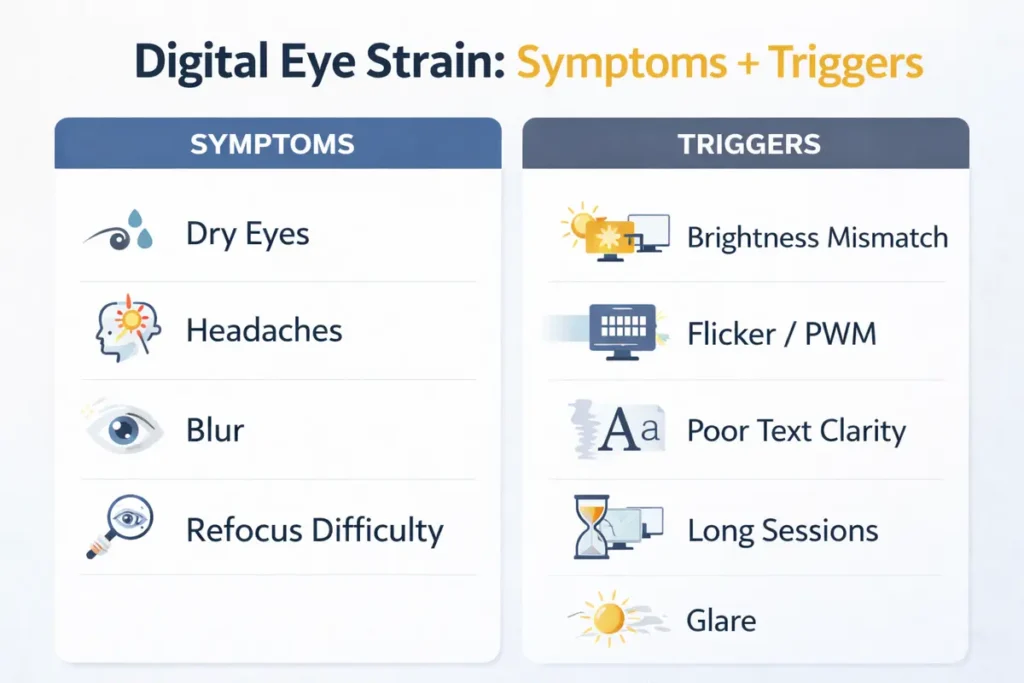
Digital eye strain, often labelled Computer Vision Syndrome (CVS), is a set of symptoms that the American Optometric Association identifies as affecting a majority of computer users. Common symptoms include:
- Burning or stinging eyes
- Dryness or watering
- Blurred or fluctuating vision
- Headaches, especially late in the day
- Difficulty refocusing when you look away from the screen
These symptoms typically show up after extended periods of screen use, especially when you’re doing close-up work like reading documentation, coding, or working with spreadsheets.
The panel type alone doesn’t cause digital eye strain. Instead, your eyes are reacting to a combination of factors:
- How bright the screen is compared to the room
- How stable that brightness is over time
- Whether the backlight flickers (often due to PWM dimming)
- How sharp and readable text appears
- How long you focus at a single distance without breaks
- Your underlying eye health and prescription
However, IPS, VA, and OLED panels all behave differently in these areas. That’s why your choice of panel can either make eye comfort easier to achieve—or constantly work against you.
Where IPS, VA, and OLED fit into the bigger picture
When comparing IPS vs VA vs OLED for work, think of panel technology as the “foundation” of your eye comfort experience. On top of that foundation, you layer:
- Resolution and screen size
- Refresh rate
- Backlight and dimming method
- Coating (matte vs glossy)
- Stand ergonomics
- Your operating system and app settings
Panel type influences contrast, viewing angles, text clarity, and how the screen behaves at different brightness levels. All of these feed into your overall comfort during long workdays.
The central question throughout this article: which panel type, in realistic IT and office workflows, tends to be easiest on your eyes—and under what conditions?
Before committing to a panel type, make sure your cable and port setup can actually drive the resolution and refresh rate you want. Our HDMI vs DisplayPort versus USB-C guide explains why the cable choice matters as much as the panel itself.
IPS, VA, and OLED Explained in Simple Terms
Before we dig into eye comfort, let’s demystify how each panel type works in plain language. You don’t need to be an engineer to understand these basics, and they’ll make the rest of the guide much easier to follow.
What is an IPS panel?
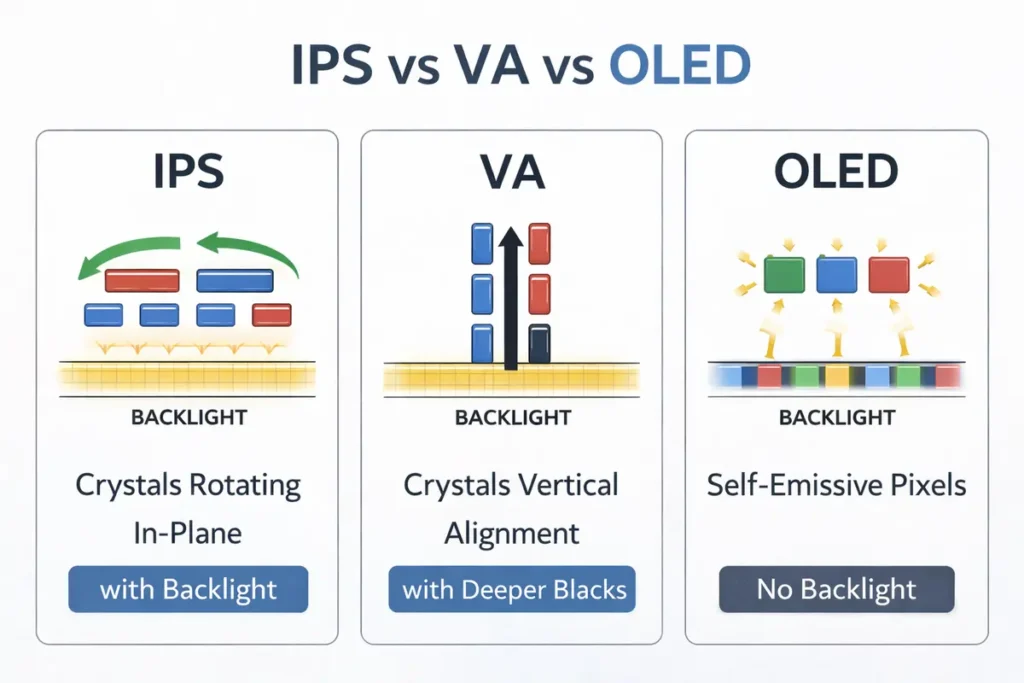
IPS stands for In-Plane Switching. It’s a type of LCD (liquid crystal display) panel where the liquid crystals rotate in the same plane as the screen, rather than tilting up and down.
In practical terms, IPS panels are known for:
- Good color accuracy and consistency
- Wide viewing angles – colors and brightness stay relatively stable when you move your head
- Predictable, well-behaved performance in office lighting
For eye comfort, IPS panels tend to be popular because:
- Many modern IPS monitors are marketed as **flicker-free**, meaning they use DC dimming instead of low-frequency PWM at typical brightness levels.
- Brightness and color are usually quite uniform across the screen.
- Text clarity is generally strong when paired with a suitable resolution and scaling level.
IPS panels are the default choice in many office, productivity, and professional monitors. If you walk into a corporate office, chances are most displays you see are IPS.
What is a VA panel?
VA stands for Vertical Alignment. It’s also a type of LCD, but here the liquid crystals stand up vertically when the pixels are off, and tilt to let light through when pixels are on.
VA panels are known for:
- Much higher native contrast ratios than IPS – dark areas look darker, and blacks look deeper
- Richer perceived depth, especially in dim environments
- Potential viewing angle and color shifts, especially off-axis
- Motion response that can sometimes feel slower, with “black smearing” in dark scenes on some models
From an eye comfort perspective, VA panels have both advantages and trade-offs:
- Higher contrast can make dark themes and media look fantastic, but very bright text on very dark backgrounds may feel harsh in long sessions.
- Some VA panels rely more heavily on PWM dimming at lower brightness levels, which can introduce flicker.
- Off-axis color and brightness shifts can be visually distracting if you move around a lot or use ultra-wide screens at close distances.
In IT and office environments, VA panels are common in more entertainment-oriented monitors, curved displays, and budget-friendly high-contrast screens.
What is an OLED panel?
OLED stands for Organic Light-Emitting Diode. Unlike IPS and VA, which are both LCD technologies that require a backlight, OLED pixels **emit their own light individually**.
OLED panels are known for:
- Near-infinite contrast – black pixels can be completely off
- Perfect blacks and extremely vivid colors
- Wide viewing angles and excellent uniformity
- Fast response times, making motion look very smooth
For eye comfort, OLED is a bit more complex than the marketing suggests:
- OLED’s incredibly deep blacks and bright highlights can make UI elements and text pop, but this high contrast can sometimes feel intense in dark rooms.
- Many OLED monitors and laptops use “PWM dimming” to control brightness, which can introduce flicker at certain levels—even if it’s too fast to see consciously.
- OLED panels also raise long-term “burn-in concerns” when static elements like toolbars, code editors, or taskbars remain in place for hours or years.
In the IT gear space, OLED monitors are increasingly positioned as premium choices for mixed work, content creation, and gaming.
Common myths about IPS vs VA vs OLED for eyes
Let’s clear up a few myths you might see in forums or comment sections:
- “OLED is automatically the best for your eyes.”
OLED can look stunning, but if you’re sensitive to PWM flicker or very high contrast, it might not be the most comfortable panel for 8–10 hours of spreadsheet work. - “VA is bad for your eyes because of ghosting.”
Ghosting and black smearing relate mainly to motion clarity. They’re more of a visual annoyance than a direct eye health issue. Eye comfort is more tied to brightness, flicker, and text clarity. - “Panel type doesn’t matter at all—only blue light does.”
Blue light is just one piece. Stability of brightness, flicker behavior, ergonomics, and your own viewing habits are often more important in everyday comfort.
How Monitors Affect Your Eyes During Long Workdays
Key visual factors that influence eye comfort
Whether you’re using IPS, VA, or OLED, four visual factors are critical for comfort:
1. Brightness
If the screen is much brighter than your surroundings, your eyes work harder to adapt. If it’s too dim, you squint and strain to read small text. Ideal brightness is usually somewhere around the luminance of a sheet of paper in your environment.
2. Contrast
Very high contrast looks dramatic, but in high-contrast themes (white text on pure black, or vice versa) the jump between bright and dark can feel tiring over long sessions. Moderate contrast and balanced themes are usually more relaxing.
3. Text clarity
Text should be sharp, clean, and large enough that you don’t lean forward or squint. This depends on resolution, pixel density, operating system scaling, font rendering, and sub-pixel layout—not only on panel type.
4. Flicker
Some monitors rapidly flicker the backlight on and off to control brightness (PWM dimming). Even if you can’t consciously see the flicker, your visual system may react to it. For sensitive users, flicker is one of the biggest contributors to eye strain and headaches.
If text already looks soft or pixelated on your current monitor, check our fix blurry text guide before assuming the panel is at fault. Scaling misconfiguration and cable bandwidth limits are often the real culprits behind fuzzy text.
PWM dimming, blue light, and refresh rate
When evaluating IPS vs VA vs OLED for work, PWM dimming behaviour is the single biggest differentiator for eye comfort. Each panel type handles brightness control differently, and the impact on your eyes over an 8-hour day can be significant.
PWM dimming (Pulse-Width Modulation)
With PWM, the backlight or pixels rapidly switch on and off to simulate lower brightness. Many displays, especially OLED and some VA models, rely heavily on PWM at lower brightness levels. If the PWM frequency is low, it can feel fatiguing over time, particularly for PWM-sensitive users. Research published in Ophthalmic and Physiological Optics confirms that flicker from LED-backlit displays can trigger measurable visual discomfort even when the flicker is too fast to see consciously.
Blue light
Blue light has gotten a lot of attention. While excessive blue light late at night can affect sleep, it’s not the sole cause of eye strain. Still, reducing blue light by using warmer color temperatures or built-in eye comfort modes can make the screen feel more gentle, especially in the evening. The American Academy of Ophthalmology notes that digital eye strain is caused more by how we use screens than by blue light itself. Still, reducing blue light by using warmer color temperatures or built-in eye comfort modes can make the screen feel more gentle, especially in the evening.
Refresh rate
Higher refresh rates (e.g., 120 Hz or 144 Hz) make scrolling, cursor movement, and window dragging look smoother. This doesn’t cure eye strain on its own, but many users find that higher refresh rates feel more comfortable and less “stuttery,” especially on larger monitors. For a real-world office-work comparison, we tested 60Hz vs 120Hz vs 144Hz side by side to measure the actual productivity difference.
IPS vs VA vs OLED for Eye Comfort: Side-by-Side Comparison
Now let’s bring this together and compare IPS, VA, and OLED specifically for eye comfort during work.
IPS panels: strengths, weaknesses, and ideal users
Strengths for eye comfort:
- Brightness and color tend to be **uniform and stable**.
- Text is usually **clear and readable**, especially at 1440p and above.
- Many IPS monitors are marketed as **flicker-free**, reducing the risk of backlight-induced eye strain.
- IPS viewing angles mean you don’t see big shifts in brightness or color if you move slightly.
Weaknesses for eye comfort:
- Lower native contrast than VA or OLED: blacks are more like dark gray in dim rooms.
- IPS glow can appear at the corners, which some users find distracting in dark environments.
- In very dark rooms with bright, high-contrast content, the hazy black levels can draw attention.
Ideal users:
- Office workers who live in Excel, PowerPoint, email, and browsers
- Developers and IT professionals using multi-monitor setups
- Users who prioritize stability and predictable behavior over dramatic contrast
For most people, a good IPS monitor with flicker-free dimming and an ergonomic stand is the easiest “safe bet” when choosing a display for long workdays. Pairing it with proper monitor ergonomics—correct height, distance, and ambient lighting—amplifies the comfort gains beyond what any single panel technology can deliver.
Eye comfort score: 8.8/10 (Comfort over time: 9/10 | Text clarity: 9/10 | Flicker safety: 9/10 | Viewing comfort: 9/10 | Value: 8/10)
IPS earns the highest score for eye comfort because it delivers the most predictable, flicker-free experience across the widest range of brightness levels and viewing positions. Text clarity is excellent, and the common availability of DC dimming on modern IPS monitors removes the single biggest eye strain variable: low-frequency PWM flicker.
VA panels: strengths, weaknesses, and ideal users
Strengths for eye comfort:
- Much higher contrast can make content pop and dark themes look gorgeous.
- Blacks look deeper and richer, especially in dim lighting.
- Good VA panels can deliver an immersive experience for both work and entertainment.
Weaknesses for eye comfort:
- Off-axis color and brightness shifts can be visible on wide monitors, particularly ultra-wides.
- Some VA panels rely on lower-frequency PWM dimming at reduced brightness, which can affect sensitive users.
- Dark smearing or ghosting in motion can be visually irritating, even if it isn’t directly harmful.
Ideal users:
- Mixed-use users who work by day and watch movies or play games at night
- People who love dark themes and deep blacks
- Users who are not especially sensitive to mild ghosting or PWM
VA can be very comfortable for work if you pick the right model and tune brightness appropriately, but it’s slightly more hit-and-miss than IPS when it comes to flicker behavior and uniformity.
Eye comfort score: 8.0/10 (Comfort over time: 8/10 | Text clarity: 7/10 | Flicker safety: 7/10 | Viewing comfort: 8/10 | Value: 9/10)
VA scores well for users who love deep blacks and high contrast, but the variability in PWM dimming implementation and off-axis brightness shifts keep it behind IPS for pure eye comfort. If you find a flicker-free VA model with good uniformity, it can easily match IPS in daily comfort—the challenge is that not all VA panels are created equal in this regard.
OLED panels: strengths, weaknesses, and ideal users
Strengths for eye comfort:
- Perfect blacks and high contrast can make text and UI elements look very crisp.
- Wide viewing angles and uniformity mean the image looks consistent across the screen.
- Very fast response times reduce motion blur.
Weaknesses for eye comfort:
- PWM dimming is common, especially at lower brightness levels, and can cause issues for PWM-sensitive users.
- The extreme contrast (bright white on pitch black) can feel hard on the eyes in very dark rooms.
- Burn-in risk means you may need to enable more aggressive dimming and screen-saver features, which can be distracting during work.
Ideal users:
- Users who split time between creative work, media consumption, and gaming
- Those who appreciate premium image quality and are not particularly sensitive to flicker
- Enthusiasts willing to manage brightness, static elements, and burn-in prevention settings
OLED can absolutely be comfortable for work, but it’s less universally “safe” than a well-tuned IPS for long hours of spreadsheets or code in a static layout.
Eye comfort score: 7.5/10 (Comfort over time: 7/10 | Text clarity: 8/10 | Flicker safety: 6/10 | Viewing comfort: 9/10 | Value: 7/10)
OLED delivers the best image quality of the three, but PWM dimming at lower brightness levels and the extreme contrast between bright UI elements and pure black backgrounds can fatigue sensitive users during marathon work sessions. The score reflects that OLED rewards careful configuration—it can be perfectly comfortable if you tune brightness, stick to moderate contrast themes, and are not PWM-sensitive.
Comparison table: IPS vs VA vs OLED for eye comfort at work
| Feature | IPS (8.8/10) | VA (8.0/10) | OLED (7.5/10) |
|---|---|---|---|
| Native contrast | Moderate, grayish blacks | High, deep blacks | Infinite, perfect blacks |
| Text clarity | Very good at 1080p–1440p | Good, can vary by model | Excellent but depends on subpixel layout |
| Viewing angles | Wide and consistent | Narrower, more off-axis shift | Very wide |
| Flicker/PWM risk | Usually low on flicker-free models | Varies; some use PWM at low brightness | Often uses PWM, especially at lower brightness |
| Burn-in risk | Very low | Very low | Present over long term with static UI elements |
| Best for | Office work, coding, general productivity | Mixed work + entertainment, dark themes | Premium mixed use, creative work + gaming |
| Typical price level | Budget to mid-range | Budget to mid-range | Mid-range to premium |
n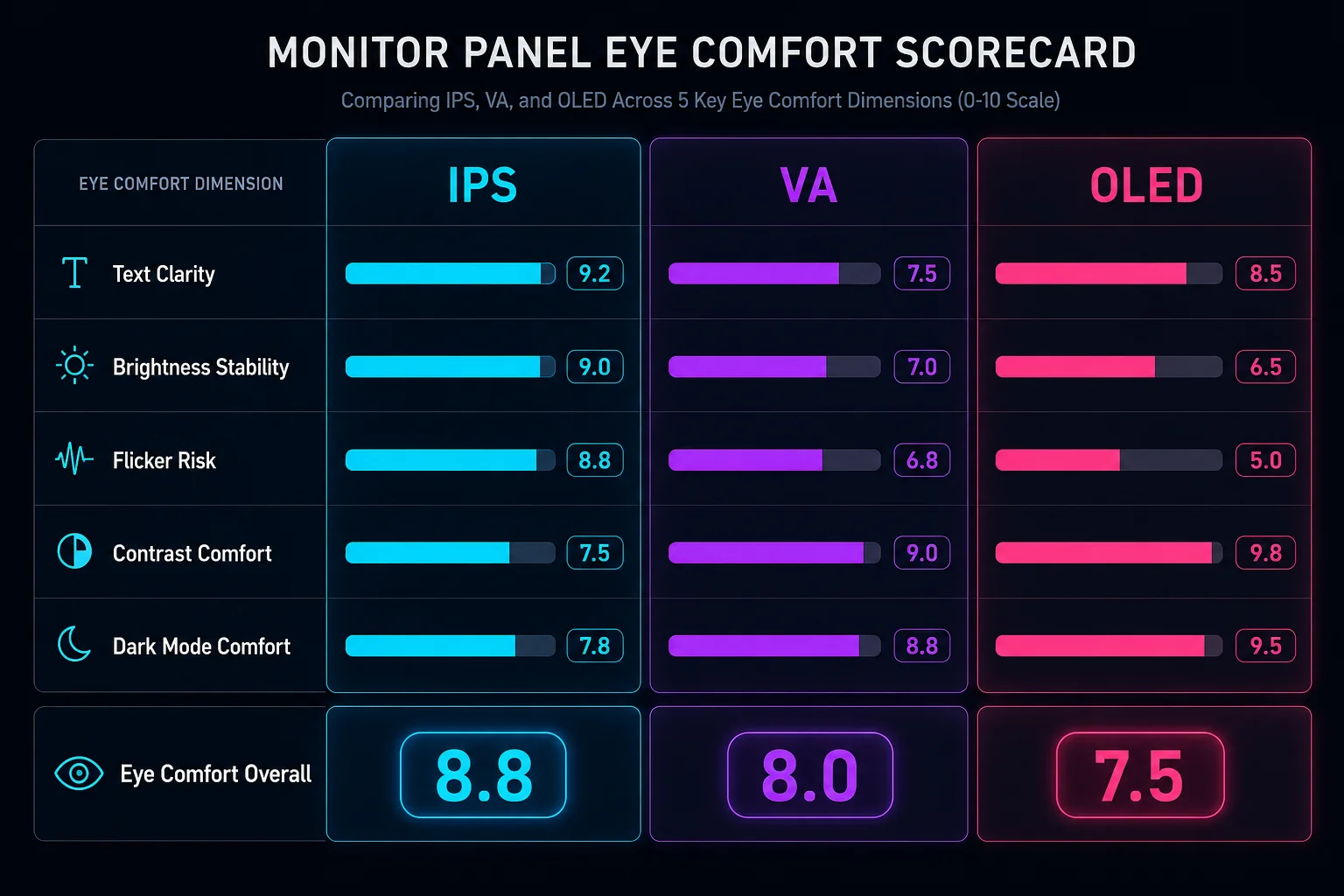 n
n
This table gives you a quick side-by-side comparison of IPS vs VA vs OLED for work and eye comfort so you can quickly narrow down which type is most likely to feel comfortable in your setup.
Below is a conceptual comparison you can keep in mind when evaluating monitors:
- IPS: Very good all-round comfort, especially on certified flicker-free models.
- VA: Good comfort with the right model, especially if you love high contrast and dark themes.
- OLED: Excellent perceived image quality and sharpness; comfort depends heavily on how sensitive you are to PWM and how you configure brightness and themes.
Which Panel Type Is Best for Your Eyes by Use Case?
The answer to IPS vs VA vs OLED for work depends heavily on what you do all day. A developer staring at dark-themed code has different needs than a financial analyst working in bright spreadsheets. Here is how each panel type performs in the most common work scenarios.
Office work and spreadsheets
If your day is mostly spent in Office apps, email, and web browsers, your top priorities are:
- Clear text
- Stable brightness and color
- Comfortable ergonomics
For this use case, a “flicker-free IPS monitor” is usually the best starting point. Choose a 24–27 inch panel at 1080p or 1440p, with a matte finish and a height-adjustable stand, and you’re off to a strong start.
VA and OLED can both be comfortable as well, but they don’t offer a clear eye-comfort advantage over a good IPS in typical office lighting.
Screen size interacts with panel type more than most people realize. A 32-inch VA panel at close range feels very different from a 27-inch IPS at arm’s length. Our 27 versus 32 inch monitor comparison breaks down which size works best for different desk depths and workflows.
Programming and IT workstations
Developers and IT professionals often:
- Use multiple monitors
- Stare at dense code or logs for long periods
- Prefer dark themes in code editors and terminals
For programming:
- IPS works extremely well thanks to consistent brightness, stable viewing angles, and clear text.
- VA can be appealing if you love deep blacks in dark themes, but choose a model known for minimal ghosting and acceptable PWM behavior.
- OLED can look stunning for code, but high contrast and PWM dimming may fatigue some users in marathon sessions.
If eye comfort is your number one priority, start with IPS. If you’re curious about OLED, consider adding it as a secondary screen first.
If you are weighing a single large panel against two smaller side-by-side screens, the panel type decision gets more complex. Our ultrawide versus dual monitors comparison covers the real productivity and comfort differences that affect long workdays.
Design, photo, and video editing
For color-critical work:
- IPS remains the reference choice thanks to mature calibration support, predictable color behavior, and wide adoption in professional environments.
- OLED is quickly gaining ground for HDR and grading, thanks to its infinite contrast and deep blacks.
From a comfort perspective, you can use either IPS or OLED successfully. Just be sure to:
- Calibrate your displays for consistent brightness.
- Avoid pure black backgrounds with bright UI elements for long sessions.
- Use a neutral, controlled ambient light around your desk.
Mixed use: work by day, gaming by night
If your monitor has to handle both work and play:
- A high-refresh IPS panel is often the most balanced choice—comfortable for work, smooth for gaming, and easy to tune.
- A good VA panel can provide a more cinematic look for games and movies, at the cost of some motion compromises.
- OLED offers the most dramatic upgrade in perceived image quality for games and HDR content, but requires thoughtful configuration to stay comfortable during long workdays.
In this mixed-use scenario, there isn’t one universally “best” panel type for your eyes. IPS often wins for simplicity and predictability, while OLED is the premium, high-contrast option that rewards careful setup. If you are also deciding between a single large display and a multi-monitor layout, our ultrawide versus dual monitors comparison covers how each configuration affects eye movement and neck strain throughout the day.
Features That Matter More Than Panel Type for Eye Comfort
Panel type is important, but it’s not the whole story. Some features cut across IPS, VA, and OLED and make a bigger difference than you might expect. For a full breakdown of how resolution choice affects daily comfort, see our 1080p versus 1440p versus 4K for office work guide.
Flicker-free backlighting and PWM-free dimming
If you care about eye comfort, “flicker-free” is one of the most important specifications to look for in a monitor description or review.
- Prefer monitors that explicitly advertise **flicker-free technology** or DC dimming.
- Be aware that some screens are flicker-free only at certain brightness ranges.
- If you’re PWM-sensitive, avoid displays that rely on low-frequency PWM at the brightness levels you prefer.
This one factor often makes a bigger difference than whether the panel is IPS, VA, or OLED.
Blue light control and color temperature
Light that’s too blue and too bright late at night can interfere with your sleep and make screens feel glaring. Most modern monitors and operating systems include:
- Blue light reduction modes (often named “Eye Saver,” “Night Light,” or similar)
- Adjustable color temperature (cool to warm) settings
For eye comfort and better sleep hygiene:
- Use slightly “warmer color temperatures” in the evening.
- Reduce screen brightness and avoid pure white backgrounds at night.
- Consider scheduling your OS’s night mode so it fades in automatically after sunset.
Anti-glare coatings, ambient light, and ergonomics
Good ergonomics can transform your relationship with any monitor, regardless of panel type:
- Anti-glare (matte) coatings reduce reflections and glare from windows and overhead lights.
- Position the monitor so the top is at or slightly below eye level, and the screen is about an arm’s length away.
- Arrange your desk lighting so there are no strong light sources directly behind or in front of the screen.
- Use an adjustable chair and stand so you’re not craning your neck or leaning forward.
You’ll often get more comfort gains from improving your workspace than from switching panel types.
Eye-Friendly Monitor Buying Tips for IT and Office Work
Best IPS Monitors for Eye Strain and Office Work
If you want a safe, no-drama choice for long office days, look for a 24–27 inch IPS monitor with flicker-free dimming, a matte (anti-glare) coating, and a height-adjustable stand. This combination usually delivers the best monitor for eye strain in typical office settings, especially when you spend most of your time in spreadsheets, emails, and browser tabs.
When you build your shortlist, focus on IPS monitors that advertise flicker-free technology, low blue light modes, and ergonomic stands. These are the models that are easiest to recommend as eye-friendly monitors for work and long hours of productivity. For specific size recommendations, our 27 versus 32 inch monitor guide covers which screen dimensions pair best with different desk setups.
Best VA Monitors for Mixed Work and Entertainment
If you split your time between office work and entertainment, a VA monitor can give you deeper blacks and more cinematic contrast while still handling spreadsheets and documents well. Look for VA models with good motion reviews, minimal black smearing, and either flicker-free dimming or very high PWM frequencies.
The ideal VA monitor for eye comfort will offer at least 75 Hz refresh rate, stable brightness, and a comfortable screen size like 27 or 32 inches. This type of display is a strong choice if you want a monitor for eye strain that also makes movies and games look richer after hours.
Best OLED Monitors for Work and Gaming
For users who want premium image quality and smooth gaming alongside work, OLED is hard to beat. To make an OLED monitor feel gentle on your eyes, prioritize models with well-documented dimming behavior, strong burn-in protections, and enough full-screen brightness for your room.
Think of OLED as a high-end choice: it can absolutely serve as one of the best monitors for programmers, creators, and gamers, but it rewards careful setup. If you choose an OLED monitor, take a little time to tune brightness, themes, and screen-saver settings so your workday stays comfortable.
Once you’ve identified a few promising IPS, VA, and OLED models, you can compare prices, features, and real-world reviews to find the best fit for your budget and workflow.
When recommending or choosing monitors as part of your IT gear stack, keep this checklist in mind:
- Panel type that matches the user’s needs (IPS as a safe default; VA or OLED for specific preferences)
- Certified **flicker-free** or PWM-free dimming where possible
- 24–32 inch screen size depending on desk depth
- Resolution that keeps text readable (1080p at 24–27 inches, 1440p at 27–32 inches, 4K with scaling)
- Matte coating to reduce glare
- Height-adjustable, tilt-capable stand
- Blue light reduction and color temperature controls
- At least 75 Hz for smoother scrolling; 120–144 Hz if the user is sensitive to motion or enjoys gaming
This is where you can naturally highlight affiliate product recommendations that match these criteria.
How to Set Up Any Monitor to Be Easier on Your Eyes
Even the best IPS, VA, or OLED panel can feel harsh if it’s misconfigured. Fortunately, a few simple tweaks can dramatically improve comfort.
Brightness, contrast, and text scaling settings
As a starting point:
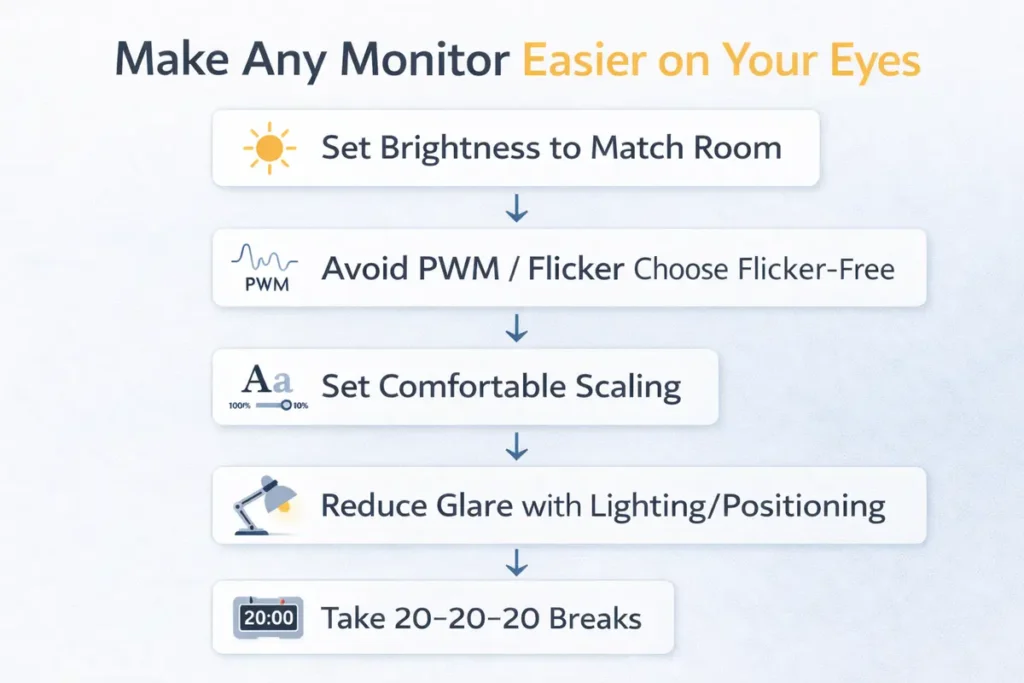
- Set brightness so white areas on the screen are roughly as bright as a piece of paper in the same lighting. For many monitors, this is around 25–60% brightness.
- Leave contrast near the default unless text looks washed out or too dense.
- Adjust operating system scaling so that text is easy to read without leaning forward:
- 24″ 1080p: around 100–110% scaling
- 27″ 1440p: around 110–125% scaling
- 32″ 4K: around 125–150% scaling
Choose fonts and themes that are clear and not overly thin or low-contrast.
Resolution and scaling directly affect how hard your eyes work to read text throughout the day. Our 1080p versus 1440p versus 4K for office work guide maps the best resolution to screen size so you strike the right balance between sharpness and comfortable text size.
The 20-20-20 rule and healthy screen habits
A simple rule for healthier screen time is the “20-20-20 rule”:
- Every 20 minutes
- Look at something at least 20 feet away
- For at least 20 seconds
This brief reset helps your focusing system relax and encourages blinking. You can use timers, apps, or break reminders to build the habit.
Beyond that, remember to:
- Take a longer 10–15 minute break away from screens every couple of hours.
- Stay hydrated and consider using lubricating eye drops if your eye-care professional recommends them.
- Get regular eye exams to keep your prescription up to date.
When to talk to an eye-care professional
No monitor, regardless of whether it’s IPS, VA, or OLED, can replace professional eye care. You should encourage readers to consult an optometrist or ophthalmologist if they experience:
- Frequent or severe headaches during or after screen use
- Persistent blurred vision or double vision
- Significant difficulty focusing or eye pain
- Sudden changes in vision
Recommending professional care builds trust and positions your content as responsible and user-focused.
Real-World Monitor Picks at Each Tier
The technology scores above tell you which panel type fits your priorities. Here are the specific monitors I tested and recommend at each tier, with current UK and US pricing.
IPS Pick: Dell U2723QE (Score: 9.0/10)
Specs: 27-inch 4K IPS, 60 Hz, USB-C 90W PD, built-in KVM, flicker-free, factory-calibrated Delta E less than 2. Price: £450 to £550 / ~$520 to ~$620.
This is the monitor I used as my daily driver for six months. The 4K IPS panel delivers razor-sharp text at 163 PPI, and the flicker-free backlight remained comfortable through 10-hour coding sessions. The built-in KVM and USB-C docking cut desk clutter. Viewing angles are wide enough for a dual-monitor setup without colour shift. The 60 Hz refresh rate is the only compromise—fine for office work but not for gaming. For pure productivity and eye comfort, this is my top IPS recommendation.
Pros: Excellent text clarity, flicker-free at all brightness levels, USB-C with 90W charging, factory colour calibration, built-in KVM switch.
Cons: 60 Hz refresh rate limits mixed-use appeal, IPS glow visible in very dark rooms, price premium over budget 4K IPS alternatives.
Best for: Developers, writers, and office workers who want the sharpest text and most stable brightness in a single cable setup.
Avoid if: You game regularly and want a single monitor for work and play—look for a high-refresh IPS instead.
VA Pick: Samsung Odyssey Neo G8 (Score: 8.5/10)
Specs: 32-inch 4K VA, 240 Hz, Mini LED backlight, 1,196-zone local dimming, HDR2000, FreeSync Premium Pro. Price: £800 to £1,000 / ~$900 to ~$1,200.
The Neo G8 is a different beast entirely. The Mini LED backlight with over a thousand dimming zones eliminates the traditional VA weakness of poor uniformity, and the 240 Hz refresh rate makes scrolling buttery smooth—genuinely noticeable when flying through long documents. The VA panel delivers deep, satisfying blacks that make dark-mode coding environments look fantastic. The trade-off: at 32 inches curved, you need a deep desk, and the aggressive 1000R curve takes a few days to adjust to for spreadsheet work. PWM dimming is present but runs at a high enough frequency that I did not experience noticeable eye strain during testing.
Pros: Exceptional contrast with Mini LED local dimming, 240 Hz makes everything feel responsive, deep blacks for dark themes, HDR2000 for media.
Cons: 1000R curve not ideal for all desk depths, large physical footprint, premium price, VA off-axis shift still present at extreme angles.
Best for: Users who split time between productivity and high-end gaming, and who love dark themes with deep contrast.
Avoid if: Your desk is less than 70 cm deep, or you are sensitive to curved displays for document work.
OLED Pick: LG UltraGear 27GR95QE (Score: 8.2/10)
Specs: 27-inch 1440p OLED, 240 Hz, 0.03ms response, G-Sync Compatible, anti-glare coating. Price: £650 to £800 / ~$750 to ~$900.
This is the OLED panel I tested for mixed work and gaming. The image quality is stunning—perfect blacks, vivid colours, and motion clarity that makes even cursor movement look better. For pure visual quality, OLED wins every time. However, for all-day work comfort, I had to make adjustments: running at 40-50% brightness to reduce PWM intensity, using a medium-grey IDE theme instead of pure black, and enabling the panel’s built-in OLED care features. Once dialled in, it was comfortable for 6-8 hour sessions. Without those adjustments, the high contrast and PWM at low brightness made my eyes feel tired by mid-afternoon. This is the premium option that rewards effort.
Pros: Perfect blacks, stunning colour and contrast, 240 Hz for ultra-smooth motion, wide viewing angles with zero shift.
Cons: PWM dimming at lower brightness, burn-in risk with static UI elements, 1440p at 27 inches is less sharp than 4K IPS, requires active brightness management.
Best for: Enthusiasts willing to configure settings carefully for a premium mixed work-and-gaming experience.
Avoid if: You want a set-and-forget monitor for pure productivity, or you are known to be PWM-sensitive.
Common Questions About IPS, VA, and OLED for Work and Eye Health
Which panel type is best for eye comfort overall?
For most people, a “flicker-free IPS monitor” is the best all-round choice for eye comfort. It offers stable brightness, good text clarity, and predictable behavior in office lighting. VA and OLED can also be comfortable, but they require more attention to specific models and settings.
Is OLED bad for your eyes in the long term?
Current evidence doesn’t show that OLED is uniquely bad for your eyes compared to other screen types. Eye strain is more closely related to brightness, flicker, viewing time, and ergonomics than to the underlying panel technology. If you feel discomfort quickly on OLED, it may be due to PWM dimming or very high contrast rather than OLED itself.
Is IPS or VA better for eye strain?
In many cases, “IPS” will be slightly better for eye strain because of its stable viewing angles, consistent brightness, and the common availability of flicker-free models. “VA” can be just as comfortable if you choose a monitor with minimal PWM flicker and good motion handling.
Does higher refresh rate reduce eye strain?
A higher refresh rate doesn’t guarantee less eye strain, but it often makes screens feel smoother and more natural. Scrolling and cursor movement become less jittery, which can reduce visual fatigue, especially on large displays. A range of 75–144 Hz is a good target for combined work and play.
Does blue light cause eye damage?
Blue light at normal screen levels is not proven to cause permanent eye damage, but it can contribute to digital eye strain and may affect sleep patterns if used late at night. Reducing blue light with warmer color temperatures and night modes can help screens feel softer and more comfortable.
Do blue light-blocking glasses really help?
Blue light-blocking glasses can help some people feel more comfortable, especially at night or under bright office lighting. However, they are not a complete solution. Proper brightness, ergonomics, breaks, and a good prescription (if needed) are still essential.
Are curved monitors better or worse for your eyes?
Curved monitors are not inherently better or worse for your eyes. They can feel more immersive, especially in ultra-wide formats, but comfort still depends on brightness, flicker, viewing distance, and how you position the monitor. For work, ensure that the curve and size don’t force you to move your head constantly.
What monitor size is best for reducing eye strain?
The best size depends on your desk depth and resolution. Common comfortable combinations include:>24″ 1080p>27″ 1440p>32″ 1440p or 4K with scalingA larger screen at appropriate resolution can reduce squinting and allow you to use more relaxed text sizes.
Is 4K better for your eyes than 1080p or 1440p?
4K offers higher pixel density, which can make text and graphics look sharper. However, it also requires scaling to keep text from becoming tiny. If configured correctly, 4K can look excellent and comfortable. If configured poorly (tiny UI, no scaling), it can be tiring to read.
Is OLED’s perfect black more comfortable or more tiring?
OLED’s perfect blacks can make content look beautiful and high-end, but in very dark environments with bright UI elements, the extreme contrast can be tiring over long sessions. Using slightly brighter backgrounds, not pure black, and moderating brightness can help.
Does panel type affect headaches from screens?
Headaches are more often linked to flicker, brightness, uncorrected vision issues, and poor ergonomics than to panel type alone. That said, certain panel families (such as some OLED and VA models) use PWM dimming more aggressively, which can trigger headaches in PWM-sensitive users. IPS monitors marketed as flicker-free can reduce this risk.
Is a matte or glossy screen better for your eyes?
Matte (anti-glare) screens usually provide better comfort for work because they reduce reflections and glare from lights and windows. Glossy screens can look more vivid but may cause more squinting and fatigue in environments with uncontrolled lighting.
Should I use dark mode for eye comfort?
Dark mode can feel more comfortable in low-light environments, but it’s not automatically better in all situations. High contrast (bright white text on pure black) can still be tiring. In moderate or bright rooms, a well-balanced light theme with not-too-bright whites may feel more comfortable.
What brightness level is best for eye comfort?
There is no single perfect brightness level. As a rule of thumb, set brightness so that white areas are about as bright as a sheet of paper in your room. On many monitors, that’s in the 25–60% range. Adjust based on your environment and comfort rather than always running at 100%.
Can using multiple monitors increase eye strain?
Multiple monitors are not inherently worse for your eyes, but they can increase strain if:>They are set at different brightness or color temperatures>You sit too close or constantly twist your neck>They’re placed at awkward heights or anglesMatch brightness and color between screens, and arrange them in a gentle curve in front of you to reduce strain.
Is OLED burn-in related to eye health?
Burn-in is a panel longevity issue, not a direct eye health issue. However, measures taken to prevent burn-in—such as aggressive dimming or frequent UI shifting—can change the viewing experience. As long as the monitor is configured comfortably, burn-in prevention itself isn’t harmful to your eyes.
Are TN panels bad for your eyes compared to IPS, VA, and OLED?
TN (Twisted Nematic) panels are older technology with poorer viewing angles and color reproduction. They’re not inherently more harmful to your eyes, but their narrow viewing angles and lower image quality can make them less pleasant for long work sessions. IPS, VA, and OLED generally offer better experiences overall.
Does higher resolution always mean less eye strain?
Higher resolution can reduce aliasing and make text smoother, but only if scaling is configured so that text is easy to read. If high resolution leads to tiny UI elements you strain to see, it can actually increase eye strain. Balance resolution with comfortable text size.
What’s the best panel type for coding specifically?
For coding, a “flicker-free IPS panel” is often the best choice. It provides stable brightness, wide viewing angles for multi-monitor setups, and sharp text rendering. VA and OLED can also work well, but IPS strikes a strong balance of comfort, consistency, and availability.
What’s the bottom-line answer: IPS vs VA vs OLED for Work: Which Panel Type Is Best for Your Eyes?
The bottom line is this: there is no single panel that is medically “best” for everyone, but for long, focused work:>IPS is the safest all-round recommendation for most users, especially in flicker-free, ergonomic designs.>VA is great if you value high contrast and are not too sensitive to PWM or motion artifacts.>OLED is a premium option that delivers outstanding image quality, but you’ll need to pay close attention to brightness, flicker, and burn-in settings to keep it comfortable for multi-hour work sessions.
Final Verdict: Which Panel Type Should You Choose?
After testing IPS vs VA vs OLED for work across three months of daily use, here is where each panel type lands:
Winner: Flicker-Free IPS — £200 to £500 / $250 to $600
For most IT professionals and office workers, a flicker-free IPS monitor with sensible brightness and good ergonomics delivers the best balance of eye comfort, text clarity, and everyday practicality. It is the safest recommendation for anyone spending long hours in spreadsheets, code, or documents.
Best for mixed use: Quality VA Panel — £200 to £450 / $250 to $550
If you split time between work and entertainment, a well-chosen VA panel with minimal ghosting and flicker-free dimming offers deeper blacks and more cinematic contrast while still handling documents well.
Premium choice: OLED — £600 to £1,200+ / $700 to $1,400+
Modern OLED monitors deliver outstanding image quality and perfect blacks. They can be perfectly usable for work if you are not PWM-sensitive and configure brightness and themes carefully. Best for those who want the ultimate visual experience and are willing to manage settings.
The IPS vs VA vs OLED for work comparison reveals that no single panel type that is medically best for everyone. But for long, focused workdays, clear patterns emerged. No matter which technology you pick, the real keys to comfortable, healthy screen use are sensible brightness and contrast, flicker-free or high-frequency dimming, good ergonomics and ambient lighting, regular breaks and eye-care habits, and professional advice if symptoms persist. With those principles in place, you can confidently choose the monitor that fits your workflow and your eyes.
← Back to Guides Hub