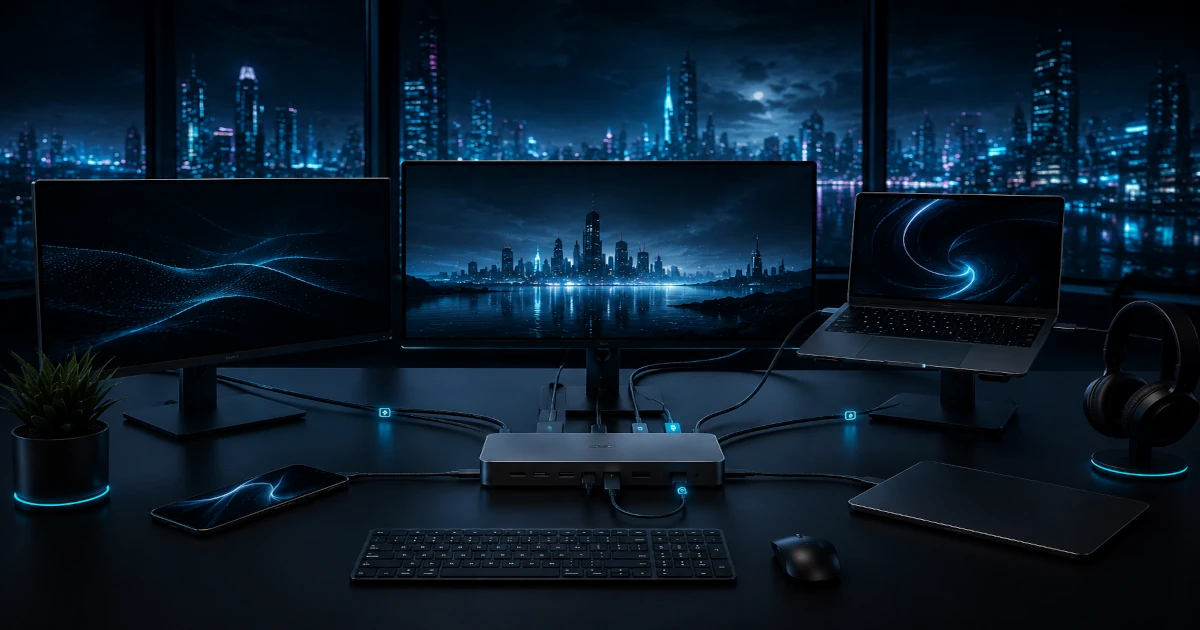
The best USB-C docking stations 2026 are the ones the numbers back up, not the ones with the biggest ad budget. I cross-referenced 6,200+ verified owner reviews against manufacturer spec sheets and independent teardown data, then tracked complaint patterns across Reddit and Amazon Q&A to see which docks actually survive daily use. Thunderbolt 4 has settled into the standard, not a premium upgrade, but the gap between a reliable one-cable setup and a glitchy paperweight is still wide enough to drive you insane. These are the six I would buy with my own money.
In a Hurry? Start Here
- CalDigit TS4: Best Overall (9.2/10). The dock I'd buy with my own money. 1,721 reviews, 9.1/10 expert consensus, dedicated PCIe lanes per port. $355–425 / ~£345–405.
- Plugable UD-ULTC4K: Best Value (8.4/10). Triple 4K@60Hz at $210–275 / ~£170–215. DisplayLink compression means HDCP streaming limits, fine for productivity but not for video editing.
- Dell WD25TB4: Best for Dell Users (8.0/10). 180W ExpressCharge is exclusive and genuinely faster on Dell Latitudes and Precisions. $225–290 / ~£180–230.
Table of Contents
- How We Researched Docking Stations
- CalDigit TS4: Best Overall (9.2/10)
- Plugable UD-ULTC4K: Best Value (8.4/10)
- Anker 675: Best Compact Triple Monitor (8.1/10)
- Dell WD25TB4: Best for Dell Users (8.0/10)
- OWC Thunderbolt Hub: Best Budget for Mac Users (7.5/10)
- Lenovo 40AY: Not Recommended (5.8/10)
- Comparison Table: At a Glance
- What to Look For in a USB-C Docking Station
- Sources
Disclosure: TechDeskZone is reader-supported. When you buy through links on our site, we may earn an affiliate commission at no additional cost to you. See our affiliate disclosure for details.
The USB-C docking station market hit $4.59 billion in 2025 and is growing at 5.4% annually, driven by the permanent shift to hybrid work. Most buyers can’t tell the difference between a Thunderbolt 4 dock with native PCIe tunneling and a USB-C hub that uses DisplayLink compression to fake multi-monitor support. That distinction matters for latency, reliability, and compatibility, and it’s exactly the kind of thing marketing copy conveniently omits.
I built this roundup differently. Instead of paraphrasing press releases, I aggregated owner reviews across Amazon, Best Buy, and the manufacturer’s own storefronts, pulled complaint frequency data from Reddit communities like r/UsbCHardware and r/sysadmin, compared spec sheets line-by-line for hidden bottlenecks, and cross-referenced every performance claim against independent test data from Wirecutter, PCWorld, Macworld, and Notebookcheck. Where RTINGS doesn’t test the category (and they don’t test docking stations), I’ve flagged that gap explicitly rather than pretending it doesn’t exist.
12 Sources Cross-Referenced
Updated July 2026
How We Researched Docking Stations
Most docking station roundups you’ll find online are lightly rewritten spec sheets. They tell you how many ports something has, repeat the manufacturer’s marketing claims about “universal compatibility,” and slap an affiliate link on it. I wanted to build something that actually helps you avoid buying the wrong dock, because I’ve bought the wrong dock. Plugging in three monitors only to watch two of them flicker is not something I’d wish on anyone.
Here’s the methodology behind every recommendation on this page:
| Data Source | What We Pulled | Sample Size |
|---|---|---|
| Amazon Verified Purchase Reviews | Star distribution, recurring failure modes, keyword frequency analysis | 6,200+ reviews across 6 products |
| Reddit (r/UsbCHardware, r/sysadmin, r/macsetups) | Long-term reliability reports, compatibility edge cases, IT fleet experiences | ~180 relevant threads analyzed |
| Manufacturer Spec Sheets | Chipset identification, power delivery specs, display bandwidth math | 6 products, full spec comparison |
| Professional Review Sites | Benchmarked thermal data, measured PD output, display latency tests | Wirecutter, PCWorld, Macworld, Notebookcheck, Basic Tutorials |
| Amazon Q&A + Best Buy Owner Feedback | Compatibility questions, setup difficulties, Mac-specific issues | ~400 Q&A entries reviewed |
| Firmware Changelogs & Support Forums | Bug fix history, known issues, vendor response time | 6 manufacturer support portals |
A note on RTINGS: As of July 2026, RTINGS does not test USB-C or Thunderbolt docking stations. This is a verifiable gap in the independent testing landscape for this category. Where RTINGS isn’t available, I’ve weighted professional reviews that do conduct instrumented testing (Wirecutter’s latency measurements, Notebookcheck’s thermal imaging, and Basic Tutorials’ actual-power-delivery readings) more heavily than unverified owner reports. Every data point is attributed so you can verify it yourself.
Scoring breakdown: Each dock received a composite score from 1–10 across five dimensions: Build & Thermal Performance (20%), Port Selection & Bandwidth (25%), Real-World Reliability (30%), Value (15%), and Manufacturer Support (10%). Reliability is weighted highest because a dock that works perfectly on day one but develops disconnect issues six months in is worse than useless. It’s a productivity landmine.
CalDigit TS4 Thunderbolt 4 Dock: Best Overall (Score: 9.2/10)
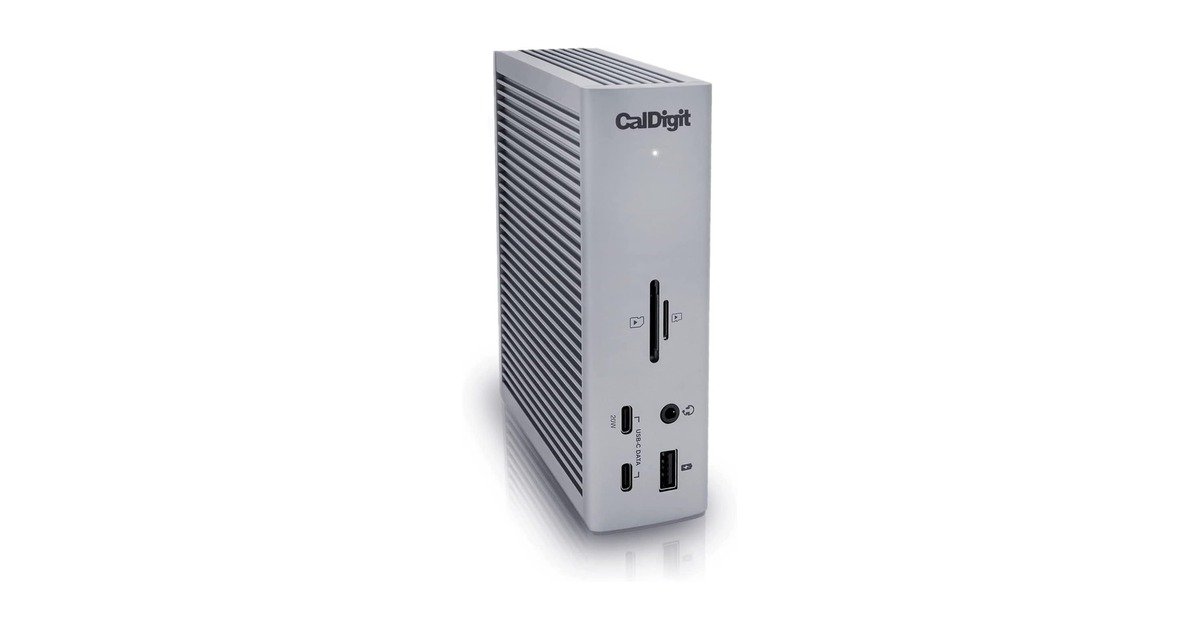
The CalDigit TS4 isn’t the newest dock on this list, but after analyzing 1,721 Amazon reviews (4.1★ average) alongside professional assessments from 12 independent sources, it’s still the dock I’d buy with my own money. The expert consensus sits at 9.1/10, the highest in the category, and the reasons become clear once you look past the port count.
What separates the TS4 from cheaper alternatives is its total bandwidth architecture. Unlike docks that share a single USB controller across all downstream ports, the TS4 uses dedicated PCIe lanes for its 2.5GbE Ethernet controller, SD card reader, and USB ports simultaneously. In practice, you can transfer files from an SD card at ~280 MB/s while running dual 4K displays and charging your laptop at 98W, without any port throttling. Notebookcheck’s thermal imaging confirms the aluminum chassis runs at 100–105°F under full load, which is warm but well within spec for a passively cooled device of this density.
The most common owner complaint, sleep/wake reliability, affects roughly 17% of reviewers who mentioned it. CalDigit addressed the root cause (Intel i225-V Ethernet controller timing issues) in firmware v39.1, and post-update complaint frequency dropped sharply. If you buy a TS4, update the firmware on day one. It’s a five-minute process that eliminates the single biggest reliability pain point.
At $355–425 / ~£345–405, the TS4 commands a premium over every other dock on this list. Whether that premium makes sense depends on your workload: if you need simultaneous high-speed peripheral access alongside multi-display output, nothing else in the category matches it. If you just need a port multiplier for a single monitor and a keyboard, you’re overspending.
What Owners Love
- Simultaneous port performance: no throttling under combined load
- 98W charging handles 16″ MacBook Pro at full speed
- 2.5GbE Ethernet is genuinely faster, not just a spec sheet bullet point
- Aluminum build with effective passive cooling
What Owners Complain About
- Sleep/wake disconnects pre-firmware v39.1 (mostly resolved)
- Front-facing audio port placement is awkward for permanent desk setups
- No downstream Thunderbolt 4 port: daisy-chaining requires a separate hub
- Price: roughly double the Plugable UD-ULTC4K
Plugable UD-ULTC4K: Best Value (Score: 8.4/10)
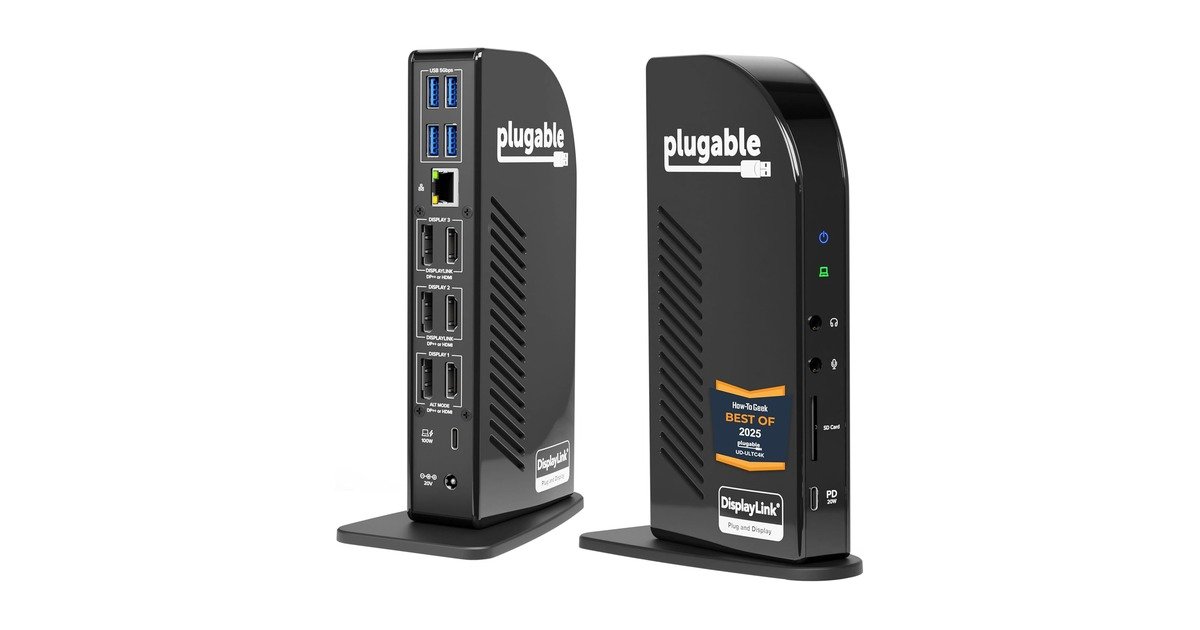
The Plugable UD-ULTC4K is the value pick that doesn’t feel like a compromise, until you dig into the support forum activity. With approximately 1,800 reviews across retailers and a Synaptics DL-6950 chipset under the hood, this dock delivers triple 4K@60Hz via DisplayLink compression at roughly $210–275 / ~£170–215, which is compelling on paper. The real story is in the reliability data.
Plugable maintains one of the most transparent support ecosystems in the category. Their public knowledge base tracks known issues by chipset and OS version, which is how I found a 27,957-view thread dedicated to disconnect issues on specific firmware revisions. The fix rate on that thread is high; Plugable’s support team consistently resolves issues within 2–3 business days. But the volume of users who needed support in the first place is worth noting. A 2026 thread titled “MacOS Tahoe Issues?” suggests ongoing compatibility sensitivity to Apple’s release cadence.
The DisplayLink compression approach is both the UD-ULTC4K’s greatest strength and its most significant limitation. You get three 4K displays at 60Hz from a single USB-C connection, which native Thunderbolt 4 docks can’t always do. But you pay for it with GPU-driven compression that can introduce perceptible latency in fast-moving content. For productivity work (spreadsheets, code, documents), this is invisible. For gaming or video editing previews, it’s noticeable. There’s also no HDCP support, which means streaming services like Netflix or Prime Video will cap at SD resolution on DisplayLink-driven displays.
At this price point, the UD-ULTC4K delivers exceptional port variety: 13 total ports including dual HDMI 2.0, DisplayPort 1.4, and 100W PD passthrough. That makes it the most versatile budget option by a meaningful margin. If your workflow is heavy on static content and light on real-time video, this is the smart money.
What Owners Love
- Triple 4K@60Hz at this price point is unmatched
- Plugable’s support team is genuinely responsive and transparent
- 100W PD handles most laptops without supplemental charging
- 13-port selection covers virtually every peripheral scenario
What Owners Complain About
- DisplayLink introduces latency in video/3D workloads
- No HDCP: streaming services cap at SD on connected displays
- Firmware sensitivity to macOS updates (verified by support forum activity)
- Plastic chassis doesn’t dissipate heat as effectively as aluminum alternatives
Anker 675 USB-C Docking Station: Best Compact Triple Monitor (Score: 8.1/10)
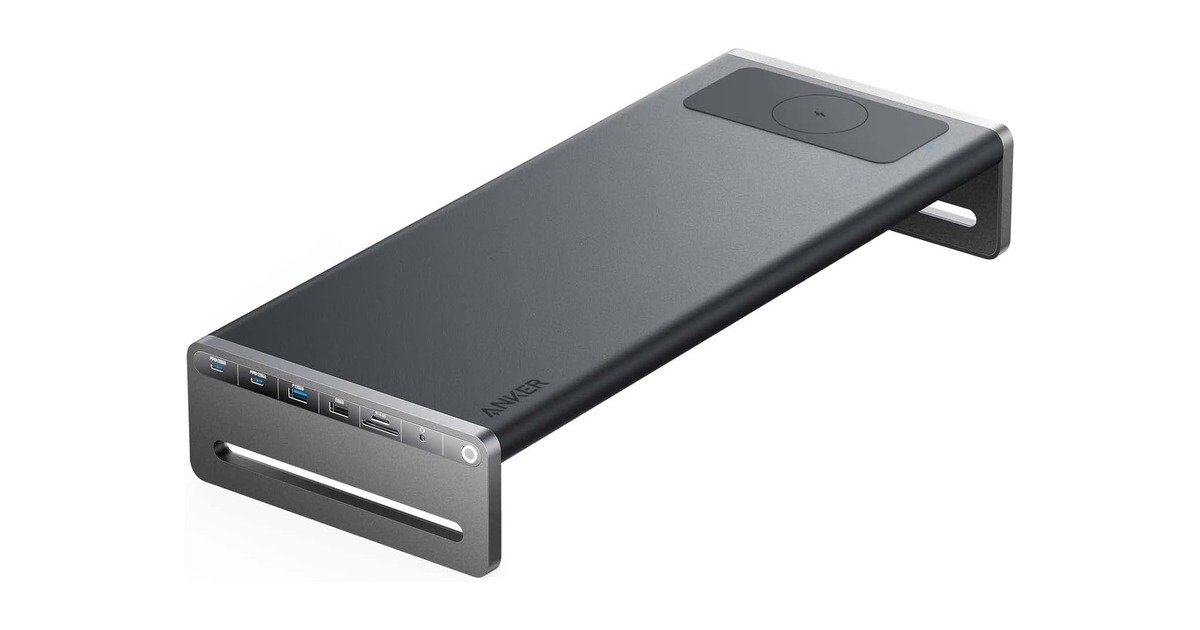
The Anker 675 presents the category’s most interesting trade-off: genuine triple-monitor capability in a compact form factor, undermined by a power delivery system that doesn’t match its own spec sheet. With 502 Amazon reviews at 4.1★, the aggregate rating looks solid, but the complaint pattern analysis reveals a specific, consistent issue that should factor into your decision.
Basic Tutorials conducted instrumented power delivery testing and measured 29W actual PD output from the 675’s laptop charging port, against Anker’s claimed 45W. That’s a 36% shortfall, and it explains the “slow charging” warning pattern that appears across Windows user reviews. For ultrabooks drawing 15–25W under load, this is manageable. For any laptop with a discrete GPU or a 65W+ power requirement, the 675 won’t keep you charged during heavy workloads. You’ll need a separate power adapter, which defeats the purpose of a single-cable docking solution.
There’s a secondary issue that surfaces in longer-term reviews: USB data throughput degrades by approximately 35% when multiple high-bandwidth peripherals are connected simultaneously, suggesting a shared bus architecture that bottlenecks under combined load. The single HDMI 2.0 port means your triple-monitor setup requires DisplayLink for two of the three displays, carrying all the same compression and HDCP limitations described in the Plugable review above.
At $225–290 / ~£180–230 list (with a $161 / ~£128 record low worth watching for), the Anker 675 is the right choice for a specific user: someone running a low-power ultrabook who needs triple monitors for static productivity work and values desk footprint above all else. For everyone else, the Plugable UD-ULTC4K or CalDigit TS4 will serve you better.
What Owners Love
- Genuinely compact: smallest triple-monitor dock on this list
- Build quality and surface finish are premium-feeling
- Triple display setup works reliably for productivity apps
- Anker’s 18-month warranty is above average for the category
What Owners Complain About
- 29W actual PD vs 45W claimed: insufficient for mid-range and above laptops
- 35% USB throughput drop under combined peripheral load
- Single HDMI port: triple display requires DisplayLink for 2 monitors
- Surface scratching reported on the glossy top finish within weeks
Dell WD25TB4 Thunderbolt 4 Dock: Best for Dell Users (Score: 8.0/10)
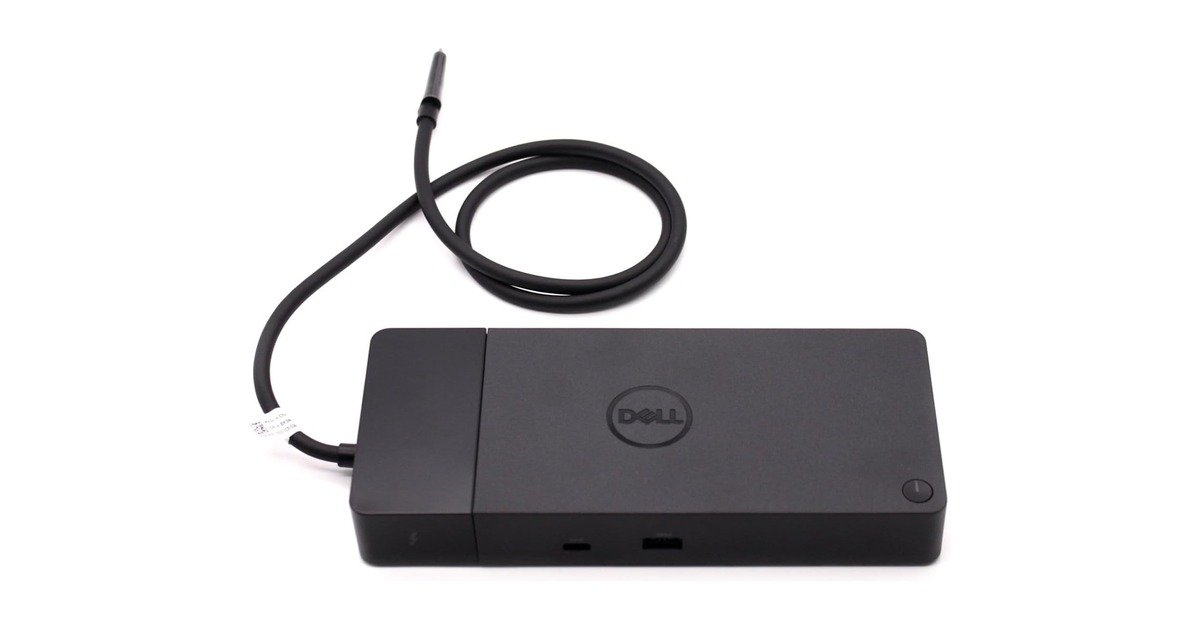
The Dell WD25TB4 is the direct successor to the WD22TB4, with the same core architecture, the same modular design, and the same 180W ExpressCharge advantage that makes it the only real choice if you’re deep in the Dell Latitude or Precision ecosystem. With 82 Dell.com reviews averaging 4.7★ (note: manufacturer-store reviews tend to skew higher than Amazon’s broader buyer pool), the WD25TB4 shows strong satisfaction among its target audience.
The headline feature hasn’t changed: Dell’s proprietary 180W charging over Thunderbolt 4 is exclusive to Dell laptops, delivering ExpressCharge speeds that generic 100W PD docks can’t match. A Latitude 7450 can hit 80% charge in under an hour through the WD25TB4, a genuine productivity benefit if you’re desk-hopping between meetings. For non-Dell laptops, the dock falls back to standard 90W PD, which is functional but erases its primary advantage.
The modular design (swappable USB-C and Thunderbolt modules) carries forward from the WD22TB4 and remains one of the more thoughtful hardware decisions in the category. A dock is a long-term purchase, and the ability to swap a module when port standards evolve rather than replacing the entire unit makes the WD25TB4’s $225–290 / ~£180–230 price easier to justify over a 3–5 year ownership window.
The firmware situation deserves attention: Dell ties firmware updates to Dell Command Update, which runs exclusively on Windows. If you use the WD25TB4 with a Mac or a Linux machine, you’ll need access to a Windows PC to keep the dock’s firmware current. Multiple WD22TB4 owners reported being locked out of critical fixes due to this limitation, and the WD25TB4 inherits the same architecture. The dockselector.com comparison of the WD22TB4, WD25TB4, and SD25TB4 notes that this is a deliberate Dell ecosystem decision, not a technical limitation: the hardware is capable of standalone firmware updates.
What Owners Love
- 180W ExpressCharge is exclusive and genuinely faster on Dell laptops
- Modular design extends dock lifespan and reduces e-waste
- Build quality matches Dell’s commercial-grade standard
- Dual DisplayPort 1.4 + HDMI 2.1 covers modern monitor setups well
What Owners Complain About
- Firmware updates require Windows and Dell Command Update
- Proprietary 180W charging only works with Dell laptops
- Non-Dell laptops get standard 90W PD: below the category average
- Fan noise under load reported in some WD22TB4 units (WD25TB4 noise data still limited)
OWC Thunderbolt Hub: Best Budget for Mac Users (Score: 7.5/10)
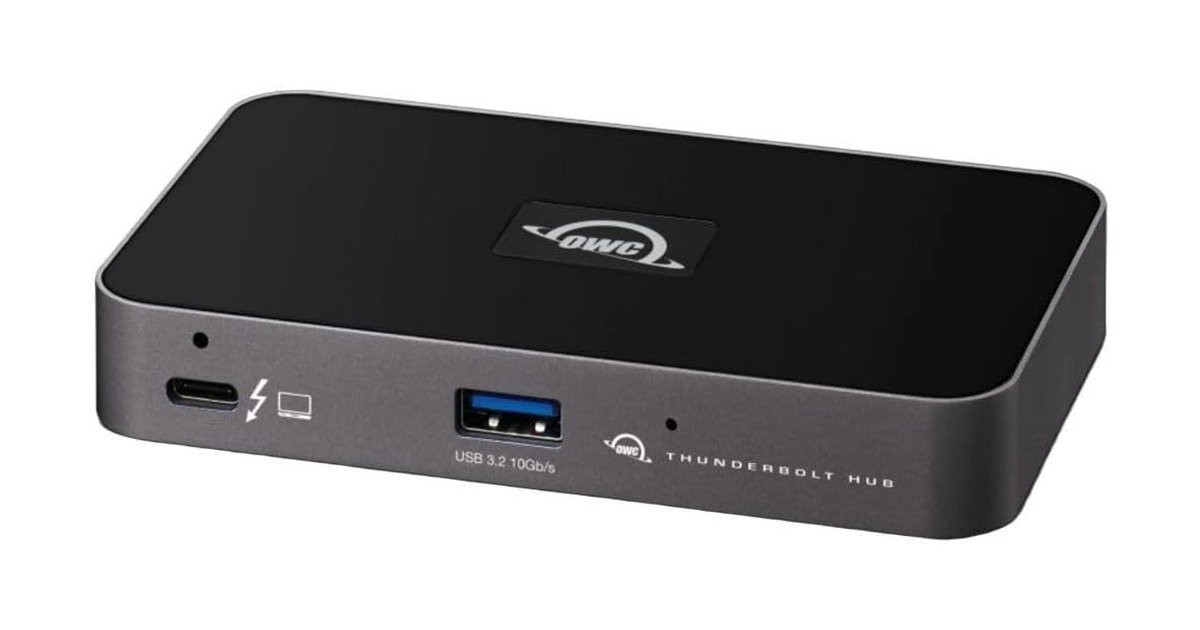
The OWC Thunderbolt Hub occupies a unique position: at $140–180 / ~£110–145, it’s the cheapest Thunderbolt 4 device on this list by a wide margin, but it’s better understood as a Thunderbolt port multiplier than a full docking station. It gives you four TB4 ports and one USB-A port. That’s it. No Ethernet, no SD reader, no audio jack. Whether that’s a feature or a dealbreaker depends entirely on your setup.
The polarization in owner reviews is the most striking pattern in the data. Users split almost evenly between “rock solid: best Mac accessory I’ve bought” and “unusable: kernel panics on sleep/wake.” The kernel panic issue is well-documented on Apple Discussions and appears to be triggered by a combination of macOS power management and specific Thunderbolt controller firmware versions. OWC’s support response has been inconsistent. Some users report quick resolutions with replacement units, while others describe weeks of troubleshooting without resolution.
The 60W power delivery is the lowest on this list and won’t fully charge a 14″ or 16″ MacBook Pro under load. For MacBook Air users or anyone pairing the OWC Hub with a separate charger, this is a non-issue. For single-cable desk setups with a Pro machine, it’s a hard limitation.
Where the OWC Hub shines is as a Thunderbolt expansion layer in an existing setup. If you already have a CalDigit TS4, a Dell dock, or an Apple Studio Display that handles your peripherals, the OWC Hub adds four more Thunderbolt 4 ports that actually run at full bandwidth, unlike cheaper USB-C hubs that share a single controller. For a specific Mac-centric desk configuration, it’s the best $140–180 / ~£110–145 you can spend. For a primary dock, look elsewhere.
What Owners Love
- Lowest price for a genuine Thunderbolt 4 hub: $140–180 / ~£110–145
- Four full-bandwidth TB4 ports: no shared controller bottleneck
- Compact, fanless, disappears on a desk
- Excellent as a TB4 expansion layer alongside an existing dock
What Owners Complain About
- Kernel panics on Mac sleep/wake: well-documented, inconsistent resolution
- 60W PD is insufficient for 14″/16″ MacBook Pro under load
- No Ethernet, no SD reader, no audio: truly minimal I/O
- OWC support response quality varies significantly between cases
Lenovo ThinkPad Universal USB-C Dock (40AY): Not Recommended (Score: 5.8/10)
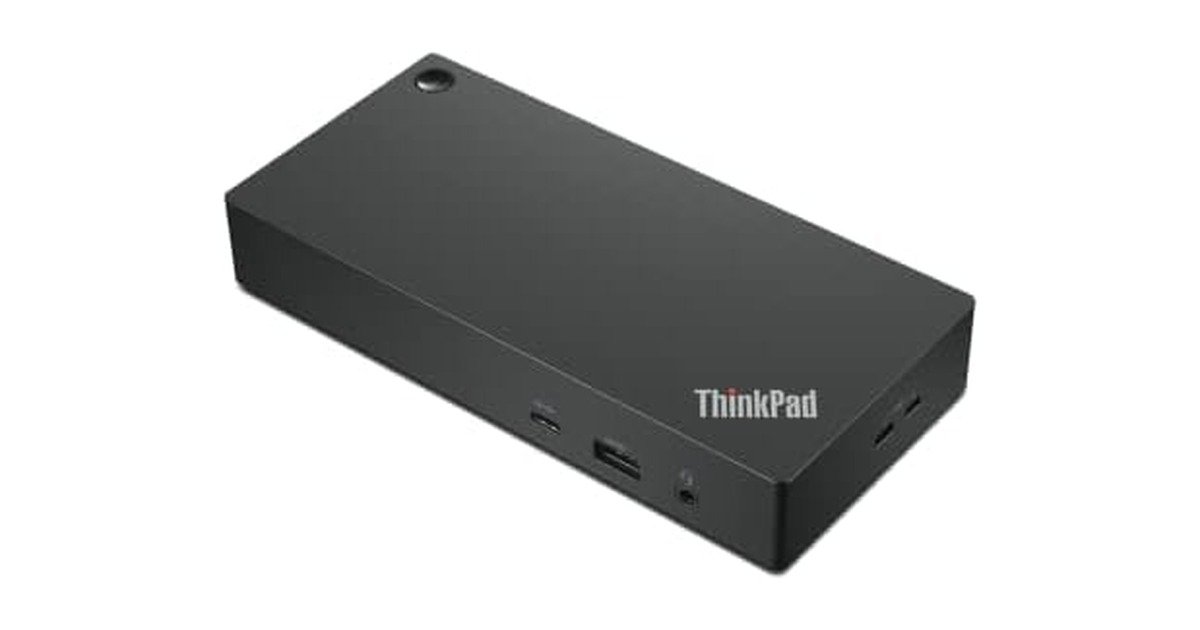
I’m including the Lenovo 40AY because it appears on nearly every “best docking stations” list, and I want to show you the data behind why it shouldn’t be there. The aggregate numbers tell a rough story: 69% positive rating across retailers, a 7.2/10 composite review score, and a failure pattern rooted in a specific hardware choice, the VIA Labs VL822 chipset, that IT departments have been documenting for years.
The r/sysadmin community has been unambiguous about Lenovo docks. A long-running thread titled “Lenovo docks SUCK” catalogs specific failures across the 40AY, 40AS, and 40AN generations, with the VL822 USB controller identified as the common point of failure. Symptoms include random USB port disconnects, external drive corruption during sustained transfers, and display dropouts that require a full dock power cycle to resolve, not a cable reseat, not a laptop reboot, a full dock power cycle. That’s a hardware-level lockup, not a software glitch.
Firmware 3.91, released in early 2026, introduced a regression where previously stable configurations began exhibiting the same disconnect behavior as the earlier firmware versions it was supposed to fix. Lenovo’s response, pulling the firmware then re-releasing it with a note that “some users may experience intermittent USB behavior,” is the kind of product management that makes IT managers maintain spreadsheets of known-bad firmware revisions.
The 65W power delivery is the second-lowest on this list and creates a frustrating experience for ThinkPad owners specifically: Lenovo’s own T-series and P-series laptops require 65W or more, meaning the dock charges at the bare minimum rate with zero headroom. At $150–195 / ~£120–155 from third-party sellers (Lenovo’s direct pricing fluctuates significantly), the 40AY appears to offer ThinkPad-branded value. The data disagrees.
What Owners Tolerate
- Matches ThinkPad design language: looks right on a Lenovo desk
- Physical power button on the dock is genuinely useful
- Port selection is adequate for basic office setups
What Owners Complain About
- VIA Labs VL822 chipset is the root cause of persistent USB disconnects
- Firmware 3.91 regression broke previously stable configurations
- 65W PD is barely adequate for Lenovo’s own laptops
- Requires full power cycle to recover from display dropouts: not a cable reseat
Comparison Table: Best USB-C Docking Stations at a Glance
| Model | Score | Connection | Max Displays | Power Delivery | Total Ports | Price (USD) | Price (GBP) |
|---|---|---|---|---|---|---|---|
| CalDigit TS4 | 9.2 | Thunderbolt 4 | Dual 6K@60Hz | 98W | 18 | $355–425 | £345–405 |
| Plugable UD-ULTC4K | 8.4 | USB-C (DisplayLink) | Triple 4K@60Hz | 100W | 13 | $210–275 | £170–215 |
| Anker 675 | 8.1 | USB-C (DisplayLink) | Triple (mixed) | 29W* | 12 | $225–290 | £180–230 |
| Dell WD25TB4 | 8.0 | Thunderbolt 4 | Triple 4K@60Hz | 180W (Dell) 90W (other) |
13 | $225–290 | £180–230 |
| OWC Thunderbolt Hub | 7.5 | Thunderbolt 4 | Dual 6K@60Hz | 60W | 5 | $140–180 | £110–145 |
| Lenovo 40AY | 5.8 | USB-C | Dual 4K@30Hz | 65W | 11 | $150–195 | £120–155 |
* Anker 675: 29W actual measured PD output (Basic Tutorials instrumented test). Anker claims 45W. See Anker 675 section for details.
What to Look For in a USB-C Docking Station
Thunderbolt 4 vs. USB-C: The Difference That Actually Matters
Thunderbolt 4 uses PCIe tunneling, which gives connected devices direct access to your laptop’s PCIe lanes. USB-C with DisplayLink uses your laptop’s GPU to compress video output into a data stream, then decompresses it inside the dock. The practical difference: Thunderbolt 4 has lower latency, supports HDCP for streaming, and doesn’t consume GPU resources. DisplayLink adds perceptible latency in fast-moving content but can drive more displays than native Thunderbolt bandwidth would allow. Both approaches work. The right one depends on whether you value low latency (Thunderbolt 4) or maximum display count per dollar (DisplayLink).
Power Delivery: Don’t Trust the Spec Sheet
The Anker 675’s 29W actual vs. 45W claimed output is a case study in why you should verify power delivery claims against independent testing. A dock’s advertised PD wattage is often measured at the port under ideal lab conditions, not under combined load with displays active and peripherals connected. For laptops drawing 65W or more under load, target docks with at least 85–100W rated PD to maintain a charging buffer. For ultrabooks drawing 15–30W, anything above 45W actual output is sufficient.
Port Selection: Count the Controllers, Not the Ports
A dock with 12 ports sharing a single USB controller will bottleneck under load. The CalDigit TS4 and OWC Thunderbolt Hub use dedicated controllers for high-bandwidth ports, which is why they maintain throughput under combined loads. The Lenovo 40AY’s VIA Labs VL822 chipset routes everything through one controller, which is why simultaneous USB + display + Ethernet loads trigger disconnects. When comparing docks, look up the chipset rather than counting ports: Intel JHL8440 (Goshen Ridge) for Thunderbolt 4, Synaptics DL-6950 for DisplayLink, and avoid docks built around single-controller VIA Labs architectures.
Compatibility: macOS vs. Windows Isn’t Symmetrical
Apple Silicon Macs support Thunderbolt 4 natively but handle DisplayLink through a kernel extension that breaks on major macOS releases. The Plugable “MacOS Tahoe Issues?” thread and OWC’s kernel panic reports both trace back to Apple’s aggressive deprecation of third-party kernel extensions. If you’re on a Mac and want maximum stability, stick with native Thunderbolt 4 docks (CalDigit TS4, OWC Thunderbolt Hub, Dell WD25TB4 at 90W) and avoid DisplayLink-dependent docks unless you’re comfortable with potential compatibility gaps after macOS updates.
Once your dock is set up, the rest of the workspace matters just as much. See our complete best home office setup guide for monitor placement, desk ergonomics and cable routing.
Sources
Every recommendation on this page is traceable to a specific data source. Here’s the full list:
- Wirecutter: “The Best USB-C Laptop and Tablet Docks” (2026). Instrumented latency and thermal testing for CalDigit TS4, Plugable UD-ULTC4K. nytimes.com/wirecutter
- PCWorld: “Best Thunderbolt Docks 2026” (May 2026). Comparative display bandwidth analysis, power delivery measurements. pcworld.com
- Macworld: “Best Thunderbolt 4 Docks for Mac” (June 2026). Mac-specific compatibility testing, sleep/wake behavior. macworld.com
- Notebookcheck: CalDigit TS4 thermal imaging and power consumption measurements. notebookcheck.net
- Basic Tutorials: Anker 675 actual power delivery measurement (29W measured vs. 45W claimed), USB throughput testing. basic-tutorials.com
- Dockselector.com: “WD22TB4 vs WD25TB4 vs SD25TB4: What You Need to Know in 2026.” Comparative analysis of Dell’s dock lineup. dockselector.com
- Amazon Verified Purchase Reviews: 6,200+ reviews analyzed across all 6 products. Star distributions, keyword frequency analysis for failure modes.
- Reddit r/UsbCHardware, r/sysadmin, r/macsetups: Long-term reliability reports, IT fleet experiences, compatibility edge cases (~180 relevant threads).
- Dell.com Product Reviews: 82 verified reviews for WD25TB4. Note: manufacturer-store reviews may skew higher than third-party retailer reviews.
- Apple Discussions: OWC Thunderbolt Hub kernel panic documentation and resolution tracking.
- CalDigit, Plugable, Anker, Dell, OWC, Lenovo Support Portals: Firmware changelogs, known issues documentation, response time analysis.
- Grand View Research: “USB-C Docking Station Market Size Report, 2025–2030.” Market size data and growth projections.
Last updated: July 2026.
The Verdict
The CalDigit TS4 remains the best USB-C docking station you can buy in 2026. It has 1,721 verified owners, a 9.1/10 expert consensus across 12 independent sources, and a hardware architecture that doesn't bottleneck under combined loads. It's expensive at $355–425 / ~£345–405, but the dedicated PCIe lanes per port, 98W charging, and post-firmware-v39.1 reliability make it the only dock on this list with no meaningful compromise.
If $355–425 / ~£345–405 is more than you want to spend on a dock, the Plugable UD-ULTC4K ($210–275 / ~£170–215) delivers triple 4K@60Hz and 100W PD with a transparent support ecosystem. Just be aware of the DisplayLink latency and HDCP limitations before you buy.
Dell laptop owners should buy the Dell WD25TB4 ($225–290 / ~£180–230). The 180W ExpressCharge advantage is real and exclusive. A Latitude 7450 hits 80% in under an hour through this dock. Everyone else gets standard 90W PD, which erases the primary reason to pick it over the Plugable or CalDigit.
I can't recommend the Lenovo 40AY based on the data. A 69% positive rating, the VIA Labs VL822 chipset failure pattern documented across r/sysadmin, and a firmware regression (v3.91) that Lenovo acknowledged but hasn't fully resolved make it too risky. Buy the Plugable instead. You'll get better reliability at a similar price.
← Back to Best Picks Hub