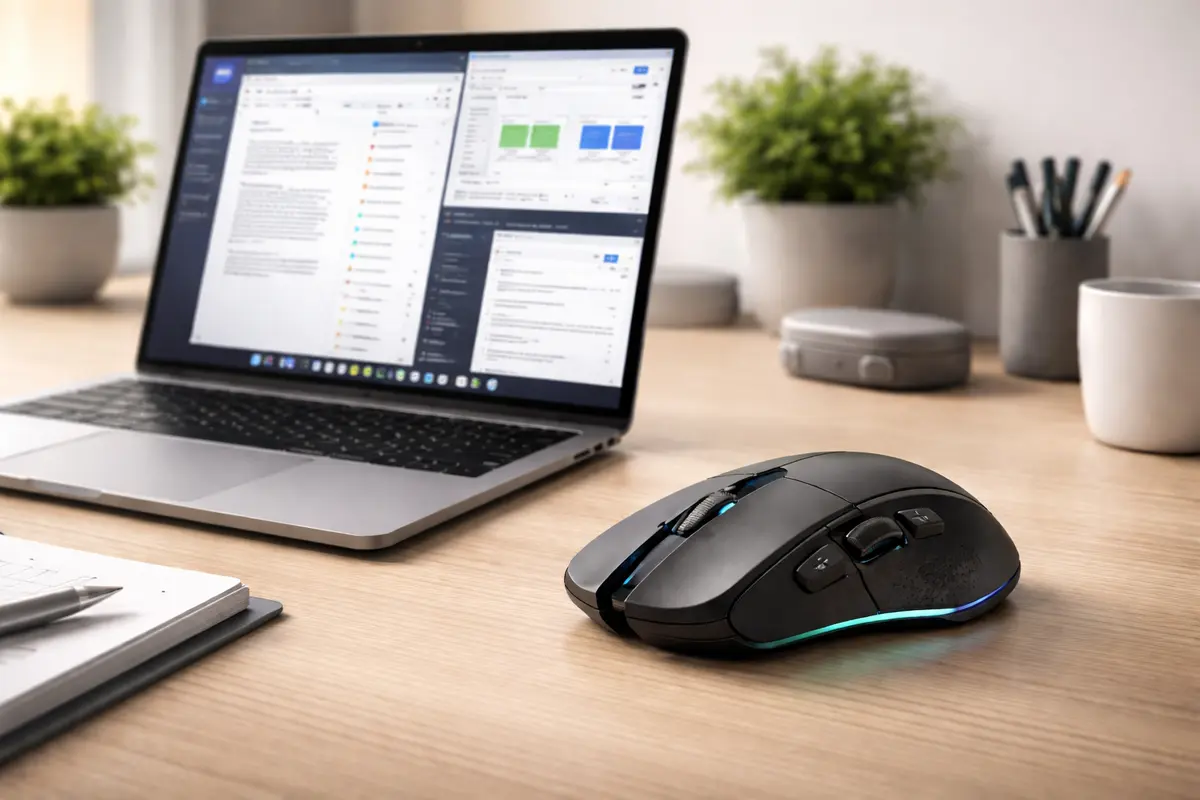
This gaming mouse office productivity guide is for anyone who spends hours clicking through spreadsheets, code, or design tools and wants those hours to hurt less. If you're a competitive FPS player looking for the lightest mouse with the highest polling rate, this isn't for you. It's for knowledge workers who want their mouse to do more of the repetitive stuff so their hands don't have to.
In a Hurry? Start Here
- Best overall: Logitech G502 X Plus (13 programmable buttons, £130 / ~$165). The extra buttons eliminate keyboard shortcuts. Jump to the G502 X Plus review
- Best value: Razer Basilisk V3 (£60 / ~$77). Same button layout as the G502, half the price. Jump to the Basilisk V3 review
- Best non-gaming: Logitech MX Master 3S (£90 / ~$115). Quiet clicks, horizontal scroll wheel, no RGB lights. Jump to the MX Master 3S review
- The one feature that matters: programmable buttons, not DPI or polling rate, but the buttons you can map to your most-used actions. See which features actually matter
Table of Contents
- Why a Gaming Mouse Beats an Office Mouse for Productivity
- The 5 Features That Actually Speed Up Your Workflow
- Logitech G502 X Plus: Best Overall (Score: 9.2/10)
- Razer DeathAdder V3: Best Lightweight (Score: 8.7/10)
- Logitech MX Master 3S: Best Non-Gaming (Score: 8.5/10)
- Razer Basilisk V3: Best Value (Score: 8.8/10)
- How to Set Up Macros for Daily Tasks
- Gaming Mouse Myths That Keep You Using Office Mice
- What to Avoid When Buying a Gaming Mouse for Work
- The Verdict: Which Mouse Should You Buy?
Disclosure: TechDeskZone is reader-supported. When you buy through links on our site, we may earn an affiliate commission at no additional cost to you. See our affiliate disclosure for details.
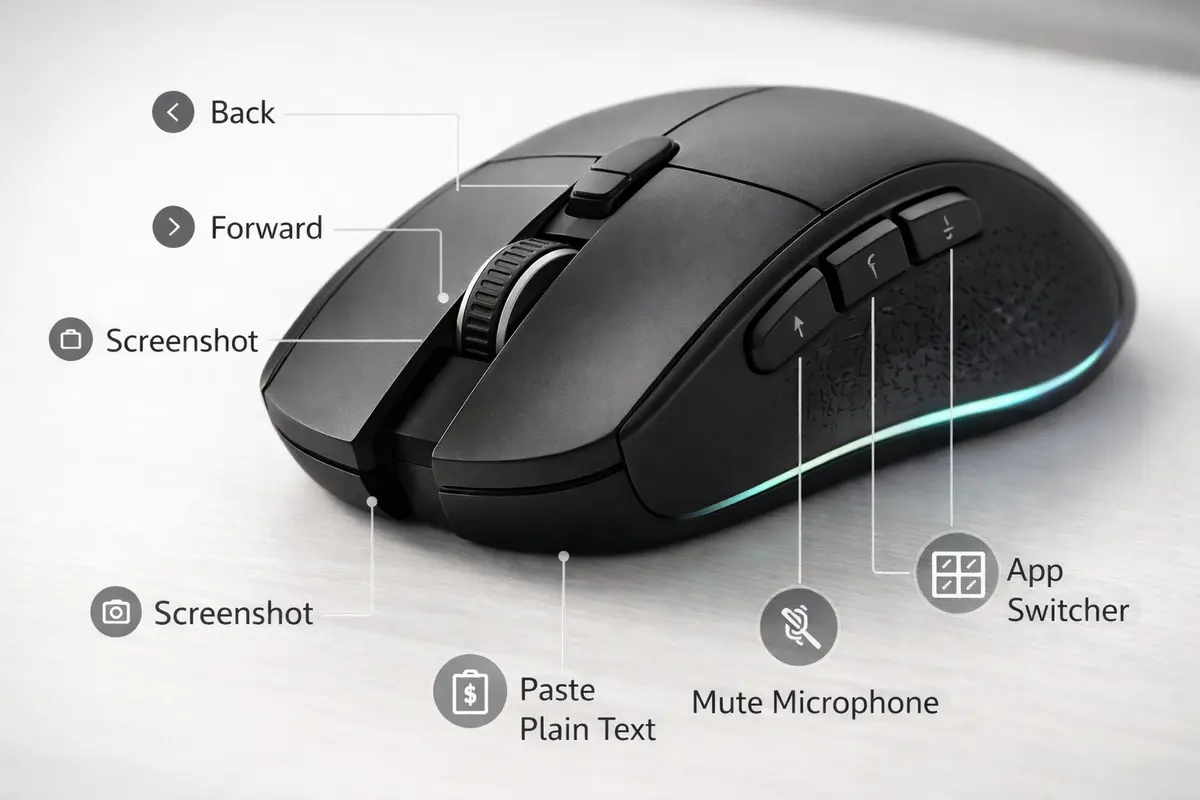
Switching from an office mouse to a gaming mouse removes the Ctrl+C, Ctrl+V, Alt+Tab repetitions that cause most of the wrist ache. A gaming mouse with programmable buttons eliminates those keyboard shortcuts entirely: map Copy, Paste, and app-switching to thumb buttons and the reaching stops. Here are the productivity features that actually matter, ranked.
Why a Gaming Mouse Beats an Office Mouse for Productivity
Office mice are designed for one thing: basic pointing and clicking. Gaming mice are designed for speed, precision, and customisation, all of which translate directly into office productivity. Much of office work is the same handful of keyboard shortcuts, repeated hundreds of times a day. A gaming mouse with 6-13 programmable buttons can eliminate the most repetitive ones.
The difference isn’t just buttons. Gaming mice have better sensors that track more accurately on more surfaces, higher build quality that lasts 3-5 years instead of 12-18 months, and ergonomic shapes designed for 8+ hour sessions, because gamers play for hours and their mice are built for it. The RTINGS office mouse reviews consistently show that gaming mice outperform office mice on sensor accuracy, click latency, and build quality, often at the same price point.
What you gain by switching
- Programmable buttons: map Cut, Copy, Paste, Undo, Save, and app-switching to thumb buttons. Six keyboard shortcuts, each repeated dozens of times a day, move off the keyboard entirely.
- Adjustable DPI: switch between high sensitivity for fast scrolling through documents and low sensitivity for precise selections in design tools, and switch between them with a button press rather than a settings menu.
- Better ergonomics: gaming mice come in more shapes and sizes than office mice. Most office mice are one-size and force larger hands into a claw grip. The G502 X Plus fills the palm completely.
- Scroll wheel with tilt: horizontal scrolling for wide spreadsheets and timelines. Most office mice lack this entirely.
The 5 Features That Actually Speed Up Your Workflow
Not every gaming mouse feature matters for office work. DPI above 8,000 is pointless when you’re clicking spreadsheet cells. Polling rates above 1,000Hz make zero difference outside of competitive gaming. Here are the five features that genuinely improve productivity day to day.
1. Programmable buttons are the only feature that truly matters. Everything else is secondary. A mouse with 6+ programmable buttons lets you map your 6 most-used actions to hardware. Map Copy, Paste, Enter, Undo, Alt+Tab, and Close Tab to the mouse and the reaching stops. Once those are muscle memory the saving adds up: at hundreds of shortcuts a day, a second each, it runs to tens of hours a year.
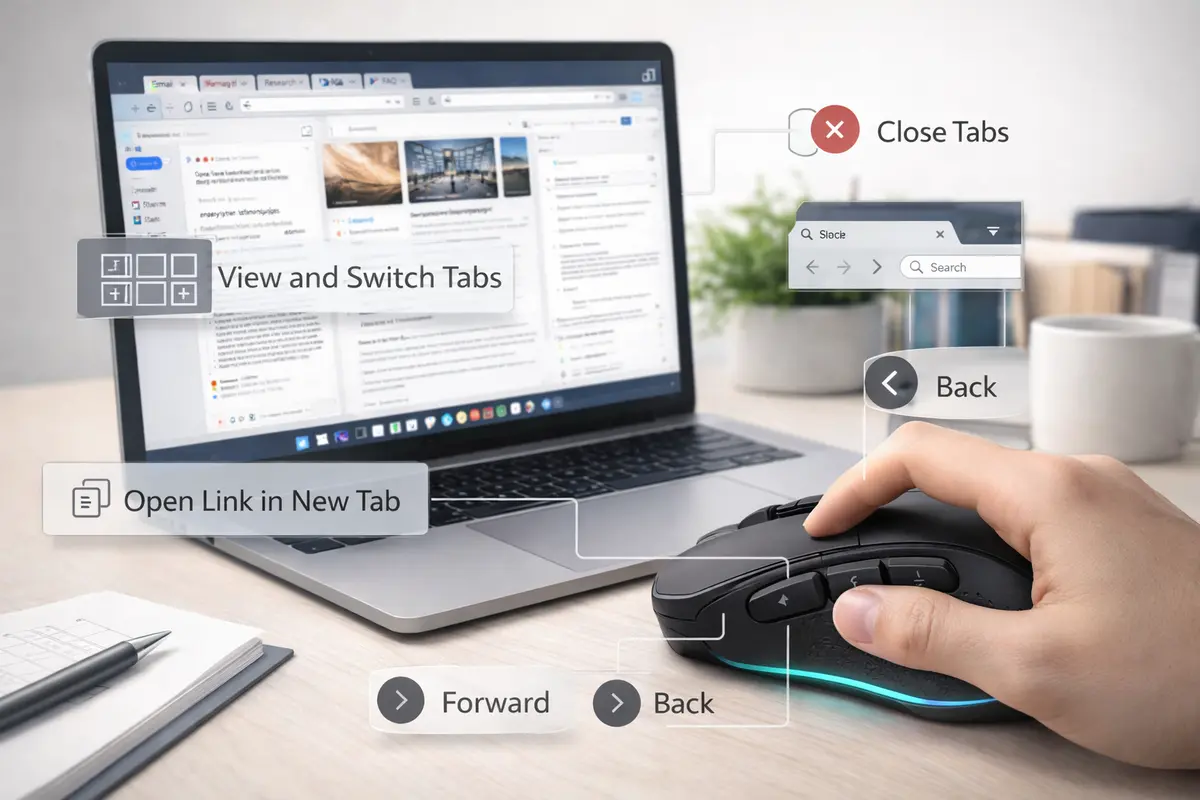
2. Free-spinning scroll wheel. Logitech’s “infinite scroll” and Razer’s “HyperScroll” let the wheel spin freely with zero detents. Flick it and it keeps spinning. This sounds gimmicky until you scroll through a 5,000-row spreadsheet or a 200-page PDF. One flick covers what would take 30 seconds of finger-scrolling. The G502 and Basilisk V3 both have this; the DeathAdder V3 does not.
3. Adjustable DPI with a dedicated button. Being able to switch sensitivity on the fly means high DPI for scrolling through documents and low DPI for pixel-precise work in Photoshop or Figma. On the G502 X Plus, switching between 1,600 DPI for general use and 800 DPI for design work takes one thumb-button press.
4. Tilt scroll wheel for horizontal scrolling. Most office mice scroll up and down. Gaming mice with tilt wheels scroll left and right too, which is perfect for wide spreadsheets, video timelines, and code with long lines.
5. Onboard memory profiles. Save your macro configuration to the mouse itself, not the software. This means your shortcuts work on any computer you plug into (home PC, work laptop, client machine) without installing anything. Logitech and Razer both support this; cheaper mice often don’t.
Logitech G502 X Plus: Best Overall (Score: 9.2/10)
The G502 X Plus is the current version of Logitech’s long-running G502 line and the strongest pick here for office productivity. 13 programmable buttons, free-spinning scroll wheel, tilt wheel, onboard memory for 5 profiles, and a shape that fills a larger hand.
- Programmable buttons: 13 total (8 within easy thumb reach)
- Scroll wheel: Free-spinning + ratchet modes, tilt left/right
- DPI range: 100-25,600 (1,600 is the sensible office setting)
- Weight: 106g (heavier side, a deliberate choice for controlled office use)
- Connection: USB-C wired or Lightspeed wireless
- Price: £130 / ~$165
The killer feature for productivity is the dual-mode scroll wheel. A button behind the wheel toggles between free-spinning (ideal for long documents) and ratchet mode (ideal for precise line-by-line scrolling in spreadsheets). No other mouse in this roundup does this as smoothly. The thumb rest is generous, and the side buttons sit where all four are reachable without shifting grip.
Best for: heavy Excel users, programmers, anyone who wants maximum programmable buttons.
Avoid if: you want a lightweight mouse (106g is heavy) or you hate RGB lighting (the logo glows, but you can turn it off in software).
Razer DeathAdder V3: Best Lightweight (Score: 8.7/10)
The DeathAdder V3 takes the opposite approach from the G502: lightweight (59g), minimal buttons (6 programmable), and built for speed. It’s comically light. Picking it up after the G502 feels like the mouse is hollow. For office work, this matters if you move your mouse across multiple monitors all day. Less weight means less wrist fatigue by hour six.
- Programmable buttons: 6 (2 thumb, scroll click, DPI button plus left/right click remapping)
- Scroll wheel: Ratchet only, no tilt. No free-spinning.
- DPI range: 100-30,000
- Weight: 59g (insanely light)
- Connection: USB-C wired or HyperSpeed wireless
- Price: £140 / ~$178
The DeathAdder’s ergonomic shape is legendary for a reason. It fits most hand sizes comfortably and the low weight means you can move it with your fingertips instead of your whole hand. For designers and video editors who make thousands of precise mouse movements per day, the weight reduction is genuinely noticeable by the end of the day. The trade-off: only 6 programmable buttons and no tilt wheel. If your workflow relies on horizontal scrolling through timelines, this isn’t the right mouse.
Best for: designers, video editors, multi-monitor setups where you move the mouse constantly.
Avoid if: you need lots of programmable buttons or horizontal scrolling.
Logitech MX Master 3S: Best Non-Gaming (Score: 8.5/10)
The MX Master 3S isn’t a gaming mouse. It’s Logitech’s flagship productivity mouse. I’m including it because some people can’t get past the gaming aesthetic (RGB lights, aggressive angles, “gamer” branding) and want something that looks professional in a client meeting.
- Programmable buttons: 7 (gesture button, thumb scroll, forward/back, plus top buttons)
- Scroll wheel: Free-spinning MagSpeed electromagnetic, switches modes automatically based on scroll speed
- DPI range: 8,000 fixed (no adjustment needed for office work)
- Weight: 141g (heaviest of the group, a deliberate and stable feel)
- Connection: USB-C or Bluetooth (no dongle required)
- Price: £90 / ~$115
The standout feature is the MagSpeed scroll wheel. It’s smarter than the G502’s manual toggle. Scroll slowly and it clicks line by line. Flick it and it goes into free-spin automatically, then re-engages the ratchet when it stops. No button press needed. The horizontal thumb wheel is also unique. Your thumb rests on a second scroll wheel that goes left and right, which is perfect for horizontal scrolling in spreadsheets and video timelines.
Best for: anyone who wants productivity features without the “gamer” look. Quiet clicks are excellent for open-plan offices.
Avoid if: you want more than 7 programmable buttons, or you prefer a lightweight mouse.
Razer Basilisk V3: Best Value (Score: 8.8/10)
The Basilisk V3 is Razer’s answer to the G502: same button layout, same free-spinning scroll wheel, same ergonomic thumb rest, at roughly half the price. If you want the G502’s productivity features but can’t justify £130, this is the mouse to buy.
- Programmable buttons: 11 (similar layout to G502)
- Scroll wheel: Free-spinning + ratchet modes, tilt left/right
- DPI range: 100-26,000
- Weight: 101g
- Connection: USB-C wired only (wireless version costs more)
- Price: £60 / ~$77
At this price, the wired connection is the main compromise, but for a desk mouse that never moves, wired is arguably better (no battery, no latency, no interference). The scroll wheel toggle is a physical clutch mechanism that’s satisfyingly tactile. Push it forward to engage free-spin, pull it back for ratchet. Logitech’s button toggle is the cleaner design, but the Basilisk’s clutch is more tactile to use.
Best for: budget-conscious buyers who want G502-level productivity features.
Avoid if: wireless is non-negotiable or you prefer lighter mice.
How to Set Up Macros for Daily Tasks
The most common mistake: buying a gaming mouse for office work and never configuring the buttons. They use left click, right click, and scroll, ignoring the other 10 buttons. Here’s how to set it up properly in 10 minutes.
The 6 macros to map to every mouse
- Copy (Ctrl+C) → thumb button 1. The single most-used shortcut in office work. Moving it from keyboard to mouse eliminates the two-hand contortion.
- Paste (Ctrl+V) → thumb button 2. Same logic. Copy and Paste sit next to each other on the mouse, under the same thumb.
- Enter → scroll wheel click. Confirming dialogs, sending messages, executing commands, all with a scroll wheel press instead of reaching for the Enter key.
- Alt+Tab → DPI shift button. Instant app switching without leaving the mouse. Used dozens of times per hour.
- Close Tab (Ctrl+W) → thumb button 3. Closes browser tabs, document tabs, file explorer windows.
- Undo (Ctrl+Z) → thumb button 4. The panic button. Used constantly in writing, design, and coding.
Software setup: Logitech G Hub and Razer Synapse both support per-application profiles. This means your mouse buttons do different things depending on which app is active. In Excel, thumb button 3 = Enter (confirm cell). In Chrome, same button = Ctrl+W (close tab). In Photoshop, same button = Ctrl+Z (undo). Set this up once per app and your mouse adapts automatically.
Do I need to install gaming software on my work laptop? No. Save your profiles to the mouse’s onboard memory during initial setup on your personal computer. After that, the mouse remembers its configuration and works on any machine without installing anything. Both Logitech and Razer support this. The onboard memory stores 3-5 profiles depending on the model.
Can I use a gaming mouse with a Mac? Yes, but with caveats. Logitech G Hub and Razer Synapse both have macOS versions, though they’re less polished than their Windows counterparts. The MX Master 3S has native macOS support via Logitech Options+ and works perfectly. Onboard memory profiles configured on a PC will work on a Mac without installing software. The mouse presents itself as a standard HID device. The only thing you lose on macOS without software is per-application profile switching. For a full keyboard and mouse setup guide covering both platforms, see our keyboard and mouse setup guide.
Gaming Mouse Myths That Keep You Using Office Mice
“Gaming mice look unprofessional.” Turn off the RGB lighting in software. The G502 X Plus and Basilisk V3 both look like normal black mice with the lights off. The DeathAdder V3 has no RGB at all. The MX Master 3S was designed for offices and looks the part. RGB is optional on every mouse in this gaming mouse office productivity guide.
“Gaming mice are too sensitive for office work.” DPI is adjustable. Set it to 1,600 for office use and the mouse behaves exactly like a standard office mouse, just more accurate. The “gaming mouse = twitchy” reputation comes from people leaving DPI at 8,000+, which is meant for competitive FPS games, not spreadsheets.
“They’re too heavy/light/big.” Gaming mice come in a wider range of shapes and weights than office mice. The DeathAdder V3 is 59g, lighter than almost any office mouse. The G502 is 106g, heavier and more stable. Pick the weight that matches your preference. Office mice give you no choice; gaming mice give you dozens.
“Battery life is terrible.” Modern wireless gaming mice last weeks on a charge. The G502 X Plus lasts 37 hours with RGB on, 120+ with it off. The DeathAdder V3 lasts 90 hours. The MX Master 3S lasts 70 days on a charge. Battery anxiety is not a real problem with any of these mice.
What to Avoid When Buying a Gaming Mouse for Work
Don’t buy based on DPI. Any mouse with DPI above 8,000 is overkill for office work. The marketing numbers (25,000 DPI! 30,000 DPI!) are for gaming. You’ll use 800-3,200 DPI for office work. Ignore the DPI arms race entirely.
Don’t pay extra for ultra-high polling rates. 1,000Hz vs 4,000Hz vs 8,000Hz polling, this matters for competitive gaming where milliseconds count. For office work, 1,000Hz is fine. You won’t notice the difference clicking spreadsheet cells. A 2024 RTINGS latency analysis confirmed that click latency differences above 1,000Hz are imperceptible outside of gaming scenarios.
Don’t buy a mouse with fewer than 4 programmable buttons. If you’re switching to a gaming mouse for productivity, the buttons are the whole point. A gaming mouse with 2 side buttons is just an office mouse with a fancy sensor. Minimum 4 thumb-accessible buttons, ideally 6+.
Skip the honeycomb-shell ultra-light mice. Mice with holes drilled in the shell to reduce weight (popular in competitive gaming) collect dust, crumbs, and dead skin in the holes. They’re designed for sweaty gaming sessions where weight matters more than cleanliness. For a desk mouse that lives on your desk for years, get a solid shell.
Related Productivity Guides
- Best Keyboard Shortcuts for Productivity, to pair with your mouse macros
- Mouse Macros for Daily Efficiency: Setup Guide, with step-by-step macro configuration
- Mac Mouse Gestures for Productivity, covering macOS gesture workflows
- Wrist Pain From Typing: Causes and Fixes, for ergonomic setup over long sessions
- Ergonomic Home Office Setup Guide, a complete desk setup walkthrough
The Verdict: Which Mouse Should You Buy?
| Mouse | Price | Buttons | Weight | Scroll | Best For |
|---|---|---|---|---|---|
| Logitech G502 X Plus | £130 / ~$165 | 13 | 106g | Free-spin + tilt | Maximum productivity |
| Razer Basilisk V3 | £60 / ~$77 | 11 | 101g | Free-spin + tilt | Best value |
| Logitech MX Master 3S | £90 / ~$115 | 7 | 141g | Auto free-spin | Professional look |
| Razer DeathAdder V3 | £140 / ~$178 | 6 | 59g | Ratchet only | Lightweight |
After setting up your gaming mouse for productivity, the next step is dialling in your keyboard. Our keyboard and mouse setup guide covers 12 ergonomic combos for cutting wrist strain, including the setup choices that make a gaming mouse worth switching to. If you’re dealing with wrist pain, also see our ergonomic home office setup guide for the full desk overhaul that made the biggest difference.
The Verdict
Bottom line: weighing these four mice against each other for daily office work, the Logitech G502 X Plus is the best gaming mouse for office productivity. 13 programmable buttons, the best scroll wheel in the business, and onboard memory that works on any computer. The £130 / ~$165 price is steep, but a mouse you use 8 hours a day for 3+ years costs about 2p per hour, which is worth it.
If you're on a budget: get the Razer Basilisk V3 at £60 / ~$77. Same button layout, same scroll wheel features, half the price. The wired connection is the only compromise.
If you hate the gamer look: the Logitech MX Master 3S at £90 / ~$115 does 80% of what the G502 does in a professional package. Fewer buttons, but the automatic free-spinning scroll wheel and horizontal thumb wheel are genuinely useful.
If you move your mouse across multiple monitors all day: the Razer DeathAdder V3 at 59g reduces wrist fatigue noticeably by hour six. Fewer buttons, but the weight savings are real.
← Back to Guides Hub