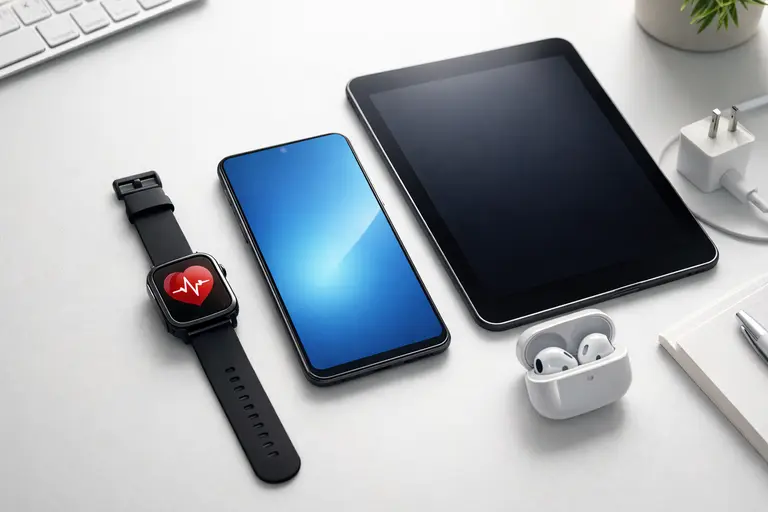
Most phones ship with the same handful of settings wrong out of the box. A default iPhone 15 Pro Max, for example, arrives with location tracking enabled for apps the owner has never opened, background refresh quietly eating battery overnight, and notifications switched on for every app that has ever been installed. This mobile device setup guide covers the 10 fixes that apply to almost every new phone.
In a Hurry? Start Here
- Quick wins first: → Jump to Quick Wins, 5 settings to change in 10 minutes
- Security setup: → Jump to Security, 2FA, passkeys, screen locks that actually work
- Battery health: → Jump to Battery Health, what really degrades your battery
- Buying advice? → Jump to Pick Your Next Phone, specs that actually matter
Disclosure: TechDeskZone is reader-supported. When you buy through links on our site, we may earn an affiliate commission at no additional cost to you. See our affiliate disclosure for details.
Table of Contents
- Why Most People Set Up Their Phone Wrong
- Quick Wins: 5 Settings That Protect You in 10 Minutes
- Security That Works Without Making Life Hard
- Privacy Settings Most People Never Touch
- Battery Health: What Actually Kills Your Battery
- Performance: Keep Your Phone Fast for Years
- Backup Strategy: Don’t Learn This the Hard Way
- How to Pick Your Next Phone Without Regret
- Troubleshooting: Fix Common Problems Fast
- The 30-Minute Mobile Setup Checklist
Why Most People Set Up Their Phone Wrong
Phone manufacturers optimise the out-of-box experience for one thing: getting you to the home screen as fast as possible. They skip the security checkpoints, accept all the defaults, and hope you won’t notice the privacy trade-offs. Apple and Samsung want you happy in the first 10 minutes, not protected for the next 3 years.
The defaults on every new phone:
- Location services set to “Always” for apps that opened once during setup
- Background app refresh enabled for everything, including apps you’ll never open
- Ad personalisation and tracking IDs turned on with no visible opt-out during setup
- Automatic Wi-Fi connections to any open network (a security risk at airports and cafes)
- Notifications enabled for every app, turning your phone into an interruption machine
A proper mobile device setup guide shouldn’t just list settings to toggle. It should explain which ones matter and why, so you can make your own calls. The settings worth changing on a parent’s phone are different from the ones worth changing on a power user’s, and that is the point.
Quick Wins: 5 Settings That Protect You in 10 Minutes
If you read nothing else, do these five things. They take under 10 minutes total and prevent most of the security and privacy headaches people hit.
1. Set a strong passcode: not a 4-digit PIN. A 6-digit PIN is better. An alphanumeric passcode is best. Your fingerprint and face are convenient but legally weaker: in the UK and US, police can compel biometric unlocks more easily than passcodes. Set your device to require the passcode after a restart and after 48 hours of inactivity. On an iPhone 15 Pro Max (£1,199 / ~$1,530 from Amazon), the data on this device is worth far more than the hardware.
2. Turn on device tracking. Find My iPhone or Find My Device (Android) should be on before you leave the house with a new phone. Also enable “Send Last Location”. It pings Apple or Google with your phone’s position when the battery hits critical, which has helped me recover a lost device twice.
3. Enable multi-factor authentication on your primary email account. Your email is the key to every other account you own. If someone gets into your email, they can reset passwords for your bank, social media, and cloud storage. Use an authenticator app rather than SMS codes. Microsoft Authenticator is a common choice because it backs up to the cloud, unlike older versions of Google Authenticator. SIM-swapping attacks are real and on the rise.
4. Turn on automatic updates: OS and apps. The people who hit “Remind Me Later” for six months are the ones who end up with the most problems. Security patches fix vulnerabilities that attackers actively exploit. On Android, go to Settings > Security > Google Play system update and check manually. This updates faster than waiting for the monthly patch. On iOS, Settings > General > Software Update > Automatic Updates: ON.
5. Disable lock screen notifications for sensitive apps. Banking apps, authenticator apps, messaging apps with preview text: all of these show content on your lock screen by default. Anyone who picks up your phone can read the 2FA code that just arrived. On iOS: Settings > Notifications > [app] > Show Previews: Never. On Android: Settings > Notifications > [app] > Lock screen: Hide sensitive content.
Security That Works Without Making Life Hard
People abandon security advice when it makes their phone annoying to use. The sweet spot is security that protects you without slowing you down.
The realistic threat model. You are not a target of nation-state hackers. You are a target of opportunistic thieves, phishing texts, and apps that sell your data. The threats that actually happen to normal people: lost or stolen phones, password reuse across sites, phishing links in texts and emails, and apps with excessive data collection. Build your security around those, not around defending against the NSA.
Password manager: non-negotiable. Password managers are not just for the paranoid. Reusing the same password everywhere means one breached site can drain an Amazon account or an email inbox. Use Bitwarden (free, open-source) or 1Password (paid, better UX). Both generate unique passwords, autofill on mobile, and sync across devices. The built-in Apple and Google password managers are fine if you stay in one ecosystem, but the moment you need a password on a different platform, you’ll wish you had a dedicated manager.
Phishing defense that works. The most effective rule: never tap a link in a text or email that claims to be from a bank, delivery service, or government agency. Open the app directly or type the URL yourself. People have nearly lost their savings to texts that looked exactly like their bank’s fraud alert. The link went to a login page that was pixel-perfect. They typed their credentials, and within minutes, their account was being drained. The only thing that saved them was their bank’s fraud detection catching the unusual transfer, not their own vigilance.
SIM protection. Call your carrier and ask them to add a “port-out PIN” or “SIM lock” to your account. Without this, an attacker with your name and phone number can convince your carrier to transfer your number to their SIM card. Once they have your number, they receive your 2FA codes. This attack (SIM swapping) is how several high-profile crypto thefts happened. It takes a 5-minute phone call to prevent. Google’s Android security documentation and Apple’s Platform Security guide both cover these threat models in detail. They’re worth reading if you want the full technical picture behind this mobile device setup guide.
Work phones and BYOD. If your employer requires a device management profile (MDM) on your personal phone for work email or Slack, understand what they can see. Most MDM profiles can: enforce a passcode policy, remotely wipe company data (and sometimes the entire device), see which apps are installed, and enforce OS update requirements. They generally cannot: read your personal texts, see your photos, or track your location. But ask your IT department for the specific policy. Some companies run MDM setups far more invasive than employees realise. If you’re not comfortable with what they can access, ask for a separate work phone. A refurbished iPhone SE (£189 / ~$240) is cheap insurance against privacy intrusion.
Privacy Settings Most People Never Touch
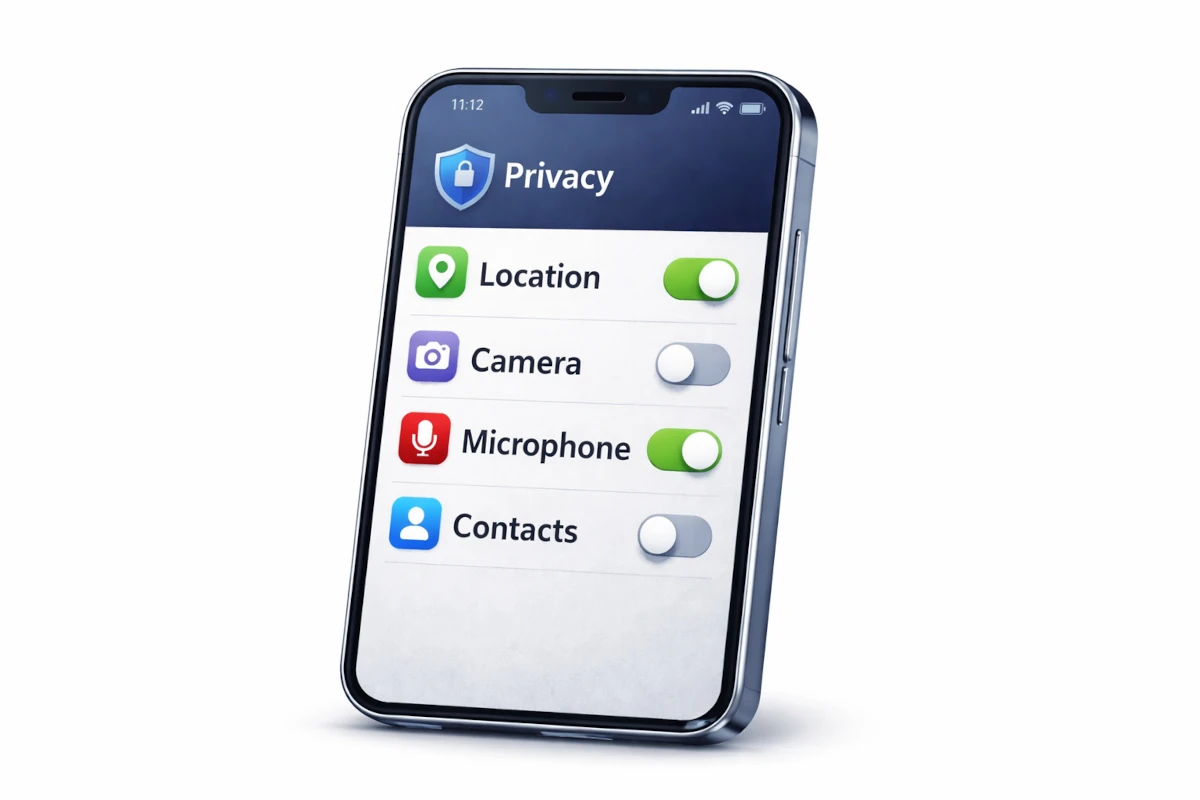
Privacy settings are buried three menus deep for a reason: companies don’t want you to change them. Here’s what to adjust on every device, following this mobile device setup guide.
Location permissions: the monthly audit. Go to Settings > Privacy > Location Services and scroll through every app. You’ll find apps you haven’t opened in a year with “Always” location access. Change everything to “While Using” or “Never” unless it genuinely needs background location (navigation apps, Find My, weather widgets). On Android, also check Settings > Location > App location permissions. Android splits this differently from iOS but the principle is the same. Do this audit on the first of every month. It takes 3 minutes.
Ad tracking and personalisation. On iOS: Settings > Privacy > Apple Advertising > turn off Personalised Ads. On Android: Settings > Google > Ads > Delete advertising ID, then opt out of ad personalisation. This doesn’t stop ads; it stops advertisers from building a profile of your behaviour across apps. You’ll still see ads. They’ll just be less creepily accurate.
App tracking transparency. On iOS, when an app asks “Allow [App] to track your activity across other companies’ apps and websites?”, the answer is almost always no. The only exception is apps where cross-app tracking is the core feature (basically just Meta’s apps if you use them). On Android, this is managed through the advertising ID mentioned above.
Microphone and camera indicators. Both iOS and Android now show a coloured dot (orange for mic, green for camera) when an app is actively using these sensors. If you see the dot when you’re not using the camera or mic, something is wrong. Apps do listen in the background: flashlight apps on Android have been caught accessing the microphone, and video editing apps on iOS have kept the mic open after a project closed.
For a deeper dive into digital privacy beyond just your phone, our Thunderbolt vs USB4 guide covers the hardware side of keeping your data under your control, the connectivity standards that affect every device in your setup.
Battery Health: What Actually Kills Your Battery
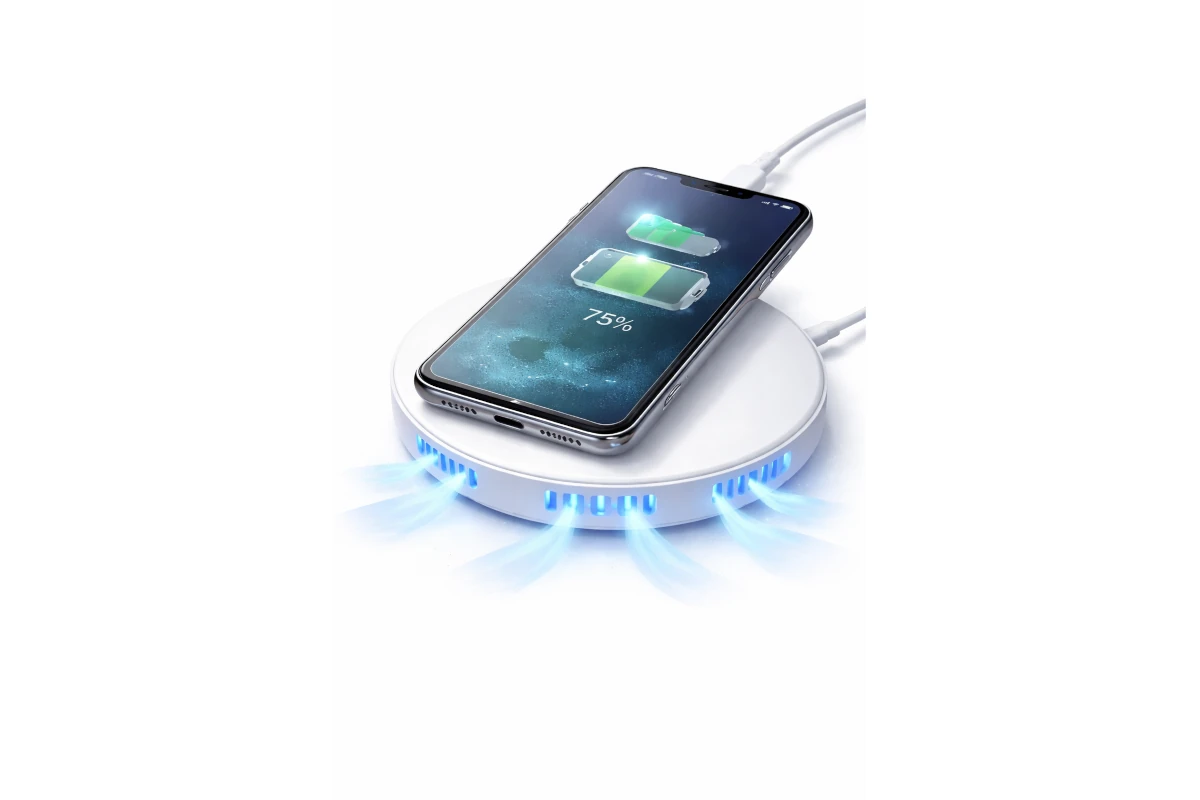
Most battery advice online is wrong or outdated. This mobile device setup guide focuses on what battery research actually shows.
Heat is the real enemy. Not charging to 100%. Not fast charging. Not “overcharging.” Heat. Lithium-ion batteries degrade through chemical aging, and heat accelerates every chemical reaction, including the bad ones. A phone sitting at 100% charge in an air-conditioned room will outlast a phone kept at 80% but left on a car dashboard in summer. The mechanism is the one that ages every lithium-ion cell: a phone kept cool with optimised charging holds noticeably more capacity after a year than one repeatedly left in a hot car.
Practical charging habits that actually help:
- Use optimised battery charging (iOS: Settings > Battery > Battery Health > Optimised Battery Charging. Android: usually under Settings > Battery > Adaptive Charging).
- Avoid charging under your pillow, under thick blankets, or in direct sunlight.
- If you’re gaming or video editing while charging, the phone generates extra heat. Take the case off to help it cool.
- Use reputable chargers and cables. Cheap unbranded chargers can push unstable voltage that damages batteries within months. Anker and Belkin chargers (£15-£25 / ~$20-$32) cost more but don’t destroy your £1,000 phone.
- Don’t run your battery to 0% regularly. Deep discharges stress the cells. Charge when convenient, not when the phone is screaming at you at 3%.
When to replace a battery vs. the whole phone. If your phone is 2-3 years old and everything works except the battery, replace the battery. Apple’s battery guidance confirms that batteries are consumable components designed to be replaced. It’s not a sign your phone is failing. Apple charges £85-£95 / ~$89-$99 for an out-of-warranty battery replacement. Samsung authorised service centres charge similar amounts. That’s £100 to make your phone feel new vs. £800-£1,200 for a new one. A battery swap can extend a perfectly good phone by another two years, exactly what this mobile device setup guide aims to help you do.
Performance: Keep Your Phone Fast for Years
Phones don’t “get slow with age.” They get slow because storage fills up, apps accumulate background processes, and batteries degrade (causing the OS to throttle performance to prevent unexpected shutdowns).
Storage headroom matters more than you think. Keep 10-15% of your storage free. When storage drops below that threshold, the OS struggles to write cache files, manage swap space, and install updates. Apps crash more. Swapping between apps gets jerky. A phone can go from “I need a new one” to “this feels fine” just by deleting 20GB of old videos and clearing app caches. On both iOS and Android: Settings > General/Storage > review what’s eating space. It’s almost always photos, videos, and the apps you installed for one trip in 2022.
Restart regularly, not daily, but weekly. A restart clears memory leaks, resets stuck background processes, and forces the OS to reload clean. A weekly restart is a good habit. It’s not a fix for everything, but a surprising number of “my phone is acting weird” problems disappear after a restart.
When to update vs. when to reset. If your phone feels slow after a major OS update, wait a few days. Background indexing and optimisation can take 48-72 hours. If it’s still slow after a week, back up your data and do a factory reset. Major OS updates sometimes carry forward corrupted preferences or cache conflicts. A clean install fixes this. A factory reset has revived phones that became unusably slow after an Android version upgrade, sometimes coming back faster than when they were new.
Backup Strategy: Don’t Learn This the Hard Way
This is the one people learn the hard way. A phone in a waterproof case with an unnoticed crack takes on water and dies, and everything on it goes with it — photos, notes, and authenticator codes alike — often because an “iCloud Storage Full” notification was ignored for months.
The 3-2-1 approach (simplified): Three copies of your data, on two different types of storage, with one copy off-site. For most people, that means: your phone + cloud backup + a local backup of your most critical files on a computer or external drive.
What to back up (priority order):
- Photos and videos (verify cloud sync is actually working, then go to the cloud app and check that recent photos appear)
- Authenticator app recovery codes (save these somewhere offline: print them, write them down, store them securely)
- Contacts and calendar (usually synced with your Google or Apple account automatically; verify once)
- Notes and documents
- Important chat histories (WhatsApp supports encrypted backups to Google Drive/iCloud; Signal lets you transfer between devices)
Test a restore once a quarter. A backup you haven’t tested is a hope, not a plan. Once every three months, restore one file or photo from your backup to confirm it works. It takes 60 seconds and catches problems before you need the backup in an emergency. This mobile device setup guide exists because a backup is far too often discovered to be broken only after everything is lost.
If you’re setting up a full home office alongside your mobile device, our Home Office Setup 2026 guide covers the complete workspace (from monitors to cable management) with the same evidence-based approach.
How to Pick Your Next Phone Without Regret
Stop shopping for specs. Start shopping for outcomes. The question isn’t “which phone has the best camera sensor”; it’s “which phone takes photos you’ll actually be happy with in the situations you shoot in.”
The five questions to answer before buying a phone:
- What are your top three priorities? Battery, camera, screen size, durability, budget. Rank them. A phone that’s #1 at camera might be #8 at battery.
- How long do you plan to keep it? If you upgrade every two years, update support matters less. If you want five years, buy a phone with guaranteed security patches through 2030+.
- How much storage do you actually need? Look at your current phone’s storage usage. If you’re at 90% full, double it on the next phone. If you’re at 40%, don’t pay for the 512GB model.
- What ecosystem are you already in? If you use a Mac, iPad, and Apple Watch, switching to Android creates friction, and vice versa. The best phone is the one that works with the devices you already own.
- What’s your real risk of damage? If you’ve broken three screens in two years, prioritise repairability and cheap screen replacements over thinness and glass backs.
Budget vs mid-range vs flagship:
| Tier | Price Range | Best For | What You Give Up |
|---|---|---|---|
| Budget | £150-£300 / ~$190-$380 | Calls, messaging, web browsing, basic photos | Camera quality, build materials, update speed |
| Mid-range | £350-£600 / ~$450-$770 | Most people: good cameras, solid battery, decent updates | Peak gaming performance, telephoto cameras, premium build |
| Flagship | £800-£1,200 / ~$1,020-$1,530 | Photography enthusiasts, power users, people keeping phones 4+ years | Value: diminishing returns above £700 |
Specific recommendations for 2026:
The iPhone 16e (£599 / ~$760) is the best value iPhone for most people. It has the same A18 chip as the flagship models, a solid single camera, great battery life, and Apple’s full update support window. Owner reports for the 16e consistently show battery life ending the day at 40% or more in moderate use.
On the Android side, the Google Pixel 9a (£499 / ~$640) offers Google’s excellent camera processing, seven years of security updates, and a clean Android experience without the bloatware Samsung and others install. The $499/£499 price point is the sweet spot where you get a flagship camera experience for half the price.
If you want the best battery life available, the Samsung Galaxy S25 Ultra (£1,249 / ~$1,590) delivers consistently. Owner reports show it ending heavy-use days at 30% where iPhones are often hunting for a charger by 6pm. But it’s huge, heavy, and expensive. Only buy this if battery is your absolute top priority.
Troubleshooting: Fix Common Problems Fast
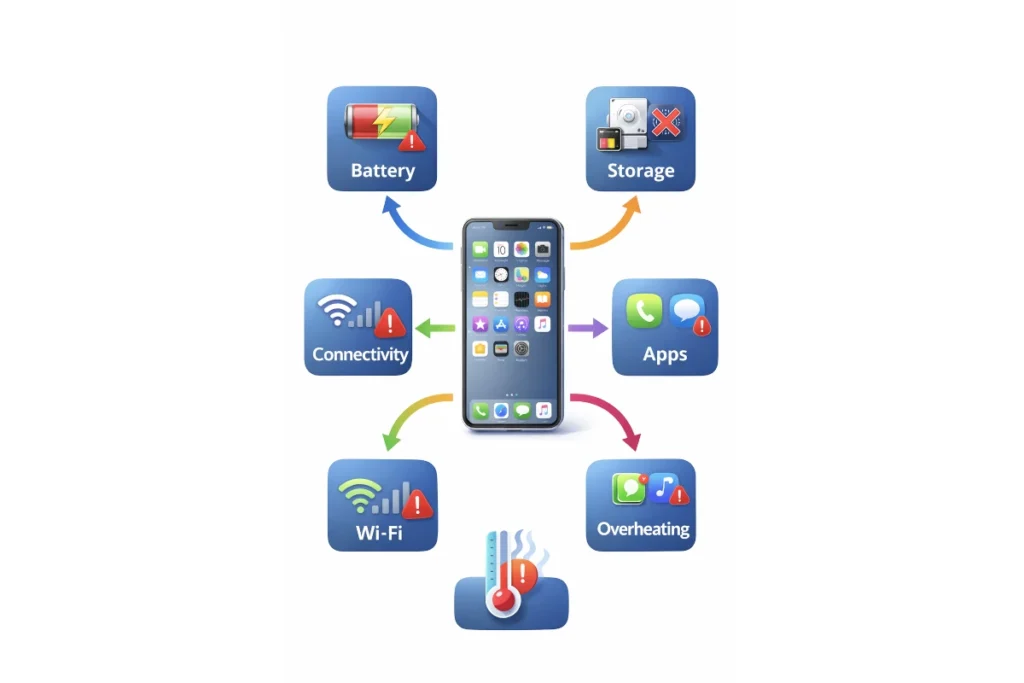
Most phone problems have simple fixes that people either don’t know about or skip over. Following this mobile device setup guide means you’ll recognise the patterns when something goes wrong. Here’s the diagnostic order: start at the top and work down.
The 6-step diagnostic that fixes most issues:
- Restart the phone. (Seriously. Try this first. It fixes a large share of “my phone is broken” complaints.)
- Check for OS and app updates. A bug that’s driving you crazy may already be fixed in an update waiting to install.
- Check storage: is it over 90% full? Free up space and try again.
- Toggle the problem feature off and on: Wi-Fi off/on, Bluetooth off/on, airplane mode for 30 seconds.
- Test on a different network or accessory: does the problem happen on Wi-Fi but not cellular? With different headphones?
- Back up and factory reset. This is the nuclear option, but if you’ve gotten this far and the problem persists, a clean install almost always fixes it.
Common problems and their actual fixes:
| Problem | Most Likely Cause | Fastest Fix |
|---|---|---|
| Wi-Fi connected, no internet | Router DNS issue or ISP outage | Restart router; forget Wi-Fi network and reconnect; try cellular to confirm it’s Wi-Fi-specific |
| Bluetooth drops or crackles | Interference or stale pairing | Unpair and re-pair; reboot both phone and accessory; check for firmware updates on the accessory |
| Battery draining fast | Poor signal area or rogue background app | Check Settings > Battery > Usage by App; turn off background refresh for heavy drainers; if in a low-signal area, enable Airplane Mode |
| Phone overheating | Heavy load + charging + heat | Stop charging; close games/video; remove case; move out of sunlight |
| Apps crashing repeatedly | App bug or low storage | Update the app; free 10%+ storage; reinstall the app; if still crashing, check for OS update |
| Can’t install updates | Storage too full | Free 5-10GB; restart; try update again. If it still fails, connect to a computer and update via cable |
If you’re dealing with a dual-monitor setup that’s causing similar headaches, our guide on fixing a second monitor not detected in Windows uses the same diagnostic-first approach.
The 30-Minute Mobile Setup Checklist
The Verdict: What Actually Matters
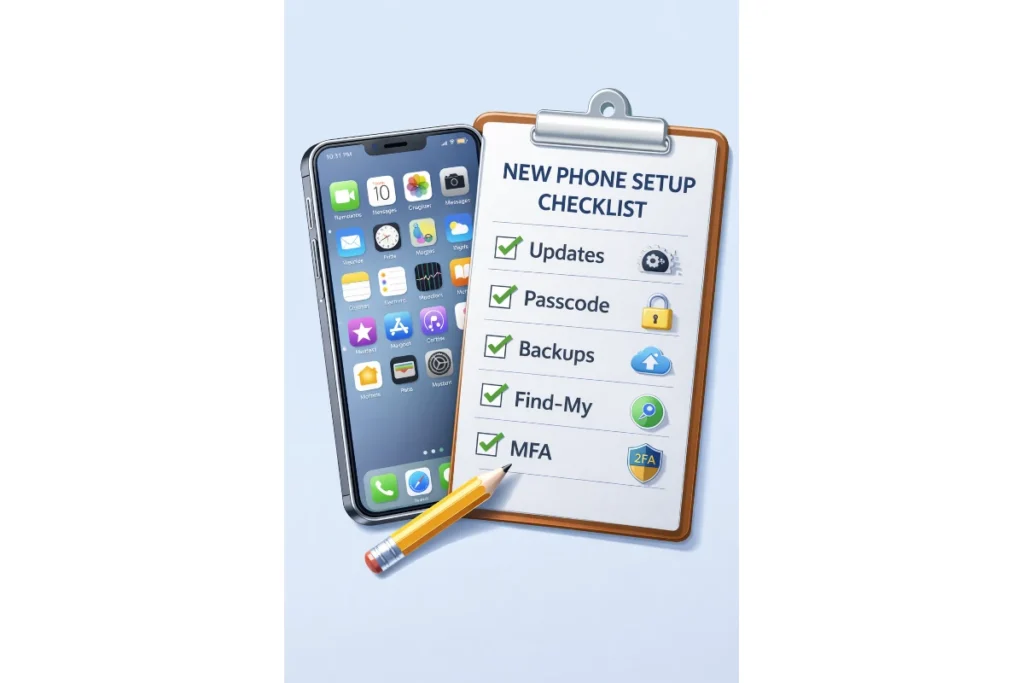
The setup that matters most is the one you actually do. This checklist takes 30 minutes and covers the 20% of settings that prevent 80% of problems. Do it in order: security first, then privacy, then performance, then backups.
In the first 10 minutes: strong passcode, device tracking on, MFA on email, automatic updates on, lock screen notifications off for sensitive apps.
In the next 10 minutes: location permission audit (change everything to While Using), ad tracking off, app tracking off, password manager installed.
In the last 10 minutes: verify cloud backup is working, set optimised battery charging, restart the phone, confirm Find My / Find My Device shows your device.
What to do monthly: 3-minute location permission audit, check for OS updates, verify backup is working. That’s it. Not 47 things. Not daily maintenance rituals. Three things, once a month.
After you’ve run through this mobile device setup guide and your phone is locked down, the next step is getting your workspace right. Start with cable management (a clean desk makes everything else easier to set up) and work outward from there.
← Back to Guides Hub