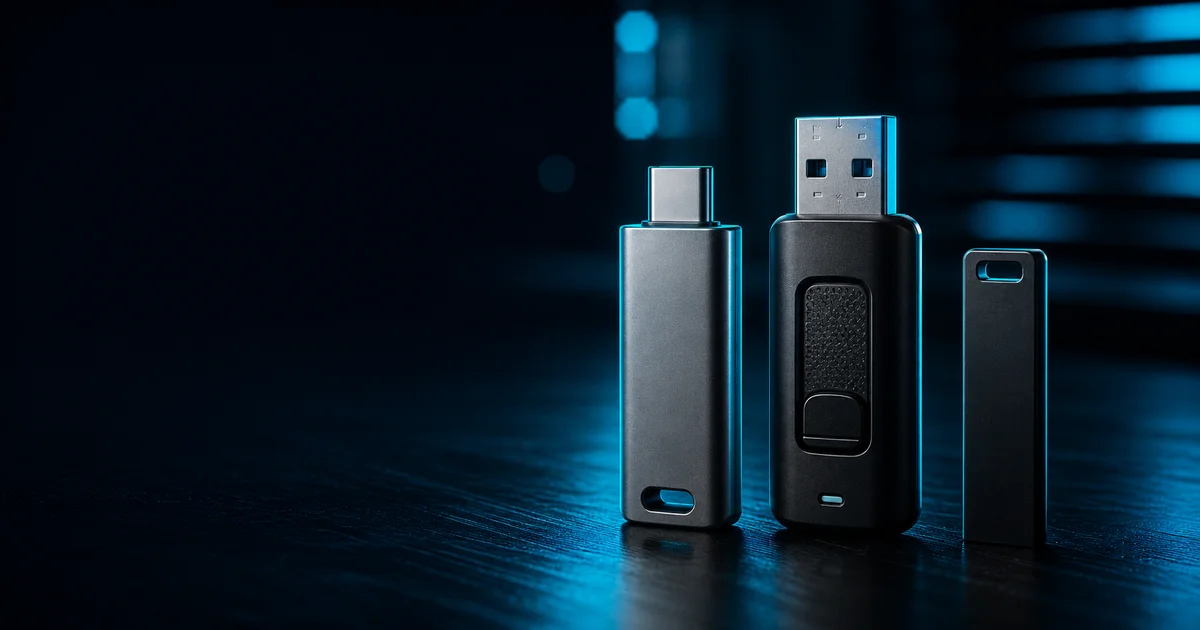
The short version: buy the drive that matches what you actually use, and buy it from somewhere you trust. USB flash drives are tech we all own and barely think about, until the day one stops working, or you find yourself asking whether a drive you didn't buy is safe to plug in.
Disclosure: TechDeskZone is reader-supported. When you buy through links on our site, we may earn an affiliate commission at no additional cost to you. See our affiliate disclosure for details.
I’ve been plugging USB drives into laptops for longer than I’d like to admit. Portable drives, USB-C sticks, old-school USB-A thumb drives, family heirlooms I somehow still carry around.
Over that time I keep seeing the same two mistakes. People buy far more capacity than they’ll ever fill. And people treat a random drive as safe because it looked fine. This guide is what I’d tell a friend: how to work out the capacity and speed you need, and which security details matter instead of the ones that don’t.
In a Hurry? Start Here
- Choosing capacity? → Jump to How Much Storage Do You Actually Need?
- What security is real? → Jump to Which USB Security Risks Actually Matter?
- Lock down a drive? → Jump to How to Encrypt a USB Drive
- What to Look For When You’re Choosing
- How Much Storage Do You Actually Need?
- Watch Out for Fake-Capacity Drives
- Which USB Security Risks Actually Matter?
- What Are BadUSB and USB Rubber Duckies?
- How Do You Remove a Virus From a USB Drive?
- How Do You Encrypt a USB Drive (BitLocker, Windows 11)?
- The Quick Checklist
- If You Just Want a Pick
What to Look For When You’re Choosing
The first question isn’t “which is the best drive?” It’s “what is this for?” A drive you use to hand a presentation to a client is a different purchase from a drive that lives in your bag for a year of backups. That one decision settles most of the rest.
Capacity. Buy what the task needs, not what the shop is selling. Most people are fine with 32GB to 64GB for everyday files. If you’re moving photos or video, step up (more below).
Speed. This is where a lot of the confusion lives. Under the USB 3.2 naming scheme the USB Implementers Forum consolidated in 2019, so the same connectors are sold at different speed tiers: USB 3.2 Gen 1 is 5 Gbps, USB 3.2 Gen 2 is 10 Gbps, and USB 3.2 Gen 2×2 is 20 Gbps (USB Implementers Forum, USB 3.2 Specification). For a flash drive, that Gen 1 vs Gen 2 difference shows up as how long a big file takes to copy. If you only move documents, Gen 1 is fine and cheaper. If you’re editing video off the drive, you want Gen 2.
| Drive tested by Tom’s Hardware | Real-world write, 10GB transfer | Time to copy a 10GB folder |
|---|---|---|
| Samsung Fit Plus | 58.4 MB/s | about 3 minutes |
| SanDisk Extreme Fit 1TB | 82.5 MB/s | about 2 minutes |
| Patriot Viper Prime 1TB | 91.7 MB/s | about 1 minute 50 seconds |
| PNY Pro Elite 1TB | 96.9 MB/s | about 1 minute 45 seconds |
That is the gap in one table: the tier on the box is a ceiling, and these are measured write speeds. The fastest drive above managed roughly a sixth of what a single 5 Gbps lane allows on paper. The write speed on a flash drive is set by the controller and the memory chips inside it, not by the bus, so a cheap Gen 2 stick can write more slowly than a good Gen 1 one. The 1TB Kingston DataTraveler Max beats all four, and Tom’s Hardware put the Samsung figure above at “less than 15%” of its write speed. Treat the tier as the ceiling and the reviews as the reality.
Connector. USB-A vs USB-C. Modern laptops are USB-C; a USB-C drive is the safer bet moving forward, but if you need to plug into an older machine, get a drive with both or carry an adapter. If you’re also sorting out what those labels mean in general, our guide to Thunderbolt vs USB4 vs USB-C walks the whole naming mess. One more option worth knowing: a USB-C drive with OTG support plugs straight into an Android phone or tablet, so you can pull photos and files off a phone with no computer in the middle.
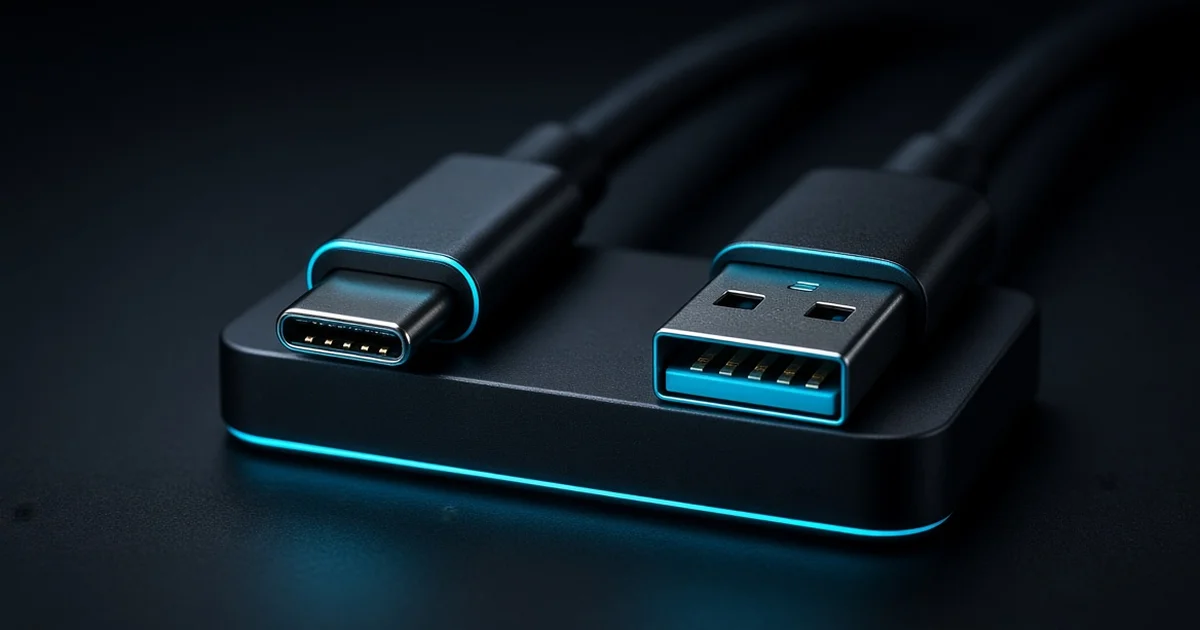
Durability. Flash drives get dropped, sat on, and lost in bags. Metal-bodied or one-piece designs survive better than cheap plastic that splits at the cap. If the drive carries anything you can’t replace, treat durability as a feature, not a nicety.
Encryption support. Some drives come with hardware encryption built in; others rely on software. If data protection matters to you, decide up front. It changes what you buy and what you’ll do to lock it (see the BitLocker section).
Which File System Should You Pick?
A new drive arrives formatted as one of three file systems, and the choice matters more than the spec sheet suggests. FAT32 is the oldest and the most compatible. It works on Windows, macOS, Linux, cameras, car stereos and consoles. Its limit is file size rather than capacity: no single file can be larger than 4GB on FAT32, which is why a movie or a system image will refuse to copy onto a drive that otherwise has plenty of room.
exFAT is the successor and the right default for most people. It has no practical file size ceiling, it works everywhere FAT32 does without the 4GB wall, and it is what large drives ship with. NTFS is the file system Windows uses internally. It supports files far larger than 4GB and adds journaling, so a cable pulled mid-copy is less likely to corrupt the index. The catch is portability: macOS reads NTFS drives but will not write to them without extra software, and some TVs and consoles ignore them entirely.
So leave a large drive on exFAT unless you have a reason not to. Reformat to NTFS if the drive will live on Windows machines and you want journaling. Choose FAT32 deliberately, for a device that refuses anything else, and remember the 4GB rule before you fill it.
How Much Storage Do You Actually Need?
You’re probably buying more than you need. The storage question most people ask is “how many GB do I need,” and the answer is usually less than they think.
| What You’re Doing | Comfortable Size |
|---|---|
| Documents, presentations, a few photos | 16 to 64 GB |
| General everyday use, OS installer, portable apps | 32 to 64 GB |
| Photo libraries, short videos, project files | 128 GB |
| Video editing scratch, large media, full backups | 256 GB and up |
| Full-system backup, long-term archive, 4K footage | 512 GB to 1 TB |
My rule of thumb: pick the next size up from what you think you need, then stop. The jump from 64GB to 128GB is cheap insurance. Going past that only makes sense if you have the files to justify it.
One more thing worth knowing: a flash drive is a bad place for your only copy of anything. Flash memory wears out and drives get lost. For anything irreplaceable, use the drive as a transport or a working copy, not your sole backup.
Watch Out for Fake-Capacity Drives
One buying-and-security trap that doesn’t get much press: fake-capacity drives. A scam drive shows up on a marketplace listing at a suspiciously low price and claims a huge size, say 2TB, but it’s really a tiny chip. It works fine for a while, then files start corrupting or vanishing once you pass the real limit. The drive reports one number, your computer believes it, and by the time you hit the wall you’ve already lost data.
Two ways to catch one before you trust it. Buy from a seller you can actually return to, and don’t chase balloon-capacity deals priced far under everyone else. Then run a fill test on any new drive: h2testw on Windows, or F3 on Linux. Both write real data across the whole drive and read it back, so they show the true capacity and any bad sectors. It takes a while on a big drive, which is exactly why the counterfeits never expect anyone to do it.
Treat the fill test as part of setup for any drive you’re going to store something you can’t replace on.
Which USB Security Risks Actually Matter?
The actual risk level is lower than the scare stories suggest. In April 2023, the FBI’s Denver office warned people to avoid free charging stations at airports, hotels, and shopping centers because public USB ports can pass data along with power (Federal Bureau of Investigation, FBI Denver public advisory on USB charging ports). That’s sound advice, though it needs a bit of nuance. Public-port attackers target people who plug their phone straight into an unknown jack, and on a modern phone the practical risk is lower than the fear suggests.
The FBI’s point is to use your own charger or a wall outlet. It’s a cheap, sensible habit.
Where people go wrong:
“I scanned the drive, so it’s safe.” Scanning catches file-based malware. But some USB threats don’t use files at all. A device can pretend to be a keyboard and type commands faster than you can react. Your antivirus won’t flag it, because there’s nothing on the drive to scan. The dangerous moment is the connection itself, not the contents.
“USB-C is safer than USB-A.” USB-C is a connector shape, not a security standard. A USB-C cable still carries data lines unless it’s explicitly charge-only. Some of the most sophisticated USB attack tools use USB-C precisely because that’s what modern laptops take.
The one habit that matters most: treat any USB device you didn’t buy and can’t verify as untrusted. That includes found drives, conference swag, and random dongles left in a meeting room. If you didn’t choose it, don’t plug it in. It’s the single most effective rule and it costs nothing.
What Are BadUSB and USB Rubber Duckies?
At Black Hat USA 2014, security researchers Karsten Nohl and Jakob Lell showed how to reprogram a USB drive’s internal controller chip so the device no longer acts as storage but impersonates a keyboard instead (Security Research Labs, BadUSB: On Accessories that Turn Evil). This is the “BadUSB” class of attack, and it matters because the compromise lives in the hardware firmware. It survives reformatting, so wiping the drive does nothing. The device itself is the weapon, not the data on it.
The same idea underpins commercially available tools like the USB Rubber Ducky, a drive-sized gadget that types pre-programmed keystrokes the instant it’s plugged in. These aren’t hypothetical. They’re cheap, sold openly, and used in penetration testing every day. The good news for a normal person: these attacks need someone to hand you a malicious device and get you to plug it in. The defense is boring and effective: don’t connect drives you don’t own to your computer.
If you manage USB security across a team, the controls shift from personal habits to policy and logging: block unknown storage by default, allowlist approved device classes, and log every connection. For that side, our Enterprise IT guide to docks and hubs covers the architecture and policy side in depth.
How Do You Remove a Virus From a USB Drive?
If you’ve already plugged a suspicious drive in, do this before you trust it again. File-based malware on a drive is the common, fixable kind.
- Don’t open anything on it yet. Plug it in, then open the folder view, not one of the files.
- Run a full scanner. Windows Defender or Malwarebytes over the drive. The “shortcut virus” that hides your real files behind fake shortcuts is picked up by a normal scan.
- Delete what it flags. Let the tool quarantine rather than delete outright in case a clean file is caught.
- If it’s persistent, format the drive. This only helps with file-based malware. It won’t touch firmware-level BadUSB, which is why the “don’t plug in unknown drives” rule still stands.
If the drive shows an “unreadable” or “needs formatting” error and has data you want, stop before you format. That’s a separate recovery problem, and formatting destroys the data.
How Do You Encrypt a USB Drive (BitLocker, Windows 11)?
This is the step most people skip, and it’s the one that protects your data if the drive is lost or stolen. On Windows, BitLocker is the built-in tool, but there’s a catch worth knowing before you buy.
As of Microsoft’s July 2025 BitLocker documentation, the feature is available on Windows Pro, Enterprise, Pro Education, and Education, not on Windows Home (Microsoft, BitLocker Overview). Home’s “device encryption” option exists, but it encrypts the internal drive, not external or USB drives. So if you’re on Windows Home, full BitLocker on a USB drive isn’t available without upgrading or using a third-party tool.
On Windows Pro / Enterprise, here’s the walkthrough I’d do:
- Plug in the drive and make sure it’s formatted (NTFS or exFAT).
- Open the drive in File Explorer, right-click, and choose Turn on BitLocker.
- Choose how you want to unlock it: a password is the simplest for a carry-along drive; a smart card is for managed environments.
- Back up your recovery key. This is the part people lose. Store it somewhere that isn’t the same drive. A password manager, or a printed copy. If you lose both the password and the recovery key, the data is gone.
- Choose how much to encrypt, the whole drive or just used space (used-space-only is faster on a new drive).
- Pick an encryption mode. Newer drives support XTS-AES; for an external drive you may be offered AES-CBC for compatibility with older machines.
- Let it finish, then test: unplug and replug, and confirm it asks for your password.
If you’re on Windows Home: you have options. VeraCrypt is a free, open-source alternative that encrypts a USB drive regardless of edition. Or buy a drive with built-in hardware encryption. That’s the route if you want it to lock itself and work across devices.
One limitation worth knowing: BitLocker encrypts the drive on Windows. It won’t make the drive’s files readable on a phone or a Mac without extra steps. If cross-device access matters, hardware-encrypted drives or VeraCrypt handle that better.
The Quick Checklist
The whole thing, compressed. This is what I’d do.
- Capacity: the next size up from what you think you need, then stop. 32GB to 64GB covers most people.
- Speed: USB 3.2 Gen 2 if you move big files; Gen 1 if it’s just documents.
- Connector: USB-C for modern laptops; add an adapter if you still need USB-A.
- Trust: only plug in drives you bought and can verify. Treat found drives, conference swag, and leftover dongles as untrusted.
- Encrypt: BitLocker on Windows Pro/Enterprise (or VeraCrypt on Home), and back up that recovery key somewhere safe.
- Back up the drive itself, not just to it: flash memory and lost drives are real. Your only copy shouldn’t live on a USB stick.
If you’re also building out the peripheral setup around the drive, our roundup of the best USB-C hubs and the fix for a dock that isn’t detecting monitors are the natural next stops. Pick the drive for what you’ll do, lock it if the data matters, and don’t plug in anything you didn’t choose.
If You Just Want a Pick
Everything above is about choosing. If you would rather start from a shortlist, our USB flash drive picks covers five drives in detail, with what each one is good for and where it falls short.
What that roundup will not do is fix the two mistakes this guide opened with. A good drive is still the wrong purchase if it is twice the capacity you will ever fill, and it is still untrusted if you did not buy it yourself.
- USB Implementers Forum, USB 3.2 Specification — usb.org, retrieved 2026-10-13. Plain-language tier explanations: EverythingUSB, USB Speed (everythingusb.com)
- Security Research Labs, Karsten Nohl & Jakob Lell, BadUSB: On Accessories that Turn Evil (Black Hat USA 2014) — archival recording, retrieved 2026-08-23
- Federal Bureau of Investigation, Denver field office, public advisory on USB charging ports (April 2023) — reported by CBS News, retrieved 2026-08-23
- Microsoft, BitLocker Overview (updated July 2025) — learn.microsoft.com, retrieved 2026-08-23
- Tom’s Hardware, Best Flash Drives 2026: Fast, Spacious, Pocketable USB Storage, tomshardware.com, retrieved 2026-10-13. Source of the measured 10GB transfer write speeds in the speed table.
← Back to Docks & Hubs Hub