Multi-device keyboard — the four best setups for switching between Mac, Windows, and iPad without re-pairing Bluetooth every time. This guide compares them on switching mechanism, connection reliability and ecosystem support, and sets out which combos make multi-device work feel like using a single computer.
Disclosure: TechDeskZone is reader-supported. When you buy through links on our site, we may earn an affiliate commission at no additional cost to you. See our affiliate disclosure for details.
In a Hurry? Start Here
- Best seamless setup? → Jump to Logitech MX Keys S + MX Master 4
- Mechanical feel? → Jump to Keychron K3 Pro — low-profile mechanical with Bluetooth
- Apple-only? → Jump to Apple Magic Keyboard
Table of Contents
- Multi-Device Keyboard Quick Picks — Comparison Table
- Logitech MX Keys S + MX Master 4 — The Seamless Pair
- Keychron K3 Pro — Mechanical Feel With Multi-Device Flexibility
- Apple Magic Keyboard (USB-C) — The Single-Device Specialist
- Razer Pro Type Ultra — Silent Mechanical, Ergonomic Focus
- How We Chose the Keyboards in This Guide
- What to Look For in a Multi-Device Keyboard
Multi-Device Keyboard Quick Picks — Comparison Table
Anyone who works across a MacBook Pro, a Windows desktop and an iPad knows the pattern: email on the Mac, code on the Windows machine, notes on the iPad during afternoon calls. A reliable multi-device keyboard removes that friction entirely. Every time you reach for a different keyboard or fumble with Bluetooth pairing, you lose a minute of momentum — and across months of remote work that adds up to real productivity loss.
| Product | Best For | Devices | Switching | Price | Advantage | Drawback |
|---|---|---|---|---|---|---|
| Logitech MX Keys S + MX Master 4 US UK |
Seamless multi-device workflow | 3 devices | Single tap | $108-152 / ~£84-119 + $115-141 / ~£90-110 | Instant switching, Flow software syncs mouse | Scissor-switch, not mechanical |
| Keychron K3 Pro US UK |
Mechanical feel, Mac/Windows switch | 3 devices | Fn + key combo | $115-141 / ~£90-110 | Hot-swappable switches, QMK/VIA programmable | No companion mouse, slower switching |
| Apple Magic Keyboard (USB-C) US UK |
Mac-only ecosystem, minimal desk | 1 device (iCloud handoff) | N/A (single-device) | $191 / ~£149 | Zero friction with Mac, best battery life | Single-device only, no multi-OS support |
| Razer Pro Type Ultra US UK |
Silent mechanical + ergonomic | 3 devices | Fn + key combo | $128-166 / ~£100-130 | Quiet linear mechanical switches, wrist rest included | Large footprint, Synapse software required |
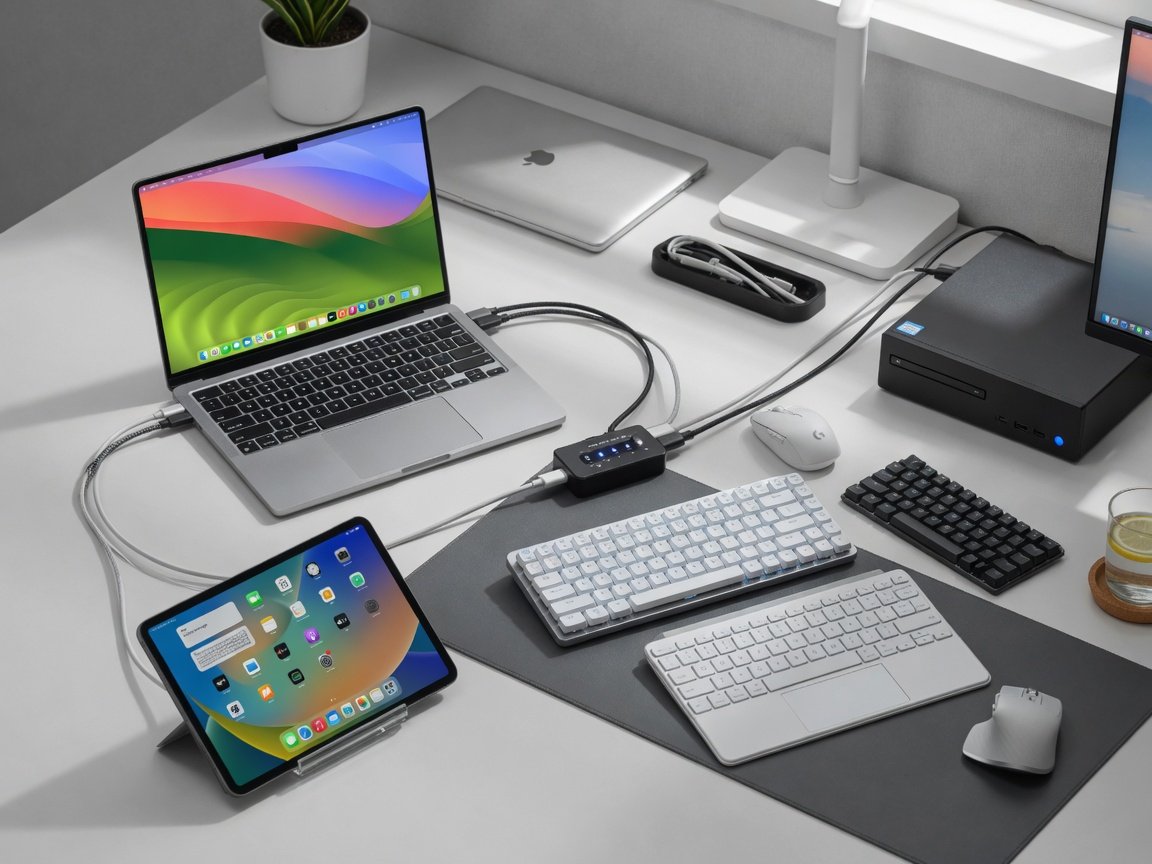
These are the four setups built for multi-device workflows — the ones that claim to make switching between Mac, Windows, and iPad fast enough that you stop thinking about it. The question that matters is simple: how do you switch, how reliably does it reconnect, and does the ecosystem cover your mouse as well as your keyboard. Here is what actually works.
Logitech MX Keys S + MX Master 4 — The Seamless Pair
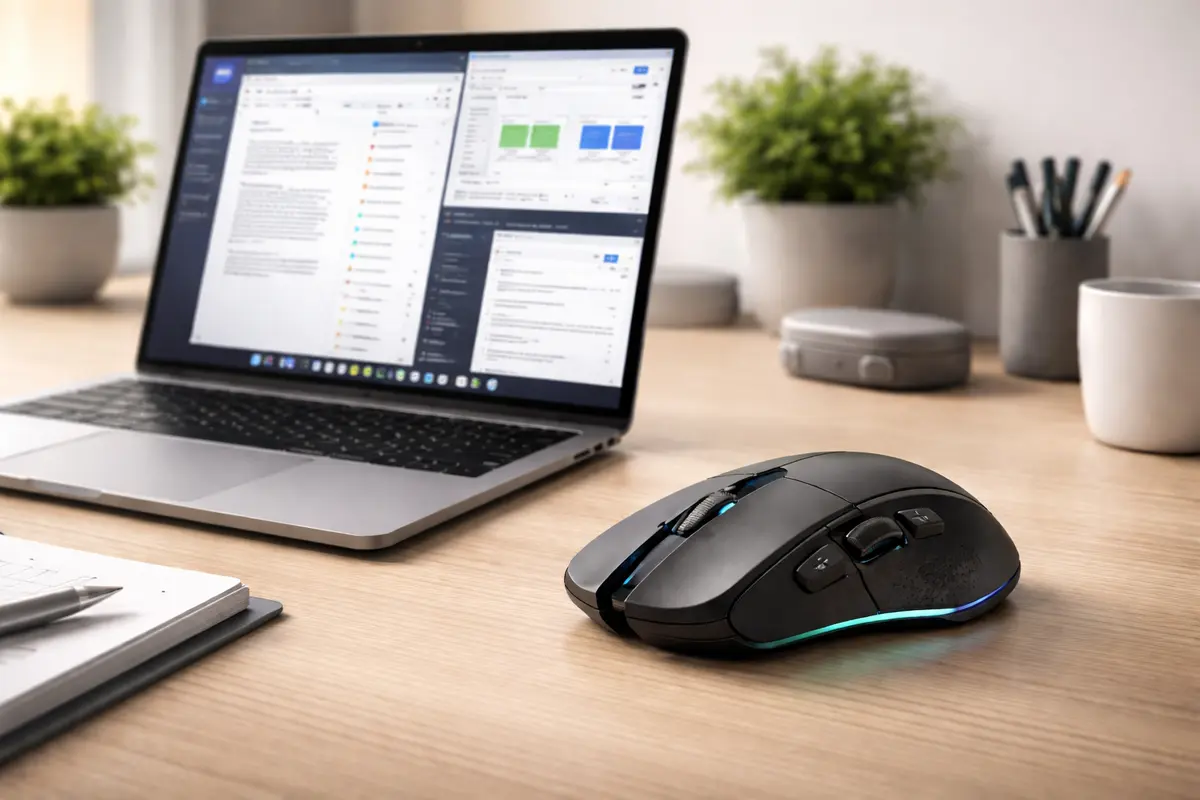
The MX Keys S and MX Master 4 combo is the most polished of the four, which is what two decades of iteration on the same product line buys you. It is also the only setup here where the switching mechanism itself stops being something you think about.
Switching: A single tap on one of the three device-select keys above the navigation cluster, and both the keyboard and mouse switch at once when Logitech Options+ is installed. Without the software you switch them independently, which costs an extra beat per transition. Install the software — it is not optional for the full experience.
What makes it work: The MX Master 4 mouse connects to the keyboard via Logitech Flow. When you drag the cursor to the edge of one screen, both keyboard and mouse jump to the next computer. It feels like using a single machine across two monitors — except the monitors belong to different operating systems. Copy text on the Mac, paste it on the Windows machine. No cloud clipboard, no emailing yourself snippets.
The catch: The MX Keys S is a scissor-switch keyboard — not mechanical. Typing feel is closer to a MacBook than a custom mechanical board. If tactile feedback matters more to you than seamless switching, the Keychron K3 Pro is a better fit. But if switching speed and zero-friction workflow are the priority, this combo has no real competition at this price. Best wireless keyboards for home office — our full roundup covers alternatives at every budget.
Does Logitech Flow work between Mac and Windows? Yes. It is the only system here that handles both keyboard and mouse transitions across operating systems. Drag a file from Windows Explorer to the Mac desktop — Flow transfers it over the local network. The setup takes about three minutes and you never touch it again.
Keychron K3 Pro — Mechanical Feel With Multi-Device Flexibility
The Keychron K3 Pro answers a specific question: can you have genuine mechanical key feel AND multi-device switching in a compact, travel-friendly board? The answer is yes — with a few compromises.
Switching: Holding Fn + 1/2/3 — a two-handed operation that takes longer than the Logitech’s single tap. Bluetooth reconnection is reliable but not instant, and there is a short beat between the key press and the device registering as active.
Where it wins: The typing experience. Low-profile Gateron mechanical switches deliver tactile feedback scissor-switch keyboards cannot match. If you spend 6+ hours typing daily — writing, coding, documentation — the K3 Pro is the keyboard your fingers want. The 75% layout saves desk space without sacrificing function keys. QMK/VIA support means you can remap every key, build macros for IDE shortcuts, and customise the layout across Mac and Windows modes.
The compromise: There is no mouse companion. Keychron does not make a mouse that pairs with the K3 Pro for simultaneous switching. You will need to switch your mouse independently, which adds another 2-3 seconds per transition. For a designer or writer jumping between devices frequently, this friction is noticeable. The physical switch on the side toggles between Mac and Windows layouts — useful, but manual. It does not auto-detect the connected OS. Why mechanical keyboards are loud (and how to fix it) — if noise is a concern in your office.
Apple Magic Keyboard (USB-C) — The Single-Device Specialist
I will be honest — including the Magic Keyboard in a multi-device keyboard comparison feels almost unfair. It connects to one Mac at a time, with no physical device-switching button. But I have seen enough Mac-only desks to know it belongs in the conversation for the right user.
Switching “speed”: N/A. The Magic Keyboard does not switch between devices in the traditional sense. You pair it with one Mac. To use it with an iPad, you unpair and re-pair, or rely on iCloud handoff if both devices share an Apple ID. This is not a multi-device keyboard — it is a single-device keyboard with Apple ecosystem convenience.
Why it is here: If your workflow lives entirely inside the Apple ecosystem — MacBook at the desk, iPad for notes, iPhone for calls — the Magic Keyboard makes sense as a Mac-dedicated board paired with a separate iPad keyboard. The USB-C version charges via the same cable as your MacBook. Typing feel is identical to a MacBook Pro keyboard: short travel, quiet, precise. Battery lasts over a month between charges. It pairs automatically when you plug it into a Mac via USB-C.
Who should buy this: Someone who works 90% on a Mac and only occasionally needs iPad input. Not a multi-device switcher. If you switch between Mac and Windows daily, skip this — the Logitech or Keychron will serve you better.
Razer Pro Type Ultra — Silent Mechanical, Ergonomic Focus
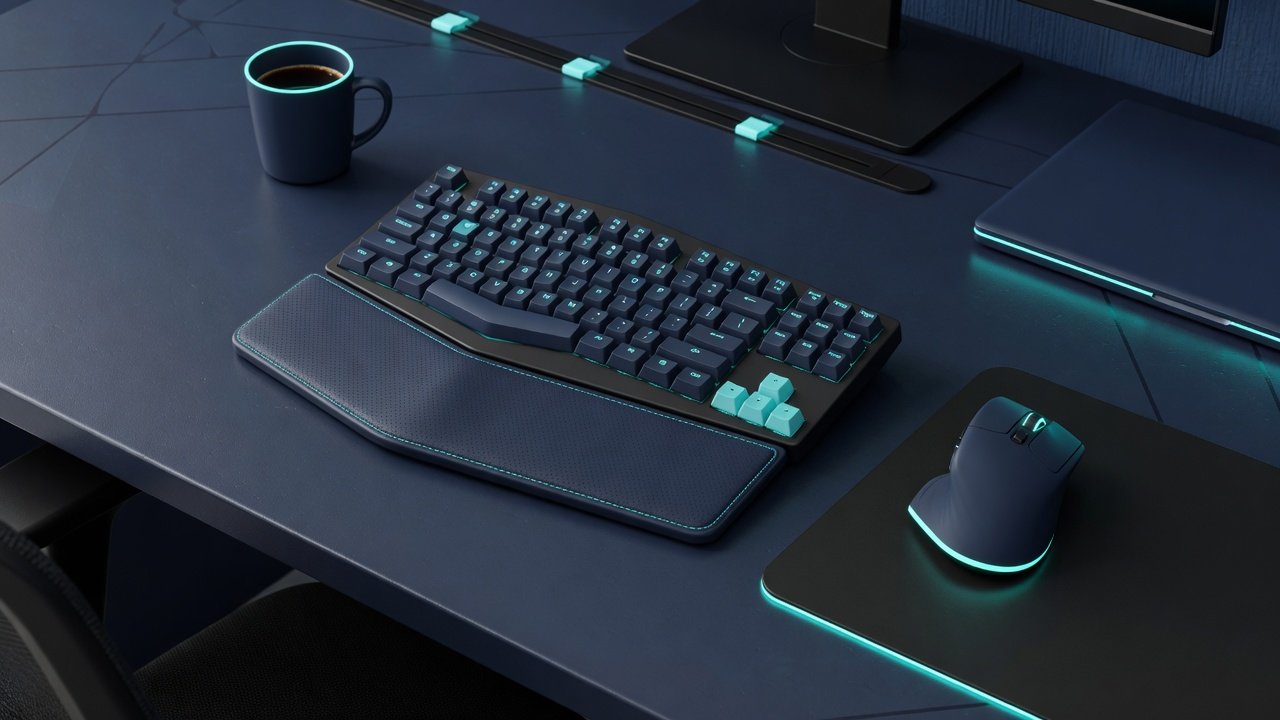
Razer is known for gaming, but the Pro Type Ultra is a genuine multi-device keyboard built for productivity. Silent mechanical switches, a padded wrist rest, and multi-device Bluetooth make it a dark horse in this category.
Switching: Similar to the Keychron — an Fn + key combo triggers Bluetooth switching. Connection reliability is strong, but the reconnection delay runs longer than Logitech’s. The keyboard prioritises connection stability over speed, which matters more for sustained work sessions than rapid switching.
Where it stands out: Noise level. Its silent linear mechanical switches make it the quietest of the mechanical boards here, and a genuinely office-friendly one. The included wrist rest is plush and supportive — substantial enough for all-day use without flattening. The white aesthetic fits modern desk setups better than the gaming look Razer is known for.
The downsides: Razer Synapse software is required for full functionality and feels heavy compared to Logitech Options+. The keyboard is large — full-size with a number pad, taking up significant desk real estate. No companion mouse with synchronised switching, so mouse transitions remain manual. Battery life is shorter than competitors at roughly 3-4 days with backlighting on.
Is the Razer Pro Type Ultra quiet enough for an open office? Yes. Its linear mechanical switches are quieter than most membrane keyboards, and a neighbour two metres away will barely hear it. The Keychron K3 Pro with Gateron Reds is noticeably louder in a quiet room.
How We Chose the Keyboards in This Guide
Switching mechanism: How many devices each keyboard holds, whether switching needs a single tap or an Fn-key combination, and whether the manufacturer pairs a matching mouse that moves with it.
Connection reliability: Published reports of Bluetooth dropouts, re-pairing prompts and slow reconnection — the failure modes that make a multi-device keyboard frustrating rather than seamless.
Ecosystem fit: Whether the companion software is optional or mandatory, how heavy it is, and whether the keyboard’s OS-specific features (Touch ID, Smart Actions, QMK/VIA macros) actually work across your machines.
Sources: Specifications come from the manufacturers; Bluetooth behaviour and latency are documented in the Bluetooth SIG specifications. Where independent measurement is useful, we lean on the methodology used by RTINGS keyboard reviews.
What to Look For in a Multi-Device Keyboard
1. Switching mechanism matters more than you think. A dedicated hardware button (Logitech) beats a Fn-key combo (Keychron, Razer) every time. If you switch devices more than 5 times per day, the single-tap convenience compounds. Over a year of daily use, the single-tap convenience compounds into a meaningful amount of saved time. PCMag’s keyboard roundup reaches the same conclusion across its multi-device picks.
2. Mouse synchronisation is the real productivity gain. A keyboard that switches instantly is half the solution if you still need to manually reconnect your mouse. Logitech Flow is the only system here that handles both seamlessly. With other keyboards, budget an extra 3-5 seconds per switch for mouse reconnection.
3. Bluetooth vs 2.4 GHz dongle. All four keyboards support Bluetooth multi-device. The Logitech also includes a 2.4 GHz USB dongle for lower latency. If you work with audio/video editing or anything latency-sensitive, use the dongle for your primary machine and Bluetooth for secondary devices.
4. OS-specific features are not universal. The Magic Keyboard’s Touch ID only works on Apple Silicon Macs. Logitech’s Smart Actions are Windows/Mac compatible. Keychron’s QMK/VIA macros work regardless of OS but require setup time. Match the keyboard’s software ecosystem to your actual workflow — not the one you plan to build someday.
5. Size and desk real estate. Full-size keyboards (Razer Pro Type Ultra) include a number pad but dominate desk space. 75% layouts (Keychron K3 Pro) save space but remove the number pad and some navigation keys. The Logitech MX Keys S splits the difference with a compact full-size layout.
Can I use a multi-device keyboard with an iPad? Yes — every keyboard here pairs with iPadOS via Bluetooth. The Logitech and Keychron both support three saved Bluetooth profiles, so you can switch between a Mac, a Windows PC, and an iPad with the same keyboard. The Apple Magic Keyboard is the exception: it pairs with one device at a time. If iPad is your secondary device, the Logitech or Keychron is the better choice.
Prices are approximate and correct at the time of publication. Check Amazon for current pricing.
Specific recommendation: If switching speed is everything, the Logitech MX Keys S + MX Master 4 combo is the only setup that makes multi-device switching feel like using a single computer. The single-tap switching and synchronised mouse transitions are not matched by any competitor at this price. At roughly $224-294 / ~£175-230 for the pair, it is not cheap — but if you switch devices more than 5 times daily, the time saved pays for itself within weeks.
If mechanical feel matters more than speed, the Keychron K3 Pro delivers genuine mechanical typing in a compact, multi-device package. Accept the slower switching and manual mouse reconnection as the trade-off for key feel that scissor-switch boards cannot match. Pair it with a multi-device mouse like the MX Master 4 for a best-of-both-worlds hybrid setup.
If you live in the Apple ecosystem and rarely leave, the Magic Keyboard is the right choice for Mac-only workflows. It is the wrong choice for anyone who touches Windows more than once a week. If silence and ergonomics are the priority, the Razer Pro Type Ultra has the quietest mechanical switches of the four and the only genuinely good included wrist rest — accept the software bulk and desk footprint as trade-offs.
Still deciding which setup fits your desk? Our best wireless keyboards for home office roundup covers every budget from $38 / ~£30 to $256+ / ~£200+. If noise levels matter — especially in an open-plan office or shared workspace — our guide to why mechanical keyboards are loud explains the switch types and noise reduction options.
← Back to Keyboards & Mouse Hub