Does 60hz vs 120hz vs 144hz office work actually matter when you are staring at spreadsheets, dragging windows, and scrolling through documents all day? The frame-time arithmetic is simple: 16.7ms per frame at 60Hz, 8.3ms at 120Hz, 6.9ms at 144Hz. What matters is how much of that difference you actually perceive at a desk doing office tasks, and the answer is more interesting than the spec sheets suggest.
In a Hurry? Start Here
Answer three quick questions and jump straight to the refresh rate that fits your workflow:
- Static documents and spreadsheets all day? → Jump to Is 60Hz Good Enough?
- Heavy scrolling, window management, app switching? → Jump to Why 120Hz Is the Sweet Spot
- Design, video, or CAD alongside office work? → Jump to Is 144Hz Worth It?
Disclosure: TechDeskZone is reader-supported. When you buy through links on our site, we may earn an affiliate commission at no additional cost to you. See our affiliate disclosure for details.
Office Ergonomics
Buying Guide
Table of Contents
What Does Refresh Rate Actually Mean?
A monitor’s refresh rate, measured in hertz (Hz), tells you how many times per second the screen redraws itself. A 60Hz panel refreshes 60 times every second, which works out to a new frame roughly every 16.7 milliseconds. A 120Hz panel cuts that interval in half to 8.3ms, and 144Hz drops it further to 6.9ms. Those numbers sound small, but your eyes absolutely feel the difference when things start moving on screen.
If you have used an iPad Pro or a MacBook Pro with Apple’s ProMotion display, you have already experienced 120Hz. Apple shipped ProMotion on the iPad Pro in 2017 and brought it to the MacBook Pro in 2021, making 120Hz a mainstream reference point millions of people recognize (Apple, 2021). That smooth scrolling you notice on a ProMotion display is not a gimmick. It is exactly what you get from any 120Hz office monitor, and it is the same technology I am comparing here.
The tired old line that refresh rate “only matters for gaming” needs to die. It is true that competitive gamers benefit most from extreme refresh rates like 240Hz or 360Hz, where every millisecond counts. But office work involves constant motion: scrolling documents, dragging application windows, moving your cursor across a 27-inch canvas, watching colleagues’ shared screens jump around during video calls. At 60Hz, all of that motion carries a subtle judder that you have probably trained yourself to ignore. Once you see 120Hz, the difference becomes hard to un-see.
Think of refresh rate as a diminishing returns curve. The jump from 60Hz to 120Hz is enormous: you are literally doubling the number of frames your eyes receive every second. The jump from 120Hz to 144Hz adds only 24 extra frames per second, a 20% increase that translates to about 2 milliseconds of frame-time savings. Most office workers will never notice that gap. If you are still figuring out which specs matter most for your workflow, our monitor buying guide walks through resolution, panel type, and connectivity alongside refresh rate. The 60Hz-to-120Hz jump is obvious within seconds of scrolling a document. Telling 120Hz from 144Hz is a different exercise: it takes deliberate side-by-side squinting, and even then most people land only somewhat above a coin flip.
That is the diminishing returns curve in action, and it is the single most consistent finding in refresh-rate testing: 60Hz to 120Hz is a step change, and 120Hz to 144Hz is a rounding error.
Is 60Hz Still Good Enough for Office Work?
60Hz has been the default refresh rate for office monitors since LCD panels replaced CRTs in the mid-2000s. For roughly two decades, the vast majority of workplace displays shipped at 60Hz, and according to Statista, 60Hz panels still account for an estimated 75-80% of all desktop monitors sold for business use (Statista, 2024). The reason is simple: 60Hz works fine for static content, and it keeps panel costs low.
If your daily workflow revolves around reading emails, working in spreadsheets, drafting documents in Google Docs or Microsoft Word, and sitting on Zoom calls, a 60Hz monitor will serve you perfectly well. Static text does not benefit from higher refresh rates. A cell in Excel looks identical at 60Hz and 240Hz because nothing is moving. For millions of office workers, this is the entire job description, and a good 60Hz screen with solid color accuracy and sharp resolution is all the hardware they need.
Where 60Hz starts to show its age is the moment anything moves. Scrolling through a long PDF or web page produces a slight but perceptible blur. Dragging a window across the desktop leaves behind a faint ghost trail. Your cursor, which you move thousands of times per day without thinking about it, feels fractionally disconnected from your hand. The RTINGS.com motion blur testing methodology shows that 60Hz displays exhibit roughly 16.7ms of perceived motion blur in moving content, compared to 8.3ms at 120Hz (RTINGS.com, 2024). That 8-millisecond difference is what separates “I never thought about my monitor” from “something feels off.”
This is why 60Hz survives in offices. Your brain adapts to it within days, and most people never notice anything to complain about. Then they use a 120Hz display for an afternoon, and the difference is immediate. Adaptation is not the same as optimal.
The real question with 60Hz is not whether it is viable. It absolutely is viable, and hundreds of millions of office workers prove that every day. The question is whether the price premium for 120Hz, which starts at around an extra $90 / ~£70, buys you enough improvement to justify the cost. For pure spreadsheet and email workers, I would argue that premium is better spent on higher resolution or a larger screen. For anyone who does mixed work involving creative tools, browsing, or anything with motion, the answer tips toward 120Hz. The panel technology matters too: whether you choose IPS, VA, or OLED for office work affects contrast, viewing angles, and text clarity just as much as refresh rate does. And if your budget is tight, bumping up from 1080p to 1440p or 4K often delivers more practical benefit than chasing frames: see our resolution comparison for the full breakdown.
Three 60Hz Monitors Worth Your Desk Space
Dell P2422H
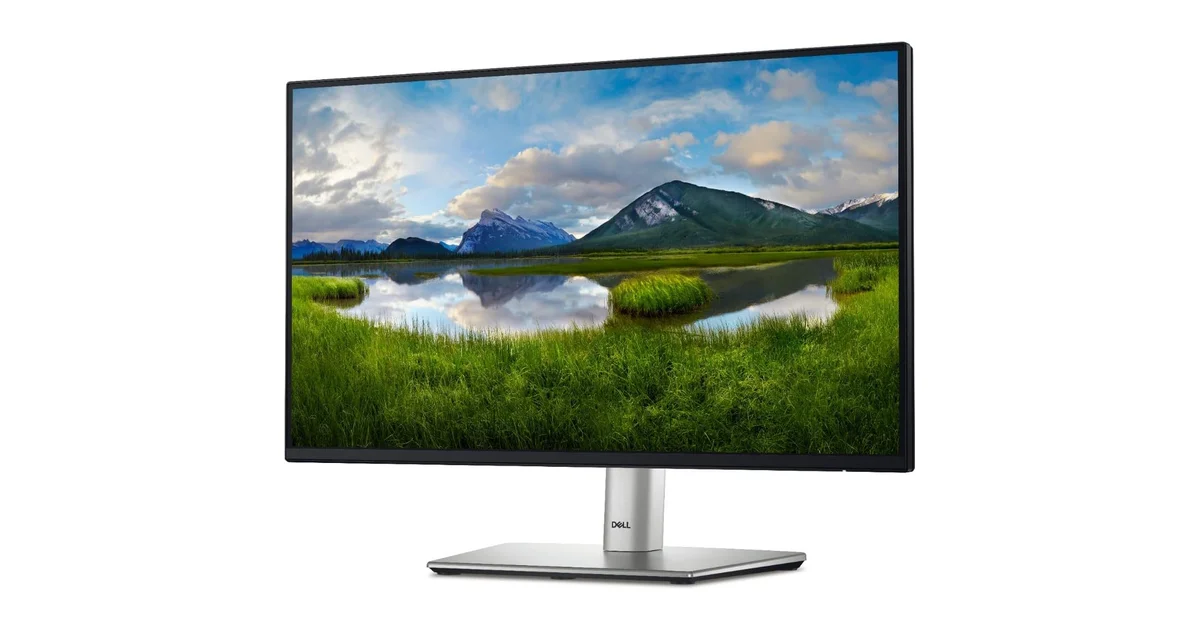
Price: $180 / ~£144
A 23.8-inch 1080p IPS panel with 99% sRGB coverage and a built-in 4-port USB 3.2 hub. It is the budget 60Hz entry here because Dell backs it with a 3-year warranty and includes a full ergonomic stand with height, pivot, swivel, and tilt adjustments, something you rarely find at this price. The USB hub alone saves you from buying a separate dongle for your keyboard and mouse.
Dell S2722QC
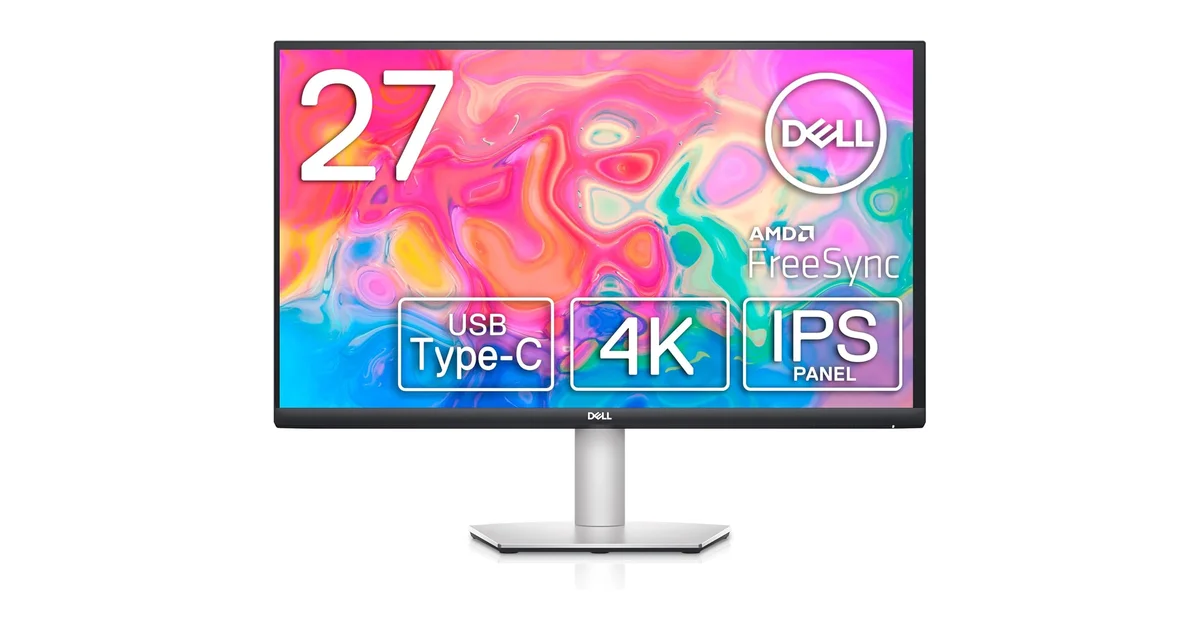
Price: $320 / ~£329
A 27-inch 4K IPS monitor with USB-C connectivity that delivers 65W laptop charging through a single cable. At this price, it is the cheapest 4K USB-C monitor in this comparison that does not compromise on panel quality. 4K at 27 inches gives you roughly 163 pixels per inch, which makes text look sharp enough to rival a printed page. That sharpness matters far more than refresh rate for document-heavy workers.
Dell UltraSharp U2723QE
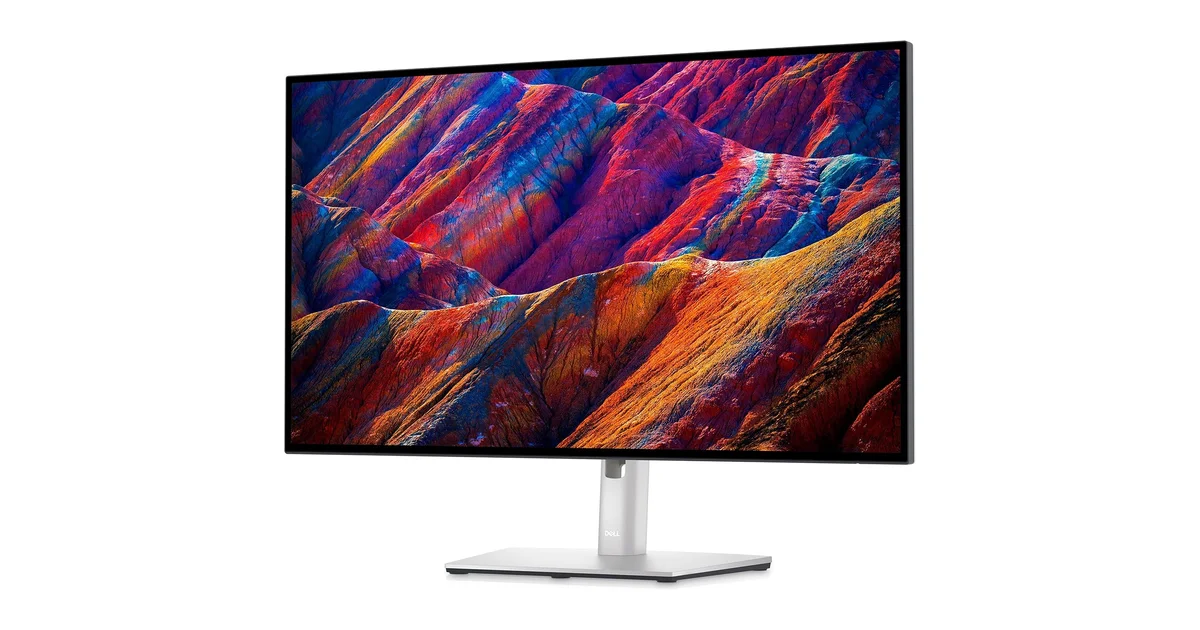
Price: $640 / ~£550
The premium 60Hz pick uses LG’s IPS Black technology, doubling the contrast ratio of a standard IPS panel to 2000:1. Factory-calibrated Delta E under 2 means color accuracy that satisfies design work out of the box. It also packs a built-in KVM switch, 90W USB-C charging, and an RJ45 Ethernet port, essentially a full docking station integrated into the monitor chassis. If you are staying at 60Hz, this is the best 27-inch 4K office panel you can buy.
Why Is 120Hz the Sweet Spot for Office Productivity?
The 60hz vs 120hz vs 144hz office work debate has a clear middle ground, and 120Hz is it. Blur Busters’ UFO motion test demonstrates that 120Hz reduces perceived motion blur by roughly 50% compared to 60Hz, and that reduction translates directly into more legible text while scrolling (Blur Busters, 2024). You read that right: scrolling text stays sharper.
The most immediately noticeable improvement lives in your cursor. At 60Hz, a moving cursor updates position every 16.7ms, creating a subtle stutter trail that your eye tracks across the screen. At 120Hz, cursor updates arrive every 8.3ms, cutting the gap between physical mouse movement and on-screen response in half. That means fewer mis-clicks on small UI elements like window resize handles and spreadsheet cell borders. It is not a life-changing upgrade, but it is a genuine productivity refinement that adds up across an eight-hour workday.
Window management is where 120Hz genuinely shines for power users. If you use Windows Snap, macOS Stage Manager, or any tiling window manager, you are constantly dragging application windows around your desktop. At 60Hz, those window animations carry a faint but perceptible stutter. At 120Hz, they glide. Rearranging four application windows into quadrants is the clearest demonstration: at 120Hz the motion reads as smooth and precise, while at 60Hz it feels like you are fighting the display.
Scrolling behavior shows the biggest practical gap. Most modern browsers and document viewers support smooth scrolling at the OS level, but smooth scrolling at 60Hz still introduces visible text tearing during rapid scrolls. At 120Hz, text remains readable even when you flick through a long document. Research data from the Blur Busters forums confirms that human persistence of vision can resolve motion clarity improvements up to at least 240Hz, meaning the gap from 60 to 120Hz represents substantial usable perceptual bandwidth (Blur Busters Research, 2024).
Here is something nobody talks about: video calls look subtly better at 120Hz even though most conferencing software caps at 30fps. The reason is that the shared-screen content your colleagues are presenting scrolls at your monitor’s refresh rate, not theirs. When a coworker scrolls through a Figma file or a spreadsheet on a screen share, their 30fps video stream picks up their local motion, but your display renders that stream at whatever refresh rate you are running. At 120Hz, shared-screen content during calls feels less jittery because your monitor is refreshing the incoming video feed twice as often, even if the source frame rate is low.
Is 120Hz game-changing? No, and I want to be honest about that. I would describe the upgrade from 60Hz to 120Hz for office work the same way I describe going from a 60% keyboard to a mechanical one: you can absolutely work without it, you have done so for years, and you will not believe how much smoother everything feels once you switch. It is a quality-of-life upgrade, not a productivity revolution. One practical consideration: driving 120Hz at QHD or 4K requires enough bandwidth from your laptop’s port. Thunderbolt, USB4, and USB-C each handle high-refresh-rate video differently, and the wrong cable can silently cap you at 60Hz. If your laptop has limited ports, a docking station rated for 120Hz becomes essential gear for keeping your desktop clean while maintaining full refresh rate.
Three 120Hz Monitors I Recommend for Office Work
Dell UltraSharp U2424H
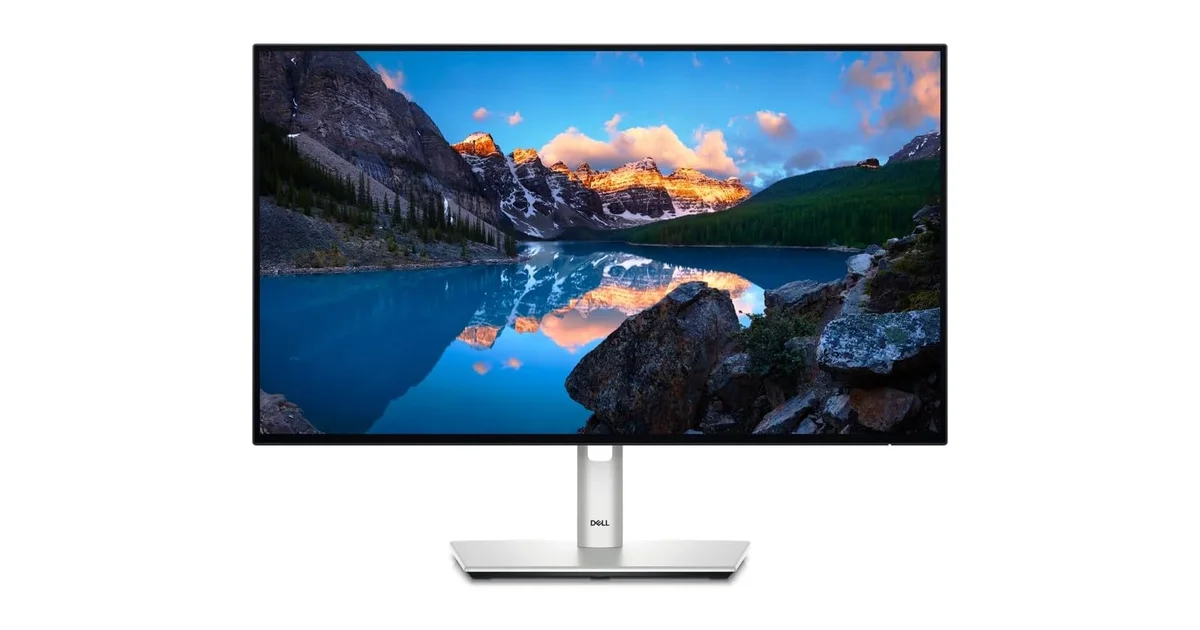
Price: $280 / ~£216
The most affordable 120Hz office-grade IPS monitor in this comparison. At 23.8 inches and 1080p, it is compact, but the 120Hz panel transforms the everyday experience: scrolling feels twice as smooth as any standard 60Hz office display, and the USB-C hub with 10Gbps data passthrough handles peripherals without extra dongles. A note: the USB-C port is data-only, so you will need HDMI or DisplayPort for video input.
Dell UltraSharp U2724D
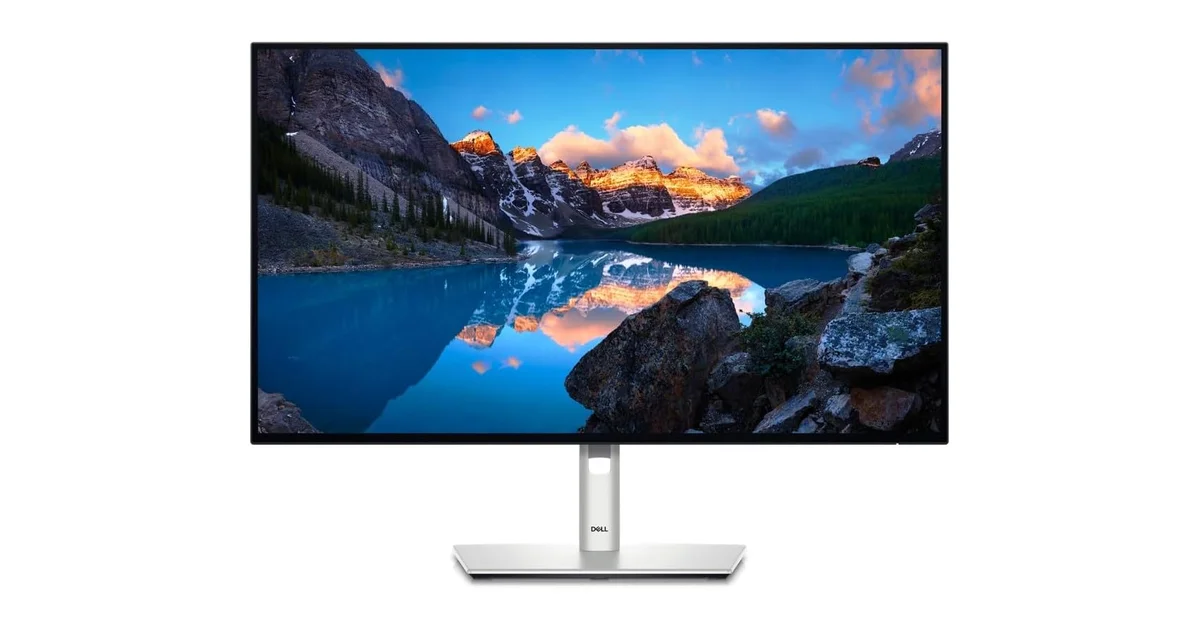
Price: $440 / ~£343
This is the single strongest recommendation in the entire article. The 27-inch QHD IPS Black panel delivers 2000:1 contrast with 98% DCI-P3 color coverage and 350 cd/m2 brightness. QHD at 27 inches gives you 33% more workspace than 1080p without the GPU demands of 4K. The 120Hz refresh rate makes every interaction feel crisp. The USB-C port is data-only, so run video over HDMI or DisplayPort.
Dell UltraSharp U3225QE
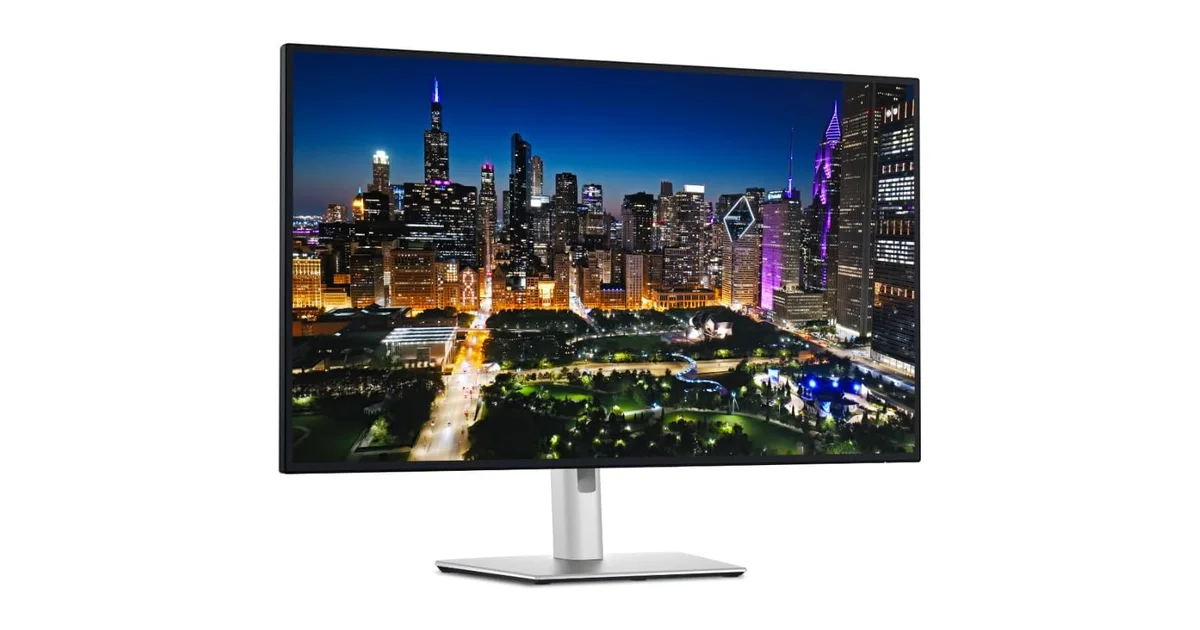
Price: $1,030 / ~£864
The flagship 120Hz pick. A 31.5-inch 4K IPS Black panel with Thunderbolt 4 delivering 140W laptop charging, a built-in 2.5GbE Ethernet port, and a true hardware KVM switch spread across 14 total ports. This is not just a monitor; it is a complete docking station wrapped in a single display. The 120Hz refresh rate across 4K real estate makes this the centerpiece monitor for an executive desk where no compromises are acceptable.
Is 144Hz Worth It for Office Work?
144Hz is the refresh rate to buy only if you know why you want it. The jump from 120Hz to 144Hz shaves about 1.4 milliseconds off each frame’s display time. For context, the average human blink lasts 100-150 milliseconds. You are chasing a difference 100 times smaller than a blink. RTINGS.com notes in their motion blur testing that the perceptual gap between 120Hz and 144Hz is measurable on instruments but barely distinguishable to the human eye in static office scenarios (RTINGS.com, 2024).
Who actually benefits from 144Hz for office work? Creative professionals who split their time between design tools and general productivity. In Photoshop or Lightroom, the cursor precision difference at 144Hz shows up when painting masks or making fine selection adjustments. The extra 24 frames per second translate to slightly smoother brush strokes and more precise lasso tool tracking. It is subtle, genuinely subtle, but if you earn your living moving a cursor with pixel-level precision, those milliseconds compound.
Video editors and motion graphics designers get a bonus: 144Hz divides evenly by 24fps (cinema), 30fps, and 48fps, making it a convenient container for previewing content at common frame rates without judder. 120Hz also handles 24fps and 30fps cleanly, but 144Hz adds 48fps compatibility, which matters for some high-frame-rate video workflows.
The honest truth is that most office workers will never notice the difference between 120Hz and 144Hz. Spreadsheet scrolling, email composition, and browser tab switching give you nothing to latch onto; across a full workday of mixed office tasks, you would not reliably know which of the two you were on without checking the system settings. If you are a designer, photographer, or video editor, 144Hz earns a very marginal recommendation. If you spend your day in Excel and Outlook, spend the money on a better panel or higher resolution instead. Screen size also shapes how you perceive motion smoothness: 27 versus 32 inches changes your field of view and how much scrolling your eyes track daily. And if you are mounting a heavy premium display like the BenQ, a sturdy monitor arm frees up desk space and gives you positioning flexibility that the stock stand cannot match.
Three 144Hz Monitors for Office and Creative Work
Dell S2725DC (Dell Plus)
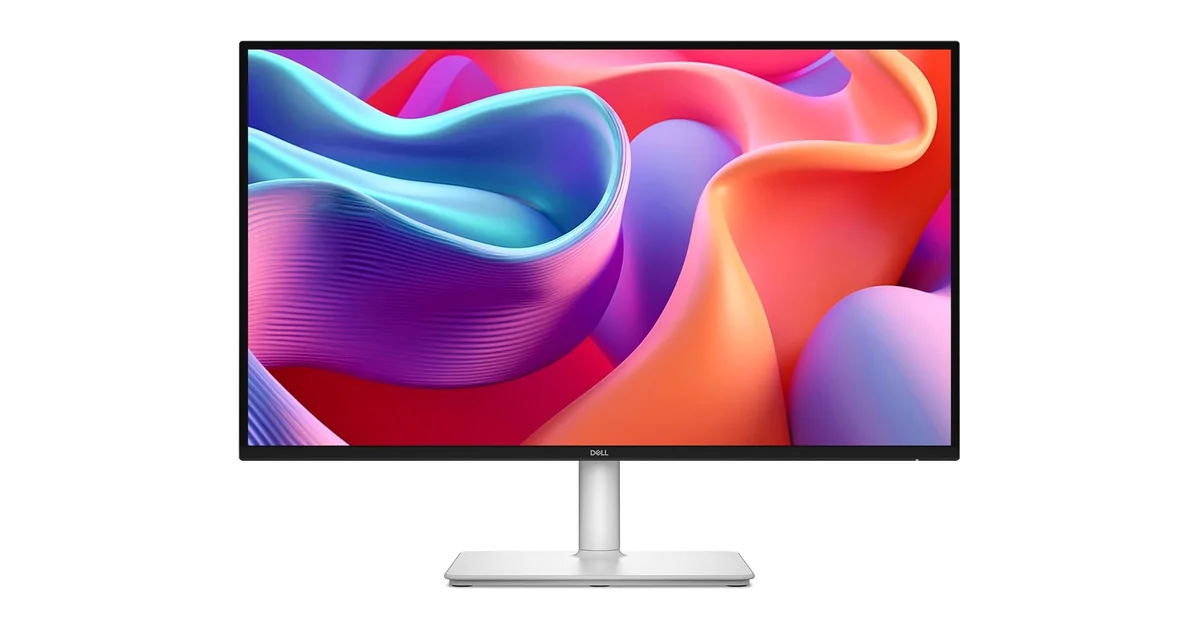
Price: $260 / ~£238
The cheapest 144Hz monitor here that does not look like it belongs in a gaming tournament. The clean ash-white chassis, 27-inch QHD IPS panel, and 65W USB-C single-cable docking make this a stealth office upgrade. Built-in 3W speakers handle notification sounds without desk clutter. At this price, the 144Hz smoothness is essentially a free bonus on top of a solid QHD USB-C office monitor.
ASUS ProArt PA278CGV
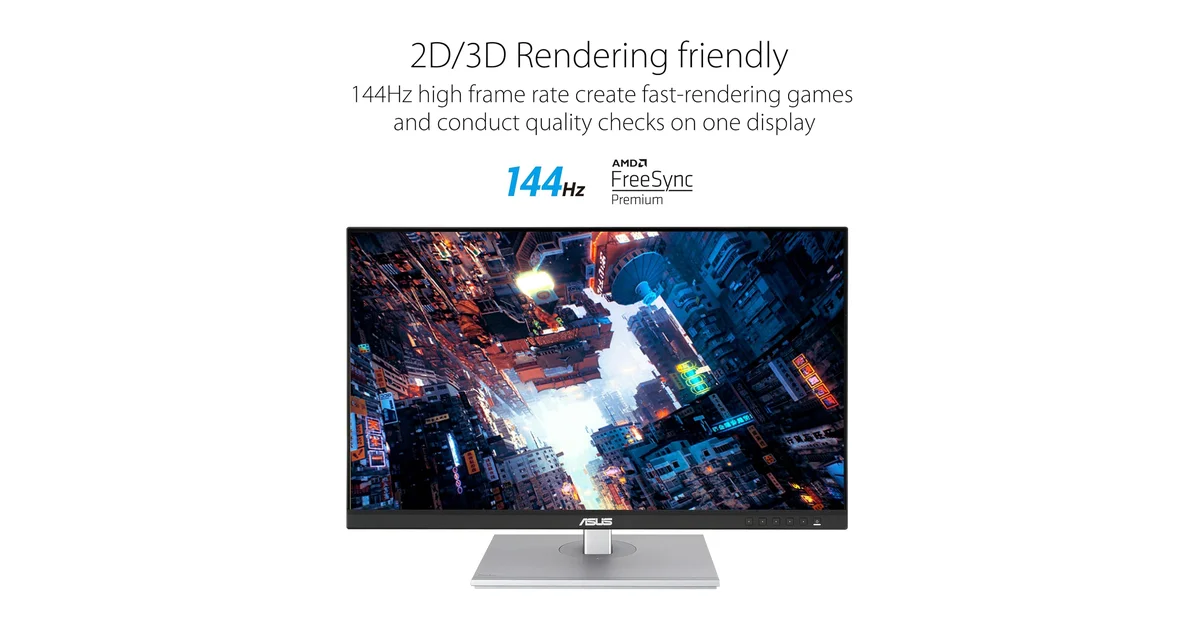
Price: $360 / ~£315
The only ProArt display with a 144Hz panel, and the pick for a design workstation. Factory-calibrated Delta E under 2 with Calman verification, 95% DCI-P3 wide gamut coverage, and 90W USB-C Power Delivery for 16-inch laptops. This monitor crosses a specific bridge: accurate enough for paid color work, smooth enough that creative apps feel responsive. Four USB-A ports handle your peripherals without a hub.
BenQ PD3226G (Creative Pro)
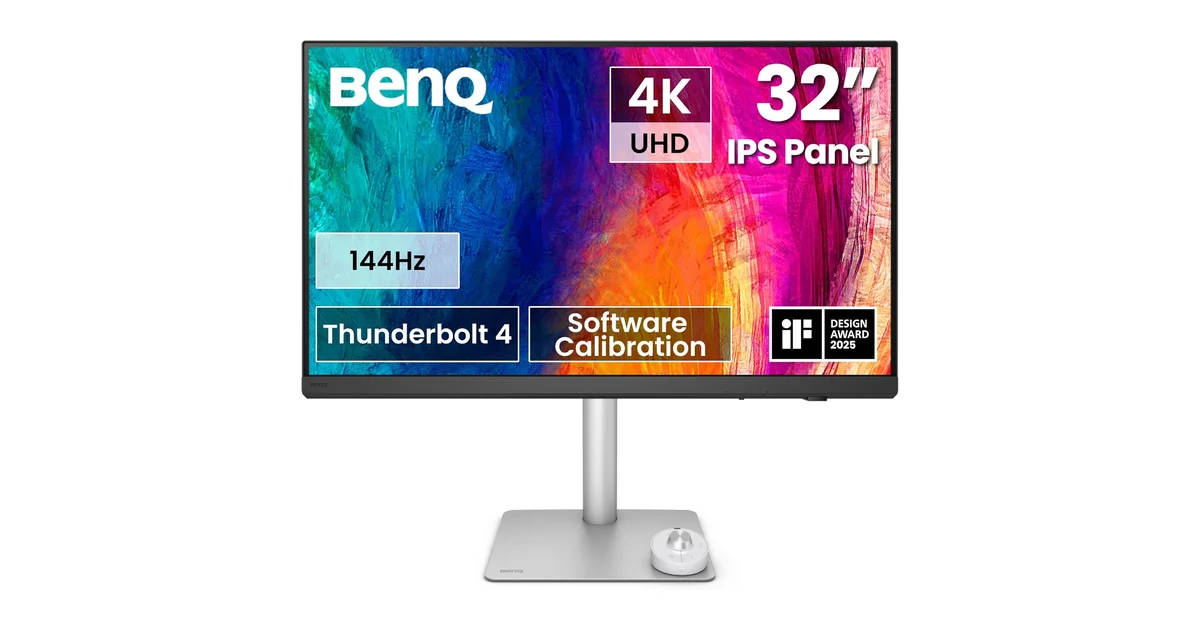
Price: $1,135 / ~£899
BenQ’s flagship designer monitor pushes 4K at 144Hz through a true 10-bit IPS panel with 95% DCI-P3 coverage and factory calibration. Thunderbolt 4 delivers 90W charging and daisy-chain support, a built-in KVM switch handles two computers, and the wireless OSD puck controller lets you switch color modes without reaching for monitor buttons. This is the uncompromising choice if you do professional creative work and refuse to pick between color accuracy and motion smoothness.
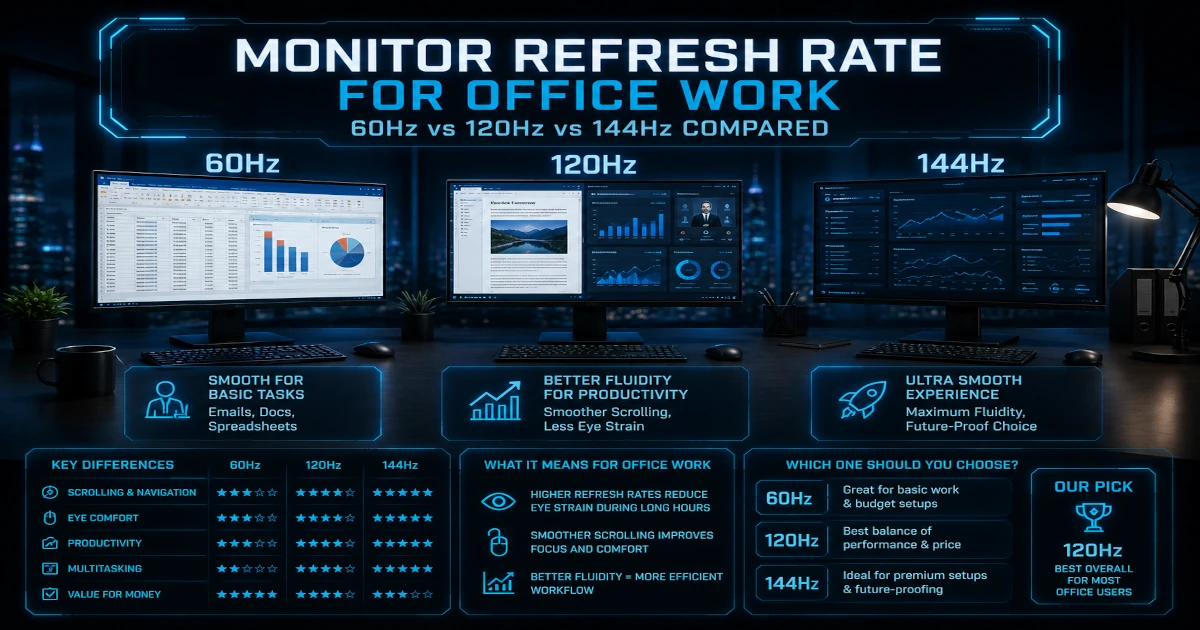
Head-to-Head Comparison: 60Hz vs 120Hz vs 144Hz
This table distills the comparison into a single reference, rated on how each refresh rate behaves in real office tasks rather than synthetic benchmarks.
| Feature | 60Hz | 120Hz | 144Hz |
|---|---|---|---|
| Scrolling Smoothness | Acceptable | Excellent | Excellent |
| Text Clarity in Motion | Blurred during scroll | Readable at speed | Marginally crisper |
| Eye Comfort (Long Sessions) | Adequate | Noticeably easier | Similar to 120Hz |
| Video Calls | Fine | Smoother shared content | Smoother shared content |
| Price Range (Office Grade) | £144-£550 | £216-£864 | £238-£899 |
| Best For | Email, spreadsheets, static docs | Mixed office work, browsing, creative | Designers, video editors, mixed creative + office |
Which Refresh Rate Should You Buy?
If you have read this far into this 60hz vs 120hz vs 144hz office work comparison, you probably already know which way you are leaning.
If you spend the majority of your workday in static applications like Excel, Outlook, and Word, a quality 60Hz monitor is genuinely all you need. The Dell U2723QE I recommended above gives you 4K sharpness, IPS Black contrast, and a built-in docking station for $640 / ~£550. That money buys you resolution and connectivity that materially improve your workflow in ways refresh rate does not for static content. Do not let anyone convince you that you “need” 120Hz for spreadsheets.
If your workday involves moderate scrolling, browser-heavy research, or any creative tool, jump to 120Hz. The Dell U2724D at $440 / ~£343 combines QHD workspace with 120Hz smoothness and IPS Black contrast. It is the best value proposition in the entire comparison, and the pick for most home office setups.
If you are a designer, photographer, or video editor who splits time between creative applications and general office work, 144Hz earns its keep. The ASUS ProArt PA278CGV gives you factory color calibration and 144Hz for $360 / ~£315, a combination that did not exist at this price three years ago. Professional creatives who push pixels all day will notice the cursor precision improvement, and everyone else can safely ignore the 144Hz tier entirely.
If you are still weighing whether one large screen beats two smaller ones, our ultrawide vs dual monitor breakdown covers the trade-offs. And once you have settled on a monitor, the complete home office setup guide helps with the rest: lighting, desk placement, cable management, and ergonomics. Refresh rate is one piece of a larger puzzle. Resolution matters just as much, and for many workers, more so.
Questions People Ask About Refresh Rate and Office Work
Does refresh rate affect eye strain?
It can, but the relationship is indirect. Higher refresh rates reduce flicker and motion blur, both of which contribute to visual fatigue during long sessions. A study published by the American Academy of Ophthalmology notes that digital eye strain is driven primarily by reduced blinking, screen glare, and uncorrected vision, not refresh rate directly (AAO, 2023). That said, 120Hz does reduce the micro-adjustments your eyes make to track moving content, which reads as less tiring across an eight-hour day. The bigger eye comfort factors remain ambient lighting, matte screen coatings, and the 20-20-20 rule: every 20 minutes, look at something 20 feet away for 20 seconds.
Can my laptop output 120Hz?
Most laptops made in the last five years can output 120Hz over DisplayPort or USB-C with DisplayPort Alt Mode. The bottleneck is usually the cable or dock, not the laptop itself. HDMI 1.4, which is common on older office laptops, caps at 1080p 120Hz or 4K 30Hz. You need HDMI 2.0 or DisplayPort 1.2 minimum for QHD at 120Hz. If you use a docking station, check its maximum supported refresh rate at your target resolution: many office docks advertise 4K support but only at 30Hz. The Thunderbolt vs USB4 vs USB-C guide on this site covers the connectivity details if you want to verify your specific setup.
Is 144Hz overkill for office work?
For most office workers, yes, honestly. The gap between 120Hz and 144Hz is roughly a 20% frame-rate increase, translating to about 1.4 milliseconds per frame. The vast majority of office tasks generate no perceptible benefit from that difference. If you do creative work like photo editing, video production, or CAD, 144Hz offers a slight precision edge. If your job description revolves around documents, email, and meetings, put the money toward a better panel, higher resolution, or a larger screen instead.
Does refresh rate matter for video calls?
Not for your own camera feed, which typically maxes out at 30fps regardless of your display. But it does matter for shared-screen content. When a colleague shares their screen and scrolls through a document or presentation, your monitor renders that incoming video feed at its native refresh rate. At 120Hz or 144Hz, the shared content refreshes more often on your end, reducing perceived jitter during screen shares. It is a subtle improvement, not a reason to upgrade on its own, but it is a real one.
Do I need a special cable for 120Hz?
You need a cable with enough bandwidth for your resolution and refresh rate combination. For 1080p at 120Hz, any HDMI 1.4 or DisplayPort 1.2 cable works. For QHD at 120Hz, you need HDMI 2.0 or DisplayPort 1.2 minimum. For 4K at 120Hz, you need HDMI 2.1 or DisplayPort 1.4 with DSC (Display Stream Compression). Using the cable that comes bundled with your monitor is almost always the safest bet, since manufacturers include cables rated for the display’s maximum specification.
Is 60Hz bad for office work?
No, 60Hz is not bad for office work. It is the standard that billions of productive hours have been logged on, and it remains perfectly functional for the majority of desk jobs. What 60Hz is, is outdated as a ceiling. The question is not whether 60Hz works. It does. The question is whether spending roughly £70-£100 more for 120Hz buys you a quality-of-life improvement you will appreciate every day. For anyone whose work involves scrolling, window management, or any kind of motion on screen, the answer is yes. One final note: if you do upgrade and text looks soft, check your OS scaling settings and cable bandwidth before blaming the panel. Blurry text on a new monitor is almost always a configuration issue, not a hardware defect.
← Back to Monitors Hub
The Verdict
The 60hz vs 120hz vs 144hz office work question comes down to how much motion crosses your screen each day.
Best value: The Dell UltraSharp U2724D at $440 / ~£343. QHD resolution, 120Hz IPS Black panel, and a hub built in. This is the pick for a mixed office workflow.
Best overall: The Dell S2722QC at $320 / ~£329. If you spend your days in static documents and spreadsheets, 4K sharpness at 60Hz delivers a better experience than 120Hz at 1080p. Resolution beats refresh rate when nothing on your screen is moving.
Premium pick: The BenQ PD3226G at $1,135 / ~£899. A 32-inch 4K 144Hz 10-bit panel with Thunderbolt 4 and factory color calibration. This is the monitor for creative professionals who will not compromise on anything.
← Back to Guides Hub