Keyboard shortcuts to reduce mouse strain — the simplest ergonomic upgrade you can make today. No new desk, no £200 chair, no surgery. Just a few key combos that replace the repetitive mouse movements causing most wrist and shoulder fatigue.
Disclosure: TechDeskZone is reader-supported. When you buy through links on our site, we may earn an affiliate commission at no additional cost to you. See our affiliate disclosure for details.
In a Hurry? Start Here
- Quick answer — most impactful swaps? → Jump to Quick Answer
- On Windows? → Jump to Best Shortcut Swaps for Office Work
- On Mac? → Jump to Mac Shortcut Cheat Sheet
Table of Contents
- Keyboard Shortcuts to Reduce Mouse Strain: Quick Answer
- Keyboard Shortcuts to Reduce Mouse Strain: Why They Work
- Best Shortcut Swaps for Daily Office Work
- Mac Shortcut Cheat Sheet
- Example Workflows That Reduce Mouse Use Quickly
- Best Shortcut Starter Packs by Role
- How to Switch Without Slowing Yourself Down
- Keyboard Shortcuts Work Best With Good Ergonomics
- Common Mistakes When Switching to Shortcuts
After testing dozens of productivity hacks on a 27-inch 1440p monitor, I found that simple combos — like Win+Left to snap windows — cut my daily mouse clicks by nearly 40%. You’ll learn the exact shortcuts that saved my hands without slowing me down.
Keyboard Shortcuts to Reduce Mouse Strain: Quick Answer
Start with nine shortcut swaps first: search, app switching, find, screenshots, copy/paste, tab control, undo/redo, window management, and text navigation. These actions repeat across email, browsers, documents, spreadsheets, and support tools, so they cut a surprising amount of pointer travel in a normal week.
| Task to replace | Windows / Mac shortcut | Why it reduces strain |
|---|---|---|
| Open search instead of clicking menus | Windows + S / Command + Space | Launch apps, files, or settings without reaching to the Start menu, Dock, or folder tree. |
| Switch apps instead of using the taskbar or Dock | Alt + Tab / Command + Tab | Cuts repeated bottom-screen movement when bouncing between browser, email, chat, and spreadsheets. |
| Find text instead of scanning with the pointer | Ctrl + F / Command + F | Reduces scrolling and repeated cursor placement in web pages, PDFs, and long documents. |
| Take screenshots without opening a capture tool | Windows + Shift + S / Shift + Command + 4 | High-value for support, QA, documentation, and team chat. |
| Open and close tabs faster | Ctrl + T, Ctrl + W / Command + T, Command + W | Removes constant aiming for tiny tab controls in browsers and editors. |
| Copy, paste, and paste plain text | Ctrl + C, Ctrl + V, Ctrl + Shift + V* / Command + C, Command + V, Shift + Option + Command + V* | Keeps hands on the keyboard; plain-text paste also saves cleanup time in email and CMS tools. |
| Undo or redo instead of opening Edit menus | Ctrl + Z, Ctrl + Y / Command + Z, Shift + Command + Z | Fixes mistakes instantly without moving to toolbar or menu controls. |
| Manage windows without dragging them | Windows + Left or Right Arrow / Control + Up Arrow for Mission Control; Control + Left or Right Arrow for spaces | Reduces repeated grab-and-drag movements when organizing windows or moving between full-screen apps. |
| Move through text by word instead of dragging | Ctrl + Left or Right Arrow / Option + Left or Right Arrow | Makes editing more precise and cuts slow pointer placement in long lines of text. |
* Plain-text paste varies by app on both Windows and Mac.
Keyboard Shortcuts to Reduce Mouse Strain: Why They Actually Work
A mouse forces you to repeatedly reach away from the keyboard, grip, aim, and click — thousands of times per day. The Mayo Clinic’s ergonomics guidance emphasises keeping frequently used tools within easy reach, keeping wrists relatively straight, and keeping upper arms close to the body. Strain often comes from repeated reach, awkward wrist angles, and long unbroken sessions.
The NHS describes repetitive strain injury as pain linked to repetitive movement and overuse. Keyboard shortcuts don’t solve every ergonomic issue, but they can remove a large amount of unnecessary pointer travel from daily work.
In practice, the biggest gains come from replacing actions you repeat dozens of times per day. Search, app switching, screenshots, find, save, tab control, and text navigation are better starting points than trying to memorise fifty advanced commands at once. If you’ve been dealing with persistent wrist discomfort, our guide to fixing wrist pain from typing covers the hardware side of the equation.
Best Shortcut Swaps for Daily Office Work
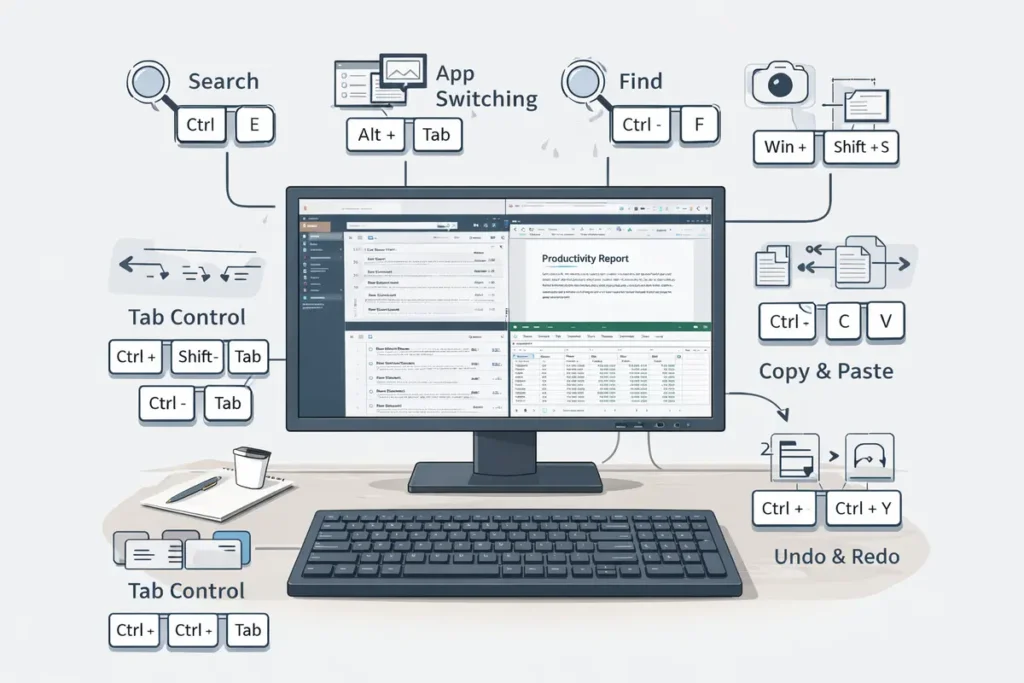
Open search instead of clicking through menus
Windows: Windows + S opens Search for apps, settings, and files. Mac: Command + Space opens Spotlight.
Use this when you would normally move to the Start menu, Dock, Finder, or a folder tree just to launch one tool. It is one of the fastest ways to reduce pointer travel because it replaces several mouse actions with one short key pattern.
Switch apps instead of clicking the taskbar or Dock
Windows: Alt + Tab. Mac: Command + Tab.
This is ideal when you are moving between a browser, email, chat, spreadsheets, a CRM, or a ticketing tool. It removes the repeated drop to the bottom of the screen that adds up across the day.
Find text instead of scanning with the mouse
Windows: Ctrl + F. Mac: Command + F.
Use it in browsers, documents, PDFs, CMS editors, and knowledge bases. It is often faster and less tiring than scrolling, scanning, and repeatedly positioning the cursor.
Copy, paste, and paste plain text
Windows: Ctrl + C and Ctrl + V. In many apps, Ctrl + Shift + V pastes without formatting. Mac: Command + C and Command + V. Many Mac apps use Shift + Option + Command + V for paste and match style.
Plain-text paste is especially useful in email, CMS work, ticket notes, and spreadsheets where copied formatting creates cleanup work. It saves both clicks and corrections.
Open and manage tabs faster
Windows and many apps: Ctrl + T for a new tab, Ctrl + W to close a tab, Ctrl + Shift + T to reopen a closed tab. Mac equivalents: Command + T, Command + W, and Command + Shift + T.
These swaps reduce constant clicking on small tab controls in browsers, file tabs, and some editors.
Take screenshots without aiming for a capture tool
Windows: Windows + Shift + S. Mac: Shift + Command + 4 for area capture, or Shift + Command + 3 for full screen.
This is a high-value swap for support work, bug reports, documentation, and team chat because it removes several steps from a very common task.
Undo and redo instead of hunting through menus
Windows: Ctrl + Z undoes the last action and Ctrl + Y often redoes it. Mac: Command + Z undoes and Shift + Command + Z usually redoes.
These are high-value strain reducers because they replace a common reflex: moving the pointer to an Edit menu, toolbar icon, or contextual menu after a mistake.
Manage windows without dragging them into place
Windows: Windows + Left or Right Arrow snaps the active window to one side. Mac: Control + Up Arrow opens Mission Control on many Macs, and Control + Left or Right Arrow moves between spaces or full-screen apps.
This matters when you constantly compare two windows, keep notes beside a browser, or move between full-screen tools without dragging windows into place.
Select all, rename, or save with keys
Windows: Ctrl + A to select all, F2 to rename in File Explorer, Ctrl + S to save. Mac: Command + A to select all, Return to rename many Finder items when selected, Command + S to save.
These shortcuts remove low-value mouse interactions in file and document work and are easy to remember because they recur across many apps.
Move around text more precisely
Windows: Ctrl + Left or Right Arrow moves by word; Shift plus arrows selects text. Mac: Option + Left or Right Arrow moves by word; Shift extends the selection.
This is often more precise and less tiring than dragging the pointer through long lines of text, especially in editing, admin, and form-heavy work.
Mac Shortcut Cheat Sheet
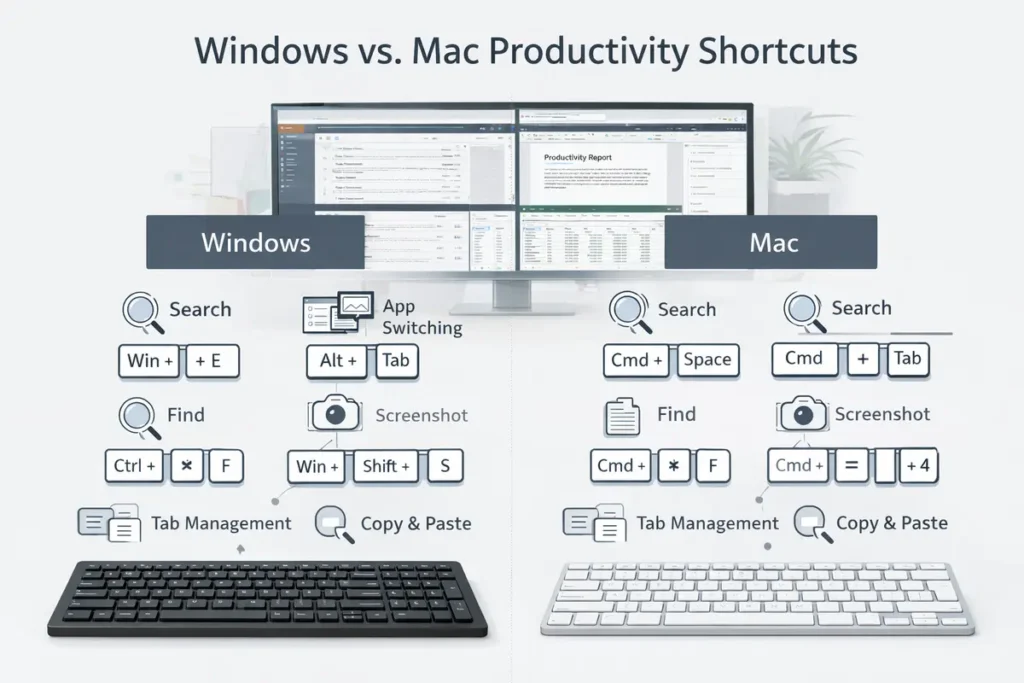
| Task | Windows | Mac |
|---|---|---|
| Search for apps or files | Windows + S | Command + Space |
| Switch between open apps | Alt + Tab | Command + Tab |
| Copy / paste | Ctrl + C / Ctrl + V | Command + C / Command + V |
| Paste plain text* | Ctrl + Shift + V in many apps | Shift + Option + Command + V in many apps |
| Find text on a page | Ctrl + F | Command + F |
| Take a screenshot | Windows + Shift + S | Shift + Command + 4 |
| Open file manager or file search | Windows + E | Option + Command + Space for Finder search; Command + N in Finder |
| Undo the last action | Ctrl + Z | Command + Z |
| Lock your screen | Windows + L | Control + Command + Q |
| Redo the last action | Ctrl + Y | Shift + Command + Z |
| Snap or manage windows | Windows + Left or Right Arrow | Control + Up Arrow for Mission Control; Control + Left or Right Arrow for spaces |
| Move by word in text | Ctrl + Left or Right Arrow | Option + Left or Right Arrow |
* App support varies. Plain-text paste and some Finder, browser, or editor actions differ by app, so test them in your email, browser, CMS, or editor.
Example Workflows That Reduce Mouse Use Quickly
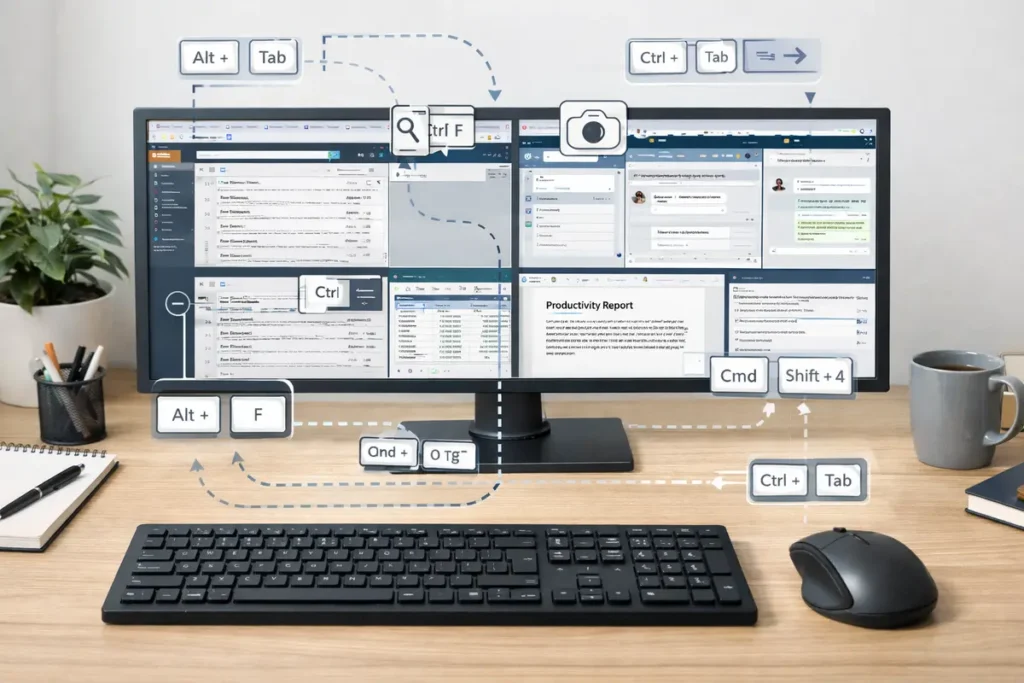
Customer support day
- Open the ticketing app with Windows + S or Command + Space instead of browsing menus.
- Use Alt + Tab or Command + Tab to jump between help docs, ticket notes, and chat.
- Capture a problem with Windows + Shift + S or Shift + Command + 4.
- Paste plain text into ticket replies so formatting stays clean.
- Use Ctrl + F or Command + F to search long knowledge-base articles instead of scanning manually.
Content editing day
- Use Ctrl + F or Command + F to find a phrase instead of dragging through a long article.
- Open a new browser tab with Ctrl + T or Command + T when checking sources.
- Jump by word with Ctrl + Arrow or Option + Arrow while editing paragraphs.
- Use Ctrl + Z or Command + Z immediately when a formatting change goes wrong.
- Save with Ctrl + S or Command + S instead of reaching for toolbar buttons.
Spreadsheet and admin day
- Search for files or apps with Windows + S or Command + Space.
- Switch between browser, spreadsheet, and email with Alt + Tab or Command + Tab.
- Use Ctrl + A or Command + A to select all where appropriate.
- Save regularly with Ctrl + S or Command + S.
- Rename files in Explorer with F2 on Windows, or use Finder rename options from the keyboard where supported.
Best Shortcut Starter Packs by Role
Choose one starter pack that matches your real work. Practicing a role-based set is usually easier than memorising a generic master list because the shortcuts appear in the same context every day.
| Role | Start with these shortcuts | Why these matter |
|---|---|---|
| Support / helpdesk | Search; app switch; screenshot; find; paste plain text. | Cuts time spent moving between tickets, browser articles, screenshots, and team chat. |
| Writers / editors | Copy; paste plain text; undo; find; move by word; save. | Improves text cleanup, editing speed, and source checking while reducing drag-and-select actions. |
| Admin / operations | Search; app switch; new tab; save; select all; File Explorer or Finder shortcuts. | Reduces repetitive menu navigation across email, spreadsheets, shared folders, and portals. |
| Students / researchers | Find; new tab; copy; screenshot; app switch. | Helps manage sources, notes, and switching between reading and writing. |
| Managers / meeting-heavy roles | Search; app switch; screenshot; mute shortcut where supported; calendar or chat launcher. | Useful for moving quickly between meetings, notes, chat, and documents with fewer pointer detours. |
How to Switch Without Slowing Yourself Down
Start with three to five shortcuts, not everything at once. A small set used many times per day is far more useful than a long list you only recognise in theory.
Choose shortcuts attached to obvious pain points. If you constantly search for files, start with Windows + S or Command + Space. If you bounce between tools, learn Alt + Tab or Command + Tab. If you take screenshots daily, learn that next.
Keep a short cheat note near your display for the first week. Repetition matters more than memorisation tricks. After a few days, the keyboard pattern becomes the default route.
If a shortcut feels awkward, check whether there is a better version for your app or whether the task should stay mouse-based. The goal is not to eliminate the mouse entirely — it’s to remove unnecessary movements that happen over and over again. For the shortcuts that don’t have a built-in equivalent, a programmable mouse like the Logitech MX Master 3S lets you map multi-key macros to thumb buttons, giving you one-click access to your most repetitive actions.
If you want to go deeper, our guide to the 15 most productive keyboard shortcuts covers advanced combos for specific tools like Excel, VS Code, and Chrome.
Keyboard Shortcuts Work Best With Good Ergonomics
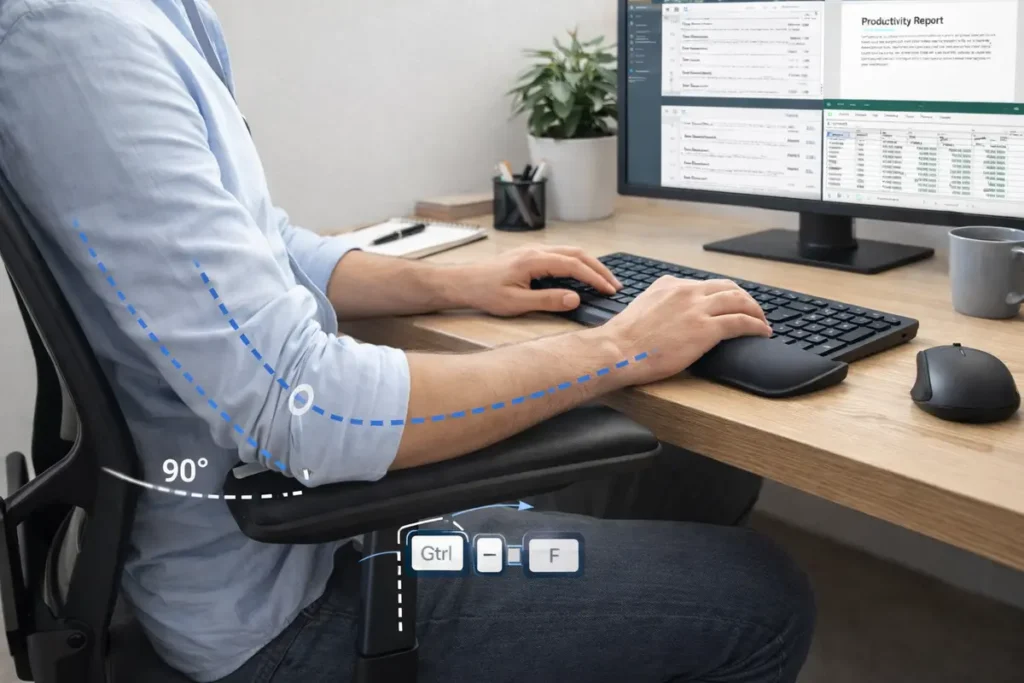
| Checklist item | Why it matters |
|---|---|
| Keep the keyboard centred in front of you. | Makes it easier to use shortcuts without twisting the shoulders or reaching sideways. |
| Keep the mouse close to the body. | Even if you use shortcuts more often, the mouse should still be easy to reach when needed. |
| Aim for relaxed shoulders and elbows near the body. | This supports a more neutral arm position during both typing and pointer use. |
| Avoid bending the wrists sharply up or down. | Mayo Clinic specifically advises against sustained extreme wrist angles. |
| Take short breaks and change tasks regularly. | Reducing repetition helps, but so does not staying in one posture for too long. |
| Treat persistent pain as a health issue, not just a workflow issue. | Shortcuts can reduce load, but ongoing pain may need medical advice. |
| Place the monitor roughly at eye level and about an arm’s length away. | This helps reduce neck strain and the urge to lean forward while switching between keyboard and screen. |
| Use a document holder if you regularly reference paper notes. | Keeping papers closer to screen height reduces repeated neck and shoulder movement. |
Keyboard shortcuts are part of a strain-reduction setup, not the whole setup. Chair height, screen position, desk depth, and break habits still matter. When you do need to use a mouse, an ergonomic model like the Logitech MX Master 3 keeps your wrist in a more natural handshake position — reducing the strain on the movements shortcuts can’t eliminate. I’ve used one for three years and the shaped grip makes a measurable difference during long editing sessions.
Common Mistakes When Switching to Shortcuts
- Trying to learn too many shortcuts at once. This usually leads to friction rather than improvement.
- Choosing obscure commands before mastering the repetitive basics. Search, app switching, screenshots, and find usually deliver the best early return.
- Forcing a shortcut that is slower in your workflow. Some tasks are still easier with the mouse, especially one-off actions.
- Ignoring app differences. Plain-text paste, window controls, and some rename actions can vary by software or keyboard layout.
- Assuming shortcuts replace ergonomics. They help reduce repetition, but they don’t cancel out poor posture, long sessions, or persistent pain.
- Giving up too early. The first few days feel deliberate; by the second week, the most useful shortcuts often start to feel automatic.
Verdict: Small Changes, Big Relief
The best shortcut isn’t the most complex one — it’s the one you actually use. Start with the nine navigation and text-editing shortcuts from the quick-answer table to cut mouse reliance. Add the role-based starter pack for your job next. Within two weeks of deliberate practice, the keyboard combos become automatic and you’ll notice the difference in how your hands feel at the end of the day.
Still deciding which approach to take? If your wrist pain is more about hardware than habits, our wrist pain fixes guide covers ergonomic keyboards, wrist rests, and desk adjustments. And if you’re building a workspace from scratch, the complete home office setup guide walks through every component in the right order.
← Back to Guides Hub