Mac + Windows Tested
40+ Hours Research
Table of Contents
- The Chair Problem: Start Here, Not With the Desk
- Monitor Strategy: One Good Screen Beats Two Bad Ones
- Desk: The Foundation — But Not the First Purchase
- Keyboard and Mouse: Your Primary Interfaces
- Docks and Hubs: The Part Everyone Gets Wrong
- Lighting: The Overlooked Productivity Variable
- Audio: What Actually Matters for Calls
- Cable Management: The 20-Minute Fix
- Laptop Stands: If Your Laptop Is Your Main Screen
- The Setup Order: What to Buy First
- What I Would Build Today With £1,500 / ~$1,920
- Complete Home Office Setup Guides on TechDeskZone
My pick for most people: Used Herman Miller Aeron (£40 / ~$500-500) + Dell U2724D monitor (£380 / ~$485) + Keychron K8 Pro keyboard (£85 / ~$110) + Logitech MX Master 3S (£85 / ~$110). Total: ~£1,050 / ~$1,340 for a setup that will outlast your next three laptops.
Full breakdown by category, specific picks, and priority buying order below.
I have spent more money on bad home office gear than I want to think about. The first standing desk I bought was too shallow — my monitor sat 14 inches from my face and I got headaches within a week. The first “ergonomic” chair had lumbar support that dug into the wrong part of my spine. I replaced a £40 / ~$50 webcam three times before accepting that you cannot fix bad sensor hardware with software.
This guide walks through every major category in priority order — the order you should actually buy things, not the order most guides list them. I have linked to TechDeskZone’s full tested roundups for every category throughout. If you want to go deep on monitors or docking stations or mechanical keyboards, those articles exist. This page ties everything together and answers the questions I get asked most.
The Chair Problem: Start Here, Not With the Desk
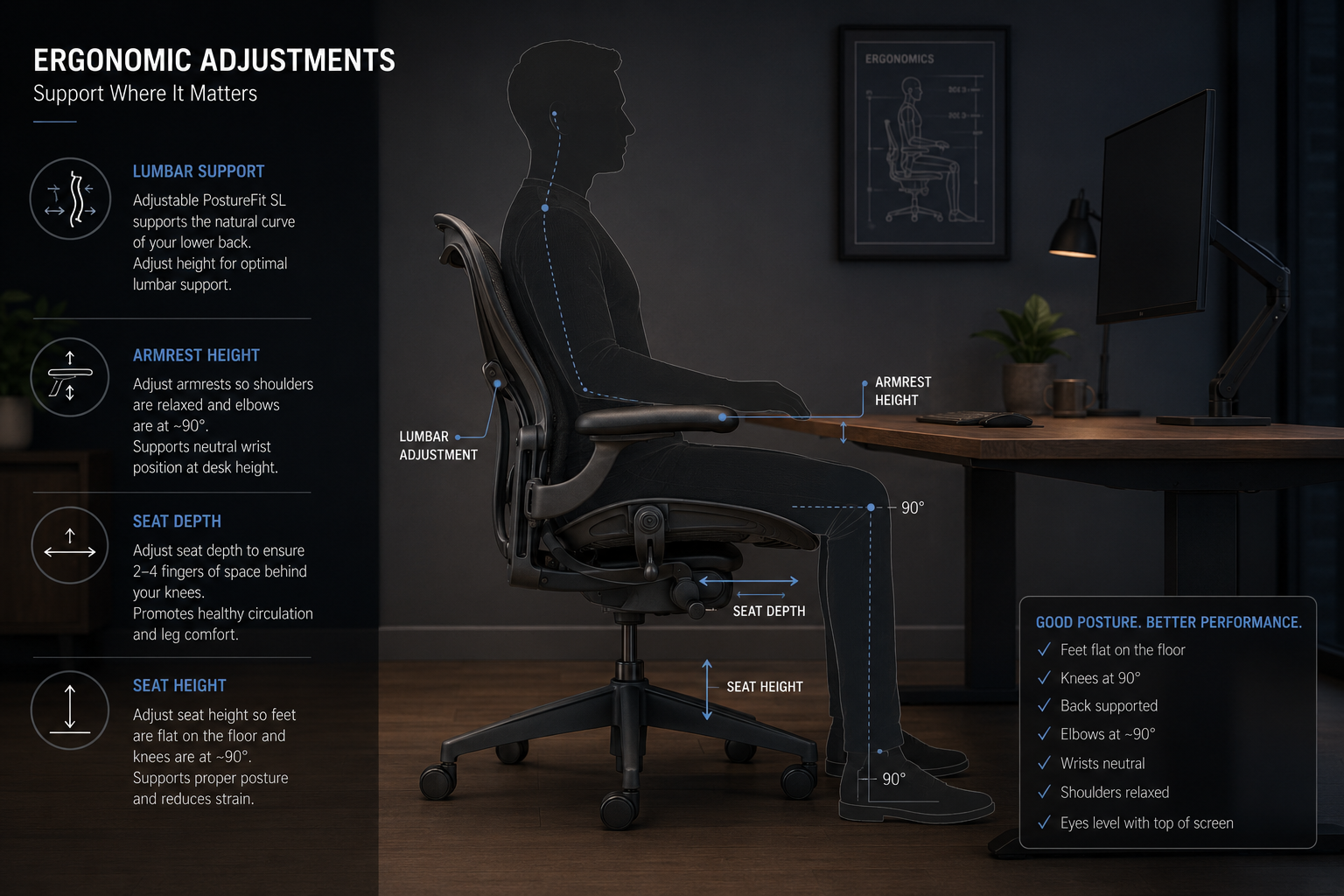
Most home office guides start with the desk. That is backwards. You can work at a kitchen table for months if the chair is right. You cannot work for two hours in a bad chair without your body complaining.
The single most important chair spec is adjustable lumbar support — not “it has lumbar support” but “you can move it up, down, in, and out.” Everyone’s lower back curve sits at a different height. A fixed lumbar bump that hits you in the wrong spot is worse than no lumbar at all. As Cornell University ergonomics professor Alan Hedge put it, if your lower back is not supported by the chair, you need lumbar support.
After that: seat depth adjustment (your thighs should be supported without the front edge digging into the back of your knees), armrests that go low enough to slide under the desk, and a mesh back if your room gets warm.
The Herman Miller Aeron is still the reference point, but there are genuinely good chairs at £300–£500 / ~$380–$640 now. I tested several in our best office chair roundup.
Is a used office chair worth buying? Yes — more than any other piece of home office equipment. A used Aeron or Steelcase Leap from an office clearance company costs £300–£500 / ~$380–$640 and has another 8-10 years of life left. These chairs are built for 10+ years of commercial use. A 5-year-old Aeron with new arm pads is better than a new £150 / ~$190 Amazon chair every single time. Office furniture liquidators on eBay are your best source — search for “Herman Miller Aeron size B” and filter by refurbished.
Monitor Strategy: One Good Screen Beats Two Bad Ones
A lot of home office guides tell you to buy two monitors. I disagree for most people. A single high-quality 27-inch 4K monitor at the correct height gives you more usable workspace than two cheap 24-inch 1080p panels — and causes fewer neck rotation issues.
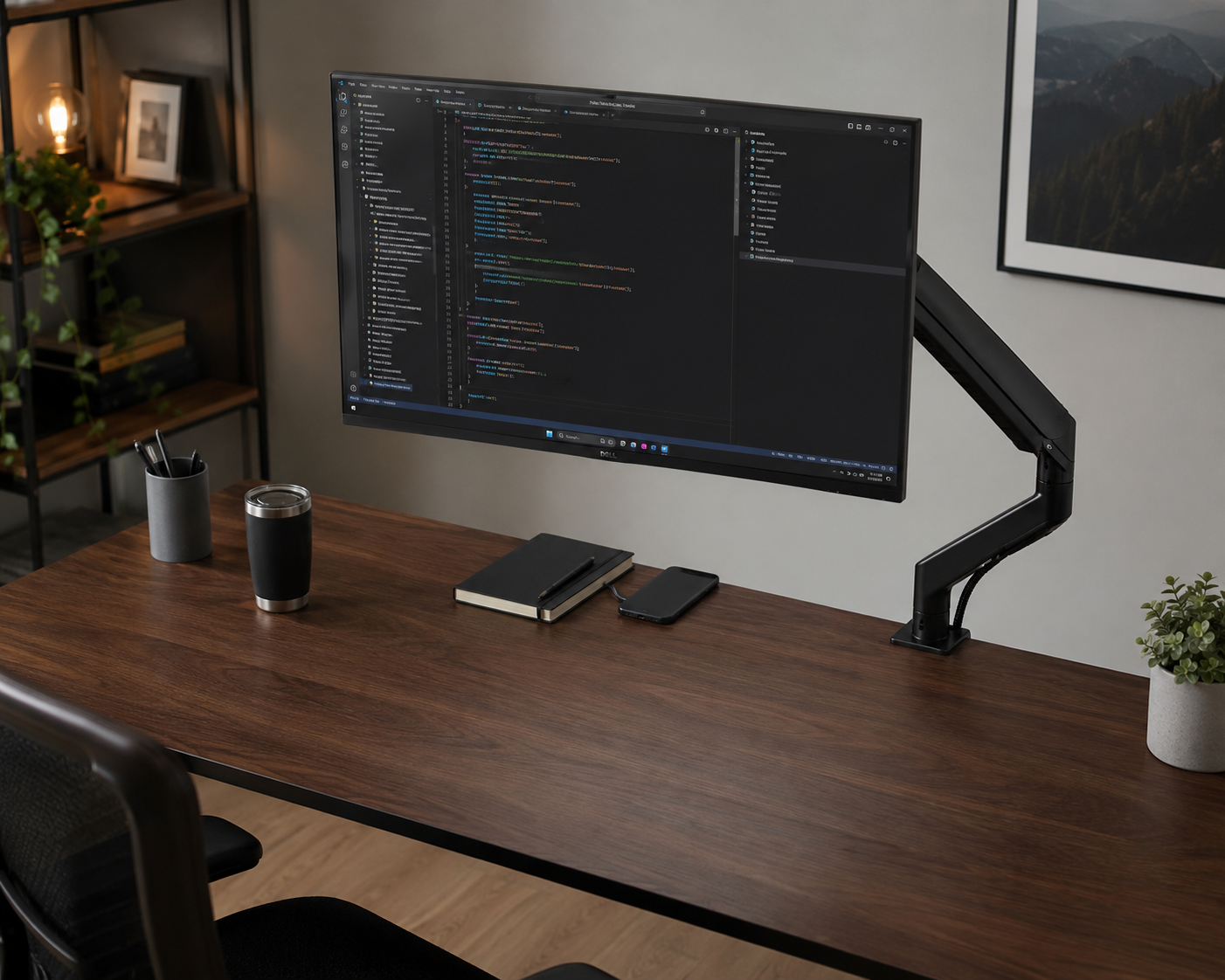
Do I actually need two monitors? It depends on your work. If you write code with documentation open on the side, or design with asset libraries, or trade with multiple charts — dual monitors help. For everyone else, one good 27-inch 4K display with window management shortcuts gives you the same effective workspace without the bezel in the middle. Try a single monitor for two weeks before buying a second one. Our ultrawide vs dual monitor comparison has the full breakdown.
Here is how I think about it:
One 27-inch 4K: Best for focused work. Enough resolution to run two documents side by side at readable size. No bezel in the middle. No extra cable.
Two 24-27 inch 1440p: Better for reference-heavy work. But you need the desk width and a consistent monitor pair — mixing resolutions creates constant window-resizing friction.
Ultrawide 34-38 inch: The single-screen experience of dual monitors without the bezel. Great for timeline-based work.
Resolution matters more than most people realise. At 27 inches, 1080p looks soft — text has visible pixel edges. 1440p is the sweet spot for clarity without GPU strain. 4K at 27 inches is beautiful but you will need to use display scaling. I explained the trade-offs in our resolution guide.
Panel type is the other variable. IPS gives you the best colour accuracy and viewing angles — this is what I use. VA panels have better contrast but slower response. OLED is stunning for media but expensive and has burn-in risk for static taskbars and spreadsheets. Our IPS vs VA vs OLED comparison has the full breakdown. For the complete monitor buying framework, see how to choose a monitor.
Monitor Arms: The £30 Upgrade That Changes Everything
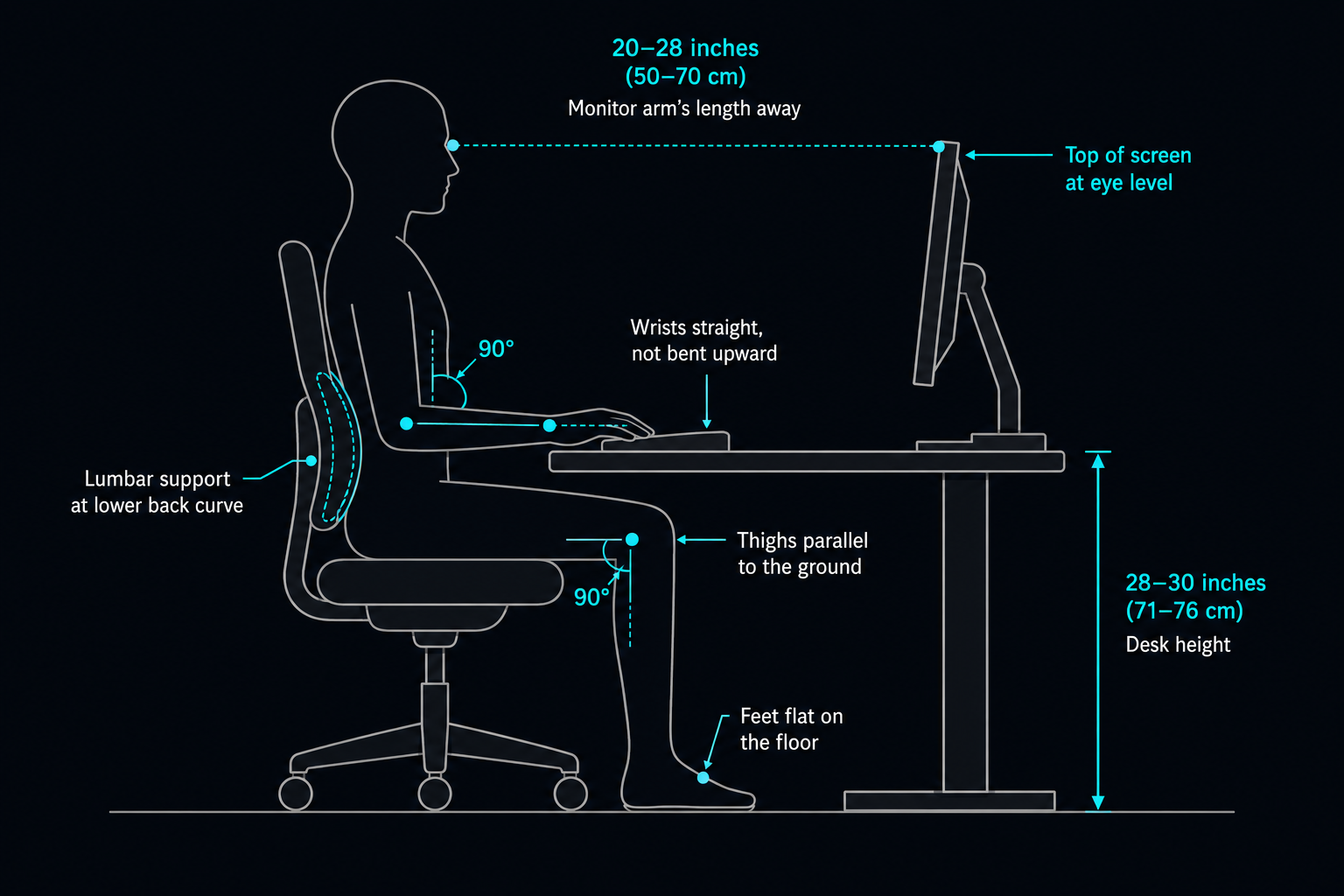
A monitor arm frees up desk space, lets you position the screen at the correct height (top of screen at or slightly below eye level), and makes cable management cleaner. Gas-spring arms are smoother than mechanical ones and worth the extra £10–£20 / ~$13–$26. Make sure your monitor has a VESA mount before buying an arm. Our monitor arm roundup covers compatibility and weight limits.
Desk: The Foundation — But Not the First Purchase
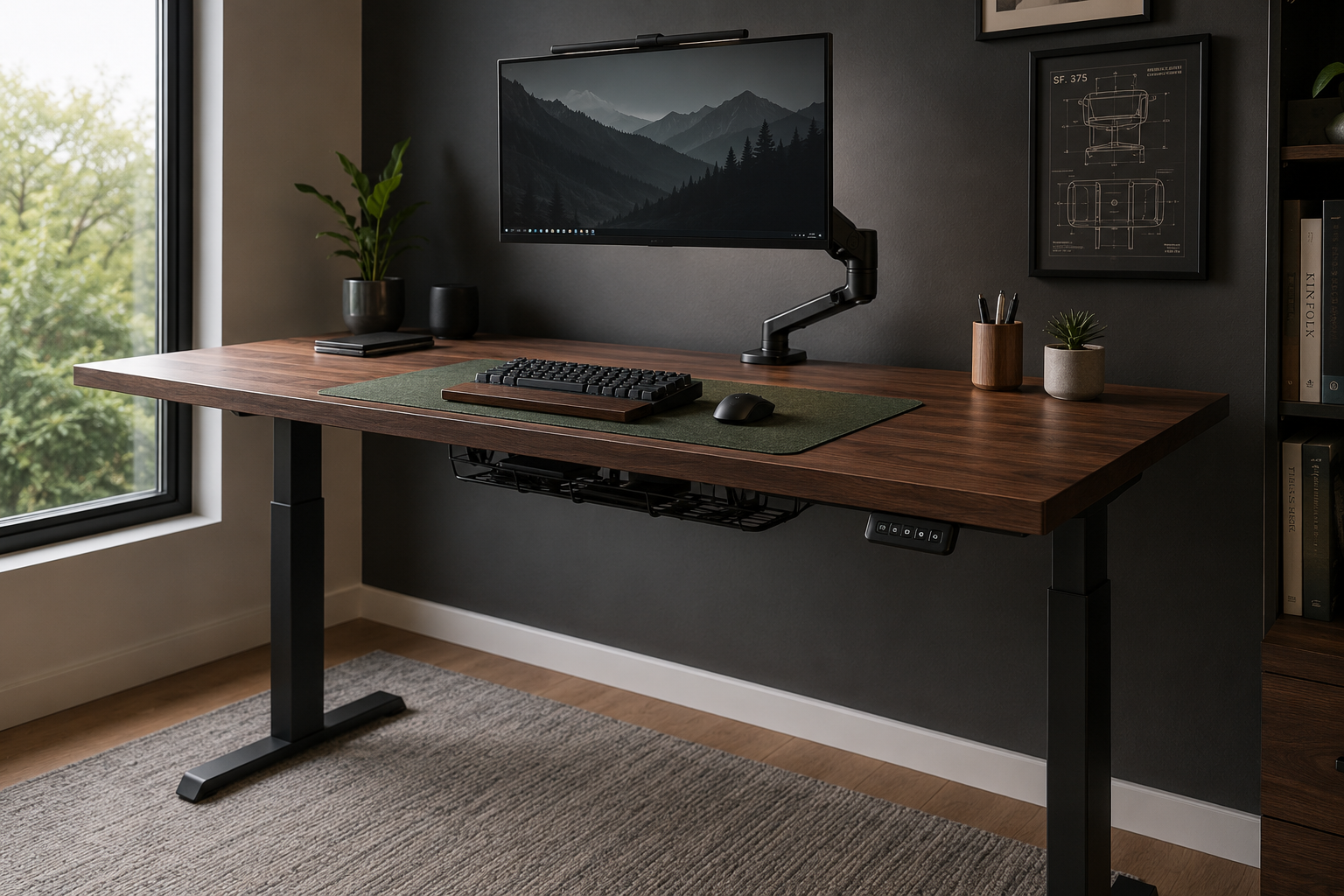
Your desk dictates how everything fits together. If it is too shallow, your monitor is too close. If it is too high, your shoulders hunch. If it wobbles, your typing accuracy drops.
But notice this section comes third, not first. Buy the chair and monitor first, then get a desk that fits both.
Sit-Stand vs Fixed Height
Are standing desks actually worth it? If you work 6+ hours a day at the same workstation — yes. Alternating between sitting and standing reduces lower back pressure and keeps circulation moving. According to Wirecutter’s ergonomic testing, even 15 minutes of standing per hour makes a measurable difference. Electric desks with memory presets are worth the premium — you will actually use the presets. Manual crank desks sound fine in theory and get used approximately never after week two.
If budget is tight, a fixed-height desk at 73cm (standard) with a monitor arm is completely functional. Just make sure the desk is at least 60cm deep — 70-80cm is better for larger monitors.
My current desk is 150cm wide by 75cm deep, and I would not go narrower than 120cm for a dual-monitor setup. For specific picks, see our best standing desk roundup.
Desk Mats: Not Decorative
A desk mat protects the surface, dampens keyboard noise, and defines your workspace zone. Felt mats look good but trap dust. Neoprene is easier to clean. Leather wears best. Our desk mat comparison covers the trade-offs.
Keyboard and Mouse: Your Primary Interfaces
You touch your keyboard more than any other piece of equipment. If you are still using the membrane keyboard that came with your PC, upgrading to a mechanical keyboard is the single biggest feel improvement you can make for under £100 / ~$130.
Switch type matters. Linear switches (red) are smooth and quiet. Tactile switches (brown) have a small bump when the key actuates — good for typists who want feedback. Clicky switches (blue) are satisfying but loud enough to annoy people on calls. Our silent mechanical keyboard guide covers office-safe options.
Layout size is personal. Full-size includes a numpad — useful for spreadsheet work. TKL (tenkeyless) drops the numpad and saves desk space. 75% and 65% layouts are more compact. If you switch between Mac, Windows, and an iPad, a multi-device keyboard with Bluetooth switching saves cable swapping.
For the mouse, shape is the variable most people ignore. A gaming mouse with 12 side buttons is worse for office work than a simple ergonomic mouse that fits your hand. Vertical mice reduce wrist pronation — they look weird but genuinely help if you have RSI issues. Our gaming mouse for productivity guide explains which gaming features actually transfer to office use. I wrote a comprehensive keyboard and mouse setup guide with 12 tested combinations.
Keyboard Shortcuts: The Free Productivity Upgrade
Learning 10-15 keyboard shortcuts saves more time than any hardware upgrade. Our productivity shortcuts guide covers Windows and Mac. If mouse strain is a specific problem, the ergonomic shortcut guide focuses on reducing mouse dependency.
Docks and Hubs: The Part Everyone Gets Wrong
A docking station causes more frustration than any other piece of home office gear because the specs are deliberately confusing. The short version: if you plug one USB-C cable into your laptop and expect it to charge, drive a monitor, and connect your peripherals, you need to understand what your laptop’s USB-C port actually supports. That one port might be Thunderbolt 4, USB4, USB-C with DisplayPort Alt Mode, or plain USB-C data-only — and they all look identical.
I explained every standard in our Thunderbolt vs USB4 vs USB-C guide. If you are connecting monitors through a dock, also read DisplayLink vs USB-C Alt Mode vs Thunderbolt.
For specific dock recommendations:
– Best USB-C docking stations
– M4 MacBook Pro dual 4K docks
– Best USB-C hubs
Lighting: The Overlooked Productivity Variable
How do I reduce eye strain working from home? The answer is not a better monitor — it is better lighting. Bad lighting causes eye strain, and eye strain causes headaches, and headaches cause you to stop working at 2pm. Two things to fix: a monitor light bar that illuminates your desk without screen glare, and a front-facing light source for video calls so your face is not in shadow. Our monitor light bar roundup covers colour temperature, CRI, and mounting compatibility.
Audio: What Actually Matters for Calls
A good headset with a noise-cancelling microphone matters more than your webcam. People forgive a slightly grainy video feed. They do not forgive not being able to hear you. Wired USB headsets are more reliable than Bluetooth for calls. Our webcam roundup covers cameras, but pay attention to the audio section of any headset review first.
Cable Management: The 20-Minute Fix
A tangle of cables under your desk collects dust, makes it harder to clean, and means you cannot easily reposition things. An under-desk cable tray (£15–£25 / ~$20–$32) and some Velcro ties solve 90% of this. Our cable management guide covers trays, raceways, and boxes for different desk types.
Laptop Stands: If Your Laptop Is Your Main Screen
Looking down at a laptop screen for hours compresses your cervical spine. A stand that raises the screen to eye level and pairs with an external keyboard is the minimum viable ergonomic setup. Our laptop stand roundup has tested picks.
The Setup Order: What to Buy First
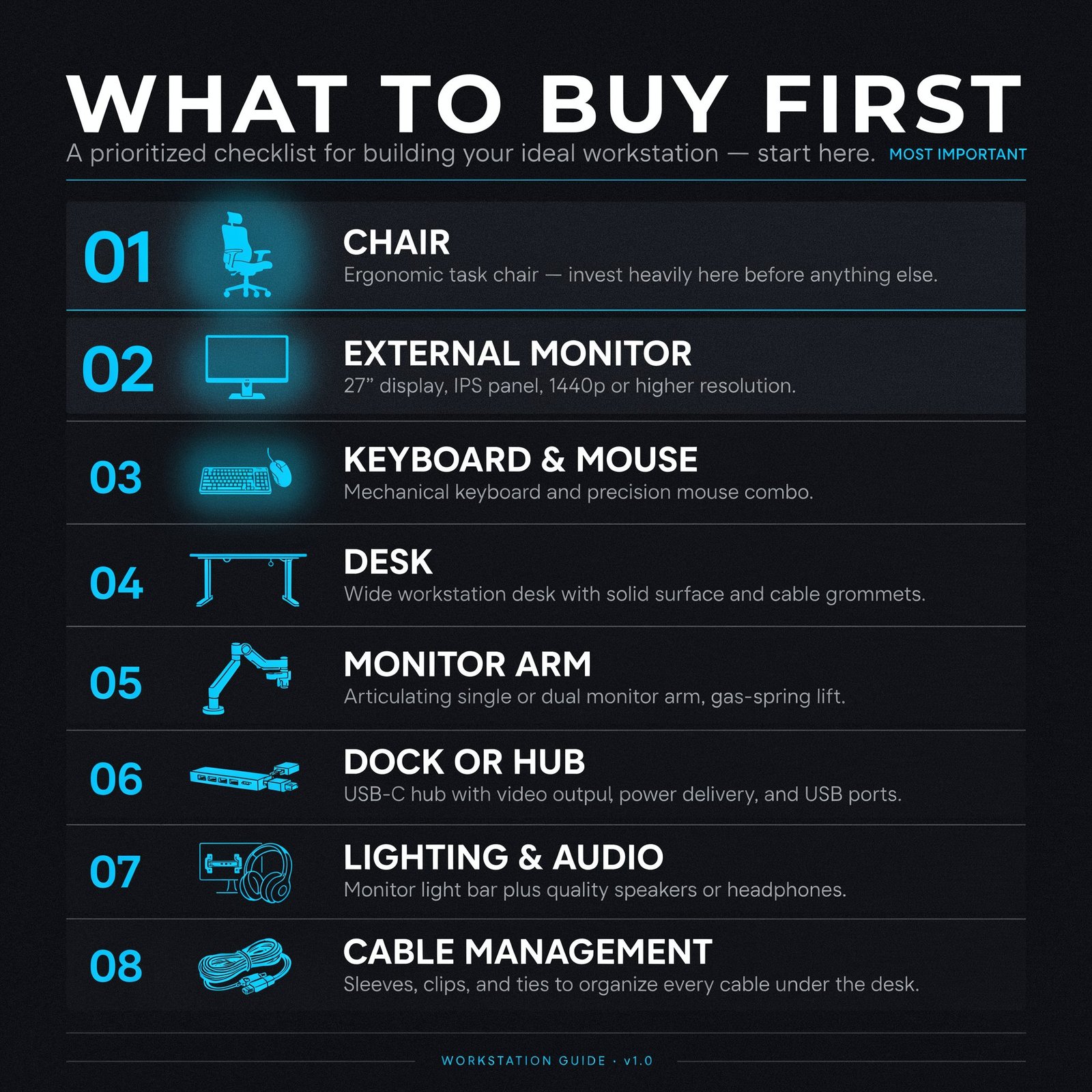
If you are starting from nothing — a laptop on a kitchen table — this is the order to spend money:
1. Chair — Your body notices a bad chair within 2 hours. Everything else can wait.
2. External monitor — A 27-inch 1440p or 4K display at eye level. Laptop screens are too low and too small.
3. External keyboard and mouse — Even a £60 / ~$77 mechanical keyboard is a quality-of-life upgrade over laptop keys.
4. Desk — Now that you have the chair, monitor, and peripherals, you know how much desk space you need.
5. Monitor arm — Frees desk space, fixes screen height precisely.
6. Dock or hub — One-cable connection for everything on your desk.
7. Lighting and audio — Video call quality and eye comfort.
8. Cable management and desk mat — Cleanup and finishing touches.
What I Would Build Today With £1,500 / ~$1,920
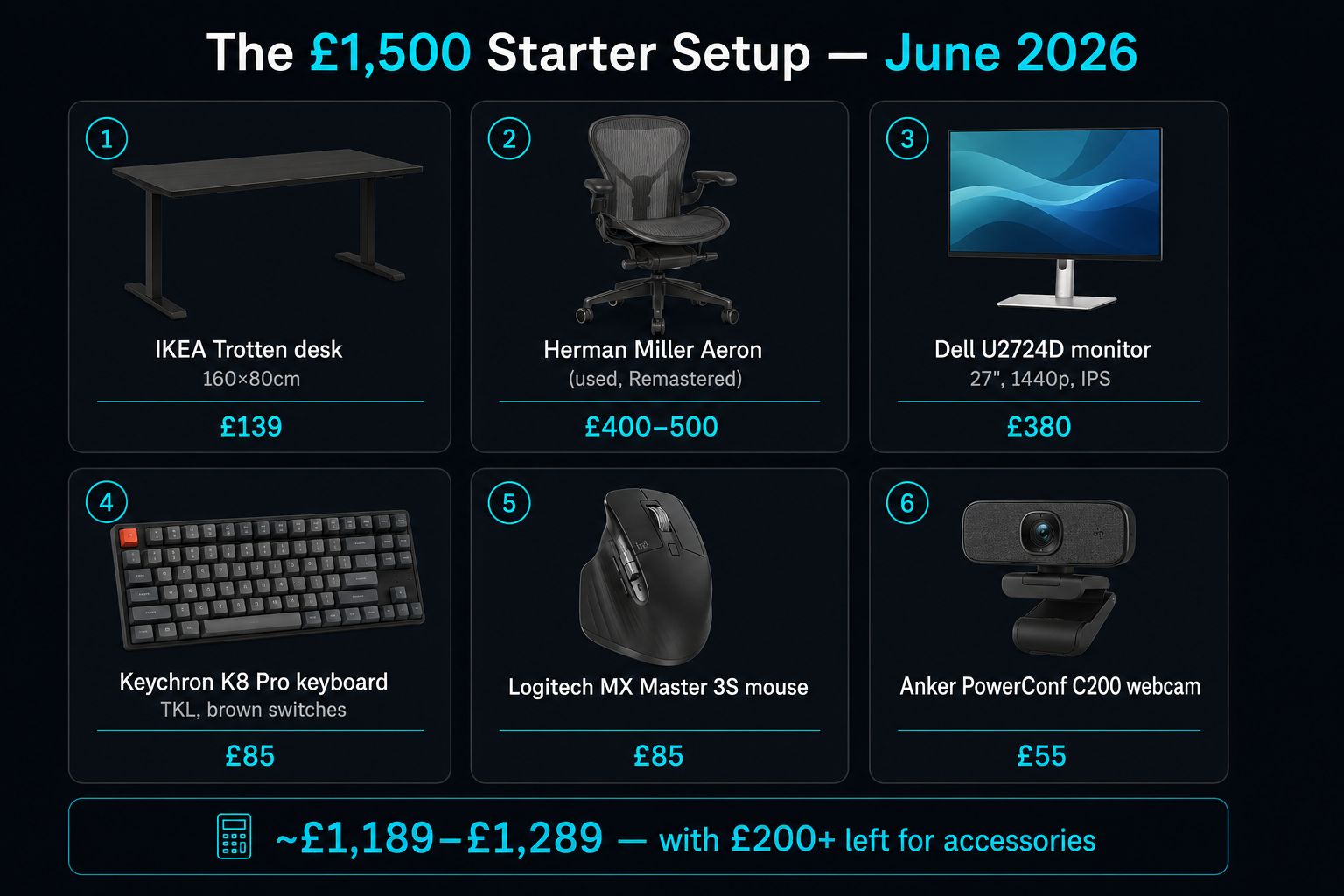
If I were starting a home office setup from scratch with a £1,500 / ~$1,920 budget in June 2026, here is exactly what I would buy:
– Chair: Used Herman Miller Aeron (Remastered, size B) — £40 / ~$500–£500 / ~$510–$640. Check eBay and office clearance companies.
– Monitor: Dell U2724D (27-inch, 1440p, IPS) — £380 / ~$485. Reliable colour, USB-C hub built in, good warranty.
– Monitor arm: Amazon Basics Single Monitor Arm — £45 / ~$58. Rebadged Ergotron LX at half the price.
– Keyboard: Keychron K8 Pro (TKL, brown switches) — £85 / ~$110. Wireless, hot-swappable, aluminium frame.
– Mouse: Logitech MX Master 3S — £85 / ~$110. The scroll wheel alone is worth it for long documents.
– Desk: IKEA Trotten (fixed height, 160×80cm) — £139 / ~$180. Simple, deep enough, cable management net underneath.
– Webcam: Anker PowerConf C200 — £55 / ~$70. 2K sensor, decent low-light, physical privacy shutter.
– Total: ~£1,189–£1,289 / ~$1,520–$1,650 — the remaining budget covers a desk mat, cable tray, and monitor light bar.
This setup will last 5+ years before anything needs replacing. The chair will outlast everything else.
Complete Home Office Setup Guides on TechDeskZone
Chair & Desk:
- Best Ergonomic Office Chair 2026
- Best Standing Desks 2026: Tested and Ranked
- Best Desk Mat 2026
- Best Cable Management 2026
Monitors & Display:
- How to Choose a Monitor: Complete Guide
- 1080p vs 1440p vs 4K for Office Work
- IPS vs VA vs OLED for Work
- 27 vs 32 Inch Monitor for Productivity
- Ultrawide vs Dual Monitors
- HDMI vs DisplayPort vs USB-C
- Best Monitor Arm 2026
- Best Monitor Light Bar 2026
Keyboards & Input Devices:
- Keyboard and Mouse Setup Guide
- Silent Mechanical Keyboards
- Multi-Device Keyboards: Tested
- Keyboard Shortcuts for Productivity
- Keyboard Shortcuts to Reduce Mouse Strain
- Gaming Mouse for Office Productivity
- Mouse Macros for Daily Efficiency
- Mac Mouse Gestures for Productivity
Docks, Hubs & Connectivity:
- Best USB-C Docking Stations 2026
- Best USB-C Hub 2026
- M4 MacBook Pro Dual 4K Docks
- Thunderbolt vs USB4 vs USB-C
- DisplayLink vs USB-C Alt Mode vs Thunderbolt
- Dual Monitors Over USB-C
- Dock Not Detecting Monitors: Fix Guide
- USB Accessories Security Risks
Accessories & Setup:
About the Author: Alex Chen has spent 6 years testing and reviewing home office hardware and productivity gear. From monitors and docks to keyboards and software, every recommendation on TechDeskZone comes from hands-on testing and real-world use across Windows, macOS, and Linux.