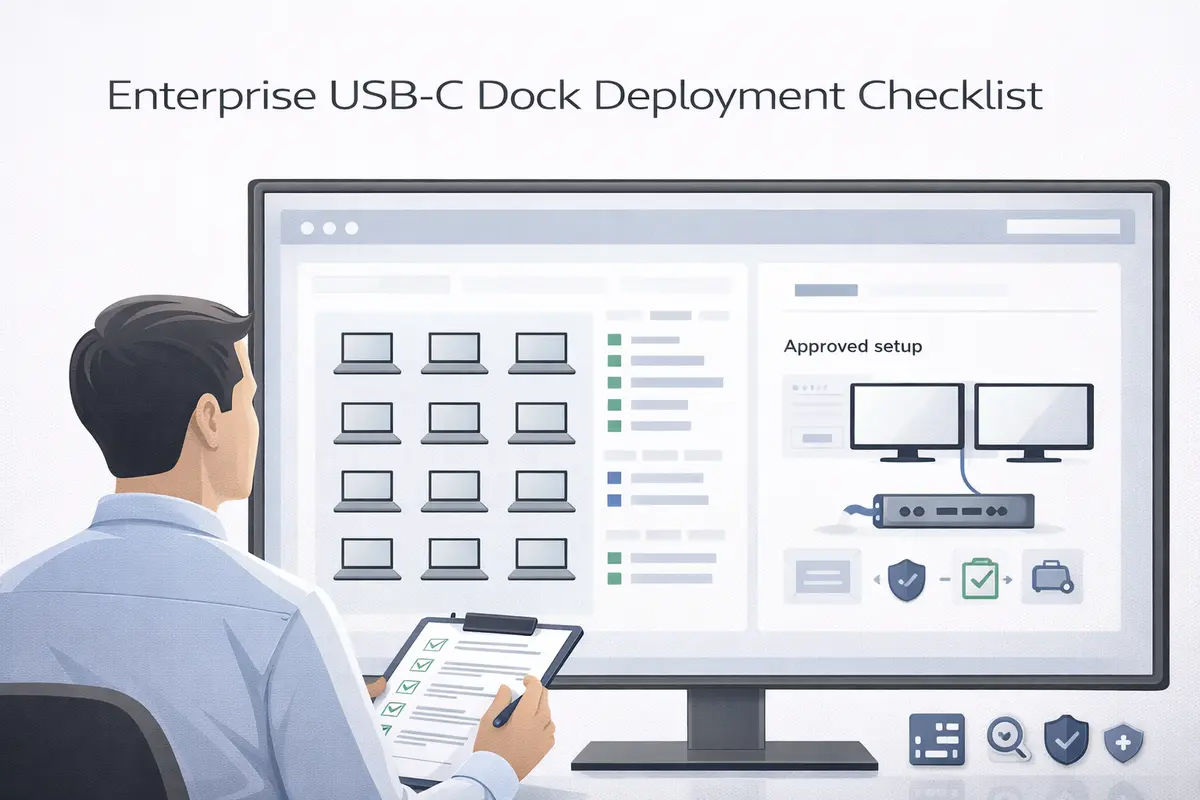
USB-C dock deployment checklist — rolling out docks across a company is one of those projects that looks simple on paper and turns into a helpdesk nightmare if you skip the pre-work. This checklist covers the three things that actually determine whether your deployment succeeds: matching dock technology to your laptop fleet, getting drivers and firmware right before unboxing anything, and building a troubleshooting playbook that tier-1 support can actually use.
Disclosure: TechDeskZone is reader-supported. When you buy through links on our site, we may earn an affiliate commission at no additional cost to you. See our affiliate disclosure for details.
In a Hurry? Start Here
- Planning the rollout? → Jump to Audit Your Fleet — the pre-deployment step most teams skip
- Picking dock technology? → Jump to Pick the Right Technology — match docks to your laptop fleet
- Building support playbook? → Jump to Tier-1 Troubleshooting Playbook
USB-C Dock Deployment Checklist: Audit Your Fleet First
Before ordering a single dock, you need to know exactly what’s in your fleet. The most common enterprise dock deployment failure is buying Thunderbolt docks for laptops that don’t have Thunderbolt. This happens more than anyone admits.
Collect this data for every laptop model in your fleet:
- USB-C port capability: Thunderbolt 4, Thunderbolt 3, USB4, USB-C with DisplayPort Alt Mode, or USB-C data-only. Check the manufacturer’s spec sheet — the port looks identical on all of them.
- Maximum external displays supported: Some laptops support one external display regardless of the dock. Some support three. Base M1/M2/M3 MacBooks support exactly one — no dock changes this.
- Maximum resolution and refresh rate: A laptop might support dual displays but only at 1080p each. If your standard monitor is 4K, that laptop needs a Thunderbolt dock — not an Alt Mode dock.
- Operating system and version: Windows 10 vs 11 matters for driver compatibility. macOS major version matters for DisplayLink driver breaks. ChromeOS has its own dock behaviour quirks.
- Existing monitors: HDMI, DisplayPort, or USB-C input? How many per desk? Standardising on one connection type per deployment saves a pile of adapter purchases and confusion.
Plugable’s enterprise deployment data — which covers tens of thousands of dock rollouts — shows that fleets with fewer than three distinct laptop models have dramatically lower failure rates than fleets with five or more. If you can standardise your laptop procurement before the dock rollout, do it. One laptop model, one dock model, one driver package, one support script. That’s the ideal.
USB-C Dock Deployment: Pick the Right Technology
This single decision determines whether your deployment succeeds or generates hundreds of tickets. The choice comes down to what your fleet supports, not what the dock marketing says:
Thunderbolt 4 docks (CalDigit TS4, Dell WD22TB4): Choose these if your fleet is 11th-gen Intel or newer, or Apple Silicon Pro/Max. One cable per desk handles dual 4K displays, full-speed USB peripherals, Ethernet, and laptop charging. The most reliable option and the most expensive. Thunderbolt docks require certified cables — budget for £25-£40 / ~$32-$52 per cable.
USB-C Alt Mode docks (Anker 575, Dell DA310): Choose these if your fleet is mixed Windows with DisplayPort Alt Mode support. Handles dual 1080p or single 4K. Costs less than half of Thunderbolt. The trade-off: USB peripheral speeds drop when displays are connected, and dual 4K at 60Hz is not possible. Most office workers won’t notice the USB speed difference.
DisplayLink docks (Plugable UD-6950PDZ): Choose these only if your fleet includes base M1/M2/M3 MacBooks that need dual external displays, or laptops with data-only USB-C ports. DisplayLink works on everything — but requires driver installation on every machine, breaks DRM video (Netflix, corporate training platforms), and uses 10-20% CPU. For a managed fleet where IT deploys drivers via MDM, the driver overhead is manageable. For BYOD or unmanaged devices, it’s a support burden.
If your fleet is mixed — some Thunderbolt, some Alt Mode only, some Macs — buy one dock type per segment. Trying to make one DisplayLink dock work for everyone creates more tickets than buying two dock SKUs and assigning them per laptop model.
Want the full cost and security picture behind these standards? Our Enterprise Docking Station Guide runs the TCO/ROI model, a security-hardening checklist, and a real 4,000-seat deployment case study.
Drivers and Firmware Strategy
The difference between a smooth rollout and a helpdesk meltdown is whether drivers and firmware are deployed before anyone unboxes a dock.
Thunderbolt docks: Windows machines need the Thunderbolt Control Center from the Microsoft Store. Without it, the Thunderbolt controller may not approve new devices automatically — users see a “Thunderbolt device not authorised” pop-up and call IT. Deploy via MDM or group policy. Macs handle Thunderbolt natively with no additional software.
DisplayLink docks: The DisplayLink driver must be installed before the dock is connected. Deploy the latest driver from displaylink.com/downloads via your MDM. After every major OS update — both Windows feature updates and macOS version bumps — expect the driver to break and need redeployment. Budget for this in your update cycle.
Dock firmware: Every Thunderbolt and DisplayLink dock ships with firmware that will be outdated within 6-12 months. Before deployment, connect one of each dock model to a test machine, run the manufacturer’s firmware updater, and note the firmware version. Build the firmware update into your imaging process or MDM deployment. Do not skip this — outdated dock firmware is responsible for a significant percentage of intermittent display disconnection tickets.
USB-C Alt Mode docks: No drivers needed. This is their single biggest operational advantage over DisplayLink. Plug it in, it works. Deploy these where possible to reduce your driver management burden.
Build a Compatibility Matrix
A one-page compatibility matrix prevents more tickets than any other single document. Every combination of laptop model, dock model, and monitor configuration should be tested and documented before deployment begins.
Test every combination of:
- Laptop model × dock model × monitor resolution × number of monitors
- Include edge cases: laptop lid closed (clamshell mode), wake from sleep, hot-unplug and reconnect
- Document what works, what partially works (e.g., “dual 4K at 30Hz only”), and what doesn’t work
Sample matrix format:
| Laptop | Dock | 1× 1080p | 2× 1080p | 1× 4K | 2× 4K | Notes |
|---|---|---|---|---|---|---|
| Dell Latitude 5450 | WD22TB4 | Yes | Yes | Yes | Yes | Full TB4 support |
| MacBook Air M2 | UD-6950PDZ | Yes | Yes | Yes | Yes | DisplayLink driver required |
Post this matrix on your internal wiki. When a user puts in a ticket saying “my dock doesn’t work with dual monitors,” tier-1 support checks the matrix and either provides the documented workaround or escalates because the combination isn’t in the matrix.
Standard Desk Setup That Reduces Tickets
Most dock tickets come from the same three setup mistakes. Eliminate them with a standard desk configuration:
One cable per desk, clearly labelled. The Thunderbolt or USB-C cable that connects the laptop to the dock is the single most common point of failure. Label it. Include a spare in the deployment kit. The cable that came with the dock is the correct one — users swapping in a random USB-C charging cable is the #1 cause of “dock stopped working” tickets.
Monitor cables pre-connected to the dock. Do not give users HDMI or DisplayPort cables separately and expect them to figure out which port goes where. Pre-connect monitors to the dock before desk setup. Use cable ties to bundle monitor cables to the dock so there’s exactly one obvious connection point: the USB-C cable to the laptop.
Power sequence documented with a sticker on the dock. “1. Plug dock into power. 2. Connect monitors. 3. Connect laptop.” The order matters for some dock chipsets, and when a user does it wrong and calls IT, the fix is “unplug everything and do it in the right order.” Put the instructions on the dock.
Tier-1 Troubleshooting Playbook
Give your helpdesk a script. The goal is to resolve 80% of dock tickets at tier-1 without escalation:
Step 1: Is the dock getting power? Check the dock’s power LED. If it’s off, the power adapter is unplugged or dead. This is the fix for roughly 25% of dock tickets.
Step 2: Does the laptop see the dock? Windows: Device Manager > Universal Serial Bus controllers. Mac: System Information > Thunderbolt/USB4. If the dock doesn’t appear, the cable is the problem — swap to the spare. Do not skip to driver troubleshooting until you’ve ruled out the cable.
Step 3: Does one monitor work? Disconnect all but one monitor. If one works but two don’t, our guide to docks that aren’t detecting monitors covers the bandwidth and GPU causes — the issue is bandwidth or GPU capability — check the compatibility matrix for that laptop + dock + resolution combination.
Step 4: Power-cycle the dock. Unplug the dock’s power adapter for 30 seconds, reconnect, then reconnect the laptop. This fixes a surprising number of intermittent detection failures.
Step 5: Check the display mode. Windows key + P, select “Extend.” If the monitor appears in display settings but the screen is black, the resolution or refresh rate may be unsupported — drop to 1920×1080 at 60Hz and test.
Step 6: Escalate with data. If steps 1-5 fail, collect the laptop model, dock model, monitor models, cable type, and exactly which step failed. Send to tier-2 with this information. Do not let tier-1 guess at driver updates or firmware — those are tier-2 tasks.
Procurement Checklist
When evaluating a dock for enterprise deployment, verify these before signing a purchase order:
- Dock matches fleet USB-C capability: Thunderbolt for Thunderbolt laptops, Alt Mode for Alt Mode laptops, DisplayLink only if necessary.
- Dual-monitor support listed for your target OS, resolution, and refresh rate. “Supports dual 4K” in marketing often means “dual 4K at 30Hz.” Verify at 60Hz.
- Power delivery matches laptop requirement: A 65W dock won’t charge a 16-inch MacBook Pro that needs 96W. The laptop will charge slowly or not at all.
- Included cable is certified: Thunderbolt docks must include a Thunderbolt-certified cable. Alt Mode docks must include a 10Gbps USB-C cable. If the included cable is USB 2.0 (charging-only), budget for replacement cables immediately.
- Firmware update tool exists and is accessible: If the manufacturer doesn’t provide a firmware updater that works with your MDM, you’ll be manually updating docks one at a time. CalDigit, Dell, and Plugable all provide standalone updaters.
- Warranty matches your refresh cycle: Enterprise docks should carry at least a 3-year warranty. If the standard warranty is 1 year, factor replacement costs into your TCO.
The Rollout: What to Deploy by Fleet Type
All-Thunderbolt fleet (Intel 11th-gen+, MacBook Pro): Deploy Thunderbolt 4 docks. CalDigit TS4 or Dell WD22TB4. One SKU, one cable type, one support script. This is the lowest-ticket deployment path.
Mixed Windows fleet (mostly Alt Mode): Deploy USB-C Alt Mode docks. Anker 575 or Dell DA310. No drivers, no firmware to manage, no CPU overhead. If a minority of users need dual 4K, give them Thunderbolt docks — do not force the entire fleet onto DisplayLink for the edge case.
Fleet with base M1/M2/M3 MacBooks: These machines need DisplayLink for dual external displays. Deploy Plugable UD-6950PDZ with the driver pre-installed via MDM. Accept that you’ll redeploy the driver after macOS updates and that users cannot watch DRM content on external screens.
Budget per desk: Thunderbolt — £300-£400 / ~$390-$520 all-in. Alt Mode — £80-£120 / ~$104-$156 all-in. DisplayLink — £150-£200 / ~$195-$260 all-in. Include a spare cable per 10 docks deployed.
Where to buy the recommended docks:
The underlying technology differences matter more than any checklist item. If your team needs the full technical comparison, see our DisplayLink vs USB-C Alt Mode vs Thunderbolt guide. For dual-monitor specifics, dual monitors over USB-C covers the configurations that actually work.
← Back to Docks & Hubs Hub