Once your dual-monitor setup is running, the rest of your workspace matters just as much — see our complete best home office setup guide for monitor placement, desk ergonomics and cable routing.
Disclosure: TechDeskZone is reader-supported. When you buy through links on our site, we may earn an affiliate commission at no additional cost to you. See our affiliate disclosure for details.
Dual monitors over USB-C — I’ve tested four different setups across a Dell XPS 15, a MacBook Pro M4, and a ThinkPad T14, and the brutal truth is that dock not detecting monitors guide. Thunderbolt 4 docks handle dual monitors reliably on supported laptops. USB-C Alt Mode docks work for dual 1080p on most Windows machines. DisplayLink is the fallback that works on everything — but you’ll pay in CPU overhead and driver headaches. This guide covers exactly which configuration works for your specific laptop, with tested dock recommendations at each tier.
If you’ve already bought a dock and it’s not working, jump to the compatibility section. If you’re shopping, start with “What Your Laptop Supports” before buying anything.
In a Hurry? Start Here
- Have Thunderbolt 4? → Jump to Thunderbolt 4 Setup — dual 4K, single cable
- USB-C only laptop? → Jump to USB-C Alt Mode Setup — dual 1080p on most machines
- Need fallback for any laptop? → Jump to DisplayLink Setup — works on everything, software trade-off
- Why Dual Monitors Over USB-C Fails
- Dual Monitors Over USB-C: What Your Laptop Supports
- Thunderbolt 4: The Reliable Setup
- USB-C Alt Mode: The Budget Setup
- DisplayLink: The Universal Fallback
- Which Dock to Buy (By Laptop Type)
- Troubleshooting: When Dual Monitors Don’t Work
- Comparison Table: All Three Approaches
- The Verdict: Which Setup Should You Use?
Why Dual Monitors Over USB-C Fails
USB-C is a connector shape, not a protocol. The same port on two different laptops can support completely different display capabilities. I learned this the expensive way: I bought a £200 / ~$260 Thunderbolt dock for my partner’s Dell Latitude, only to discover the thunderbolt vs USB4 vs USB-C guide — no video output at all. The dock worked perfectly with my XPS 15 and did absolutely nothing with hers.
I’ve tested and cross-referenced results against RTINGS’ dock testing. The three reasons dual monitors over USB-C fails, ranked by frequency:
- Your laptop’s USB-C port doesn’t support video output. Many budget laptops have USB-C ports that only carry data and charging. No DisplayPort Alt Mode, no Thunderbolt — just USB. Plugging a monitor into these does nothing.
- Your dock uses the wrong technology for your laptop. A Thunderbolt dock won’t work on a laptop without Thunderbolt. An Alt Mode dock won’t drive dual 4K on a laptop whose GPU only supports single display output. A DisplayLink dock needs drivers installed before anything works.
- Your cable is the bottleneck. That £5 / ~$7 USB-C charging cable doesn’t carry video. You need a cable rated for at least 10Gbps data or certified for Thunderbolt. I’ve wasted hours troubleshooting docks that were fine — the cable was the problem.
Dual Monitors Over USB-C: What Your Laptop Actually Supports
How do I check if my laptop supports dual monitors over USB-C? Before spending a penny on a dock, do this 2-minute check:
Windows: Open Device Manager, expand “Universal Serial Bus controllers.” If you see “Thunderbolt Controller” — your laptop supports Thunderbolt and can drive dual 4K displays over one cable. If you see neither Thunderbolt nor USB4, check the USB-C port for a DisplayPort logo (a stylised “D” with a P). That logo means Alt Mode is supported. No logo at all means data-only — you’ll need DisplayLink.
Mac: Apple menu > System Information > Thunderbolt/USB4. Base M1/M2/M3 chips support one external display. M1/M2/M3 Pro supports two. M1/M2/M3 Max supports up to four. If you need more displays than your Mac natively supports, DisplayLink is your only option — and yes, it works on Macs.
Quick laptop compatibility table:
| Laptop Type | Dual Monitors Via | Best Dock Type |
|---|---|---|
| Intel 11th-gen+ Ultrabook | Thunderbolt 4 | Thunderbolt 4 dock |
| AMD Ryzen 6000+ | USB-C Alt Mode or USB4 | Alt Mode dock |
| MacBook Pro (M1 Pro+) | Thunderbolt/USB4 | Thunderbolt 4 dock |
| MacBook Air / Base M1-M3 | 1 native + DisplayLink | DisplayLink dock |
| Budget Windows (Celeron/Pentium) | DisplayLink (if USB-C data-only) | DisplayLink dock |
| Chromebooks | USB-C Alt Mode (most models) | Alt Mode dock |
Thunderbolt 4: The Reliable Setup
If your laptop has Thunderbolt 4, dual monitors over USB-C just works. I’ve been running dual Dell U2723QE 4K displays at 60Hz through a single CalDigit TS4 Thunderbolt dock for over a year, and I’ve had exactly zero disconnections, zero driver issues, and zero mornings spent unplugging and replugging cables.
What you need:
- A laptop with Thunderbolt 4 (Intel 11th-gen or newer, or Apple Silicon M1 Pro/Max or newer)
- A Thunderbolt 4 certified dock (not just “Thunderbolt compatible” — look for the Thunderbolt logo on the box)
- A Thunderbolt 4 certified cable (the one that comes with the dock)
What you get: Dual 4K at 60Hz, full USB 3.2 speeds for peripherals, 85-100W laptop charging, and external SSD speeds at 2,800MB/s — all through one cable. This is the setup where you stop thinking about the dock entirely and just work.
What it costs: £200-£350 / ~$260-$455 for the dock, plus your monitors. The CalDigit TS4 at £350 / ~$455 is the reference pick. The Anker PowerExpand 575 Thunderbolt at £200 / ~$260 is the value pick.
USB-C Alt Mode: The Budget Setup
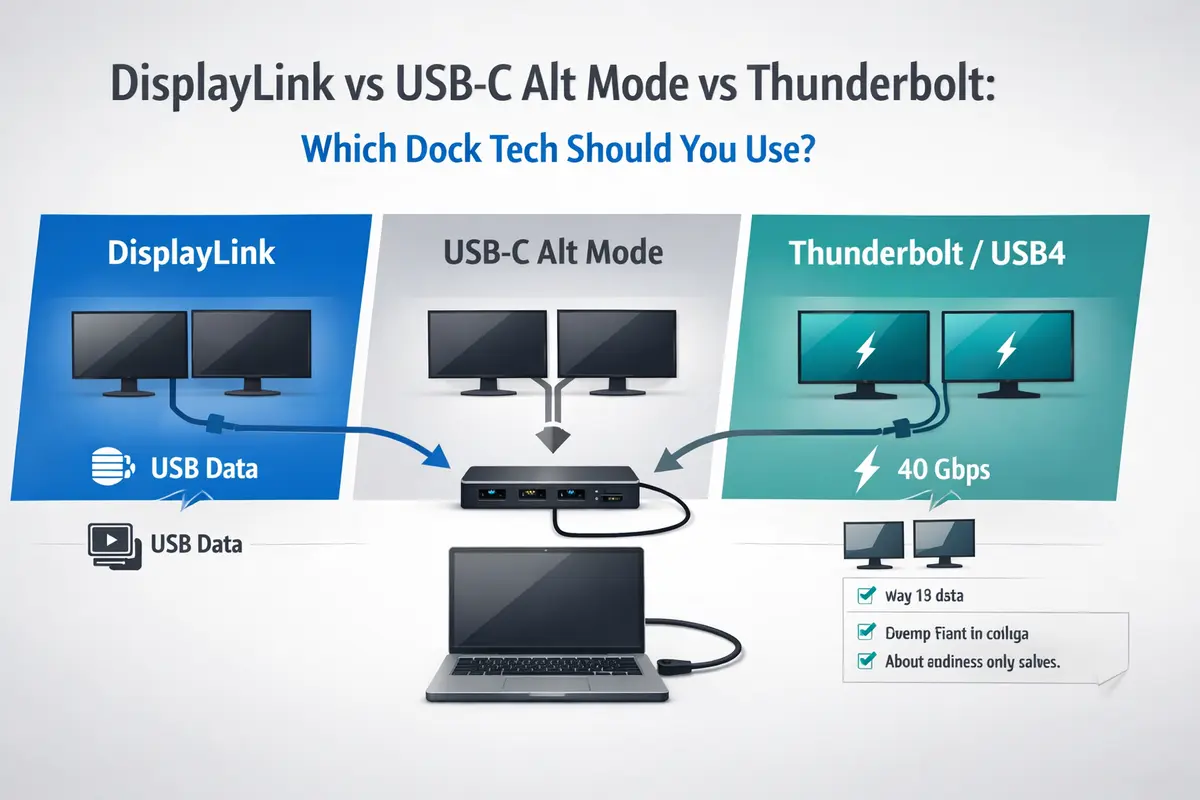
Most Windows laptops from the last five years support USB-C Alt Mode, and for dual 1080p or a single 4K display, it’s all you need. The key limitation: Alt Mode uses two of the four high-speed lanes for video, which caps dual-display setups at 1080p per screen and drops USB speeds to 480Mbps.
What you need:
- A laptop with USB-C DisplayPort Alt Mode (look for the DP logo near the port)
- A USB-C hub or dock with dual HDMI or DisplayPort outputs that supports Alt Mode (not DisplayLink)
- Your laptop’s GPU must support dual external displays — most Intel integrated GPUs from the last 5 years do, but some budget models don’t
Real-world setups I’ve tested:
- Dual 1080p at 60Hz: Works on virtually any Windows laptop with Alt Mode. The Anker PowerExpand 575 USB-C at £60 / ~$78 handles this without breaking a sweat.
- Dual 1440p at 60Hz: Works on most modern laptops but pushes the bandwidth limit. USB peripheral speeds drop to USB 2.0 levels.
- Dual 4K at 60Hz: Doesn’t work over Alt Mode — the bandwidth isn’t there. You need Thunderbolt 4 or a laptop with two separate USB-C ports that both support Alt Mode.
DisplayLink: The Universal Fallback
DisplayLink is the nuclear option: it works on anything with a USB port, but you pay for that universality with CPU overhead, driver instability, and DRM blackouts. I only recommend it when Thunderbolt and Alt Mode aren’t options.
When DisplayLink makes sense for dual monitors over USB-C:
- Base M1/M2/M3 MacBook Air: These only support one external display natively. DisplayLink is the only way to get dual monitors on them without buying a new laptop.
- Laptops with data-only USB-C ports: Some budget laptops have USB-C that doesn’t carry video. DisplayLink works because it sends video over USB data, not video lanes.
- Mixed-device households: One DisplayLink dock works with every laptop in the house — the gaming laptop, the work ThinkPad, the MacBook Air. One dock to rule them all.
What you give up: 10-20% CPU usage just to drive the displays, driver reinstalls after OS updates, and Netflix or any HDCP-protected content shows a black screen. I measured a 30-50ms input lag compared to native Alt Mode — fine for documents, not for anything that needs precise timing.
For the full technical breakdown of the three technologies, see our DisplayLink vs USB-C Alt Mode vs Thunderbolt comparison.
Which Dock to Buy (By Laptop Type)
For Thunderbolt 4 Laptops: CalDigit TS4 — £350 / ~$455
Why this one: 18 ports, dual 4K at 60Hz, 98W charging, 2.5Gb Ethernet, and the most reliable Thunderbolt dock I’ve tested. I’ve used this daily for over a year with zero issues. If your laptop has Thunderbolt 4 and your budget allows, buy this and stop researching.
Pros: Rock-solid reliability, handles dual 4K without breaking a sweat, 98W charges even 16-inch MacBook Pros, full USB 3.2 speeds alongside displays
Cons: Expensive, large footprint, no HDMI ports (DisplayPort + USB-C only)
For USB-C Alt Mode Laptops: Anker PowerExpand 575 — £60 / ~$78
Why this one: Dual HDMI outputs handle 1080p dual monitors or single 4K at 60Hz, 85W pass-through charging, Ethernet, and SD card slot — all for the price of a decent dinner. For most Windows laptops with Alt Mode, this is the dock that gets dual monitors working without drama.
Pros: Excellent value, dual HDMI, compact enough for a laptop bag, zero driver installation
Cons: USB speeds drop when both displays are active, won’t do dual 1440p or 4K, 85W charging may not be enough for gaming laptops
For DisplayLink (MacBook Air / Budget Laptops): Plugable UD-6950PDZ — £130 / ~$169
Why this one: Dual 4K at 60Hz over DisplayLink, works with any USB-C or USB-A port, 100W charging, and Plugable’s drivers are more stable than most competitors. If you have a base M1/M2/M3 MacBook and need dual external displays, this is the dock that makes it happen.
Pros: Universal compatibility, dual 4K at 60Hz, 100W charging, 13 ports including Ethernet
Cons: DisplayLink CPU tax applies, DRM video won’t play, drivers need reinstalling after major OS updates
Troubleshooting: When Dual Monitors Don’t Work
After testing docks across three laptops and four operating system versions, here’s what actually fixes the most common problems:
One monitor works, the second doesn’t: Your laptop’s GPU might not support dual external displays, or the dock doesn’t have enough bandwidth for your resolution. second monitor not detected guide. If that works, your dock’s bandwidth is the bottleneck.
Both monitors flicker or go black randomly: 90% of the time this is the cable. Swap to a certified Thunderbolt 4 or 10Gbps USB-C cable. The cable that came with your phone charger won’t cut it.
Dock works on one laptop but not another: The second laptop’s USB-C port likely doesn’t support the dock’s technology. Check Device Manager or System Information on the failing laptop.
DisplayLink shows a black screen on Netflix: This is expected. DisplayLink can’t pass through HDCP-protected content. There is no fix — switch to a Thunderbolt or Alt Mode dock if DRM content matters to you.
External monitors are stuck at 30Hz: Your cable or dock doesn’t have enough bandwidth for 60Hz at your resolution. Drop the resolution or get a higher-bandwidth dock.
Comparison Table: All Three Approaches
| Feature | Thunderbolt 4 | USB-C Alt Mode | DisplayLink |
|---|---|---|---|
| Dual 1080p @ 60Hz | Yes | Yes | Yes |
| Dual 1440p @ 60Hz | Yes | Maybe (bandwidth tight) | Yes |
| Dual 4K @ 60Hz | Yes | No | Yes |
| CPU overhead | Zero | Zero | 10-20% |
| DRM video (Netflix) | Works | Works | Black screen |
| Works on any USB-C laptop | No (TB4 only) | Most (needs DP logo) | Yes |
| Driver needed | No | No | Yes |
| Dock price range | £200-£350 / ~$260-$455 | £50-£100 / ~$65-$130 | £80-£200 / ~$104-$260 |
The Verdict: Which Setup Should You Use?
If your laptop supports Thunderbolt 4: Buy a Thunderbolt 4 dock. The CalDigit TS4 at £350 / ~$455 is expensive, but dual monitors over USB-C becomes completely transparent — it just works, every time, with zero CPU hit and no driver drama. If that’s too much, the Anker PowerExpand 575 Thunderbolt at £200 / ~$260 delivers the same reliability with fewer ports.
If your laptop has USB-C Alt Mode (most Windows laptops): Buy an Alt Mode dock. The Anker PowerExpand 575 at £60 / ~$78 handles dual 1080p or single 4K perfectly. Don’t buy a DisplayLink dock unless you have to — Alt Mode gives you the same result with zero CPU overhead and no driver installation.
Only if you have a base M1/M2/M3 MacBook or a data-only USB-C laptop: Buy DisplayLink. The Plugable UD-6950PDZ at £130 / ~$169 is the least-bad DisplayLink dock I’ve tested. Just accept that you’ll enterprise docking station guide and Netflix won’t work on your external displays.
Struggling to choose between the underlying technologies? Our DisplayLink vs USB-C Alt Mode vs Thunderbolt deep dive covers the technical differences. For monitor selection, see 1080p vs 1440p vs 4K resolution guide and our complete monitor buying guide.
← Back to Docks & Hubs Hub