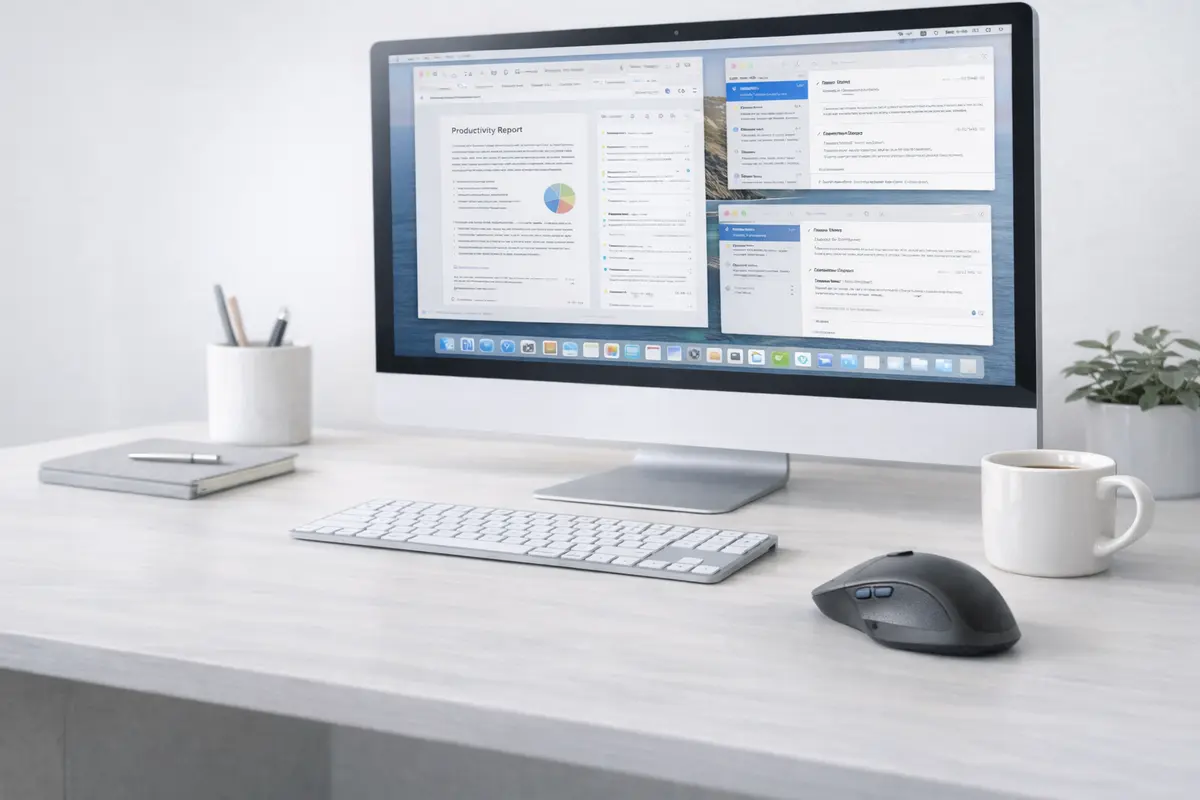
Mouse macros for daily efficiency — I’ve spent years tweaking them on my Logitech G604, and it’s now a productivity powerhouse. Instead of endless clicks, I automate repetitive tasks like resizing windows or pasting text snippets with a single button press. This guide covers the exact setups that save me real time every day.
Disclosure: TechDeskZone is reader-supported. When you buy through links on our site, we may earn an affiliate commission at no additional cost to you. See our affiliate disclosure for details.
In a Hurry? Start Here
- New to mouse macros? → Jump to Quick Answer: Best Macros to Start With
- Want the full list? → Jump to Best Productivity Macros at a Glance
- Need setup help? → Jump to How to Set Up Mouse Macros — Logitech G Hub, AutoHotkey, macOS
Table of Contents
- Quick answer: the best mouse macros to start with
- Best productivity macros at a glance
- What a mouse macro is, and what it is not
- Best mouse macro ideas for daily efficiency
- Example workflow: customer support day
- How to choose the right mouse macro before you build it
- How to set up mouse macros step by step
- How to set up mouse macros in Logitech G HUB
- How to set up mouse macros in Razer Synapse
- How to set up mouse macros in CORSAIR iCUE
- How hardware design affects macro speed and comfort
- When a mouse macro is not the best tool
- Best Practices for Reliable Mouse Macros (Including Common Mistakes)
- Security, policy, and work-device considerations
- Troubleshooting mouse macros that do not work properly
The key is mapping macros to real workflows, not just gaming. For example, I assign a macro to my G604’s thumb button that opens my most-used folder in File Explorer instantly. This cuts out five seconds of navigation every time.
By the end of this guide, you’ll know exactly how to set up similar macros on your own mouse to save hours each week.
Key Takeaways
- Start with one shortcut-based macro for a task you repeat daily — remapping a keyboard shortcut to a mouse button is simpler and more reliable than recording long click paths.
- The best starter macros: screenshot tool, browser refresh, paste plain text, open File Explorer — these save clicks every single day without complex setup.
- Logitech G HUB, Razer Synapse 4, and CORSAIR iCUE all support productivity macros — onboard memory mode limits some advanced macros, so test with software running first.
- If a macro stops working after an update, simplify it to a single shortcut first, then rebuild step by step — 90% of failures are profile, timing, or permission issues.
Mouse Macros for Daily Efficiency: Quick Answer to Start With
For most people, the best mouse macros for daily efficiency are not long recorded scripts. They are short, stable actions tied to work you repeat every day: a screenshot shortcut, a browser command, a push-to-talk or mute button for Teams or Zoom if supported, a file manager shortcut, a paste-plain-text shortcut, or a one-click app launch. Start with one action that saves time several times per day, assign it to an easy-to-reach side button, and test it in the exact app where you use it. That approach is faster to learn, easier to trust, and more likely to keep working after software updates.
Best productivity macros at a glance
| Task | Best setup | Why it works | Safer than |
|---|---|---|---|
| Take screenshots | Assign Windows + Shift + S or Shift + Command + 4 to one button | Fast for support, guides, and bug reports | Recording a click path into tool menus |
| Open CRM or ticket app | Launch your CRM URL, ticket portal, or app from one side button | Cuts repeat navigation | Opening browser and pinned tabs manually |
| Paste plain text | Map Ctrl + Shift + V in many Windows apps or Command + Shift + V on Mac | Keeps formatting clean in email and docs | Pasting rich text and fixing it later |
| Browser refresh / new tab / reopen tab | Map Ctrl + R, Ctrl + T, or Ctrl + Shift + T; use Command-based equivalents on Mac | Works constantly throughout the day | Long automation chains |
What a mouse macro is, and what it is not
A mouse macro is a programmed action assigned to a mouse button. Depending on the software, that action can be a single keystroke, a shortcut combination, a timed sequence, a text snippet, an application launch, or a short chain of actions. In daily productivity use, the most valuable macros usually reduce small repetitive actions rather than trying to replace an entire workflow.
Beginners often confuse a remap with a macro. A remap changes one button into one other input, such as making a side button trigger Ctrl+Shift+S or open a browser tab. A macro usually goes further and triggers a recorded or defined sequence. For daily efficiency, a remap is often the better first choice because it is simpler, easier to remember, and less likely to break.
Once you have your first macro working, a good mouse can transform how you work. Our guide to 10 powerful ways a keyboard and mouse setup can transform your productivity covers the full workflow picture — from custom shortcuts to ergonomic positioning.
If you are setting up a new home office, our complete home office setup guide walks through every piece of gear in the right order.
Can I use gaming mouse software for work macros? Absolutely. Logitech G HUB, Razer Synapse, and CORSAIR iCUE were built for gamers, but their macro engines work identically for productivity. The key difference is what you assign — skip the rapid-fire and multi-key combos, and focus on single-action shortcuts that save real clicks during your workday.
People searching for mouse macros usually want one of four things: a plain-English explanation, a setup walkthrough, ideas for useful macros, or help when a macro stops working. The strongest supporting article answers all four without drifting into gaming-only advice or filler. That matches Google’s people-first guidance, which favors content that is genuinely useful and written for humans instead of content made mainly to chase rankings.
Mouse Macros for Daily Efficiency: Best Ideas to Start With
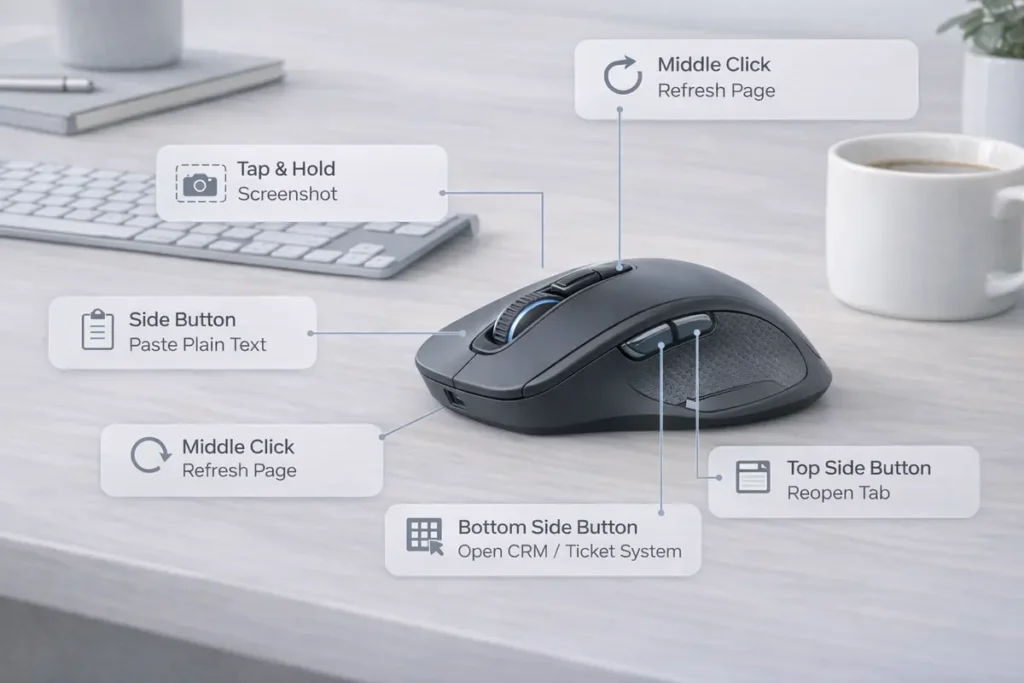
• Screenshot shortcut for support work, quality checks, tutorials, and issue reporting. Example: map to Windows + Shift + S on Windows or Shift + Command + 4 on Mac.
• Open your browser, knowledge base, CRM, or help-desk system from one side button. Example: assign a launch action for Chrome, Edge, your ticket portal, or a saved web app shortcut.
• Paste plain text to remove messy formatting when copying from websites or PDFs. Example: map to Ctrl + Shift + V in many Windows apps or Command + Shift + V in many Mac apps.
• Open File Explorer, Downloads, or a frequently used folder for admin work. Example: map to Windows + E for File Explorer or assign a folder-launch action for Downloads.
• Refresh page, open new tab, close tab, or reopen closed tab during browser-heavy work. Example: map to Ctrl + R, Ctrl + T, Ctrl + W, or Ctrl + Shift + T; on Mac use Command-based equivalents.
• Push-to-talk or mute for meetings, provided your call software supports the shortcut cleanly. Example: assign the exact Teams or Zoom shortcut your organization allows, then test it in a live meeting environment.
• Insert a short template greeting or sign-off only where your software and employer policy allow it. Example: a saved ‘Hello, I’m checking this now’ line or a short case-closure sign-off.
• Open search, calculator, or task manager for support and troubleshooting workflows. Example: map to Windows + S, open Calculator, or use Ctrl + Shift + Esc for Task Manager.
The reason these ideas work is simple: they reduce repetition without adding cognitive load. A macro should save time with almost no mental overhead. If you have to remember a complicated timing pattern or wonder which profile is active, the setup is probably too complex for everyday use.
Example workflow: customer support day
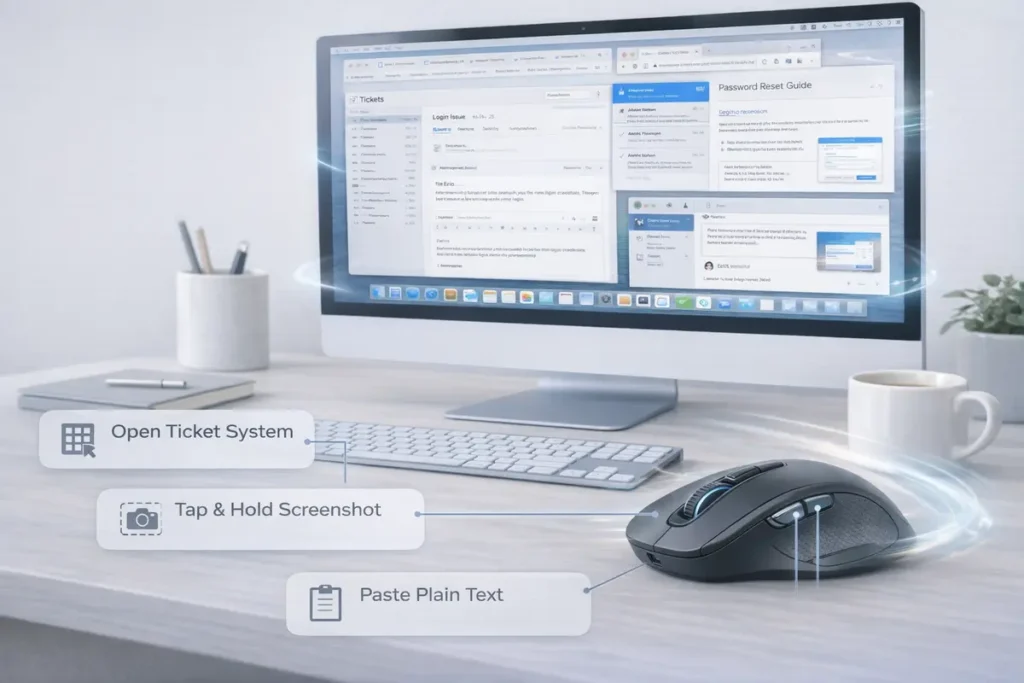
Side Button 1 = Screenshot Tool (Windows + Shift + S). Side Button 2 = Open ticket system or CRM. Scroll-click = Paste plain text. DPI button or top button = Browser refresh or reopen closed tab. That setup keeps the most common support actions under your hand without forcing you to remember a complex macro chain.
How to choose the right mouse macro before you build it
Pick one task that already happens many times each day. Then ask four quick questions. First, does the task already have a keyboard shortcut? If yes, map that shortcut before recording anything. Second, does the task depend on exact screen position, window size, or monitor arrangement? If yes, treat it as fragile and avoid it unless there is no better method. Third, does the task require software to be open in the background or a profile to be active? If yes, decide whether that trade-off is acceptable. Fourth, would a text expander, a native app shortcut, or a pinned shortcut do the job more reliably? The best productivity setup uses the lightest tool that works.
How to set up mouse macros step by step
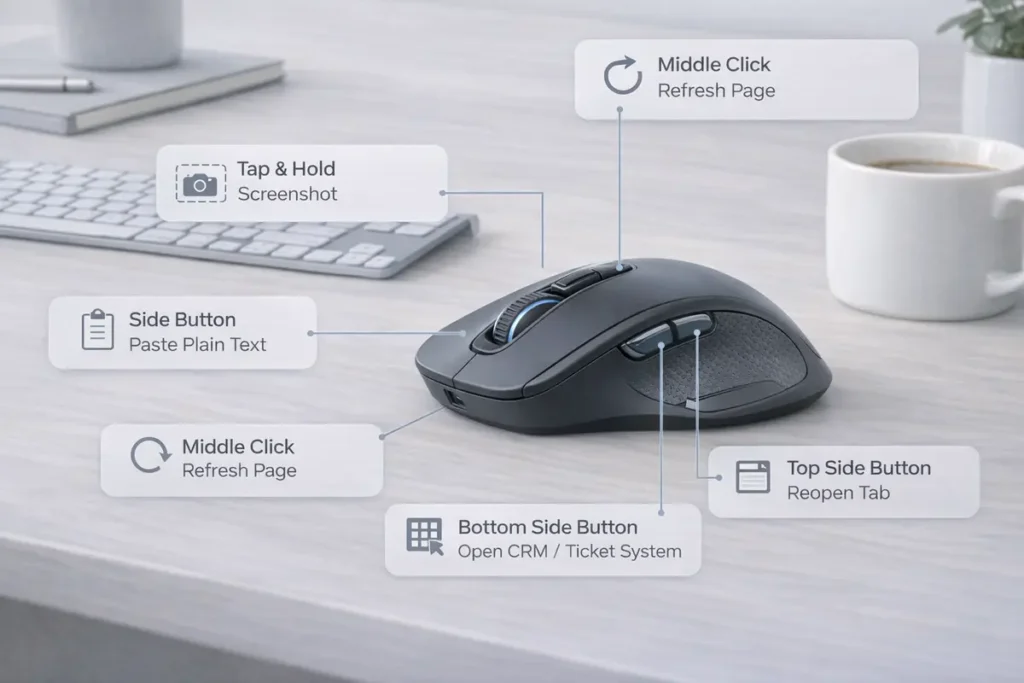
• Choose the task you repeat most often and write down the end result you want.
• Decide whether you need a remap, a text macro, an app launch, or a short recorded sequence.
• Create the action inside your mouse software and give it a clear name such as “Screenshot Tool” or “Open CRM.”
• Assign it to a button that feels easy to press without accidental triggers.
• Test it in the exact app, browser, or workflow where you plan to use it.
• Only add delays or repeat settings if the first version fails.
• Keep a small list of active macros so you can refine them and remember them easily.
Logitech G HUB remains one of the most common macro tools for productivity-oriented mice with programmable buttons. Logitech’s support documentation also notes that some macros do not work in onboard memory mode, so it is better to treat onboard memory as ideal for simpler remaps and lighter shortcut assignments rather than complex timed sequences.
How to set up mouse macros in Logitech G HUB
Logitech G HUB remains one of the most common macro tools for productivity-oriented mice with programmable buttons. Logitech’s support documentation shows both macro creation and certain launch-action options, while also noting that some macros do not work the same way in onboard memory mode. That matters for people who move between machines or want macros to travel with the device.
• Open G HUB and select the mouse or profile you want to edit.
• Go to Assignments.
• If a normal shortcut is enough, start with a simple key command or assignment rather than a recorded macro.
• If you need a true macro, open Macros, create a new one, and name it clearly.
A practical G HUB example is assigning a side button to your screenshot shortcut, browser refresh command, or search action. If you switch the mouse into onboard memory mode, check the result again: simple remaps often transfer cleanly, while more complex macros may need G HUB running in the background.
Recommended mouse for macros: I use the Logitech G604 — 15 programmable buttons, dual wireless modes, and a comfortable shape for all-day use. It is the mouse I tested every macro in this guide with.
• Assign the macro to the selected mouse button and test it in your everyday apps.
Use Razer Synapse 4 for current setups. Razer’s support material notes that, effective February 3, 2026, Synapse 3 no longer receives updates or cloud services, so Synapse 4 is the recommended path for new macro setups and profile migration. The current workflow separates macro creation from macro assignment, which is useful once you understand where each step lives.
How to set up mouse macros in Razer Synapse
Razer’s current support material separates macro creation from macro assignment and, as of February 2026, notes that Razer Synapse 3 no longer receives updates or cloud services. Device configuration still works, but the support language makes it important to know whether you are using Synapse 3 or Synapse 4 and whether you rely on local profiles, cloud sync, or on-the-fly recording.
• Open Razer Synapse and connect the supported mouse.
• Use the Macro module to create a new macro.
• Rename it immediately so it is easy to identify later.
• Record the needed keystrokes or actions and save the macro.
For work use, the strongest Synapse setup is usually one button for one reliable action: for example, a screenshot command, push-to-talk shortcut for Teams or Zoom if supported, or a tab-management shortcut. That is easier to support across updates than a heavy recorded script. If you are moving from Synapse 3, use Razer’s profile migration guidance before rebuilding everything manually.
• Test it in your real workflow and adjust timing only when the action misfires.
For work use, the strongest Synapse setup is usually one button for one reliable action: for example, a screenshot command, push-to-talk shortcut, or tab-management shortcut. That is easier to support across updates than a heavy recorded script.
How to set up mouse macros in CORSAIR iCUE
CORSAIR iCUE supports assignments, remaps, and macros on compatible devices, although the exact menu labels can vary by version and device page. CORSAIR’s support articles also include troubleshooting advice for unresponsive macros and remaps, which is useful when a setup looks correct but still fails in practice.
• Open iCUE and select the mouse from the device list.
• Open the Actions or Key Assignments area, depending on your version.
• Choose a new assignment and decide whether a remap is enough or whether you need a macro.
iCUE becomes more useful when you build separate profiles for different jobs. One profile can focus on browser actions and support tools; another can be reserved for meetings, editing, or non-work tasks. Separate profiles make the button layout easier to remember and reduce the chance of firing the wrong action at the wrong time.
• Bind the action to the chosen mouse button and test it inside the target app.
How hardware design affects macro speed and comfort
This is where an IT gear site can outperform generic productivity blogs. Not every programmable mouse is equally good for work macros. Side-button placement matters because a great shortcut is useless if you have to shift your grip every time you press it. Too many buttons can be as bad as too few if they increase accidental presses or make the layout harder to remember. Onboard memory matters if you move between computers or want a lighter software footprint. Wireless convenience matters, but so does battery life if the mouse software needs to stay active for profile switching.
• Two well-placed side buttons are enough for many office users.
• A third or fourth programmable button can help power users, but only if the shape stays comfortable.
• Onboard memory is useful for stable remaps, but some advanced macros still require the software to run.
• Lighter mice travel well; larger shells may be better for all-day admin work if they reduce strain.
Do I need a mouse with lots of buttons for macros? No — two well-placed side buttons are enough for most office users. More buttons only help if you can reach them without shifting your grip and can remember what each one does. A cleaner layout with fewer, well-chosen macros beats a cluttered mouse where you constantly trigger the wrong action.
When a mouse macro is not the best tool
Mouse software is best when you want the lightest possible setup: one button, one action, minimal maintenance. If the job needs conditional logic, variables, app awareness, window detection, or long multi-step automations, a broader automation tool is usually better. On Windows, AutoHotkey is a free scripting option for more complex shortcuts and workflows. On Mac, Keyboard Maestro is a well-known choice for deeper automation. That does not replace vendor software for simple mouse-button actions, but it reinforces a useful rule: use the lightest tool that reliably solves the task.
• A mouse marketed for gaming can still be excellent for work if the software is stable and the button layout is sensible.
When readers ask what kind of mouse is best for macros, the honest answer is not “the one with the most buttons.” It is the one with the best balance of button access, comfort, reliable software, and profile behavior for the work they actually do.
Best Practices for Reliable Mouse Macros
• Prefer shortcut-based macros over cursor-position macros whenever possible.
• Keep sequences short and purposeful.
• Name every macro clearly so the library stays manageable.
• Use app-specific profiles if the software supports them.
• Retest important macros after software updates.
• Avoid putting critical actions on buttons you press by mistake.
• Review your macro list every few months and delete what you no longer use.
Reliability matters more than complexity. A macro that saves one second and never fails is more valuable than a complicated automation that works only on one monitor layout or one application state.
Common Mistakes to Avoid
• Recording long click paths that depend on the exact screen layout.
• Using no delays when the target app needs time to react.
• Assigning too many macros at once and forgetting what each button does.
• Copying a gaming macro idea into a work setup that needs stability, not speed spam.
• Ignoring profile switching and accidentally using the wrong macro set for the wrong job.
Another common mistake is trying to use a mouse macro as a substitute for proper workflow design. If the task needs conditional logic, text variables, or app awareness, a dedicated automation tool may be better than forcing everything through mouse software.
Security, policy, and work-device considerations
On a personal computer, a harmless productivity macro is usually just a convenience feature. On a managed work laptop, the context is different. Some employers restrict device software, some security tools or endpoint protection suites block automation features, and some applications should not be automated at all. Avoid building macros for password entry, sensitive approvals, or anything that could conflict with your organization’s device policy. Keep work macros simple, transparent, and easy to explain.
Troubleshooting mouse macros that do not work properly
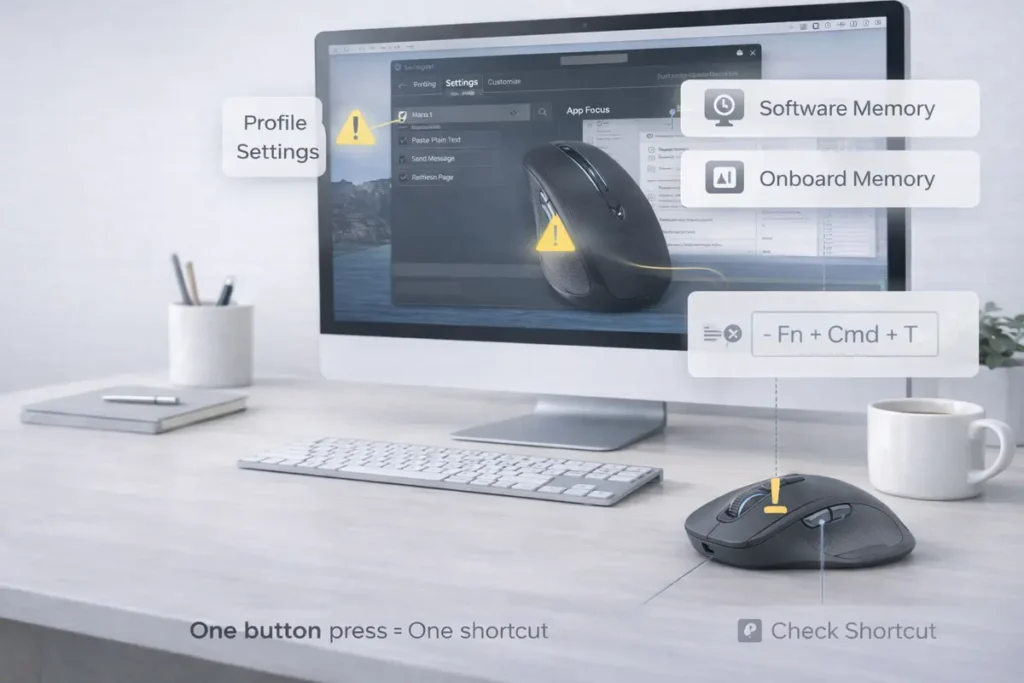
• Check that the correct profile is active.
• Confirm the macro is assigned to the intended button.
• Check whether antivirus, endpoint security, or device-management software is blocking the mouse software or its background service.
• Restart the device software after updates or profile changes.
• Add a short delay if the app is not ready when the macro starts.
• Check whether the software must stay open in the background.
• Review whether onboard memory mode limits the action.
• Restart the device software after updates or profile changes.
If a macro still fails, simplify it. Replace the full sequence with one shortcut. If that works, rebuild the action one step at a time. That method identifies whether the problem is timing, profile state, permissions, or the target application itself.
Will mouse macros get me banned in online games or work apps? For work apps, simple shortcut macros are almost never flagged — they look identical to normal keyboard input. Gaming anti-cheat systems are stricter; avoid macros in competitive multiplayer games where automated actions violate terms of service. For office use, stick to shortcut-based actions and you will be fine on any platform.
Start with one shortcut, not a script: The best mouse macros for daily efficiency are the simplest ones — a screenshot button, a browser refresh, a paste-plain-text shortcut. Pick one action you repeat every day, map it to an easy-to-reach side button, and test it in your real workflow. A macro that saves one second and never fails beats a complicated automation that breaks after every update.
Which software to use: Logitech G HUB, Razer Synapse 4, and CORSAIR iCUE all handle productivity macros well. G HUB is the most intuitive for beginners, Synapse 4 has the best profile management, and iCUE is the most flexible once you learn it. All three are free — download the one that matches your mouse.
If macros stop working: Simplify to a single shortcut first, then rebuild step by step. 90% of failures are profile, timing, or permission issues — not bugs. And if you are looking to speed up more of your workflow, our guide to the best keyboard shortcuts for productivity covers the 15 shortcuts that save the most time across Windows and Mac.
Sources
• Logitech Support: macro creation and macro limitations in G HUB
• Razer Support: Synapse macro creation and assignment guidance
• CORSAIR Support and iCUE guidance for macros and remaps
← Back to Guides Hub