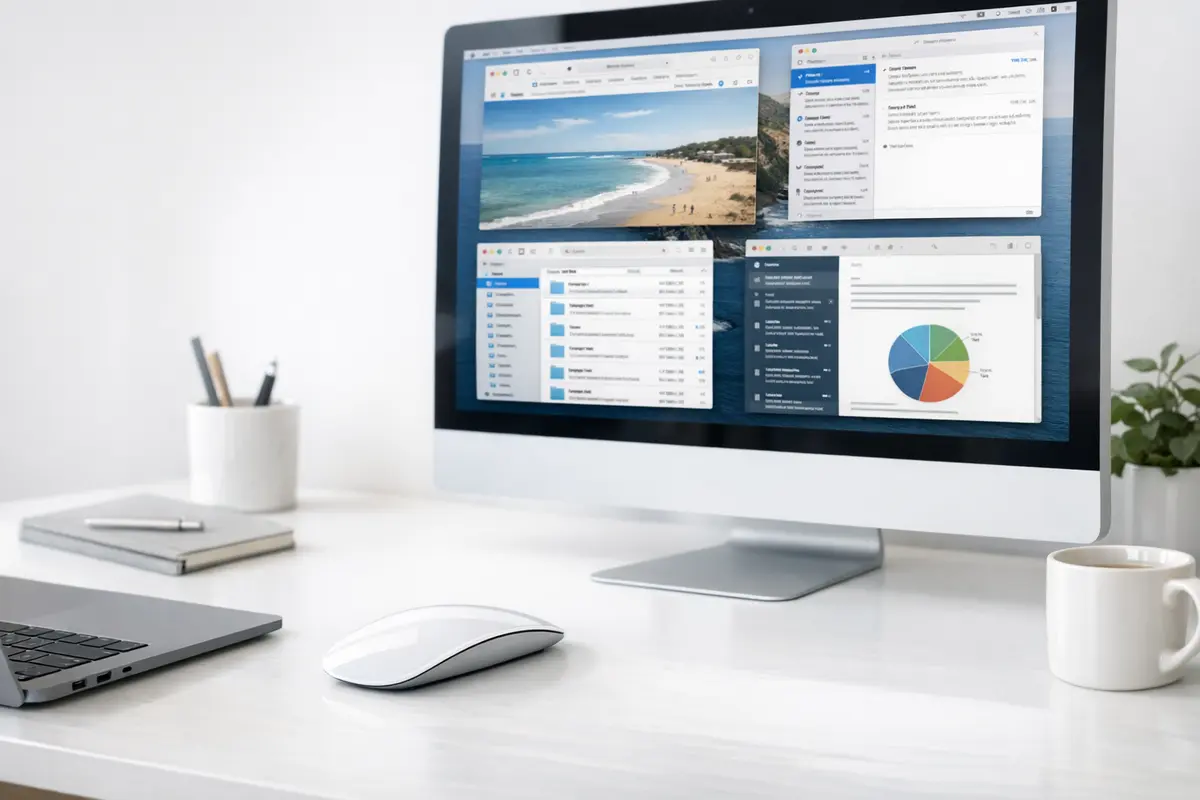
Mac mouse gestures for productivity — a few well-chosen swipes and button mappings can replace half your daily keyboard shortcuts and cut seconds off every navigation task. I've spent years refining my Mac workflow, and the single biggest speed improvement came from mapping Mission Control, app switching, and screenshot capture to mouse gestures rather than hunting for keys or menu items.
Disclosure: TechDeskZone is reader-supported. When you buy through links on our site, we may earn an affiliate commission at no additional cost to you. See our affiliate disclosure for details.
In a Hurry? Start Here
- New to Mac gestures? → Jump to Built-in macOS Gestures — no extra software needed
- Want the full list? → Jump to Best Mac Mouse Gestures at a Glance
- Using third-party tools? → Jump to Third-Party Gesture Tools — BetterTouchTool, SteerMouse
Table of Contents
- Mac Mouse Gestures for Productivity: The Honest Answer
- Why Mac Mouse Gestures Matter
- Start With Built-in macOS Gestures
- Best Mac Mouse Gestures for Productivity at a Glance
- Choose the Right Tool: BTT vs Mac Mouse Fix vs Built-in
- Productivity Gestures That Actually Save Time
- Real Workflows You Can Copy
- How to Make Gestures Reliable, Not Flashy
- Ergonomics Still Matter
- Common Mistakes to Avoid
- Verdict: Are Mac Mouse Gestures Worth the Setup Time?
Mac Mouse Gestures for Productivity: The Honest Answer
For most people, yes — Mac mouse gestures for productivity are genuinely worth the 30-minute setup. But the key is picking the right ones. A handful of gestures that fire reliably every time will save more time than a sprawling custom setup you never fully memorise.
The fastest gestures for daily work are the built-in ones: two-finger swipes between pages, Mission Control (see every open window at once), App Exposé (see every window of your current app), and desktop reveal. Together, these four alone eliminate most of the pointer travel and window hunting that slows down a typical Mac workday.
If you want more — per-app behaviour, custom button mappings, or drawing gestures — add BetterTouchTool (£10 / ~$13, 45-day trial). It’s the power user choice. For a lighter, cheaper option, Mac Mouse Fix (£3 / ~$4, 30-day trial) gives normal mice trackpad-style swipes without the complexity.
This guide is for Mac users who spend their day switching between apps, browser tabs, Finder windows, and communication tools. You don’t need to be a power user — if you notice yourself reaching for the same menu items or keyboard shortcuts dozens of times a day, gestures will help. If you already have a highly optimised keyboard-only workflow (Vim, terminal-heavy, keyboard-driven window manager), you may not need gestures at all — and that’s fine.
Bottom line: Start with the four built-in gestures. Add two custom ones. Use them for a week. You’ll know by Friday whether it’s worth going deeper.
Why Mac Mouse Gestures Matter
Fast Mac work is rarely about one dramatic trick. It comes from dozens of tiny actions repeated all day: switching browser tabs, revealing the desktop, opening Mission Control, going back in Finder, previewing files, or jumping to the right app without breaking concentration. Each of those actions takes a second or two, but across an 8-hour day, they add up.
Mouse gestures reduce that friction because macOS already supports gesture-driven navigation on Apple hardware — especially the Magic Mouse and trackpad. Apple’s official Multi-Touch gesture documentation confirms that common built-in options include scrolling, zooming, swiping between pages, and quickly showing the desktop or other windows. For many people, that alone covers a large chunk of daily navigation.
The bigger opportunity comes when you pair those built-ins with workflow-aware customisation. BetterTouchTool lets you assign actions to mouse buttons, swipes, wheel tilts, and drawing gestures. Mac Mouse Fix is lighter — it gives normal mice trackpad-style swipes and a handful of quick actions. Both turn a basic mouse into a more efficient tool without forcing you to memorise dozens of commands.
Our guide to mouse macros for daily efficiency covers the keyboard-shortcut side of the same problem — if you prefer keys to gestures, start there instead. The two approaches complement each other: gestures handle navigation and window management, macros handle repetitive text and app-specific workflows.
Start With Built-in macOS Gestures
The best Mac mouse gestures usually start with what macOS already supports. Open System Settings → Mouse (or Trackpad) and check the Point & Click and More Gestures tabs. Turn on everything that sounds useful — you can always turn it off later.
Built-in gestures are the most reliable because they don’t depend on third-party permissions, background utilities, or vendor-specific profiles. If macOS can do it natively, that’s almost always the cleanest approach.
A strong starting setup for most users:
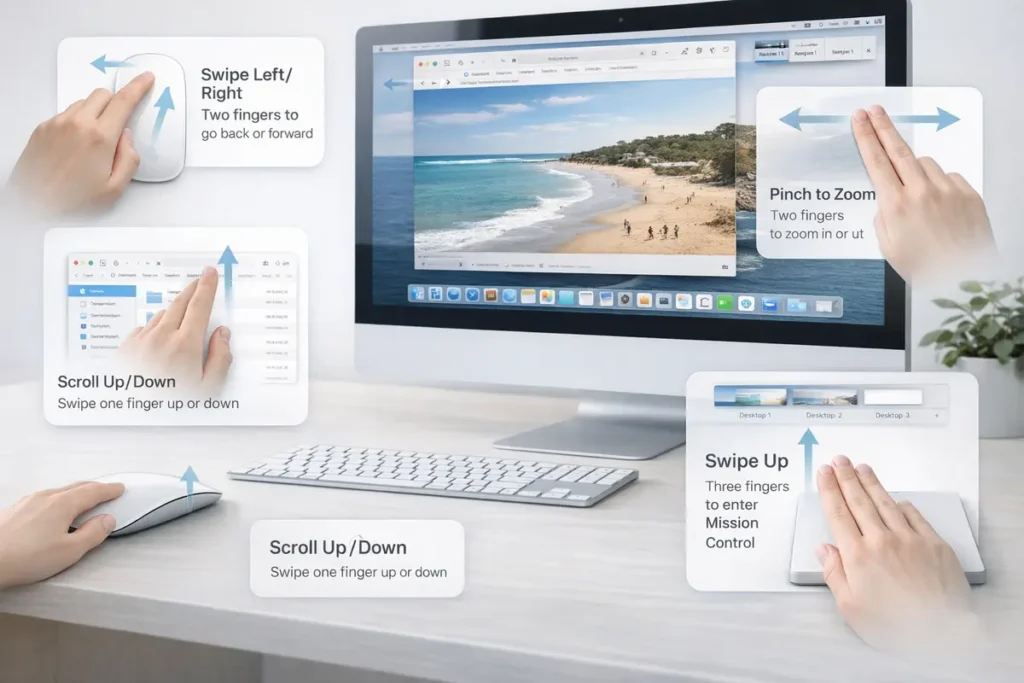
- Two-finger swipe left/right: On a Magic Mouse, this moves through web pages, Finder history, Photos, and PDFs. It’s the single biggest click-saver — no more hunting for tiny browser back arrows. Apple’s Magic Mouse handles this natively and smoothly — no third-party software needed for basic swipes.
- Mission Control: Swipe up with three fingers (trackpad) or map a mouse button via BetterTouchTool. Mission Control shows every open window at once — perfect when you’re juggling Safari, Mail, Slack, and Finder simultaneously.
- App Exposé: Shows all windows of the current app only. Incredibly useful when Safari or Finder has ten overlapping windows. On a trackpad, swipe down with three fingers where enabled.
- Show Desktop: Spread with thumb and three fingers on trackpad, or assign to a spare mouse button. Essential for dragging files between desktop and apps.
- Spotlight via mouse button: Mapping Command + Space to a side button turns your mouse into an app launcher, file finder, and calculator trigger. This is one of the highest-value custom actions because it works across every workflow.
- Region screenshot: Map Shift + Command + 4 to a spare button. Faster than menus for support work, bug reports, and documentation.
These six cover roughly 80% of what slows down daily Mac navigation. Start here before installing anything else.
Best Mac Mouse Gestures for Productivity at a Glance
| Gesture or Action | Best Tool | Why It Helps |
|---|---|---|
| Two-finger swipe left/right | Magic Mouse / trackpad | Cuts repeated clicks on browser/Finder navigation arrows |
| Mission Control | Built-in or BetterTouchTool | Shows every open window when switching between tasks |
| App Exposé | Built-in or BetterTouchTool | Narrows view to windows of the current app only |
| Spotlight launcher | BetterTouchTool | Launches apps, finds files, does quick calculations |
| Region screenshot | Any gesture tool | Speeds up support work, bug reports, and documentation |
| Paste plain text | BetterTouchTool / Mac Mouse Fix | Removes formatting friction when pasting into email, docs, CMS |
| Desktop reveal | Built-in gesture | Fast file dragging between desktop and apps |
| Per-app swipe actions | BetterTouchTool | Same mouse, different behaviour per app (archive in Mail, Quick Look in Finder) |
| Horizontal scroll (wheel tilt) | Mouse hardware + BTT | Removes painful horizontal scrollbar dragging in spreadsheets and timelines |
Choose the Right Tool: BTT vs Mac Mouse Fix vs Built-in
Use built-in macOS gestures if your workflow already revolves around a Magic Mouse or trackpad. This covers page swipes, scrolling, Mission Control, App Exposé, and space switching — reliably, with zero setup overhead. For most people, this is enough.
Use Mac Mouse Fix (£3 / ~$4, 30-day free trial) if you have a normal mouse and want Mac-like swipes plus a few custom actions without building a deep automation system. It’s the lighter, cheaper option — ideal when you want your non-Apple mouse to feel more at home on macOS without a complex configuration layer.
Use BetterTouchTool (£10 / ~$13, 45-day trial) if you need app-specific behaviour, more trigger types, or logic like “Quick Look in Finder but Spotlight everywhere else.” Its current documentation covers Magic Mouse, trackpad, and normal mouse triggers including custom actions, keyboard shortcuts, sequences, and gesture recognition. It takes longer to set up, but it’s the strongest choice for power users, editors, and support teams who want one mouse to behave differently across apps.
For very advanced needs, combine BetterTouchTool with Keyboard Maestro. Gesture software handles navigation and triggers; Keyboard Maestro handles longer automation chains, conditions, and app-to-app workflows. Our best keyboard shortcuts guide covers the other half of this equation — the shortcuts worth learning before you map them to gestures.
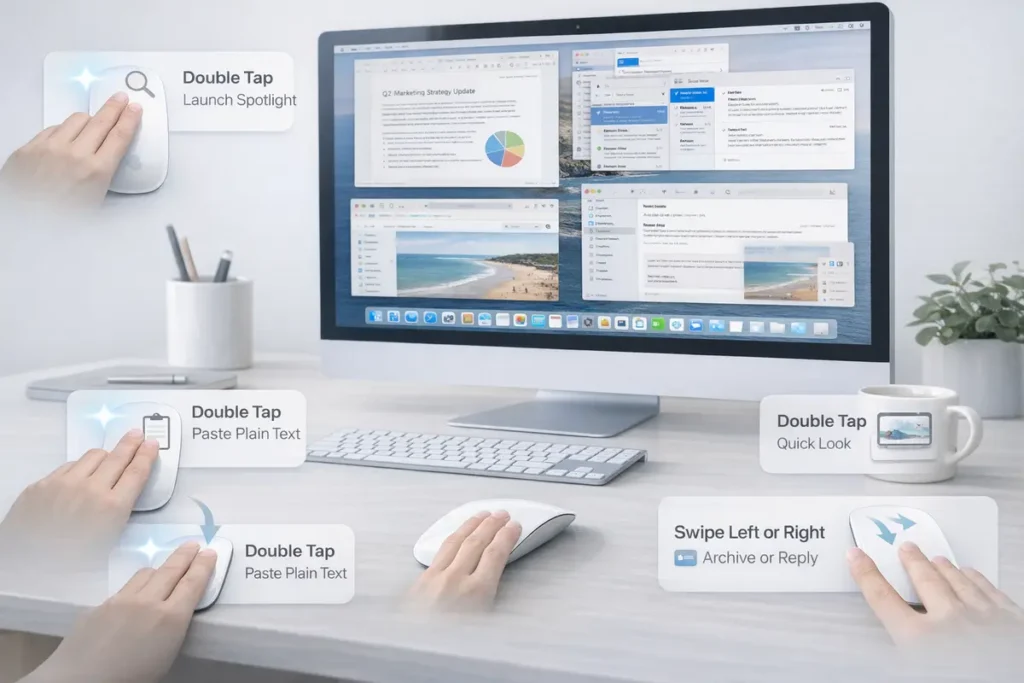
A simple rule: built-in gestures first, Mac Mouse Fix for lightweight upgrades, BetterTouchTool when you need per-app logic.
Productivity Gestures That Actually Save Time
Not all gestures are worth learning. The ones below earn their keep because they replace actions you perform dozens or hundreds of times a day. I’ve ranked them by real-world frequency.
Finder preview and navigation: Assign a mouse button to Space for Quick Look when Finder is active, then use a swipe for back/forward. Finder and Quick Look are central to daily file work — this pairing eliminates the open-then-close cycle for quick file checks.
Mission Control + App Exposé pairing: The first shows everything; the second narrows to the current app. Together they eliminate most window hunting. Map Mission Control to one gesture and App Exposé to another — don’t make them share a trigger.
Spotlight on a mouse button: Mapping Command + Space to a side button turns your mouse into a universal launcher. Faster than the Dock for opening apps, finding files, or running quick calculations.
Paste plain text: Shift + Option + Command + V strips formatting when pasting into email, documents, or a CMS. Not every app supports it — test in your editor first — but when it works, it eliminates the “paste and match style” dance entirely.
Screenshot capture: Mapping Shift + Command + 4 to a spare button is one of the best Mac-specific productivity upgrades. Support teams, content editors, and bug reporters trigger this hundreds of times a week.
Swipe-to-archive in Mail and chat: Per-app gestures for repetitive triage actions save more time than you’d expect. Keep these simple and reversible — you don’t want to accidentally archive something important with a stray swipe.
Horizontal scroll via wheel tilt: If your mouse supports it, sideways scrolling in spreadsheets, content calendars, and wide page builders is transformative. The Logitech MX Master 3S (around £90 / ~$115) has a dedicated horizontal scroll wheel that makes this effortless — it’s the mouse I use daily for exactly this reason.
Real Workflows You Can Copy
These are built from real use cases. Each setup uses 3–5 gestures mapped to the most repeated actions in that role.
Customer Support Workflow
- Side button 1: Shift + Command + 4 (screenshots)
- Side button 2: Command + Space (launch help desk, knowledge base, or customer record)
- Swipe left: Browser back in knowledge base
- Swipe right: Browser forward or return to previous Finder view
- Why it works: Support teams repeat the same navigation and screenshot actions hundreds of times a week. Five gestures cover 90% of the repetitive motion.
Content Editing Workflow
- Side button 1: Shift + Option + Command + V (paste plain text, where supported)
- Side button 2: Command + K or CMS link shortcut
- Wheel tilt / spare button: Shift + Command + 4 (image capture)
- Gesture up: Mission Control (find reference windows)
- Why it works: Content workflows stall on formatting cleanup, tab switching, and source gathering. These four gestures attack the bottlenecks directly.
Research & Admin Workflow
- Side button 1: Command + Space (Spotlight)
- Side button 2: Space (Quick Look when Finder is active)
- Swipe left/right: Back and forward in Safari and Finder
- Gesture down: App Exposé for the active app
- Why it works: Research-heavy roles bounce between Finder, browser, and reference documents constantly. This setup keeps file preview, search, and navigation under one hand.
Content Editor on a Standard Mouse
- Thumb button: Space for Quick Look when Finder is active
- Secondary thumb button: Shift + Option + Command + V for paste plain text
- Wheel tilt: Horizontal scroll in spreadsheets and content calendars
- BetterTouchTool gesture: Mission Control on button hold + scroll
- Why it works: Keeps file preview, clean paste, horizontal movement, and window finding under the same hand without forcing a complicated gesture vocabulary. No Magic Mouse required.
For a broader look at how your whole desk setup affects speed and comfort, see our 10 powerful ways a keyboard and mouse setup can transform your productivity.
How to Make Gestures Reliable, Not Flashy
The fastest Mac workflow is not the one with the most gestures. It’s the one where the most common actions are mapped to the easiest, most dependable triggers. One gesture that always opens Mission Control beats a complicated multi-step action that misfires 20% of the time.
Keep your first setup small: pick three to five actions you already repeat all day. Good starting candidates are back/forward, Mission Control, screenshot capture, Spotlight, Quick Look, and paste plain text. Use them for a full week before adding more.
If you use third-party tools like BetterTouchTool, pay attention to accessibility and input monitoring permissions. macOS requires these before advanced actions work. On managed work Macs, security policies may also limit behaviour — check with IT before building a deeply customised setup.
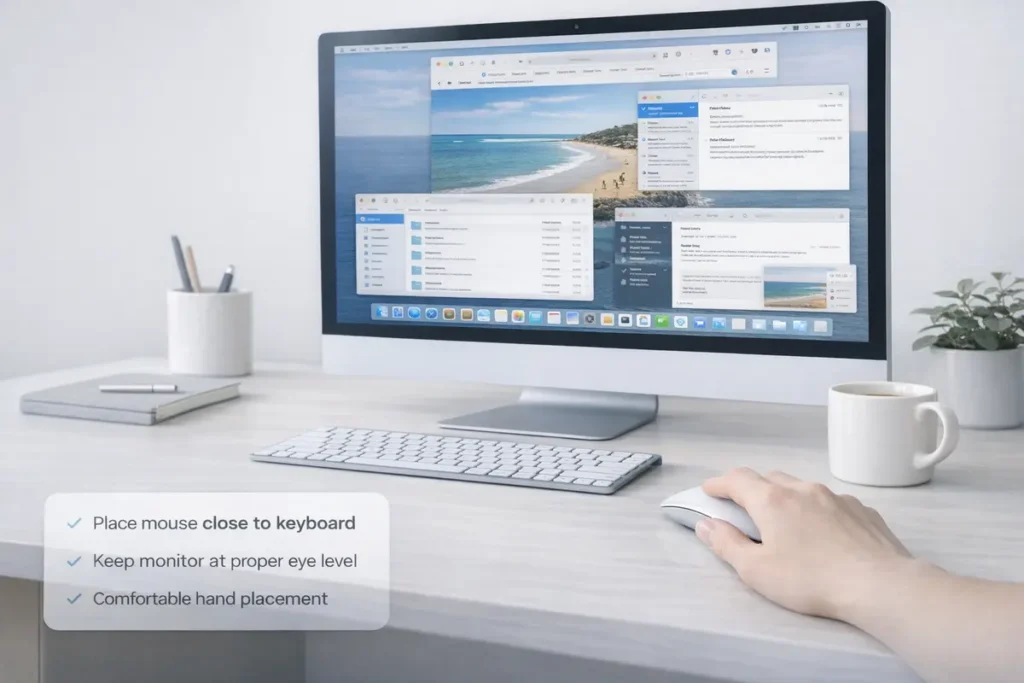
A practical checklist helps: keep the mouse close to the keyboard, place the monitor roughly at eye level about an arm’s length away, and use a document holder if you regularly reference printed pages beside the screen. Small workstation adjustments make gesture-heavy work feel less tiring over long sessions.
Ergonomics Still Matter
Mouse gestures reduce friction, but they don’t replace good ergonomics. Apple’s accessibility settings include pointer control adjustments, mouse scrolling behaviour, and three-finger drag on trackpads — all worth checking if gesture-driven work feels physically awkward.
For longer sessions: keep the mouse close to the keyboard, avoid overreaching, and assign your most-used gestures to the easiest buttons. If a standard mouse still feels uncomfortable after a week, try a vertical mouse or trackball. A well-supported ergonomic mouse combined with a lightweight gesture utility is often better than forcing yourself into a setup that never feels natural.
If gestures still feel awkward after two weeks of use, that’s a hardware signal, not a failure of willpower. Change the mouse, not the workflow.
Common Mistakes to Avoid
Too many gestures at once. Start with five. Add more only when the first five are muscle memory.
Replacing fast keyboard shortcuts with slower gestures. Command + C is instant. A gesture that takes 1.5 seconds to trigger is worse. Keep keyboard shortcuts for quick actions; use gestures for navigation and window management.
Ignoring per-app differences. Plain-text paste, navigation, and custom actions vary by application. Test in the apps you actually use, not a text editor you opened for the occasion.
Copying someone else’s setup wholesale. A developer’s gesture map looks nothing like a support agent’s. Build from your own high-frequency actions.
Choosing complexity over consistency. The best gesture setup feels boring in a good way. It just works, every time, without ceremony.
Verdict: Are Mac Mouse Gestures Worth the Setup Time?
The Verdict
Yes — for most Mac users, setting up mouse gestures is one of the highest-return productivity investments you can make in 30 minutes. The built-in gestures alone (two-finger swipes, Mission Control, App Exposé, desktop reveal) eliminate most of the navigation friction in a typical workday. Adding two custom gestures — Spotlight on a button and a screenshot trigger — covers another 30% of repetitive actions.
If you use a standard mouse, start with Mac Mouse Fix (£3 / ~$4) for trackpad-style swipes. If you want per-app behaviour and deeper customisation, BetterTouchTool (£10 / ~$13) is worth every penny. The Logitech MX Master 3S (around £90 / ~$115) is the best hardware upgrade if your current mouse lacks enough buttons — its horizontal scroll wheel alone saves real time in spreadsheets and wide documents.
Start small. Five gestures. One week. You’ll know by Friday whether the muscle memory is sticking. If it is, add two more. If it isn’t, try different gestures or accept that your brain prefers keyboard shortcuts — that’s a perfectly valid workflow too.
Still deciding between a gesture-first and keyboard-first workflow? Our best keyboard shortcuts for productivity guide covers the fifteen shortcuts that save the most time — many of which you can later map to mouse gestures if you prefer. If you’re building a full home office setup, the 10 powerful ways a keyboard and mouse setup transforms your productivity covers the complete picture.
← Back to Guides Hub