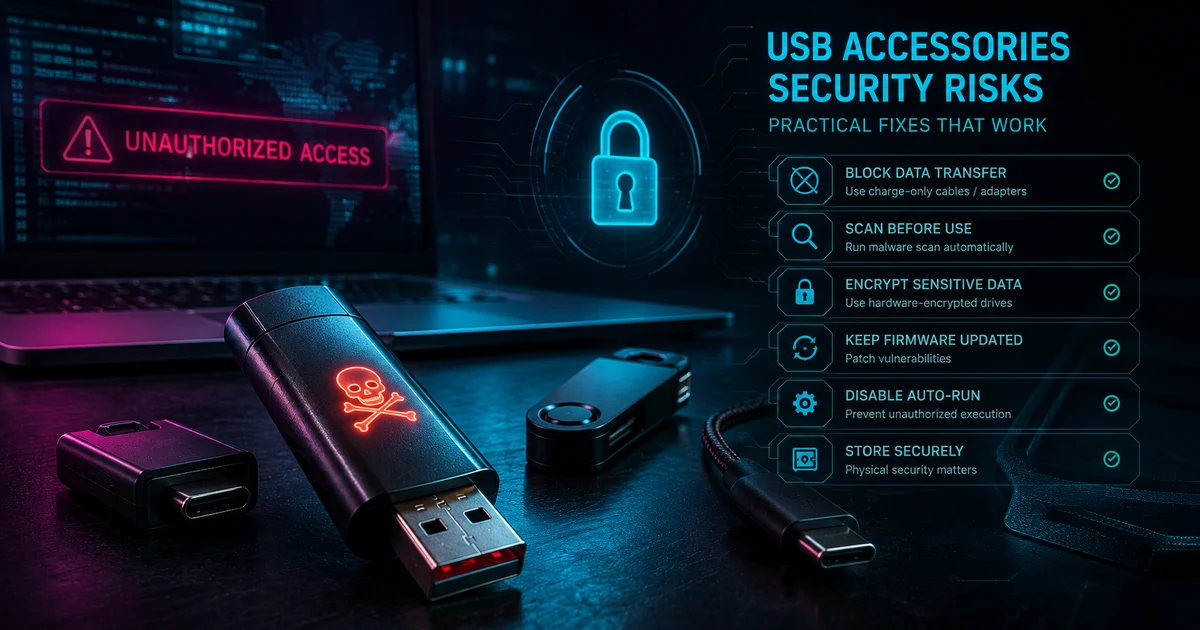
USB Accessories Security Risks: most people picture a virus on a flash drive. The more real risk is a device that lies about what it is: a cable that is secretly a keyboard, a charger that siphons data, a dongle that opens a door the second you plug it in. BadUSB was demonstrated publicly at Black Hat in 2014 by researchers Karsten Nohl and Jakob Lell, and the attack tools have been buyable off the shelf ever since. This guide sorts which risks actually matter for a home or office setup, and which fixes stop them without wrecking how you work.
Disclosure: TechDeskZone is reader-supported. When you buy through links on our site, we may earn an affiliate commission at no additional cost to you. See our affiliate disclosure for details.
In a Hurry? Start Here
- What is BadUSB? → Jump to Bad USB Explained
- Home/personal fixes? → Jump to Practical Fixes for Home Devices
- Enterprise deployment? → Jump to Enterprise USB Security
- What USB Risks Actually Matter?
- Why Are USB Accessories Dangerous?
- Threat Map: The 5 Types of USB Accessory Risks
- What Is BadUSB, and What Isn’t It?
- What USB Security Fixes Actually Work at Home?
- How Do You Scale USB Security Across an Enterprise?
- Quick Reference: USB Accessories Security Risks by Scenario
- What Should You Check Before Buying USB Accessories?
- What Do You Do When Someone Plugs in an Unknown Device?
- What USB Controls Should You Enable on Windows and macOS?
- The Verdict: Your USB Security Plan
What USB Risks Actually Matter?
Here’s the honest split between what you should worry about and what you should ignore.
Risks worth acting on: cheap no-brand cables that behave like attack tools, found USB drives, and a station or peripheral that presents itself as a keyboard when you never asked for one. These are documented and have real attack hardware behind them. The O.MG Cable, a $200 charging cable that doubles as a remote keystroke injector, has been sold openly for years.
Risks that get more headlines than evidence: public charging ports stealing your data, sometimes called juice jacking. The FBI warned against public phone charging in April 2023, and the warning got wide coverage. But fact-checkers and security researchers, including a Snopes review of the claim, have found no confirmed real-world case of someone’s phone being drained or hijacked through a public USB port. The attack is technically real and the fix is close to free, so the precaution is still worth taking. It is just not the threat the headlines make it out to be.
Overhyped: Hollywood-style “someone slipped malware into your mouse” scenarios. These need physical access, specialist kit, and deliberate targeting, so the average home office worker is not a target. If somebody has that kind of access to your desk, USB ports are the least of your problems.
What you should actually do: use a USB data blocker for public charging (roughly £8 / $10), buy cables and dongles from brands you recognize, and treat any USB device you did not personally buy as untrusted. Three habits that take a few seconds each and remove most of the practical risk.
Why Are USB Accessories Dangerous?
USB was designed in the mid-1990s for convenience, not security. When you plug a device in, the machine starts talking to it immediately, asking what it is and what drivers it needs. That is great for keyboards and storage drives. It is also why a hostile device can act before you realize something is off.
The biggest misconception is “I scanned the drive for viruses, so it is safe.” Scanning handles file-based malware, but several USB threats do not use files at all. A device can pose as a keyboard and type commands faster than you can react. It can claim to be a network adapter and reroute your traffic. It can be storage and a keyboard at once, and antivirus will not flag either because there are no files to inspect.
A second misconception: “USB-C is safer than USB-A.” USB-C is a connector shape, not a security standard. A USB-C cable still carries data lines unless it is explicitly charge-only, and some of the most capable USB attack hardware uses USB-C because that is what modern laptops have.
The defense is not fear. It is process: know what you are connecting, control what the endpoint allows, and have a plan for the moment something unknown gets plugged in.
Threat Map: The 5 Types of USB Accessory Risks
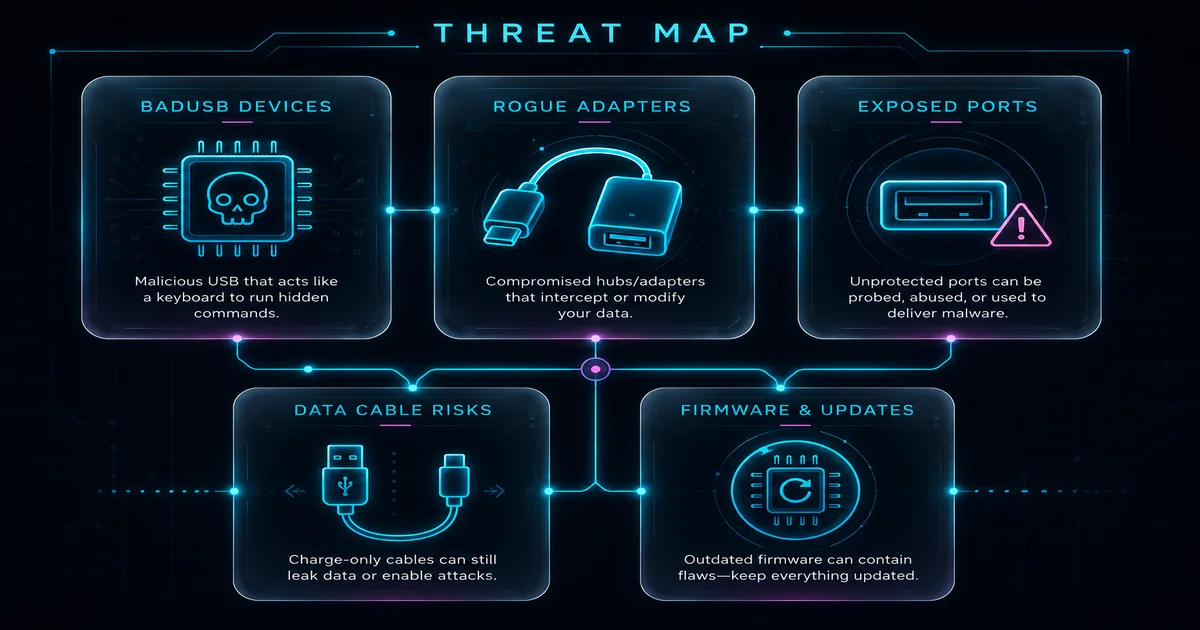
USB threats fall into five groups, and each needs a different defense. Here is the whole picture.
| Risk Type | What It Looks Like | Real-World Danger | Best Mitigation |
|---|---|---|---|
| BadUSB / Firmware Reprogramming | Normal-looking USB drive, cable, or dongle with modified firmware | Device can impersonate trusted device classes, such as a keyboard, network adapter, or storage | Block unknown devices by default; use allowlists; never plug in untrusted freebies |
| HID Impersonation (Keyboard Injection) | Device claims to be a keyboard or mouse | Can type commands, steal passwords, or install payloads, with no files needed | Control new HID devices; require approval in high-security environments |
| Unknown Storage Devices | USB stick, external drive, SD card reader | Data exfiltration or file-based malware delivery, the classic threat | Block storage by default; use approved encrypted media for transfers |
| Rogue Network Adapters | USB Ethernet or Wi-Fi adapter | Creates an alternate network path, enabling traffic redirection or a man-in-the-middle | Restrict new network adapters; allowlist approved models |
| Public Charging Ports (Juice Jacking) | USB port at an airport, hotel, cafe, or venue | Data-line exposure when you only need power; low documented incidence, but the fix is cheap | Use a USB data blocker or an AC adapter with your own cable |
What Is BadUSB, and What Isn’t It?
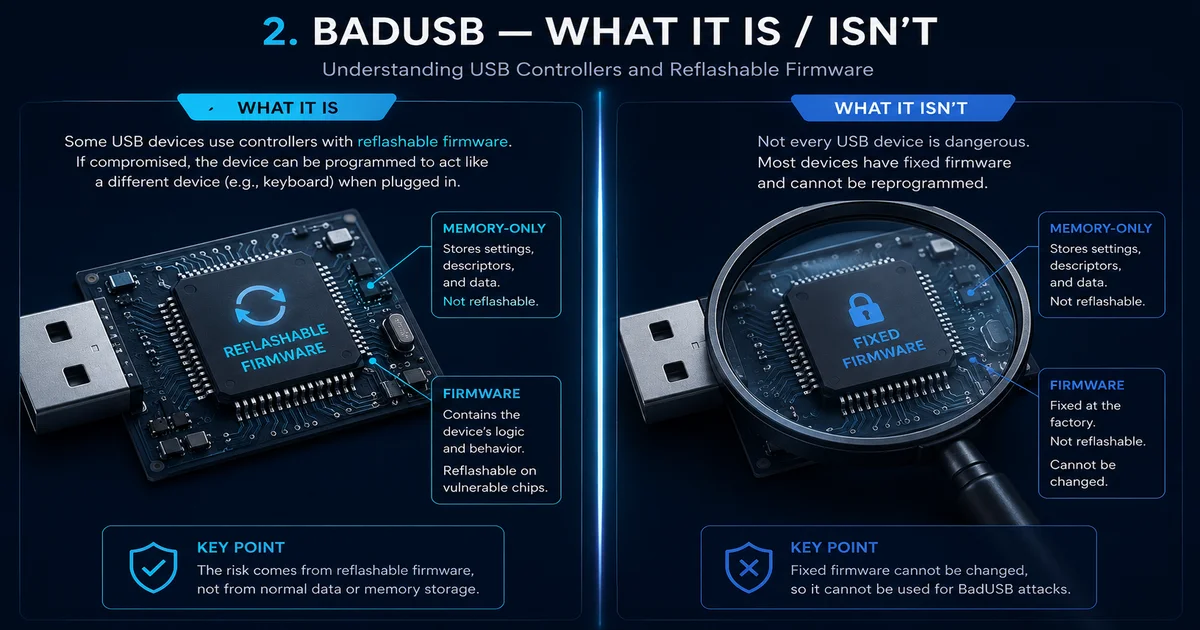
BadUSB is the umbrella term for attacks where a device’s firmware is reprogrammed so it behaves differently from what it looks like. The name stuck after Karsten Nohl and Jakob Lell showed at Black Hat in 2014 that a flash drive’s controller chip could be rewritten to impersonate a keyboard and fire malicious keystrokes.
What it is: a class of attack that abuses USB’s trust model. A device can declare itself as several device classes at once, so one physical object can be a keyboard, a storage drive, and a network adapter simultaneously. The computer trusts those declarations by default.
What it is not: a specific virus you can scan for. Regular antivirus does not help, because the attack happens at the firmware level, before the operating system touches the files on it. The device itself is the weapon, not the data it carries.
The practical takeaway is simple: do not treat an unknown USB device as harmless just because it looks like storage. The dangerous moment is the connection itself, in the first moments after you plug it in. That is why “I’ll scan it first” is not a complete defense.
What USB Security Fixes Actually Work at Home?

This section is built around a MacBook Pro and a Windows desktop joined by a CalDigit TS4 dock with a dozen peripherals, which is the kind of setup a lot of people actually run. The goal is practical: reduce real risk without making your computer annoying to use.
1. Treat unknown USB devices as untrusted. If you did not buy it and cannot verify where it came from, do not plug it in. That covers found drives, conference-swag cables, and random dongles left in meeting rooms. The usual culprit in an office is a “free” drive handed out at an event, not a deliberate attack on you.
2. Use a USB data blocker for public charging. A data blocker, sometimes called a charge-only adapter or USB condom, is a small dongle that physically disconnects the data pins while still passing power. They cost roughly £8 / $10 and fit on a keychain. The PortaPow 3rd-Gen Data Blocker (a two-pack) is a common pick. If you travel a couple of times a year, buy one.
3. Prefer AC power with your own cable. Where possible, plug into a wall outlet with a charger you trust instead of a public USB port, so you control more of the chain. A small branded charger and a cable you brought yourself, around £25 / $32, removes the public-port question entirely.
4. Keep your operating system and security tools updated. Updates will not stop every USB attack, but they improve device handling, driver validation, and logging. Windows 11 24H2 and macOS Sequoia both added USB accessory prompts that did not exist two years ago.
5. Run as a standard user for daily work. If you browse the web and plug in peripherals as a standard user rather than as an administrator, a lot of accidental damage becomes much harder to do. It is the least exciting security advice, and one of the most effective.
How Do You Scale USB Security Across an Enterprise?
Managing USB security for a team shifts the problem from personal habit to policy and tooling. The goal stays the same: block the bad stuff without breaking the things people actually need to do their jobs.
Device control policy: block by default, allow by need. The strongest starting point is to block unapproved USB storage and gate which new device classes are allowed. Then build an exception workflow for the roles that need it, such as imaging labs, IT, secure transfer workflows, and field engineers.
Allowlisting by device class. For anything beyond a five-person office, this is the most practical long-term approach. Users can only connect hardware the organization has approved, which lowers both security risk and support chaos because you standardize on known-good gear:
- Mass storage: block by default. Allow approved encrypted devices for roles that need them.
- HID (keyboard/mouse): allow known devices. Consider alerts for new HIDs in high-security teams.
- Network adapters: restrict to approved models. Monitor for unexpected NIC creation.
- Composite devices: treat carefully, since they can combine storage, HID, and network behavior in one device.
Logging matters more than blocking. Even the best policy will not catch everything. You need to know which device was connected, by whom, when, and what policy decision applied. Without logs a USB incident is invisible. With them it is investigable.
For a deeper framework on enterprise dock and hub security, our Enterprise IT Guide to Docks and Hubs covers architecture, deployment, and security standards in depth.
Quick Reference: USB Accessories Security Risks by Scenario
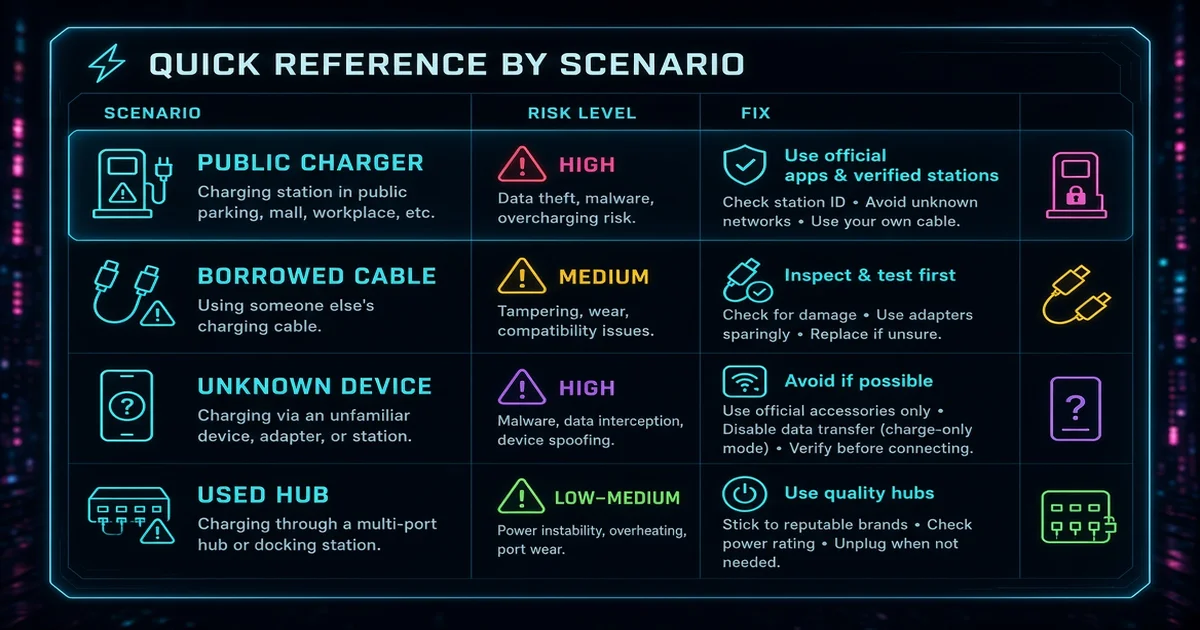
| Scenario | Risk Level | Best Mitigation | What to Avoid |
|---|---|---|---|
| Public charging (airports, hotels) | Low-Medium | AC adapter with your own cable, or a USB data blocker | Plugging your cable directly into an unknown USB port |
| Found USB drive | High | Do not connect; follow your org’s quarantine workflow | Checking contents on a production machine “just to see” |
| Conference swag cable or dongle | Medium-High | Use only approved, labelled cables you brought yourself | Trusting unbranded accessories handed out at booths |
| Meeting room shared dongles | Medium | Approved dongle kit, labelled and inventoried per room | Random adapters drifting between rooms, no ownership |
| Enterprise endpoints (unmanaged) | High | Device control policy + allowlisting + connection logging | Open USB ports with no policy enforcement |
How do I know if a cable is charge-only or data-capable? Usually you cannot tell by looking. Some charge-only cables have thicker insulation or markings, but there is no universal standard. The safe route is to treat every cable as data-capable unless you have verified it with a tester, or to use a USB data blocker that disconnects the data pins regardless of the cable.
What Should You Check Before Buying USB Accessories?
Before you buy cables, hubs, docks, or adapters, run this list. It got a lot longer for me after a no-brand USB-C hub ran hot enough to be worrying and had no firmware update path at all.
| Check | Why It Matters |
|---|---|
| Buy from a brand with verifiable firmware support | No-name accessories rarely ship firmware updates. If a flaw is found, you are stuck. |
| Confirm OS compatibility before purchasing | Windows and macOS handle device control differently. A dock that works on Windows may need driver approval on macOS. |
| Define what you must allow vs. what to block | Keyboards? Storage? Smartcards? Docks? Your policy should match real work needs, not an arbitrary block-everything rule. |
| Plan the exception workflow before you need it | If you block USB storage by default, how will approved file transfers happen? Define the path before somebody needs it urgently. |
| Audit and inventory what is actually connected | Approved gear plus an inventory lowers both security risk and helpdesk churn. You cannot secure what you do not know about. |
What Do You Do When Someone Plugs in an Unknown Device?
This is a common panicked moment. Someone plugs in a USB drive found in a car park, “just to see if I could return it to the owner.” Your response matters more than the plug-in event itself.
Immediate actions (first five minutes):
- Unplug the device immediately. Stops further interaction, including any keystroke injection or network change.
- Do not type passwords until you have rebooted. If the device was posing as a keyboard, it could be capturing or injecting input.
- Run your endpoint protection scan. It will not catch firmware-level tricks, but it catches the common fallback malware that often rides along with USB attacks.
- If it is a work device, report it to IT. They need to check logs, policy, and whether other users were targeted with similar devices.
For IT and security teams (first hour):
- Collect context: device description, time of connection, endpoint name, user account, and what the device was supposed to be.
- Review device control logs: what device class was detected, and was it allowed or blocked by policy? That tells you whether your controls worked.
- Isolate if policy and risk level demand it: a suspected firmware-level compromise warrants isolation. A user plugging in their own phone charger does not.
- Close the loop: update training material with the real example. People learn more from “this happened here last week” than from a security awareness PDF.
Found USB drives and mystery dongles. If your organization runs into unknown USB devices often, publish a short workflow, not a 12-page policy nobody reads. The short version: do not connect unknown devices to production machines, and if analysis is required, do it in an isolated environment run by security staff with chain-of-custody documentation.
What USB Controls Should You Enable on Windows and macOS?
Both Windows and macOS ship built-in USB controls that need no third-party tool. Here is what to switch on and why, based on Microsoft’s Device Control documentation and Apple’s managed accessory access guidance.
Windows, the pragmatic route: do not jump straight to “block all USB.” That invites workarounds. Start with these controls instead:
- Block unapproved USB mass storage by default. Allow encrypted, approved devices for specific roles via device control policies.
- Restrict new USB network adapters. Unless explicitly approved, block them. A surprise NIC is a red flag.
- Alert on new or unusual HID devices in sensitive teams. Finance, admins, engineering, anyone with elevated access should trigger an alert when a new keyboard-like device appears.
- Log every connection: who, what device, when, and what policy decision applied. Review spikes after conferences, travel, and contractor onboarding.
- Maintain an approved accessories list for cables, docks, and adapters, and stock spares. The biggest source of USB risk in offices is “borrow a random cable.”
macOS, the pragmatic route: macOS has built-in protections around new accessories on supported systems, including prompts that require approval before a new USB or Thunderbolt device can communicate. In a managed fleet you can enforce these through MDM:
- Use managed settings to control accessory access. Do not leave it fully open by default on high-risk machines, especially executive laptops and anything touching sensitive data.
- Standardize approved docks and adapters. Publish a short “safe accessory kit” list for travelers, with a trusted cable, a data blocker, and an approved charger.
- Pilot OS updates with your dock baseline. Driver-based display solutions like DisplayLink can behave differently after a macOS update. Test before deploying fleet-wide.
- Asset-tag approved dongles and replace mystery adapters. Do not reuse unknown adapters that drift into meeting rooms. Swap them with known-good, labelled ones.
For the full technical breakdown of how these device standards interact, including Thunderbolt, USB4, and USB-C differences, read our guide to Thunderbolt vs USB4 vs USB-C: What the Labels Really Mean.
The Verdict: Your USB Security Plan

For home users: spend roughly £8 / $10 on a USB data blocker and use it whenever you charge from a port you do not control. Buy cables and dongles from brands you recognize. The three-habit rule, do not plug in unknown devices, use a data blocker for public charging, keep your OS updated, removes most of the practical risk.
For small offices and teams: standardize your accessories. Pick one approved dock model, one approved cable brand, and stock spares. The biggest USB win in a 10-50 person office is removing the reason to borrow random adapters, because if every desk and meeting room has the right cable, nobody goes hunting for an unknown one.
For enterprise IT: block unapproved storage by default, allowlist what users actually need, and log everything. NIST SP 1334, “Reducing the Cybersecurity Risks of Portable Storage Media in OT Environments,” published in September 2025, is the closest thing to a definitive framework, though it is scoped to operational technology; pair it with Microsoft Defender Device Control or your endpoint tool of choice. USB security is not about exotic tools. It is about consistent policy, visible logging, and an exception workflow that does not grind work to a halt.
USB security is solvable, not by banning USB but by shrinking the unknowns. A 40-person office can cut its USB incidents down to near zero with three changes: a labelled adapter kit in every meeting room, a data blocker in every travel bag, and a simple rule that says “if you did not buy it, do not plug it in.” The tools are cheap, the habits are simple, and the payoff is a workspace where USB stops being a risk story and becomes boring IT hygiene, which is exactly where it belongs.
If you are building out a full home office security setup, our DisplayLink vs USB-C Alt Mode vs Thunderbolt comparison covers which dock technologies are actually safe to deploy. Running into dock detection issues? The dock not detecting monitors guide has step-by-step fixes for Windows and Mac.
← Back to Guides Hub