Keeping your personal details safe online sounds like a job for people with something to hide. I used to think that. In practice it is a series of small trades: a birth date for a discount, an email address for a coupon, a fingerprint for a faster checkout. Each one feels trivial, and each one is permanent. I went through the 2026 fraud and phishing data before writing this beginner's guide, and the totals are now large enough that "I have nothing to hide" stops being a workable position.
In a Hurry? Start Here
- Turn on MFA and install a password manager. Those two free changes stop most account takeover. Start with the defences
- Give forms the minimum. A shop usually needs a name, an address and a payment method. What to skip
- The padlock proves encryption, not honesty. Check the domain, especially on a phone. Browse more safely
- Already exposed? Change reused passwords first, then freeze your credit. The triage order
Table of Contents
Disclosure: TechDeskZone is reader-supported. When you buy through links on our site, we may earn an affiliate commission at no additional cost to you. See our affiliate disclosure for details.
Why Your Data Is Worth More Than You Pay For It
In June 2026, the FTC reported that people lost about $16 billion to fraud in 2025. That was the highest total on record, roughly 25 percent more than 2024, and $3.5 billion of it went to imposter scams alone (FTC, Consumer Sentinel data release, June 2026). None of that requires a genius hacker. It requires a name, a phone number and enough context to sound convincing.
That is the part most privacy advice skips. The realistic threat looks more like a database that already holds your email, your address, your birth date and the last four digits of a card. Add a criminal who can combine those into a phone call and you have the shape of most fraud.
The trend line is not improving. The FBI’s 2025 Internet Crime Report counted nearly $21 billion in cyber-enabled losses, and for the first time it gave artificial intelligence its own section: 22,364 complaints costing almost $893 million (FBI IC3, 2025 Internet Crime Report). IBM’s 2026 Cost of a Data Breach Report found that one in four malicious breaches were AI-enabled, a 56 percent rise in a year (IBM, 2026 Cost of a Data Breach Report). Attacks got cheaper to run. Your options did not change much.
Privacy here means control: knowing what you hand over, to whom, and what happens when that company leaks it. Most of the outcome comes down to three areas. How you browse, what you type into forms, and the small set of defenses you configure once and then stop thinking about.
Browsing: What the Padlock Does and Does Not Prove
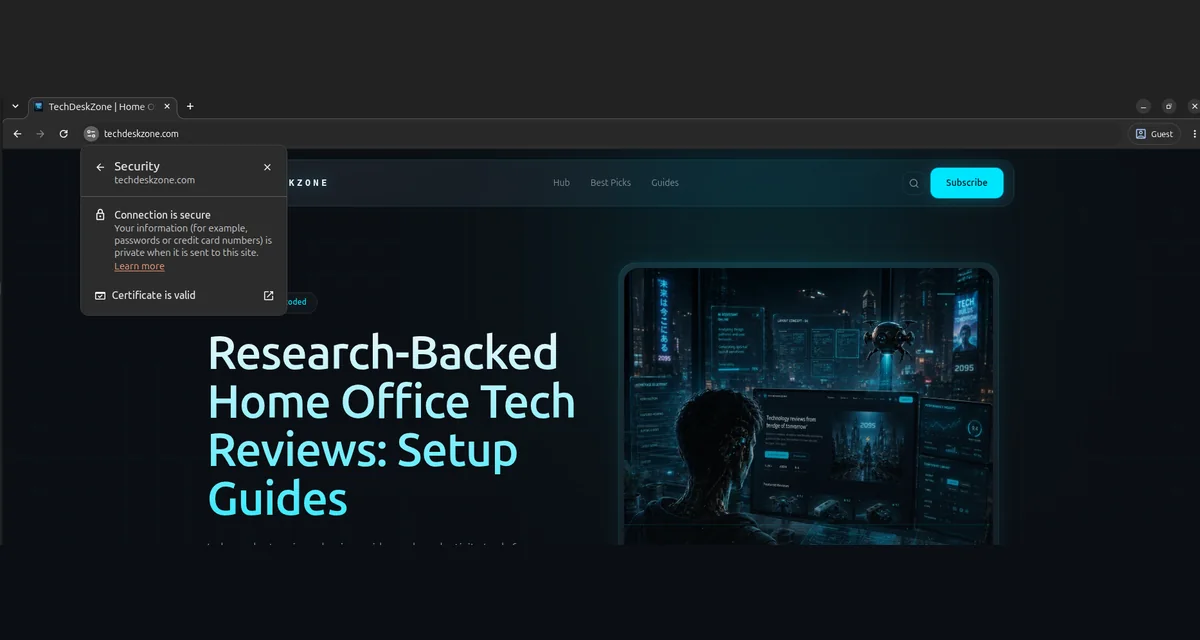
The padlock is the small icon at the left of the address bar. It tells you two things. The connection between your browser and the site is encrypted, and the site presented a certificate that matches the domain you typed. Encrypted means nobody sitting on the network between you and the server can read the page or the form you submit. That is worth having, and it is the reason an http:// page deserves a warning.
What the padlock does not tell you is who is on the other end. A certificate proves control of a domain, not that the company behind it is honest or the shop is real. Certificates are free and automatic now, so a phishing site at paypa1-secure.com gets exactly the same padlock as your bank. The padlock answers “is this connection private”, not “should I trust this site”.
Browsers have also made the icon less obvious. Chrome replaced the padlock with a small sliders icon in version 117, back in 2023, and moved the site information into a panel that opens when you click it. Firefox and Safari still show a padlock. The meaning is the same in all three, and so is the check.
One habit covers most of it. The real domain sits immediately before the first single slash. In https://yourbank.com/login, the site is yourbank.com. In https://yourbank.com.secure-login.example, the site is secure-login.example and the bank name is decoration. Lookalikes swap letters for numbers and add hyphens, so slow down on any link that arrived by message.
Never type credentials on a plain http:// page
Traffic on an http:// page travels unencrypted, which means anything you submit can be read by the network between you and the server. Modern browsers warn you before this, and the warning is worth heeding rather than clicking through. The one place it still happens often is a captive portal, which is exactly where people are most relaxed.
What a captive portal is, and why it is the weak spot
A captive portal is the login page a hotel, airport or cafe shows you before it will let you online. The network accepts your device, then blocks every request until you authenticate. Your first attempt to load any page gets redirected to the portal’s own page, which is how it appears without you asking for it.
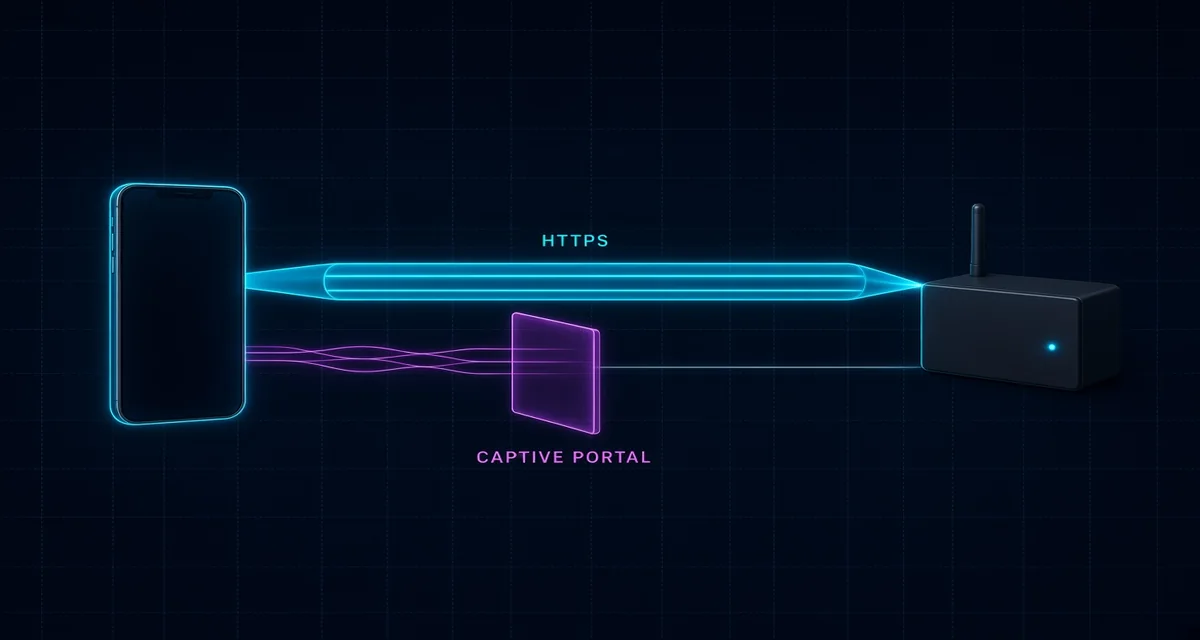
That design is the problem. To redirect you, the network has to intercept your traffic before you have any secure session, so the portal page itself cannot be encrypted in the way a normal website is. You also cannot verify who runs it. A network called “Airport_Free_WiFi” in your list is just a name someone typed, and a rogue hotspot with a familiar name will happily serve its own portal asking for an email, a room number or card details.
A few habits make this much safer. Confirm the network name with staff rather than picking the one that looks closest. Never enter a password you use elsewhere into a portal, and stop entirely if a free network asks for card details. Turn off auto-join for open networks so your phone does not connect on its own, and forget the network when you leave. After you are through the portal, HTTPS protects what you do, which is why the advice has shifted from “never use public Wi-Fi” to “be careful about what you join”.
Cookies and trackers, without the panic
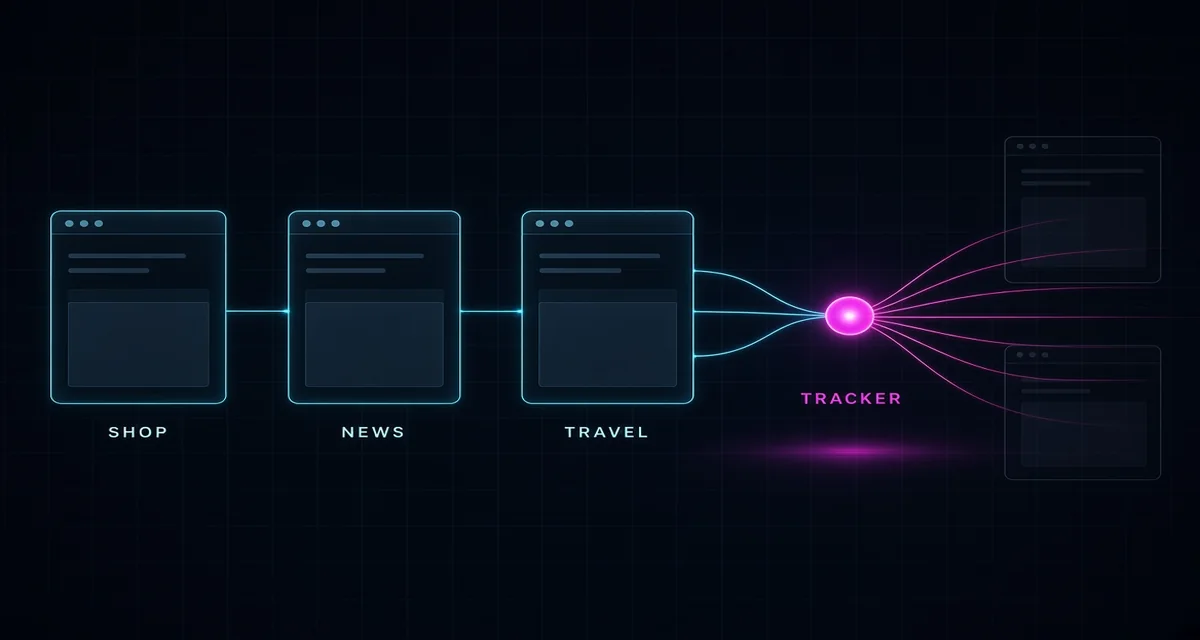
First-party cookies are how a site remembers that you are logged in. They are useful and usually harmless. Third-party cookies and tracking pixels are the other thing: code from advertising and analytics companies that watches you move between unrelated sites and assembles a profile you never see. That profile is what gets sold.
You do not need to understand the mechanics to reduce it. Firefox, Safari and Edge all ship with meaningful third-party cookie blocking or partitioning, and a content blocker such as uBlock Origin removes most tracking scripts before they run. Brave is my pick for everyday reading, mostly because it blocks most of this before I configure anything. It is built on Chromium, the same engine as Chrome, with the advertising and tracking parts removed by default, and its Shields feature also blocks cross-site cookies and browser fingerprinting without any extensions. Brave says more than 120 million people use it, and it ships an independent search index if you would rather not send your queries to Google as well. I keep Chrome installed for the occasional site that breaks, but Brave is the browser that opens first. Clear site data every few months as well, because old sessions keep old identifiers alive.
“Do Not Track” is not worth relying on. It is a request, most sites ignore it, and the standard was effectively abandoned years ago. Blocking is what changes behaviour; asking does not.
Phishing no longer reads like phishing
In the first quarter of 2026, APWG recorded 971,181 phishing attacks, up 13.8 percent from the previous quarter (APWG, Phishing Activity Trends Report, Q1 2026). The old tells, bad grammar and generic greetings, have largely gone. Generative tools removed them, and Verizon’s 2026 Data Breach Investigations Report counts 15 distinct attack techniques now being helped by AI, with click rates on mobile 40 percent higher than on desktop (Verizon, 2026 DBIR).
What still works is a pause and a second channel. Expand the link before you click, or long-press it on a phone. Read the domain rather than the display name. If a message creates urgency or fear, treat that feeling as the signal it is, because urgency is the part of the attack that cannot be automated away. Log in by typing the address yourself, never through the link.
The safe-word rule for voice scams. A cloned voice needs about three seconds of audio, which is now easy to harvest from a voicemail or a social video. Agree a word with your family that only you use for money requests, and confirm any urgent call by hanging up and calling back on a number you already have. The FBI’s AI-related complaints cost Americans almost $893 million in 2025. A shared word costs nothing.
Public Wi-Fi: the danger moved, the advice did not
Public Wi-Fi is safer than its reputation and riskier than its marketing. Almost every site you use is served over HTTPS, so the person at the next table cannot read your banking session the way they could in 2012. What remains is the network itself: a rogue hotspot with a familiar name, a fake captive portal asking you to “sign in with Microsoft”, or a router that has been tampered with.
I have a reason to take this seriously. While waiting for a flight at a London airport, I sat in the pub and ordered food and drinks through the venue’s app to avoid the queue. I paid with my debit card while connected to the airport’s free Wi-Fi. A few days later the bank messaged me: someone had tried to buy high-end branded clothing with that card. The bank blocked it and asked me to call them.
I cannot prove the airport network was the source, and I will not pretend otherwise. What I can say is that the card had been used normally up to that point, that week held no other unusual purchase, and the timing fit. Most of these stories end with a blocked transaction and no clear answer about the cause. It changed two habits for me. I no longer save card details in any app or website, and I do not connect to free Wi-Fi hotspots anywhere without a VPN.
A VPN solves the network problem by moving trust to the VPN provider. It does not make you anonymous and it does not protect you from a phishing page. Security.org’s 2026 VPN survey puts US adult usage at 42 percent, up from 32 percent a year earlier (Security.org, VPN Use in 2026). If you use one, pay for a reputable service, and skip the free VPN extensions, which have a long history of selling exactly the data they promise to protect. On a phone, your own hotspot is usually the better answer. If the concern is the whole household rather than one laptop, the home firewall guide covers the network side properly. If you work from home on a connection shared with family or smart devices, the home office setup guide covers how to keep that traffic separate.
Web Forms: Where You Volunteer the Most
Browsing leaks data passively. Forms are where you hand it over with your own hands, and they are rarely designed with your interest in mind. The default assumption of most marketing teams is that every field is worth collecting, because a field costs nothing to add and might be useful later. That makes the decision yours, not theirs.
The principle of least disclosure
Before you fill a field, ask what the site needs to complete the transaction. A clothing retailer needs a delivery address and a payment method. It does not need your date of birth, your phone number or your job title, and those fields are optional more often than the form implies. If a required field has no clear purpose, that is information about the company.
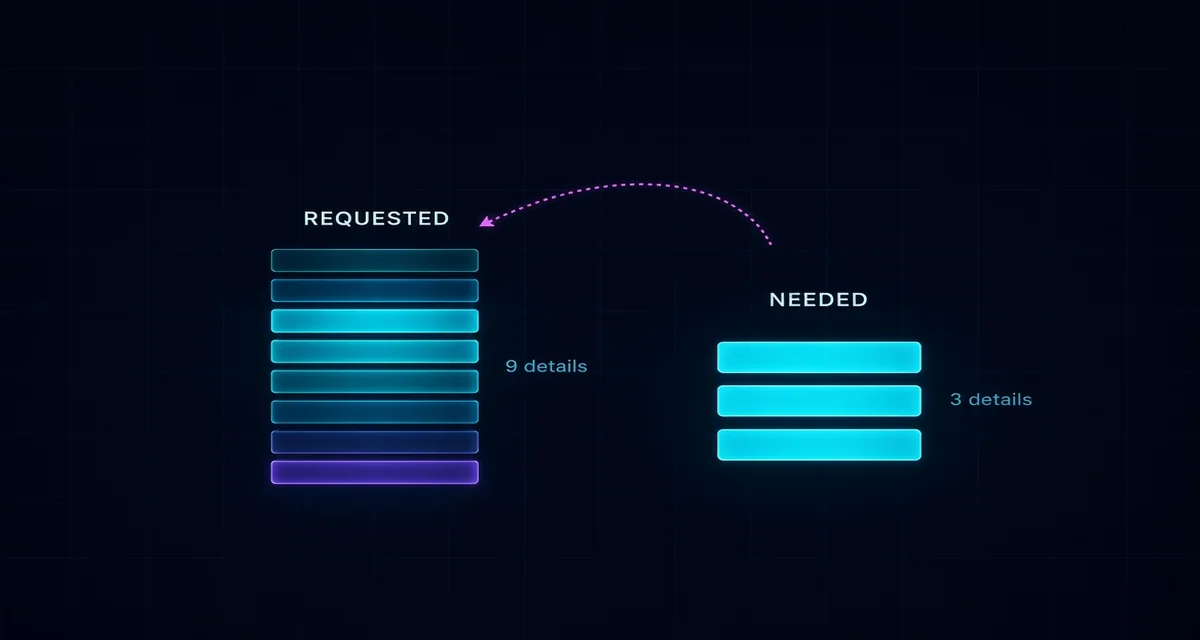
Data minimisation, in one line. Give the smallest amount of accurate information that completes the task. Not fake data, which can void a warranty or break a delivery, and not everything the form asks for either. The middle path is almost always available.
Use at least two email addresses
One address for banking, work and family. A second for shopping, newsletters and one-off sign-ups. That single split contains most spam and makes a breach easier to trace, because you know which site sold or lost the address. My own split is that simple, and it has kept my main inbox almost free of marketing mail for years. A third address for things you expect to be noisy is a reasonable luxury.
Email aliasing does the same job with less admin. Apple’s Hide My Email, Firefox Relay, SimpleLogin and DuckDuckGo’s email protection all generate a unique address that forwards to your real inbox, and you can switch off any alias that starts attracting spam. That is stronger than a separate account, because you can kill the alias without losing access to anything.
What “Sign in with Google” Costs You
OAuth sign-in does not hand over your password, and for a low-stakes account it is often safer than inventing and reusing another password. What it does hand over is linkage. The identity provider learns which services you use and when, the site gets a verified email and often a name and profile photo, and your access now depends on one account staying healthy.
My rule is to use social login for things I would not mind losing, and a dedicated email and password for banking, government, medical and anything holding payment details. Sign in with Apple’s hide-email option is a decent middle ground. Where a site offers only social login and no email sign-up, that is usually a product decision about data, not a technical limitation.
Autofill: the risk is not where you think
Autofill from a password manager is a defence, not a liability. It refuses to fill a lookalike domain, which is precisely how it defeats most phishing. Typing credentials by hand into a convincing copy of a login page is the riskier behaviour, because your eyes are the only check in the loop.
Saved card details are different. A card stored in a browser or a random shop’s account is a permanent credential sitting behind one password, and it is exposed if that device or account is compromised. Use virtual card numbers where your bank offers them, avoid saving cards on small sites, and remove stored cards from browsers on shared machines. The USB accessories security guide covers the hardware side of the same problem, since a compromised device makes every saved credential a liability.
The Set-and-Forget Defences
Two changes cover most account takeover, and both are free: a password manager and multi-factor authentication. Everything else in this section is an improvement on top of those two, not a substitute for them.
Passwords: length beats symbols
NordPass’s 2025 survey found 62 percent of Americans admit they often or always reuse a password (NordPass, password reuse survey, 2025). That is the actual problem. Complexity rules produce Password1! and then the same Password1! on forty sites, which is worse than one long phrase you can remember.
A password manager solves the generation problem. It creates a unique random string per site, stores it, and fills it only on the right domain. Security.org’s annual survey puts adoption at 36 percent of US adults (Security.org, Password Manager Industry Report), which means most people are still doing this by memory. Bitwarden’s free tier is enough for most households, and 1Password and Dashlane are the polished paid options. The master password should be a long passphrase you have never used anywhere else.
Forced rotation is out. Current NIST guidance recommends length, a blocklist of known-compromised passwords, and changing a password when there is evidence of compromise, not on a 90-day calendar. A long password that has not leaked beats a short one you change every quarter.
Multi-factor authentication is the highest-value setting you own
Microsoft reports that more than 99.9 percent of compromised accounts did not have MFA enabled (Microsoft, MFA statistics). That single number explains why security teams push it so hard. A stolen password is only useful to an attacker if it is the only factor.
Not all MFA is equal. SMS codes can be intercepted through SIM swapping, and codes can be phished in real time by a proxy page. An authenticator app is better. A passkey or hardware key is better still, because it is bound to the real domain and cannot be replayed. If you only have the patience for one account today, I would spend it on the email address you use to reset everything else. FIDO Alliance’s 2026 survey found 75 percent of people have enabled a passkey on at least one account and 49 percent use them regularly when offered (FIDO Alliance, World Passkey Day 2026). Start with email, then banking, then anything that can reset the others.
Audit apps and extensions twice a year
Cybernews found that 86 of the top 100 Chrome extensions request high-risk permissions (Cybernews, Chrome extension permissions study, 2025). Georgia Tech researchers found more than 200 extensions silently extracting page content and uploading it to servers (Georgia Tech, browser extension study). An extension that can read every page can read your banking page.
Twice a year, open your browser’s extension list and remove anything you have not used in a month. Then open your phone’s privacy settings and check which apps can see location, contacts, microphone, photos and clipboard. A flashlight app with location access is not a hypothetical. Revoking a permission rarely breaks the app, and if it does, you have learned something about the app. The mobile device setup guide walks through the phone-side settings in order.
The phone in your pocket asks for more than any website does
Websites ask once and forget. Apps ask at install, then keep asking, and location is the permission that never stops leaking. Android gives you four answers to a location prompt: all the time, only while using the app, ask every time, and don’t allow (Google, Android Help: change app permissions). An app with “all the time” access can piece together where you sleep, where you work and when you leave both. A food delivery app has an honest claim on your location while it is open. It has none at 2am.
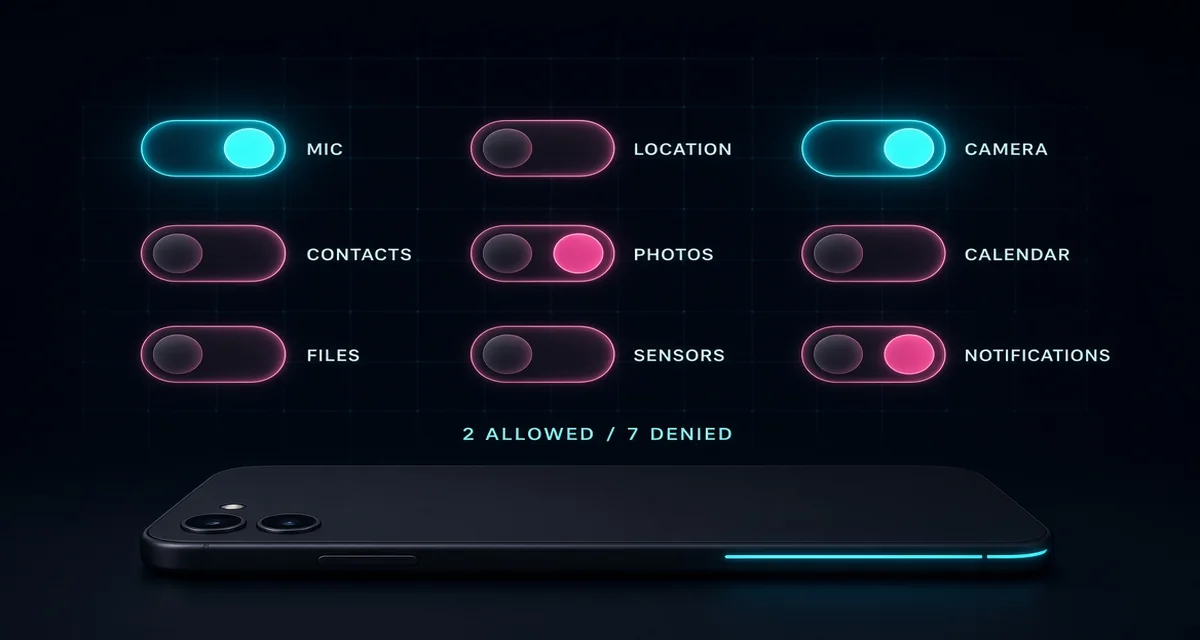
The audit takes two minutes and there is a screen built for it. On Android, open Settings, then Security and privacy, then Privacy, then Permission manager. You get one list per permission type rather than one list per app, which makes the outliers obvious: the game with microphone access, the shopping app reading contacts, the torch that wants your photos. Set location to while using or ask every time, and take contacts and files away from anything that only needed a profile picture. The default for a new app should be no, with an exception made when the app proves it needs one.
If you want control at the operating system level rather than inside a settings screen, GrapheneOS is my pick, and the one I would install on a phone I was rebuilding for someone else. It is a hardened build of Android that starts from the open-source base and tightens the security model instead of softening it. The permission features are the ones that matter here: a Network toggle that cuts an app off from both direct and indirect internet access, so it cannot reach the network through another app; a Sensors toggle for the accelerometer, gyroscope and compass; Storage Scopes and Contact Scopes, which let an app see only the files or contacts you hand it rather than the whole library; and sandboxed Google Play, where Play services run as an ordinary app with no special privileges. It also adds an auto-reboot after 18 hours locked, so a phone left in a drawer returns to encryption instead of sitting open, and a duress PIN that wipes the device.
The catches are real, so here they are. GrapheneOS supports Pixel phones only, currently the Pixel 6 through Pixel 10 generations plus the Pixel Fold and Pixel Tablet, because the work depends on that hardware’s verified boot and security chip. Installing it wipes the phone, and you unlock and then re-lock the bootloader with your own key. Update support follows Google: seven years from launch on the Pixel 8 and later. If you use another brand, or are not willing to erase the phone, Permission manager is the version of this that costs nothing.
What I would install, in order
If you are starting from nothing, this is the order I would go in.
- Brave as the everyday browser, because it blocks most trackers before you configure anything.
- A password manager with a free tier, to end reuse without memorising anything.
- An authenticator app, starting with the email account that resets everything else.
- A paid VPN for travel, for hotel, airport and cafe networks.
If Your Data Is Already Out There
Assume some of it is. FIDO’s 2026 survey found 33 percent of people experienced an account compromise or received a breach notification in the past year, and that is only the cases they noticed. Prevention is worth doing, but triage matters more once an email appears in a breach.
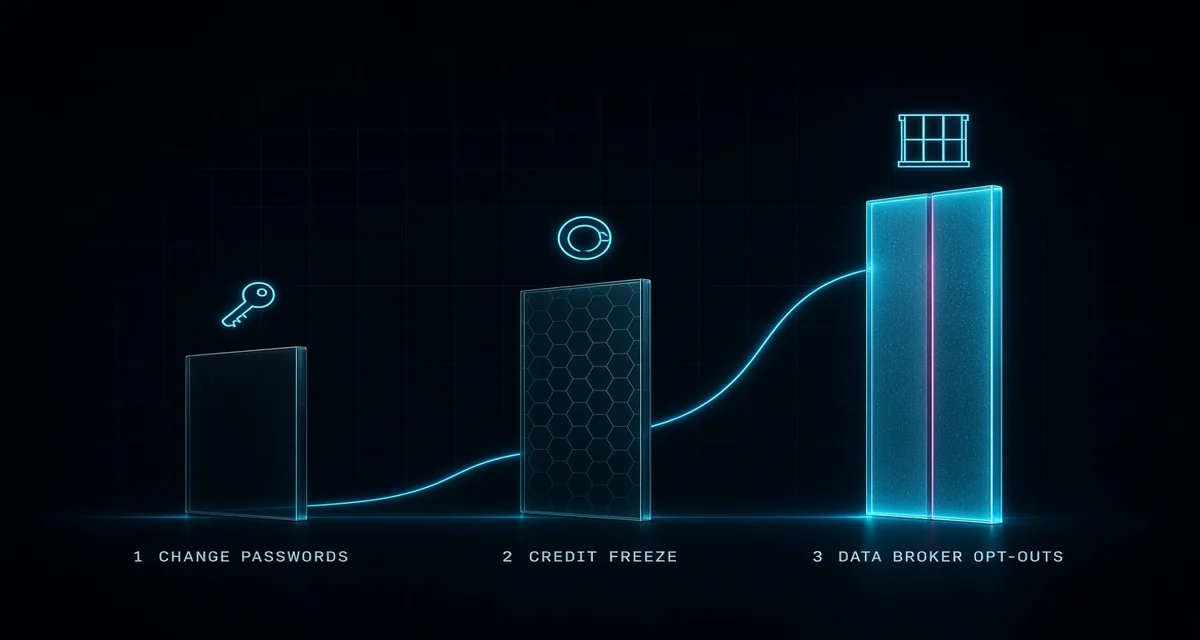
Work in order of blast radius. Change the password on the breached account and on every account that shared it, because credential stuffing tries the same pair everywhere. Turn on MFA wherever it is offered. Then check whether the breach included payment details, and if it did, ask the bank for a replacement card rather than watching transactions. In the US, a credit freeze with all three bureaus is free and is stronger than a fraud alert. In the UK, CIFAS protective registration does a similar job.
Then reduce the permanent record. Data brokers buy and resell the profile that keeps getting you spam and scam calls, and most run opt-out processes that are tedious but effective for a while. Re-check every six months, because the data gets re-collected. None of this is dramatic, and that is the point: the response to a breach is a checklist, not a panic.
Your Personal Data Privacy Checklist
Here is the whole guide in one table, ordered by impact rather than effort.
| Action | Where | Cost | Impact |
|---|---|---|---|
| Turn on MFA, app or passkey first | Email, banking, social | Free | Highest |
| Install a password manager and fix reused logins | Every account | Free tier available | Highest |
| Split shopping and personal email addresses | Forms, sign-ups | Free | High |
| Enable third-party cookie blocking | Browser settings | Free | Medium |
| Remove unused extensions and app permissions | Browser, phone | Free | Medium |
| Set phone location to while using or ask every time | Android or iOS privacy settings | Free | High |
| Stop saving cards on small sites | Checkout pages | Free | Medium |
| Use a VPN on untrusted networks, or a hotspot | Travel, cafes | Free to about $5 a month | Situational |
| Freeze credit and opt out of brokers after a breach | Bureaus, broker sites | Free | High after an incident |
Questions and Answers
Is public Wi-Fi safe if I use a VPN?
A VPN closes the network-level risk by encrypting traffic before it leaves your device, which matters on a rogue hotspot or a tampered router. It does not protect you from a phishing page, a fake captive portal or a malicious download. HTTPS hides the content of the page, but not the fact that you visited it: the network can usually still read your DNS lookups and the server name in the TLS handshake, and it sees any app traffic that never uses encryption at all. That is why I keep a VPN on for airport and cafe networks instead of trusting HTTPS alone.
Is it bad to sign in with Google?
Not inherently. OAuth does not share your password, and it is often safer than a reused password on a small site. The trade is linkage and dependency: the provider sees which services you use, and losing that account locks you out of all of them. Keep it for low-stakes accounts and use a separate email and password for money, health and government services.
Do I need a VPN at home?
For privacy from your internet provider, a VPN helps, because it moves the visible destination to the VPN server. For protecting devices on your own network, it does nothing. A router with sensible settings and a separate network for smart devices covers more of the realistic home risk, and it is covered in the home firewall guide.
How often should I change my passwords?
Not on a schedule. Change a password when a service reports a breach, when you have reused it somewhere compromised, or when someone else may have seen it. Regular forced rotation pushes people toward predictable variations, which is why NIST stopped recommending it.
The Bottom Line
Most of this is boring on purpose. Two factor authentication, a password manager and a second email address will do more for you than any single “privacy” product, and they take an afternoon to set up. The browsing habits matter too, but mainly as a filter: check the domain, pause on urgency, and give forms the minimum. That is the version of this advice I would give a friend, and it is the version I follow myself.
Pick one thing today rather than all eight. If you do nothing else, fix the email account you use to reset everything else, because that is the account an attacker wants most. Add MFA there, give it a unique passphrase, and the rest of the list gets easier from a position of not being one breach away from losing everything. For the network and device layer underneath all of this, the Networks and Security guides go deeper than one article can.
Sources
- Federal Trade Commission, Consumer Sentinel data release on 2025 fraud losses, June 2026
- Federal Bureau of Investigation, 2025 Internet Crime Report
- Verizon, 2026 Data Breach Investigations Report
- IBM, 2026 Cost of a Data Breach Report
- APWG, Phishing Activity Trends Report, Q1 2026
- Microsoft, multifactor authentication statistics
- FIDO Alliance, World Passkey Day 2026 survey
- Security.org, VPN Use in 2026
- Security.org, Password Manager Industry Report
- NordPass, password reuse survey, 2025
- Cybernews, Chrome extension permissions study, 2025
- Georgia Institute of Technology, browser extension privacy study
- Google, Android Help: change app permissions
- GrapheneOS, Features overview
The Verdict
Most of personal data privacy is boring on purpose. MFA, a password manager and a second email address do more than any product labelled "privacy", and they cost nothing but an afternoon.
If you only do one thing, secure the email account that resets everything else. Everything on this list is easier once that account is not one leaked password away from being taken.
← Back to Guides Hub