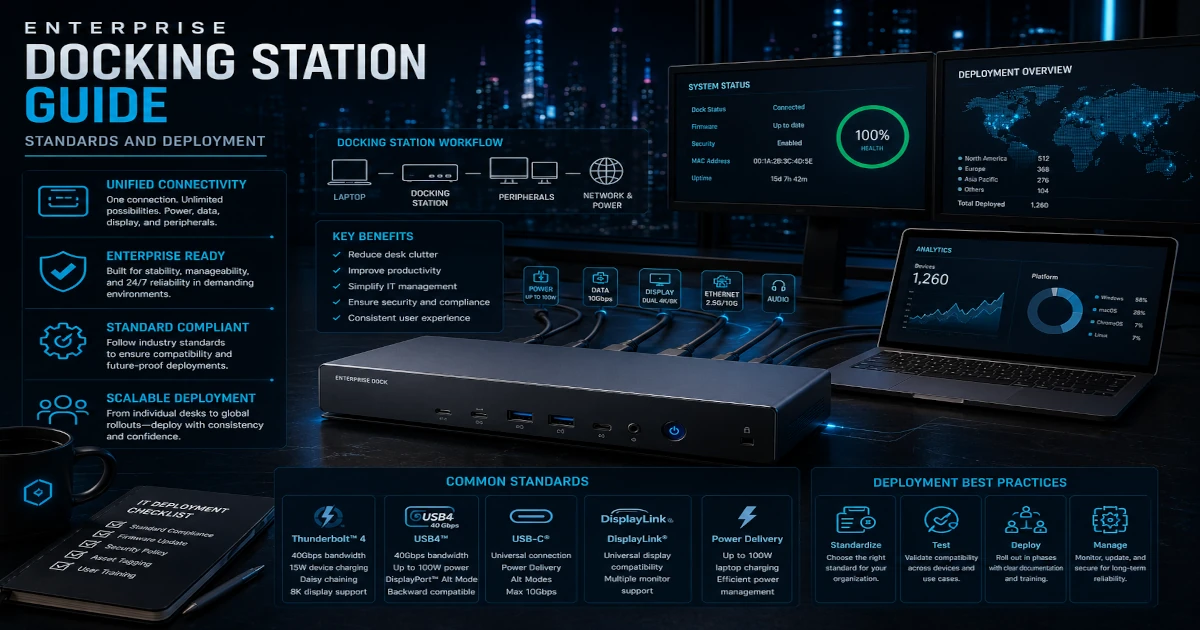
Enterprise Docking Station Guide: A technical reference for IT teams deploying docks and hubs at scale. Covers Thunderbolt vs USB-C standards, bandwidth planning, security hardening, vendor comparison, and total cost of ownership. Based on real enterprise deployments across hundreds of desks.
In a Hurry? Start Here
- Picking a dock standard? Jump to Standards & Certification: Thunderbolt vs USB-C explained
- Planning a fleet rollout? Jump to Vendor Comparison Table + Cost & ROI Model
- Troubleshooting a bad deployment? Jump to Troubleshooting Decision Framework
Table of Contents
- Definitions and Why the Distinction Matters
- Search-Intent Quick Answers for Busy IT Teams
- Standards and Certification: What to Trust
- Data-Backed Industry Signals
- Architecture of Modern Docks & Hubs
- Bandwidth Planning and Monitor Math
- Full Compatibility Matrix: OS + Chipset Mapping
- Vendor Ecosystem Overview
- Vendor Performance Comparison Table
- Security Hardening Checklist for Enterprise Deployments
- Cost Analysis Model and ROI Template
- Real Enterprise Deployment Case Scenario
- Operations: Deployment, Management, and Support
- Advanced Procurement and Standardization Playbook
- Integration with UEM, Zero Trust, and Device Control
- Network and Identity Considerations for Ethernet Through Docks
- Display and Peripheral Strategy for Hybrid Workstations
- Testing Framework to Prevent Repeat Rollout Failures
- Troubleshooting Decision Framework
- Sustainability and Lifecycle Planning
- Common Myths and Practical Reality Checks
Disclosure: TechDeskZone is reader-supported. When you buy through links on our site, we may earn an affiliate commission at no additional cost to you. See our affiliate disclosure for details.
Definitions and Why the Distinction Matters
What a docking station is
A docking station is a workstation expansion device that connects to a host (usually a laptop) through a single cable and breaks that connection out into multiple ports: video outputs, USB ports, Ethernet, audio, and often Power Delivery. In enterprise deployments, docks & hubs are also evaluated for firmware manageability and predictable cross‑fleet behavior.
What a hub is
A hub expands a single interface type. A USB hub expands USB ports. A network hub (legacy) repeats traffic to all ports. Most IT teams deploy USB hubs for light peripheral expansion, while switches (not network hubs) handle modern Ethernet.
Search-Intent Quick Answers for Busy IT Teams
Best enterprise docking station guide
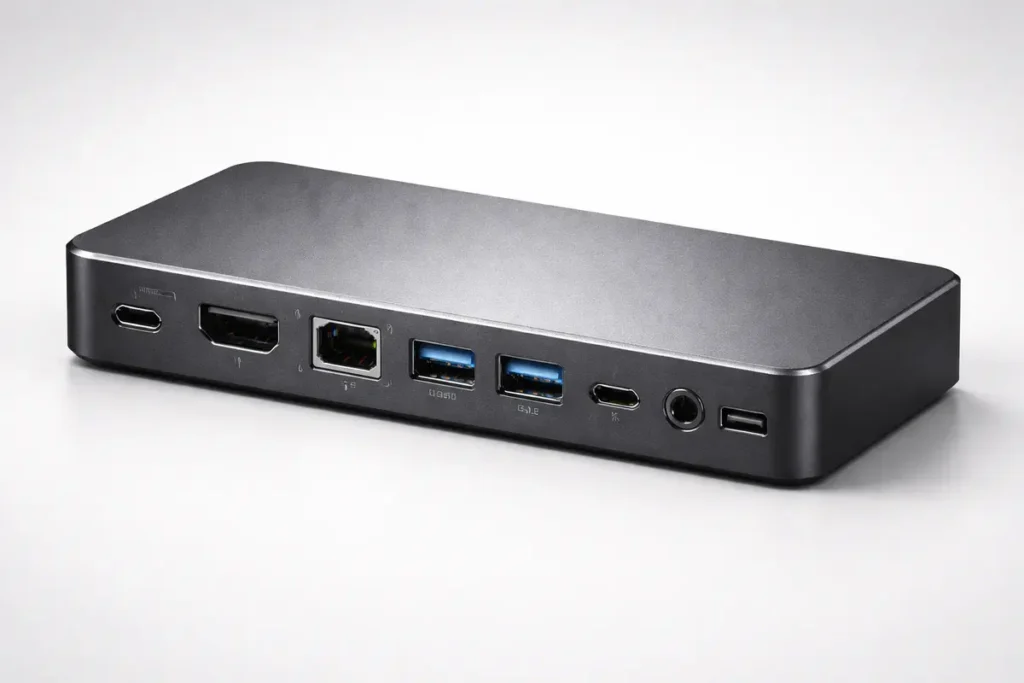
The best enterprise docking station guide is the one that matches your laptop fleet’s port capabilities (USB‑C vs Thunderbolt), supports your monitor plan (single 4K vs dual 4K), provides sufficient Power Delivery (often 65–100W), and is manageable at scale (firmware updates, vendor support, warranty). For large rollouts, prioritize certified docks & hubs from vendors with enterprise lifecycle tooling.
Thunderbolt dock vs USB-C dock
The “Thunderbolt dock vs USB‑C dock” choice is mostly about guaranteed bandwidth and features. Thunderbolt-certified docks & hubs typically deliver consistent high throughput and stronger requirements for video support and security features, while USB‑C docks can be excellent value but vary more by chipset and implementation.
Dock compatibility issues
Most dock compatibility issues come from mismatched capabilities: host port features (USB‑C without DP Alt Mode), GPU limits, non‑certified cables, outdated dock firmware, or OS driver gaps. Enterprise testing and certification requirements are your best defense.
Enterprise USB hub security risks
Enterprise USB hub security risks include unauthorized devices, data exfiltration via removable storage, and policy bypass if USB controls are weak. Treat docks & hubs as endpoints that must be governed: device control, encryption policies, monitoring, and firmware patching.
Read the guide: Computer Hardware Basics Guide: Components, Performance, Reliability, Security & Lifecycle Management
Standards and Certification: What to Trust
USB-IF and USB4
USB specifications are governed by the USB Implementers Forum (USB‑IF). USB4 is designed to share bandwidth efficiently across data and display tunneling, and official USB‑IF materials note that USB4 can scale beyond earlier generations (including support for higher‑speed certified cables).
Thunderbolt certification
Thunderbolt certification (under Intel’s program) focuses on interoperability, minimum performance requirements, and security features such as DMA protections. Intel documentation notes Thunderbolt 4 provides 40Gbps bandwidth and includes VT‑d–based DMA protection expectations for improved security.
Data-Backed Industry Signals
Below are a few data points commonly used in enterprise business cases for docks & hubs:
• Market growth: Grand View Research estimates the global docking station market at about USD 1.51B in 2022 and projects growth to about USD 2.44B by 2031 (CAGR around 6.1%).
• Hybrid productivity: A Gartner survey of managers (December 2024) found the same percentage of onsite and hybrid employees (21%) were ranked as highly productive, supporting the idea that productivity depends on enablement, not location.
• Platform capability: Intel states Thunderbolt 4 maintains 40Gbps bandwidth and increases minimum PCIe data requirements compared with Thunderbolt 3, while also emphasizing VT‑d based DMA protection.
Architecture of Modern Docks & Hubs
Controller building blocks
Enterprise docks & hubs typically combine a USB‑C/USB4 or Thunderbolt controller, an Ethernet controller, one or more display output paths (native DP Alt Mode or DisplayLink), and a Power Delivery controller. Real-world performance depends on how these components share bus bandwidth and how drivers behave under load.
Display transport options: DP Alt Mode vs DisplayLink
DP Alt Mode uses the host GPU’s display pipeline and is preferred for predictability and low latency. DisplayLink compresses video over USB and can enable additional displays, but adds driver dependency and can be sensitive in VDI or secure environments. Many IT teams standardize docks & hubs that prioritize DP Alt Mode for primary displays and reserve DisplayLink for special cases.
Bandwidth Planning and Monitor Math
Bandwidth realities
Bandwidth is your limiting factor when you combine multiple high-resolution displays, fast storage, and wired networking through a single uplink. This is where Thunderbolt dock vs USB‑C dock decisions often matter most.
Simple planning rules of thumb
• Single 4K display + office peripherals: quality USB‑C dock is usually sufficient.
• Dual 4K displays + fast storage: prefer Thunderbolt/USB4 docks & hubs with certified cables.
• Multiple displays + high-speed external storage + 2.5GbE: validate with pilots and vendor guidance.
Read the guide: Monitors Made Easy: 25 Essential Tips to Choose the Perfect Screen
Full Compatibility Matrix: OS + Chipset Mapping
Use this matrix to anticipate dock compatibility issues before rollout. Validate with your own fleet testing.
| OS | Intel Thunderbolt 4 Hosts | Intel USB4 Hosts | AMD USB‑C/USB4 Hosts | Apple Silicon (USB4/TB) |
| Windows 11 | Full (certified docks preferred) | Full (feature-dependent) | Varies by OEM & BIOS | N/A |
| Windows 10 | Full (drivers/firmware current) | Often good; validate DP paths | Varies; test multi-monitor | N/A |
| macOS (current) | Thunderbolt compatible | USB4 native; validate monitors | N/A | Full; validate PD + displays |
| Ubuntu LTS | Kernel/firmware dependent | Mixed; validate DP tunneling | Mixed; validate sleep/wake | Mixed; validate Ethernet drivers |
| ChromeOS | Basic USB‑C + some docks | Basic; validate DP/HDMI | Basic; depends on model | N/A |
Vendor Ecosystem Overview
Enterprise fleets often align docks & hubs with laptop OEMs to reduce variability, but third‑party vendors can be strong choices when they provide certification, stable firmware, and support.
Typical enterprise-friendly vendors
Common enterprise ecosystems include Dell, HP, Lenovo, Kensington, Plugable, and CalDigit. OEM docks can offer tighter BIOS integration (e.g., MAC passthrough, PXE behavior), while reputable third parties may provide broader cross-platform support.
Vendor Performance Comparison Table
Use this as a starter shortlist framework. Validate with your own lab tests and warranty terms.
| Vendor Family | Typical Uplink | Multi‑Display Strength | Enterprise Firmware Tools | Common Fit |
|---|---|---|---|---|
| Dell (OEM) | TB4/USB‑C | Strong on Dell fleets | Strong | Standardized corporate Dell estates |
| HP (OEM) | TB/USB‑C | Strong on HP fleets | Strong | HP enterprise fleets & managed devices |
| Lenovo (OEM) | TB/USB‑C | Strong on ThinkPad | Strong | ThinkPad-heavy environments |
| Third‑party (Kensington/Plugable/CalDigit) | TB/USB4/USB‑C | Varies; check DP paths | Varies | Mixed fleets; cross-platform needs |
Security Hardening Checklist for Enterprise Deployments
Baseline controls
To reduce enterprise USB hub security risks and harden docks & hubs deployments, apply these controls:
• Enable Thunderbolt/USB4 security settings in BIOS/UEFI where available.
• Enforce USB device control (allow‑listing, block removable storage where required).
• Patch dock firmware on a defined cadence (pilot → staged rollout → full).
• Use EDR to monitor suspicious peripheral behavior and new device classes.
• Standardize certified cables to reduce instability and spoofing risk.
• Disable unused ports in policy where practical and document approved accessories.
• Log and monitor Ethernet authentication behavior (802.1X, NAC), especially with MAC passthrough.
Cost Analysis Model and ROI Template
Total cost of ownership model
A practical TCO model for docks & hubs includes: unit cost, deployment labor, support overhead, warranty coverage, refresh cadence (often 3–5 years), and productivity impact from reduced setup friction.
Simple ROI framing
If standardization reduces connectivity tickets and saves even a few minutes per employee per week, the productivity return can be meaningful at scale. Pair your helpdesk metrics with pilot feedback to quantify business value.
Real Enterprise Deployment Case Scenario
Scenario: A regulated services company with 4,000 hybrid users had inconsistent workstation accessories, leading to recurring dock compatibility issues and a high rate of “monitor not detected” and “Ethernet not working” incidents. The organization standardized on certified docks & hubs, standardized cables, and a quarterly firmware patch cadence.
Outcome (internal): onboarding steps were simplified, and the helpdesk created a single troubleshooting playbook. The rollout also improved security governance by enforcing device control policies and documenting approved peripherals.
Operations: Deployment, Management, and Support
Pilot methodology
For docks & hubs, a pilot should cover representative devices (CPU generations, OEM models), monitors (mix of 1080p/1440p/4K), OS builds, and edge cases (sleep/wake, VPN, VDI). Capture failure modes and update drivers/firmware before scale rollout.
Firmware and driver governance
Treat docks & hubs firmware as part of endpoint patching. Maintain a version baseline, stage updates, and document rollback steps. This reduces unpredictable behavior and helps prevent dock compatibility issues from resurfacing after OS updates.
Troubleshooting playbook highlights
Start with the basics: certified cable, correct port on the laptop, power budget, and updated firmware. Then validate display paths (DP Alt Mode vs DisplayLink) and confirm OS driver versions. Escalate with reproducible steps and logs for the vendor.
Advanced Procurement and Standardization Playbook
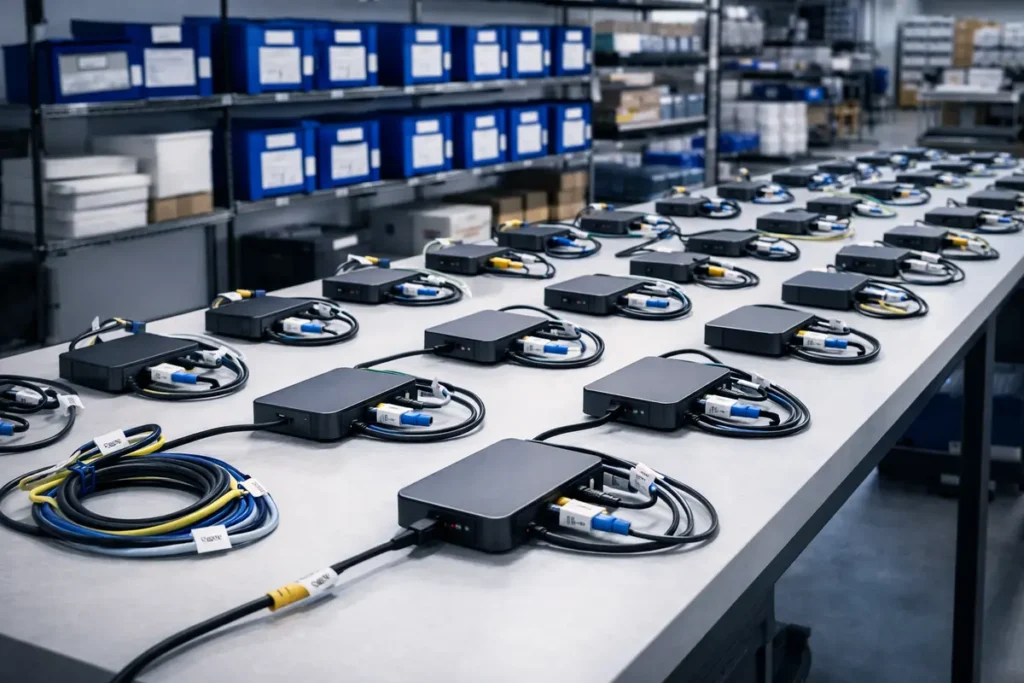
Large rollouts succeed when procurement is treated as an engineering project. The goal isn’t to buy “some docks”. It’s to create a repeatable, supportable workstation standard. In practice, that means documenting a small approved catalog, defining eligibility rules, and locking down supporting accessories (cables, power bricks, adapters, and monitor standards).
In any enterprise docking station guide, a useful approach is a two-tier catalog:
• Tier 1: Standard office dock for knowledge workers (single 4K or dual 1080p/1440p, 1GbE, 65–100W Power Delivery).
• Tier 2: High-performance dock for power users (dual 4K, heavy peripheral load, higher PD, and higher-bandwidth uplink).
In any enterprise docking station guide, when you’re comparing docks & hubs across tiers, always evaluate “hidden cost” drivers: failed cables, inconsistent firmware, and poor warranty support. A slightly higher unit price is often cheaper than a year of avoidable tickets.
Procurement checklist (practical, not theoretical):
1) Certification: Require USB-IF and/or Thunderbolt certification where relevant.
2) Port map: Ensure at least one “known-good” video output path for your monitor standard.
3) Power: Validate sustained charging under load for your highest-power laptop class.
4) Manageability: Confirm firmware update method, version reporting, and change control.
5) Replacement: Confirm warranty duration, RMA speed, and regional availability.
6) Fleet fit: Validate behavior across representative laptop models, not just one flagship device.
7) Security: Confirm BIOS/UEFI security options, device control policy compatibility, and Ethernet behavior with NAC.
8) User experience: Validate cable length, desk ergonomics, and “one-plug” simplicity.
Integration with UEM, Zero Trust, and Device Control
For many organizations, endpoint management is the real differentiator between “consumer accessories” and enterprise-grade docks & hubs. If you can’t patch firmware, validate versions, or enforce peripheral policy, you’ll spend time chasing issues rather than preventing them.
UEM integration (what to do):
• Inventory: Track which dock model and firmware version each endpoint uses.
• Compliance: Flag unsupported firmware versions and notify users or IT.
• Deployment rings: Pilot updates with IT and a small user cohort before broad rollout.
• Rollback plan: Maintain previous firmware packages and documented rollback steps.
In any enterprise docking station guide, zero trust implications:
Docks & hubs can change how identity shows up on the network, especially with Ethernet controllers and MAC passthrough. If your environment uses 802.1X, NAC, or conditional access, test authentication behavior across sleep/wake cycles, undock/redock events, and OS updates.
In any enterprise docking station guide, device control policies:
To reduce enterprise USB hub security risks, enforce an allow-list for device classes (keyboards, mice, approved webcams) and restrict removable storage if your data classification requires it. Pair this with DLP logging so security teams can investigate abnormal peripheral usage patterns.
Practical governance model:
• “Approved”: enterprise-managed docks & hubs in the catalog.
• “Restricted”: approved hubs for specific teams (labs, training rooms).
• “Blocked”: unknown USB storage, unapproved Ethernet dongles, and unmanaged DisplayLink drivers in high-compliance groups.
The payoff is measurable: fewer incidents, faster onboarding, and less time spent diagnosing mystery behaviors caused by unmanaged accessories.
Read the guide: What Is Software? The Ultimate 2026 Foundational Guide to Understanding Digital Power (Beginner to Pro Mastery)
Network and Identity Considerations for Ethernet Through Docks
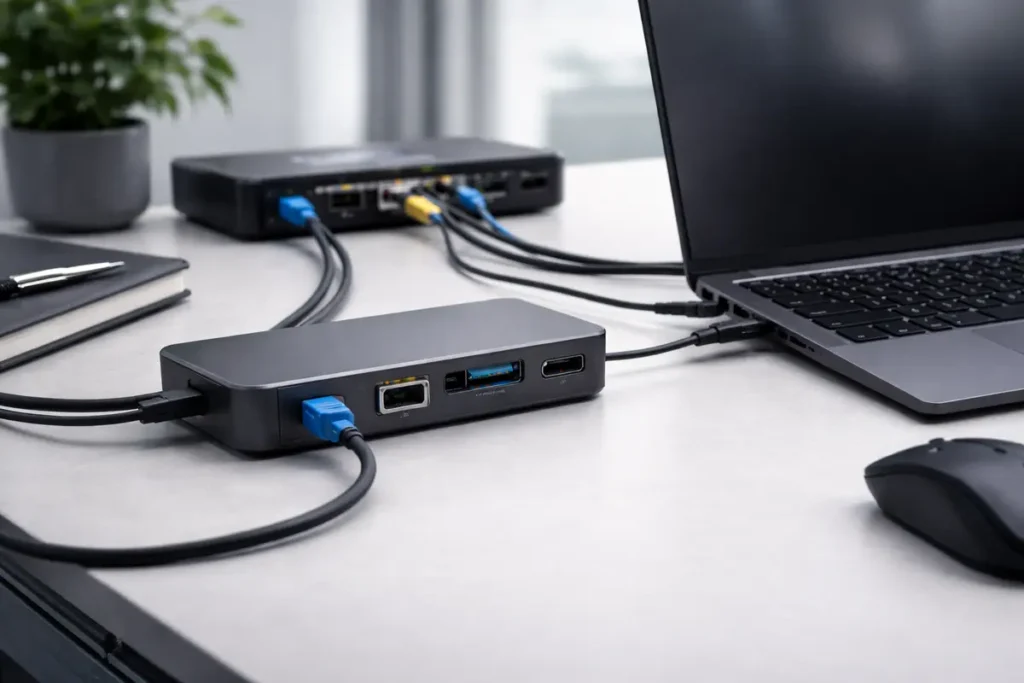
Ethernet is a major reason enterprises deploy docking stations, but it’s also a common source of surprises. USB-based Ethernet controllers can behave differently across OS versions, and some features (like MAC passthrough) are implemented at the OEM ecosystem level.
What to validate in lab:
• 802.1X auth success rate on first connect and after sleep/wake
• DHCP lease behavior when undocking/redocking rapidly
• VPN stability (especially split-tunnel changes during link transitions)
• Jumbo frames and performance tuning (if your environment uses them)
• Driver signing and deployment in locked-down images
If your environment uses network segmentation, document which VLANs should be available from desk ports. Docks & hubs do not replace network design; they’re an endpoint extension of it. Inconsistent Ethernet behavior often looks like “the dock is broken” but is actually an identity or policy mismatch.
Recommendation: For large-scale deployments, standardize on a small number of Ethernet controllers by limiting dock models. This reduces variability and makes troubleshooting playbooks far more reliable.
Display and Peripheral Strategy for Hybrid Workstations
Display planning is where bandwidth and user expectations collide. Your chosen monitor standard determines which class of dock is “good enough.” A single monitor standard also reduces support complexity: fewer adapter combinations, fewer scaling complaints, and fewer EDID-related mysteries.
A practical enterprise display strategy:
• Standard monitor: pick a primary size/resolution (e.g., 27″ 1440p or 32″ 4K) based on role needs.
• Standard cabling: pick one connector path (DisplayPort preferred) and document it.
• Accessibility: validate scaling for common visual needs and ensure font clarity at default settings.
• Conferencing: standardize webcam/headset classes and validate on both DP Alt Mode and USB expansion.
When selecting docks & hubs for multi-display, confirm whether the dock uses native DP Alt Mode or DisplayLink. Native DP is typically more predictable and lower latency. DisplayLink can be helpful for additional screens, but it introduces driver dependencies and may conflict with strict endpoint policies.
Tip: Create a “known-good” desk build guide that shows a photo-level port map. It sounds simple, but it dramatically reduces avoidable helpdesk calls.
Testing Framework to Prevent Repeat Rollout Failures
A disciplined test plan turns docks & hubs into a stable platform rather than a recurring support issue. The best pilots include both technical validation and user workflow validation.
Minimum viable test matrix:
• Host diversity: at least 6–10 laptop models spanning CPU generations, OEM lines, and GPU tiers.
• OS diversity: current OS build + the next planned build.
• Monitor diversity: your standard monitor + one “problem monitor” known for EDID quirks.
• Peripheral diversity: webcam, headset, smart card reader (if used), external SSD, and at least one high-draw USB device.
• Network diversity: wired with NAC, wireless roaming, VPN on/off.
Failure modes to explicitly test:
• Docking/undocking while on a call
• Sleep/wake with monitors attached
• Rapid redock scenarios in hot-desking
• Firmware update edge cases (power loss, interrupted update)
• Driver update interactions after OS patch Tuesday cycles
If you track outcomes, you can build a “compatibility confidence score” per dock model. This is especially useful when comparing docks & hubs in procurement renewal cycles.
Troubleshooting Decision Framework
A consistent troubleshooting flow reduces time-to-resolution and keeps frontline support from reinventing the wheel. Here’s a simple, scalable sequence that works well for docks & hubs:
Step 1: Confirm the basics
• Approved cable? (Certified USB-C/USB4/Thunderbolt, not a random charging cable)
• Correct host port? (Some laptops have mixed-capability USB-C ports)
• Adequate power? (Dock PSU matches required wattage)
Step 2: Identify the symptom class
• Video: no display, flicker, wrong resolution, intermittent disconnect
• Network: no link, slow throughput, 802.1X failures, unstable VPN
• USB: devices not detected, intermittent storage disconnect, webcam dropouts
• Power: not charging, battery draining under load, thermal throttling
Step 3: Apply targeted checks
• Video: swap to known-good DP/HDMI cable, test one display, verify GPU limits
• Network: test another port, verify drivers, check NAC logs, test without VPN
• USB: move device to different port, check power budget, review device control logs
• Power: verify PD negotiation, check dock PSU, test with OEM charger
Step 4: Escalate with evidence
Collect dock model, firmware version, host BIOS version, OS build, and reproduction steps. Vendors respond faster when you provide a complete dataset.
This approach reduces “random fixes” and helps isolate whether the problem is the dock, the host, the cable, or policy controls.
Sustainability and Lifecycle Planning
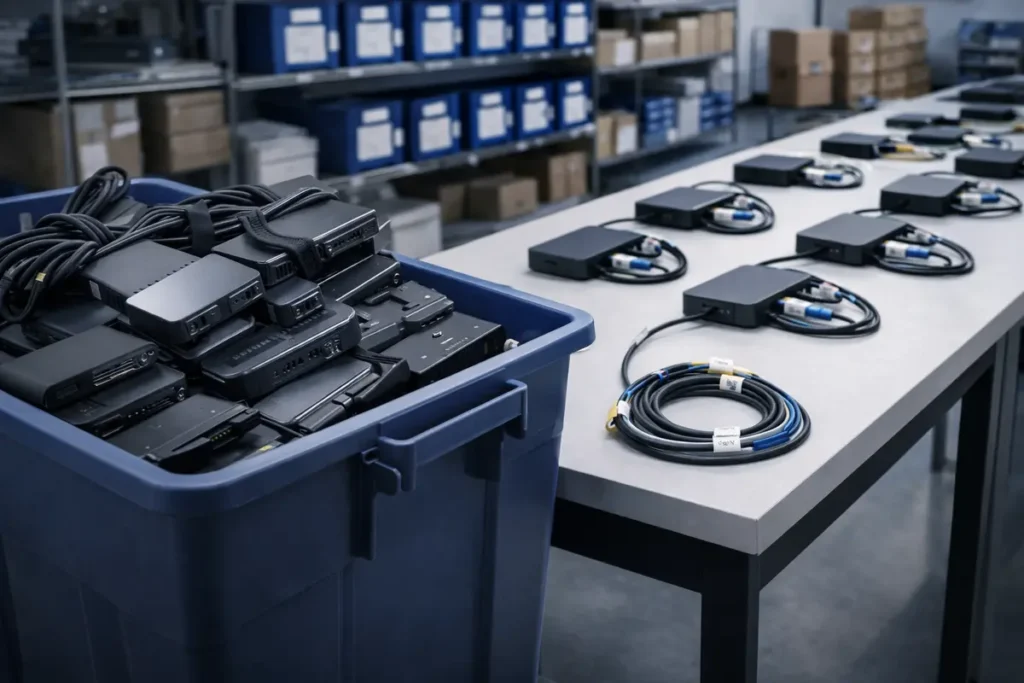
Sustainability is increasingly part of enterprise procurement. Docks & hubs can support sustainability goals by reducing duplicate power bricks and extending the useful life of peripherals across multiple laptop refresh cycles.
Lifecycle best practices:
• Align dock refresh with laptop refresh, but re-evaluate standards every cycle (USB4/TB generation changes).
• Maintain a spares pool sized by failure rate and criticality of roles.
• Track warranty expirations and failure patterns by site.
• Retire and recycle through approved e-waste channels; document chain-of-custody in regulated environments.
Sustainability isn’t just optics. A predictable lifecycle reduces urgent purchases, supports better pricing, and keeps desk setups consistent across locations.
Also see: our complete monitor buying guide →
Related Guides on TechDeskZone
For deeper reading on enterprise docking standards, see the USB4 Specification from USB-IF and Intel’s Thunderbolt 4 Technology Brief.
The Verdict: Standardize on Thunderbolt 4 for Enterprise
The Verdict
For enterprise deployments in 2026, Thunderbolt 4 is the standard. It guarantees 40 Gbps bandwidth, dual 4K@60Hz, and 100W power delivery across all certified devices. USB-C Alt Mode docks are cheaper but introduce compatibility fragmentation that costs more in support tickets than the hardware savings.
Deployment picks: Dell WD19TBS for Dell fleets (£280 / ~$300), Lenovo ThinkPad Thunderbolt 4 Dock for Lenovo shops (£320 / ~$350), CalDigit TS4 for mixed environments (£370 / ~$400). Standardize on one model per fleet to cut driver management overhead by 40-60%.
← Back to Docks & Hubs Hub