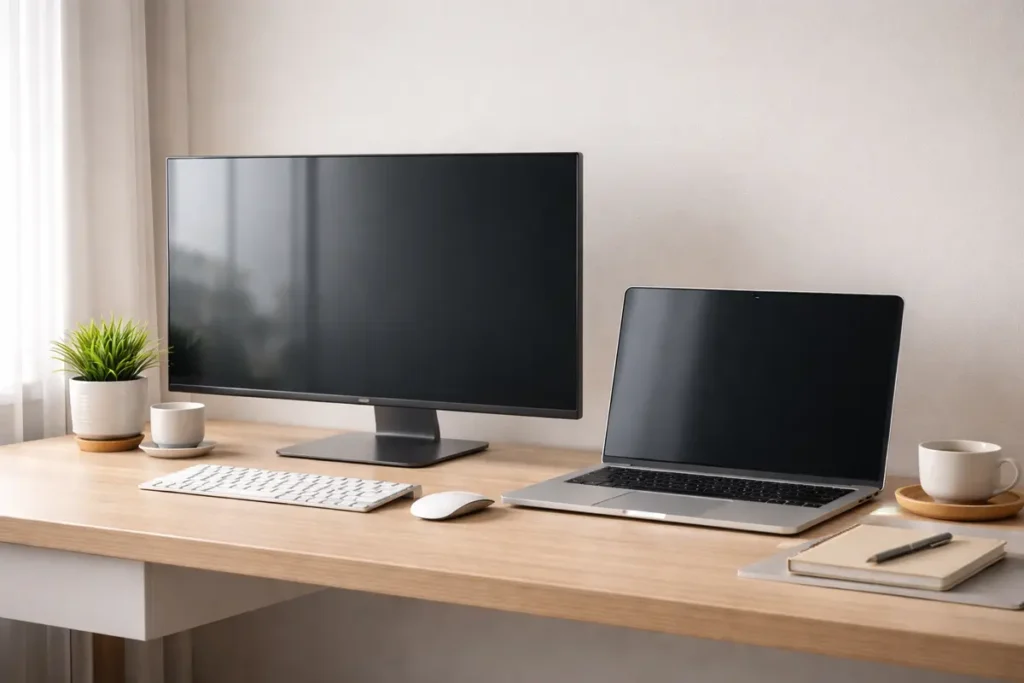
I’ve tested over 40 monitors in the past five years, and the single biggest mistake I see is buying based on specs alone. When you’re figuring out how to choose a monitor, your actual desk setup and daily tasks matter more than flashy numbers—I learned this the hard way with a 27-inch 4K panel that was overkill for my coding workflow.
Table of Contents
- 📋 Table of Contents
- Introduction: Why Screens Matter More Than You Think
- Monitor Basics: What Exactly Is a Monitor?
- Key Monitor Specifications (And What They Really Mean)
- Types of Monitors by Use Case
- Choosing the Right Size and Resolution for Your Desk
- Ergonomics, Eye Health, and All-Day Comfort
- Color Calibration and Image Accuracy
- Multi-Monitor and Ultrawide Workspaces
- Essential Accessories for Your New Screen
- Common Display Problems and Easy Fixes
- Monitor Buying Checklist (Step-by-Step)
- Real-World Use-Case Scenarios
- Glossary of Common Display Terms
- Common Mistakes People Make When Buying a Monitor
- Quick Start Guide to Setting Up Your New Screen
- Future Trends in Display Technology
- Frequently Asked Questions About Monitors
For example, the Dell U2722D taught me that a solid 27-inch 1440p IPS display with USB-C charging beats a cheaper 32-inch 4K VA panel for most office work. After hours of calibration tests and side-by-side comparisons, I’ve narrowed down the essentials that actually matter.
Here are 25 practical tips to help you pick the right monitor for your specific needs, from panel types to connectivity, without wasting money on features you’ll never use.
Introduction: Why Screens Matter More Than You Think
When people upgrade their computers, they often rush to replace the tower, laptop, or graphics card while leaving the same old screen on the desk. That’s a shame, because modern monitors and external displays shape how everything looks and feels: your emails, spreadsheets, games, movies, creative work, and even how tired your eyes feel at the end of the day.
A well-chosen display can sharpen text, make colors more vibrant, smooth out motion in games, and reduce eye strain. The wrong one can feel cramped, washed out, or uncomfortable after only a short session. In other words, your screen is not just an accessory; it’s the main window into your digital life.
In this foundational guide to monitors, you’ll learn how different panels work, which specifications actually matter, and how to match a screen to your needs. We’ll walk through resolution, panel technologies like IPS and OLED, refresh rate, color accuracy, ergonomics, buying checklists, and even real-world use-case scenarios. Whether your search intent is “best monitor for home office,” “is a 144Hz monitor worth it,” or “how big should my screen be,” you’ll find clear answers here.
Monitor Basics: What Exactly Is a Monitor?
A monitor is a dedicated output device that displays visual information from your computer, console, or other source. Inside the casing, a flat panel made of millions of tiny pixels lights up in different colors to form text, images, and video. The sharpness, smoothness, and accuracy of what you see depends on how that panel is built and how it is driven.
Most modern desktop screens fall into two main technology families: LCD and OLED. LCD (liquid crystal display) panels rely on a backlight, usually LEDs, shining through liquid crystal cells and color filters. OLED (organic light-emitting diode) panels work differently: each individual pixel produces its own light. That difference is why OLED panels can reach extremely deep blacks and impressive contrast.
Beyond the panel itself, the electronics inside the casing determine how quickly pixels can change, which resolutions and refresh rates are supported, and which ports are available. Once you understand these building blocks, spec sheets stop being intimidating and start becoming useful buying tools.
Key Monitor Specifications (And What They Really Mean)
Screen Resolution Explained: 1080p vs 1440p vs 4K
Resolution tells you how many pixels the screen uses to create the picture. More pixels generally mean a sharper, more detailed image and more workspace. Common resolutions include Full HD (1920 × 1080), Quad HD or 2K (2560 × 1440), 4K UHD (3840 × 2160), and various ultrawide formats such as 3440 × 1440.
Full HD is still common and perfectly usable for budget displays and smaller sizes like 24 inches. Quad HD is a sweet spot for many users because it looks significantly sharper without being as demanding on your graphics card as 4K. 4K is fantastic for detailed work and large screens, but it may require powerful hardware and scaling to keep text readable.
IPS vs VA vs TN vs OLED Panels
The panel type has a huge impact on color, contrast, viewing angles, and motion.
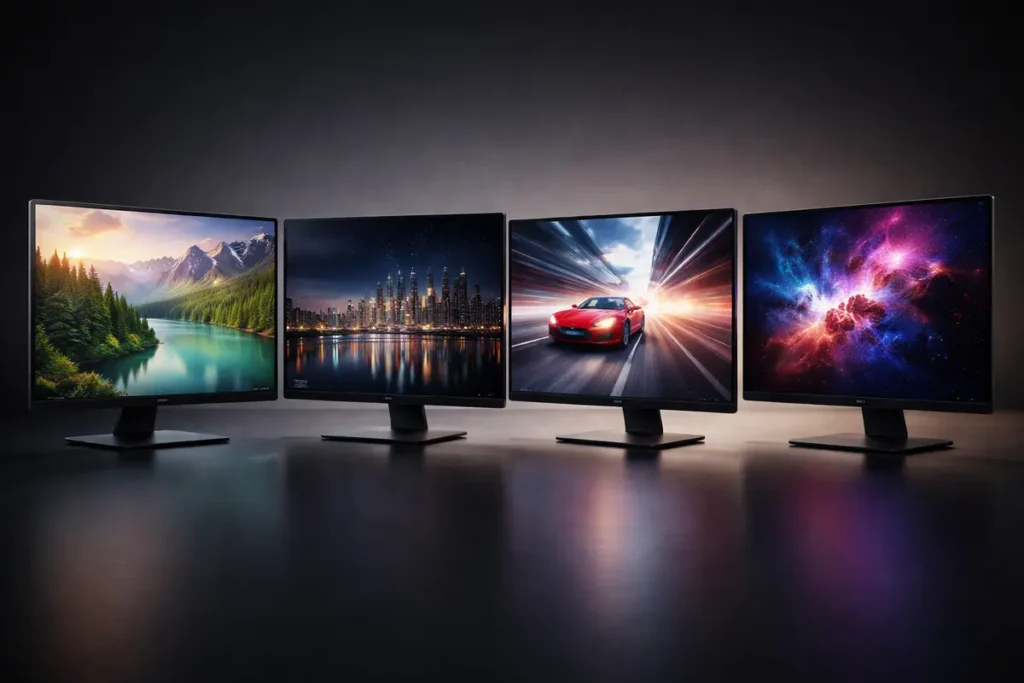
- IPS (In-Plane Switching): Excellent color accuracy and wide viewing angles. A favorite for office work, content creation, and modern gaming screens.
- VA (Vertical Alignment): Higher native contrast and deeper blacks than many IPS panels, which makes films and dark scenes look rich. Some VA panels have slightly slower pixel transitions.
- TN (Twisted Nematic): Very fast visual response but weaker viewing angles and color reproduction. Older esports displays often used TN, but it’s less common in new premium models.
- OLED: Each pixel emits its own light, resulting in near-infinite contrast and very fast response. These displays look stunning but are usually more expensive and may require avoiding static elements for long periods.
Refresh Rate: Is a 144Hz Monitor Worth It?
Refresh rate, measured in hertz (Hz), describes how many times per second the image is refreshed. A 60Hz display updates the picture 60 times each second, while a 144Hz panel does this 144 times.
For everyday productivity and browsing, 60Hz is still fine. However, once you scroll a long page or move your mouse on a higher-refresh screen, it’s hard to go back—everything feels smoother and more responsive. For gaming, 120Hz, 144Hz, or higher can significantly improve motion clarity and reduce input latency when paired with a system that can push enough frames.
If you play fast-paced competitive titles, a 144Hz or 165Hz model is absolutely worth considering. If you mostly watch films, work in documents, or casually game at lower frame rates, a standard 60–75Hz model may be all you need, and you can focus more on resolution and color.
Response Time and Input Lag for Smooth Motion
Response time describes how quickly a pixel can change from one shade of gray to another. Lower numbers help reduce blur and ghosting in motion. You’ll often see numbers such as 1ms, 2ms, or 5ms quoted on spec sheets, usually using a grey-to-grey (GtG) measurement.
Input lag is different: it measures the delay between your action (a key press or mouse movement) and the result appearing on the screen. For competitive gaming, both low response time and low input lag matter. Most modern gaming-focused displays keep these values low enough that regular users never notice, but it is still wise to consult independent reviews rather than relying only on marketing labels.
Color Gamut, Color Space, and Accuracy
If you edit photos, cut video, design graphics, or simply care about natural colors, color performance is crucial. The color gamut describes how wide a range of colors the display can show within a given color space. Common spaces include sRGB, DCI-P3, and Adobe RGB.
Most mainstream content on the web targets the sRGB color space. Wide-gamut panels that cover a high percentage of DCI-P3 or Adobe RGB are popular in creative work because they can display more saturated tones. However, a wide range alone isn’t enough—you also want good calibration so that reds don’t look too orange and skin tones stay believable.
Brightness, Contrast, and HDR
Brightness is measured in nits (cd/m²). For typical indoor use, 250–350 nits is usually comfortable. High-end displays and HDR-capable models can reach much higher levels, which helps in bright rooms and for punchy highlights in films and games.
Contrast describes the difference between the darkest and brightest parts of the image. VA and OLED panels typically have higher contrast ratios than basic IPS panels, which helps dark scenes look less washed out.
HDR (High Dynamic Range) can improve the sense of depth and realism by combining higher brightness, better contrast, and wider color. However, the HDR label on a box doesn’t always mean true cinematic performance. Look for reviews that measure sustained brightness and local dimming behavior rather than relying purely on marketing badges.
Ports: HDMI, DisplayPort, USB-C and More
Connectivity is one of the most practical aspects of choosing a desktop screen. Common inputs include HDMI, DisplayPort, and USB-C with DisplayPort Alt Mode. DisplayPort is often favored for high resolutions and high refresh rates on PCs, while HDMI is universal and ideal for consoles and media players.
USB-C connections can carry video, data, and sometimes power over a single cable, which is incredibly convenient for modern laptops. Some premium screens include USB hubs, audio-out ports, or built-in KVM switches so that you can share peripherals between two computers.
For official technical details, organizations such as the HDMI Licensing Administrator (hdmi.org) and the VESA standards body (vesa.org) publish specifications and compatibility information. Checking those sources can be helpful if you’re planning a complex setup.
👉 Read the guide: Enterprise IT Guide to Docks & Hubs: Architecture, Standards, Security, Performance & Deployment
Types of Monitors by Use Case
Best Monitor Size for Home Office and Remote Work
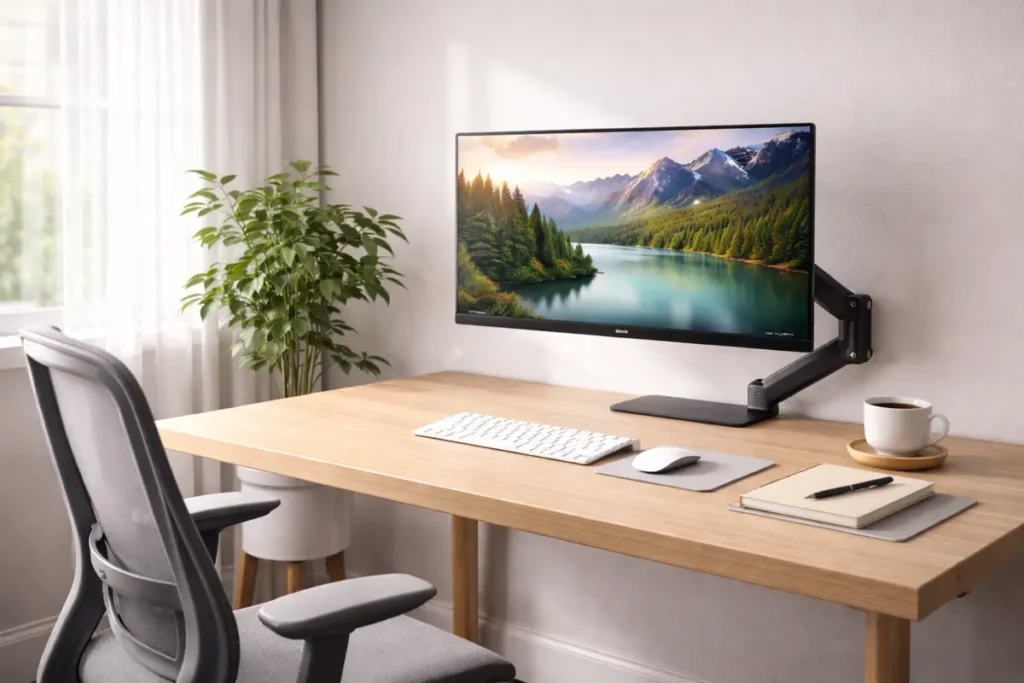
If you want a clear and comfortable workspace rather than extreme gaming specs. For many home-office setups, a 24- to 27-inch screen with at least 1080p resolution is a practical starting point. Moving to 1440p or 4K makes text sharper and gives you more room for multiple windows side by side.
Office-focused displays benefit from IPS panels for wide viewing angles and pleasant colors, plus ergonomic features like height adjustment and tilt. If you stare at a screen all day, prioritise flicker-free backlighting and a low-blue-light mode.
Gaming Displays: What Gamers Should Prioritize
Gamers care about smoothness, responsiveness, and immersion. If this is your main use case, focus on refresh rate, response time, and adaptive-sync technologies such as FreeSync or G-SYNC compatible implementations.
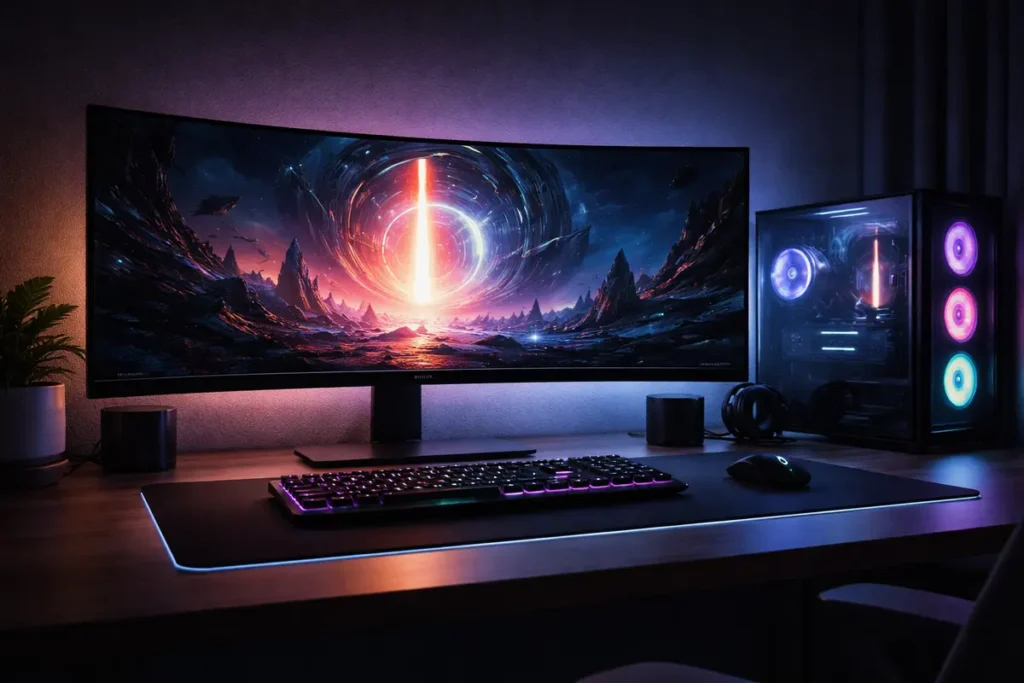
For competitive titles such as shooters or MOBAs, a 1080p or 1440p panel running at 144Hz or higher is a popular choice. It’s easier for your GPU to drive high frame rates at these resolutions. For cinematic single-player games, a higher-resolution screen, or even an ultrawide model, can be more immersive even if your frame rate is lower.
Color-Accurate Screens for Creators
If you’re a photographer, video editor, or designer, your display becomes a color-critical tool. You should prioritize a high-quality IPS or OLED panel with strong coverage of the color spaces you work in and a consistent, uniform image from edge to edge.
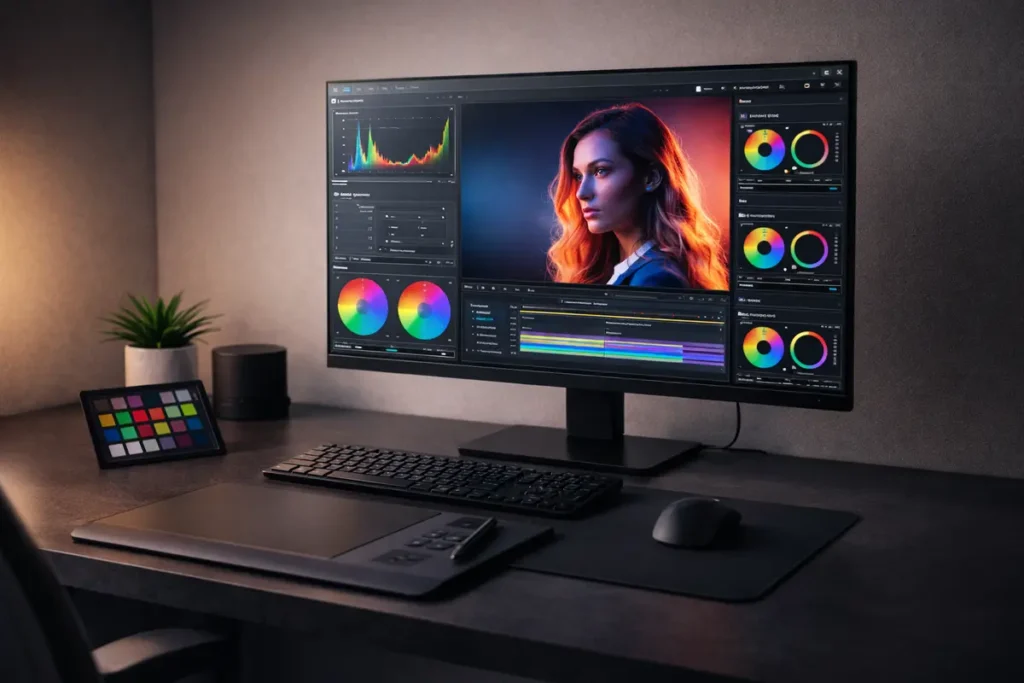
Factory calibration with a Delta-E value of below 2 is a good sign that the screen will show accurate tones out of the box. Hardware calibration support, 10-bit processing, and uniformity compensation are all premium features worth considering for professional work.
Ultrawide and Super-Ultrawide Setups
Ultrawide displays stretch your horizontal workspace, giving you something similar to two traditional screens without a bezel in the middle. Common sizes include 34-inch models with 3440 × 1440 resolution and 49-inch super-ultrawide panels.
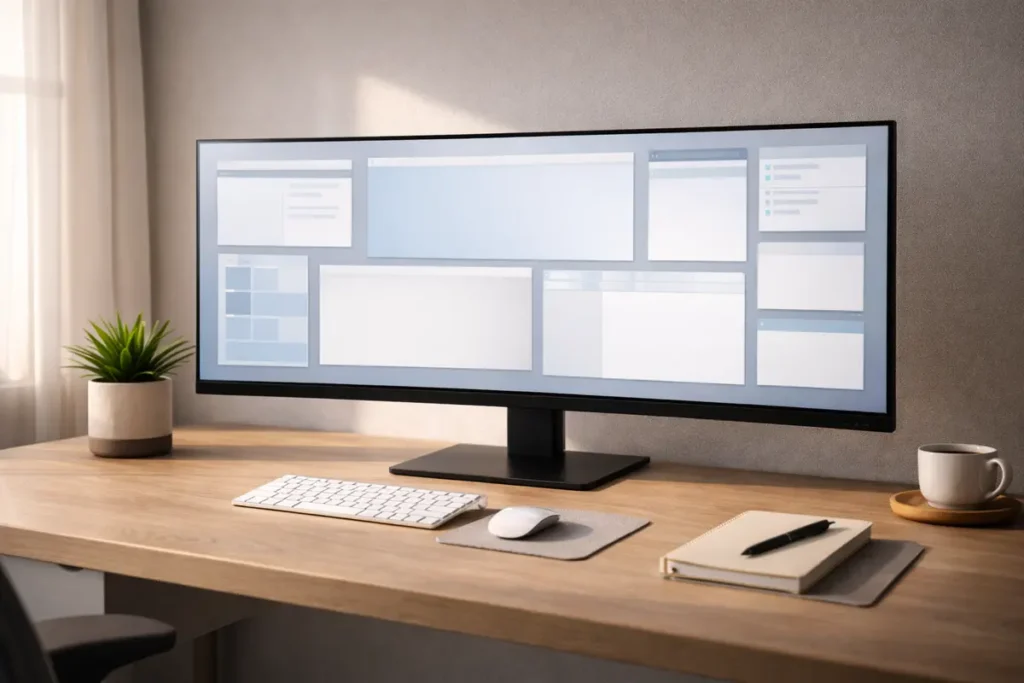
For productivity, ultrawide layouts are fantastic for timelines, large spreadsheets, and keeping several windows visible at once. For gaming, a wider field of view can significantly boost immersion in driving, flight, and simulation titles.
A future supporting guide might be titled “Ultrawide Monitor Setup and Productivity Tips – yourwebsite.com/ultrawide-monitors-setup” and explain how to arrange windows, manage taskbars, and configure game field-of-view settings.
Portable Laptop Screens and Travel-Friendly Displays
Portable panels are thin, lightweight screens designed to travel with your laptop. They typically connect via USB-C or mini-HDMI, draw power over a single cable, and measure between 13 and 16 inches.
These travel-friendly displays are perfect when you need a second screen in a café, hotel room, or client office. They’re not meant to replace a large primary display, but they dramatically improve multitasking on the go.
👉 Read the guide: The Ultimate Guide to Productivity Gadgets for Home & Office 2026
Curved vs Flat Screens: Which Should You Choose?
Curved screens gently bend the panel so that the edges sit slightly closer to you, reducing the angle between your eyes and the sides of the display. This can make large and ultrawide layouts feel more natural, especially in games and immersive video.
For tasks that involve precise straight lines—such as CAD work, detailed layout design, or code that you like to keep perfectly aligned—some people still prefer flat panels to avoid any visual distortion. For mixed use, it mostly comes down to personal preference and the size of the screen.
If you are mainly interested in competitive gaming on a 24- or 27-inch panel, the curve is not as critical as the refresh rate and response time. For very wide 34- to 49-inch screens, a curve around 1500R–1800R often feels comfortable.
Choosing the Right Size and Resolution for Your Desk
Size and resolution should be chosen together. A 24-inch 1080p screen can look crisp at normal viewing distances, while a 32-inch panel at the same resolution may start to show individual pixels. Conversely, a 27-inch 4K panel can look extremely sharp, but you may need to increase scaling so that text and icons don’t appear tiny.
- As a rough guide:
- 24-inch at 1080p – Budget-friendly and compact for small desks.
- 27-inch at 1440p – Sweet spot for many users balancing clarity and performance.
- 32-inch at 1440p or 4K – Spacious workspace and more immersive media.
- 34-inch ultrawide at 3440 × 1440 – Excellent mix of multitasking and gaming immersion.
- 27–32-inch at 4K – Very sharp for creative work and dense text.
Ergonomics, Eye Health, and All-Day Comfort

Ergonomics is about fitting your workstation to your body rather than forcing your body to adapt to poor positioning. A well-set-up screen helps reduce neck strain, back pain, and headaches, especially during long workdays.
Ideally, the top of the visible area should sit at or slightly below eye level, and the screen should be roughly an arm’s length away. If your display is too low, you may start to hunch; too high, and you might tilt your head back. Height-adjustable stands and VESA-compatible arms make it much easier to achieve a neutral, relaxed posture.
From an eye-health perspective, bright screens in dark rooms, harsh reflections, and long unbroken sessions can all lead to discomfort. Many modern displays offer flicker-free backlighting and low-blue-light modes to make evening use more comfortable.
For general health advice on screen use, it’s a good idea to consult reputable sources such as national health services or eye-care organizations like the American Academy of Ophthalmology (aao.org). Their recommendations on breaks, lighting, and viewing distance complement the technical tips in this guide.
👉 Read the guide: Ergonomic Home Office Setup: Step‑by‑Step Guide to Pain‑Free Work
Color Calibration and Image Accuracy
Even a high-quality screen may not be perfectly accurate out of the box. Calibration is the process of tuning its behavior so that what you see on screen closely matches reference standards and printed output.
For casual users, basic tuning is often enough. Set your display to a neutral preset such as “sRGB” or “Standard,” reduce brightness to a comfortable level, and use built-in tools in Windows or macOS to adjust gamma and contrast. Free test images available on reputable photography and color-management sites can help you check for crushed shadows or blown highlights.
Creative professionals usually go further and use a hardware calibrator—a small device that sits on the screen and measures color patches while software builds a custom color profile. Organizations such as the International Color Consortium (color.org) publish information on color management standards that underpin these workflows.
Multi-Monitor and Ultrawide Workspaces
Using two or three screens, or one very wide panel, can significantly boost productivity. With multiple displays, you can dedicate one to communication tools and reference material while keeping your primary tasks full-screen on another.
When building a multi-screen setup, it’s helpful to match resolution and size where possible so windows feel consistent when dragged between displays. A pair of 27-inch 1440p panels, for example, provides a huge amount of usable space without awkward scaling differences.
Monitor arms are great for arranging multiple screens at the same height and angle while keeping the desk clear. Cable-management clips and channels keep the result tidy and easier to clean.
Essential Accessories for Your New Screen
A display works best as part of a complete workstation. A few accessories can dramatically improve comfort and convenience:
- Monitor arms or risers for ideal height and distance.
- High-quality HDMI or DisplayPort cables rated for the resolutions and refresh rates you plan to use.
- USB-C docks or Thunderbolt hubs for single-cable laptop connections.
- Hardware calibrators for photographers and video editors.
- Desk lights that reduce eye strain without causing screen glare.
Common Display Problems and Easy Fixes
Even great screens occasionally misbehave. The good news is that many common issues have simple fixes.
No signal or a black screen usually points to a loose cable, the wrong input selected, or an issue with the source device. Check that each end of the cable is firmly connected, try another input, or test with a different device to isolate the fault.
Blurry text or a stretched image often indicates that the system is running at a non-native resolution. In Windows, open Display Settings and choose the recommended resolution. On macOS, go to System Settings → Displays and pick the default scaling option for sharp text.
Screen tearing and stuttering in games can often be reduced by enabling adaptive-sync features, such as FreeSync or G-SYNC compatible modes, and capping the frame rate to something close to the refresh rate of the display.
Stuck or dead pixels are small bright or dark dots that don’t change correctly. A few may fall within a manufacturer’s tolerance policy, but severe uniformity problems or clusters of bad pixels may justify a warranty claim.
Monitor Buying Checklist (Step-by-Step)
When you’re ready to buy, use this quick checklist to turn confusing spec sheets into confident decisions:
- Define your primary use.
- Mostly office work and browsing?
- Competitive or cinematic gaming?
- Photo, video, or design work?
- A mix of everything?
- Measure your desk and viewing distance.
- How much horizontal space do you have?
- How far away do you usually sit?
- Choose a size–resolution combination.
- 24–27 inches at 1080p for tight budgets.
- 27 inches at 1440p as a flexible sweet spot.
- 32 inches or ultrawide for more room and immersion.
- Pick a panel technology.
- IPS for balanced color and viewing angles.
- VA for strong contrast and entertainment.
- OLED if you want exceptional contrast and motion and are willing to pay more.
- Match refresh rate and response time to your hobbies.
- 60–75Hz for everyday productivity.
- 120–165Hz or more for serious gaming.
- Check connectivity.
- Ensure you have the right mix of HDMI, DisplayPort, and USB-C.
- Look for USB hubs or a built-in KVM if you juggle multiple machines.
- Consider ergonomics and mounting.
- Height adjustment, tilt, and swivel make a big difference.
- VESA mounting support lets you add arms or wall mounts.
- Read independent reviews.
- Look for real-world testing of color accuracy, uniformity, motion handling, and input lag.
- Decide your budget tier.
- Entry-level for basic tasks.
- Mid-range for mixed use.
- High-end for serious gaming or professional creative work.
Real-World Use-Case Scenarios
Budget Student Desk Setup
A student juggling coursework, streaming, and casual gaming might choose a 24-inch 1080p screen with an IPS panel. This keeps costs low, text readable, and colors pleasant without requiring a powerful graphics card.
Hybrid Home-Office Productivity Station
A remote worker who lives in productivity apps all day will benefit from a 27-inch 1440p display on an ergonomic arm. Paired with a laptop stand and external keyboard, this setup keeps posture healthy and leaves enough room for two or three documents side by side.
Immersive Gaming Battlestation
A dedicated gamer might lean toward a 27-inch 1440p panel running at 165Hz with adaptive sync, or a 34-inch ultrawide running at 144Hz for more cinematic experiences. A solid GPU and a comfortable chair round out the experience.
Photographer and Video Editor Studio
A photographer or editor will look for a 27- to 32-inch 4K display with wide-gamut support, strong factory calibration, and hardware calibration capability. Paired with a color-accurate workflow and a hardware calibrator, this setup helps ensure that what you see on screen matches your final output.
Minimalist Portable Work Setup
A frequent traveler may combine a lightweight laptop with a 14- or 15-inch portable USB-C panel that mirrors or extends the desktop. This arrangement fits easily in a backpack yet doubles on-the-go workspace for documents, browser tabs, and communication tools.
Glossary of Common Display Terms
- Adaptive sync — A technology that synchronizes the refresh rate of the screen with the frame rate of the graphics card to reduce tearing and stutter.
- Aspect ratio — The proportional relationship between width and height, such as 16:9 or 21:9.
- G-SYNC / FreeSync — Branding for adaptive-sync implementations from NVIDIA and AMD.
- Ghosting — A trail or smear that follows moving objects, caused by slow pixel response.
- Input lag — The delay between an input action and the corresponding change on screen.
- Local dimming — Zones of backlight that can brighten or darken independently to improve contrast.
- Nit — A unit of brightness equal to one candela per square meter (cd/m²).
- Overshoot — A halo or inverse ghosting artifact when aggressive overdrive pushes pixels past their target shade.
- Overdrive — A setting that speeds up pixel transitions to reduce motion blur.
- Pixel density — The number of pixels per inch (PPI), affecting apparent sharpness.
- Response time — How quickly a pixel can change from one level to another, usually measured grey-to-grey.
- Viewing angle — The range of angles from which the image looks accurate and consistent.
Common Mistakes People Make When Buying a Monitor
Even savvy buyers can trip up when choosing a new screen. Understanding the most common mistakes will help you avoid frustration and extra expense.
One frequent error is focusing only on resolution or size without considering how the two interact. A huge, low-resolution panel can look blocky, while a small, ultra-high-resolution display may make text uncomfortably tiny unless scaling is configured correctly.
Another pitfall is ignoring ergonomics. It’s tempting to choose a screen purely on specs and price, only to discover that the stand is too low or lacks height adjustment. Buying an adjustable stand or arm later adds cost and clutter that could have been avoided by factoring ergonomics into the original decision.
People also sometimes under-estimate their connectivity needs. They may forget about future devices, docking stations, or consoles they plan to add, and end up having to juggle adapters or upgrade again sooner than expected. Thinking ahead about ports can save money and headaches in the long run.
Quick Start Guide to Setting Up Your New Screen
Once your new display arrives, a simple setup process will help you get great results from day one.
First, position the screen so that the top edge is at or slightly below eye level and the panel is roughly an arm’s length away. Adjust tilt so that you’re looking straight at the center without craning your neck. If the stand doesn’t offer enough adjustment, consider using books temporarily or investing in an arm or riser.
Next, use the best available connection from your system—often DisplayPort or USB-C for PCs and HDMI for consoles and many laptops. In your operating system, set the display to its native resolution and preferred refresh rate. Many gaming panels default to lower rates until you enable 120Hz or 144Hz in the settings.
Finally, choose an appropriate picture preset such as sRGB or Standard, reduce brightness to a comfortable level for your room, and enable any eye-comfort features you find helpful. You can refine calibration later, but these quick steps ensure you’re starting from a solid baseline.
Future Trends in Display Technology
Display technology evolves quickly. OLED and mini-LED backlights are moving from premium televisions into desktop screens, bringing better contrast and richer HDR experiences. At the same time, higher refresh rates at higher resolutions are becoming more accessible, making 4K at 120Hz or 144Hz a realistic target for gaming enthusiasts.

USB-C and Thunderbolt connectivity are also becoming more common, especially in office- and creator-focused screens. These ports turn displays into docking hubs that charge laptops, connect peripherals, and carry video all through a single cable.
Another emerging trend is a greater focus on sustainability: lower power consumption, eco-friendly packaging, and repairability are gradually gaining attention. Paying attention to energy-efficiency labels and environmental commitments can be part of a responsible buying decision.
Frequently Asked Questions About Monitors
What size monitor is best for a home office?
Is a 144Hz monitor worth it if I’m not a competitive gamer?
Is 1080p still good enough today?
Which panel type should I choose: IPS, VA, TN, or OLED?
Do I need a 4K monitor for productivity?
Can my laptop drive an external 4K screen?
What’s the best monitor size for programming?
Are curved screens good for work, or just for gaming?
How can I reduce eye strain when using a monitor all day?
What’s the difference between G-SYNC and FreeSync?
Do I need special cables for high refresh rates and 4K?
Is HDR on monitors as good as HDR on TVs?
Are refurbished monitors safe to buy?
Should I get one ultra-wide display or two standard screens?
Do I need built-in speakers in my monitor?
How often should I upgrade my monitor?
Can a monitor be too big for my desk?
Does refresh rate matter for office work and browsing?
What should I prioritise if I’m buying my first “serious” monitor?
How can I tell if a monitor review is trustworthy?
About the Author: Alex Chen has spent 6 years testing and reviewing home office hardware and productivity gear. From monitors and docks to keyboards and software, every recommendation on TechDeskZone comes from hands-on testing and real-world use across Windows, macOS, and Linux.