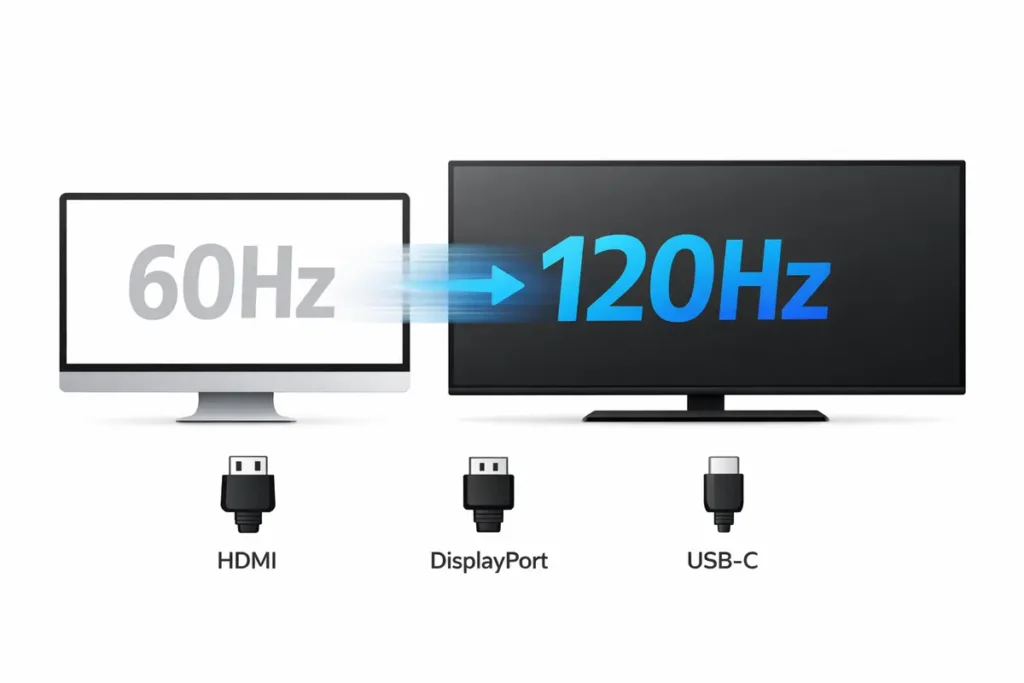
Stuck at 60Hz or 30Hz? Learn HDMI vs DisplayPort vs USB-C limits, cable rules, and settings to reach 120Hz on PCs, TVs, and consoles.
Last Updated: February 2026
Author: Editorial Productivity & Computing Team
This guide is a problem-solving walkthrough and a decision guide in one. First, we’ll help you figure out why you can’t get 60Hz, 120Hz or higher on your monitor or TV. Then we’ll show you HDMI vs DisplayPort vs USB-C in real-world use so you can decide which connection to use and what gear to upgrade if you want smoother motion and more responsive gaming.
👉 Read the guide: Monitors Made Easy: 25 Essential Tips to Choose the Perfect Screen
TL;DR – 3 Common Reasons You’re Stuck at 60Hz
If you only take one thing away from this article, let it be this: most people are stuck at 60Hz or 30Hz not because the monitor is bad, but because of the path between the GPU and the panel. In practice, three issues cause most problems:
- You’re using the wrong port – for example, an older HDMI input that doesn’t support your target resolution and refresh rate, even though your monitor also has a better DisplayPort or newer HDMI port.
- Your cable can’t handle the bandwidth – old or random HDMI/DisplayPort/USB‑C cables often cap out at lower resolutions or refresh rates, and the system quietly falls back to a mode that works.
- Your resolution and refresh rate combo is too heavy for your hardware – your GPU, dock, or console simply can’t push, for example, 4K at 120Hz over that connection, even though it can do 1080p or 1440p at high refresh.
The rest of this guide shows you how to confirm which of these is your bottleneck and how to pick the best HDMI, DisplayPort or USB‑C option for your setup.
Step 1 – Confirm What Refresh Rate Your Monitor or TV Should Support
Before changing cables and ports, you need to be sure your display can actually run at the refresh rate you’re aiming for. A “144Hz” monitor doesn’t necessarily run 144Hz at every resolution, and many 4K TVs only support 120Hz on specific HDMI ports or at particular resolutions.
Check the Model Specs (Monitor, TV or Laptop Screen)
Start by checking the exact model name of your monitor, TV, or laptop screen. You can usually find it:
- On a sticker on the back or underside of the display
- In the on‑screen display (OSD) menu under Information or About
- In your operating system’s display settings
Look up that model on the manufacturer’s website or in the manual and find the section that lists supported resolutions and refresh rates. Pay attention to the details:
- Some monitors do 1080p at 144Hz but only 1440p at 75Hz or 4K at 60Hz.
- Many 4K TVs support 120Hz only on specific HDMI ports labeled HDMI 2.1, 4K120, or Game.
- Laptop internal displays may support high refresh, but their external outputs (HDMI, USB‑C) can be more limited.
If your display never advertises 120Hz or 144Hz at your desired resolution in its own specs, no cable or port will magically unlock it. In that case you may need to lower resolution for higher refresh, or upgrade the display itself.
👉 Read the guide: 1080p vs 1440p vs 4K for Office Work: What to Choose by Screen Size
Understand Resolution vs Refresh Rate Trade‑offs
Resolution and refresh rate are two sides of the same bandwidth coin. The higher the resolution and the higher the refresh rate, the more data the cable and port need to carry every second.
Roughly speaking:
- 1080p at 60Hz is very easy for modern connections.
- 1080p at 144Hz or 240Hz is still straightforward for DisplayPort and newer HDMI.
- 1440p at 144Hz is heavier and often works best over DisplayPort.
- 4K at 60Hz is common on mid‑range hardware.
- 4K at 120Hz or higher requires newer display standards and properly rated cables.
If you’re trying to run a very demanding combo like 4K at 120Hz and nothing seems to cooperate, it’s very likely you’ve hit a bandwidth limit in your port, cable, GPU, dock, or TV.
👉 Read the guide: 27 vs 32 Inch Monitor for Productivity – 2026 Ultimate Guide for Work, Coding & Spreadsheets
Step 2 – Is It a Settings Issue or a Hardware Limitation?
Once you know what your display should be capable of, the next step is to see whether your system is simply configured incorrectly, or whether the hardware can’t support the mode you want. Different platforms hide refresh rate controls in different places.
On Windows – Check Display Settings and GPU Control Panel
On Windows 10 and 11, you need to check both the system display settings and, for many GPUs, the vendor control panel.
In Windows Settings:
1. Open “Settings → System → Display”.
2. Click on the monitor you’re troubleshooting if you have more than one.
3. Scroll down and click “Advanced display”.
4. Look at the “Refresh rate” dropdown. If your monitor supports 120Hz or 144Hz, and the connection is capable, those options should appear here.
If you only see 60Hz or a lower value than expected, open your GPU’s control panel:
- For NVIDIA: Open “NVIDIA Control Panel → Change resolution” and choose the display. Check the list of resolutions and refresh rates.
- For AMD: Use “AMD Software” (Adrenalin) and look under the display or resolution section.
- For Intel integrated graphics: Open **Intel Graphics Command Center** or the classic control panel if available.
Make sure you have the latest graphics drivers installed. Out‑of‑date drivers can sometimes fail to expose the full list of modes your hardware supports.
On macOS – Why External Displays Get Stuck at 30Hz or 60Hz
On macOS, most built‑in displays look great out of the box, but external screens can end up running at 30Hz or 60Hz even when the monitor, cable, and Mac are capable of more. The bottleneck is often the port or adapter in between.
To check your refresh rate on macOS:
1. Open “System Settings → Displays” (or “System Preferences → Displays” on older macOS versions).
2. Select your external display.
3. Look for an option to show more resolutions or refresh rates (sometimes you have to hold the Option key while clicking the resolution dropdown).
If 120Hz or 144Hz never appears as an option, you may be hitting a limitation of the specific port, cable, or adapter you’re using. Many older Mac HDMI ports and basic USB‑C hubs only support 4K at 30Hz, for example, while a direct USB‑C or Thunderbolt to DisplayPort connection might provide 4K at 60Hz or better.
👉 Read the guide: IPS vs VA vs OLED for Work: Which Is Best for Your Eyes? (7 Key Truths)
On Consoles – PS5, Xbox and Switch Limitations
If you’re using a console, refresh rate options depend on both the console hardware and the TV or monitor. Newer consoles like the PS5 and Xbox Series X|S can output 120Hz in supported games, but only when certain conditions are met:
- The game itself must support 120Hz or a “performance mode”.
- The console video settings must be set to allow 120Hz output.
- The HDMI port on the TV or monitor must support the required bandwidth (often HDMI 2.1 for 4K 120Hz).
- Some TVs require you to enable a special **Game Mode** or **Enhanced HDMI** setting per port.
If your console claims to be running in 120Hz mode but the TV info screen still says 60Hz, double‑check that you’re plugged into the correct HDMI port and that the TV’s advanced settings for that port are enabled.
HDMI vs DisplayPort vs USB‑C – What Actually Limits Your Refresh Rate
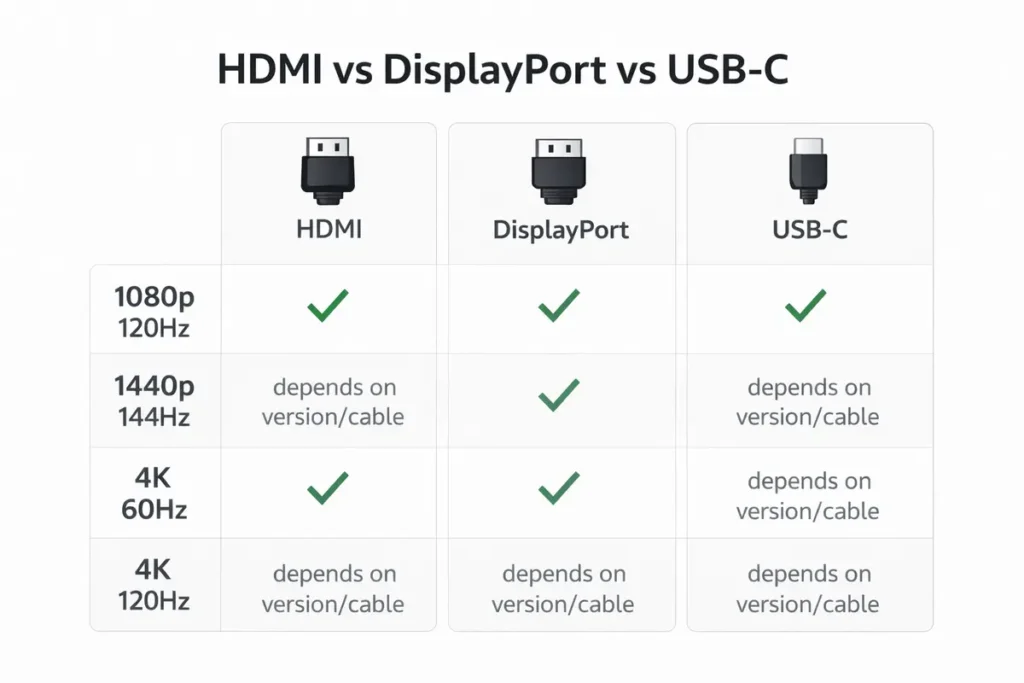
Now that you’ve checked software and basic settings, it’s time to talk about the actual connections. HDMI, DisplayPort and USB‑C can all carry video, but they don’t always offer the same capabilities—especially once you mix in older versions, cheap adapters, and questionable cables.
Understanding the strengths and limitations of each connection type is key to deciding how to hook up your monitor or TV for high refresh rates.
HDMI – Great for TVs, Sometimes Tricky for High Refresh Monitors
HDMI is everywhere: TVs, soundbars, game consoles, laptops, and many monitors. But not all HDMI ports are equal. Older HDMI versions simply can’t carry the same resolutions and refresh rates as newer ones.
In practice, this means:
- HDMI 1.4 is typically limited to 1080p at 120Hz or 1440p at 60Hz, and 4K often tops out at 30Hz.
- HDMI 2.0 can handle 1080p at 144Hz, 1440p at high refresh, and 4K at 60Hz.
- HDMI 2.1 boosts bandwidth enough for 4K at 120Hz and even 8K under certain conditions.
Many laptops and desktops have HDMI ports whose capabilities are closer to HDMI 1.4, even if the monitor supports more. If your 144Hz gaming monitor is plugged into a limited HDMI port, Windows may only offer 60Hz as an option, even though the screen itself can go much higher.
DisplayPort – The Go‑To Choice for High Refresh PC Monitors
DisplayPort was designed with computer monitors in mind, and it tends to be the most flexible option for high‑refresh PC setups.
With a reasonably modern version of DisplayPort, you can typically achieve:
- 1080p at 240Hz and beyond
- 1440p at 144Hz or higher
- Multiple monitors at high refresh from a single GPU (depending on bandwidth)
If both your graphics card and your monitor have DisplayPort, it’s often the best first choice for gaming and high‑refresh productivity work. It also tends to play nicely with adaptive sync technologies like FreeSync and G‑SYNC, which can make fast‑paced games feel smoother and more responsive.
USB‑C and Thunderbolt – DisplayPort in Disguise (Sometimes)
USB‑C can be confusing because the same physical connector can mean very different things. Some USB‑C ports only carry power and data. Others support DisplayPort Alt Mode, which effectively lets them behave as a DisplayPort output. Thunderbolt ports often support multiple high‑resolution displays over USB‑C.
Key points to remember:
- Not every USB‑C port supports video output—check your device’s specs for a display or Thunderbolt icon.
- Not every USB‑C cable supports high‑bandwidth video; some are charge‑only or optimized for data.
- Many cheap USB‑C hubs convert to HDMI using older standards that cap out at 1080p or 4K at 30Hz.
For laptops, the most reliable way to get high refresh to an external monitor is often a USB‑C or Thunderbolt port connected directly to a DisplayPort‑capable dock or a USB‑C to DisplayPort cable. That way, you’re effectively using DisplayPort, just over a different connector.
Step 3 – Cable Problems: The Silent Killer of 120Hz
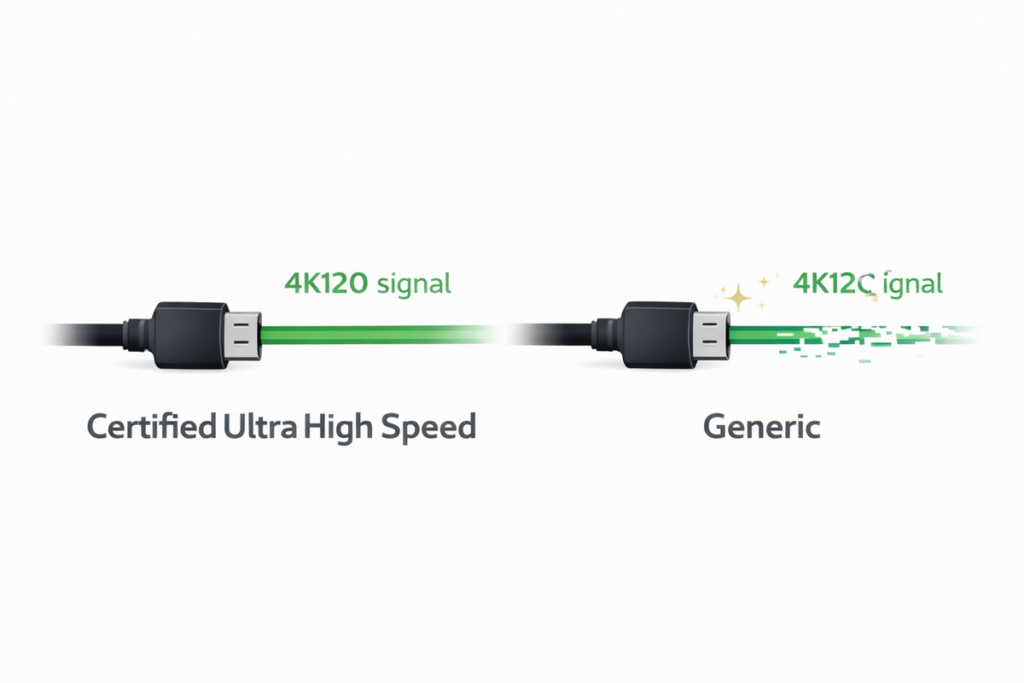
Even if your ports and display support the right standards, a bad or outdated cable can quietly cap your refresh rate. This is especially common when people reuse old HDMI cables from years ago with new 4K or high‑refresh hardware.
Old or Random HDMI Cables and Why 4K 120Hz Fails
HDMI cables are not all the same. While many cheap cables are technically capable enough for 1080p at 60Hz, they can struggle when you ask for 4K at 60Hz or 120Hz.
Typical signs that your HDMI cable is the bottleneck include:
- Your monitor or TV only offers 30Hz or 60Hz at 4K, even though it supports more.
- The image flickers, cuts out, or shows “no signal” when you try to increase the refresh rate.
- Lower resolutions work fine at higher refresh, but your target resolution does not.
If you suspect the cable, try a shorter, certified high‑speed HDMI cable rated for 4K at 60Hz or 120Hz. Often, simply swapping the cable makes the missing refresh options suddenly appear in your settings.
DisplayPort Cables – When You Need a Better One
DisplayPort cables tend to be more forgiving, but very long, thin, or low‑quality cables can still cause trouble at high refresh rates.
Watch for these symptoms:
- – Random black screens or “snow” when using 144Hz or 240Hz.
- – Stable picture at 60Hz, but instability at higher modes.
- – The monitor or GPU refusing to allow your target refresh rate even though it should be possible.
When that happens, try a shorter or better‑rated DisplayPort cable from a reputable brand. You don’t need to overspend, but you do need a cable built to handle the bandwidth your setup demands.
USB‑C Cables and Hubs – Data vs Display vs Power
USB‑C complicates things further because there are so many types of cables and hubs. Some USB‑C cables are designed mainly for charging, others for high‑speed data, and only some support full‑bandwidth video.
Common USB‑C bottlenecks include:
- Using a charge‑only cable between your laptop and monitor or dock.
- Hubs and adapters that only support HDMI 1.4‑level output, capping 4K at 30Hz.
- Daisy‑chain setups where too many devices share limited bandwidth.
If your external monitor over USB‑C is stuck at 30Hz or 60Hz, check both the capabilities of the USB‑C port and the specs of the hub or cable. Upgrading to a dock or adapter that explicitly supports your target resolution and refresh rate can instantly fix the issue.
Step 4 – Port Confusion: Plugged Into the “Wrong HDMI”
Many displays and GPUs have multiple ports that look identical at a glance but don’t behave the same. It’s very easy to plug into a convenient port that happens to be the least capable one for high refresh.
Multiple HDMI Ports With Different Specs on the Same Display
A lot of modern TVs and some monitors include several HDMI ports, but only one or two are rated for the highest bandwidth modes.
You might see this in the manual or on the back panel as labels like:
- HDMI 1, HDMI 2 (4K 60Hz)
- HDMI 3 (4K 120Hz, eARC, Game)
If you plug your console or PC into HDMI 1 by habit, you might be limited to 4K at 60Hz, even though HDMI 3 would allow 4K at 120Hz. Always check the fine print in your display’s manual or on the manufacturer’s website to see which port is recommended for high refresh gaming.
👉 Read the guide: Ultrawide vs Dual Monitors: 7 Real Productivity Differences That Actually Matter
Laptop and GPU Port Limitations
On desktops, your graphics card may have multiple DisplayPort and HDMI outputs. Generally, they’re all connected to the same GPU and support similar features, but on laptops things are more complicated.
Some laptops route their HDMI port through a low‑power integrated GPU with limited capabilities, while the USB‑C or Mini DisplayPort connectors are wired to a more powerful discrete GPU. In those cases, the HDMI port might only support 4K at 30Hz, while the USB‑C port (via a proper adapter) can do 4K at 60Hz or 120Hz.
If you can’t reach your target refresh rate over one port, try another type of port on the same machine, especially if the documentation mentions that a specific connector is “direct to dGPU” or supports higher resolutions.
Step 5 – Resolution and Refresh: Choosing Combos That Actually Work
At this point, you should have a good handle on your display’s capabilities, your ports, and your cables. The final piece is picking a realistic resolution and refresh rate combination that fits within the limits of your setup.
Why 1440p 144Hz Might Work but 4K 144Hz Doesn’t
Even if your GPU is fast enough to render a game at 4K 144Hz, that doesn’t mean the signal path can carry that much data. Many consumer connections are designed around more modest targets.
For example:
- A monitor and GPU might both support 1440p at 144Hz over DisplayPort, but only 4K at 60Hz over the same link.
- HDMI 2.0 is fine for 1080p at 144Hz or 1440p at high refresh, but 4K at 120Hz usually requires HDMI 2.1.
If you’re chasing extremely high numbers like 4K at 144Hz, you need everything in the chain—GPU, port, cable, and display—to support that mode. For many people, the smarter move is to pick a sweet‑spot combination such as 1440p at 144Hz, which looks great and is much easier to achieve.
👉 Read the guide: How to Fix Blurry Text on a Monitor (Windows & Mac): Scaling, Sharpness, Cables
Safe Combinations to Try When Troubleshooting
When you’re not sure what your setup can handle, it helps to test known‑good combinations that fit within typical bandwidth limits:
- On older HDMI connections, try 1080p at 120Hz or 144Hz if 4K at 60Hz or 120Hz isn’t working.
- On mid‑range GPUs with DisplayPort, try 1440p at 144Hz or 1080p at 240Hz.
- On 4K monitors, start with 4K at 60Hz; if you can’t reach that, you almost certainly have a cable or port limitation.
If a lower resolution at high refresh works, but your dream combo doesn’t, you’ve confirmed a bandwidth limit somewhere in your setup—and you can decide whether it’s worth upgrading ports, cables, or displays to push past it.
Decision Time – Which Connection Should You Use?
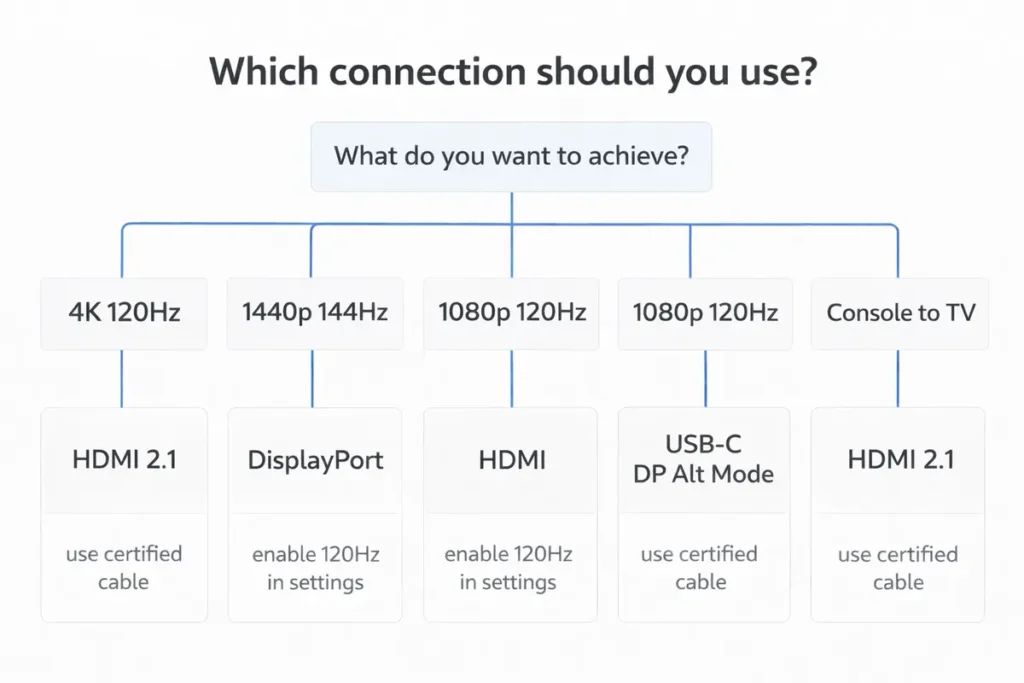
Now that you understand why you’re stuck at 60Hz or 30Hz and how HDMI, DisplayPort and USB‑C differ, it’s time to turn this into a clear decision. The best connection for you depends on the device you’re using and whether you care more about resolution, refresh rate, or simplicity.
If You’re a PC Gamer With a 120Hz/144Hz/240Hz Monitor
For PC gaming on a high‑refresh monitor, DisplayPort is usually the best option when available.
Practical recommendations:
- Use DisplayPort from your graphics card to your monitor whenever possible.
- If you must use HDMI, make sure both the GPU and monitor support the required HDMI version, and pair them with a good cable.
- If you have to choose between 4K at 60Hz and 1440p at 144Hz on a gaming monitor, many players prefer 1440p at 144Hz for smoother motion.
This combination delivers a great balance of visual clarity and responsiveness without pushing your ports and cables to the absolute limit.
If You’re on a Laptop With USB‑C and HDMI
Laptop users often have to juggle limited ports, integrated graphics, and quirky USB‑C hubs. To get the best refresh rate from a laptop:
- Prefer USB‑C or Thunderbolt ports that support DisplayPort Alt Mode over basic HDMI ports, especially on ultrabooks.
- Use a USB‑C to DisplayPort cable or a dock designed for high‑resolution, high‑refresh output.
- Check your laptop’s documentation to see which ports are wired to the discrete GPU, if it has one.
If a basic HDMI connection from your laptop is stuck at 30Hz or 60Hz, switching to a better USB‑C or Thunderbolt solution is often the easiest way to unlock higher refresh rates on external monitors.
If You’re on a Console (PS5, Xbox, Switch)
Console users should focus on using the right HDMI port and enabling the correct modes in both the console and TV settings.
Guidelines:
- Always plug your PS5 or Xbox Series X|S into the TV’s HDMI port labeled for 4K 120Hz or HDMI 2.1 if available.
- Enable any Game Mode, Enhanced Format, or similar options the TV requires for high refresh inputs.
- In the console’s settings, enable 120Hz output and performance modes in supported games.
- For Nintendo Switch, remember that the console itself is limited to 60Hz output, so higher refresh rates won’t be used.
With the right HDMI port, cable, and settings, you’ll get the smoothest experience your console and display can offer.
Step‑by‑Step Checklist: Fixing “Stuck at 60Hz” the Smart Way
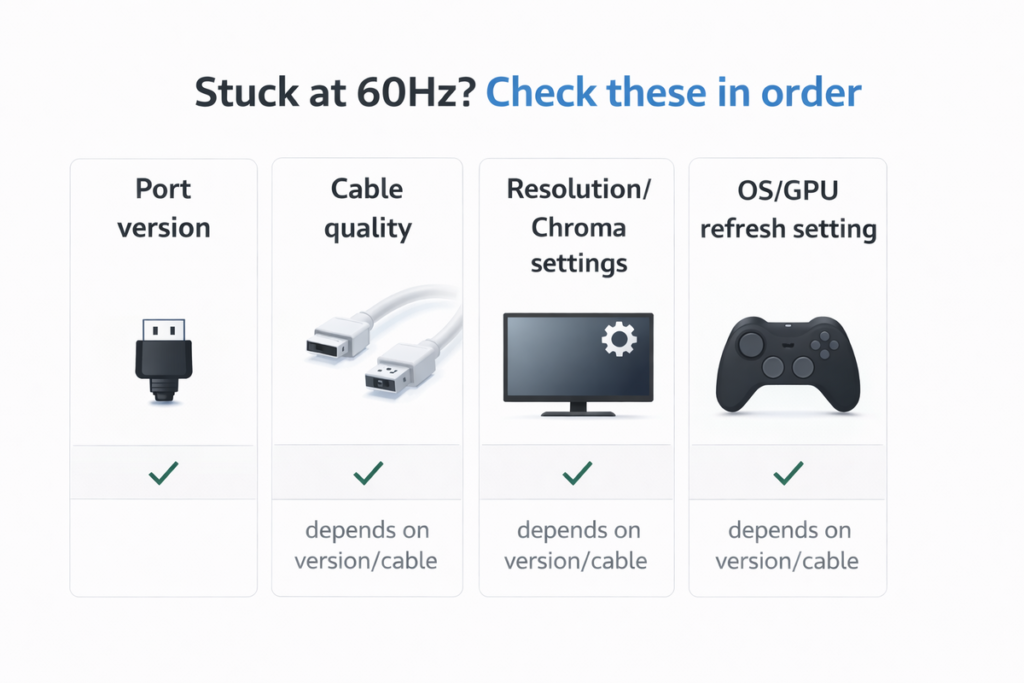
If you’d like a quick recap, use this checklist the next time a monitor or TV refuses to go above 60Hz:
- Confirm your display’s true capabilities in the manual or manufacturer’s website.
- Check your operating system and GPU control panel for available refresh rate options at your target resolution.
- Make sure you’re using the best port on both the GPU and the display (DisplayPort, HDMI 2.x, or video‑capable USB‑C/Thunderbolt).
- Replace old or questionable HDMI/DisplayPort/USB‑C cables with ones rated for your desired resolution and refresh rate.
- Experiment with safe resolution/refresh combinations (e.g., 1440p at 144Hz or 1080p at 120Hz) to test bandwidth limits.
- On TVs and consoles, enable game modes and 120Hz settings on both sides.
- If all else fails and your setup still can’t deliver the combo you want, decide whether it’s time to upgrade your ports, dock, or display.
FAQ – Common Questions About 60Hz, 120Hz and Connection Types
Why is my 144Hz monitor only showing 60Hz in Windows?
The most common reasons are: you’re using an HDMI port that doesn’t support 144Hz at your chosen resolution, your cable can’t handle the bandwidth, or Windows is set to 60Hz in the display settings. Check your monitor specs, switch to DisplayPort if possible, use a better cable, and set the refresh rate manually in Windows and your GPU control panel.
Why can I get 144Hz at 1080p but only 60Hz at 1440p or 4K?
Higher resolutions require more bandwidth, so your connection may not support both high resolution and high refresh together. Your hardware might only support 144Hz at 1080p but drop to 60Hz at 1440p or 4K. In that case, you’ll need newer ports/cables or accept a trade‑off between resolution and refresh.
Can HDMI do 144Hz or 240Hz?
Yes, but it depends on the HDMI version and resolution. HDMI 2.0 can handle 1080p at 144Hz and some 1440p high‑refresh modes, while HDMI 2.1 is needed for demanding combos like 4K at 120Hz. Older HDMI 1.4 connections are much more limited and often cap out at 60Hz at common resolutions.
Do I need DisplayPort for 144Hz gaming?
You don’t strictly need DisplayPort for 144Hz gaming, but it’s often the easiest and most reliable way to achieve high refresh on PC monitors. Many monitors and GPUs are optimized around DisplayPort for high refresh, and it’s less likely to be limited by older standards than HDMI.
Why is my 4K TV stuck at 30Hz from my laptop?
Your laptop’s HDMI port or adapter may only support 4K at 30Hz, especially on older models. Alternatively, you could be using a hub or cable that caps the connection. If your laptop has USB‑C or Thunderbolt with DisplayPort Alt Mode, switching to a USB‑C to HDMI 2.0/2.1 or USB‑C to DisplayPort adapter can usually unlock 4K at 60Hz.
Why does my USB‑C hub only output 30Hz or 60Hz?
Many basic USB‑C hubs use internal chips limited to 4K at 30Hz or 60Hz over HDMI. They’re designed for presentations and office use, not gaming or high‑refresh displays. If you want higher refresh rates, you’ll need a dock or adapter that explicitly supports the resolution and refresh you’re targeting.
Is it my GPU, my cable, or my monitor that’s the problem?
It could be any of them, which is why a step‑by‑step approach helps. First, confirm the monitor’s specs. Then check your GPU’s advertised output capabilities. Next, test different ports and cables. If a different connection or cable unlocks higher refresh modes, you’ve found the weak link.
Does a higher refresh rate always feel better?
Most people notice a big improvement going from 60Hz to 120Hz or 144Hz, especially in fast‑paced games and when moving windows around the desktop. However, if you mainly work with static content like documents and email, the difference is less dramatic than for competitive gaming.
Will a better cable improve image quality or just unlock higher refresh?
A proper cable won’t make colors deeper or magically improve contrast, but it will allow your display to run at the resolution and refresh rate it was designed for. Think of it as removing a bottleneck so you see the full potential of your monitor or TV.
When is it worth upgrading my monitor instead of fighting with cables and ports?
If your current display is limited to low resolutions or refresh rates and you’ve already confirmed that your GPU and ports can do more, upgrading the monitor can make a bigger difference than anything else. Likewise, if you’re using an older TV with no support for 120Hz inputs, a newer model designed for gaming will deliver a much smoother experience.