1080p vs 1440p vs 4K for Office Work – discover the best resolution for each screen size, with clear recommendations for text clarity, eye comfort, productivity, and IT-friendly deployment.
Last Updated: February 2026
Author: Editorial Productivity & Computing Team
Outline of This Guide
Here’s what we’ll cover step by step:
Table of content
- Quick answer by screen size
- What 1080p, 1440p, and 4K actually mean in practice
- Why pixel density (PPI) matters more than resolution alone
- Side-by-side comparison of 1080p vs 1440p vs 4K for Office Work
- Best resolution for each common screen size
- Productivity, value, and “is 4K worth it?”
- Eye comfort, ergonomics, and long-term health
- Real-world office setups with affiliate-ready hooks
- A clear 5-step buying checklist
- 20 FAQs targeting real search queries
- Final verdict: which resolution you should pick
1080p vs 1440p vs 4K for Office Work: What to Choose by Screen Size
When you start comparing monitors for a home office or a full team rollout, you immediately hit the big question: “1080p vs 1440p vs 4K for Office Work – which one is actually right for you?”.On paper, higher resolution always sounds better. In real life, the “best” option depends heavily on “screen size”, “viewing distance”, “type of work”, and “budget”.
This guide is written to be a long-term, high-value reference for anyone choosing office monitors, from solo freelancers to IT managers. We’ll explain what each resolution really means, how it feels in day-to-day office apps, and exactly which resolution makes sense at each screen size.
Before we dive into the deep detail, here’s the short, snippet-friendly answer.
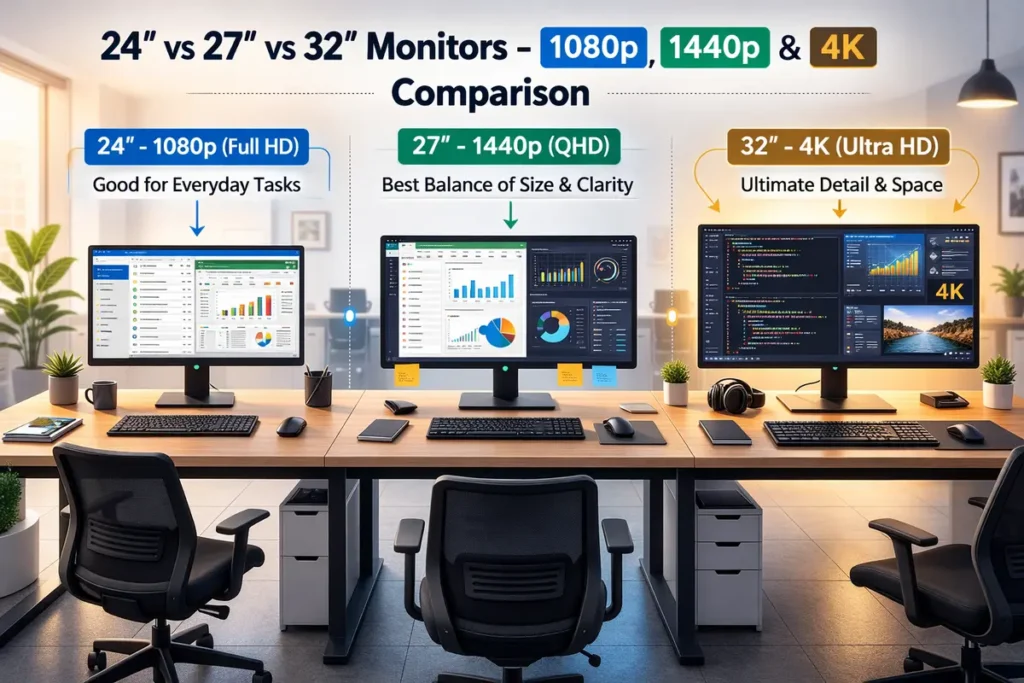
“Short answer”: For office work, 1080p is good up to 24 inches, 1440p is ideal around 27 inches, and 4K works best at 32 inches and above. If you want a simple rule for “1080p vs 1440p vs 4K for Office Work”, use 1080p on smaller screens, 1440p on 27-inch, and 4K on larger displays where you need maximum text clarity and workspace.
Quick Answer – Best Resolution by Screen Size for Office Work
If you’re in a hurry, this section gives you a fast, practical summary you can act on immediately
Who This Guide Is For
This article is designed for:
- Remote workers and employees who sit in front of office apps all day
- IT managers and procurement teams choosing standard monitor specs
- Developers, analysts, and engineers who care about text clarity
- Small business owners building out modern workspaces
- Anyone comparing “1080p vs 1440p vs 4K for Office Work” and feeling unsure what to buy
The focus is productivity and comfort, not frames per second or gaming.
👉 Read the guide: Monitors Made Easy: 25 Essential Tips to Choose the Perfect Screen
Quick Recommendation Table (By Screen Size)
Use this as a quick reference when you’re picking your next office monitor:
| Screen Size | Recommended Resolution | Why It Works Well for Office Work |
|---|---|---|
| 22–24″ | 1080p (Full HD) or 1440p | 1080p is still sharp enough; 1440p brings extra crispness if budget allows |
| 25–27″ | 1440p (QHD) | The sweet spot: sharp text, good workspace, and sensible price |
| 28–32″ | 4K (UHD) recommended | High pixel density, super sharp text, ideal for spreadsheets and multitasking |
| 34″ ultrawide | 3440×1440 (UWQHD) or 4K/UW | Great for wide workflows and replacing dual screens |
| 40″+ | 4K or higher | Designed for heavy multitasking and dashboard-style work |
If you want one simple default choice for most modern office setups, it’s this:
Default recommendation: a 27″ 1440p IPS monitor with an ergonomic stand and the right ports for your PC or laptop.
We’ll now look at why that’s true and where 1080p and 4K still have a clear place.
👉 Read the guide: 27 vs 32 Inch Monitor for Productivity – 2026 Ultimate Guide for Work, Coding & Spreadsheets
Understanding Monitor Resolution for Office Work
What 1080p, 1440p, and 4K Really Mean
Let’s define our terms in a way that matters for IT gear and office use.
- 1080p (Full HD) – 1920 × 1080 pixels, around 2.1 million pixels total
- 1440p (QHD or 2K) – 2560 × 1440 pixels, around 3.7 million pixels total
- 4K (UHD) – 3840 × 2160 pixels, around 8.3 million pixels total
Each step up in resolution gives you more pixels. More pixels mean the system can draw “smoother edges, sharper fonts, and more detail” in the same physical space.
For office work, that translates into:
- Cleaner fonts in Word, Google Docs, and PDFs
- Easier-to-read code in IDEs and terminals
- More visible cells at a comfortable zoom level in Excel
- Crisper icons and UI elements in modern apps
Why Pixel Density (PPI) Matters More Than Resolution Alone
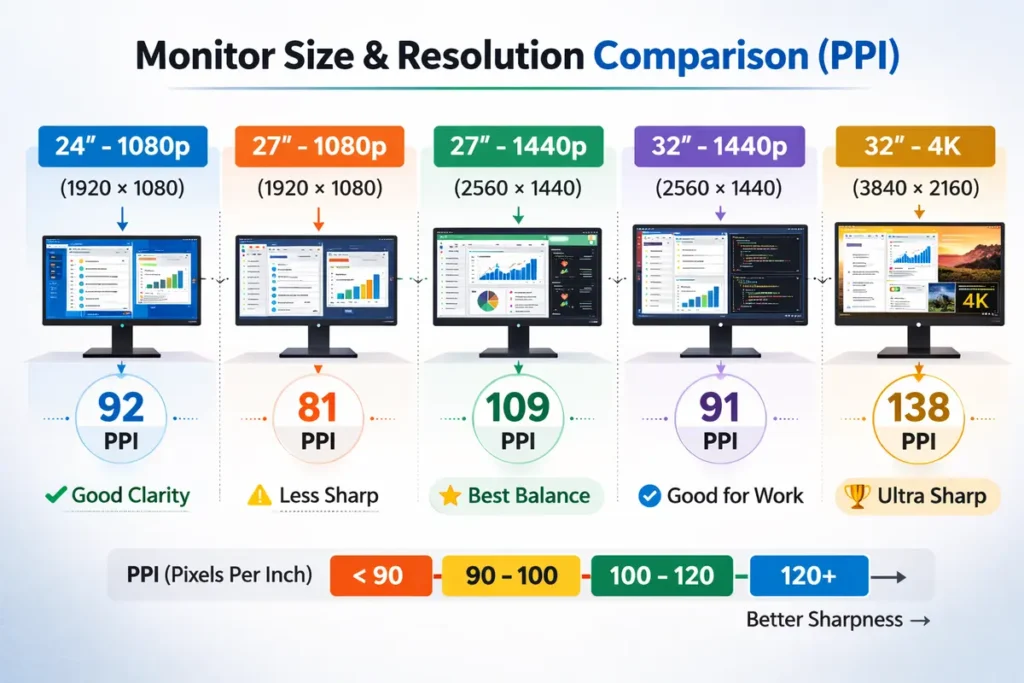
Two monitors can share the same resolution but feel completely different to use. A 24″ 1080p monitor and a 32″ 1080p monitor both have 1920 × 1080 pixels, but on the 32″ screen those pixels are stretched over a much larger area.
That’s why “PPI (pixels per inch)” is so important:
- Higher PPI → more pixels in each inch → sharper and more detailed text
- Lower PPI → fewer pixels per inch → chunkier text and visible jagged edges
Rough feeling in real use:
- 24″ 1080p → generally sharp enough for office tasks
- 27″ 1080p → usable, but text can feel soft or “fuzzy”
- 27″ 1440p → noticeably sharper and easier on the eyes
- 32″ 4K → extremely crisp, great for detailed work
Whenever you decide between 1080p vs 1440p vs 4K for Office Work, remember that screen size + resolution together determine PPI and clarity.
👉 Read the guide: Text Looks Blurry on Your Monitor? Fix Scaling, Sharpness & Cable Issues (Win/Mac)
How Distance and Screen Size Work Together
Your viewing distance also changes the experience. Most people sit about 50–80 cm (20–30 inches) from their monitor:
- Sit closer → you’ll notice blur and pixels more easily
- Sit farther away → you can get away with slightly lower PPI
A 24″ 1080p display looks fine at a small desk distance. That same resolution stretched to 32″ at the same distance can make small text hard to read comfortably.
When planning an office roll-out, think in terms of desk depth + viewing distance + screen size + resolution, not just resolution on its own.
1080p vs 1440p vs 4K for Office Work: Side-by-Side Comparison
Let’s now compare these resolutions directly for typical office workloads.
Text Clarity and Reading Comfort
- 1080p:
- Good enough for basic office work up to 24″.
- Past 24″, text can start to look softer, especially on 27″ and above.
- Fine for email, admin tasks, and occasional document work.
- 1440p:
- A clear step up in sharpness compared to 1080p at the same size.
- On 27″, fonts look crisp and well-defined without extreme scaling.
- Excellent for text-heavy workloads, from coding to long-form reading.
- 4K:
- Delivers the sharpest text and UI elements, particularly at 27–32″.
- Very small fonts and thin UI elements look superb when scaling is configured correctly.
- Perfect for users who spend their days with dense information and detailed visuals.
If you care deeply about text clarity and you’re trying to decide between 1440p vs 4K, the screen size becomes the real tie-breaker: 27″ is great at 1440p; 32″ really shines at 4K.
👉 Read the guide: IPS vs VA vs OLED for Work: Which Panel Type Is Best for Your Eyes?
Screen Real Estate and Multitasking
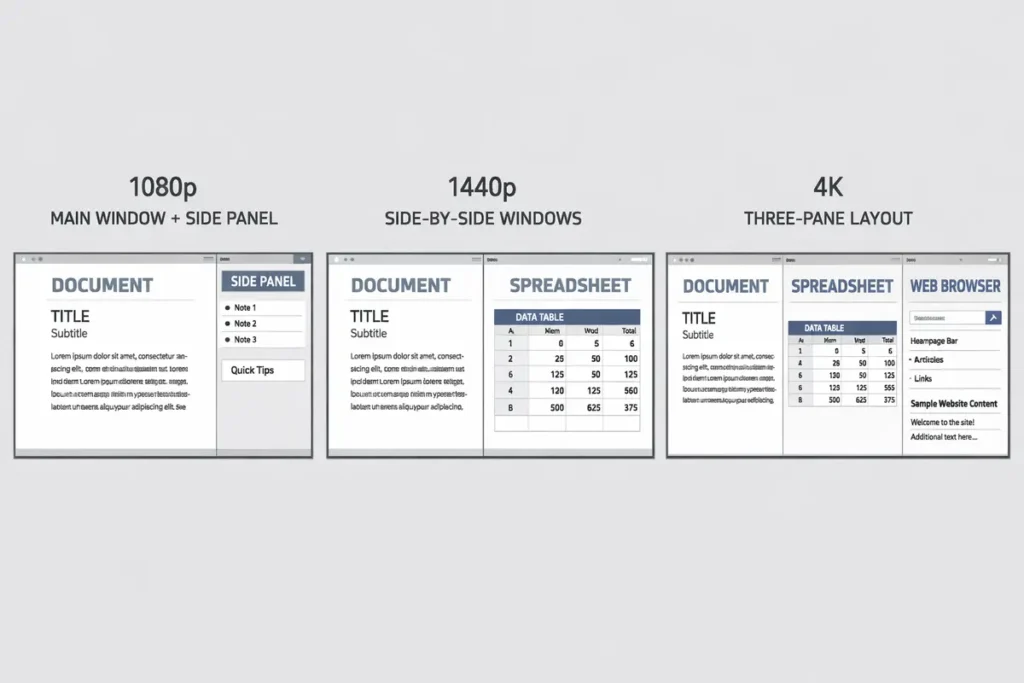
Higher resolution also affects how much “stuff” you can fit on screen:
- 1080p: one main window plus a smaller side window is comfortable
- 1440p: two full-size documents side by side become practical
- 4K: three or even four panes are possible with the right scaling
If your work involves project management boards, dashboards, code + logs, or multiple browser tabs, 1440p and 4K dramatically reduce the need to switch windows constantly.
This is where 1080p vs 1440p vs 4K for Office Work isn’t just about clarity; it’s about how many tasks you can view at once without losing context.
Scaling in Windows and MacOS
Modern operating systems use display scaling so that elements remain readable on high-resolution screens:
- On a 27″ 1440p monitor, 100–125% scaling is common and comfortable.
- On a 27″ or 32″ 4K monitor, most people prefer 125–150% scaling or more.
Good scaling gives you the best of both worlds: sharper text plus a usable size. Poor scaling or older software can lead to:
- Tiny text and icons
- Blurry elements if the app doesn’t scale correctly
For IT teams, this is a key point: test your main apps on 4K before standardizing, especially if your organization uses older line-of-business software.
Hardware Requirements (PCs and Laptops)
Here’s the good news: for office use only, you don’t need a high-end gaming GPU to drive a 4K monitor.
- Most recent laptops and desktops can handle at least one 4K monitor at 60 Hz
- For dual 4K or 4K at high refresh rates, check:
- DisplayPort 1.4 or HDMI 2.0 (or newer)
- The GPU’s maximum supported resolution / display count
For a typical IT deployment with one 27″ 1440p or 32″ 4K monitor per desk, integrated graphics on modern CPUs are usually sufficient, especially when the work is limited to standard office applications.
Best Resolution by Screen Size
This is where we turn theory into actionable buying advice. Let’s map 1080p vs 1440p vs 4K for Office Work to common monitor sizes.
22–24″ Monitors – When 1080p Is Still Enough
For 22–24″ screens, 1080p remains a perfectly valid and cost-effective choice:
- Text is reasonably sharp at normal office distances.
- Many corporate environments still standardize on 24″ 1080p.
- It’s the cheapest way to equip a lot of desks.
Choose 1080p at 22–24″ if:
- You’re on a tight budget or equipping a large number of employees.
- Workloads are mostly email, browser-based apps, CRM, ticketing, and simple documents.
- You want something familiar and widely supported by existing hardware.
When to step up to 1440p at 24″:
- You or your team frequently work with detailed text and smaller fonts.
- You want this monitor to stay comfortable for several years as apps evolve.
- You’re building a premium home office setup and don’t mind paying more for extra clarity.
25–27″ Monitors – Why 1440p Is the Sweet Spot
At 25–27″, 1440p (QHD) becomes the standout recommendation for office use.
Why 27″ 1080p often feels like a compromise:
- Pixel density drops compared to 24″ 1080p, so text looks slightly softer.
- Small fonts and detailed interfaces can become tiring over long days.
- Once users experience 27″ 1440p, they rarely want to go back.
Why 27″ 1440p is ideal for office work:
- High enough pixel density for crisp text and sharp UI elements.
- Plenty of room for two full-size windows side by side.
- Works well at 100–125% scaling without making things look odd.
- Pricing is now very accessible for both home offices and corporate roll-outs.
Best for:
- Knowledge workers in marketing, HR, operations, and management
- Software developers, DevOps engineers, and sysadmins
- Content creators who mostly do office work but occasionally work on visuals
28–32″ Monitors – Where 4K Really Shines
At 28–32″, you’re into larger workspace territory. This is where 4K really starts to justify itself for office work.
27–32″ 1440p vs 4K considerations:
- At 32″, 1440p can feel a bit stretched if you sit close and use small fonts.
- At 32″, 4K restores that high pixel density and gives you very sharp text.
- With 4K plus proper scaling, you can view large spreadsheets, dashboards, and multi-window layouts comfortably.
Best suited for:
- Financial analysts and accountants working with large Excel files
- Developers who love multiple panes (editor, terminal, browser, logs) on one screen
- IT staff who monitor dashboards, logs, and consoles all day
- Designers and content creators who mix office work with high-res visuals
Ultrawide Monitors – 34″ and Beyond
Ultrawide displays change how you use your desktop by giving you more width instead of just more height.
Common ultrawide resolutions for office work:
- 3440 × 1440 (UWQHD) at 34″ – like a wide 27″ 1440p monitor
- 3840 × 1600 or similar – higher vertical resolution, more space than 1440p
- Higher-end 4K/5K ultrawides for specialized workflows
Why 34″ 3440 × 1440 is so popular for work:
- Ideal for three narrow windows side by side (e.g. email, browser, and chat).
- Excellent for long timelines, wide spreadsheets, and project tools.
- Text clarity is similar to a 27″ 1440p, which most people find very comfortable.
When to consider 4K/5K ultrawides:
- You want to replace two or even three separate monitors with one seamless panel.
- You manage complex dashboards or content tools all day.
- Budget allows for premium hardware and GPUs that can drive the resolution smoothly.
40″+ and Dual-Monitor Alternatives
Very large monitors (40″ and above) are designed to replace multi-monitor setups altogether.
- At this size, 4K or higher is essential; lower resolutions look obviously pixelated.
- You get a massive canvas for dashboards, diagrams, timelines, and multiple app windows.
However, many offices achieve similar productivity gains with dual-monitor setups:
- Two 24″ 1080p monitors – budget-friendly and familiar
- Two 27″ 1440p monitors – premium dual-screen setup with lots of space
Decision tip:
If you’re deciding between a 40″ 4K display and dual 27″ 1440p monitors, think about:
- Desk depth and width
- Whether users prefer one big canvas or separate screens
- Compatibility with existing monitor arms and mounts
Productivity, Value, and Total Cost of Ownership
Choosing 1080p vs 1440p vs 4K for Office Work is ultimately a business decision. It’s not just about specs; it’s about value over time.
Time Saved vs Extra Cost
Spending a little more on monitors can save significant time and reduce fatigue:
- Sharper text reduces eye strain and re-reading
- More screen space reduces tab-switching and window shuffling
- Better ergonomics reduce long-term discomfort and potential absenteeism
For full-time staff, the extra cost of moving from a basic 24″ 1080p monitor to a 27″ 1440p or 32″ 4K screen can pay itself back in productivity in a matter of months.
Budget, Mid-Range, and Premium Price Bands
You can think of office monitors in three broad tiers:
- Budget: 22–24″ 1080p monitors
- Perfect for basic admin and light office work
- Lowest cost per desk, easiest to roll out in bulk
- Mid-range: 27″ 1440p monitors
- Ideal for most knowledge workers and hybrid roles
- Best balance of clarity, workspace, and cost
- Premium: 32″ 4K and ultrawide monitors
- Aimed at power users, analysts, developers, and creative pros
- Higher upfront cost, but potentially the best ROI for heavy users
In your content strategy and affiliate layout, you can clearly map products into these tiers and explain who each tier is for, which helps readers self-select and convert.
Eye Comfort, Ergonomics, and Health
Resolution is only one piece of comfort. Long-term health and productivity depend on how you set up and use your monitor.
Font Size, Brightness, and Blue Light
To keep your eyes happy:
- Don’t force tiny fonts just because you have a 4K screen. Use a text size that feels natural.
- Set brightness so your monitor isn’t a glowing rectangle in a dim room.
- Use built-in low blue light or “reader” modes in the evenings.
- Consider dark mode if it feels more comfortable in your main apps.
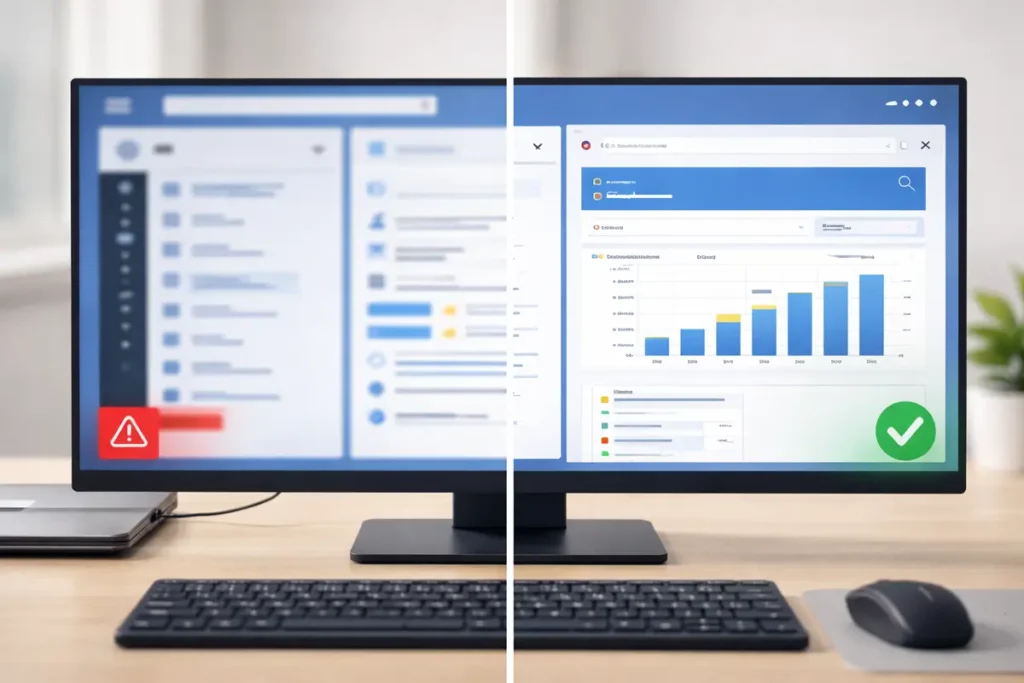
Higher resolution can reduce eye strain by making edges smoother and text more readable, but only when combined with sensible font sizes and brightness settings.
Stand Adjustability and Viewing Distance
No matter which resolution you pick:
- The top of the screen should be at or just below eye level.
- You should be able to see the whole screen without constantly rotating your neck.
- A height-adjustable, tilting stand is a huge help for comfort.
A well-chosen 1080p or 1440p monitor with great ergonomics often beats a poorly positioned 4K screen in real-world comfort.
If you want a deep dive into resolution and ergonomics, you can explore resources like the ViewSonic monitor resolution guide: Link
Real-World Office Setups
This section is designed to plug directly into your IT gear affiliate strategy. Each scenario gives you a clear, relatable use case that you can pair with product recommendations.
1. Budget Home Office Setup
- Monitor: 24″ 1080p IPS, flicker-free, tilt stand
- Resolution choice: 1080p is enough at this size for everyday office tasks
- User profile: Admin roles, support staff, basic WFH users
Why it works:
You keep costs low, avoid over complicating things, and still give users a screen that looks good at typical home office distances.
2. Standard Knowledge Worker Setup
- Monitor: 27″ 1440p IPS, 60–75 Hz, height-adjustable stand
- Resolution choice: 1440p is the sweet spot at 27″ for clarity and workspace
- User profile: Marketing, HR, operations, project managers, business owners
Why it works:
This setup feels like a big upgrade over 24″ 1080p for most people. Text is sharper, you can run two full windows side by side, and the panel doesn’t feel cramped.
3. Developer / Analyst Power Setup
Two highly effective configurations:
- Option A: Dual 27″ 1440p monitors
- Option B: Single 32″ 4K monitor
Resolution choices:
- Dual 27″ 1440p → huge combined workspace with consistent clarity
- Single 32″ 4K → one large canvas with razor-sharp text and fewer bezels
User profile: Developers, data analysts, DevOps engineers, financial professionals, IT administrators.
Why it works:
These roles often juggle code, terminals, dashboards, logs, databases, and documentation. They benefit the most from extra width and clarity.
👉 Read the guide: Ultrawide vs Dual Monitors: 7 Real Productivity Differences That Actually Matter
4. Hybrid Creative + Office Setup
- Monitor: 27″ or 32″ 4K IPS monitor with strong color accuracy
- Resolution choice: 4K for both Ultra sharp text and high-res visual work
- User profile: Content creators, designers, marketers who do both docs and visuals
Why it works:
You get the best of both worlds: crisp fonts for writing and editing, plus fine detail for images and video frames.
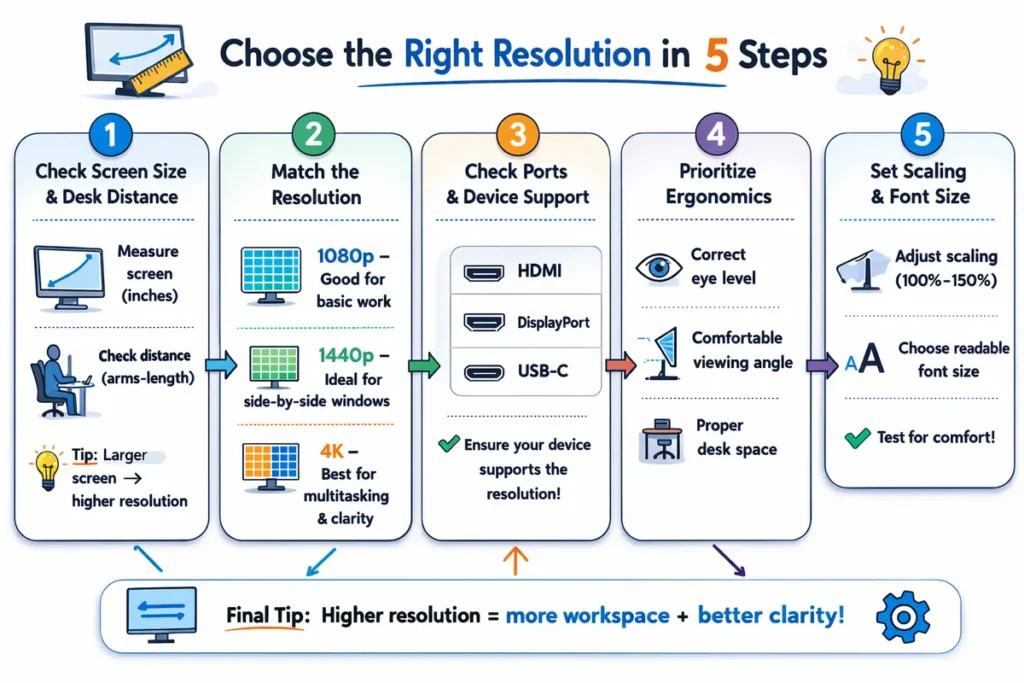
Buying Checklist: How to Choose in 5 Steps
When you’re stuck choosing between 1080p vs 1440p vs 4K for Office Work, use this checklist:
- Decide your screen size based on desk and distance.
- Small desk → 24–27″
- Deeper desk → 27–32″ or ultrawide
- Match resolution to that size.
- Up to 24″ → 1080p (or 1440p if you want extra sharpness)
- 25–27″ → 1440p is ideal for most office workers
- 28–32″ → 4K recommended for best text clarity
- Check ports and device compatibility.
- HDMI and DisplayPort for desktops
- USB-C with power delivery if you’re using modern laptops or docking setups
- Prioritize ergonomics and eye-care features.
- Height/tilt/swivel/pivot adjustments
- Flicker-free backlight and low blue light modes
- Tune scaling and font sizes after setup.
- Adjust OS scaling so text is easy to read
- Increase app font sizes if needed, especially on 4K
Once you’ve gone through these five steps, you’ll have a clear answer on which resolution and monitor type to buy—and adding specific product recommendations becomes easy.
👉 Read the guide: Why You Can’t Get 60Hz/120Hz: HDMI vs DisplayPort vs USB-C Explained
FAQs About Monitor Resolution for Office Work
Is 1080p good enough for office work in 2026?
Yes, 1080p is still good enough for office work on 22–24″ screens. Text is reasonably sharp, and it’s a very cost-effective choice. However, if you’re buying new monitors and want something more future-proof, stepping up to 27″ 1440p for core staff provides a noticeable improvement.
Is a 27-inch 1080p monitor too blurry for text?
For many people, 27″ 1080p feels slightly blurry or grainy, especially for small fonts or long reading sessions. It’s usable, but if you care about clarity, a 27″ 1440p monitor is a much better option and is now widely available at reasonable prices.
Is 4K overkill for office work and email?
If you only ever use email and simple documents, 4K might feel like overkill. But if you spend hours each day in spreadsheets, dashboards, development tools, or multiple apps side by side, 4K at 32″ or on an ultrawide can significantly improve comfort and workflow.
1440p vs 4K for office work – which gives better text clarity?
4K delivers the highest text clarity, especially at 27–32″. You’ll notice thinner, smoother fonts and cleaner diagonal lines. However, 1440p on a 27″ monitor already looks very sharp, and many people find it to be the ideal balance between clarity, price, and hardware requirements.
Do I need a powerful graphics card for a 4K office monitor?
For normal office tasks, you don’t need a high-end GPU. Most modern integrated graphics solutions can drive a single 4K display at 60 Hz. You only need to worry about more powerful GPUs if you’re running dual 4K monitors, high refresh rates, or doing heavy 3D work and gaming.
What’s the best resolution for coding and programming?
For coding, a lot of developers prefer 27″ 1440p because it offers:
>Sharp text for reading code
>Enough space for multiple panes (editor, terminal, browser)
>Reasonable GPU requirements
If you often run many tools at once or love huge workspaces, a 32″ 4K monitor can be even better, but make sure you configure scaling so text doesn’t become too small.
What’s the ideal distance to sit from a 27-inch monitor?
For most people, 50–70 cm (20–28 inches) works well with a 27″ monitor. If you sit much closer, you might need to move your head more to see the whole screen. If you sit further away, you may want larger fonts or higher brightness.
Does a higher resolution reduce eye strain?
Higher resolution can help reduce eye strain because it produces smoother, cleaner text and edges. But it’s not a magic fix. Eye comfort also depends on:
>Font size and scaling
>Brightness and contrast
>How often you take breaks
>Your overall ergonomics
A well-set-up 27″ 1440p or 32″ 4K monitor is generally more comfortable than a lower-resolution screen with poor settings.
Is 1080p okay for dual-monitor setups in an office?
Yes, dual 24″ 1080p monitors are still a solid choice for many offices:
>They provide plenty of total workspace.
>Hardware requirements are modest.
>Many staff are already used to this setup.
If you want more clarity, though, dual 27″ 1440p monitors or a single 34″ ultrawide offer an upgraded experience.
Should I choose 1440p or 4K for a 32-inch monitor?
If your main goal is office work, 4K is the better choice at 32″. You’ll get sharper text, better visibility for detailed content, and a more “premium” feel. 1440p can work at 32″, but many users see it as a compromise, especially for text-heavy work.
Do I need 120 Hz or 144 Hz for office work?
High refresh rates like 120 Hz or 144 Hz are nice-to-have features but not essential for office work. They can make scrolling feel smoother and reduce motion blur, but resolution, panel quality, and ergonomics have a much bigger impact on your workday.
Is 4K worth it for Excel and large spreadsheets?
If you live in Excel or work with complex, wide spreadsheets, 4K is often absolutely worth it, especially at 32″. You’ll see more rows and columns at a comfortable zoom level, which can make analysis faster and less frustrating.
What’s the best resolution for a laptop used with an external monitor?
If your laptop supports it, pairing it with a 27″ 1440p or 32″ 4K monitor is ideal. Always check:
>The laptop’s supported resolutions and refresh rates
>Whether it has HDMI, DisplayPort, or USB-C with DisplayPort Alt Mode
>Power delivery needs if you want a single-cable USB-C setup
Will 4K make my icons and text too small?
Out of the box, 4K can make text and icons look small. That’s why scaling exists. Set your operating system to 125–150% scaling on a 27–32″ 4K monitor and adjust per your eyesight. Done right, you’ll get both sharpness and comfortable text size.
Is a curved monitor better for office work?
Curved screens can be more immersive and make it easier to see the edges of wide displays, especially 34″ ultrawides and larger. For smaller 24–27″ monitors, curvature matters less. For a 34″ ultrawide used for office work, a gentle curve is often more comfortable.
Should I get an ultrawide monitor or two monitors for office work?
Both setups have pros and cons:
>Ultrawide: One large, seamless screen, no bezels in the middle, great for timelines and dashboards.
>Two monitors: More flexibility (you can angle them), often cheaper, easy to mix resolutions or reuse existing displays.
If you crave a clean, minimal desk setup and do a lot of wide work, a 34″ 3440 × 1440 ultrawide is an excellent choice.
Does panel type (IPS, VA, TN) matter as much as resolution?
Yes, panel type still matters a lot:
>IPS: Best viewing angles and color consistency, ideal for office work.
>VA: Better contrast, but viewing angles may be a bit narrower.
>TN: Older tech; often lower color quality and viewing angles, less ideal for modern offices.
Ideally, choose an IPS panel at the resolution that makes sense for your screen size and budget.
How important is USB-C on a modern office monitor?
USB-C can be a game changer, especially for laptop-based workflows:
>One cable for video, data, and power
>Cleaner desks with fewer adapters
>Easier hot-desking and docking
If your laptops support it, USB-C 1440p and 4K monitors can simplify your entire office setup.
Can I mix resolutions in a dual-monitor setup (1080p + 1440p or 1440p + 4K)?
You can mix resolutions, and many people do. Just be aware:
>Windows may use different scaling settings on each screen.
>Some apps may look slightly different when dragged between displays.
>For the smoothest experience, it’s nicer when both monitors match in resolution and scaling, but mixed setups are still workable.
What’s the single best choice if I just want one good office monitor?
If you’re only going to remember one recommendation from this guide, make it this:
> Choose a 27″ 1440p IPS monitor with a height-adjustable stand and the ports you need.
It’s the best balance across almost every dimension: clarity, workspace, price, compatibility, and long-term usability. If your work is extremely demanding in terms of data and visuals and your budget allows, step up to a 32″ 4K monitor.
Final Verdict: Which Resolution Should You Choose?
When you compare 1080p vs 1440p vs 4K for Office Work, there’s no single “winner” in every situation. Instead, the right choice depends on screen size, viewing distance, workload, and budget:
- 22–24″ screens: 1080p is still fine, 1440p is a premium upgrade.
- 25–27″ screens: 1440p is the sweet spot and the best default choice.
- 28–32″ screens: 4K makes the most sense for sharp text and large workspaces.
- Ultrawides and 40″+ screens: 3440 × 1440 or 4K (and above) excel for wide workflows and multi-window setups.
If you match your resolution to your screen size, configure scaling properly, and pay attention to ergonomics, your monitor becomes more than just glass and pixels—it becomes a quiet, reliable productivity engine on your desk.
PPI Comparison Table (Reference)
Diagonal size | Resolution | Approx. PPI | Notes |
|---|---|---|---|
24″ | 1920 × 1080 | 92 | Common 24″ Full HD office monitor |
27″ | 1920 × 1080 | 82 | Softer image; OK for basic work |
27″ | 2560 × 1440 | 109 | Excellent balance of clarity and size |
32″ | 2560 × 1440 | 92 | Good if you sit a bit further back |
32″ | 3840 × 2160 | 138 | Very sharp; ideal for dense workloads |
Buying Checklist – Mini How-To (5 Steps)
Step 1: Map roles and workloads – list what each role actually does on-screen (email, CRM, spreadsheets, IDEs, dashboards, design tools, etc.).
Step 2: Choose screen size – match typical viewing distance and desk depth to 24″, 27″ or 32″ and decide if ultrawide or dual-screen makes sense.
Step 3: Pick the resolution – 24″ 1080p for basic work, 27″ 1440p for most knowledge workers, and 32″ 4K for dense data and power users.
Step 4: Check hardware and ports – confirm your laptops/PCs and docking stations can drive the chosen resolution at 60 Hz (or higher) via HDMI/DisplayPort/USB‑C.
Step 5: Plan ergonomics and budget – factor in monitor arms, stands and any extra cables, and set a per‑user budget for each role/tier.
Example Product Ideas for Real-World Office Setups
Basic office / call centre setups
- 24″ 1080p IPS office monitor with tilt adjustment and thin bezels.
- Simple VESA-compatible monitor arm (single-monitor) for better ergonomics.
- Wired keyboard and mouse combo designed for all‑day comfort.
General knowledge workers (hybrid staff, managers, marketing, HR)
- 27″ 1440p IPS monitor with height, tilt and swivel adjustment.
- USB‑C docking station or USB‑C monitor with 65W+ power delivery.
- Adjustable office chair and keyboard tray to match the new screen height.
Developers, analysts and power users
- 27″ 1440p pair (dual monitors) or a single 34″ 3440 × 1440 ultrawide.
- Flexible dual‑monitor arm to position screens at eye level and slight inward angle.
- Full‑size mechanical or low‑profile keyboard plus an accurate, ergonomic mouse.
Managers, content creators and visual roles
- 32″ 4K IPS monitor with good colour accuracy (sRGB/Rec.709 coverage).
- USB‑C or Thunderbolt dock to keep desks clean and support multiple peripherals.
- Calibrated lighting or bias light behind the monitor for eye comfort.
Budget vs Mid-Range vs Premium – Example Monitor Tiers
| Tier | Typical use | Monitor size & resolution | Notes / Features |
|---|---|---|---|
| Budget | Large roll-outs, call centres, basic admin staff | 24″ 1080p (IPS if possible) | Prioritise reliability and ergonomics; keep costs low while avoiding very old panels. |
| Mid-range | Most knowledge workers, hybrid staff, managers | 27″ 1440p (IPS) | Best balance of clarity, screen real estate and cost; ideal default for modern offices. |
| Premium | Developers, analysts, designers, leads and executives | 32″ 4K (IPS) or 34″ ultrawide | Maximum clarity and workspace; pair with strong hardware and good docking solutions. |