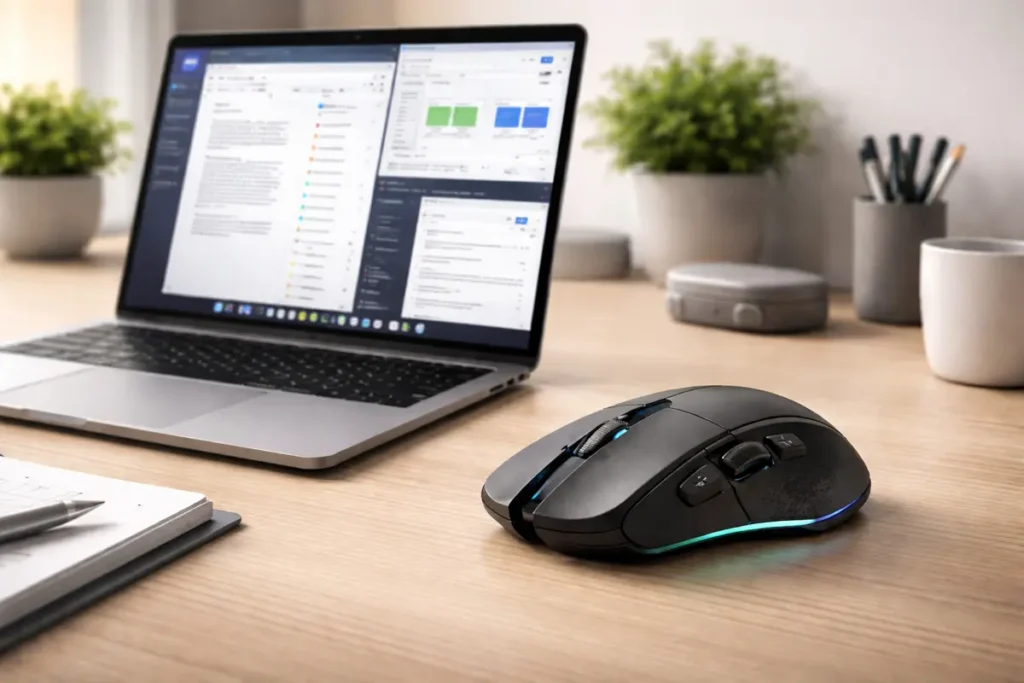
Learn practical gaming mouse office productivity hacks in 2026. Discover the best button remaps, scroll tricks, macro ideas, setup tips, and reliability checks for faster daily work.
Table of Contents
- Introduction
- Quick answer: the best gaming mouse hacks for office productivity
- Why gaming mice can be useful for office work
- Best gaming mouse hacks to boost office productivity
- Back and Forward on thumb buttons
- Screenshot on a mouse button
- Paste plain text for cleaner workflows
- Open frequently used apps or tools
- Push-to-talk or mute for meetings
- Middle-click and tab control for browser-heavy work
- Smart remaps for repetitive editing tasks
- Snipping, launcher, and task switching shortcuts
- App-specific profiles: where gaming mice become genuinely useful
- How to set up productivity profiles without overcomplicating them
- Start simple with core remaps
- When to use vendor software vs external tools
- Onboard memory vs software-based profiles
- What to look for in a gaming mouse for work
- Hardware hacks that improve office use
- Side-button placement and button count
- Scroll wheel feel and reliability
- Onboard memory for multi-device use
- Ergonomic fit for long work sessions
- Troubleshooting when productivity hacks stop working
- Best practices that make gaming mouse productivity stick
- FAQ: gaming mouse hacks for office productivity
- External reference sources
Introduction
Gaming mouse office productivity is not just a niche idea anymore — programmable buttons, profiles, and shortcuts can save time across everyday office tasks.
Extra buttons, a better scroll wheel, profile switching, onboard memory, and app-specific software can all shorten common actions that normally waste time during a busy workday. The right setup helps you capture screenshots faster, jump between browser tabs, paste clean text, open support tools, mute calls, and reduce the constant reach for keyboard shortcuts.
This guide focuses on practical, low-friction ways to use a gaming mouse for office productivity on Windows and Mac. It covers button remaps, macro ideas, profile tips, reliability checks, and hardware buying angles that matter to real office users. The aim is not to turn a work mouse into a gimmick. The aim is to make repetitive tasks smoother, more consistent, and easier to execute under pressure.
Steps and brand references in this guide were verified against current vendor support material as of March 2026. Menu labels and feature availability can change, so check the vendor site if your software version looks different.
How this guide was evaluated: recommendations were selected from current official support documentation and filtered for stable, repeatable office tasks that save time without creating fragile workflows.
Quick answer:
The best gaming mouse hacks for office productivity are simple button remaps, app-specific profiles, clean screenshot shortcuts, browser navigation buttons, paste-plain-text actions, push-to-talk or mute keys for Teams and Zoom where supported, and one-click launches for the tools you use all day.
A good setup saves the most time when each button does one dependable action in the same context every day.
👉 Read the guide: 10 Powerful Ways a Keyboard & Mouse Setup Can Transform Your Productivity
Best gaming mouse hacks at a glance
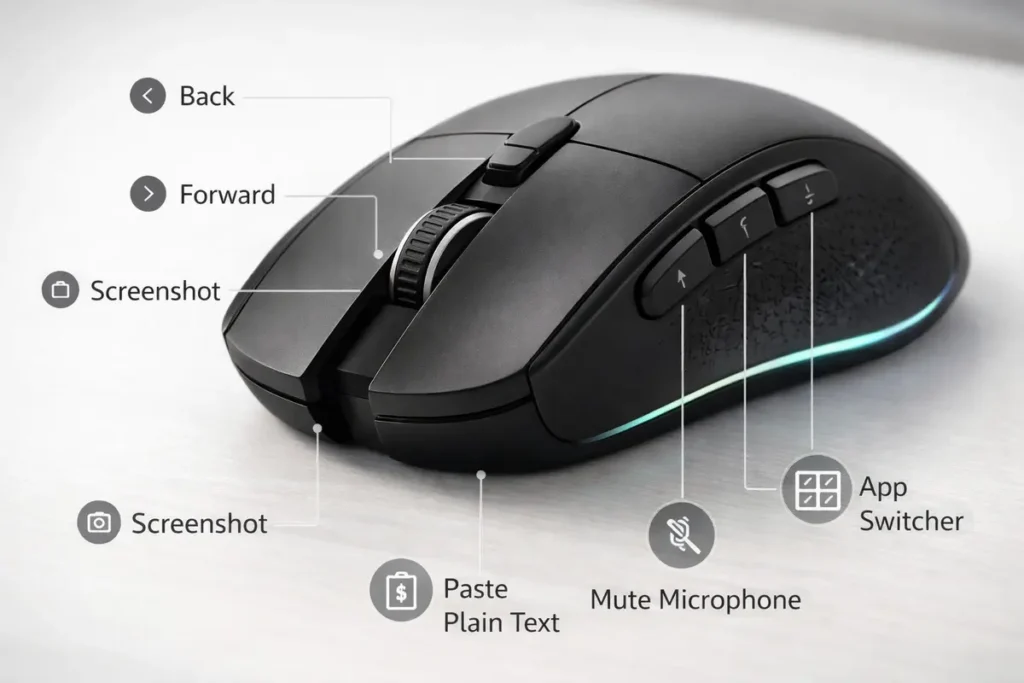
| Hack | Example input | Why it works | Best use case |
|---|---|---|---|
| Paste plain text | Map to Ctrl+Shift+V on Windows and Chrome-based tools, or Command+Shift+V where supported. Test it in your email client and CMS because support varies. | Stops messy formatting when moving text between websites, email, and ticket systems. | Support, admin, writing |
| Instant screenshot | Map to Windows+Shift+S or Shift+Command+4. Add a second shortcut for your markup tool if screenshots are part of your daily workflow. | Captures evidence quickly without hunting for tools. | Support, QA, documentation |
| Browser back/forward | Map the hardware side buttons to browser Back and Forward, which many mice support by default. | Cuts small navigation delays that repeat hundreds of times a week. | Research, CRM, web apps |
| Search or launcher button | Map to Windows+S, Command+Space, or your launcher shortcut so one button opens files, apps, and settings. | Finds files, apps, and settings without reaching for the keyboard. | General office work |
| Mute or push-to-talk | Map to the meeting app shortcut for mute or push-to-talk in Teams or Zoom where supported. | Helps control calls faster during screenshares or noisy environments. | Hybrid work, meetings |
| Open task stack | Launch your ticketing tool, CRM, notes app, or work browser profile with one click. | Removes friction when moving into a routine workflow. | Customer support, sales |
That does not mean more buttons are always better. The strongest office setup usually comes from a restrained configuration with three or four high-value actions you can remember instantly. Once the mouse starts doing too many things, hesitation creeps in and the time savings disappear. For office productivity, dependable actions beat clever complexity.
A standard office mouse is usually fine for pointing, clicking, and scrolling. A gaming mouse becomes more powerful at work because it adds controls you can deliberately assign. Extra thumb buttons let you move actions away from the keyboard. Better software lets you build app-specific profiles. In many models, higher-end sensors, better switches, and more tactile wheels also make long work sessions feel more precise.
Remap vs. macro: start with the lighter tool
A remap changes one mouse button into one other input. For example, you can remap a side button to Ctrl+C, Ctrl+V, Back, Forward, or Windows+Shift+S. Remaps are ideal when you need fast, repeatable actions that should always behave the same way.
A macro triggers a longer predefined action or sequence. That can be a timed string of key presses, a text snippet, a launch command, or a chain of actions. Macros are helpful for repetitive work, but they are also easier to break if a window loses focus, a field moves, or your device profile changes.
For most office users, the smarter workflow is to start with remaps and only add macros when the time savings are obvious. A simple screenshot shortcut or paste-plain-text key is often more dependable than a long recorded click path.
Best productivity ideas with real keystroke examples
- Paste plain text: Map a side button to Ctrl+Shift+V on Windows and Chrome-based apps, or Command+Shift+V where your Mac app supports it. Test it in your email client, CMS, ticket platform, and chat tools because clean-paste support varies by app.
- Screenshot and markup: Use Windows+Shift+S on Windows or Shift+Command+4 on Mac for fast captures. If you annotate often, pair it with Shift+Command+5 on Mac or a shortcut that opens Snipping Tool, ShareX, or your markup app so one button captures and another button helps you label the result.
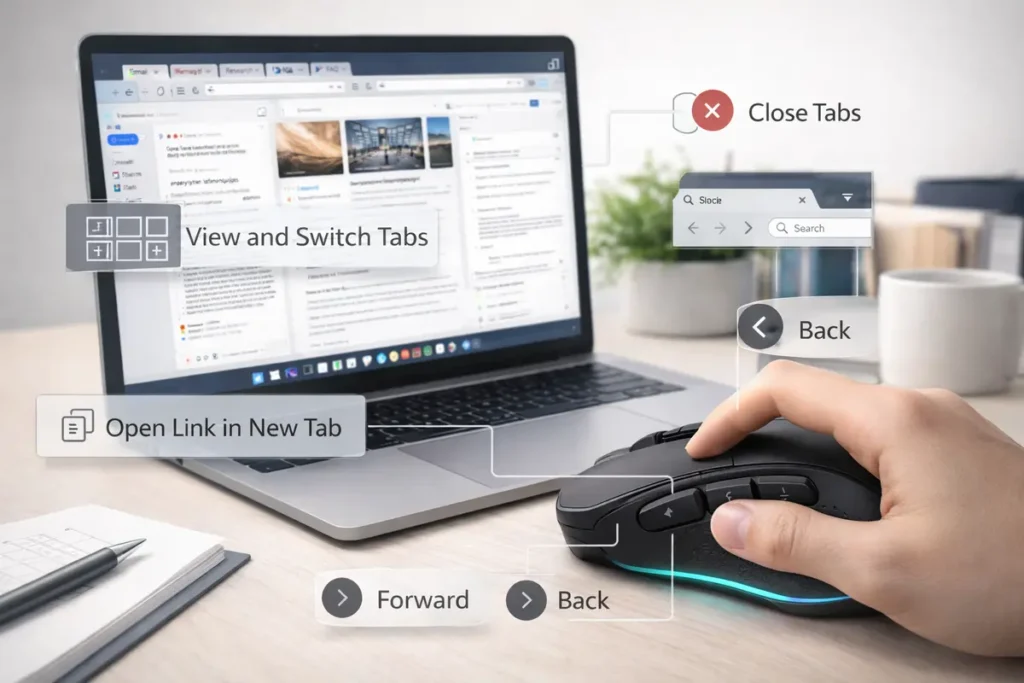
- Browser navigation: Keep the hardware Back and Forward actions on the thumb buttons, which many gaming mice already support by default. Add Ctrl+L to jump to the address bar, Ctrl+Shift+T to reopen a closed tab, or Command+L on Mac if your day revolves around dashboards, docs, and browser-based business tools.
- Search and launch: Map a top button to Windows+S for Windows Search, or Command+Space for Spotlight. This is a fast way to open apps, find documents, launch settings, or perform quick calculations without breaking concentration.
- Mute or push-to-talk for meetings: If your meeting app supports it, map the relevant shortcut for mute toggle or push-to-talk in Teams or Zoom. This is especially useful when you are screen-sharing and do not want to hunt for controls mid-call.
- One-click app launch: Create a profile action that opens your ticket system, CRM, browser workspace, or password manager. In some ecosystems you can open a URL, application, or local file directly from a button, which is ideal for the first app you always open when a work session begins.
Underrated gaming mouse hacks for office users
Turn the DPI button into a work control. If your mouse has a DPI switch you never use in the office, remap it to mute, screenshot, or open your task launcher instead of leaving it wasted.
That layout works because each action solves a repeated support task: capture evidence, move through knowledge-base pages, paste clean notes, jump back into the ticket queue, and control calls without breaking focus. The same structure also works for finance, operations, e-commerce, or content teams by swapping the launch action and communication shortcut.
Button layout examples you can copy
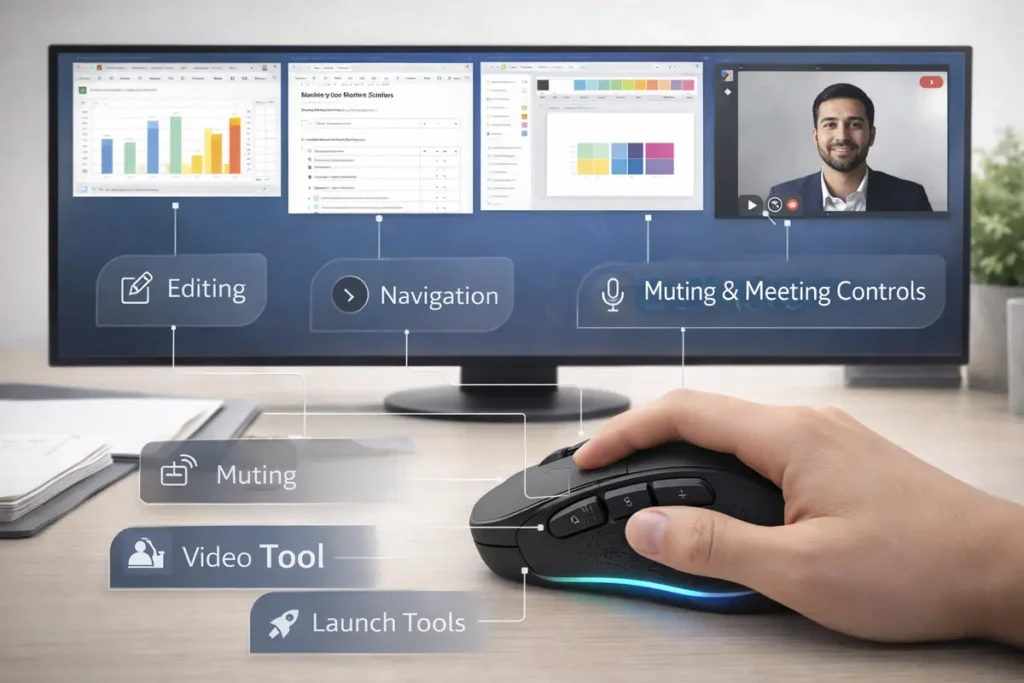
Support role layout: Thumb 1 = Windows+Shift+S for screenshot, Thumb 2 = browser Back, wheel-left click if supported = Ctrl+Shift+V for paste plain text, wheel-right click if supported = open ticket tool or knowledge base, and DPI button = mute toggle or push-to-talk for Teams or Zoom where supported.
Content and editing layout: Thumb 1 = browser Back, Thumb 2 = Ctrl+Shift+T to reopen a tab, wheel-left click if supported = Ctrl+L to jump to the address bar, DPI button = Ctrl+Shift+V for clean paste, and top button = Windows+Shift+S for screenshot. This layout works well for CMS editing, research, publishing checks, and moving between drafts and admin panels.
Assign wheel-left or wheel-right clicks if your mouse supports them. Those side-scroll clicks can be excellent for paste plain text, reopen closed tab, or jump to the address bar without touching the keyboard.
Save a travel-safe setup to onboard memory. A simple profile with Back, Forward, screenshot, and search is often all you need when moving between office desks, meeting rooms, and home devices.
- Virtual desktop movement: Map shortcuts such as Windows+Ctrl+Left and Windows+Ctrl+Right, or Mission Control equivalents, if you separate communication, documentation, and browser tasks across desktops.
- Quick text snippets: Use a short macro to insert a greeting, a template line, or a case ID prefix. This works best for short, fixed phrases rather than long blocks of text that may change often.
Example workflow: customer support day
A strong office mouse layout should feel obvious after one day of use. One practical support setup is: Side button 1 = Windows+Shift+S for screenshots, Side button 2 = browser Back, wheel click left = paste plain text, wheel click right = open ticket tool, and a DPI or profile button reassigned to mute in Teams or Zoom if your setup supports it.
That layout works because each action solves a repeated support task: capture evidence, move through knowledge-base pages, paste clean notes, jump back into the ticket queue, and control calls without breaking focus. The same idea can be adapted for finance, operations, eCommerce, or content teams by swapping the launch action and communication shortcut.
Brand setup notes that matter in 2026
Logitech G HUB
G HUB remains one of the most common ecosystems for gaming mice used at work. It handles remaps, macros, application-specific profiles, and onboard memory settings. For office productivity, G HUB works best when you keep assignments simple, profile names clear, and only a few high-value buttons customized per app.
Be explicit about onboard memory limits. Onboard Memory Mode is useful when you move between machines, but complex macros may not work there. Logitech documents that some macros do not work in onboard memory mode, so test onboard memory on your exact model before you rely on it for travel or hot-desk use.
Razer Synapse 4
Use Synapse 4 for current setups. Razer states that Synapse 3 stopped receiving updates and cloud services on February 3, 2026, so Synapse 4 is the recommended path for new productivity profiles, current device support, and updates.
In practice, Synapse 4 works best when you separate work assignments from gaming assignments and keep one profile dedicated to office tasks. If you are migrating from Synapse 3, review Razer’s migration guidance first so you know which profiles, macros, and cloud-linked settings transfer cleanly.
CORSAIR iCUE
iCUE is flexible and can be very effective for office use because it supports assignments, macros, profiles, and device-level customization across broader setups. The main risk is overbuilding your configuration, so keep work actions direct, easy to test, and grouped into separate profiles for predictable daily use.
Use separate profiles for work and other tasks. That makes it easier to keep office buttons predictable during the day while still preserving personal or gaming layouts for later. Also test onboard memory for your exact model because simple remaps often travel well, while complex macros may still need iCUE running in the background.
What to look for in a gaming mouse for work
Vendor software is usually the right starting point because it is tied to the hardware and easy to understand. For more advanced needs, external tools can be better. AutoHotkey on Windows offers more logic, conditions, and workflow control, while Keyboard Maestro is a stronger Mac option when device software is not enough.
That does not mean you should replace vendor tools immediately. A good rule is to use the lightest tool that solves the problem reliably. Keep simple remaps and basic macros inside the mouse software first. Move to AutoHotkey or Keyboard Maestro only when you need conditions, window targeting, variables, or more advanced automation.
Onboard memory is a genuine work benefit when you switch between machines. For many office users, a mouse that stores core remaps internally is more useful than one that depends on software for every button.
Comfort still matters more than specs on paper. A shape that fits your hand, a scroll wheel you can trust, and side buttons you can find without thinking will do more for productivity than RGB or extreme DPI figures. Ergonomic fit also reduces strain during long sessions, which matters just as much as speed gains.
Hardware hacks that improve office use
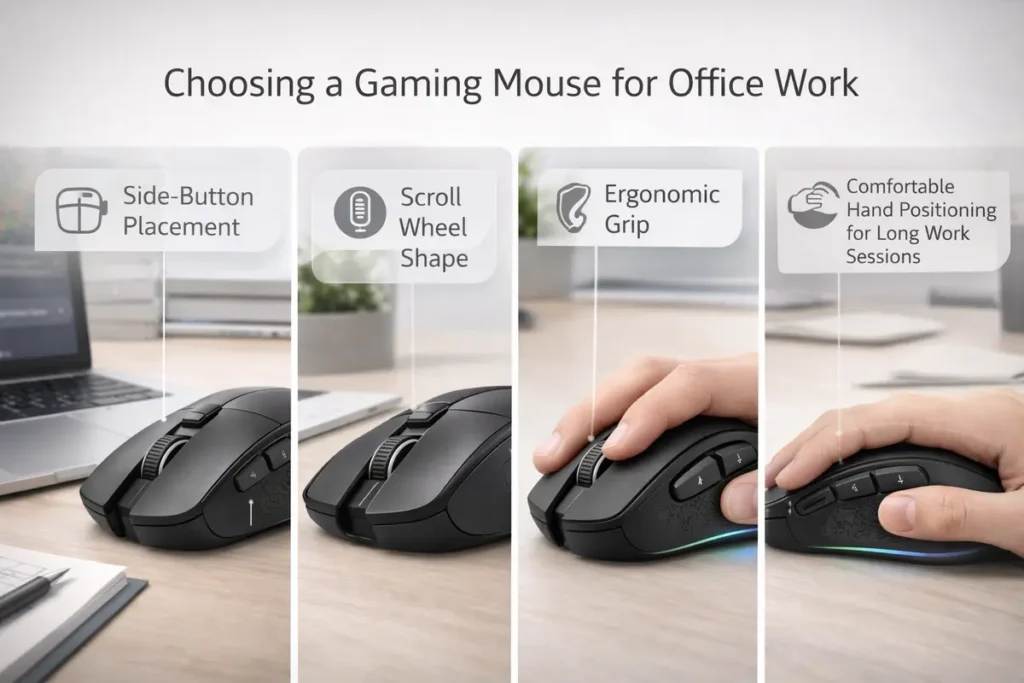
The best gaming mouse for productivity is not automatically the one with the most buttons. Side-button placement matters more than raw count. Two well-placed thumb buttons are often enough for Back, Forward, screenshot, or paste plain text. A third button can be valuable for a launcher or mute command, but after that the learning curve rises quickly.
A tactile scroll wheel also matters. If you live in spreadsheets, dashboards, ticket queues, or long browser sessions, a scroll wheel with a clean click and predictable resistance can save more time than a flashy macro feature. Some users also benefit from a free-spin or dual-mode wheel for large documents and data review.
Onboard memory is valuable if you move between a home PC, office desktop, and laptop, but remember that onboard memory often supports only simpler actions. If your workflow depends on app-aware macros, software-level profiles are still the safer choice.
Limit yourself to three or four high-value assignments at first. A layout you remember instantly is faster than a giant button map you need to decode in the middle of work.
If you work long hours, prioritize ergonomic fit as much as button count. A mouse that fills your hand properly and keeps your thumb relaxed can improve comfort across long spreadsheets, ticket queues, and browser sessions, which supports real productivity better than any flashy feature.
The aim is not gimmicks – it is smoother, consistent tasks that save time without adding another thing to troubleshoot.
Troubleshooting when productivity hacks stop working
- Confirm whether the action is a remap or a macro. Remaps are usually simpler and less likely to fail than timed multi-step macros.
- Check whether the mouse is relying on software or onboard memory. If a complex assignment fails on another PC, the action may require the vendor app to be running.
- Look at app focus. A macro that types into one window can fail if another window or security prompt takes focus first.
- On managed work laptops, check whether antivirus or endpoint security is blocking the vendor software or preventing automated input.
- If a vendor app became unstable after an update, review current support articles, repair the installation, or perform a clean reinstall before rebuilding every profile.
- For meeting controls, verify that your communication app still uses the same shortcut and that it allows global hotkeys where needed.
Best practices that make gaming mouse productivity stick
Limit yourself to three or four high-value assignments at first. A setup that you remember instantly is faster than a giant layout you need to think about.
Use the same button logic everywhere possible. If the rear thumb button means Back in the browser, avoid making it do something unrelated in another common app unless the benefit is huge.
Prefer shortcut-based actions over recorded click paths. A shortcut such as Ctrl+Shift+V or Windows+Shift+S is safer than recording a click path through menus that may move later.
Name profiles clearly. Use labels such as Work, Browser, Support, Editing, or Meetings rather than generic names you will forget in two weeks.
Review the setup every few months. The best office mouse layout evolves with your real workflow, not with the box features that looked exciting on day one.
FAQ: gaming mouse hacks for office productivity
Yes. Extra buttons, better scroll controls, app-specific profiles, and a few smart remaps can remove small delays that repeat throughout the workday.
Screenshot is usually the safest place to start. Windows+Shift+S on Windows or Shift+Command+4 on Mac offers immediate value in support, documentation, and collaboration.
Usually yes. A remap is simpler, easier to remember, and less likely to fail. Use macros only when the workflow has clear repetitive value.
Ctrl+Shift+V is common in many Windows apps and web tools. On Mac and some cross-platform apps, Command+Shift+V may work. Because support varies by app, test your exact workflow.
Use it for simple, portable remaps. For complex macros or app-specific behavior, software-based profiles are usually more reliable.
They can be. A precise sensor, a tactile wheel, and thumb buttons for navigation or launcher actions can speed up spreadsheet-heavy workflows.
Not usually. Two or three well-placed buttons are often enough for productive office use.
Often yes, but some managed devices block customization software or background utilities. Check company policy and endpoint security rules first.
Back and Forward on thumb buttons is one of the highest-value changes for browser-heavy work, followed by a launcher or reopen-tab shortcut.
Often yes, if the communication app supports a shortcut for mute or push-to-talk and allows it to work in your environment.
The likely causes are missing vendor software, restricted permissions, different profiles, onboard memory limits, or security tools that block automated input.
Yes. Separate profiles keep work buttons predictable and make troubleshooting easier.
For current use, yes. Razer ended Synapse 3 updates and cloud services on February 3, 2026, so Synapse 4 is the current recommended path.
No. Logitech documents that some macros do not work in onboard memory mode, so test carefully if you move between devices.
Not if you keep the setup simple. iCUE becomes harder to trust when one profile tries to manage too many unrelated tasks.
On Windows, AutoHotkey is the most common free upgrade path for advanced automation. Built-in accessibility tools can also help for simpler needs.
Keyboard Maestro is a well-known option when mouse software is not enough for deeper Mac automation.
A shortcut-based action such as screenshot, launcher, clean paste, or app open is safer than a recorded mouse path through a changing interface.
Every few months, or whenever your main job workflow changes. The best assignments follow your actual daily tasks.
Sometimes. Reducing repeated reaches for the keyboard and cutting unnecessary movement can make work feel smoother, though fit and shape still matter.
Yes, for simple remaps if the mouse supports onboard memory. More advanced actions may still require the vendor software on each machine, especially when profiles depend on app detection or background utilities.
Models like the Logitech G305 or Razer Viper Mini are often good starting points because they offer programmable buttons without unnecessary complexity. The best choice still depends on fit, software quality, and whether you need onboard memory.