A foundational guide to computer and IT hardware for modern workplaces: how to choose, use, secure, and manage PCs over their full lifecycle.
This computer hardware basics guide explains the core PC components—CPU, GPU, RAM, storage and ports—in simple terms and shows how they affect real-world performance. Learn how to choose the right laptops and desktops, plan hardware life-cycles, improve reliability and security, and avoid common buying mistakes in modern home and business setups.
About this guide
Hardware is the physical layer of computing: the devices, components, and infrastructure that make software usable in the real world. When people say “my computer is slow,” the root cause is often a mix of hardware limits (CPU, memory, storage, thermals), software choices, and how the system is configured.
This guide gives you a practical foundation for understanding computer hardware in a way that helps you buy wisely, troubleshoot faster, and design setups that scale from a home office to an enterprise fleet.
You’ll learn what each major component does, how to translate specs into real performance, how to evaluate reliability and total cost of ownership, and how to maintain and secure hardware throughout its lifecycle. It’s written for everyday users, IT teams, and anyone who has to make hardware decisions with real budgets and real consequences.
Key takeaways
Buy for the workload, not the spec sheet: real performance depends on thermals, power limits, memory, and storage—not just the CPU name.
16 GB RAM is a comfortable baseline for modern multitasking; heavy creative, engineering, and virtualization workflows often need 32 GB+.
Ports and docks cause more daily friction than most people expect—verify display support, charging, and bandwidth before purchase.
Reliability is a support story: warranty terms, parts availability, and repairability often matter more than small performance differences.
A basic lifecycle plan (maintenance + refresh timing + secure disposal) saves money and prevents emergency replacements.
Authorship and editorial standards (EEAT)
Experience: TechDeskZone editors and contributors build and support real workstation setups and device fleets, where downtime and compatibility matter.
Expertise: Recommendations focus on how components behave under everyday workloads (video calls, multitasking, content creation, development), not only on short synthetic benchmarks.
Authoritativeness: For model-specific decisions, we encourage verification using manufacturer specifications and independent review testing methods.
Trustworthiness: This guide includes no affiliate links. Guidance is presented as practical defaults; validate for your environment.
Update policy: Hardware changes quickly. Re-check model availability, port standards, and platform compatibility at the time of purchase. Last updated: 19 February 2026.
How to use this guide
If you’re new to hardware, start with the sections on core components, performance basics, and form factors. If you’re choosing equipment for work, pay special attention to fleet standardization, warranty terms, and lifecycle planning. If you’re troubleshooting, jump to diagnostics, common failure modes, and maintenance.
Throughout the document you’ll see links to supporting guides. Some are “future supporting guides” (planned deep dives) and others are foundational guides for related categories (monitors, keyboard & mouse, docks & hubs, ergonomics, mobile devices, software, gadgets).
What hardware includes
- End-user devices: desktops, laptops, tablets, phones, thin clients, and accessories.
- Compute components: CPU, GPU, memory, storage, motherboard, power supply, cooling.
- Peripherals: monitors, keyboards, mice, webcams, headsets, printers, scanners.
- Connectivity and expansion: docks, hubs, adapters, cables, Wi‑Fi and Ethernet gear.
- Infrastructure: servers, NAS/SAN storage, networking, UPS, racks (for organizations).
- Security and management: TPM, smart card readers, asset tags, device management tooling.
This guide focuses on end-user and small-to-mid scale organizational hardware decisions, while still giving you enough context to collaborate effectively with infrastructure teams.
Core components
Most buying mistakes happen because people focus on one spec in isolation. A “fast CPU” paired with too little RAM can still feel slow. A high-end GPU paired with a weak power and cooling design can throttle. An excellent laptop paired with a low-quality dock can be unreliable.
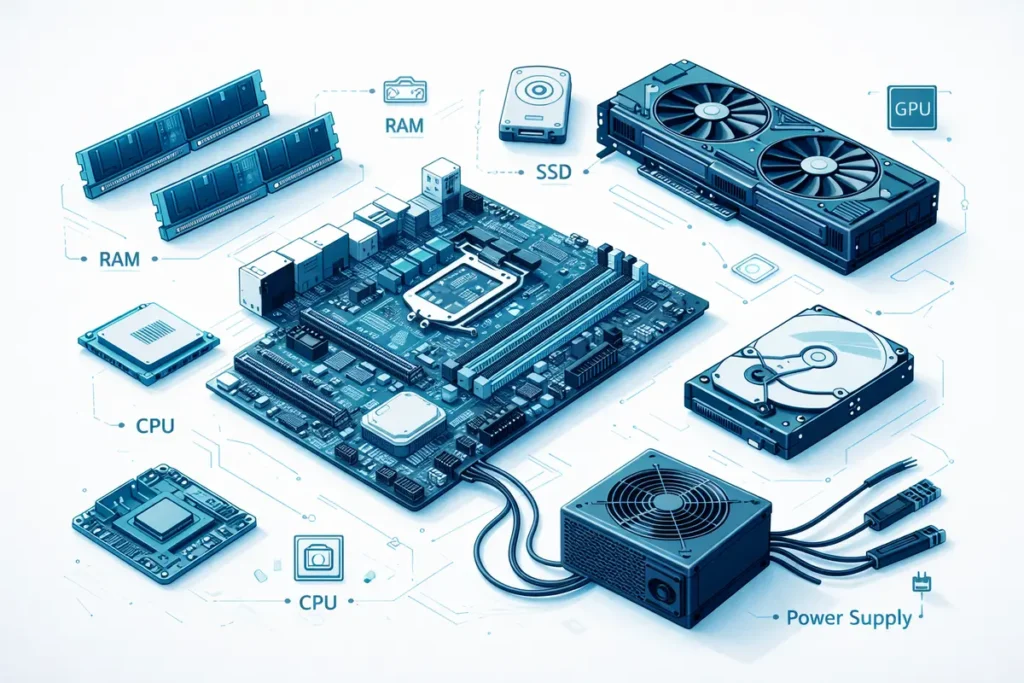
The simplest way to keep decisions grounded is to map each hardware component to an everyday symptom:
CPU limits show up as slow app responsiveness, stutter during video calls, or long export/build times.
RAM limits show up as slow switching between apps, browser tab reloads, and frequent “not responding” moments.
Storage limits show up as slow boot times, slow file searches, and sluggish large file operations.
GPU limits show up as choppy timelines in editors, poor 3D performance, or high CPU usage during video playback.
Poor thermals show up as “it was fast for 10 minutes, then it slowed down.”
CPU: the general-purpose engine
The CPU (central processing unit) handles general compute tasks: running your operating system, applications, browser tabs, and background services. Most day-to-day workloads are a mix of short bursts (opening apps, switching tabs) and sustained work (spreadsheets, compiling code, video calls).
Cores and threads: more cores help when tasks run in parallel (video editing, code compilation, heavy multitasking).
Single-core performance: still crucial for responsiveness in many apps.
Clock speed and boost behavior: modern CPUs vary speed based on temperature and power limits.
Power and thermals: thin laptops can throttle under sustained load; desktops can sustain higher performance longer.
Rule of thumb: prioritize balanced CPUs for typical office work; prioritize higher single-core performance for snappy UX; prioritize more cores for creator and engineering workflows.
GPU: the parallel accelerator
A GPU (graphics processing unit) accelerates graphics and massively parallel tasks. Even if you don’t game, GPUs matter for modern workflows: high-resolution displays, video encoding/decoding, AI-enhanced features, and creative tools.
Integrated graphics: built into the CPU; efficient, good for office work and light creative tasks.
Discrete GPUs: separate chips with dedicated memory; better for 3D, video effects, CAD, data science, and many AI workloads.
Practical guidance: don’t buy a discrete GPU “just in case” unless you have clear needs. For teams, consider a small pool of GPU-equipped devices for specialized roles.
Memory: working space for active tasks
Memory (RAM) holds data your system is actively using. When you run out of RAM, the system swaps to storage, which is much slower and causes stutter.
Basic office and browsing: 8–16 GB is typically workable, but 16 GB feels smoother with many tabs.
Heavy multitasking, large spreadsheets, creative work: 16–32 GB.
Engineering, virtualization, data science: 32 GB and up.
Also consider upgradability. Soldered memory can be reliable and efficient, but it locks you into a configuration. For long lifecycles, upgrade paths reduce total cost.
A laptop with soldered 8 GB RAM will feel constrained much earlier in its lifecycle than one with 16–32 GB.
Storage: where data lives
Storage affects boot times, app load times, file transfers, and how quickly your system recovers from sleep. Modern systems primarily use SSDs (solid state drives). HDDs (hard disk drives) still appear in large-capacity, low-cost scenarios.
NVMe SSDs: fastest common option; excellent for most users.
SATA SSDs: still good; often used in older systems or budget builds.
HDDs: best for bulk storage and archives; not ideal as a boot drive.
For organizations: prioritize encryption support, endurance ratings for heavy write workloads, and a backup strategy that assumes drives will fail.
Motherboard and chipset
The motherboard connects components and sets important limits: number of storage slots, memory type, ports, expansion, and sometimes power delivery quality. Chipsets influence connectivity features (USB versions, PCIe lanes, Wi‑Fi options) and may affect upgrade compatibility.
For most buyers, the key question is not “which chipset is best” but “does this platform support what I need now and for the next 3–5 years?” Pay attention to ports, Wi‑Fi/Ethernet, storage expandability, and whether repair is feasible.
Power supply and battery
Power quality affects reliability. In desktops, a well-rated PSU can protect components from voltage issues and handle transient spikes. In laptops and mobile devices, the battery is a consumable component that determines usable lifespan.
For desktops: choose reputable PSUs with headroom; avoid generic no-name units.
A cheap power supply can cause random crashes and shorten component life.
For laptops: treat battery health as a lifecycle item; plan for replacement if the device is meant to last multiple years.
For offices: consider an uninterruptible power supply (UPS) for critical workstations and networking gear.
Cooling and thermals
Cooling isn’t only about noise; it’s about sustained performance and component health. CPUs and GPUs will throttle if they hit thermal limits. Dust buildup raises temperatures over time, especially in warm rooms or carpeted environments.
Keep vents clear, especially on laptops.
Clean dust periodically (more often in dusty areas).
Choose designs with adequate cooling for sustained workloads.
If your device “starts fast then slows down,” thermals are a prime suspect.
Ports, buses, and expansion
Ports define what you can plug in today; expansion options define what you can add tomorrow. Common connection types include USB‑C, USB‑A, HDMI, DisplayPort, Ethernet, audio, and SD card readers.
Bandwidth: high-resolution monitors, external SSDs, and docks can saturate slower ports.
Standards confusion: USB naming is messy; verify the exact capabilities (data rate, charging, display support).
Assume nothing about a USB‑C port until you’ve confirmed its data, display, and charging capabilities.
Compatibility: adapters solve many problems, but each adapter adds a potential failure point.
Related deep dives (supporting guides):
USB-C, Thunderbolt, and port capability checklist
How to read CPU and GPU specs without getting misled
👉 Read the guide: Enterprise IT Guide to Docks & Hubs: Architecture, Standards, Security, Performance & Deployment
Form factors and device classes
Hardware decisions are easier when you start with form factor. Form factor determines portability, repairability, thermals, and I/O.
Desktops (tower, small form factor, all-in-one): best sustained performance and upgradeability.
Laptops (ultrabook, performance laptop, workstation): portability tradeoffs vs thermals and expandability.
Mini PCs and thin clients: compact and energy-efficient; great for light workloads or managed environments.
Tablets and 2-in-1s: excellent for note-taking, field work, and mobility; keyboard workflows vary.
Choose the form factor that matches how the device will actually be used, not how you hope it will be used.
Translating specs into real performance
Spec sheets are shorthand, not guarantees. Two devices with the same CPU label can perform differently due to cooling, power limits, memory configuration, and storage choices.
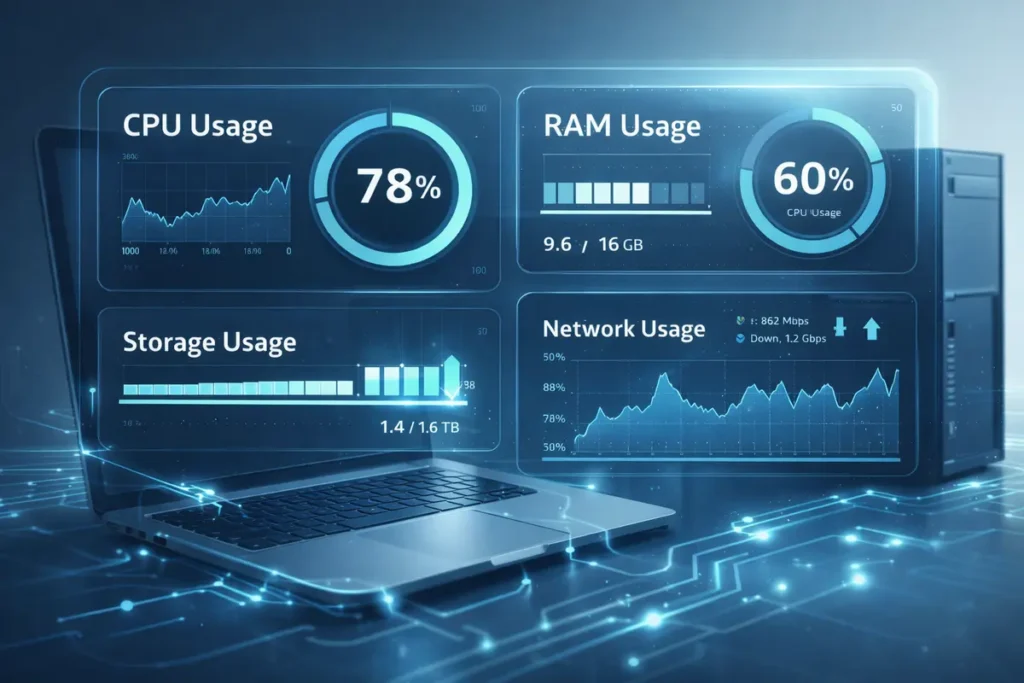
A practical evaluation method:
- Define the workload: office productivity, creative work, development, analytics, field work, etc.
- Identify bottlenecks: CPU responsiveness, GPU acceleration, RAM capacity, storage speed, network reliability.
- Look for sustained benchmarks and real reviews, not just peak numbers.
- Consider UX factors: display quality, keyboard/trackpad, acoustics, webcam/mic, and connectivity.
- Price the full setup: peripherals, docks, warranty, and time-to-support.
When comparing devices, prioritize evidence that matches your use case. A short benchmark may miss thermal throttling that appears after 10 minutes. If you’re buying for a team, standardize on a few “golden” configurations and validate them with pilot users.
Reliability, durability, and serviceability
Reliability is not just “will it break,” but “how costly is it when it breaks.” A device that fails rarely but takes weeks to repair can be worse than a device that fails slightly more often but is easy to service.
Warranty length and service model (mail-in vs on-site).
Parts availability: batteries, keyboards, fans, SSDs.
Repairability: can a tech replace common parts without specialized tools?
Durability: hinges, port strain relief, and chassis rigidity matter in real use.
Environmental factors: heat, dust, travel, and shared workspaces increase wear.
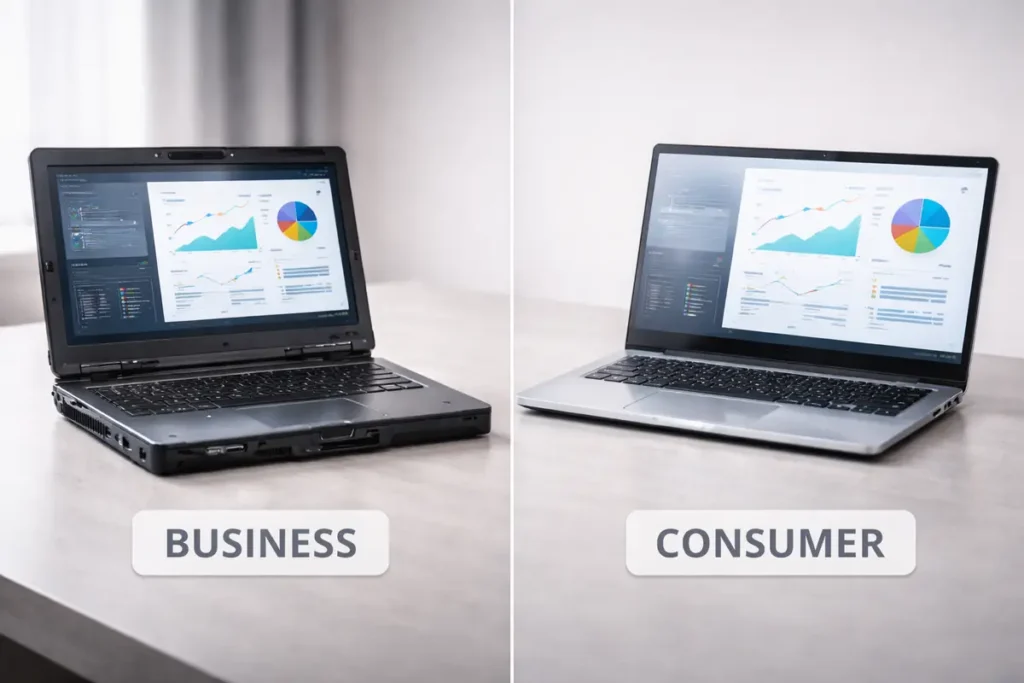
Business-grade hardware often costs more up front because it is designed for predictable support: standardized parts, consistent firmware tooling, and clearer warranty terms. For teams, the best support experience is often “swap the device, restore the user, and repair later,” especially for time-sensitive roles.
Security foundations in hardware
Hardware security features help protect data even when software is compromised. They also support modern authentication and device management.
- TPM (Trusted Platform Module): supports secure boot and disk encryption keys.
- Secure boot and firmware protections: reduce certain persistent threats.
- Biometric sensors and smart card readers: improve authentication.
- Hardware-backed encryption and self-encrypting drives (where applicable).
- Devices provide convenient secure authentication (biometrics or smart cards) where appropriate.
- Hardware supports TPM 2.0 (or equivalent) and it is enabled in firmware settings.
- Full-disk encryption is enabled on laptops and other mobile devices, with recovery keys stored securely.
- Devices ship with secure boot enabled and firmware update paths defined in policy.
Minimum hardware security baseline
Hardware security works best when paired with policy. Firmware updates reduce risk only when they come from trusted sources and are tested before broad rollout.
Supporting deep dive (future guide):
Firmware and BIOS update best practices.

Lifecycle management and total cost of ownership
The cheapest device is rarely the lowest-cost device over time. Total cost of ownership (TCO) includes purchase price, support time, downtime, accessories, energy use, and replacement cycles.
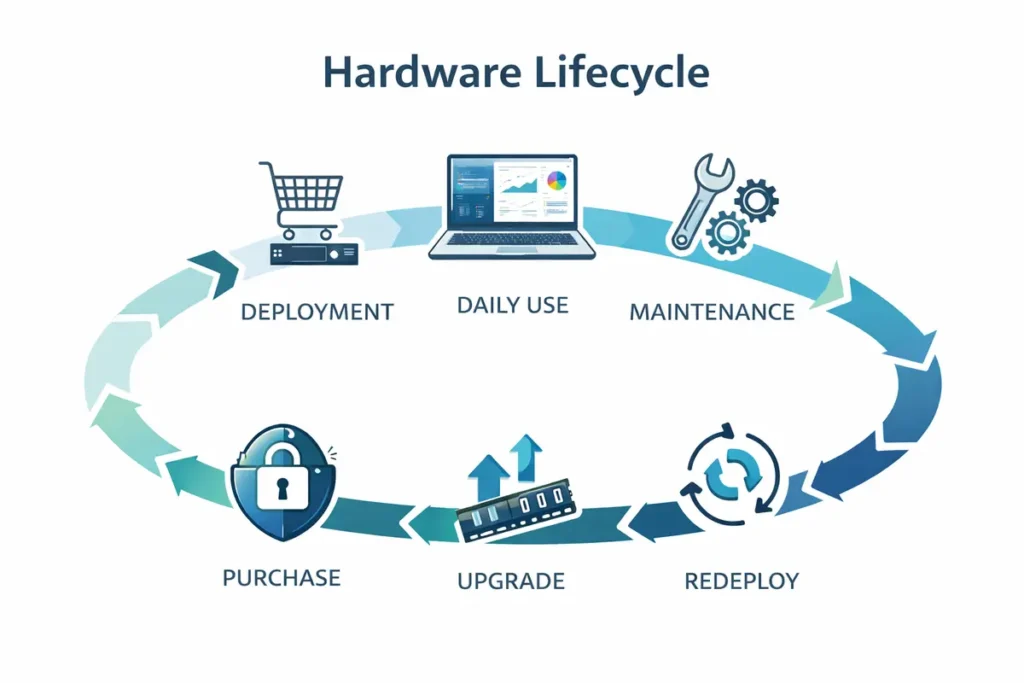
Think of lifecycle as a curve. Early in life, devices are stable and fast. Over time, batteries degrade, fans collect dust, storage fills up, and software grows heavier. Eventually, support time and user frustration exceed the value of keeping the device. Your goal is to replace or refresh before you hit that steep cost curve.
Year 0: purchase and standardize accessories.
Year 1–2: routine maintenance, battery health checks, small upgrades where possible.
Year 3–4: redeploy to lighter roles, replace batteries if cost-effective.
Year 4–6: retire, wipe, recycle, or sell through approved channels.
A small design studio with around 25 staff provides a good example of why lifecycle planning matters.
Initially, the team bought thin-and-light consumer laptops because they were cheap and available. On paper, the specs looked fine: plenty of CPU cores and a discrete GPU. In practice, the devices ran hot, fans were loud, and docks and external monitors were unreliable. After two to three years, batteries were failing and keyboards and hinges were wearing out.
When they switched to a standard business laptop line with better cooling, clear docking support, and on-site warranty, support tickets about hardware problems dropped sharply. Users kept the new laptops for four to five years before redeployment, and old devices moved into light-duty roles such as training rooms and kiosks.
Within two refresh cycles, the organization had lower overall hardware spend even though the business-class devices had higher sticker prices. Fewer surprise failures, predictable replacement windows, and happy users made the lifecycle plan clearly worth it.
Maintenance basics that extend hardware life
Hardware lasts longer when it’s treated as a maintained asset, not a disposable gadget. Maintenance is mostly boring—which is exactly why it works.
- Keep firmware and device drivers updated (from the manufacturer or OS update channels).
- Clean vents and fans; avoid blocking airflow.
- Protect from physical strain: don’t yank cables; use strain relief for ports.
- Manage batteries: avoid constant high heat; consider charge limit features if available.
- Use surge protection or a UPS where power is unstable.
- Back up data and test restores—storage failure is not hypothetical.
Troubleshooting hardware
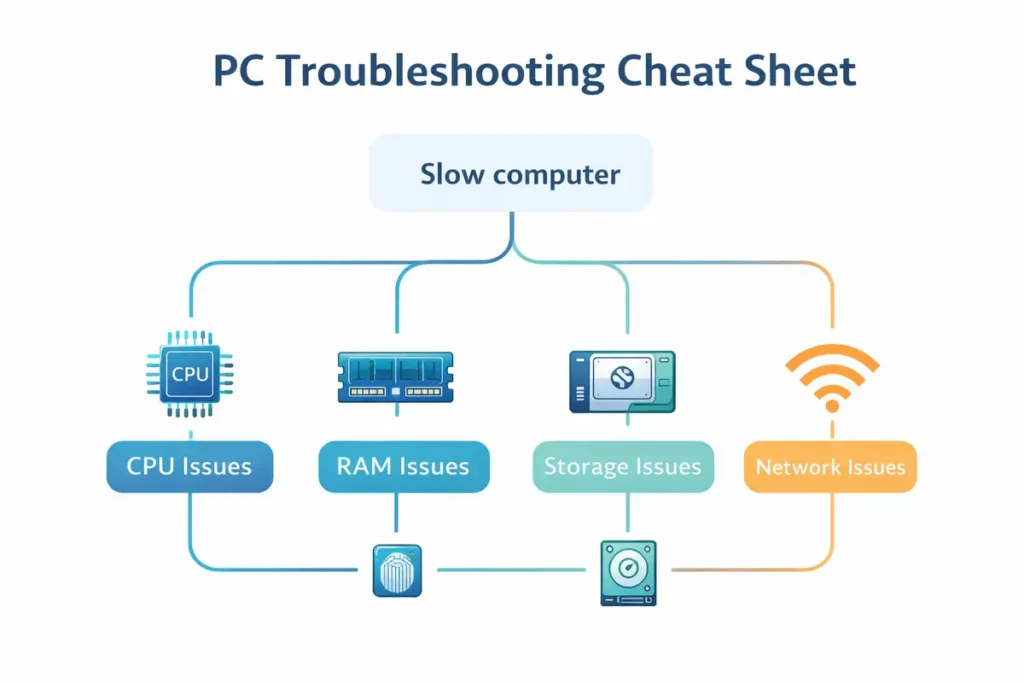
When something breaks, a structured approach saves hours. Start with symptoms, isolate variables, and test the simplest explanations first.
Observe and reproduce: What exactly happens? Under which conditions?
Check the basics: power, cables, ports, and recent changes.
Isolate: try known-good peripherals, different ports, safe mode, or a clean boot.
Inspect logs and diagnostics: OS event logs, SMART data for drives, built-in hardware tests.
Validate fixes: confirm the issue stays resolved under typical workload.
Document: record symptoms, steps taken, and the final resolution.
Keep a “known-good kit”: a reliable dock, spare charger, tested USB‑C cable, and a simple external monitor. These tools often isolate a problem in minutes rather than hours.
👉 Read the guide: Monitors Made Easy: 25 Essential Tips to Choose the Perfect Screen
Choosing hardware for common use cases
Different work styles benefit from different priorities. A salesperson who lives in video calls and travel, a developer who spends all day in an IDE with containers, and a designer who works in color-critical apps do not need identical hardware. Use the profiles below as starting points, then refine them based on your actual tools, how many hours a day the device will be used, and how long you expect it to stay in service. When in doubt, prioritise consistent performance, enough memory, and reliable connectivity over flashy components that don’t relate to the work people actually do.
Office productivity and remote work
- Reliable recent-generation mid-range CPU that keeps everyday apps responsive, even with many browser tabs and chat tools open.
- At least 16 GB RAM so office apps, browsers, and collaboration tools can run together without constant tab reloads or stutter.
- Fast NVMe SSD (256–512 GB or more) for quick boot, fast search, and smooth software updates.
- Decent built-in webcam and microphone that deliver clear video and audio for frequent calls and meetings.
- Stable Wi‑Fi support that matches your office or home network standards, with good roaming and reconnection behaviour.
👉Read the guide: The Ultimate Guide to Productivity Gadgets for Home & Office
Creative work (photo/video/design)
- Higher-core-count CPU that handles exports, renders, and batch processing without bringing the system to a halt.
- 16–32 GB RAM (or more for complex projects) so large files and timelines can stay in memory while you work.
- Fast, high-capacity NVMe SSD plus external SSDs for active projects and scratch space.
- Discrete GPU where your tools benefit from GPU acceleration for effects, previews, and rendering.
Software development and engineering
- Snappy CPU with strong single-core and multi-core performance for compilers, test suites, and local services.
- 16–32 GB RAM to comfortably run IDEs, browsers, containers, and local databases side by side.
- Fast NVMe SSD for build artefacts, package caches, and project checkouts.
- Comfortable, reliable keyboard and pointing device suitable for long coding sessions.
- Dock and dual display readiness so developers can spread code, logs, and documentation across multiple screens.
👉Read the guide: What Is Software? The Ultimate 2026 Foundational Guide to Understanding Digital Power (Beginner to Pro Mastery)
Data and analytics
- Ample RAM capacity (often 32 GB or more) so tools can keep large datasets in memory when needed.
- CPU with enough cores to benefit parallelised workloads in BI tools, scripts, or query engines.
- GPU only where analytics or visualisation tools explicitly benefit from GPU acceleration—otherwise focus budget on CPU, RAM, and storage.
Field work and travel
- Strong battery life that lasts through typical shifts or travel days without constant charging.
- Durable chassis and hinges that can handle frequent movement, transport, and occasional bumps.
- Bright, readable display that remains visible in varied lighting conditions, including outdoors.
- Easy, flexible charging (USB‑C where possible) so users can top up from common chargers and power banks.
- Reliable connectivity, including Wi‑Fi and, where needed, mobile broadband or tethering support.
If you’re unsure, ask two concrete questions: (1) What are the three most demanding tasks you do each week? (2) What frustrates you most about your current setup? Those answers almost always map to the right priorities.
Building a balanced setup
A “good computer” can still feel frustrating if the setup around it is poor. Your display, input devices, and docking strategy are part of the hardware experience.
Key areas to get right:
Display: resolution, size, refresh rate, ergonomics, and color accuracy.
Input: keyboard layout, switch feel, mouse shape, and cursor precision.
Connectivity: docks/hubs, charging, network stability, and cable management.
Comfort: posture, chair/desk setup, and lighting.
👉Read the guide: Ergonomic Home Office Setup: Step‑by‑Step Guide to Pain‑Free Work
👉Read the guide: 10 Powerful Ways a Keyboard & Mouse Setup Can Transform Your Productivity
Hardware procurement: making smart purchases
Procurement is where good intentions meet constraints: budgets, availability, vendor catalogs, and deadlines. A procurement process protects you from impulse buys and ensures consistency.
Define standards: approved models, minimum specs, and accessory bundles.
Validate compatibility: monitors, docks, security tooling, OS requirements.
Pilot before scaling: test with a small group of real users.
Negotiate support: warranty terms, spare parts, and turnaround times.
Plan for deployment: imaging, identity, management, and documentation.
Availability is a real-world constraint. Prefer platforms with stable supply and consistent SKUs when you need repeatable fleet purchases. Also plan the accessory bundle at the same time as the device so users can work on day one.
Asset tracking and inventory basics
Once you have more than a handful of devices, inventory becomes a reliability feature. If you can’t answer “who has this laptop” or “which devices are out of warranty,” you’ll pay in time later.
Tag devices and standardize naming conventions.
Track serial numbers, purchase dates, warranty end dates, and assigned users.
Record accessories issued with devices (chargers, docks, peripherals).
Maintain a loaner pool and a simple checkout process.
Keep a secure disposal and data-wipe process at end of life.
Asset tracking isn’t bureaucracy; it’s how you recover time. Use the system people will actually keep updated.
Sustainability and end-of-life
Sustainable hardware choices reduce cost and risk. Extending device life by even a year can cut replacement spend and reduce e-waste.
Prefer repairable designs and available parts.
Replace batteries and storage when it meaningfully extends life.
Redeploy devices to lighter roles rather than retiring early.
Use certified recyclers and document data destruction.
Consider energy use in always-on environments.
Glossary of common hardware terms
CPU: Central processing unit.
GPU: Graphics processing unit.
RAM: Random access memory.
SSD/HDD: Solid state drive / hard disk drive.
NVMe/SATA: Storage interface standards.
TPM: Trusted Platform Module.
UEFI/BIOS: Firmware interface for boot and hardware settings.
Thermal throttling: Performance reduction to control temperatures.
Dock/Hub: Connectivity expansion devices.
TCO: Total cost of ownership.
MTBF: Mean time between failures (a statistical reliability metric).
S.M.A.R.T.: Drive health telemetry data.
Frequently asked questions (FAQ)
How do I know if I need more RAM or a faster CPU?
Quick answer: If your PC slows down when you juggle lots of apps or tabs, you likely need more RAM; if it feels slow even with just a few apps open and the CPU is pegged, you likely need a faster CPU.
When you’re RAM-limited, apps pause or “hang” when switching and browser tabs keep reloading when you return to them.
When you’re CPU-limited, simple actions feel laggy and CPU usage stays high even with few apps open.
If you’re troubleshooting an existing device, watch live resource usage while you work. If RAM is constantly near full but CPU is modest, more memory helps. If the CPU is maxed out while RAM is fine, a stronger CPU (or a system with better sustained performance) will usually make the bigger difference.
How much RAM do I really need for my PC or laptop?
Quick answer: For most people, 16 GB of RAM is the right baseline; light use can get by with 8 GB, while heavy creative, engineering, and virtualization work often needs 32 GB or more.
Light office and browsing: 8 GB can work, but you’ll hit limits faster with many tabs or apps.
Modern office and remote work: 16 GB is the comfortable baseline for browsers, chat, video calls, and common productivity tools.
Creative work (photo, video, design): 16–32 GB helps with large files and complex timelines.
Engineering, VMs, and data/analytics: 32 GB or more is often worth it for builds, containers, and in-memory datasets.
Also consider upgradability: if RAM is soldered and can’t be expanded, aim slightly higher at purchase to keep the device viable for more of its lifecycle.
Is an external SSD worth it for my laptop or desktop?
Quick answer: Yes—if you move large files, work on multiple machines, or want faster backups, an external SSD is one of the most noticeable quality-of-life upgrades you can buy.
An external SSD is ideal if you regularly copy large project files or switch between multiple PCs.
Compared to a USB hard drive, an SSD is much faster, more durable, quieter, and smaller.
Just make sure the port and cable (ideally USB-C or better) can deliver the speed the SSD is capable of.
Do I need a discrete GPU for office work or multiple monitors?
Quick answer: Most office workers don’t need a discrete GPU—integrated graphics can handle multiple monitors for typical productivity tasks; a discrete GPU is worth it for 3D, heavy video, or GPU-accelerated workloads.
You probably don’t need a discrete GPU if your work is mainly email, documents, web apps, and light image editing.
You do need a discrete GPU if you work with 3D modeling, CAD, game engines, or complex video editing.
Always check the device’s supported display outputs and resolutions—bandwidth limits on ports or docks can still be the bottleneck.
How long should a work laptop last before I replace it?
Quick answer: A well-chosen business-grade laptop typically gives 4–6 years of useful life, but many organizations plan refresh cycles around 3–5 years depending on role and performance needs.
Battery health, performance headroom, platform support, and physical wear are the main lifespan limits.
General office roles often refresh around 4–5 years; heavy power users might refresh closer to 3–4 years.
Devices can be redeployed into lighter or secondary roles as they age.
Think of a laptop as a 4–6 year asset, then decide your refresh point based on support costs, user experience, and security requirements.
What’s the most common avoidable PC hardware mistake?
Quick answer: The most common mistake is buying a device without a clear plan for connectivity and peripherals—especially monitors, docks, ports, and charging.
The device technically has enough CPU and RAM but can’t reliably drive your monitor setup.
A dock “mostly works” but randomly drops displays or power because of bandwidth or power limits.
You end up with drawers full of adapters and dongles trying to patch around missing ports.
To avoid this, plan your desk setup first (number and type of displays, dock behavior, peripherals), confirm port capabilities on both the device and the dock, and standardise on known-good docks, cables, and chargers.
When should I upgrade my computer instead of buying a new one?
Quick answer: Upgrade when a single clear bottleneck (RAM, storage, battery) is holding back an otherwise solid system; replace when you’re hitting multiple limits at once or the platform is aging out of support.
Good candidates for upgrades include RAM (if upgradable), SSD capacity, and battery replacement.
It’s time to replace when you’re limited by multiple factors like ports, thermals, battery, and overall performance.
Replacement also makes sense when firmware or OS support is ending or repairs are too costly.
If slowdowns and instability waste even 10–15 minutes a day for a key user, the productivity cost can quickly exceed the price difference between stretching a device and moving to a right-fit replacement.
How often should I clean or maintain my computer hardware?
Quick answer: For most users, a light clean every few weeks and a deeper maintenance check every 6–12 months keeps hardware running cooler, quieter, and more reliably.
Every few weeks: wipe down keyboard, mouse, and external surfaces; check for blocked vents.
Every 3–6 months: tidy cables, check docks and hubs for firmware updates, and review free storage space.
Every 6–12 months: deeper dust removal (where safe), drive health checks, and a quick review of thermals under load.
A small amount of regular attention can extend device life, prevent overheating issues, and reduce surprise failures.
References and verification
For model-specific decisions, always verify details like CPU model, RAM configuration, SSD type, and port capabilities using the manufacturer’s official specifications page for the exact model or SKU, plus reputable independent reviews that test performance, thermals, and ports under real workloads.
NIST Special Publication 800-88 Revision 1 – Guidelines for Media Sanitization
https://csrc.nist.gov/publications/detail/sp/800-88/rev-1/final
Backblaze Hard Drive Stats
https://www.backblaze.com/cloud-storage/resources/hard-drive-test-data