How to Fix Blurry Text on a Monitor? Learn how to fix scaling, sharpness, cable and dock issues on Windows and macOS so your screen looks crisp again.
Last Updated: February 2026
Author: Editorial Productivity & Computing Team
TL;DR – Fast Fixes for Blurry Text on Monitor
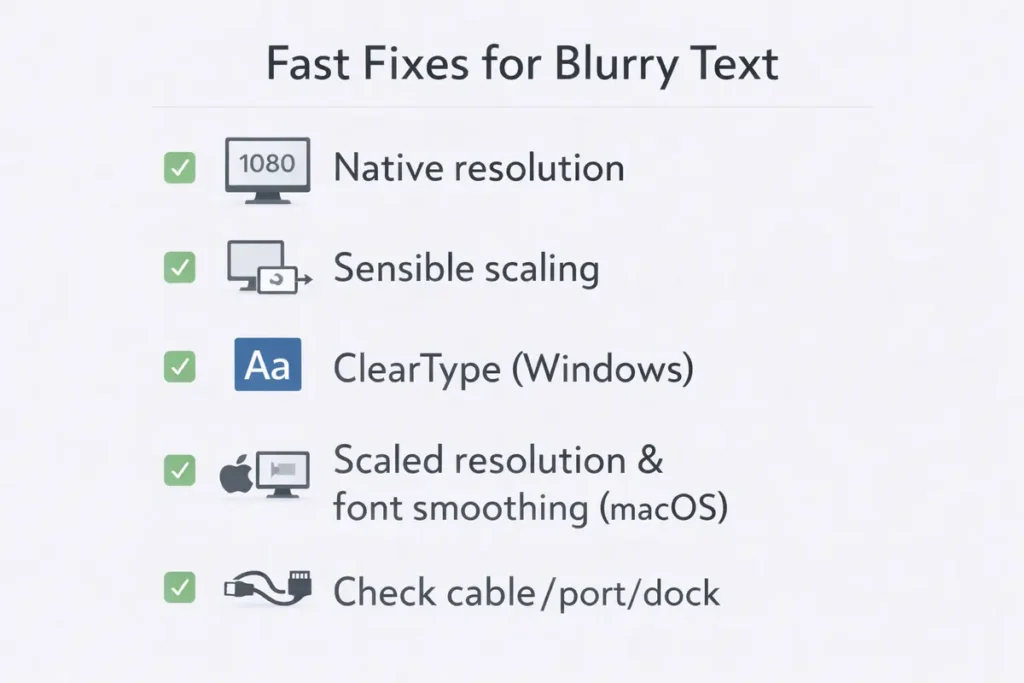
Short on time? Start with these quick wins. In most real-world cases, one of these steps is enough to make text look sharp again:
- Set your monitor to its native or recommended resolution and reset scaling to a sensible value (100% or the OS recommendation).
- On Windows, run ClearType and, if needed, fix per-app DPI scaling for older programs that look fuzzy.
- On macOS, choose a better scaled resolution and experiment with font smoothing on or off for your external monitor.
- Check your cable, port and dock—many blurry external displays are simply running at the wrong resolution because of an old HDMI cable or a limited USB-C hub.
If text on your screen suddenly looks fuzzy, soft, or slightly out of focus, it can make even simple tasks feel tiring. Reading emails, working in spreadsheets, or writing code becomes harder when every letter has a halo around it or looks just a bit off. The good news is that blurry text on a monitor is almost always fixable. The cause is usually a mix of scaling settings, resolution mismatches, cable limitations, or monitor settings—not your eyesight.
These steps closely mirror what many IT support teams follow when troubleshooting display issues in offices and home setups. They’re also consistent with guidance from official Microsoft and Apple documentation on ClearType, high-DPI scaling and external displays, so you’re not just guessing—you’re aligning your setup with how the platforms are designed to work.
This problem-solving guide is designed to walk you through the most common reasons text looks blurry and show you, step by step, how to fix it. We’ll cover both Windows and macOS, explain how scaling works, look at the role of HDMI, DisplayPort, and USB-C, and show you when the issue is actually the monitor’s pixel density or your viewing distance.
You don’t need to be an IT expert to follow along. Start at the top, work through the quick checks, and then move into the sections that match your setup—Windows, Mac, single monitor, dual monitor, laptop plus external screen. Along the way, you’ll also learn how to choose sharper gear next time, so you spend more time working and less time squinting.
👉 Read the guide: Monitors Made Easy: 25 Essential Tips to Choose the Perfect Screen
Quick Fixes First: Fast Checks Before You Panic
Before you dive into deeper settings, it’s worth ruling out a few simple causes. These quick checks can save you a lot of time if the problem is something small and easy to fix.
Go through the following in order:
- Check if the blur happens in every app or just one.
- Confirm your monitor is running at its native resolution.
- Make sure your display cable is firmly seated and not damaged.
- Restart your computer after any major display setting changes.
If you’re lucky, you’ll find the issue in this first round. If not, don’t worry—the deeper fixes are next.
Check if Only One App Looks Blurry
First, figure out whether the problem affects the entire system or just one program. Open a few different apps:
- Your web browser (Chrome, Edge, Safari, Firefox)
- File Explorer or Finder
- A text editor or word processor
If only one app looks blurry while everything else is crisp, you’re probably dealing with:
- A zoom level that’s too high or too low
- A DPI scaling compatibility setting on Windows
- A non-Retina or non-HiDPI app running on a high-DPI screen on macOS
Make a quick mental note of which app is causing trouble. You’ll fix system-level issues first, then return to app-specific tweaks later.
Confirm Your Monitor Is Using Its Native Resolution
Every monitor has a native resolution—the exact number of pixels it was designed to show. When you run it at anything other than that native resolution, the image has to be scaled up or down, and that almost always makes text look softer.
Common native resolutions include 1920×1080 (Full HD), 2560×1440 (1440p), and 3840×2160 (4K). If you feed a 4K monitor a 1080p signal, the picture might look big but noticeably less sharp, especially for text and fine lines.
At this stage, just check whether your operating system says the monitor is using the recommended or native resolution. You’ll adjust it properly in the Windows and macOS sections later, but knowing whether it’s off is an important clue.
👉 Read the guide: 1080p vs 1440p vs 4K for Office Work: What to Choose by Screen Size
Make Sure the Cable Is Fully Plugged In and Not Damaged
Loose, damaged, or low-quality cables can cause more problems than you might expect. If a cable can’t reliably carry the resolution and refresh rate you’ve set, your system may silently drop to a lower mode or behave unpredictably.
Do these quick checks:
- Make sure the cable is fully inserted at both the monitor and the computer.
- Inspect the cable for kinks, fraying, or bent connector pins.
- If you have a spare HDMI or DisplayPort cable, try swapping it temporarily.
If swapping the cable makes everything look sharper, you’ve likely found the culprit. If not, move on to the software fixes.
Fix Blurry Text on Windows (10/11) – Scaling and ClearType
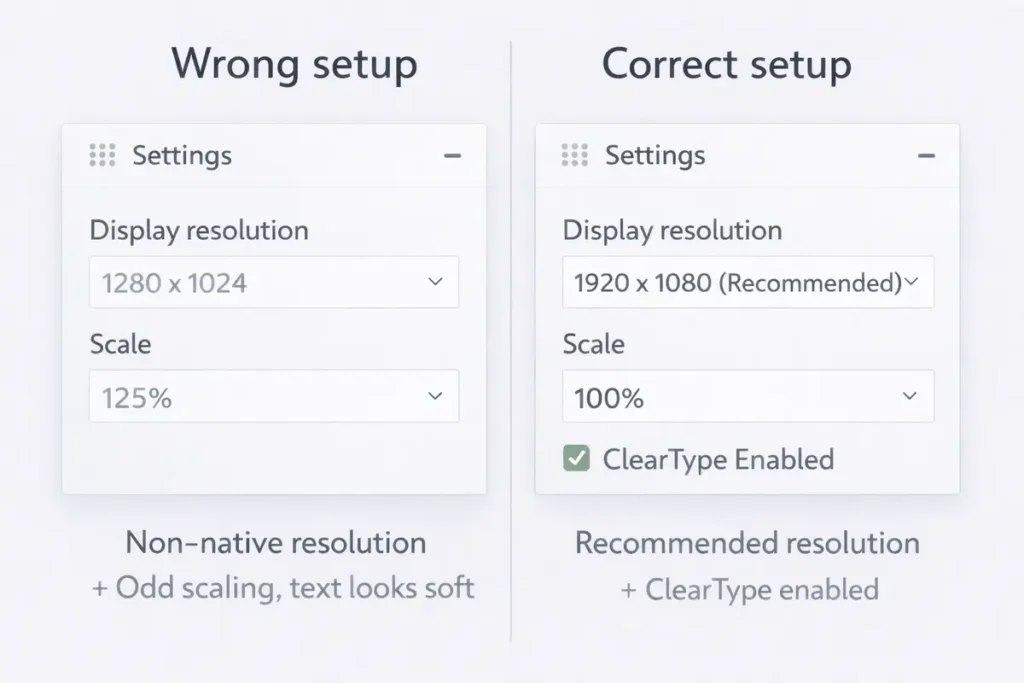
On Windows 10 and Windows 11, blurry text is often linked to display scaling and DPI (dots per inch) handling. Windows has to balance older apps, modern high-DPI screens, and different monitor resolutions, and sometimes the result is fuzzy text or mixed sharpness between apps.
The good news is that Windows gives you several tools to correct this, including global scaling settings, per-app DPI overrides, and the ClearType Text Tuner. Work through these steps in order.
Set the Recommended Resolution and Scaling
Start by making sure your monitor is running at its native resolution and a sensible scaling level.
On Windows 10/11, you can:
1. Open Settings and go to System → Display.
2. Under Display resolution, choose the option marked Recommended.
3. Under Scale, start with 100% or the recommended percentage.
If you’re using a 4K monitor, Windows may suggest 150% or 200% scaling. That’s normal. The key is to avoid unusual combinations like a non-native resolution plus odd scaling values, which can make text look soft. Apply the changes and sign out and back in if the system prompts you.
Use Advanced Scaling and ClearType Text Tuner
If text still looks off after setting resolution and scaling, Advanced scaling and ClearType can help refine things.
On Windows 10/11:
– In Settings → System → Display, look for Advanced scaling settings. If you see a custom scaling value set by an app, remove it or return to 100–125%.
– Search the Start menu for Adjust ClearType text. This opens the ClearType Text Tuner.
– Make sure Turn on ClearType is enabled, then follow the on-screen steps, choosing the sample text that looks best to your eyes.
ClearType optimizes how fonts are drawn on your specific monitor. It doesn’t fix every scaling issue, but it often makes a noticeable difference in readability.
Fix Blurry Apps Using Per-App DPI Settings
Some older or poorly optimized Windows apps don’t handle high-DPI scaling very well. They may appear blurrier than everything else on the same screen.
You can often fix this with per-app DPI settings:
1. Right-click the app’s shortcut or .exe file and choose Properties.
2. Go to the Compatibility tab.
3. Click Change high DPI settings.
4. Try enabling the option to override high DPI scaling behavior and set it to be performed by the application or by the system (you can test both).
After changing these settings, restart the app and compare the text. If it looks sharper, you’ve found a configuration that works better for that program.
Check Zoom Levels in Browsers and Office Apps
Sometimes text only looks blurry in your web browser or Office apps. In that case, application zoom is a likely suspect.
Try these steps:
- In your browser, press Ctrl + 0 to reset zoom to 100%.
- In Word, Excel, or other Office apps, set the zoom level to 100% and test again.
- If you’re using a scaling feature inside the app, such as experimental DPI settings, return to defaults.
If things look crisp at 100% zoom in one app but not in others, compare font settings and ensure you’re not forcing unusual scaling modes in just one program.
Fix Blurry Text on macOS – Scaling, Font Smoothing and External Displays
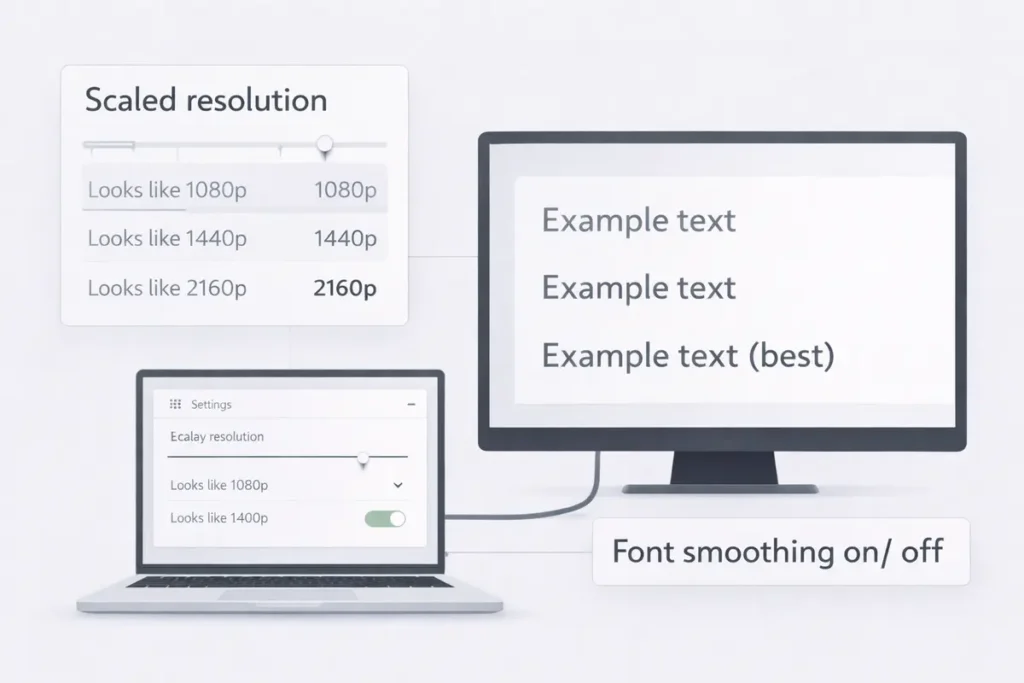
On macOS, text is usually very sharp on built-in Retina displays, but things can get tricky when you connect external monitors. Some resolutions are effectively pixel-perfect on a given screen, while others are scaled in a way that makes fonts look slightly soft. Font smoothing settings and cable limitations can also affect clarity.
If you’re using a MacBook with an external monitor and the built-in screen looks crisp while the external one looks blurry, this section is for you.
Choose a Better Scaled Resolution on macOS
macOS tries to choose a comfortable default resolution, but it doesn’t always pick the sharpest-looking option for external monitors.
To adjust it:
1. Open System Settings (or System Preferences on older versions) and go to Displays.
2. Select your external monitor.
3. Choose Scaled and review the available options.
4. Try resolutions that are labeled as “Looks like” 1080p, 1440p, or 2160p, depending on your monitor.
On many 27-inch 4K monitors, using a scaled mode that looks like 1440p strikes a good balance between size and sharpness. If the text still feels a bit soft, try nearby options and give your eyes a few minutes to adjust before deciding.
Turn macOS Font Smoothing On or Off
macOS includes font smoothing to make text look better on some monitors, but it doesn’t work well in every situation. On certain external screens, especially non-Retina displays, font smoothing can make text look slightly smeared.
Depending on your macOS version, you may find a Font smoothing toggle in the Displays section, or you may need to adjust it via terminal commands. The key takeaway is that experimenting with font smoothing on and off can dramatically change how crisp text appears on your particular monitor.
If you notice colored fringes or soft edges around letters, try disabling smoothing; if text looks too thin and jagged, try enabling it again.
Special Case: Blurry Text on External Monitor with MacBooks
When you plug a MacBook into an external monitor and the picture looks underwhelming, the issue is often not the Mac itself but the signal path.
Watch out for:
- Cheap USB-C hubs or adapters that only output 1080p to a 4K screen.
- Legacy HDMI ports or cables that can’t handle 4K at 60 Hz and quietly drop to a lower resolution or refresh rate.
- Misconfigured scaling where the Mac is sending a non-ideal resolution that your monitor has to stretch.
If you suspect this is happening, check your monitor’s on-screen menu to see what resolution and refresh rate it’s actually receiving. If it reports 1920×1080 when you were expecting 4K, you may need a better cable or a more capable USB-C or Thunderbolt dock.
Cable, Port and Docking Issues That Make Text Look Soft
Even with perfect software settings, the wrong cable or port can force your system into a mode that makes text look bad. Resolution, refresh rate, color format, and signal quality are all influenced by your physical connection.
If you’ve adjusted scaling and fonts but things are still not as sharp as they should be, it’s time to look more closely at how your monitor is connected.
👉 Read the guide: Why You Can’t Get 60Hz/120Hz: HDMI vs DisplayPort vs USB-C Explained
HDMI vs DisplayPort vs USB-C: Why the Port Matters
Not all display ports are created equal. Older HDMI revisions may struggle with high resolutions and refresh rates. DisplayPort generally offers more bandwidth and flexibility, and USB-C ports that support DisplayPort Alt Mode can behave like DisplayPort over a different connector.
Some common patterns:
– Older laptops might have an HDMI port that only supports 1080p reliably.
– Many modern monitors work best at high resolutions when connected via DisplayPort or a full-featured USB-C port.
– Using the wrong adapter can cap your resolution or refresh rate without clearly telling you.
Whenever possible, match the monitor’s best input (often DisplayPort or USB-C) with the best output available on your computer.
Cheap or Old Cables Can Limit Resolution and Refresh Rate
Display cables don’t have to be expensive, but they do need to be capable. A very old HDMI cable may work fine for 1080p movies but struggle with 4K desktop use, causing dropouts or forcing the system into a lower-quality mode.
Signs your cable might be a problem include:
– The monitor won’t let you select its full resolution or refresh rate.
– The screen flickers or drops signal when you increase resolution.
– The monitor’s info screen shows a lower resolution than you set in the operating system.
If you notice these behaviors, swap in a certified high-speed HDMI cable or a known-good DisplayPort cable. This single change often restores full clarity on high-resolution screens.
Beware of Low-Power or Legacy Docks and Adapters
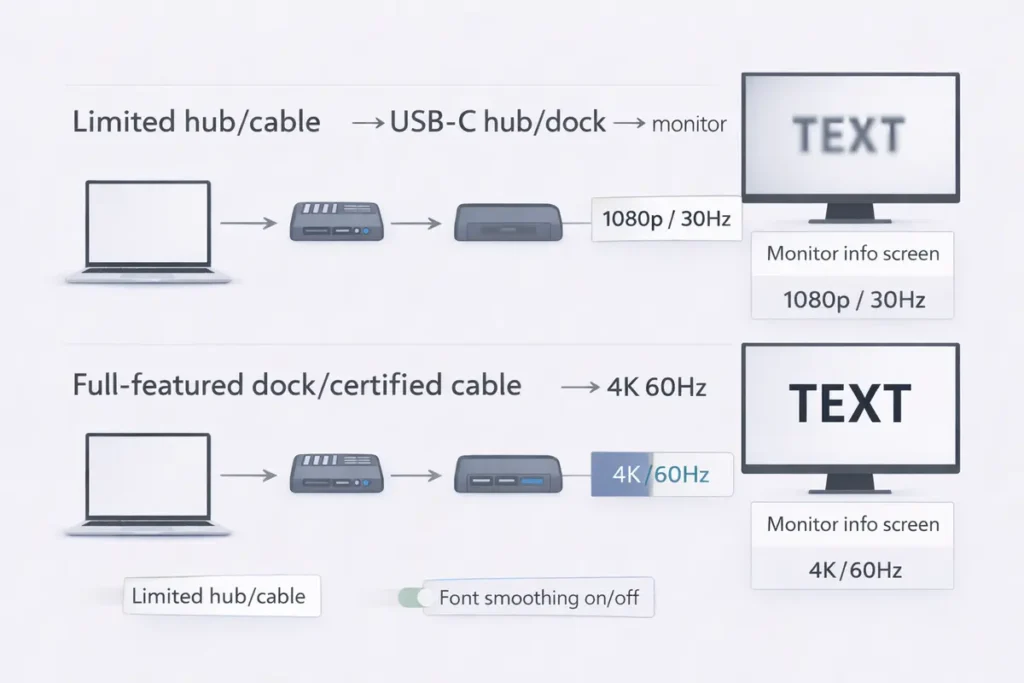
Many compact USB hubs and docking stations are designed with basic office presentations in mind, not high-DPI productivity work. They may only support 1080p output even when connected to a 4K monitor, or they might limit refresh rate to 30 Hz.
When buying or troubleshooting a dock:
- Check the maximum supported resolution and refresh rate for each display output.
- Look for explicit support for 4K at 60 Hz if you have a 4K monitor.
- Avoid chaining adapters unless absolutely necessary.
If you discover your dock is the bottleneck, upgrading to a model designed for high-resolution external displays can immediately make text sharper and smoother.
Monitor Settings: Sharpness, Overdrive and Picture Modes
Monitors have their own internal image processing. Even if the signal from your computer is perfect, the wrong picture mode or sharpness setting can make text look worse.
If you’ve verified resolution and cables but things still don’t look right, it’s time to explore the monitor’s on-screen display (OSD).
Reset Picture Mode and Turn Off Over-Sharpening
Many monitors ship in a vivid or dynamic picture mode designed to make videos and games stand out in a showroom. Those modes often use aggressive sharpening and processing that can create halos around text and jagged edges.
To fix this:
- Open your monitor’s OSD using its buttons or joystick.
- Look for picture modes like Standard, sRGB, or Office.
- Avoid modes labeled Vivid, Dynamic, or Game when doing text-heavy work.
Switching to a neutral mode reduces over-processing and usually makes fonts look more natural and easier to read.
Adjust the Sharpness Setting to a Neutral Value
Sharpness controls how much the monitor artificially enhances edges. It doesn’t increase real resolution; it just changes how aggressively the monitor boosts contrast at edges.
Tips for setting sharpness:
- If sharpness is set very high, you’ll see bright or dark halos around letters.
- If it’s too low, text may look slightly washed out or mushy.
- Start at the default or middle value, then adjust in small steps while looking at black text on a white background.
Aim for a setting where text looks clean and well-defined but not glowing or outlined.
Check for Dynamic Contrast or Noise Reduction Features
Features such as dynamic contrast, noise reduction, or motion smoothing can be useful for movies but harmful for desktop clarity. They may cause subtle flickering, shifting brightness, or smearing around high-contrast edges like text.
If your monitor offers these features:
- Disable Dynamic Contrast, Dynamic Black, Noise Reduction, and similar options.
- Test a static document or web page with lots of text after turning them off.
With these processing effects removed, the monitor should show a more stable, accurate representation of what your computer is sending.
Multi-Monitor Setups: When One Screen Is Sharp and the Other Is Fuzzy
Running more than one monitor is common, but mixing resolutions and sizes can introduce new challenges. It’s not unusual for one screen to look perfect while the other looks slightly blurry, even when they’re connected to the same machine.
To diagnose multi-monitor blur, you need to think about per-monitor resolution, scaling, and how windows move between screens.
Mixed DPI and Resolution Setups (1080p plus 4K Side by Side)
If you have a 1080p monitor next to a 4K monitor, the pixel density difference is significant. Text will naturally look sharper on the 4K screen, but it may also appear smaller unless scaling is adjusted.
In mixed setups:
- Expect some visual difference between monitors; they won’t match perfectly.
- Use appropriate scaling on the higher-resolution screen so text is a comfortable size.
- Avoid dragging a window halfway between screens and judging sharpness from that position.
You can’t completely eliminate differences between mismatched screens, but you can make each one look its best individually.
Align Scaling Per Monitor on Windows and macOS
Modern versions of Windows and macOS support per-monitor scaling. That means each display can have its own scaling level, which is essential when mixing a laptop screen with an external monitor.
Key ideas:
- On Windows, set resolution and scaling for each monitor separately in Display settings.
- On macOS, configure each display’s scaled resolution individually in Displays.
- Aim for settings where text looks natural on each screen, even if they’re not identical.
If you frequently move windows between screens, try to keep effective text size similar so the transition feels less jarring.
👉 Read the guide: Ultrawide vs Dual Monitors: 7 Real Productivity Differences That Actually Matter
When It’s the Panel: Pixel Density, Size and Viewing Distance
Sometimes the monitor itself is the limiting factor. Even with perfect settings and cables, a low-density panel or a very large screen at a low resolution can never look as sharp as a higher-PPI display.
Understanding pixel density and viewing distance helps you spot when you’ve reached the limit of what your current monitor can do.
Low PPI Screens: Why 1080p Looks Soft on Large Monitors
PPI (pixels per inch) describes how tightly packed the pixels are on your screen. The larger the monitor and the lower the resolution, the fewer pixels per inch—and the more visible each pixel becomes.
For example:
- 1080p on a 24-inch monitor is usually acceptable for most people.
- 1080p on a 27-inch monitor starts to look noticeably softer for text.
- 1440p on a 27-inch monitor or 4K on a 27–32-inch monitor looks much sharper.
If you’re using a very large 1080p screen and text never looks as crisp as you’d like, even after tweaking settings, the panel’s pixel density may simply be too low for your expectations.
👉 Read the guide: 27 vs 32 Inch Monitor for Productivity – 2026 Ultimate Guide for Work, Coding & Spreadsheets
Sitting Too Close to a Large Monitor
Even a sharp panel can look grainy if you sit too close. When your eyes are very near the screen, you can resolve individual pixels and subpixels, which makes text appear rough.
A few guidelines:
- For a 24-inch monitor, many people are comfortable at roughly 50–70 cm (about 20–28 inches).
- For 27-inch and larger monitors, sitting slightly further back helps text and graphics blend together smoothly.
Try pushing your monitor back a little or adjusting your chair and see if the perceived sharpness improves. It’s a simple, free change that can make a real difference.
VA vs IPS vs TN: Expectations, Not Miracles
Different panel technologies have different strengths. IPS panels often have better color and viewing angles, VA panels have deeper contrast, and TN panels prioritize speed for gaming. However, none of these technologies can magically overcome low resolution or incorrect scaling.
If you’re chasing sharper text, prioritize resolution, pixel density, and correct scaling first. Panel technology fine-tunes the look and feel, but it doesn’t replace basic clarity factors.
👉 Read the guide: IPS vs VA vs OLED for Work: Which Is Best for Your Eyes? (7 Key Truths)
Step-by-Step Checklist: Fixing Blurry Text the Smart Way
If you’re feeling overwhelmed by all the options, use this condensed checklist. Work through each step in order and stop when your text looks crisp enough.
- Confirm your monitor is set to its native or recommended resolution.
- Set a sensible scaling level (100% or the OS recommendation) and avoid odd combinations.
- Run ClearType on Windows or adjust scaled resolution on macOS until text looks balanced.
- Check and, if possible, upgrade your cable, port, or dock to support full resolution and refresh rate.
- Reset your monitor to a neutral picture mode and tune sharpness to a middle value.
- Disable aggressive image processing features like dynamic contrast or noise reduction.
- Tweak app-specific DPI or zoom settings if only one or two programs look blurry.
- Evaluate whether your monitor’s size and resolution provide enough pixel density for your needs.
When to Stop Tweaking and Consider Upgrading Your Gear
Most of the time, you can solve blurry text with better settings, cables, and a bit of patience. But there are situations where the most efficient fix is to upgrade your monitor or your connection hardware.
Knowing when to stop tweaking saves time and helps you invest in gear that will actually make your day-to-day work easier.
Signs Your Current Monitor Is Holding You Back
Consider upgrading your monitor if:
- It’s a very old 1080p panel that looks grainy no matter what you try.
- You’ve confirmed native resolution and scaling but text still feels uncomfortably fuzzy.
- You find yourself leaning forward or squinting to read normal-sized text.
- Colors and contrast are also poor, making everything look washed out.
In these cases, a newer monitor with higher resolution and better ergonomics can have a bigger impact on comfort and productivity than almost any other single upgrade.
Choosing a Sharper Monitor for Text and Coding
If you’re buying with text clarity in mind—whether for writing, coding, or office work—focus on a few key specs:
- Resolution and size combination: A 27-inch 1440p or 4K panel is a sweet spot for crisp text.
- Panel type: IPS panels are a safe default for good color and viewing angles.
- Ergonomics: Height and tilt adjustment help you line the screen up correctly with your eyes.
Look for reviews that specifically mention text sharpness and eye comfort, not just gaming performance. A monitor that’s marketed as great for productivity usually emphasizes clarity and readability in its design.
Do Not Forget Quality Cables and a Good Dock
Upgrading your monitor only gets you so far if the signal feeding it is compromised. When planning a sharper setup:
- Pair your new monitor with a cable rated for its full resolution and refresh rate.
- Use a dock or hub that clearly supports the output you need, especially if you’re driving multiple external displays.
- Keep the cable run reasonably short and avoid unnecessary adapter chains.
Treat cables and docks as part of the display system, not afterthoughts. Getting them right ensures you see your new monitor at its best.
FAQ: Common Questions About Blurry Text on Monitors
Why does text look blurry on my new monitor?
New monitors often default to non-ideal resolutions or vivid picture modes. Once you set the native resolution, adjust scaling, and choose a neutral picture mode, text usually becomes much sharper.
Why is my external monitor blurry but my laptop screen is sharp?
Your laptop screen is probably a high-DPI panel using well-tuned scaling. The external monitor may be running at a non-native resolution, using poor scaling, or limited by a cable or dock.
Why does 1080p look worse on a 27-inch monitor than on a 24-inch one?
The larger the screen, the more each pixel has to stretch. On a 27-inch 1080p monitor, pixels are bigger and more visible, which makes text look softer compared to a smaller 1080p display.
Can HDMI cause blurry text?
HDMI itself doesn’t blur text, but older HDMI ports and cables may not support high resolutions at comfortable refresh rates. When that happens, the system may drop to a lower resolution that looks fuzzy.
Is DisplayPort better than HDMI for text clarity?
Both can look equally sharp when configured correctly. However, DisplayPort often supports higher resolutions and refresh rates more easily, making it a safer choice for high-resolution productivity setups.
Why is one of my dual monitors blurrier than the other?
They may have different resolutions, pixel densities, or picture settings. Check that each is using its native resolution and similar picture modes. If they’re different models, some difference in clarity is normal.
Can I fix a low-PPI monitor with software settings?
You can improve things a bit with scaling and sharpness, but you can’t turn a low-density panel into a high-density one. If pixel structure is clearly visible, a higher-resolution monitor is the real fix.
Why is text blurry after changing scaling on Windows?
Some apps don’t react well to scaling changes made while they’re open. Try signing out and back in, or restarting the apps. If needed, adjust per-app DPI settings in the Compatibility tab.
Does font smoothing make text sharper or blurrier?
Font smoothing can make text look smoother and more readable on some displays, but slightly smeared on others. It’s worth experimenting on your specific monitor to see which setting your eyes prefer.
My 4K monitor looks like a 1080p screen. What’s wrong?
Your system may be outputting 1080p due to cable, port, or dock limitations. Check the monitor’s info screen to see what resolution it’s actually receiving and upgrade the connection if needed.