Learn what dual monitors over USB-C can really do, why the second screen often fails, and what to buy (dock/cable/adapter) to fix it fast.
Author & technical review
Last Updated: March 2026
Author: Editorial Productivity & Computing Team
Technical review: Checked against standards and vendor references listed in “Sources.”
What this guide is: A practical buyer guide for everyday users and IT teams.
What this guide is not: A lab benchmark report. Results vary by laptop model, GPU, firmware, OS version, and monitor settings.
How we evaluate dual-monitor USB-C setups (our methodology)
This guide is built to stop the most common pain: you buy a “USB‑C dock,” plug in two monitors, and only one shows up—or both mirror. To keep our advice practical and accurate, we use a repeatable checklist every time we evaluate a dual‑monitor setup.
👉 Read the guide: Enterprise IT Guide to Docks & Hubs: Architecture, Standards, Security, Performance & Deployment
Common setups tested (examples)
These examples show the patterns that usually work (and the traps that don’t).
- We confirm what the laptop’s USB‑C port supports: charging only, USB data, DisplayPort Alt Mode, USB4, and/or Thunderbolt.
- We read the dock’s display section (not just the marketing headline) to find the exact supported combinations: 2×1080p@60, 2×1440p@60, 2×4K@30/60, etc.
- We note whether the dock uses a native display path (Alt Mode/Thunderbolt) or a driver-based path (DisplayLink).
- We verify cable capability and length. Many “USB‑C” cables are charge‑only or unstable for high‑bandwidth video.
- We separate OS behavior (Windows/macOS/Linux/ChromeOS) from hardware limits, because the same dock can behave differently on different systems.
When a product page is vague — like “supports dual 4K”—we treat it as a red flag until it lists refresh rate and host requirements. That single habit prevents most returns.
The big truth: USB‑C is a plug shape, not a dual‑monitor guarantee
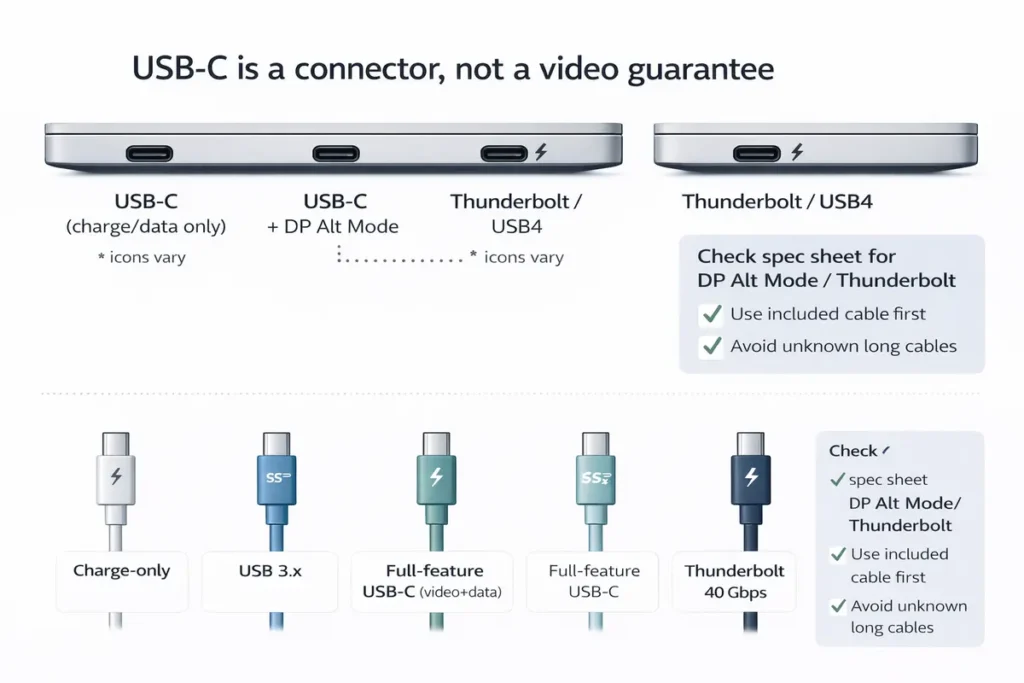
A USB‑C port can look identical across two laptops and still behave completely differently. One laptop’s USB‑C port might support charging only. Another might support video to a single monitor. Another might support dual monitors through a dock. That’s why dual monitors over USB‑C feels like roulette.
The good news: once you understand the three main ways dual monitors can happen over USB‑C, you can predict whether it will work and what you need to buy. This guide breaks down what’s possible, why it often fails, and the quickest fixes — without the guesswork.
👉 Read the guide: Thunderbolt vs USB4 vs USB-C: What the Labels Really Mean
30‑second chooser: can your USB‑C do dual monitors?
| Quick check | What it means for dual monitors |
|---|---|
| Your USB‑C port supports DisplayPort Alt Mode (video) | What it means for dual monitors |
| Your USB‑C port supports Thunderbolt (TB3/TB4/TB5) | Dual monitors may be possible with the right dock (often needs MST on Windows). |
| Your USB‑C port is charging/data only (no video) | Native dual monitors won’t work. You’ll need DisplayLink or use different ports (HDMI/DP). |
| You can’t install drivers on your laptop (work device) | Avoid DisplayLink. Prefer Thunderbolt or USB‑C Alt Mode docks with clear specs. |
| Your monitors are high-res/high-refresh (4K@60, 1440p@144) | You need more bandwidth. Thunderbolt or direct connections are usually best. |
Key takeaways (save this before you shop)
- Dual monitors over USB‑C is possible, but only if your laptop, dock, and cables support the right video path.
- Most “second monitor fails” cases come down to one of four things: no video support on the USB‑C port, MST/OS limitations, dock limitations, or bad cables.
- Thunderbolt docks are often the most reliable for dual displays plus fast peripherals—but they cost more.
- USB‑C Alt Mode docks can be great value when your laptop supports them, especially for office-friendly 60Hz setups.
- DisplayLink docks are the workaround when the laptop can’t natively drive two displays, but they rely on drivers and can feel less ideal for gaming.
Mini glossary (quick definitions)
USB‑C: The connector shape. It can carry charging, data, and sometimes video.
DP Alt Mode: DisplayPort Alternate Mode—native video over USB‑C.
Thunderbolt: A high‑bandwidth connection that often uses USB‑C ports and cables; common for premium docks.
MST: Multi‑Stream Transport—splits one DisplayPort link into multiple displays in some setups.
DisplayLink: USB graphics via drivers; sends display data over USB and converts it in the dock.
What’s actually possible: the 3 ways dual monitors happen over USB‑C
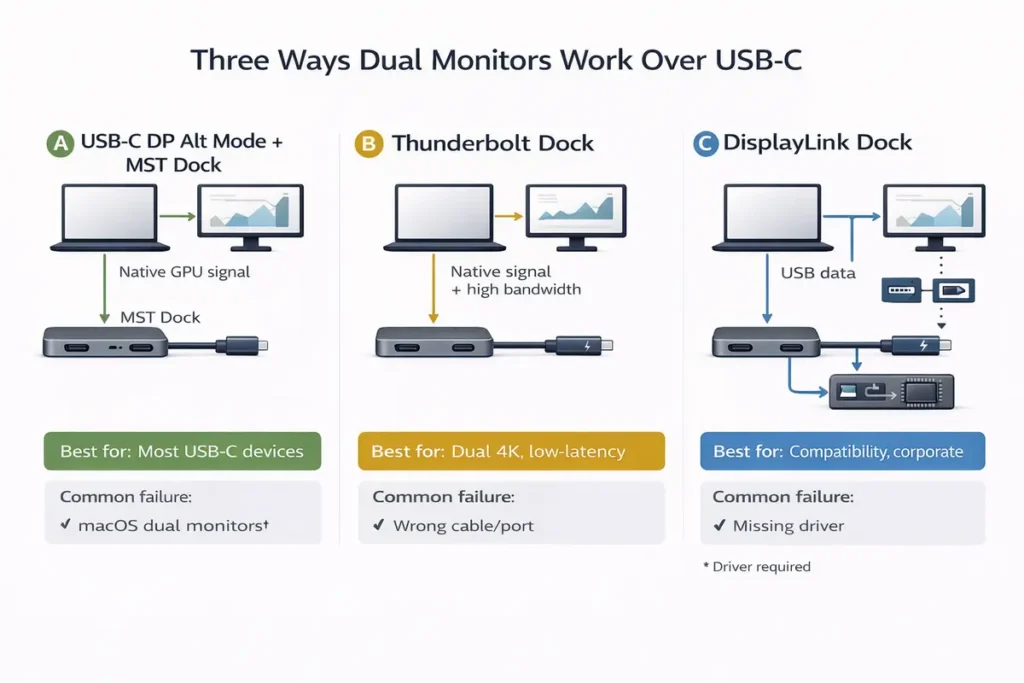
There are three main routes to dual monitors over a single USB‑C cable. Once you know which route your setup is using, troubleshooting becomes much simpler.
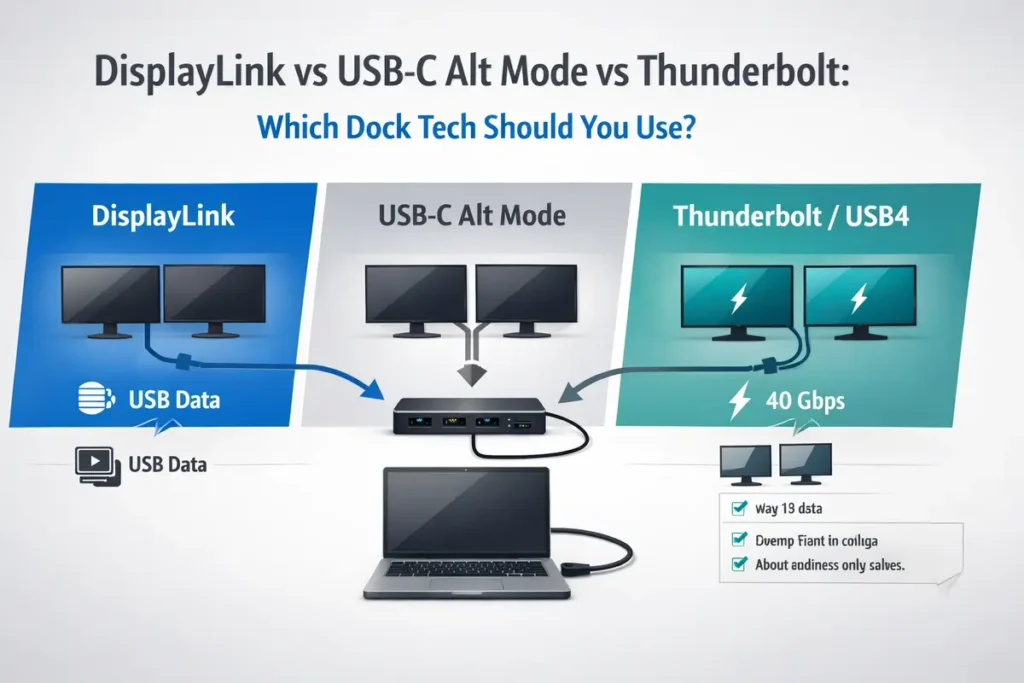
👉 Read the guide: DisplayLink vs USB-C Alt Mode vs Thunderbolt: Which Dock Tech Should You Use?
1) USB‑C DisplayPort Alt Mode + MST (native video path)
In this setup, your laptop sends a native DisplayPort signal through the USB‑C port using DP Alt Mode. A dock (or monitor) can then use MST to split that DisplayPort connection into two separate displays—depending on the dock design and OS behavior.
- Where it shines:
- Office productivity: dual 1080p or dual 1440p at 60Hz is often smooth and affordable.
- Simple setup with no extra graphics driver in most cases.
- Great value compared with premium Thunderbolt docks.
- Where it fails:
- Your USB‑C port may not support DP Alt Mode at all.
- The dock may not support MST, or the OS may handle MST differently.
- High bandwidth needs (dual 4K@60, high refresh) may exceed what the dock or link can sustain.
2) Thunderbolt docking (native video + lots of bandwidth)
Thunderbolt docks typically provide more bandwidth headroom and a more consistent ecosystem. They’re a strong choice when you want dual monitors plus fast storage, Ethernet, and other peripherals all running at once.
- Where it shines:
- More predictable results across different laptops that truly support Thunderbolt.
- Better for higher-resolution monitor combos and fast external SSDs.
- Often the least fussy path for a “one cable desk” experience.
- Where it still fails:
- Not all USB‑C ports are Thunderbolt, even if the connector fits.
- A Thunderbolt dock can fall back to limited USB mode on a non‑Thunderbolt laptop.
- Display limits still depend on your laptop’s GPU and the dock’s design.
3) DisplayLink docking (USB graphics workaround)
DisplayLink docks send your screen over USB data using software on your computer. That software captures the image, compresses it, and sends it to a chip in the dock, which outputs HDMI/DisplayPort. This can enable dual monitors even when the laptop can’t natively drive them through USB‑C.
- Where it shines:
- You need dual (or even triple) monitors for office apps and dashboards.
- Your laptop’s USB‑C port doesn’t support DP Alt Mode, or your laptop has strict native display limits.
- Some DisplayLink solutions can work through USB‑A with the right adapter.
- Where it disappoints:
- Drivers are required. On corporate laptops, drivers may be blocked.
- Fast motion can look softer; latency can feel higher than native video paths.
- CPU usage may increase under heavier workloads.
USB‑C Alt Mode vs Thunderbolt vs DisplayLink (comparison table)
| Feature | USB‑C Alt Mode + MST | Thunderbolt | DisplayLink |
|---|---|---|---|
| Driver required? | No (usually) | No (usually) | Yes |
| Video path | Native GPU output | Native GPU output | USB graphics (compressed) |
| Best for | Budget dual monitors @ 60Hz | High-end desks + fast peripherals | Extra screens when native fails |
| Common failure | MST/OS mismatch, port lacks video | Non‑TB port, dock limits | Driver blocks, motion artifacts |
| Gaming/high refresh | Good (native), limited by bandwidth | Good (native), usually strongest | Not ideal for main display |
| Corporate lock-down | Good | Good | Depends on driver policy |
Deep dive: bandwidth, refresh rate, and why dual monitors ‘randomly’ fail
If two monitors work sometimes, or work at 30Hz instead of 60Hz, you’re almost always hitting a bandwidth or mode limit—not a “mystery bug.” Dual monitor video is a lot of data. Higher resolution and higher refresh rate multiply that load fast.
👉 Read the guide: Want to go deeper on monitors? Dive in here
Resolution and refresh rate: the hidden multiplier
4K has about four times as many pixels as 1080p. Now add refresh rate: 60Hz refreshes the image 60 times per second, and 120Hz doubles that. So a dock that handles dual 1080p@60 easily may struggle with dual 4K@60 or high refresh ultrawides.
Why docks drop to 30Hz
When a link can’t sustain the data rate for 60Hz, many setups fall back to 30Hz to stay stable. That’s why people report: “It works, but it feels laggy.”
Why DisplayLink can look different
DisplayLink can add screens in situations where native video can’t. But because it compresses the image over USB, fast motion can look softer and CPU load can rise when there’s lots of movement on screen. For office apps, this is often fine. For gaming, a native path is usually better.
Monitor math: what dual-monitor combos are ‘easy’ vs ‘hard’
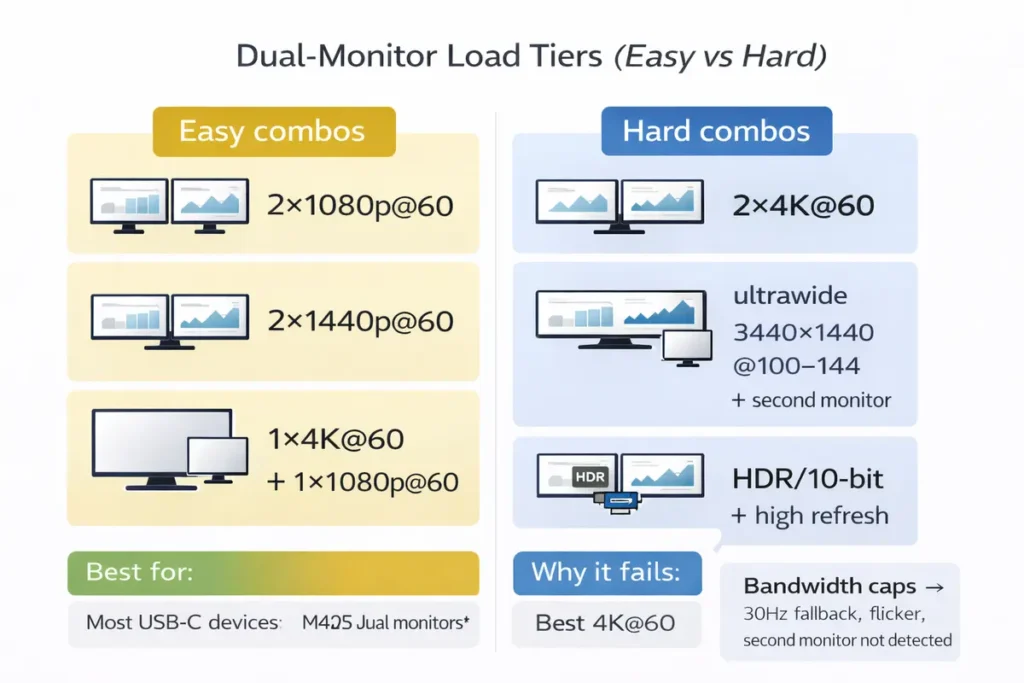
To avoid surprises, think in tiers. The more you push resolution, refresh rate, and color depth, the more you should lean toward Thunderbolt or direct connections.
Common ‘easy’ combos
- 2×1080p @ 60Hz (most docks can do this if the port supports video)
- 2×1440p @ 60Hz (very common for office work)
- 1×4K @ 60Hz + 1×1080p @ 60Hz (often workable on stronger docks)
Common ‘hard’ combos
- 2×4K @ 60Hz (often needs Thunderbolt or a dock with very clear supported specs)
- Ultrawide 3440×1440 @ 100–144Hz plus a second monitor (bandwidth heavy)
- Anything HDR/10‑bit color + high refresh across two monitors (advanced and finicky)
Why dual monitors over USB‑C often fails (the real reasons)
Most failures are not random. They cluster into a few repeat offenders. If you identify which one you’re hitting, the fix is usually straightforward.
1) The USB‑C port doesn’t support video (no DP Alt Mode / no Thunderbolt)
Many laptops have USB‑C ports that support charging and data only. If that’s your situation, a native dual‑monitor dock won’t work—because there is no video signal to split. Your options become: use a different port (HDMI/DP), use a Thunderbolt-capable port if available, or use DisplayLink.
2) The dock can’t do the combo you’re asking for
A dock might support dual monitors, but only at certain resolutions and refresh rates. Always check the exact supported combinations, not just the marketing headline.
3) MST and OS behavior (extend vs mirror problems)
Some USB‑C Alt Mode docks rely on MST to create two independent displays from one video link. If you see mirroring when you expect extending, MST/OS behavior and dock design are prime suspects.
4) Cables and signal integrity
A cable can be the silent villain. Many USB‑C cables are built for charging and basic data, not stable high‑bandwidth video. Swap to a known-good full-feature cable—ideally shorter—when troubleshooting. If the dock includes a cable, start with that one. If you must replace it, choose a cable that is explicitly rated for high-speed data and video stability, and keep the length as short as your desk allows. Long, thin, unknown cables are the top cause of ‘it worked yesterday’ problems.
👉 Read the guide: USB Accessories Security Risks (Bad USB, Unknown Devices) + Practical Mitigations
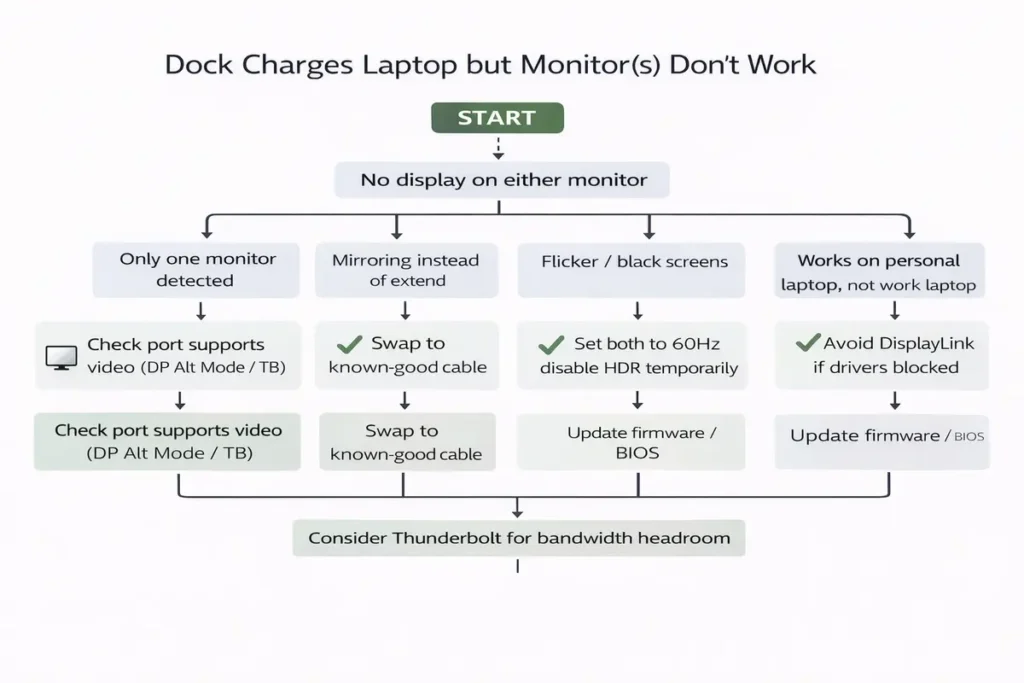
Troubleshooting table (symptom → likely cause → fix)
| Symptom | Likely cause | Fix / what to buy |
|---|---|---|
| Dock charges laptop but no displays work | USB‑C port has no video support | Use HDMI/DP directly, or choose DisplayLink, or use a Thunderbolt-capable laptop/port. |
| One monitor works, second is not detected | Dock/host limitation, MST issue, or bandwidth cap | Confirm dock spec; lower refresh/res; try Thunderbolt dock or DisplayLink for extra screens. |
| Both monitors mirror instead of extend | MST/OS behavior or dock mode | Check display settings; use a dock that supports independent displays on your OS; Thunderbolt is often simpler. |
| Second monitor flickers/black screens | Cable quality/length or bandwidth instability | Replace cable with reputable full-feature USB‑C/TB cable; reduce refresh rate; shorten cable runs. |
| Monitors work at 30Hz only | Bandwidth limit forcing fallback | Use Thunderbolt or a higher-spec dock; reduce resolution/refresh; connect one monitor directly. |
| Works on personal laptop, fails on work laptop | Driver blocked (DisplayLink) or port differs | Avoid DisplayLink if drivers blocked; choose native Alt Mode/Thunderbolt and verify port capability. |
| Dock works in one USB-C port but not the other | One port is data/charge-only or has fewer display lanes | Use the primary video/TB port; check the spec sheet and port icons; avoid ‘secondary’ USB-C ports for docking. |
| Second monitor appears but keeps resetting resolution | Monitor negotiating an unsupported mode (HDR/bit depth/odd refresh) | Set both monitors to 60Hz, disable HDR as a test, update dock firmware if available, then re-enable features gradually. |
👉 Read the guide: Dock Not Detecting Monitors: Step-by-Step Fixes for Windows & Mac
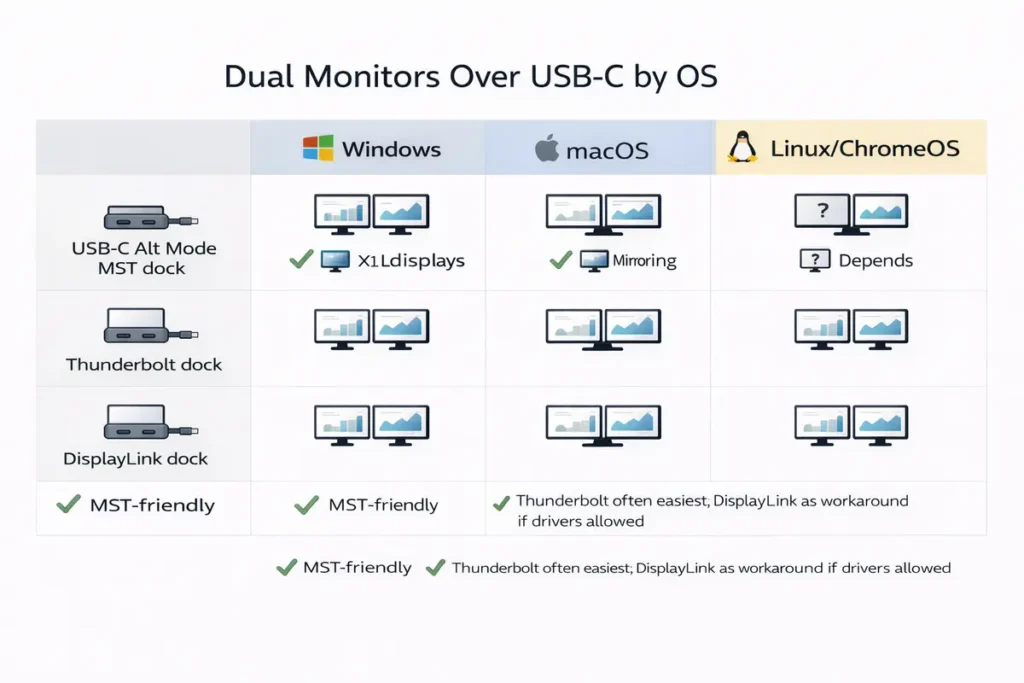
Dual monitors over USB‑C by OS: Windows vs macOS vs Linux/ChromeOS
Windows (usually the easiest for MST-based docks)
Windows laptops often have the best compatibility with USB‑C Alt Mode docks that use MST. Start at 60Hz on both monitors, confirm the correct USB‑C port, and then scale up once stable.
macOS (often best with Thunderbolt; DisplayLink as a workaround)
macOS can be very smooth with native displays, especially over Thunderbolt, but behavior can differ by model and OS version. For the least guesswork, Thunderbolt docks are often the cleanest. For extra productivity screens beyond native limits, DisplayLink can help—if drivers are allowed.
Linux and ChromeOS (keep it native when possible)
For Linux and ChromeOS, native video via USB‑C Alt Mode or Thunderbolt is usually the safest choice. DisplayLink may work depending on drivers and policy constraints, so test your exact OS build before standardizing.
How to check if your USB‑C port supports dual monitors (before you buy)
Confirm port capability first. A dock can’t create native video support that your USB‑C port doesn’t have—unless it’s DisplayLink.
Step 1: Read the laptop spec sheet for these phrases
- “DisplayPort over USB‑C” or “DP Alt Mode”
- “Thunderbolt 3/4/5”
- “USB4” (still confirm display support)
- Avoid vague listings that never mention video output
Step 2: Check port icons and labels
A Thunderbolt icon is a good clue. Some devices also mark DisplayPort icons. Use icons as hints, but trust written specs more.
Step 3: Quick OS checks
- Windows: look for USB4/Thunderbolt controllers in Device Manager (names vary).
- macOS: use System Information to view Thunderbolt/USB connections and detected devices.
Return‑proof checklist (use this before clicking “Buy”)
| Check | What to verify |
|---|---|
| Laptop port capability | DP Alt Mode or Thunderbolt for native dual monitors (or DisplayLink if native isn’t possible). |
| Dock display limits | Exact supported combos for your OS (dual 1440p@60 vs dual 4K@60 matters). |
| Monitor settings | Start at 60Hz to test stability, then increase refresh if supported. |
| Cables | Use reputable full-feature USB‑C/TB cables; avoid charge‑only cables and unknown long cables. |
| Power Delivery | Dock wattage should match your laptop needs (65W/90W/100W/140W). |
| Corporate policy | If DisplayLink is needed, confirm drivers can be installed and updated. |
👉 Read the guide: USB-C Dock Deployment Checklist (2026): Drivers, Firmware, Compatibility (Enterprise IT)
What to buy to get dual monitors working (by certainty)
Most predictable: Thunderbolt dock (on a true Thunderbolt laptop)
If you want the least guesswork, Thunderbolt docks are usually the safest buy for dual monitors—especially when you also need fast storage and many ports.
- Look for:
- Dual-monitor support listed for your OS and desired resolution/refresh.
- Included Thunderbolt cable or clear cable guidance.
- Enough Power Delivery for your laptop.
Best value: USB‑C Alt Mode MST dock (great for Windows productivity)
For office-style dual monitors at 60Hz on Windows, a good USB‑C Alt Mode MST dock can be excellent value.
- Look for:
- Clear wording for two independent displays on Windows.
- Exact resolution/refresh combinations.
- Stable PD wattage and reputable cable.
Best workaround: DisplayLink dock (when native dual monitors isn’t possible)
If native dual monitors won’t work on your laptop, DisplayLink can deliver productivity dual screens—assuming you can install drivers.
- Look for:
- Driver support for your OS and a plan for updates.
- A good return policy.
- Realistic expectations for gaming and high-motion work.
Common myths (quick reality checks)
- Myth: Any USB‑C dock can run two monitors. Reality: your port and dock must support the right video path.
- Myth: Two HDMI ports means dual monitors will work. Reality: the laptop might only provide one video stream.
- Myth: A cable can add video support to a data-only USB‑C port. Reality: cables can’t add missing hardware features.
- Myth: If it works at 30Hz, it’s fine. Reality: 30Hz often signals a bandwidth limit and feels laggy. What to buy (quick summary)
- If your laptop has Thunderbolt: buy a Thunderbolt dock for the highest chance of true dual extended displays.
- If your laptop has DP Alt Mode and you’re on Windows: buy a USB-C Alt Mode MST dock for strong value at 60Hz.
- If your USB-C port has no video support: choose DisplayLink (drivers required) or use HDMI/DP ports instead.
- If you need dual 4K@60: prefer Thunderbolt, or a dock that lists your exact 2×4K@60 host requirements.
- If your dock works only at 30Hz: reduce resolution/refresh or move to Thunderbolt for more bandwidth headroom.
- If IT blocks driver installs: avoid DisplayLink; choose native Alt Mode or Thunderbolt.
Use this if you just want the fastest, low-regret path.
Freshness note (2025–2026): USB4 v2 and newer dock marketing labels
New labels like “USB 80Gbps” and “USB4 Version 2.0” can raise bandwidth ceilings, but only if the laptop, dock, and cable all support the same mode. For most dual-monitor office setups, solid Thunderbolt or well-documented USB‑C Alt Mode docks remain the best value.
Can USB‑C support dual monitors?
Yes—if your USB‑C port supports video (DP Alt Mode, USB4 with display support, or Thunderbolt) and your dock supports your specific combo.
Why does my USB‑C dock only show one monitor?
Common causes are one available video stream, MST/OS limitations, dock limits, or insufficient bandwidth.
What is MST and do I need it?
MST splits one DisplayPort link into multiple displays. Many USB‑C dual-monitor docks rely on MST, especially on Windows.
Why do my monitors mirror instead of extend?
Often MST/OS behavior, dock design, or display settings. Confirm your dock supports independent displays on your OS.
Does Thunderbolt guarantee dual monitors?
It improves odds, but GPU/OS/dock design still matter.
Will a Thunderbolt dock work in regular USB‑C?
Sometimes with limited features, but dual monitors often won’t work without true Thunderbolt support.
How do I tell if my USB‑C supports DP Alt Mode?
Check the spec sheet for “DisplayPort over USB‑C” or “DP Alt Mode.”
Do I need special cables?
Use reputable full-feature USB‑C/TB cables. Avoid charge-only cables.
Why am I stuck at 30Hz?
Bandwidth limit. Reduce resolution/refresh or use Thunderbolt/direct connections.
Is DisplayLink good for dual monitors?
Great for office productivity when native paths fail; less ideal for gaming/high-motion.
Can DisplayLink work on corporate laptops?
Only if drivers are allowed and supported.
Do USB‑C hubs support dual monitors?
Some do, many don’t. Always check the display specs.
Is dual 4K over USB‑C possible?
Sometimes, but it’s demanding. Thunderbolt is often most predictable.
Why does my second monitor flicker?
Usually cable quality/length or unsupported mode; test at 60Hz with better cables.
Can I use one monitor direct and one via dock?
Yes, and it often stabilizes tricky setups.
Do 120Hz/144Hz work through docks?
Sometimes, but native direct or Thunderbolt paths are usually best.
Does USB4 mean dual monitors will work?
Not automatically; implementation matters.
Why do similar laptops behave differently?
Different port implementations, firmware, GPU configs, or OS versions.
What’s the simplest option?
Thunderbolt dock on a Thunderbolt laptop, with supported monitor combos.
What should I try before returning a dock?
Set both monitors to 60Hz, swap cables, confirm correct port, and verify your port supports video.
Conclusion
Dual monitors over USB‑C is possible—but only when the video path, dock design, OS behavior, and cables line up. If you want the least guesswork, Thunderbolt is often the most predictable. If you want strong value for office work and your port supports video, a USB‑C Alt Mode MST dock can be a great choice. If native dual monitors isn’t possible, DisplayLink is the productivity workaround—as long as drivers fit your environment.
Use the chooser, checklist, and troubleshooting table to identify your bottleneck before you buy. That turns dual‑monitor docking from a gamble into a plan.