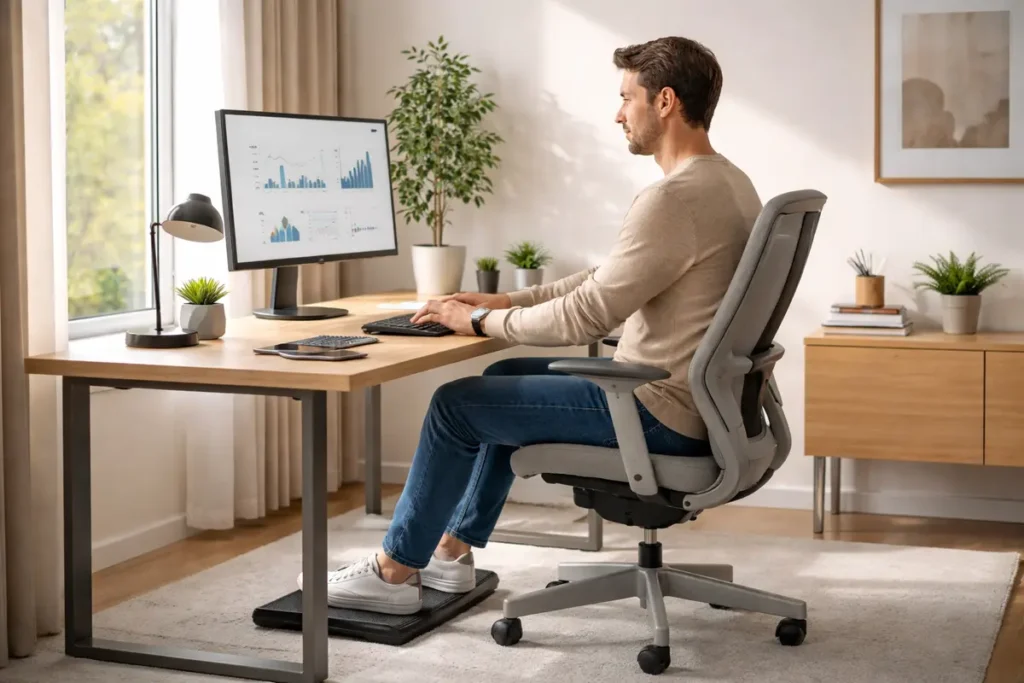
Learn how to create an ergonomic home office setup with proper desk height, chair support, monitor position and posture tips to reduce neck, back and wrist pain.
Medical & Ergonomic Disclaimer
This guide is for general information and education only and does not replace personalised medical advice or a professional ergonomic assessment. If you have existing injuries, significant discomfort, numbness/tingling, or persistent pain, speak with a doctor, physiotherapist, occupational therapist, or a certified ergonomics professional before making major changes to your workstation or routine.
About This Guide
This is a practical, publish-ready resource for setting up a comfortable, safer home workstation. Use it as a standalone article, or repurpose sections into checklists, onboarding docs, or printable quick-start pages.
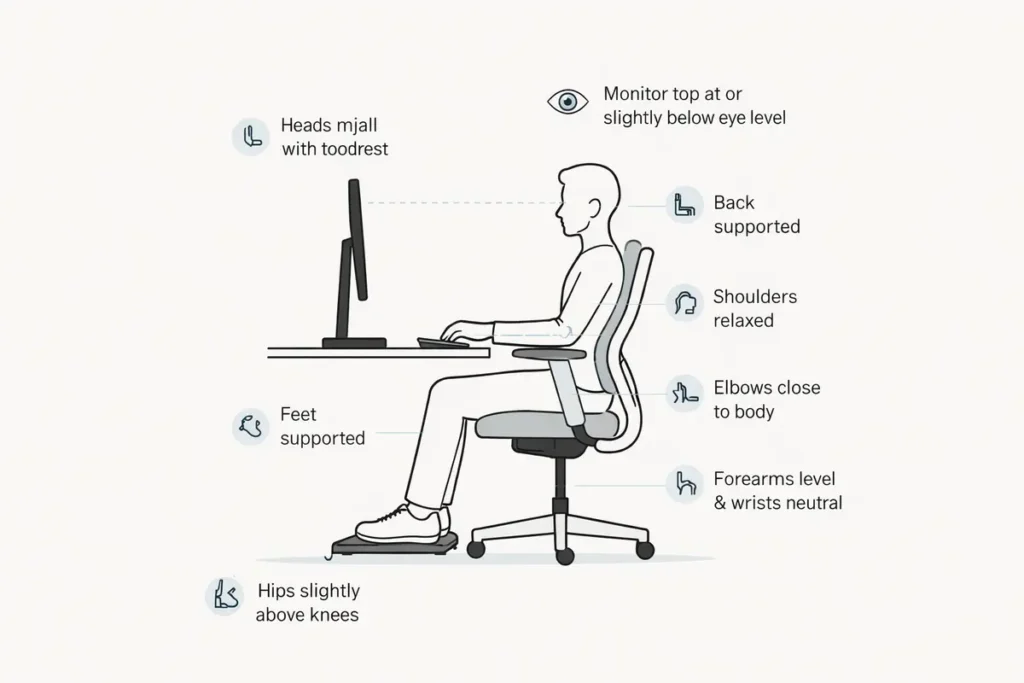
Quick setup summary (60 seconds)
Use these “golden rules” before you fine-tune anything:
- Feet flat and supported; hips slightly higher than knees (or level).
- Elbows close to your sides; forearms roughly level; wrists neutral (not bent up or down).
- Top of the screen at or slightly below eye level; screen about an arm’s length away.
- Shoulders relaxed; back supported; avoid perching on the edge of the chair.
- Move often: brief micro-breaks are better than one big stretch at the end of the day.
Quick reference: common ergonomic ranges
| Item | Common target | Notes |
|---|---|---|
| Elbow angle | About 90–110° | Keep elbows near your body; shoulders relaxed. |
| Hip/knee angle | About 90–110° | If your feet don’t reach, add a footrest. |
| Monitor height | Top at or slightly below eye level | Lower a little if you wear progressives/bifocals. |
| Monitor distance | 50–100 cm (20–40 in) | Start at arm’s length, then adjust for text size/vision. |
| Keyboard height | Forearms roughly level | Avoid “reaching” or shrugging your shoulders. |
Why an Ergonomic Home Office Matters More Than Ever
Working from home is no longer a rare perk. For many people it is now the default way of working, whether full-time or a few days each week. That shift has huge advantages—flexibility, no commute, and more control over your day—but it also brings a hidden risk: a poorly set-up home office.
An ergonomic home office setup is about far more than comfort. It directly affects your productivity, focus, long-term health, and even your mood. When your chair is the wrong height, your laptop is too low, or your lighting is poor, your body is forced into awkward positions for hours at a time. Over weeks and months that can contribute to neck and back pain, eye strain, headaches, fatigue, and repetitive strain injuries in your wrists and shoulders.
Example scenario (common)
Many people start on a dining chair with a laptop flat on the table. After a few long days, it’s common to notice neck tension and headaches. Three low-cost changes often help: raise the laptop on a stable stand or stack of books, add an external keyboard and mouse, and support your lower back with a small cushion or rolled towel.
The good news is that ergonomics is not mysterious or expensive. You do not need a designer office or luxury equipment to create a safe, efficient, and comfortable home workspace. With a basic understanding of ergonomic principles and a few smart choices, you can dramatically improve how you feel during and after your workday.
This foundational guide will walk you step-by-step through everything you need to know to create an ergonomic home office setup. You will learn how to optimize your desk, chair, monitor, keyboard, mouse, lighting, and room layout, and how to build healthy working habits that protect your body over the long term.
Throughout this guide we will keep search intent in mind. Whether you came here because you searched for “ergonomic home office setup”, “how high should my desk be”, “best posture for working from home”, or “how to stop neck pain at my desk”, you will find clear, practical answers grounded in widely accepted ergonomic best practices and occupational health guidance.
What Is Ergonomics? A Simple Definition of Home Office Ergonomics
Ergonomics is the science of designing workspaces, tools, and tasks to fit the human body—rather than forcing the human body to fit the workspace. In other words, an ergonomic setup adapts to you, instead of making you adapt to it.
In the context of a home office, ergonomics focuses on:
– Posture: Keeping your spine, neck, and joints in neutral, safe positions.
– Reach: Positioning tools so you can reach them without stretching or twisting.
– Repetition: Reducing repetitive strain from typing, clicking, or awkward movements.
– Load: Minimizing the physical load on your muscles, joints, and tendons.
– Environment: Considering lighting, temperature, noise, and air quality.
A truly ergonomic home office setup balances these factors so that you can work for long periods without pain, excessive fatigue, or injury. It also supports cognitive ergonomics—the way your environment affects your focus, stress levels, and mental clarity. A well-organized, comfortable space makes it easier to concentrate and harder to procrastinate.
Core Principles of an Ergonomic Home Office Setup
Before diving into specific products like ergonomic chairs or standing desks, it helps to understand a few universal principles. No matter what furniture you own or how much space you have, these basics apply.
The Neutral Position
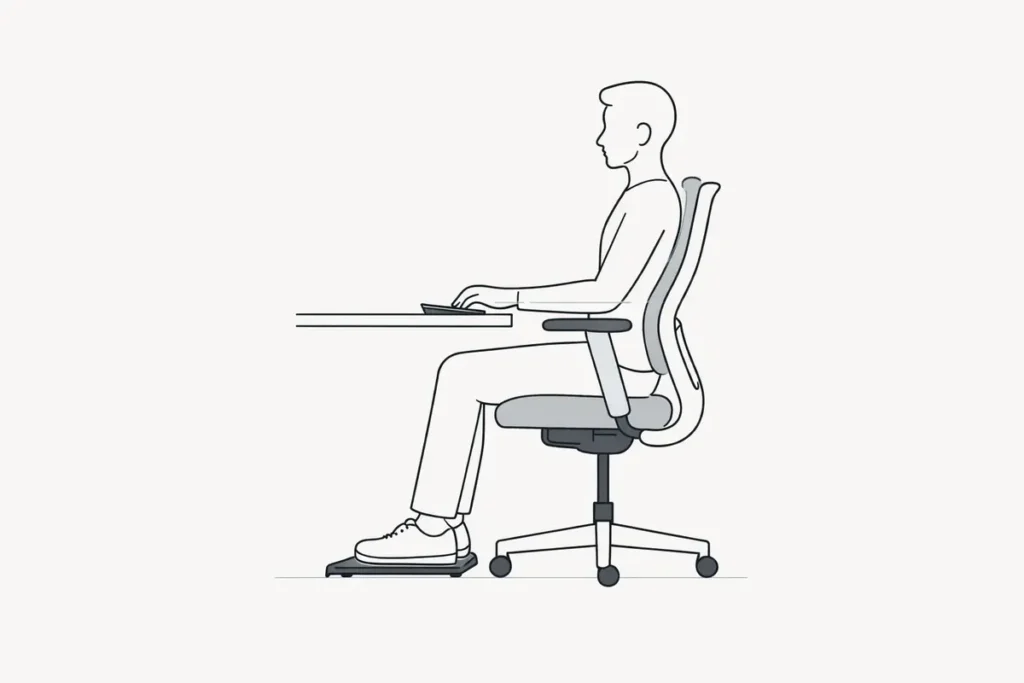
The “neutral position” is the foundation of good office ergonomics. In neutral, your joints are aligned in a way that minimizes strain on muscles, tendons, and nerves.
A neutral working posture typically means:
– Head balanced over your shoulders (not jutting forward).
– Eyes looking straight ahead or slightly downward, not sharply up or down.
– Shoulders relaxed—not hunched, elevated, or pulled back excessively.
– Elbows bent around 90 degrees, close to your body, not flared out.
– Wrists straight, not bent up, down, or sideways while typing or mousing.
– Hips slightly higher than or level with your knees.
– Knees around 90–110 degrees, not tightly compressed.
– Feet flat on the floor or supported on a footrest.
Every decision you make about chair height, desk height, or monitor position should support this neutral posture.
Bring the Work to You
A common mistake is leaning forward, craning your neck, or reaching constantly for your keyboard or mouse. Instead, “bring the work to you”—move your equipment so you can sit upright and supported.
That means:
– Raising or lowering your chair so your elbows are at desk height.
– Adjusting your monitor so you do not have to look down at a laptop screen.
– Sliding your keyboard and mouse closer so your elbows stay close to your body.
– Using a laptop stand or external monitor if you work on a laptop all day.
If you feel yourself repeatedly leaning or stretching, that is a sign something is too far away or too low/high.
Fit the Workspace to Your Body
People are not all the same height or shape, so one fixed setup is not ergonomic for everyone. Instead of asking, “What is the best ergonomic desk setup?”, ask, “How can I adjust this setup to fit my body proportions?”
Key measurements include:
– Your height.
– The length of your torso versus your legs.
– The length of your arms.
– Any existing mobility limitations or pain points.
An adjustable chair, and ideally an adjustable desk, make it much easier to fine-tune your position. If you cannot adjust the furniture, you can often adapt with accessories like footrests, seat cushions, or monitor risers.
Movement Is Essential
Ergonomics is not about locking yourself into a single “perfect” posture all day. In fact, any posture becomes uncomfortable if you hold it too long, even an ideal one. The real goal is to alternate positions and move regularly while avoiding extreme or twisted positions.
That includes:
– Shifting slightly in your chair.
– Standing up to stretch every 30–60 minutes.
– Using a sit-stand desk to alternate between sitting and standing.
– Taking short movement breaks for your eyes, hands, shoulders, and back.
Think of your ergonomic home office setup as a base that supports comfortable movement, not a rigid mold you must stay in.
Minimize Friction and Clutter
If your workspace is cluttered, poorly lit, or noisy, you are more likely to sit in awkward positions, work longer without breaks, and feel mentally drained. Good ergonomics also includes:
– A clear desk surface so you can place equipment where it belongs.
– Cable management so you are not constantly dodging cords.
– Adequate lighting that does not create glare on your screen.
– Storage for documents and accessories within easy reach.
Removing friction points makes it easier to maintain healthy habits.
Step-by-Step: How to Set Up an Ergonomic Home Office
Let’s walk through the practical steps to build an ergonomic work-from-home setup. To make this guide easy to follow, we will organize it around the main components of your workstation: chair, desk, monitor, keyboard, mouse, and environment.
👉 Read the guide: The Ultimate Guide to Productivity Gadgets for Home & Office 2026
Step 1: Adjust Your Ergonomic Office Chair
Your office chair is the foundation of your home office ergonomics. You don’t necessarily need an expensive model, but you do need a chair that supports your spine’s natural curves and allows basic adjustments.
Key Features of an Ergonomic Office Chair
Look for the following features when choosing or evaluating your chair:
– Seat height adjustment: So your feet can rest flat on the floor and your knees are roughly at hip level.
– Lumbar support: A curve or support in the lower back area to match the natural inward curve of your spine.
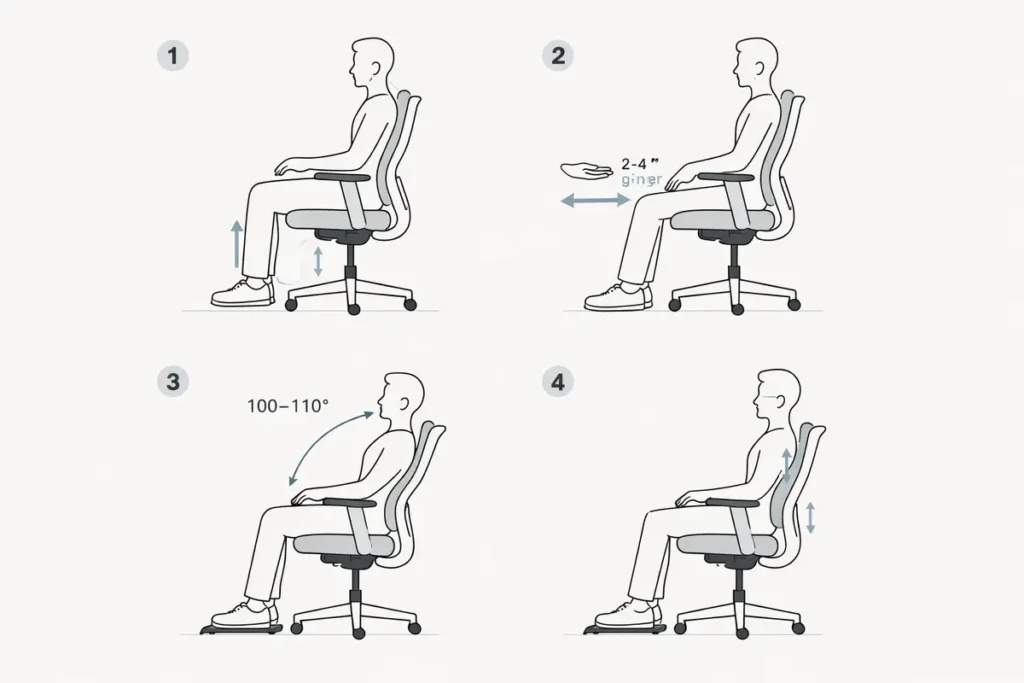
– Seat depth adjustment or appropriate depth: You should be able to sit back against the backrest while leaving 2–4 fingers’ space between the front of the seat and the back of your knees.
– Backrest recline or tilt: A slight recline (100–110 degrees) can reduce pressure on your lower back.
– Armrests (ideally adjustable): Height-adjustable armrests help support your forearms without lifting your shoulders.
– Stable base: A five-point base with casters for stability and easy movement.
If your current chair lacks some of these features, you can often improve it with add-ons like lumbar cushions, seat pads, or height-adjustable armrests you clamp onto the desk.
How to Adjust Your Chair for Neutral Posture
1. Set seat height:
– Sit with your hips fully back in the chair.
– Adjust the height so your feet rest flat on the floor (or a footrest) and your knees are roughly level with or slightly below your hips.
2. Adjust seat depth:
– Sit back, then check the distance from the seat edge to the back of your knees. Aim for a gap of about 2–4 fingers.
– If your seat is not adjustable and too deep, add a lumbar cushion to bring your back forward, or use a pillow so you can sit further forward without losing support.
3. Set backrest angle:
– Start with a slight recline of 100–110 degrees rather than sitting perfectly upright.
– Ensure your lower back is in contact with the lumbar support.
4. Adjust lumbar support:
– Move it up or down so it fits the curve of your lower back.
– If the chair lacks support, use an external lumbar cushion or a rolled-up towel placed at your lower back.
5. Adjust armrests:
– Raise or lower them so your shoulders are relaxed and your elbows are around 90 degrees when your hands rest near the keyboard.
– Armrests should just lightly support your forearms without lifting your shoulders.
Step 2: Set the Correct Desk Height for Home Office Ergonomics
Your desk height and chair height work together. The goal is to have your keyboard and mouse at about elbow height when your elbows are bent at 90 degrees and close to your body.
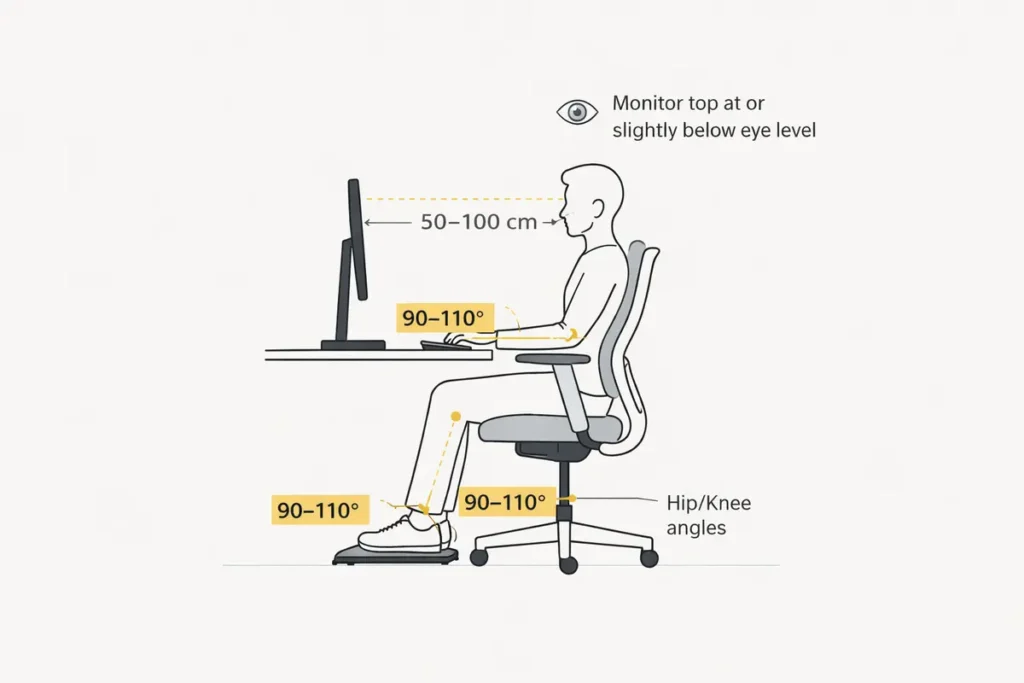
Ideal Desk Height for Home Office Ergonomics
For most people:
– If you are shorter, a standard fixed desk may be too high, forcing your shoulders to lift and your wrists to bend up. A keyboard tray or raising your chair and using a footrest can fix this.
– If you are taller, the desk may be too low, causing slouching or hunching. You can raise the desk using risers or blocks, or choose a height-adjustable sit-stand desk.
To find your ideal working height:
1. Sit correctly in your chair with your feet supported.
2. Bend your elbows to 90 degrees, keeping them close to your sides.
3. The height where your hands naturally rest is roughly where the keyboard and mouse should be.
If your desk does not match this height, adjust your chair and add accessories (footrest, keyboard tray) until the keyboard and mouse align with your neutral arm position.
Step 3: Position Your Monitor for Neutral Neck Posture
Neck and shoulder pain are often caused by a monitor that is too low, too far away, or off to the side. Correct monitor placement is one of the most powerful ergonomic adjustments you can make.
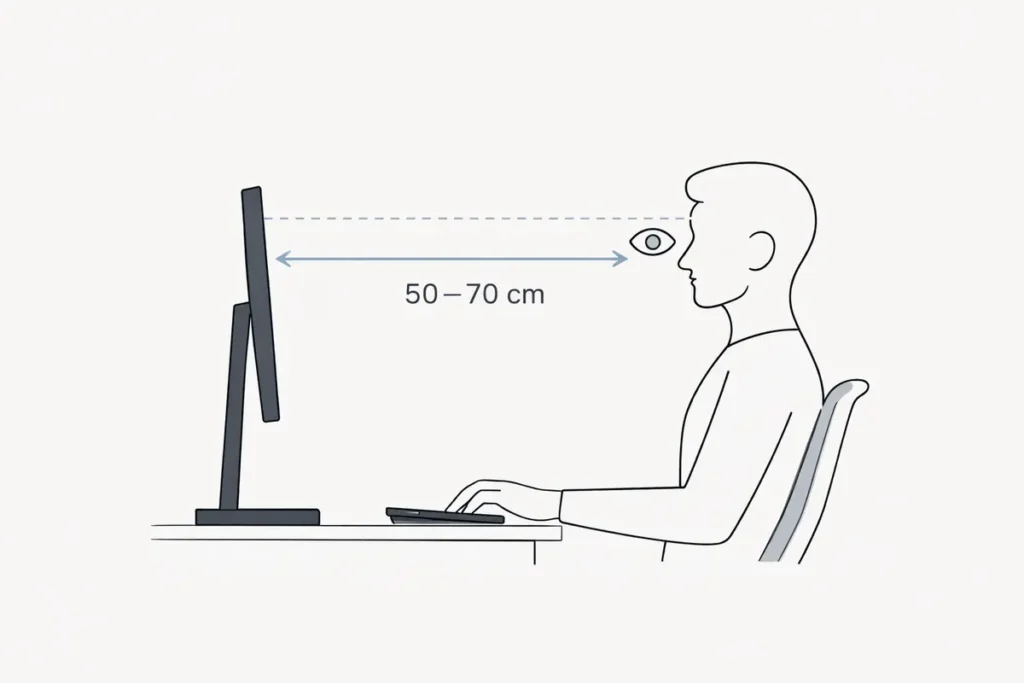
Monitor Height
– The top of the screen should be at or slightly below eye level when you sit upright.
– Your eyes should naturally fall to the top third of the screen.
– If you wear progressive lenses, you may need the monitor lower so you can use the lower portion of your glasses without tilting your head back.
To achieve this:
– Use a monitor riser, a stack of sturdy books, or an adjustable arm to raise the screen.
– Never leave a monitor so low that you are constantly looking down with your neck bent.
Monitor Distance
– Place the monitor about an arm’s length away (roughly 50–70 cm for most people).
– You should be able to read text comfortably without leaning forward or squinting.
– If you use a large monitor or dual monitors, you may place them slightly further away to reduce eye movement and neck twisting.
Single vs Dual Monitors in a Home Office
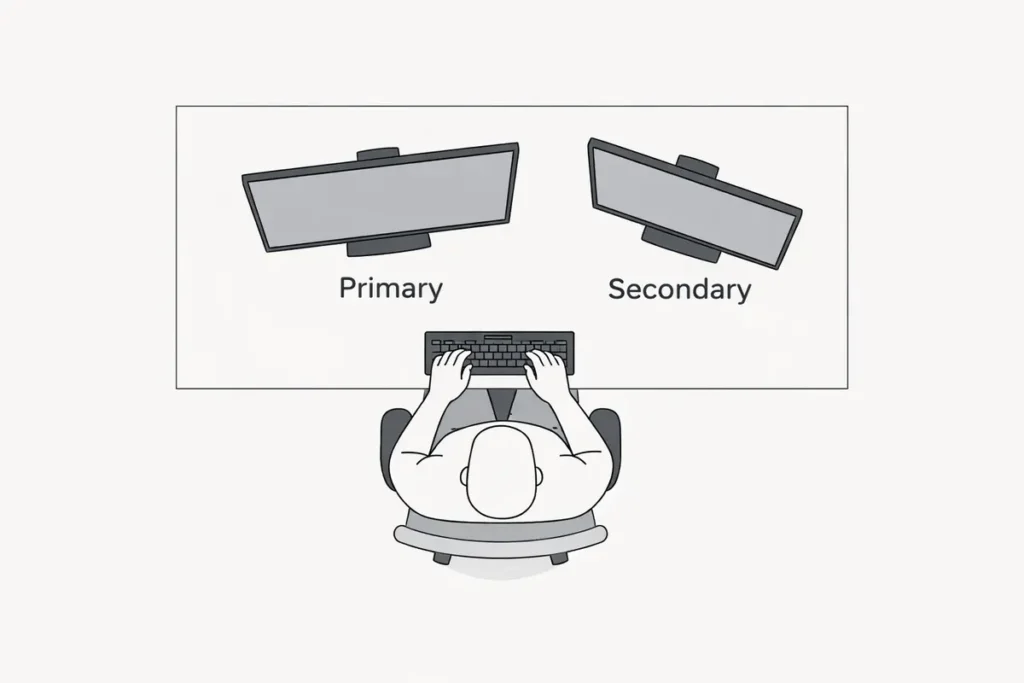
If you use dual monitors:
– Place your primary monitor directly in front of you.
– Place the secondary monitor to the side at a slight angle, not at a sharp angle that forces you to twist repeatedly.
– If you use both equally, center yourself between them so you only turn your head slightly to view each one.
For a single monitor, always keep it directly in front of you, not off to one side of the desk.
Laptop Ergonomics: Avoid the “Laptop Hunch”
Working long hours on a laptop placed flat on the desk is one of the fastest ways to strain your neck and upper back. To create a more ergonomic laptop setup at home:
– Use a laptop stand or even a stack of books to raise the screen to eye height.
– Use an external keyboard and mouse so you can keep your arms and wrists in neutral positions.
– If you must work directly on the laptop occasionally, limit it to short sessions and take frequent breaks to stretch.
Example scenario (common)
Many people start on a dining chair with a laptop flat on the table. After a few long days, it’s common to notice neck tension and headaches. Three low-cost changes often help: raise the laptop on a stable stand or stack of books, add an external keyboard and mouse, and support your lower back with a small cushion or rolled towel.
👉 Read the guide: Monitors Made Easy: 25 Essential Tips to Choose the Perfect Screen
Step 4: Optimize Keyboard and Mouse for Wrist and Hand Health
Your keyboard and mouse are where most repetitive motion happens, so getting this part of your ergonomic home office right is critical.
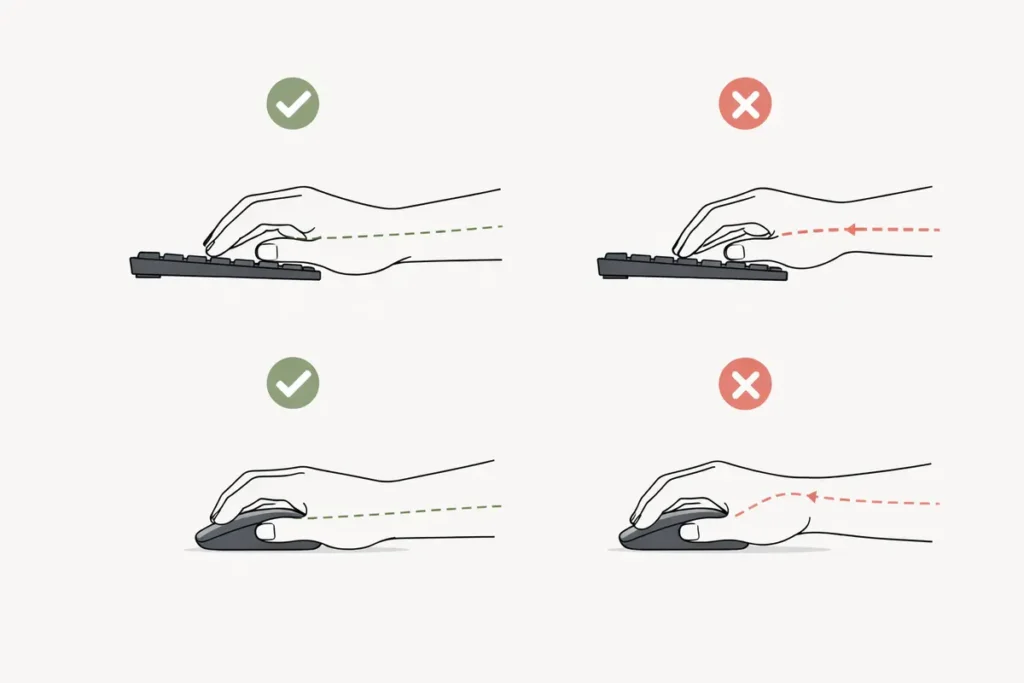
Keyboard Position
– Place the keyboard directly in front of you so you do not twist at the waist.
– Keep it at a height that allows your elbows to stay close to your body, bent around 90 degrees.
– Your wrists should be straight, not bent up or down. If the keyboard has legs at the back, folding them down often helps keep your wrists neutral.
– Keep the keyboard close to the edge of the desk so you are not reaching forward.
If you experience wrist pain or numbness, consider:
– A low-profile or ergonomic keyboard.
– A negative tilt keyboard tray (sloping slightly away from you so your wrists stay straight).
– A soft wrist rest that supports the palms, not the wrists themselves.
Mouse Position and Grip
– Place the mouse next to your keyboard at the same height, so you can reach it by pivoting your forearm, not stretching your arm forward.
– Avoid gripping the mouse too tightly. Use a light, relaxed grip.
– Move the mouse with your whole arm and shoulder, not just your wrist, to distribute the load.
If you have ongoing discomfort, an ergonomic mouse—vertical mouse, trackball, or pen-style device—may reduce strain by encouraging a more neutral wrist position.
Keyboard and Mouse Shortcuts to Reduce Strain
Using keyboard shortcuts or macro buttons can reduce repetitive mouse movements. Learn common shortcuts for your operating system and main applications, especially for:
– Copy, paste, undo, and redo.
– Switching between windows and tabs.
– Scrolling or navigating documents.
Small reductions in repetition add up when you work at a computer all day.
👉 Read the guide: 10 Powerful Ways a Keyboard & Mouse Setup Can Transform Your Productivity
Step 5: Support Your Feet and Legs at Your Desk
Your lower body often gets overlooked in ergonomic home office setup guides, but leg and foot position significantly affect back and hip comfort.
– Your feet should rest flat on the floor or on a sturdy footrest.
– Avoid letting your feet dangle or tucking them far under the chair for long periods.
– Knees should be at roughly the same height as your hips or slightly lower.
If you are shorter and need to raise your chair to get your arms in a good position, a footrest becomes essential. You can use a purpose-made office footrest or improvise with a firm box, step, or low stool, as long as it is stable and comfortable.
Avoid sitting cross-legged for long stretches—it can interfere with circulation and put uneven pressure on your hips and lower back.
Step 6: Fix Home Office Lighting, Glare, and Screen Settings
Good lighting is part of ergonomic design because it affects eye strain, headaches, and overall comfort.
Natural Light and Window Placement
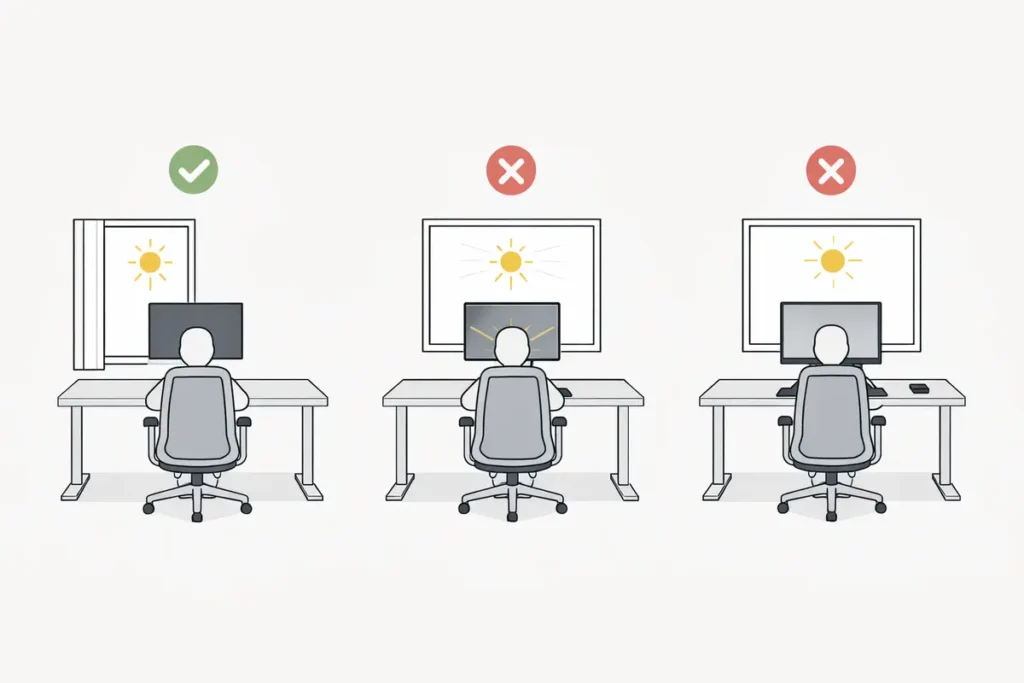
– Ideally, place your desk so windows are to the side of your monitor, not directly behind or in front of it.
– If a window is behind the screen, you may see heavy glare and reflections. If it is in front of you, the brightness contrast between the window and screen can strain your eyes.
– Use blinds, curtains, or adjustable shades to control brightness throughout the day.
Artificial Lighting
– Use a combination of overhead lighting and a desk lamp that provides adjustable, indirect light.
– Avoid harsh, direct light shining on your screen or in your eyes.
– A lamp with adjustable color temperature can help you find a warm or neutral light that feels comfortable for long sessions.
Screen Brightness, Contrast, and Text Size
– Match your screen brightness to the ambient room light—too bright or too dim can cause eye strain.
– Increase text size and contrast so you can read easily without leaning forward.
– Consider using dark mode or light mode based on your preference and comfort.
Reduce Blue Light Exposure (Especially in the Evening)
Digital screens emit blue light, which may interfere with sleep if you work late into the night. To reduce blue light exposure:
– Use built-in night mode features on your computer and phone.
– Consider blue-light-filtering glasses if you work with multiple screens or late in the evening.
– Take regular breaks using the 20-20-20 rule: every 20 minutes, look at something 20 feet away for at least 20 seconds.
Step 7: Organize Your Ergonomic Workstation and Desk Layout
A cluttered, cramped desk can sabotage even the best ergonomic intentions. Organizing your home office workspace improves both physical and mental ergonomics.
Keep Essentials Within the Primary Reach Zone
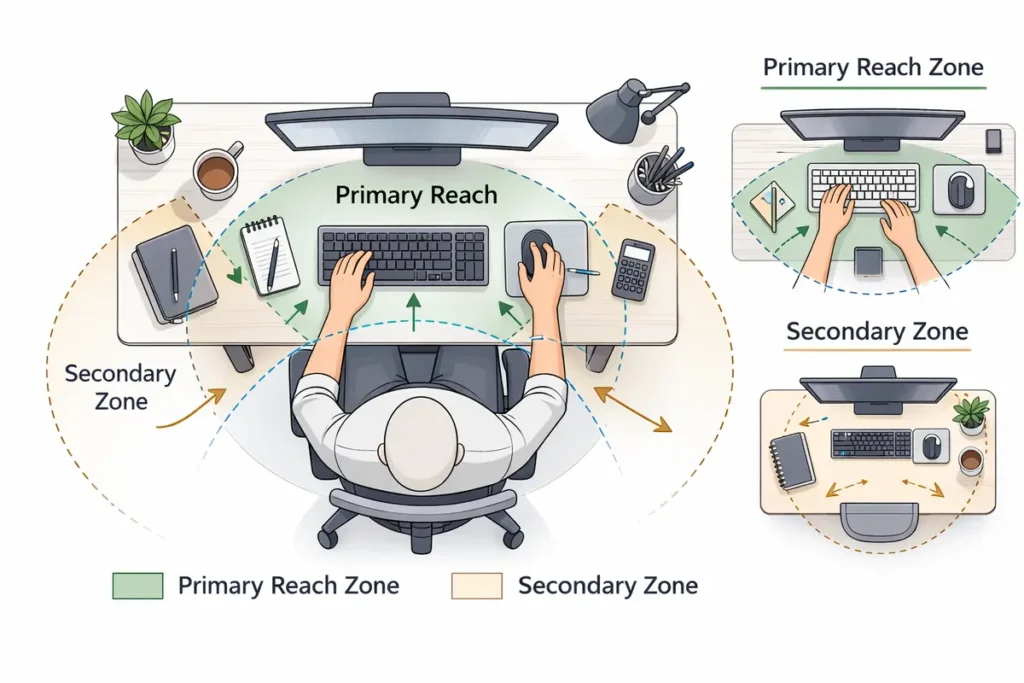
Imagine a semi-circle in front of you that you can reach with your arms bent and elbows close to your body. This is your primary reach zone. Place frequently used items here:
– Keyboard and mouse.
– Notepad and pen.
– Phone or headset.
– Frequently used documents.
Less frequently used items (files, reference books, chargers) can live in a secondary reach zone slightly further away, where you may extend your arm but do not twist or lean significantly.
Cable Management
Dangling or tangled cables can be both a tripping hazard and a source of visual clutter. Consider:
– Using cable clips or sleeves to bundle wires.
– Routing cables behind the desk or along edges.
– Labeling chargers and cables to reduce frustration.
👉 Read the guide: Enterprise IT Guide to Docks & Hubs: Architecture, Standards, Security, Performance & Deployment
Use Vertical Space and Storage
If your desk surface is small, use vertical storage:
– Shelves above or beside the desk.
– Wall-mounted organizers for documents or small items.
– Drawer units under or next to the desk for less-used supplies.
A tidy, intentional layout makes it easier to maintain an ergonomic position instead of constantly reaching, twisting, or shuffling items around.
Sit-Stand Desks: Standing Desk Ergonomics for Home Offices
Many people search for “standing desk home office ergonomics” hoping it will solve all of their posture problems. A sit-stand desk can be a powerful tool—but only when used correctly.
Benefits of a Sit-Stand Desk
– Encourages more movement throughout the day.
– Reduces the amount of time spent in prolonged sitting.
– May decrease stiffness in the hips and lower back.
– Can make it easier to stay alert and focused during long tasks.
How to Use a Standing Desk Ergonomically
When standing:
– Keep the desk at elbow height—your elbows should still be around 90 degrees when your hands rest on the keyboard.
– Stand with your weight evenly distributed on both feet.
– Avoid locking your knees; keep a slight, relaxed bend.
– Use an anti-fatigue mat to reduce pressure on your feet and lower back.
– Wear supportive, comfortable footwear.
Alternate between sitting and standing; for many people, a good starting point is:
– 20–30 minutes standing.
– 30–40 minutes sitting.
– Repeat through the day.
Listen to your body—if your feet, knees, or lower back feel sore, shorten standing intervals and build up gradually.
Common Standing Desk Mistakes
– Standing for many hours without breaks.
– Leaning on one hip or locking the knees.
– Wearing unsupportive shoes on a hard floor.
– Setting the desk too high, causing shoulder and wrist strain.
A standing desk is not a cure-all; it is a tool to help you add variety to your working postures.
Micro-Breaks, Stretching, and Healthy Work-From-Home Habits
Even the most ergonomic home office setup cannot fully protect you if you work for long, uninterrupted stretches. Movement is non-negotiable.
Build Micro-Breaks into Your Day
Use simple rules to remind yourself to move regularly:
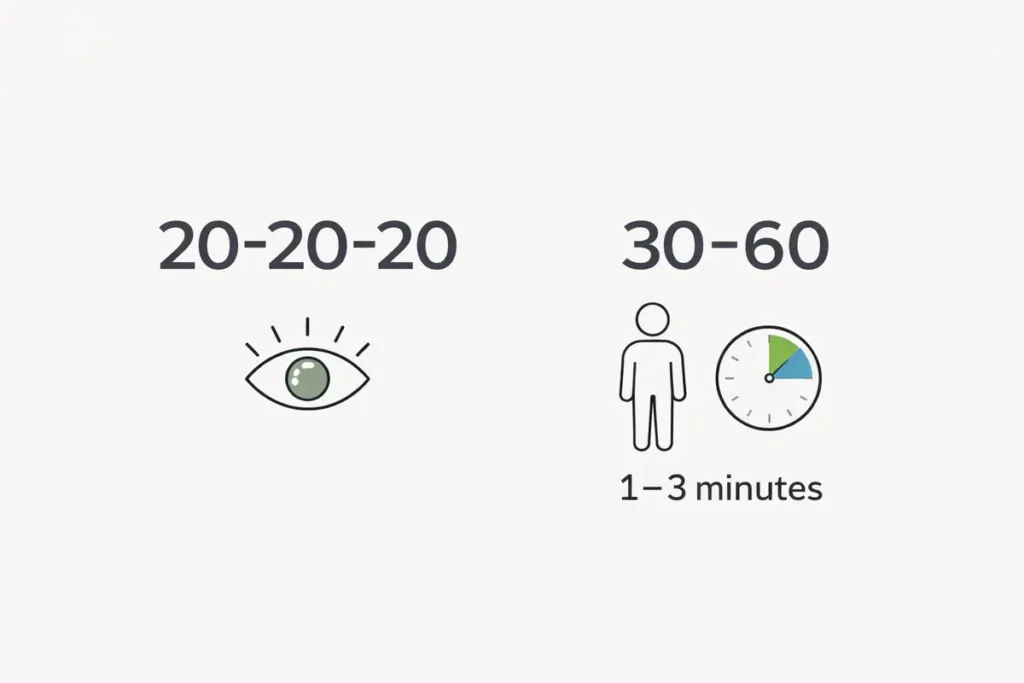
– 20-20-20 rule for eyes: Every 20 minutes, look at something 20 feet away for 20 seconds.
– 30-60 movement rule: Every 30–60 minutes, stand up, stretch, or walk for 1–3 minutes.
– Use a timer, app, or smart watch to nudge you if you tend to get absorbed in work.
These short breaks reduce muscle fatigue, improve circulation, and give your eyes a rest.
Simple Desk Stretches
You do not have to change clothes or roll out a yoga mat to benefit from movement. Try:
– Neck stretches: Gently tilt your head side to side and turn left and right.
– Shoulder rolls: Slowly roll your shoulders forward and backward several times.
– Chest opener: Clasp your hands behind your back and gently lift to stretch the front of your shoulders.
– Wrist and finger stretches: Extend your arm and gently pull back on your fingers, then make a fist and open your fingers wide.
– Back extension: Stand up, place your hands on your hips, and gently arch backward.
Perform these stretches without bouncing and stop if you feel pain.
Hydration, Breaks, and Boundaries
Good ergonomic habits also include lifestyle behaviors:
– Keep water at your desk and sip regularly to stay hydrated.
– Take genuine breaks away from the screen for meals and snacks.
– Create boundaries between work time and home time, especially in small living spaces, to reduce mental fatigue and burnout.
Ergonomics in Small Apartments and Shared Home Offices
Not everyone has a dedicated home office room. You might be working from a dining table, couch, or bedroom. Even in tight spaces, you can apply ergonomic principles.
Temporary Workstations (Dining Table, Kitchen Counter)
If you have to use a dining table:
– Use a dedicated chair, not a soft couch that encourages slouching.
– Add a seat cushion or lumbar pillow for support.
– Use a laptop stand and external keyboard/mouse if possible.
– Pack away work equipment at the end of the day to re-claim the space mentally.
If you work at a kitchen counter or breakfast bar:
– Be careful with height—counters are usually too high for comfortable typing.
– Use a bar stool with a footrest if sitting, ensuring your elbows are at a neutral height.
– Standing for short periods at a counter can work as a makeshift standing desk, but monitor the height so you are not shrugging your shoulders.
Shared Spaces and Noise
In shared homes or apartments, sound and distractions affect your cognitive ergonomics. Consider:
– Noise-canceling headphones or simple foam earplugs.
– A folding screen or room divider to visually separate your workspace.
– Using clear signals (like a sign on the back of your chair) to let others know when you are on calls or focusing.
Portable Ergonomic Tools for Small Spaces
For people who move between rooms or locations, a few portable tools can make a big difference:
– Lightweight laptop stand.
– Compact external keyboard and mouse.
– Portable footrest or small step.
– Foldable laptop table if you must occasionally work from the couch or bed (though try not to make this your primary setup).
EEAT: Building Trust and Safety into Your Home Office Choices
Many people searching for “best ergonomic office chair for home” or “how to stop back pain working from home” are looking for trustworthy, experience-based advice. While this guide does not replace individualized medical or professional ergonomic assessment, it follows widely accepted principles from ergonomics, occupational health, and physical therapy.
When evaluating ergonomic products or advice online:
– Look for content that explains why a setup works, not just the brand names.
– Prefer recommendations that emphasize adjustability and fit to your body.
– Be cautious of any product claiming to be a “miracle cure” for pain.
– If you have ongoing or severe pain, consult a health professional such as a physiotherapist, occupational therapist, or physician.
The goal of an ergonomic home office setup is not perfection—it is progress. Each small improvement you make in your posture, workstation layout, and daily habits can reduce cumulative strain and help you feel better during and after work.
Sample Ergonomic Home Office Checklists
To make this guide actionable, here are quick checklists you can use to review your workspace.
Posture Checklist
– [ ] My head is balanced over my shoulders, not jutting forward.
– [ ] My shoulders feel relaxed, not hunched or lifted.
– [ ] My elbows are close to my body, bent around 90 degrees.
– [ ] My wrists are straight while typing and using the mouse.
– [ ] My hips are level with or slightly above my knees.
– [ ] My feet are flat on the floor or on a footrest.
Chair and Desk Checklist
– [ ] My chair height lets my feet rest flat and my knees are comfortable.
– [ ] My lower back is supported by lumbar support or a cushion.
– [ ] My desk or keyboard height lines up with my elbows at 90 degrees.
– [ ] I can reach the keyboard and mouse without leaning forward.
– [ ] If I stand to work, the desk is at elbow height and I use supportive shoes.
Monitor and Screen Checklist
– [ ] The top of my monitor is at or just below eye level.
– [ ] The monitor is roughly an arm’s length away.
– [ ] My primary screen is directly in front of me.
– [ ] I am not constantly looking sharply up or down.
– [ ] Screen brightness and text size are comfortable to read.
Environment and Habits Checklist
– [ ] I get up at least every 30–60 minutes to move.
– [ ] I follow the 20-20-20 rule for my eyes.
– [ ] My lighting is adequate without harsh glare.
– [ ] My workspace is reasonably tidy and uncluttered.
– [ ] I have clear start and stop times for my workday.
Frequently Asked Questions About Ergonomic Home Office Setup
What is the ideal ergonomic home office setup?
The ideal ergonomic home office setup is one that fits your body and work tasks. In general, it includes an adjustable chair with lumbar support, a desk that allows your keyboard and mouse to be at elbow height, a monitor at eye level about an arm’s length away, and enough space to keep your wrists straight and shoulders relaxed. Most importantly, it supports a neutral posture and allows you to move regularly throughout the day.
How high should my desk be for good ergonomics?
Instead of aiming for a specific measurement, focus on your body position. With your shoulders relaxed and elbows by your sides, bend your elbows to about 90 degrees. The surface holding your keyboard and mouse should be at that height. If your desk is too high, raise your chair and use a footrest. If it is too low, raise the desk with risers or consider a height-adjustable desk.
Where should my monitor be placed?
Your monitor should be directly in front of you, with the top of the screen at or slightly below eye level. Place it at roughly an arm’s length away so you can read text comfortably without leaning forward. If you use dual monitors, center your primary monitor and angle the secondary one slightly to the side to minimize neck twisting.
Is it okay to work on a laptop all day?
Using a laptop flat on a desk or table all day encourages you to look down, which can strain your neck and upper back. For full-day use, treat the laptop like a desktop computer: raise it on a stand or stack of books so the screen is at eye level, and use an external keyboard and mouse so your arms and wrists can stay in neutral positions.
Do I really need an ergonomic chair?
You need a supportive and adjustable chair, which many ergonomic office chairs provide. Key features include seat height adjustment, lumbar support, and a backrest that allows slight recline. However, you do not necessarily need a high-end or branded chair. The best ergonomic chair is one that fits your body, supports your lower back, and can be adjusted to work with your desk height.
Are standing desks better than sitting desks?
Standing desks are not automatically better—they are different. The real benefit comes from alternating between sitting and standing, rather than doing either for many hours. A sit-stand desk can encourage more movement and reduce long periods of sitting, but you still need to maintain good posture and wear supportive footwear when standing.
How often should I take breaks from my desk?
A practical rule of thumb is to move briefly every 30–60 minutes. That could be standing up, walking to get water, or doing a few stretches. For your eyes, follow the 20-20-20 rule: every 20 minutes, look at something at least 20 feet away for 20 seconds. These breaks help reduce muscle fatigue, joint stiffness, and eye strain.
What can I do about wrist pain from typing and using a mouse?
First, check your wrist position. Your wrists should be straight, not bent up or down, when typing or mousing. Make sure the keyboard and mouse are at the right height and close enough so you are not reaching. Consider using a low-profile keyboard, a wrist rest for your palms, or an ergonomic mouse that supports a more neutral hand position. If pain persists, consult a healthcare professional, as it may indicate a repetitive strain injury.
How can I make my home office ergonomic on a budget?
You do not need to buy everything at once. Start with adjustments that cost nothing: raise your monitor on books, adjust your chair height, rearrange your desk layout, and take more breaks. Next, add inexpensive upgrades: a lumbar cushion, an external keyboard and mouse for your laptop, or a simple footrest. Over time, you can invest in a more adjustable chair or sit-stand desk if needed.
Is it bad to work from the couch or bed?
Occasional work from the couch or bed is not harmful for most people, but it is not ideal for long-term daily use. Soft surfaces encourage slouching, and it is difficult to keep your screen at eye level and your wrists in neutral positions. If you must work there temporarily, use firm cushions for back support, a laptop stand or lap desk, and take frequent breaks to move. For regular work, aim to create a dedicated workstation with a proper chair and desk.
What is the best chair position for lower back pain?
For lower back comfort, sit with your hips fully back in the chair and your lower back supported by lumbar support or a cushion. A slight recline of 100–110 degrees often reduces pressure on the lower spine compared with sitting bolt upright. Your knees should be roughly level with or slightly below your hips, and your feet should be flat on the floor or on a footrest.
How can I reduce neck and shoulder pain at my desk?
Neck and shoulder pain often come from a monitor that is too low or too far away, or from working with your arms unsupported. Raise your monitor so the top is at or slightly below eye level, bring it to an arm’s length distance, and sit close enough so you do not have to lean forward. Adjust your chair and armrests so your shoulders can relax and your elbows are supported at about 90 degrees. Regular stretching and movement also help relieve muscle tension.
What is the correct distance between my eyes and the monitor?
A good starting point is about an arm’s length—roughly 50–70 cm for most people. If you have a very large monitor, you may place it slightly further back. The key is being able to read text comfortably without leaning forward or squinting. If you find yourself leaning, try increasing text size or adjusting screen brightness and contrast before moving the monitor closer.
Do I need special blue-light glasses for computer work?
Blue-light-filtering glasses are optional. For many people, adjusting screen settings—using night mode in the evening, reducing brightness, and taking regular breaks—is enough to reduce eye strain. If you are sensitive to light or work late at night, blue-light glasses can be a helpful extra layer of comfort, but they are not a substitute for proper screen placement and healthy visual habits.
How should I set up an ergonomic home office in a small apartment?
In small spaces, aim for a compact but dedicated workstation. Use a small desk or wall-mounted table that can stay permanently set up so you are not constantly working from the couch or bed. Choose a chair that provides reasonable support, even if it doubles as a dining chair, and enhance it with cushions. Use vertical storage (shelves, wall organizers) to keep your work area tidy. Portable tools like a laptop stand, external keyboard, and folding screen can help you maintain ergonomics without dedicating an entire room to an office.
What are the most important ergonomic accessories to buy first?
If you are starting from scratch or upgrading gradually, prioritize accessories that have the biggest impact for most people:
1) A supportive, adjustable chair (or cushions to improve your existing chair).
2) External keyboard and mouse if you use a laptop.
3) Monitor riser or laptop stand to get the screen to eye level.
4) Footrest if your feet do not rest flat when your chair is at the correct height.
These items address posture, wrist position, and neck alignment, which are the most common sources of discomfort.
Can ergonomic equipment fix my back or neck pain?
Ergonomic equipment can reduce contributing factors to pain by improving posture and decreasing strain, but it is not a medical treatment. If you already have significant or persistent pain, it is important to speak with a healthcare professional who can assess your specific situation. Combining ergonomic improvements with targeted exercises, stretching, and medical advice usually gives the best results.
How long does it take to feel a difference after improving my setup?
Many people notice some relief within days or weeks of improving their home office ergonomics—especially for issues like mild neck stiffness or shoulder tension. However, long-standing pain or injuries can take longer to change and often need a combination of ergonomics, exercise, and sometimes medical treatment. The earlier you address discomfort, the easier it is to prevent it from becoming a chronic problem.
Is it worth investing in a sit-stand desk for my home office?
If you spend many hours at a computer each day and find it hard to take movement breaks, a sit-stand desk can be a worthwhile investment. It makes it easier to change positions without interrupting your work. Before buying, consider your budget, your available space, and whether you will realistically use the standing option. Some people get similar benefits by using a fixed desk combined with regular walking breaks and occasional work at a standing-height surface like a counter (adjusted for height).
What is one simple change I can make today for better home office ergonomics?
If you only change one thing today, raise your screen so you are no longer looking sharply down at it. Whether that means using a monitor riser, a laptop stand, or a stack of books, getting the top of your screen to around eye level often produces an immediate improvement in neck and upper back comfort. Then, over the next few days, adjust your chair and keyboard height and build a habit of short movement breaks—small steps that together create a significantly more ergonomic home office setup.