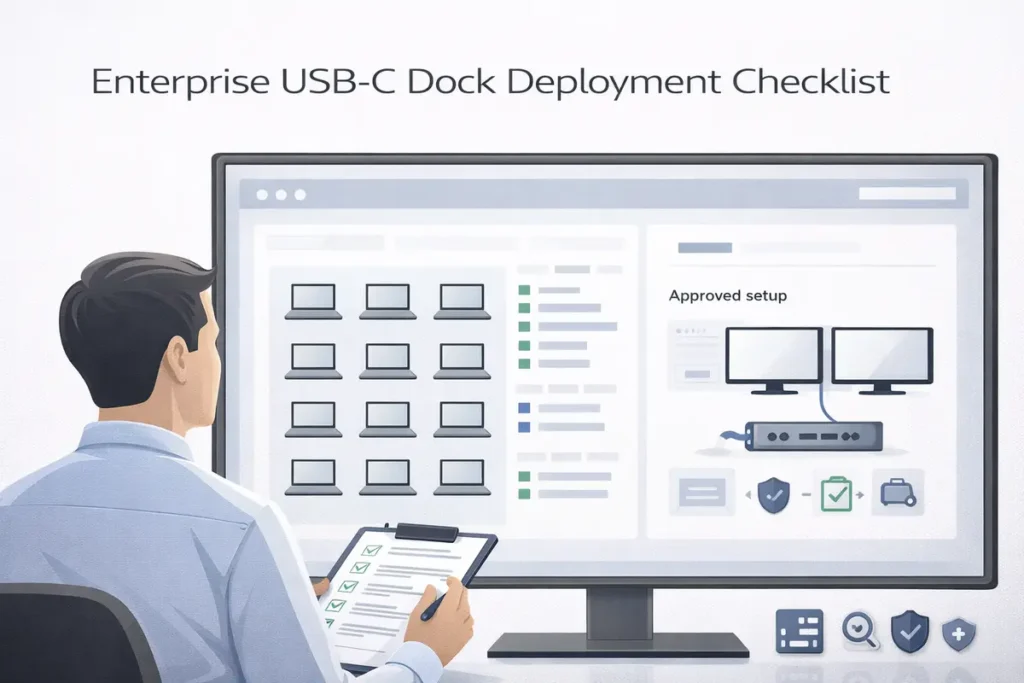
USB-C dock deployment checklist(2026) for enterprise IT: standardize drivers, firmware, cables and monitor support. Pilot plan + helpdesk triage included.
Author & technical review
Last Updated: March 2026
Author: Editorial Productivity & Computing Team
Technical review: Cross-checked against vendor documentation and standards references listed in “Sources and further reading.”
Audience: Endpoint engineering, IT admins, helpdesk leads, and procurement teams.
Scope note: Exact steps differ by vendor and management stack (Intune/MECM/Jamf), but the control points are the same.
How we evaluate enterprise dock deployments (our methodology)
This playbook is written for one goal: fewer support tickets and fewer returns when you deploy docks across a fleet. Instead of guessing, we treat docks like any other endpoint peripheral: standardize, pilot, baseline, roll out in rings, and monitor.
- Inventory first: laptop models, port capabilities, OS versions, and monitor targets (resolution/refresh).
- Pick a docking technology that matches your fleet constraints (Thunderbolt vs USB-C Alt Mode vs DisplayLink).
- Pilot with a minimum test matrix (sleep/wake, dual monitors, Ethernet, USB peripherals, conferencing).
- Lock a known-good baseline (driver versions, firmware versions, OS build) before broad rollout.
- Roll out in rings (IT → pilot users → department waves), then monitor incidents and adjust baselines.
This is not vendor-specific advice. It’s a repeatable workflow that works whether you standardize on one dock model or maintain a small approved list.
Executive summary: what makes enterprise dock rollouts fail
Most enterprise dock rollouts fail for boring reasons: unclear port capability, inconsistent cables, unmanaged driver/firmware versions, and unrealistic monitor expectations (like assuming any dock can do dual 4K at 60Hz on every laptop). The fix is also boring—and it works: standardize the dock tech, define approved configs, and deploy updates like you would for any endpoint component.
Deployment flow at a glance
| Phase | What good looks like |
|---|---|
| 1) Inventory | You know which laptops support DP Alt Mode/USB4/Thunderbolt and what monitor setups users need. |
| 2) Standardize | You pick 1–2 dock models per laptop class and define approved cables and monitors. |
| 3) Pilot | You test a minimum matrix (sleep/wake, dual displays, Ethernet, USB, conferencing) on real desks. |
| 4) Baseline | You lock driver + firmware versions that are known-good and document them. |
| 5) Rollout | You deploy in rings with monitoring and a fast swap/RMA plan. |
| 6) Operate | Helpdesk has a simple triage script and escalation path; endpoint team manages updates. |
Phase 1: Fleet pre-check (inventory you must collect)
Before you buy 200 docks, collect the data that determines success. This prevents the most expensive mistake: buying a dock that is technically fine, but mismatched to your laptop ports, OS versions, or monitor standards.
- Laptop models and generations (including SKU-level differences if possible).
- Port capability per model: USB-C charging only vs DP Alt Mode vs USB4 vs Thunderbolt (and which ports are “full function”).
- GPU type and known external display limits (integrated vs discrete, or model-specific constraints).
- OS versions/builds: Windows 10/11 build numbers; macOS versions; ChromeOS/Linux if applicable.
- Monitor standards: typical resolution/refresh targets (1080p/1440p/4K; 60Hz vs 120/144Hz), plus ultrawides and HDR expectations.
- Network requirements: 1GbE vs 2.5GbE, MAC passthrough needs, and VPN/conferencing load.
- Security constraints: driver install permissions, kernel extension policies (macOS), and device control tools that affect USB peripherals.
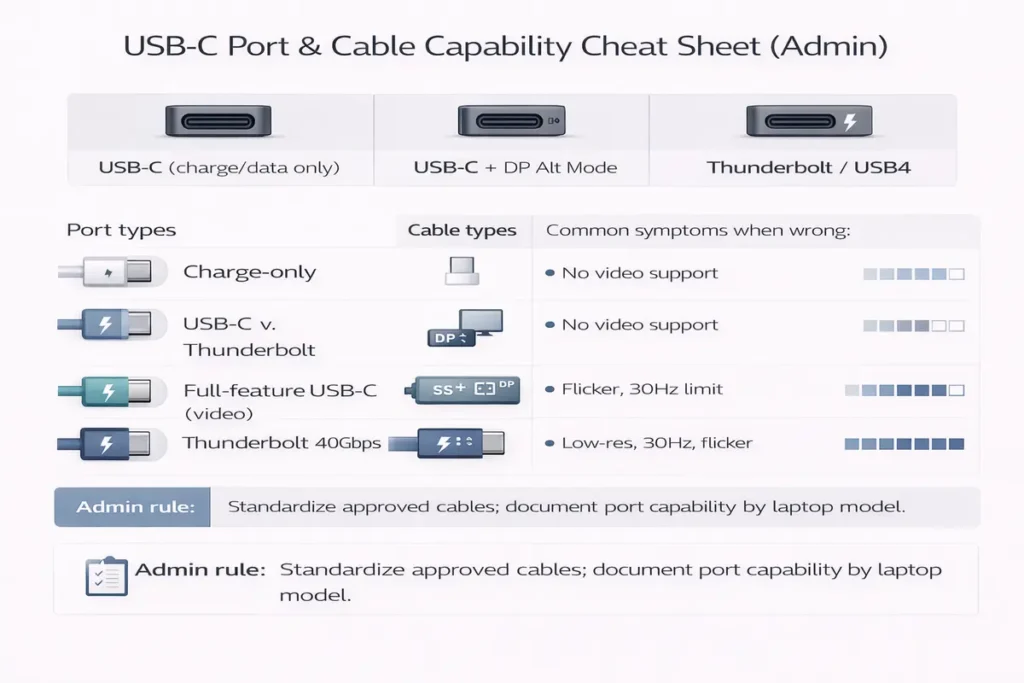
👉 Read the guide: Dual Monitors Over USB-C: What’s Possible (and Why It Often Fails)
Phase 2: Choose the right dock technology (enterprise lens)
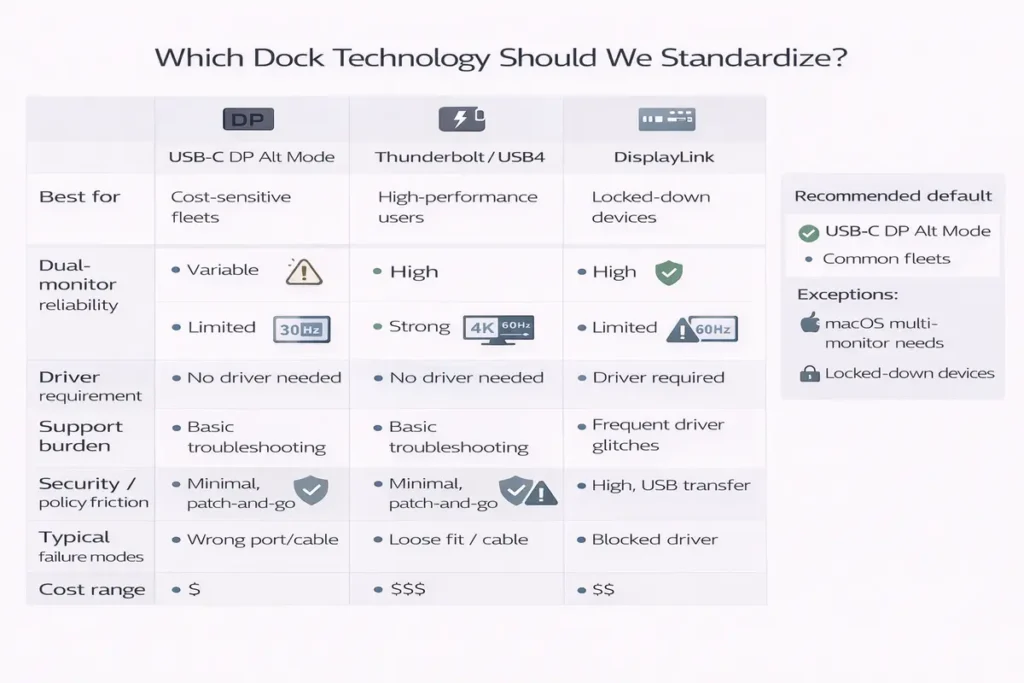
In enterprise deployments, dock technology isn’t about “maximum ports.” It’s about predictability, support burden, and how updates are managed.
| Dock tech | Best for | Support burden | Top risks |
|---|---|---|---|
| Thunderbolt | Premium desks, high-res dual displays, fast peripherals | Low to medium | Not all laptops support TB; verify display limits |
| USB-C Alt Mode (DP Alt Mode) | Standard office desks, good value at 60Hz | Medium | MST/OS differences; bandwidth sharing; vague specs |
| DisplayLink | Extra displays beyond native limits; mixed fleets | Medium to high | Driver dependency; policy blocks; motion artifacts for some workloads |
👉 Read the guide: DisplayLink vs USB-C Alt Mode vs Thunderbolt: Which Dock Tech Should You Use?
Rule of thumb: If you want the fewest surprises across many laptop models, Thunderbolt tends to be easiest to standardize—when your fleet supports it. If cost is priority and users are mostly on Windows with 60Hz office monitors, USB-C Alt Mode docks can be strong value. If you must support “more screens than the device normally allows,” DisplayLink can be the workaround—if your environment allows drivers.
Phase 3: Driver strategy (Windows & macOS)
Driver sprawl is the #1 silent killer in enterprise dock deployments. Many docks work on day one, then break after a Windows Update, a macOS security change, or a driver auto-replacement. Your goal is to control versions and roll out changes in rings.
What drivers might be involved
- DisplayLink software (required for DisplayLink docks).
- USB Ethernet chipset drivers (sometimes native, sometimes vendor-provided).
- Audio drivers for dock audio devices (often optional).
- Thunderbolt/USB4 controller support (mostly OS-level, but firmware and vendor tools may apply).
- Dock vendor utilities (optional, used for firmware updates or device management).
Enterprise packaging approach (practical)
Pick one supported delivery method per platform and document it. For Windows, that’s typically Intune Win32 apps or MECM packages. For macOS, Jamf or your MDM’s app deployment plus policy controls.
- Create a ‘dock software’ bundle: DisplayLink (if used), vendor updater tool (if needed), and any required network/audio drivers.
- Pin versions: define a baseline version and avoid surprise upgrades during rollout.
- Use rings: IT/endpoint team first, then pilot users, then broad rollout.
- Document uninstall/rollback steps so helpdesk can recover quickly.
Driver governance checklist
| Control | Recommendation |
|---|---|
| Version pinning | Baseline driver versions for docks; upgrade only after pilot validation. |
| Update rings | Stage changes: IT → pilot → broad; monitor tickets per ring. |
| Windows Update conflicts | Expect driver replacements; re-apply baseline if needed. |
| macOS permissions | Pre-approve required permissions (especially for DisplayLink) via MDM where possible. |
| Documentation | Maintain a ‘known good’ page: OS build + driver versions + firmware versions. |
Phase 4: Firmware strategy (dock + laptop + monitors)
Firmware is often ignored until the tickets pile up: monitor flicker, Ethernet drops, and wake-from-sleep failures. A simple firmware strategy can reduce incidents dramatically.
What firmware may need updates
- Dock firmware (core stability and port behavior).
- Thunderbolt firmware on the laptop (vendor-dependent).
- Monitor firmware (occasionally fixes handshake issues).
- USB-C controller/retimer firmware (handled by laptop vendor updates in many cases).
Safe firmware rollout plan
- Never update firmware on the entire fleet at once. Pilot first.
- Record the pre-update and post-update versions and the test results.
- Keep a small spare pool so users can swap immediately if a firmware update causes issues.
- Schedule updates during low-impact windows and communicate expected behavior (reboots, reconnects).
Phase 5: Build a compatibility matrix
A compatibility matrix turns dock rollout from folklore into data. Keep it small and focused: only the laptop models, OS versions, and monitor types you actually deploy.
| Laptop model | OS build | Dock model/firmware | Cable | Monitors (res/Hz) | Result | Notes |
|---|---|---|---|---|---|---|
| Dell Latitude 7440 (TB4) | Windows 11 23H2 | Thunderbolt dock v1.2.3 | 0.8m TB4 cable (included) | 2×27″ 1440p@60Hz | Pass | Stable after 5 sleep/wake cycles; Ethernet OK on VPN |
| Lenovo ThinkPad T14 Gen 4 (USB-C DP Alt) | Windows 11 23H2 | USB-C MST dock v3.4.0 | 1.0m USB-C full-feature | 2×24″ 1080p@60Hz | Pass | Set monitors to 60Hz baseline; no flicker; DP ports preferred |
| HP EliteBook 840 (USB-C DP Alt) | Windows 10 22H2 | USB-C MST dock v3.4.0 | 1.0m USB-C full-feature | 1×4K@60Hz + 1×1080p@60Hz | Pass | 4K over DP stable; HDMI port capped at 4K@30 on this dock |
| MacBook Pro (Thunderbolt) | macOS 14.x | Thunderbolt dock v1.2.3 | 0.8m TB4 cable (included) | 2×27″ 1440p@60Hz | Pass | Most consistent Mac setup; hot-plug OK |
Minimum pilot test plan (what to validate on real desks)
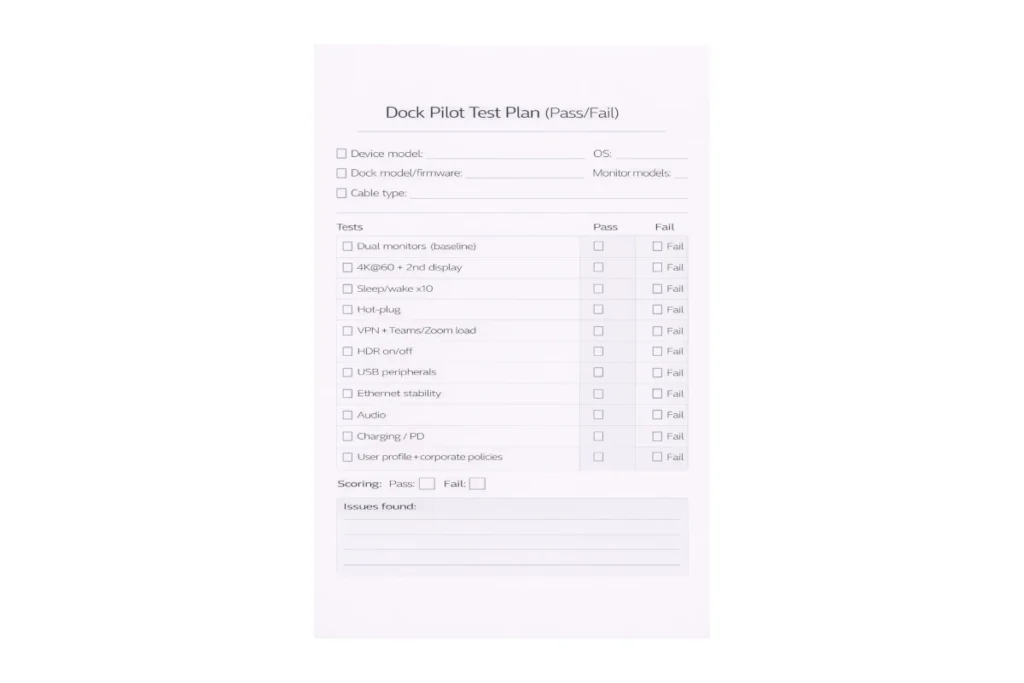
| Test | Pass criteria |
|---|---|
| Dual monitors (baseline) | 2×1080p@60 or 2×1440p@60 works on approved laptop models. |
| High-demand case (if required) | 2×4K@60 or ultrawide + second monitor works where needed. |
| Sleep/wake cycles | Monitors reconnect reliably after 5 sleep/wake cycles. |
| Ethernet stability | Dock Ethernet stays connected through VPN and video calls. |
| USB peripherals | Keyboard/mouse/storage stable while displays active. |
| Conferencing stress | Teams/Zoom call while moving files over USB without display dropouts. |
| Hot plug | Unplug/replug monitor cable without crashing the session. |
Phase 6: Standard desk setup (reduces tickets)
Standardization isn’t just about dock model. It’s also about cables, ports, and monitor settings. Small consistency rules can cut your dock-related tickets significantly.
- Approved cables list (short, reputable, full-feature USB-C/TB cables).
- Approved port guidance (which laptop port to use for docking).
- Baseline monitor settings: start at 60Hz; HDR optional; avoid odd refresh rates during pilot.
- Labeling: tag docks and power bricks; publish a quick-start sheet for users.
- Spares policy: keep 3–5% spare docks/cables for immediate swaps.
Phase 7: Troubleshooting playbook (Tier 1 → Tier 2 → escalation)
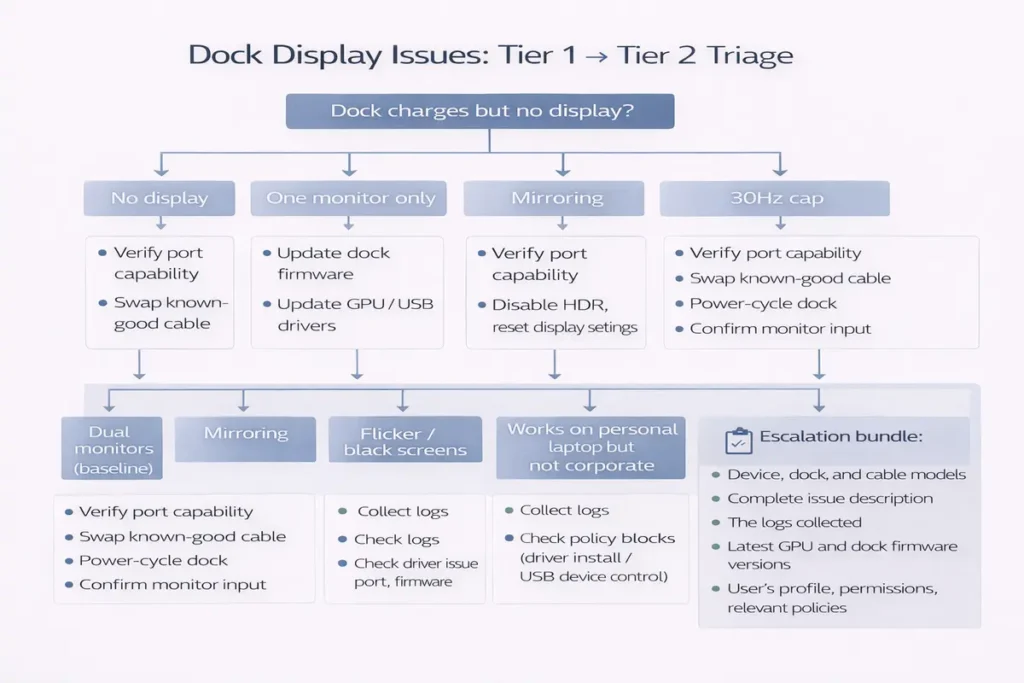
Tier 1 (helpdesk): 10-minute triage
- Power-cycle dock and monitors; reseat cables; force monitor input.
- Confirm user is using the correct laptop USB-C/TB port.
- Set monitors to 60Hz and disable HDR temporarily.
- Test one monitor at a time; then reconnect the second.
- Swap to a known-good cable; if unresolved, swap dock from spare pool.
👉 Read the guide: Dock Not Detecting Monitors: Step-by-Step Fixes for Windows & Mac
Tier 2 (endpoint team): controlled fixes
- Reapply baseline drivers (GPU, DisplayLink if used, Ethernet as needed).
- Verify Thunderbolt/USB4 controller status and vendor updates.
- Update dock firmware in pilot ring; validate before broad release.
- Audit power management settings (USB selective suspend, sleep policies).
Escalation: what to collect
- Laptop model + OS build + GPU type.
- Dock model + firmware version + cable type.
- Monitor models + res/Hz + connection type (DP/HDMI/USB-C).
- Repro steps (sleep/wake? hot plug? during video calls?).
- Screenshots/logs as applicable (Windows Event Viewer, macOS logs, management console history).
Procurement checklist (what to require in an enterprise dock)
| Requirement | Why it matters |
|---|---|
| Documented dual-monitor combos by OS | Prevents false ‘dual 4K’ assumptions and reduces returns. |
| Power Delivery wattage (65W/90W/100W/140W) | Avoids under-powering laptops and performance throttling. |
| Ethernet spec (1GbE/2.5GbE) + stability | Network drops are high-ticket incidents. |
| Firmware update path | You need a safe method to update and baseline versions. |
| Warranty + advance replacement | Swap-not-troubleshoot reduces downtime. |
| Cable included or clear cable spec | Bad cables cause most ‘random’ monitor issues. |
👉 Read the guide: Thunderbolt vs USB4 vs USB-C: What the Labels Really Mean
Security and compliance considerations (keep it simple)
Docks sit at the boundary between endpoint and peripherals, so security policy matters—especially when drivers are involved.
- Prefer signed drivers and approved deployment channels; avoid ad-hoc installs.
- If DisplayLink is used, plan macOS permissions and Windows driver policies ahead of rollout.
- Align USB device control tooling with approved docks so users aren’t blocked unexpectedly.
- Track assets (dock serials, firmware baselines) for incident response and warranty handling.
👉 Read the guide: USB Accessories Security Risks (Bad USB, Unknown Devices) + Practical Mitigations
Lifecycle: refresh, spares, and what breaks first
In practice, docks last longer than cables. Plan for cable replacements and power brick losses as routine operations.
- Refresh cycle: 3–5 years is common; align with laptop refresh cycles where possible.
- Spares: keep 3–5% docks and a larger pool of cables; cables fail and disappear more often.
- RMA policy: swap immediately, then triage returned units centrally.
- Baseline review: revalidate drivers/firmware quarterly or after major OS updates.
| Risk | Early warning sign | Prevention | Fast response |
|---|---|---|---|
| Monitors fail after sleep | Ticket spike after sleep/wake | Pilot sleep/wake; pin firmware; set baseline power policies | Swap dock/cable; apply baseline update; document known issue |
| Dual-monitor mismatch | Second monitor missing or mirrors | Approve monitor standards; publish supported combos by OS | Reduce to 60Hz; validate MST behavior; offer TB dock for demanding roles |
| Driver blocked (DisplayLink) | Works on personal device, fails on managed device | Decide policy before rollout; pre-approve via MDM | Move user to native Alt Mode/TB dock; update policy if approved |
| Ethernet instability | VPN drops, intermittent NIC link | Test with real VPN + calls; pin NIC driver if needed | Switch to Wi‑Fi temporarily; replace dock; push driver baseline |
| Cable quality variance | Random flicker/black screens | Standardize and stock approved cables | Swap cable first; then swap dock; record lot issues |
Use this to record ‘known-good’ baselines. It makes incident response faster and keeps pilots honest.
Baseline log template (copy/paste table)
| Date | OS build | GPU driver | Dock firmware | Dock software (if any) | Notes / issues |
This table is a shortcut for planning. It’s easier to prevent these issues than to fight them at scale.
Risk register: predictable problems and how to prevent them
- Dock vendor firmware updater (if vendor supports macOS tooling).
- DisplayLink Manager (only if DisplayLink is approved) plus MDM-approved permissions (screen recording / extensions as required by policy).
- A ‘known-good’ OS minimum version for the dock baseline (avoid wide OS fragmentation).
macOS package set (baseline)
- GPU driver baseline (OEM-approved or vendor): pin a known-good version for the pilot ring.
- Dock vendor firmware updater tool (silent/controlled where supported).
- DisplayLink software (only if you standardize on DisplayLink docks).
- Optional: Ethernet driver package if your dock’s NIC isn’t stable on native drivers in your environment.
Windows package set (baseline)
Admins often ask, ‘What exactly do we package?’ The answer depends on dock tech. Below is a safe, minimal set that covers most fleets.
Practical packaging examples: what to deploy (Windows & macOS)
- What’s changing: new standardized dock + approved cables.
- What users get: one-cable desk, reliable monitors, Ethernet, and charging.
- What to do if something fails: power-cycle dock/monitor, check monitor input, then contact helpdesk for a swap.
- Known limitations: some high-refresh or unusual monitor modes may require special approval.
- Pilot feedback: a one-click form to report model + monitors + issue.
Recommended comms (copy/paste)
Send a short note before rollout, include a quick-start, and set expectations for the pilot period. Example bullets you can reuse:
“Dock rollouts fail socially as often as they fail technically. Users will blame ‘the new dock’ for any display issue, even if the real cause is a monitor input or a bad cable. A tiny communication plan reduces fear and improves adoption.”
Change management: reduce disruption with a simple communication plan
- Ticket rate per 100 deployed docks (weekly): trend down after the first 2–3 weeks is the goal.
- Top 5 incident reasons (sleep/wake, dual monitors, Ethernet drops, USB disconnects, driver blocks): track by laptop model and dock firmware.
- Mean time to resolution (MTTR): aim to move Tier 1 to ‘swap and close’ for common failures.
- Swap/RMA rate: a spike after an OS update is a sign you need a baseline refresh or driver pinning.
- User sentiment pulse (short survey): ‘works after sleep’ and ‘monitors reconnect’ are the two biggest satisfaction drivers.
If you can’t measure it, you can’t control it. A simple metrics loop helps you spot problems early (before they become a dock ‘reputation’ problem) and gives procurement real data for refresh decisions.
Operational monitoring: metrics that prove the rollout is healthy
If you can’t measure it, you can’t control it. A lightweight monitoring loop helps you catch issues early (before the helpdesk gets swamped) and gives procurement real data for refresh and standardization decisions.
- Ticket rate per 100 deployed docks (weekly): you want a spike in week 1–2, then a steady decline as baselines stabilize.
- Top incident reasons (sleep/wake, dual displays, Ethernet drops, USB disconnects, driver blocks): track by laptop model + dock firmware.
- MTTR (mean time to resolution): aim to move common issues to Tier 1 ‘swap and close’ with a spare pool and a known-good cable.
- Swap/RMA rate: a sudden increase after an OS update is a signal to refresh your baseline or pin drivers more tightly.
- Change success rate: percent of endpoints successfully receiving driver/firmware baseline updates in each ring.
- User experience pulse: a 1-question monthly survey (‘My monitors reconnect reliably after sleep’) is more predictive than long surveys.
- Inventory drift: percent of docks/cables not matching the approved list (BYO cables are a common source of intermittent issues).
Frequently Asked Questions
Do enterprise USB-C docks require drivers?
Some do. USB-C Alt Mode and Thunderbolt docks often work with native OS drivers, while DisplayLink docks require DisplayLink software.
What’s the easiest dock type to standardize?
If the fleet supports it, Thunderbolt docks are often the most predictable to standardize due to bandwidth and ecosystem consistency.
Should we allow DisplayLink in a managed environment?
Only if you can deploy and manage drivers reliably. If drivers are blocked, DisplayLink will cause inconsistent results.
How do we prevent docks breaking after OS updates?
Use version baselines, rollout rings, and revalidation after major OS updates. Avoid uncontrolled driver upgrades.
What’s a ‘known-good baseline’ for docks?
A documented combination of OS build, GPU driver, dock firmware, and dock software (if any) that passes your pilot tests.
How large should the pilot be?
Enough to cover all laptop models and monitor classes in your environment. Start small, then expand after stability.
What monitor settings should we standardize?
Start with 60Hz and HDR off during pilot. After stability, approve higher refresh/HDR for specific roles.
Why do docks fail after sleep?
Power management, USB suspend, firmware bugs, or driver issues. Validate sleep/wake cycles in the pilot plan.
Do we need to standardize cables?
Yes. Cable quality and length drive many intermittent issues. Publish an approved cable list.
Should we allow users to bring their own docks?
It increases support burden. If allowed, define ‘supported’ vs ‘best effort’ and publish minimum requirements.
How do we test dual 4K@60 reliably?
Use a consistent test desk, approved cables, and confirm the dock’s OS-specific dual 4K@60 support. Validate on each laptop model class.
What’s the best way to deploy dock utilities on Windows?
Package as Intune Win32 or MECM apps, pin versions, and roll out in rings.
What’s the best way to deploy on macOS?
Use Jamf/MDM deployment and pre-approve required permissions, especially for DisplayLink software.
Do docks affect external SSD speed?
Yes. Some dock types share bandwidth with displays. Thunderbolt docks often provide more headroom for fast storage.
How do we reduce helpdesk load?
Standardize gear, publish a quick-start sheet, use a spare pool, and give helpdesk a simple triage checklist.
What’s the minimum documentation we need?
Approved dock list, cable list, baseline versions, known issues, and the compatibility matrix.
How many spares should we keep?
Typically 3–5% for docks and more for cables. Adjust based on failure rates and site size.
Do we need dock firmware updates?
Often yes for stability. Use a safe rollout plan: pilot first, then rings, with rollback/spares.
What should we collect for escalation?
Laptop model/OS build, dock model/firmware, cable type, monitor models/res/Hz, and exact repro steps.
How do we choose between USB-C Alt Mode and Thunderbolt docks?
Choose Thunderbolt when you need predictability, higher bandwidth, and pro setups. Choose Alt Mode when cost matters and needs are mostly 60Hz office monitors.
Conclusion
Enterprise dock success is mostly process, not magic. Inventory port capability, choose a dock tech that matches your constraints, pilot with a real test plan, baseline drivers and firmware, and roll out in rings. With a small compatibility matrix and a spare pool, you can turn docking from a top ticket driver into a boring, reliable part of the desk.