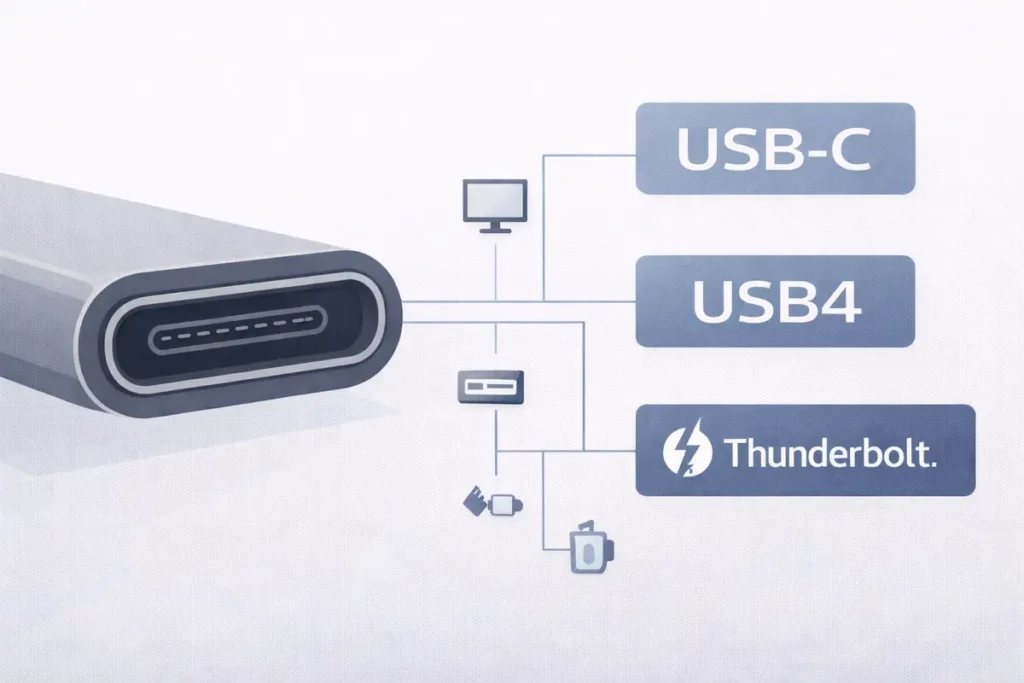
Thunderbolt vs USB4 vs USB-C: What the Labels Really Mean (Buyer Guide) explained in plain English: what each label guarantees, how to spot the right port/cable/dock, and what to buy for monitors, SSDs, charging, and work-from-anywhere setups.
Author & technical review
Last Updated: March 2026
Author: Editorial Productivity & Computing Team
Purpose: Decode labels, prevent wrong purchases, and choose compatible ports, cables, docks, monitors, and storage.
Technical review: Reviewed for accuracy by a hardware-focused editor to ensure terminology (USB‑C vs USB4 vs Thunderbolt), compatibility rules, and bandwidth/power guidance match current vendor and standards documentation.
Why these labels are confusing (and how this guide helps)
If you’ve ever stared at a laptop spec sheet and wondered why a “USB‑C” port on one device does everything (charge, display, fast storage) while another USB‑C port barely works with a dock, you’re not alone. The labels look simple, but the reality is… messy.
This guide breaks down Thunderbolt vs USB4 vs USB-C: What the Labels Really Mean (Buyer Guide) in a buyer-friendly way. You’ll learn what each term actually means, what is guaranteed vs optional, how to read logos and spec lines, and how to choose the right cable, dock, monitor connection, or external SSD without wasting money.
By the end, you should be able to answer one practical question: “Will this accessory work at full performance with my computer?”
30-second cheat sheet
Here’s the simplest way to think about it:
- USB‑C = the “shape” of the plug/port (the connector). It does “not” automatically tell you speed, video support, or power.
- USB4 = a “data standard” that typically uses USB‑C and supports higher-speed features, but some capabilities can vary by device.
- Thunderbolt = a “certified” high-performance connection family (with strict requirements and testing) that usually offers more predictable results for docks, displays, and fast storage.
If you want the safest “just works” experience for demanding gear (docks, multiple monitors, high-speed SSDs), “Thunderbolt is often the simplest bet” — but it can cost more. If you mainly need everyday peripherals and charging, “USB‑C can be enough” when you pick the right port and cable.
Key takeaways (save this before you shop)
- Need the safest option for docks, dual monitors, or top-speed external SSDs? Prioritize Thunderbolt (certified) or USB4 with clearly stated 40Gbps+ and display support.
- Buying a USB‑C monitor setup? Confirm the laptop supports DisplayPort Alt Mode or Thunderbolt—USB‑C shape alone isn’t enough.
- External SSD performance is capped by the weakest link (port ↔ cable ↔ enclosure). A fast SSD in a slow enclosure still performs like a slow drive.
- Cable length matters: longer cables often drop to lower speeds unless they’re active and rated for the target bandwidth.
- If the spec sheet doesn’t state speed (Gbps), video support, and charging wattage, treat it as a risk— choose a better-documented product.
How we evaluate (EEAT: how this guide is built)
This guide is written for real buyers and working setups — not lab-only theory. To keep it accurate and useful, we build recommendations from three checks you can repeat at home:
- Spec-sheet verification: We look for explicit claims like “USB4 40Gbps,” “Thunderbolt 4,” “DisplayPort Alt Mode,” and host charging wattage (PD). If a listing only says “USB‑C,” we treat it as unknown until proven.
- Capability chain thinking: Your real performance is limited by the weakest link in the chain (computer port ↔ cable ↔ accessory). We call out where cables, adapters, and docks commonly cap speed or break video.
- Red-flag filtering: We avoid vague marketing (“full-function USB‑C” with no numbers), missing certification marks on high-speed gear, and unclear return policies on docks/cables—because these are the most frequent causes of returns.
When a feature is optional in the standards, we say so and give a safer buying path (usually: certified Thunderbolt or clearly labeled USB4 at the speed tier you need).
👉 Read the guide: Enterprise IT Guide to Docks & Hubs: Architecture, Standards, Security, Performance & Deployment
Compatibility rules that prevent 90% of bad purchases
Use these quick rules when shopping:
- “A faster cable can’t fix a slow port” Your system will run at the lowest shared capability (host ↔ device ↔ cable).
- “Video output is a separate capability” A USB‑C port may support data but not display output (or only one display).
- “Charging has its own limits” A cable that supports 240W is great, but only if both charger and laptop support the needed Power Delivery profile.
- “Look for certification logos” (Thunderbolt, USB4 speed marks). They reduce guesswork.
- “Connector ≠ capability” USB‑C tells you the plug fits, not that the feature works.
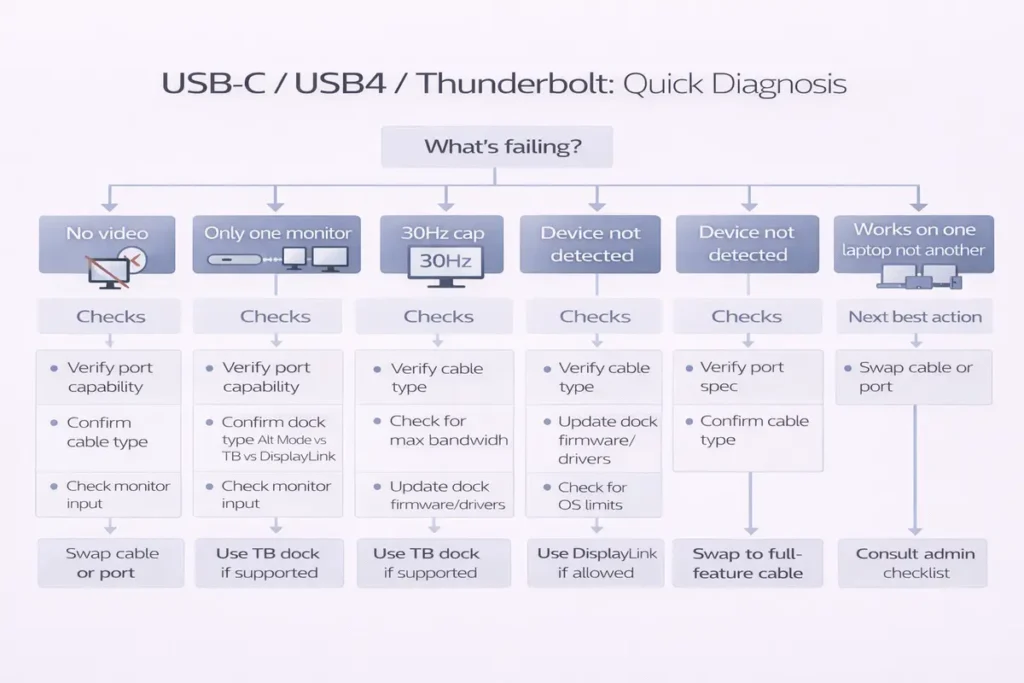
Troubleshooting table: symptom → likely cause → what to do
Use this quick table to diagnose the most common USB‑C/USB4/Thunderbolt headaches before you buy replacements.
| Symptom | Likely cause | What to buy/do |
|---|---|---|
| USB‑C port charges but won’t output to a monitor | The port lacks DisplayPort Alt Mode/Thunderbolt, or the cable/adapter doesn’t support video. | Confirm DP Alt Mode or Thunderbolt in the laptop specs. Use a known-good USB‑C video cable/adapter or a certified Thunderbolt/USB4 dock with explicit display support. |
| External SSD is much slower than expected | Port/cable/enclosure limited to a lower speed tier (USB 2.0/3.x/10Gbps/20Gbps). | Match the enclosure’s speed tier and use a rated cable (USB4/TB for 40Gbps-class enclosures). Don’t pay for a faster SSD if the enclosure is slower. |
| Dock works but only one monitor shows up | Bandwidth limits, lack of MST support, or the dock relies on a mode your laptop doesn’t support. | Check dock specs for dual-monitor support and required host features. For the least hassle, choose a Thunderbolt dock on a Thunderbolt laptop. |
| Laptop charges slowly through a dock | Dock/charger wattage is too low, or the cable isn’t rated for the required PD level. | Use a dock/charger that matches your laptop’s required wattage (often 65–100W+). |
| Thunderbolt dock is flaky or disconnects | Outdated firmware/drivers, marginal cable, or a USB‑C-only port being used with TB expectations. | Update BIOS/firmware and OEM drivers. Use a short, certified Thunderbolt cable. Confirm the port is actually Thunderbolt/USB4-capable. |
| High-refresh monitor won’t hit target Hz over USB‑C | Video mode/bandwidth limits (DP version, cable, hub), or the setup is falling back to a lower mode. | Use a direct USB‑C-to-DisplayPort cable rated for the target resolution/refresh, or a higher-spec dock/Thunderbolt connection with explicit display bandwidth support. |
👉 Read the guide: Dual Monitors Over USB-C: What’s Possible (and Why It Often Fails)
What USB‑C, USB4, and Thunderbolt really mean
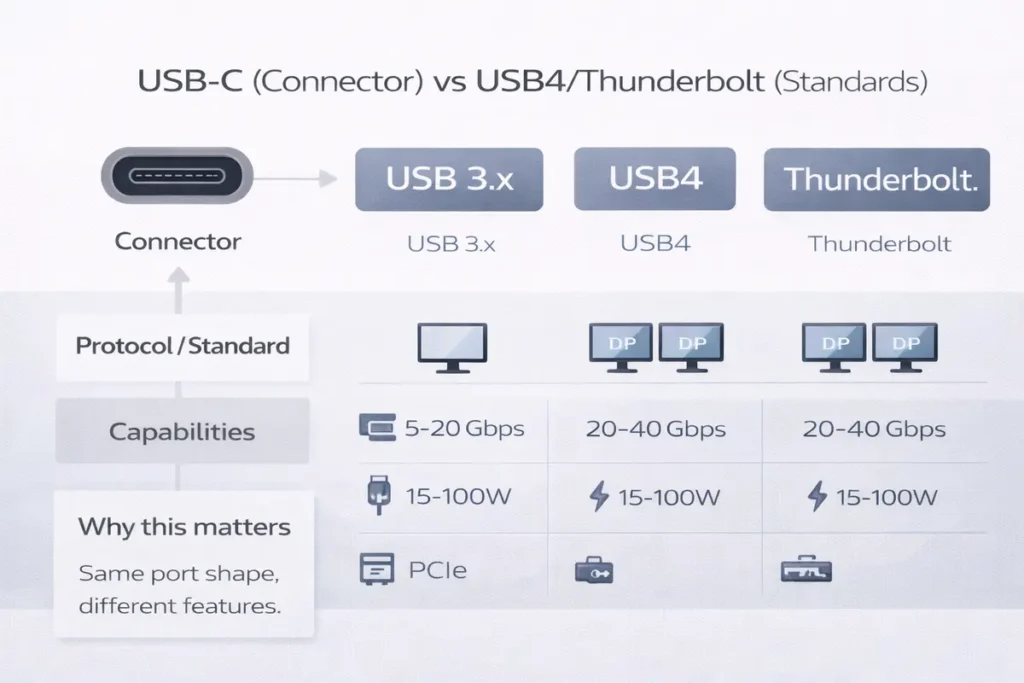
USB‑C (the connector)
USB‑C is the oval-shaped connector you see on modern laptops, tablets, phones, and docks. It’s reversible, compact, and can carry data, video, and power. But here’s the catch: “USB‑C is a connector standard, not a performance promise”. Two USB‑C ports can look identical and behave totally differently.
A USB‑C port might support:
- Charging only (Power Delivery)
- Data only (USB 2.0 or USB 3.x speeds)
- Data + video (DisplayPort Alternate Mode)
- High-speed tunneling features used by USB4/Thunderbolt
USB4 (the data standard)
USB4 is a newer USB standard designed to improve performance and bring more consistency to high-speed USB‑C connections. Many USB4 devices support 20Gbps or 40Gbps operation, and USB4 was designed to interoperate with Thunderbolt 3 technology in many cases. Still, specific features can depend on how the laptop manufacturer implemented USB4.
Thunderbolt (the certified ecosystem)
Thunderbolt is a connection standard originally developed with Intel, built for high bandwidth and flexible “tunneling” of different kinds of traffic (data, video, and sometimes PCIe for very fast storage and expansion). The biggest buyer benefit is predictability: “Thunderbolt-branded ports and cables must meet a testable set of requirements, and the logo usually means fewer surprises”.
Comparison table: what buyers should expect
| Buyer question | USB‑C | USB4 | Thunderbolt |
| What it is | Connector shape | Data standard (usually over USB‑C) | Certified high-performance connection family |
| What the label guarantees | Plug fits | High-speed USB architecture; capabilities vary by device | Tested requirements; more consistent features |
| Typical max bandwidth tiers you’ll see | Depends on USB version | Often 20Gbps or 40Gbps (device-dependent) | Commonly 40Gbps (TB3/TB4) and higher in newer generations |
| Video support | May support DP Alt Mode, may not | May support tunneling/DP features, varies | Strong display support; commonly used for docks/monitors |
| Best for | Everyday peripherals, charging | Fast USB‑C docks, modern storage, better future-proofing | Premium docks, multiple monitors, fast external storage, eGPU-class expansion (where supported) |
| Buyer risk | High if you assume features | Medium (read specs) | Lower (logo + certification reduce guesswork) |
How to read port labels, logos, and spec sheets
Manufacturers use a mix of logos and marketing terms. Here’s how to decode them:
- “Thunderbolt lightning logo” near the port usually means it’s a Thunderbolt port (and often USB4-compatible).
- “USB4 ‘20Gbps/40Gbps’ marks” are better than vague “USB‑C” wording because they tell you the intended speed tier.
- Phrases like “USB‑C (data only)” or “USB‑C with DisplayPort” are clues about video capability.
- If a spec sheet says “USB‑C (USB 2.0)”, that’s a warning sign for slow transfers (common on some budget devices).
If the listing is unclear, treat it as a risk: assume it supports the minimum (charging + basic USB) until proven otherwise.
Bandwidth tiers in plain English (and why your SSD is slower than the box claims)
Speed is usually quoted in “Gbps” (gigabits per second). The number sounds huge, but real-world file transfer speeds are lower because of overhead and how storage works.
Practical way to think about speed tiers:
- “USB 2.0 (480Mbps)”: fine for keyboards, mice, basic audio devices; painfully slow for SSDs.
- “USB 3.x (5Gbps / 10Gbps / 20Gbps)”: good for many external drives and hubs; can bottleneck high-end SSDs.
- “USB4 (often 20Gbps / 40Gbps)”: better for fast SSDs, higher-end docks, and smoother “one-cable” setups.
- “Thunderbolt (commonly 40Gbps and beyond)”: excellent for premium docks, multiple displays, and top-tier external storage.
When affiliate shoppers ask, “Will this external SSD hit full speed?” the answer is usually: “only if the computer port, the enclosure, and the cable all support the same high-speed mode”.
USB4 Version 2.0, “USB 80Gbps,” and 2025–2026 label updates
If you’ve seen laptops, docks, or cables marketed as “USB 80Gbps,” “USB4 v2,” or “120Gbps boost,” you’re looking at the newer generation of USB4 signaling. The practical takeaway: higher numbers can be real, but only when the entire chain supports it.
What it usually means:
- Some USB4 Version 2.0 implementations can reach up to 80Gbps in symmetric mode, and in certain display-heavy cases can run asymmetrically (for example, more bandwidth toward the display and less back). This is designed to help high-resolution, high-refresh-rate displays while still keeping data moving.
What buyers should do:
- Don’t assume “USB‑C” equals these speeds. Look for explicit “USB4 80Gbps” / “USB 80Gbps” or vendor documentation that says USB4 Version 2.0.
- Match the cable to the claim. Some performance levels rely on specific, correctly rated Type‑C cables (especially for longer lengths).
- If your main goal is docking + multiple high-res displays, Thunderbolt 5 gear (where available) tends to be clearer about requirements and often advertises the same 80Gbps / 120Gbps-style modes with certification.
👉 Read the guide: USB-C Dock Deployment Checklist (2026): Drivers, Firmware, Compatibility (Enterprise IT)
When it’s worth paying more:
- You’re driving high-end displays (very high resolution/refresh) and also want fast storage on the same dock.
- You’re buying a premium dock meant to last across laptop upgrades.
If you’re mainly charging, connecting a keyboard/mouse, or running one basic 4K display, USB4 40Gbps or Thunderbolt 4-class gear is usually plenty.
Monitors and video: the #1 ‘it doesn’t work’ situation
A huge portion of buyer frustration comes from “video output”. Many people assume “USB‑C = monitor support.” Not always.
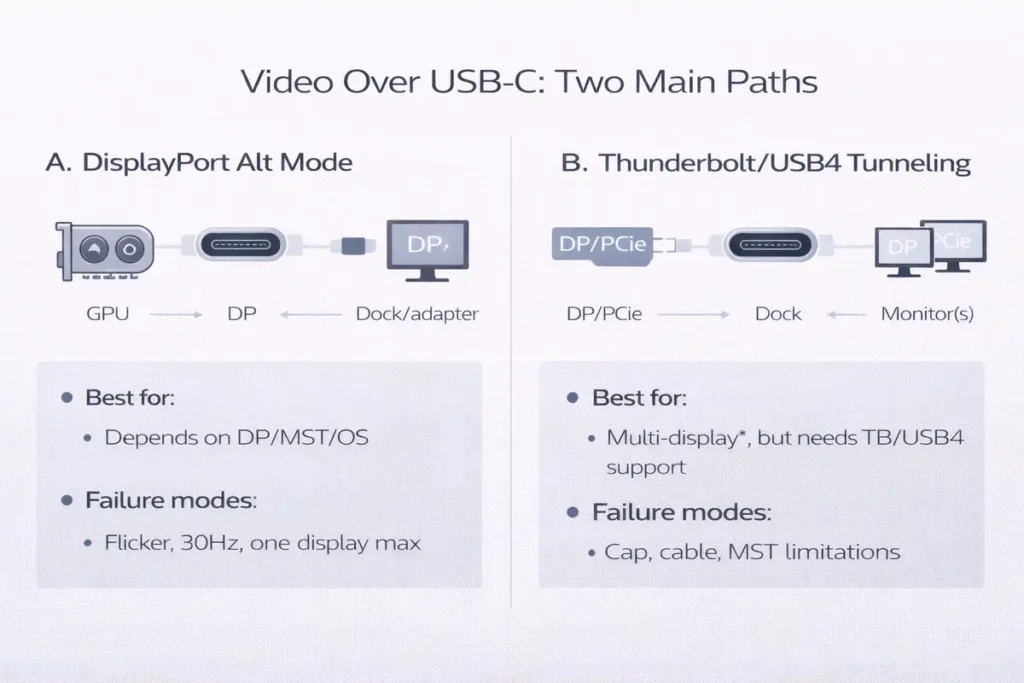
There are two common ways video travels over USB‑C:
- “DisplayPort Alternate Mode (DP Alt Mode)”: the port can send DisplayPort signals directly. This is common on many laptops and tablets, but not guaranteed on every USB‑C port.
- “Tunneling over USB4/Thunderbolt”: higher-end systems can tunnel display data alongside other traffic, which is why Thunderbolt docks often handle multiple displays well.
👉 Read the guide: DisplayLink vs USB-C Alt Mode vs Thunderbolt: Which Dock Tech Should You Use?
What this means for buyers:
- If you only need “one monitor”, many USB‑C ports with DP Alt Mode can work great.
- If you need “two monitors”, a dock may rely on advanced capabilities; Thunderbolt tends to be more reliable.
- High refresh rates (144Hz/240Hz) and high resolutions (4K/5K/8K) require more bandwidth and the right cable/port combination.
Always check: “Does your laptop USB‑C port explicitly support DisplayPort or Thunderbolt?” If the listing doesn’t say, don’t assume.
👉 Read the guide: Want to go deeper on monitors? Dive in here
Docks and hubs: what to buy for a clean ‘one-cable desk’
Docks are where the differences between USB‑C, USB4, and Thunderbolt become obvious.
A dock is basically a traffic controller: it takes one connection to your laptop and splits it into USB ports, Ethernet, audio, and display outputs. The dock must juggle bandwidth across everything you plug in.
Key dock categories:
- Basic USB‑C hubs: usually add ports and maybe HDMI, but can be limited for multi-monitor setups.
- USB‑C/USB4 docks: often faster and better, but still depend on host support.
- Thunderbolt docks: typically the most consistent for dual monitors + fast storage + networking on supported systems.
Dock shopping checklist (use this in your affiliate “best picks” section):
- 1) Number of monitors needed (1 vs 2+)
- 2) Resolution and refresh rate targets
- 3) Whether you need Ethernet (1GbE vs 2.5GbE)
- 4) Number of high-speed USB ports for SSDs
- 5) Charging wattage required for your laptop
- 6) Whether you want a detachable cable or built-in cable
If a buyer wants a reliable “desk setup” with minimal troubleshooting, “Thunderbolt docks are usually the safest premium recommendation”, as long as the laptop has a Thunderbolt-capable port.
Cables: how to avoid buying the wrong one
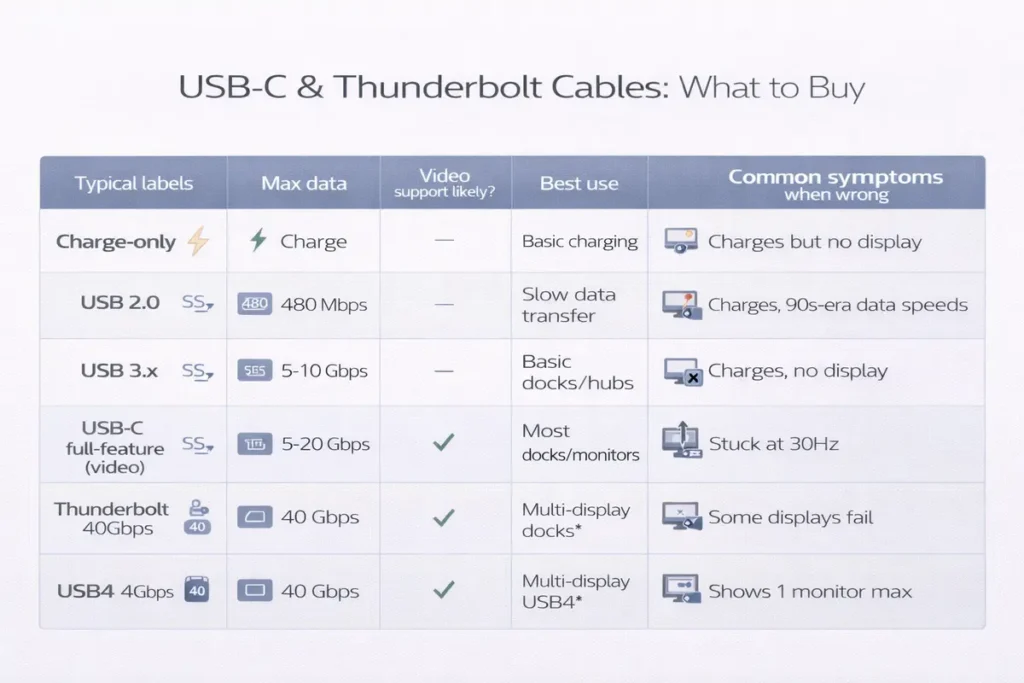
Cables are the quiet deal-breaker. The wrong cable can make a high-end port behave like a budget one.
Three cable truths:
- Cable length matters. Longer cables can reduce max speed unless they are active and designed for it.
- Not all USB‑C cables are equal. Some are charging-only, some are USB 2.0 data, and some support high-speed modes.
- The label on the cable matters more than the connector. Look for speed markings and Power Delivery wattage.
Cable types you’ll commonly see:
- USB‑C (USB 2.0) cable: fine for charging and basic syncing; poor for fast SSDs.
- USB‑C 5Gbps/10Gbps cable: good general purpose.
- USB4 40Gbps cable: strong “do almost everything” choice for many modern setups.
- Thunderbolt cable: typically a safe pick for Thunderbolt setups; often works well with USB4 too, but buying the right one depends on your gear and budget.
Practical buyer advice: if someone is building a dock + monitor + SSD setup, the safest recommendation is usually a “certified high-speed USB4 or Thunderbolt cable” of an appropriate length.
👉 Read the guide: USB Accessories Security Risks (Bad USB, Unknown Devices) + Practical Mitigations
Charging and power: USB‑C PD, 100W vs 240W, and what matters
Charging over USB‑C uses “USB Power Delivery (USB PD)”. This is separate from data speed. A laptop might support USB‑C charging even if the port is slow for data.
What buyers should know:
- • Wattage matters. A small charger may keep a laptop alive but not charge it quickly under load.
- • EPR (Extended Power Range) cables can support up to 240W on compatible gear.
- • A cable can be rated for high power but still be slow for data (or vice versa).
Charging checklist:
- 1) Your laptop’s recommended charger wattage
- 2) Whether your laptop supports USB‑C PD charging (some gaming laptops still don’t)
- 3) A reputable charger with correct USB PD profiles
- 4) A cable rated for the wattage you need (especially above 100W)
When writing affiliate recommendations, be clear: ‘Supports up to X watts’ doesn’t mean your laptop will always charge at X watts – it means the cable/charger can allow it if the laptop requests it.
External SSDs and expansion: what you need for top performance
External SSDs are a popular affiliate category, and the port standard directly affects real-world speed.
Two common bottlenecks:
• The enclosure may use a slower USB standard than the SSD inside.
• The laptop port may be limited (for example, USB 3.2 Gen 1 at 5Gbps).
How to match SSD gear correctly:
- 1) If the enclosure is “10Gbps”, a 10Gbps cable and port are enough.
- 2) If the enclosure is “20Gbps”, you want a 20Gbps-capable USB‑C/USB4 port and cable.
- 3) If the enclosure is “USB4/Thunderbolt class”, a USB4/Thunderbolt port and a certified high-speed cable gives the best chance of hitting top speeds.
What about eGPUs and expansion?
High-end expansion (like external GPU enclosures) has historically leaned on Thunderbolt because of its ability to carry PCIe-style traffic. If your audience includes creators and power users, explain that “Thunderbolt remains the most predictable option for expansion-class accessories”, while USB4 capabilities vary by host and device.
How to check what your laptop/desktop really supports
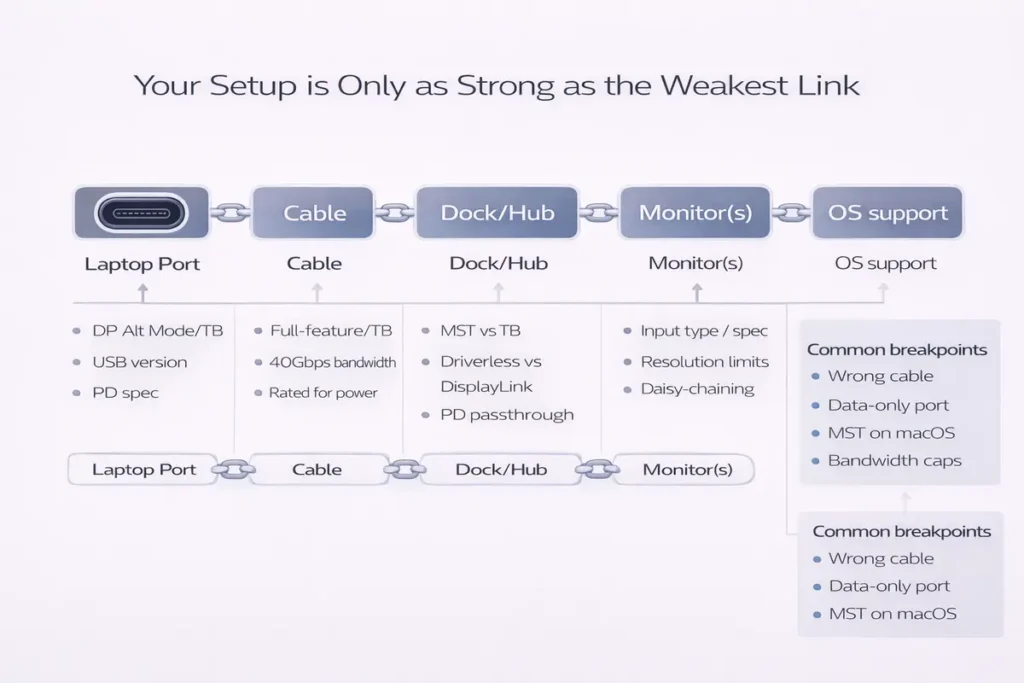
Before buying anything, confirm what your device actually supports.
On Windows laptops
Windows: Spec sheet keywords to look for
- Look for exact phrases like “Thunderbolt 4/5,” “USB4 40Gbps,” “USB4 20Gbps,” and “DisplayPort Alt Mode.”
- If you see only “USB‑C” with no speed, no display, and no power details, assume limited features until proven otherwise.
- For business laptops, check the manufacturer’s PDF datasheet—marketing pages often omit port details.
Windows: Device Manager quick check
- Open “Device Manager” → expand “System devices” and “Universal Serial Bus controllers”.
- Look for entries that mention “Thunderbolt” (often indicates TB support) or “USB4 Host Router”(common indicator of USB4 support on Windows 11 systems).
- If you only see “USB Root Hub” and generic USB controllers, the machine may still support video/charging over USB‑C—but high-end USB4/TB features may not be present.
Windows: USB4 status and driver notes
- Some systems require OEM chipset/Thunderbolt drivers or firmware updates for full dock compatibility.
- If a USB4/TB dock is flaky, check the laptop vendor support page for BIOS/firmware updates and updated USB4/Thunderbolt drivers before returning the dock.
👉 Read the guide: Dock Not Detecting Monitors: Step-by-Step Fixes for Windows & Mac
On Macs
macOS: System Information (fastest way)
- Click the Apple menu → “About This Mac” → “More Info” (or “System Report” on older macOS).
- Open “System Information” → check “Thunderbolt/USB4” for connected devices and controller details.
- If you see Thunderbolt/USB4 controller info, you’re usually safe buying Thunderbolt docks/cables for full functionality.
macOS: Practical buying shortcut
- Match accessories to what your Mac actually has: Thunderbolt ports are the safest pick for high-end docks, fast storage, and multi-monitor desks.
- For iPad/phone shopping, confirm whether the model supports video-out over USB‑C (many do, but not all).
On Chromebooks and Linux PCs (quick note)
- Chromebooks and Linux laptops vary widely by model. Your best bet is the manufacturer’s port specification and user manual.
- If you rely on a dock for monitors, choose products with explicit compatibility notes and keep firmware/drivers updated when supported.
If you’re shopping for someone else (gift or office purchase), ask for the exact model number and check the manufacturer’s specification page. This single step prevents most returns.
Return-proof checklist (confirm these 4 things before you buy)
- Port capability: Does your computer explicitly support Thunderbolt, USB4 (20/40/80Gbps), and/or DisplayPort Alt Mode?
- Display needs: How many monitors, at what resolution and refresh rate (e.g., 4K 60Hz vs 4K 144Hz)? Match the dock/adapter specs to that.
- Charging wattage: Choose a dock/charger that meets your laptop’s real need (common tiers: 45W, 65W, 100W, 140W, 240W).
- Cable rating: Use a cable rated for the job (speed tier + PD wattage). A wrong cable can silently cap speed, video, or charging.
Profile 1: Office and school (email, docs, webcam, simple monitor)
Choose a USB‑C hub or dock that clearly states:
- Monitor support (1080p/4K)
- Charging pass-through wattage
- Enough USB-A ports for basics
Profile 2: Work-from-anywhere pros (dock + Ethernet + one monitor)
Prioritize:
- Reliable Ethernet
- 65W–100W charging (depending on laptop)
- A dock with clear display specs
A good USB4 dock is often enough if the laptop supports it.
Profile 3: Creators (fast storage + color-accurate monitor)
Prioritize:
- High-speed ports for external SSDs
- Stable display output at your target resolution
- Better bandwidth headroom
Thunderbolt is often the easiest way to avoid bottlenecks.
Profile 4: Power users (two monitors, lots of peripherals, minimal hassle)
Prioritize:
- Certified Thunderbolt dock
- Known-good high-speed cable
- Clear multi-monitor support
This is the ‘pay once, cry once’ category.
Profile 5: IT admins (fleet consistency)
Prioritize:
- Standardization (same dock model)
- Ports with predictable features (Thunderbolt helps)
- Clear vendor documentation
A slightly higher up-front cost can reduce support tickets.
Common mistakes (and how to avoid returns)
Avoid these common traps (they cost buyers time and returns):
- “Assuming every USB-C port supports video.” Many do, some don’t.
- “Mixing high-end docks with low-end cables.” The cable can cap everything.
- “Believing ‘up to’ claims.” ‘Up to 40Gbps’ is not the same as ‘certified 40Gbps.’
- “Overbuying.” A Thunderbolt dock is amazing, but if you only need a mouse and a charger, a simple hub is fine.
- “Underbuying for multi-monitor setups.” Two monitors at higher refresh rates is where bargain hubs often fail.”
A good buyer guide doesn’t just say what’s best—it says what’s “best for the person’s actual setup.
Mini glossary
- “Alt Mode:” A way for USB-C to carry non-USB signals like DisplayPort.
- “Bandwidth:” How much data can move through the connection.
- “Certification:” Testing and logo programs that help ensure a device/cable meets claims.
- “Host:” The computer (laptop/desktop) side of the connection.
- “Device/Peripheral:” The thing you plug in (dock, SSD, monitor adapter).
- “Power Delivery (PD):” USB-C charging negotiation standard.
- “Tunneling:” Carrying multiple kinds of traffic (like display + data) over one link.
Cable chooser table (quick match)
Use this table to recommend the right cable based on what the buyer is trying to do. Always match to the highest need in the chain (port ↔ cable ↔ accessory).
| Use-case | Minimum cable to look for | Notes / common gotchas |
|---|---|---|
| Phone charging + light data | USB‑C cable rated for the needed watts | Many cheap cables are USB 2.0 data – fine for charging, slow for transfers. |
| Laptop charging (65W–100W) | USB‑C PD cable rated 100W | For sustained laptop use, match the charger wattage and cable rating. |
| High-power charging (above 100W) | USB‑C EPR cable (up to 240W) on compatible gear | Laptop + charger must support EPR profiles to actually use higher wattage. |
| External SSD (10Gbps) | USB‑C 10Gbps cable | A 10Gbps enclosure on a 5Gbps port will run at 5Gbps. |
| External SSD (20Gbps) | USB‑C/USB4 20Gbps cable | Some ‘USB‑C’ cables are USB 2.0 and will cripple speed. |
| Dock + one monitor | High-quality USB‑C cable (or the dock’s included cable) | Video requires DP Alt Mode or higher-end tunneling support. |
| Dock + dual monitors / demanding setup | Certified USB4 40Gbps or Thunderbolt cable (appropriate length) | Cable length and certification matter most here. |
Frequently Asked Questions
Is USB‑C the same as USB4?
No. USB‑C is the connector shape. USB4 is a data standard that often uses USB‑C. A USB‑C port can be USB 2.0, USB 3.x, USB4, or Thunderbolt depending on the device.
Is Thunderbolt the same as USB‑C?
No. Thunderbolt is a high-performance connection standard that typically uses the USB‑C connector. The plug fits, but the capabilities differ.
Can I use a Thunderbolt cable with a USB‑C port?
Often yes for basic USB‑C functions, but performance depends on what the USB‑C port supports. Your system will fall back to the best common mode.
Can I plug a USB‑C device into a Thunderbolt port?
In most cases yes. Thunderbolt ports typically support USB‑C devices, but you’ll get the USB device’s speed and features, not magically higher performance.
Why does my USB‑C port charge but not show video on a monitor?
Charging uses USB Power Delivery, while video needs DisplayPort Alt Mode or tunneling support. Your port may not support video output.
What does ‘USB4 40Gbps’ mean?
It indicates the device is designed for a 40Gbps class USB4 connection. Real-world speed depends on the full chain: host, cable, and accessory.
Is USB4 always faster than USB 3.2?
Not always. Some USB4 devices may run at 20Gbps, and some USB 3.2 ports run at 10Gbps or 20Gbps. Always check the stated speed tier.
Do I need Thunderbolt for an external SSD?
Not necessarily. Many SSD enclosures are 10Gbps or 20Gbps and work great on USB 3.x/USB4. Thunderbolt helps most for top-tier enclosures and maximum consistency.
What’s the easiest way to choose a cable?
Match the cable to the highest feature you need: video + dock + fast storage usually means a certified high-speed USB4 or Thunderbolt cable.
Does a longer cable reduce speed?
It can. Longer cables may not support the highest-speed modes unless they’re designed for it (often active cables).
Will a USB‑C hub work on every laptop?
It will usually work for basic USB devices, but features like HDMI output and charging pass-through depend on the laptop port’s capabilities.
Why do some docks support two monitors on one laptop but not another?
Multi-monitor support depends on the laptop’s display capabilities, the dock’s technology, and how the port handles video (and sometimes platform limitations).
Can USB‑C support 4K monitors?
Yes, if the port supports video output and enough bandwidth. The exact resolution and refresh rate depend on the laptop and the adapter/dock.
What is DisplayPort Alt Mode?
A feature where a USB‑C port carries DisplayPort video signals to a monitor or adapter.
What does 240W USB‑C mean?
It refers to USB PD Extended Power Range (EPR) capability on compatible chargers and cables. Your laptop must also support the needed power profile to use it.
Is a 100W cable enough for most laptops?
For many ultrabooks, yes. For larger laptops, especially under load, 100W may be borderline. Check your laptop’s recommended charger wattage.
Do Thunderbolt docks work with USB‑C laptops?
Sometimes, but not always at full feature set. Many Thunderbolt docks expect Thunderbolt/USB4-level support. If the laptop is USB‑C only, compatibility may be limited.
How do I know if my laptop has Thunderbolt?
Look for the Thunderbolt lightning logo near the port and confirm in the manufacturer specs. Marketing listings can be incomplete.
Is Thunderbolt worth paying extra for?
It’s worth it if you need predictable docking, multiple monitors, or high-speed peripherals with minimal troubleshooting. For simple needs, USB‑C/USB4 may be enough.
What should I do if a product listing just says ‘USB‑C’?
Treat it as incomplete information. Look for exact speed (Gbps), video support wording, charging wattage, and certification logos before you buy.
Conclusion
Thunderbolt vs USB4 vs USB-C: What the Labels Really Mean (Buyer Guide) doesn’t have to feel like a tech riddle. Once you separate “connector (USB‑C)” from “standard (USB4)” and “certified ecosystem (Thunderbolt)”, shopping gets much easier.
If you’re building a simple setup, a clearly specified USB‑C hub may be perfect. If you want a reliable one-cable desk with fast storage and multiple displays, step up to USB4 or Thunderbolt gear and pair it with a properly rated cable.
The best buying habit is simple: “read the exact speed, display, and charging claims” — and prefer certification marks when your setup is important.