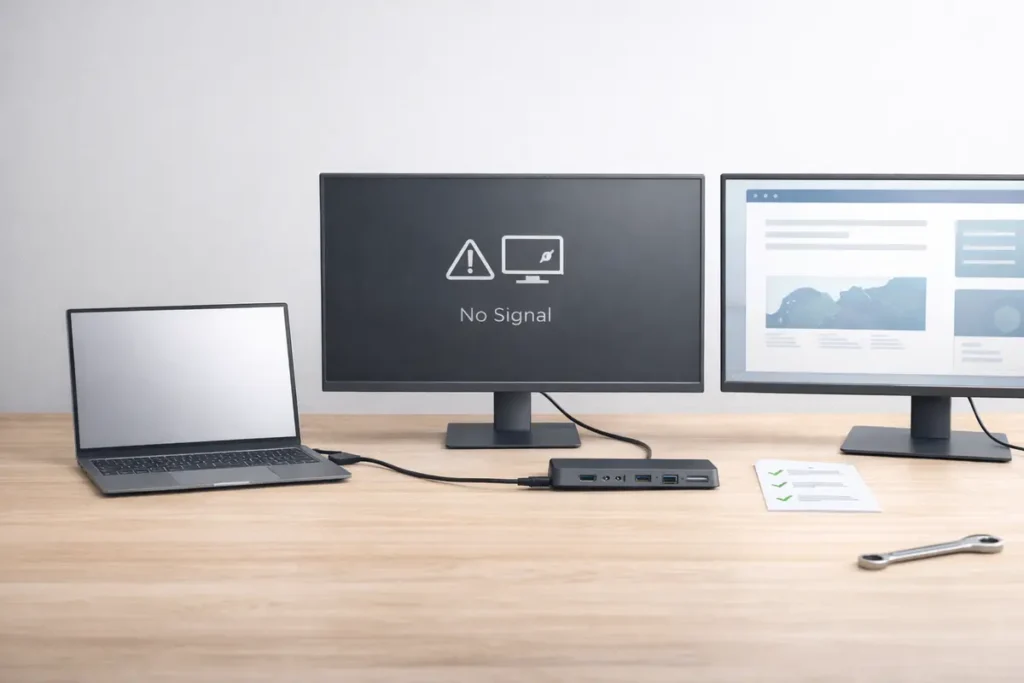
Dock not detecting monitors? Follow this step-by-step Windows and Mac checklist, identify the exact cause, and choose the right dock/cable/adapter to fix it fast.
Author & technical review
Last Updated: March 2026
Author: Editorial Productivity & Computing Team
Technical review: Checked against standards and vendor references listed in “Sources.”
What this guide is: A practical, step-by-step playbook for Windows and Mac.
What this guide is not: A device-specific repair manual. Exact menu names and behavior can vary by laptop model and OS version.
How we troubleshoot docks (our methodology)
This guide is designed for one outcome: get your monitor detected quickly, then help you buy the right fix if the hardware is the issue. We follow a repeatable troubleshooting order to avoid guesswork and prevent unnecessary returns.
- Start with the simplest checks (power, input selection, cable reseat) because they solve a surprising number of cases.
- Separate “monitor works directly” from “monitor works through dock” to isolate the dock/cable vs the computer/monitor.
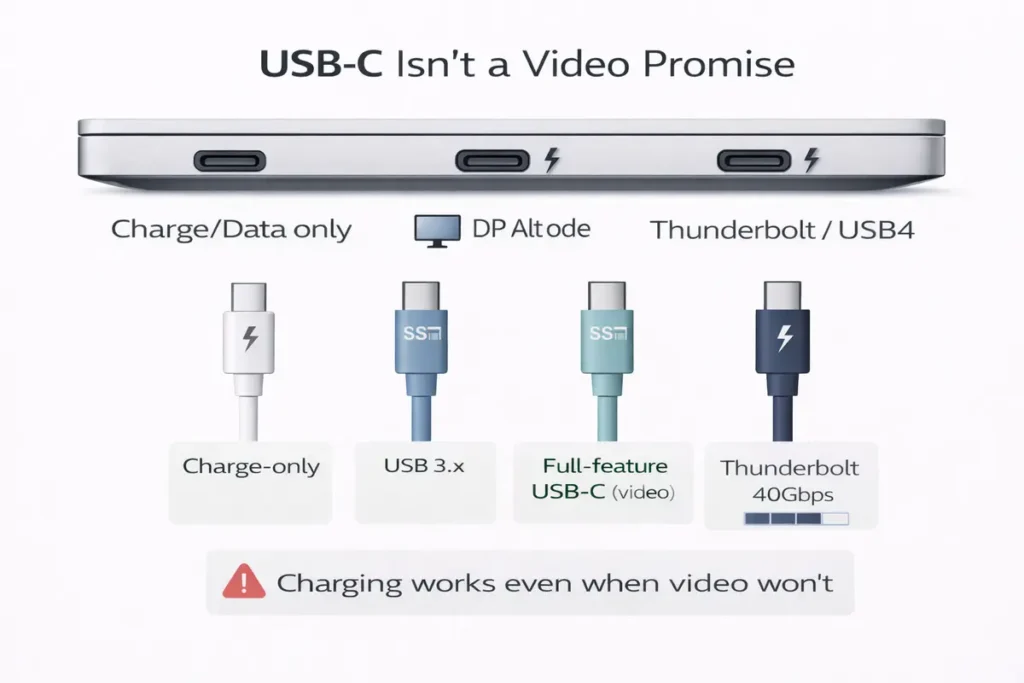
- Confirm port capability: USB-C is a connector shape, not a promise of video. We look for DP Alt Mode, USB4 display support, or Thunderbolt.
- Reduce load to prove the basics (60Hz, HDR off, one monitor) before scaling up to dual 4K or high refresh.
- Update what actually matters: OS, GPU drivers, Thunderbolt/USB4 controllers, DisplayLink drivers (when used), and dock firmware.
👉 Read the guide: Enterprise IT Guide to Docks & Hubs: Architecture, Standards, Security, Performance & Deployment
Start here: why your dock isn’t detecting monitors
When a dock won’t detect a monitor, it’s tempting to blame the dock. Sometimes that’s true—but many failures are caused by a simple mismatch: the laptop’s port doesn’t output video, the cable can’t carry stable video, the monitor is on the wrong input, or the dock’s display mode isn’t compatible with your OS or monitor settings. A good mental model is to treat docking like a chain: laptop port → dock cable → dock chipset/mode → monitor cable → monitor input mode. If any link in that chain is wrong, the result looks the same: a black screen or ‘no signal.’ That’s why we start by proving the monitor works directly, then we simplify the display mode (60Hz, HDR off), and only then do we chase drivers or firmware. This order saves time and keeps you from buying a new dock when the real problem is a port or cable.
This guide gives you two tracks: a fast 10-minute checklist that fixes most cases, and a deeper decision tree that identifies the exact root cause so you know what to buy (dock/cable/adapter) instead of guessing.
10-minute quick fix checklist (do these in order)
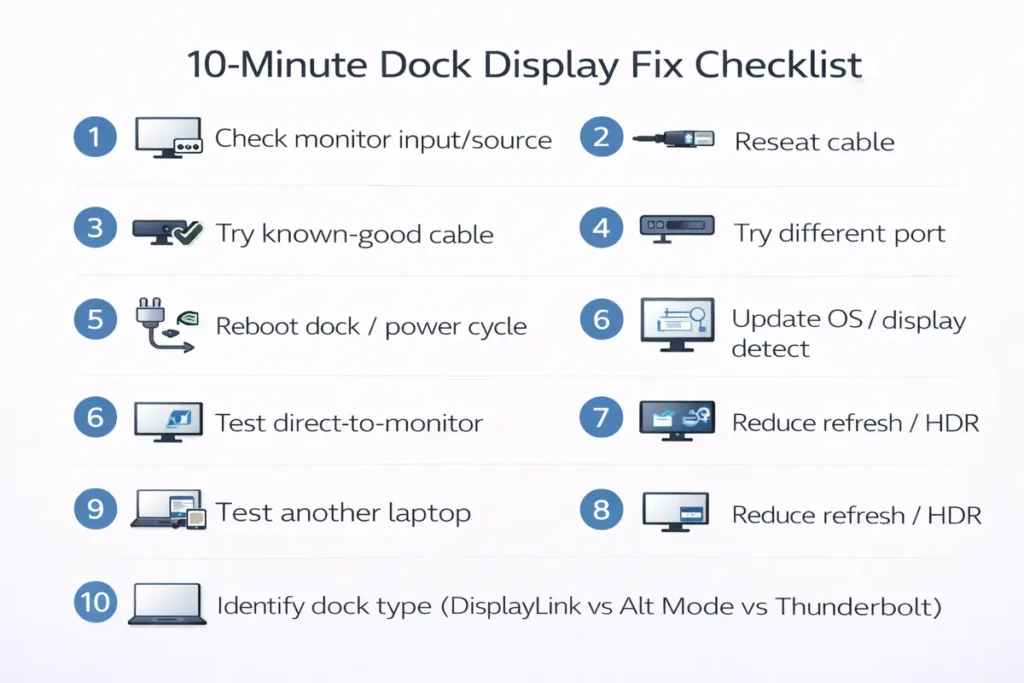
| Step | What to do | What you’re testing |
|---|---|---|
| 1 | Power-cycle the dock and monitor (unplug power 10 seconds). | Clears handshake and power state bugs. |
| 2 | Reseat the video cable at both ends; try a different port on the dock. | Bad connection or port issue. |
| 3 | Force the monitor input (HDMI1/HDMI2/DP/USB-C) in the monitor menu. | Wrong input selection. |
| 4 | Connect the monitor directly to the laptop (bypass dock). | Separates dock issue from laptop/monitor issue. |
| 5 | Set refresh rate to 60Hz and disable HDR temporarily. | Bandwidth/mode stability check. |
| 6 | Try a known-good cable (shorter, reputable, full-feature). | Cable quality/feature mismatch. |
| 7 | Update OS and reboot. | Fixes common USB/graphics bugs. |
| 8 | Windows: Win+Ctrl+Shift+B. Mac: unplug/replug dock after reboot. | Graphics reset / renegotiation. |
| 9 | Update GPU drivers (Windows) or macOS updates; update dock firmware if available. | Driver/firmware compatibility. |
| 10 | If it still fails: identify your dock tech (Alt Mode vs Thunderbolt vs DisplayLink). | Prevents buying the wrong replacement. |
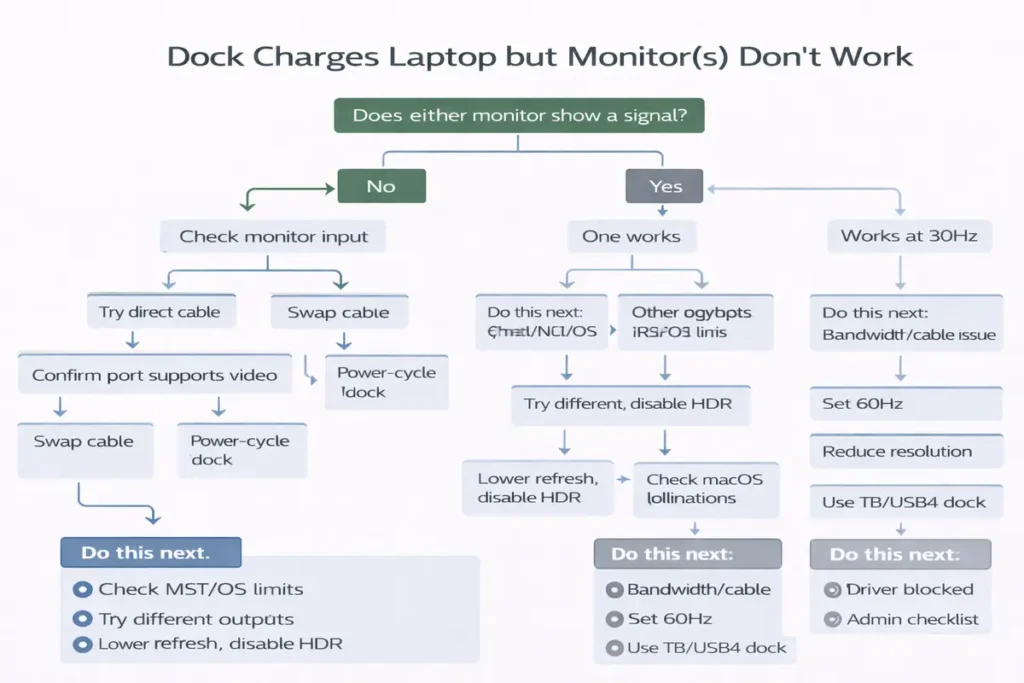
Decision tree: isolate the root cause in 3 questions
| Question | If YES / If NO |
|---|---|
| Does the monitor work when connected directly to the laptop? | YES: monitor is OK → focus on dock, cable, dock mode. | NO: focus on monitor, cable, laptop GPU/OS. |
| Does the dock charge the laptop (or show power/LED activity)? | YES: power path OK → focus on video path and settings. | NO: power brick/port/cable issue. |
| Does one monitor work but the second doesn’t? | YES: likely bandwidth/MST/OS limit/refresh/HDR/cable. | NO: likely wrong port, wrong input, dock incompatible, or driver/firmware issue. |
Common mistakes that waste the most time (avoid these)
These are the repeat offenders we see in real desks and home offices:
- Using the wrong USB-C port (some ports are data/charge-only and won’t output video).
- Assuming “it charges” means “it supports monitors.” Charging and video are separate features.
- Using a charge-only or low-quality USB-C cable between laptop and dock.
- Leaving the monitor on the wrong input (HDMI2 vs HDMI1, DP vs USB-C).
- Running HDR + high refresh immediately (start at 60Hz with HDR off to prove the basics).
- Mixing adapters and cables with unknown limits (many USB-C→HDMI adapters cap at 4K@30).
- Plugging both monitors into the dock but forgetting to switch to Extend mode in display settings.
- Expecting dual 4K@60 from any dock without checking the dock’s exact supported combinations.
- Assuming a Thunderbolt dock will behave the same in a non-Thunderbolt USB-C port.
- Not rebooting after major driver/firmware updates (some changes don’t apply until restart).
The 6 most common reasons docks don’t detect monitors
1) Wrong USB-C port (no video output)
Many laptops have USB-C ports that do charging and data but not video. If the port doesn’t support DisplayPort Alt Mode, USB4 display output, or Thunderbolt, a native video dock can’t work.
2) Wrong cable or adapter
A surprising number of USB-C cables are charge-only or unreliable for high-bandwidth video. HDMI/DP adapters can also be limited by version or active/passive design.
3) Dock display limitations (it can’t do your combo)
“Dual 4K” might mean dual 4K at 30Hz, or it might require specific laptops. Many docks share bandwidth between video and data.
4) Monitor settings and negotiation issues
Wrong input, odd refresh rates (75/100/144Hz), HDR/bit depth, or VRR can make a dock appear ‘broken’ when it’s really a mode mismatch.
5) Drivers and firmware
Windows GPU drivers, Thunderbolt/USB4 controllers, DisplayLink software, and dock firmware can all affect detection and stability.
6) OS behavior (Windows vs Mac differences)
Some docks rely on MST for dual displays; OS handling differs. macOS setups often behave best with Thunderbolt, while DisplayLink can be a workaround when native paths don’t fit.
Deep dive: how docks carry video (and why the same port behaves differently)
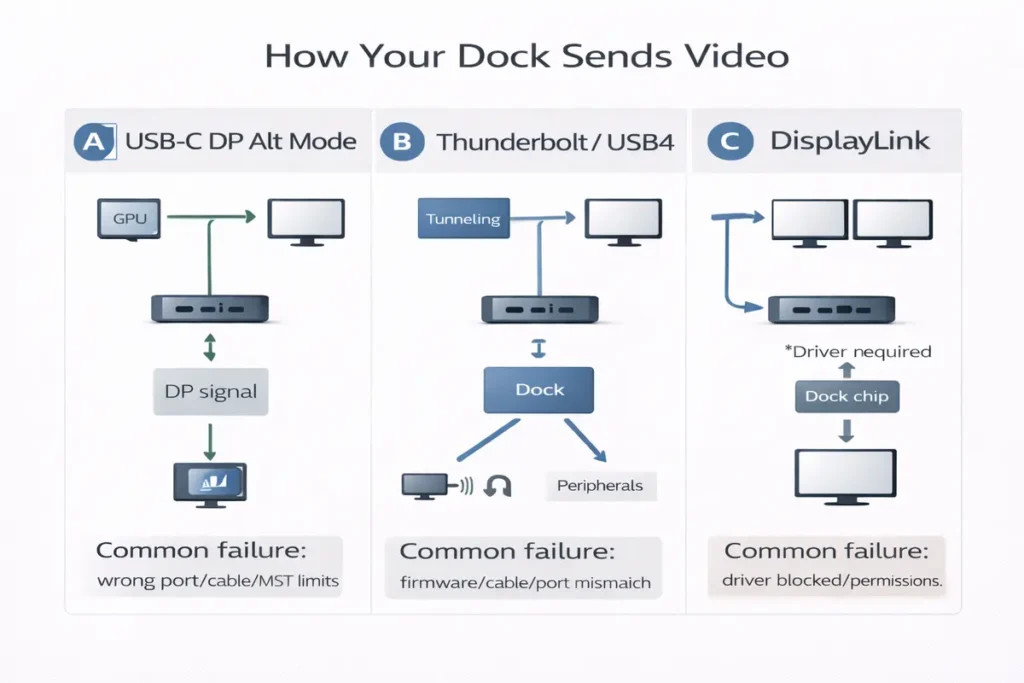
A big reason dock troubleshooting feels confusing is that the USB-C connector can carry video in multiple ways. Some docks pass a native DisplayPort signal from your GPU (often called DisplayPort Alt Mode). Some use Thunderbolt, which can carry multiple high-bandwidth signals. And some docks use DisplayLink, which sends a compressed desktop stream over USB data and rebuilds it in the dock.
These differences matter because the fix changes depending on the video path. If your USB-C port doesn’t support video output, an Alt Mode dock can’t magically create it. If your dock uses DisplayLink, updating the GPU driver might not fix the problem—updating DisplayLink software might. And if you’re pushing dual 4K at 60Hz, cable quality and bandwidth become the main suspects.
👉 Read the guide: DisplayLink vs USB-C Alt Mode vs Thunderbolt: Which Dock Tech Should You Use?
Deep dive: dual monitors, MST, and ‘mirror mode’ surprises
When users say “the dock isn’t detecting the monitor,” they often mean the second monitor won’t extend. A common reason is that the dock relies on MST (Multi-Stream Transport) to split one display link into two screens. On some systems, MST works beautifully. On others, it can behave differently, causing mirroring or limited display options.
If you see mirroring, don’t assume the dock is dead. First, check display settings. Next, reduce the load: set both monitors to 60Hz and turn off HDR. Then test one monitor at a time. If one display always works but the second never extends, you may need a dock technology change—for example, a Thunderbolt dock for a more predictable dual-monitor setup, or DisplayLink for productivity screens when native paths won’t cooperate.
👉 Read the guide: Dual Monitors Over USB-C: What’s Possible (and Why It Often Fails)
👉 Read the guide: Want to go deeper on monitors? Dive in here
Deep dive: cables, adapters, and the ‘it charges so it must be fine’ trap
Charging working is not proof that video will work. Many USB-C cables are built primarily for power. They may carry basic USB data but struggle with stable high-bandwidth video, especially at longer lengths. This is why swapping to a known-good cable is one of the best troubleshooting steps.
Adapters can add another layer of confusion. A USB-C to HDMI adapter might only support 4K at 30Hz, or it might behave differently with certain monitors. If you need 4K at 60Hz, dual monitors, HDR, or high refresh rates, choose hardware that explicitly lists those modes. If the product page is vague, treat it as a risk—because vague listings are the #1 cause of returns in docking setups.
👉 Read the guide: USB Accessories Security Risks (Bad USB, Unknown Devices) + Practical Mitigations
Workplace reality: corporate laptops, driver blocks, and why DisplayLink sometimes fails
In corporate environments, the hardware might be fine but policy is the blocker. If your dock depends on DisplayLink, it needs software installation. If your IT policy blocks that software, the monitors won’t work—or they’ll work on a personal laptop but not your work laptop. This is why we recommend confirming driver permissions before buying DisplayLink docks for managed devices.
If you can’t install drivers, choose docks that rely on native video paths: Thunderbolt docks for Thunderbolt laptops, or USB-C Alt Mode docks for laptops with DP Alt Mode support. That keeps the setup simpler, reduces support tickets, and avoids surprise breakage after security updates.
👉 Read the guide: USB-C Dock Deployment Checklist (2026): Drivers, Firmware, Compatibility (Enterprise IT)
Buying guide: match dock tech to your problem (so you don’t buy twice)
| Your situation | Best dock tech | Why |
|---|---|---|
| USB-C port has no video output | DisplayLink | Adds displays over USB data (drivers required). |
| Need dual 4K@60 and fast peripherals | Thunderbolt | Higher bandwidth headroom; often most predictable. |
| Office dual monitors @60Hz on Windows | USB-C Alt Mode dock | Great value if DP Alt Mode is supported. |
| Drivers blocked on work laptop | Thunderbolt / Alt Mode | Avoids driver dependency. |
Windows: step-by-step fixes (do these in order)
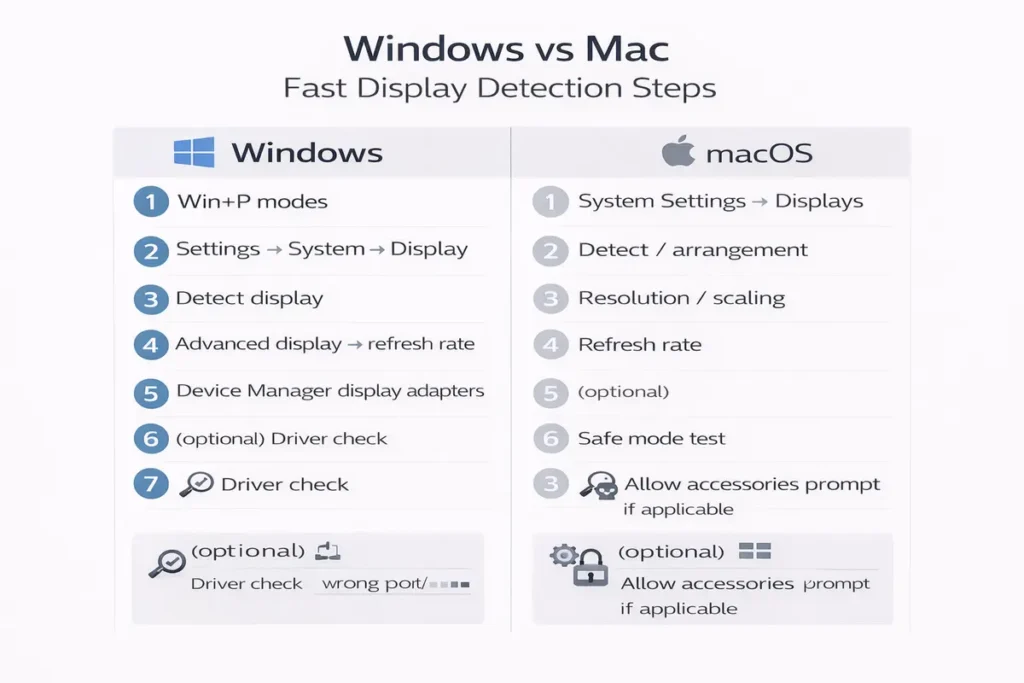
Work top to bottom. Don’t skip steps. Many dock problems are solved by a basic reset and a known-good cable before you ever touch drivers.
Windows Step 1: Confirm the basics
- Switch the monitor to the correct input (HDMI/DP/USB-C).
- Reseat cables; try a different dock video port.
- Test the monitor directly on the laptop to confirm the monitor/cable works.
Windows Step 2: Force detection and reset graphics
- Settings → System → Display → click Detect (if available).
- Press Win+Ctrl+Shift+B to reset the graphics driver (screen may blink).
- Set each monitor to 60Hz and disable HDR temporarily.
Windows Step 3: Check Device Manager (the fast clue-finder)
Open Device Manager and check these areas. You’re looking for missing devices, disabled devices, or warning triangles.
- Display adapters: confirm Intel/NVIDIA/AMD GPU is healthy.
- Monitors: confirm Windows sees at least one external display device.
- USB controllers: look for USB4 Host Router / Thunderbolt controller entries on compatible systems.
- USB devices: if using DisplayLink, you may see DisplayLink-related devices when the dock is connected.
Windows Step 4: Update the right drivers
Update Windows first, then update GPU drivers from the GPU vendor or laptop OEM. If your dock uses DisplayLink, update DisplayLink software as well. Finally, check the dock maker’s support page for firmware updates.
Windows Step 5: Fix power management
Windows can power-save USB devices aggressively. If your dock disconnects or monitors vanish after sleep, adjust power settings.
- Disable USB selective suspend (Power Options).
- Device Manager → USB Root Hub: uncheck “Allow the computer to turn off this device to save power” (where applicable).
- Test again after a full reboot.
Mac: step-by-step fixes (do these in order)
On Mac, the fastest wins are: confirm you’re using the correct port, reduce display mode complexity (60Hz, HDR off), and identify whether your dock is Thunderbolt/Alt Mode or DisplayLink.
Mac Step 1: Confirm port and cable basics
- Use the primary Thunderbolt/USB-C port intended for docking.
- Reseat the dock cable and the monitor cable; try a different dock display port.
- Force the monitor input selection manually.
Mac Step 2: Use macOS Displays controls
Open System Settings → Displays. If the monitor appears, arrange displays and choose Extend rather than Mirror. If the monitor is unstable, set refresh to 60Hz and disable HDR temporarily.
Mac Step 3: Identify dock technology
If your dock is Thunderbolt, it usually behaves like a premium native video path. If it’s a USB-C Alt Mode dock, behavior can depend on the dock and OS. If it’s DisplayLink, you must have DisplayLink Manager installed and allowed.
Mac Step 4: Update macOS, then dock firmware
Monitor detection problems often improve after OS updates. If your dock maker provides firmware, update it next.
Mac Step 5: Advanced resets (optional)
If you’re comfortable, try a full shutdown, unplug dock power, then boot and reconnect. NVRAM/SMC resets depend on Mac model.
Port and cable verification (the buyer-proof section)
How to spot a ‘charge-only’ USB-C cable
Charge-only USB-C cables can power the laptop but won’t carry high-speed data or stable video. For docking, use full-feature USB-C (data + video) or Thunderbolt cables from reputable brands.
👉 Read the guide: Thunderbolt vs USB4 vs USB-C: What the Labels Really Mean
Adapter traps (USB-C to HDMI/DP)
Adapters vary widely. Some are limited to 4K@30. Some are designed for specific modes. If your goal is 4K@60 or dual monitors, use gear that explicitly lists your resolution and refresh rate.
Troubleshooting table (symptom → likely cause → fix → what to buy)
| Symptom | Likely cause | Fix | What to buy (if needed) |
|---|---|---|---|
| Dock charges laptop but no display | USB-C port has no video output | Use HDMI/DP directly or try a different port; confirm DP Alt Mode/TB | DisplayLink dock or Thunderbolt-capable upgrade |
| Monitor not detected at all | Wrong input/cable/port | Force input, swap cable, try another dock port | Full-feature USB-C/TB cable; better HDMI/DP cable |
| One monitor works, second doesn’t | Bandwidth/MST/OS limit | Set 60Hz, HDR off; swap ports; reduce resolution | Thunderbolt dock or DisplayLink (productivity) |
| Mirrors instead of extends | MST/OS behavior or settings | Change display mode; confirm dock supports independent displays on your OS | Thunderbolt dock for predictability |
| Flicker/black screens | Cable quality or mode mismatch | Shorter/better cable; disable HDR; test 60Hz | Certified cable; higher-spec dock |
| Works direct but not through dock | Dock limitation or firmware | Update dock firmware; test DP vs HDMI | Dock with documented dual-display support |
| Stops working after sleep | Power saving / USB suspend | Disable USB selective suspend; reboot; update drivers | Powered dock; better sleep-compatible dock |
| Dock works on one USB-C port but not another | One USB-C port is data/charge-only or has fewer display lanes | Use the primary video/TB port; check the laptop spec sheet and port icons; retest at 60Hz | If you can’t use a full video-capable port: DisplayLink dock (drivers) or use HDMI/DP directly |
| Monitor is detected but keeps reverting resolution | Monitor negotiating an unsupported mode (HDR/bit depth/odd refresh) or unstable cable | Set 60Hz, disable HDR, then re-enable features one at a time; swap to a shorter reputable cable | Certified cable; higher-spec dock that explicitly supports your resolution/refresh combo |
Before you buy anything (30-second checklist)
Confirm these five things so you don’t buy the wrong fix:
- Your laptop’s port supports video (DP Alt Mode / USB4 display / Thunderbolt) or you’re intentionally choosing DisplayLink.
- Your target monitor setup (count + resolution + refresh) matches the dock’s stated supported combinations.
- You have a known-good cable from laptop → dock (full-feature USB-C or Thunderbolt, not charge-only).
- Each monitor is set to the correct input and tested at 60Hz first (HDR off) to prove stability.
- If this is a work laptop, you’re allowed to install drivers (required for DisplayLink).
What to buy (quick summary)
Use this if you want the fastest low-regret fix.
- If your laptop has Thunderbolt: choose a Thunderbolt dock for the most predictable monitor detection.
- If your laptop has DP Alt Mode and you’re on Windows: a USB-C Alt Mode dock is often enough for 60Hz dual monitors.
- If your USB-C port has no video: DisplayLink is the workaround (drivers required), or use HDMI/DP ports instead.
- If you need dual 4K@60 or high refresh: favor Thunderbolt or direct connections; verify cable quality.
- If IT blocks drivers: avoid DisplayLink; stick to native Alt Mode or Thunderbolt docks.
Frequently Asked Questions
Why is my docking station not detecting my monitors?
Most cases are caused by a port with no video output, a cable/adaptor mismatch, monitor input selection, dock display limits, or driver/firmware issues.
Why does my dock charge but not show display?
Charging can work on a data-only USB-C port. For video you need DP Alt Mode, USB4 display support, Thunderbolt, or DisplayLink.
How do I force Windows to detect a monitor?
Go to Settings → System → Display and use Detect (if available). Also try Win+Ctrl+Shift+B to reset graphics.
How do I make my Mac detect an external monitor through a dock?
Power-cycle the dock/monitor, check Displays settings, set 60Hz and HDR off, and confirm dock tech (Thunderbolt/Alt Mode vs DisplayLink).
What is DP Alt Mode and why does it matter?
It’s DisplayPort video over USB-C. Without it, many USB-C docks can’t output native video.
Is Thunderbolt better for docks?
Often yes. Thunderbolt docks are usually more predictable for monitors and high-bandwidth peripherals, but you need a Thunderbolt-capable port.
Can a USB-C cable be the reason my monitor isn’t detected?
Yes. Charge-only or low-quality cables may power the dock but fail video/data stability.
Why does my second monitor not work on a dock?
Common causes include bandwidth limits, MST/OS behavior, or dock limitations for your resolution/refresh combo.
Why do my monitors mirror instead of extend?
Display settings, MST behavior, or dock limitations can cause mirroring. Verify your dock supports independent displays on your OS.
Why does my dock only work at 30Hz?
That usually means bandwidth limits. Reduce resolution/refresh or upgrade to a higher-spec dock (often Thunderbolt).
What should I update first: drivers or firmware?
Update OS first, then GPU drivers (Windows), then dock firmware and any required dock software like DisplayLink.
Do DisplayLink docks require drivers?
Yes. DisplayLink uses software and a USB graphics path. Driver installation must be allowed on your system.
How do I know if my USB-C port supports video?
Check the laptop spec sheet for DisplayPort over USB-C/DP Alt Mode, USB4 display support, or Thunderbolt.
Will a Thunderbolt dock work on a regular USB-C port?
Sometimes with limited features, but monitor outputs often won’t work unless the port supports Thunderbolt/USB4 features.
Why does the dock stop working after sleep?
Power saving and USB suspend can cause disconnects. Adjust power settings and update drivers/firmware.
Does HDMI vs DisplayPort matter on docks?
Yes. Some docks handle certain modes better on DP than HDMI, especially at higher resolutions/refresh rates.
Can I fix flickering monitors through a dock?
Often yes by replacing cables, lowering refresh, disabling HDR, and updating firmware.
What’s the simplest ‘it just works’ dock choice?
A Thunderbolt dock on a Thunderbolt laptop, with supported monitor combinations and a good cable.
What should I try before returning a dock?
Test direct connection, set 60Hz, swap cables, confirm correct port/input, and update OS/drivers/firmware.
When should I choose a DisplayLink dock?
When your laptop can’t natively output the displays you need through USB-C and you’re okay installing drivers for productivity use.
Conclusion
When a dock won’t detect monitors, the fastest fix is systematic: confirm power and input, prove the monitor works directly, reduce mode complexity (60Hz, HDR off), then update the right drivers and firmware. If your USB-C port doesn’t output video, no amount of settings will make a native dock work—so choose DisplayLink or a Thunderbolt-capable solution instead.
Use the decision tree and troubleshooting table to pinpoint the exact cause. That way your next purchase is a solution, not another guess.