Compare DisplayLink vs USB-C Alt Mode vs Thunderbolt docks for dual/triple monitors, Windows/macOS use, performance trade-offs, and buying checklists—so you choose the right dock first time.
Author & technical review
Last Updated: March 2026
Author: Editorial Productivity & Computing Team
Technical review: Checked for accuracy against vendor documentation and standards references listed in “Sources and further reading.”
What this guide is: A practical buyer guide for everyday people.
What this guide is not: A lab benchmark report. Your exact results can vary by laptop model, GPU, OS, and monitor.
How we evaluate docks (our methodology)
We wrote this guide to help you pick a dock that works the first time. To stay accurate and buyer-focused, we check four things for every dock and laptop combo:
- Port capability on the host device (Thunderbolt, USB4, or USB‑C with DisplayPort Alt Mode).
- Display limits (how many monitors, which resolutions, and which refresh rates) from the dock’s spec sheet or manual.
- Power Delivery (PD) wattage and whether it matches your laptop’s charger needs (for example 65W, 90W, 100W, 140W).
- Software requirements: whether the dock needs DisplayLink drivers, how updates work, and what happens on locked‑down corporate devices.
When a claim is easy to misunderstand—like “USB‑C dock supports dual 4K”—we treat it as a red flag until we can confirm the exact conditions (specific laptops, specific ports, and specific cables).
Why dock labels are confusing (and why buyers get burned)
Dock shopping should be simple: plug in one cable and get power, monitors, and ports. But real life is messy, because “USB‑C dock” is not a single technology. The same USB‑C connector can carry video in different ways—or not at all. Some docks use native video (fast and smooth). Others use a software-driven approach that can add extra displays even when your laptop can’t. In this guide, we compare DisplayLink vs USB-C Alt Mode vs Thunderbolt so you can pick the right dock tech for your setup.
This guide explains three dock technologies you’ll see everywhere—DisplayLink, USB‑C DisplayPort Alt Mode, and Thunderbolt—and shows which one fits your laptop, your monitors, and your work.
👉 Read the guide: Thunderbolt vs USB4 vs USB-C: what the labels really mean
30‑second chooser: pick the right dock tech
| If you care most about… | Choose… (and why) |
|---|---|
| Simple plug‑and‑play video (lowest fuss) | USB‑C Alt Mode (native DisplayPort over USB‑C), if your port supports video. |
| Fastest, most “no compromises” docking + storage | Thunderbolt (certified, high bandwidth; great for pro docks and fast peripherals). |
| Triple monitors on a laptop that struggles with multiple displays | DisplayLink (adds displays via USB graphics; needs drivers). |
| Gaming / high refresh / color‑critical creative work | Thunderbolt or USB‑C Alt Mode (native video tends to look and feel better). |
| Using a dock over USB‑A (no USB‑C on your laptop) | DisplayLink (many models work over USB‑A with the right adapter). |
| Corporate laptops with strict software policies | Thunderbolt or USB‑C Alt Mode (DisplayLink may be blocked if drivers can’t be installed). |
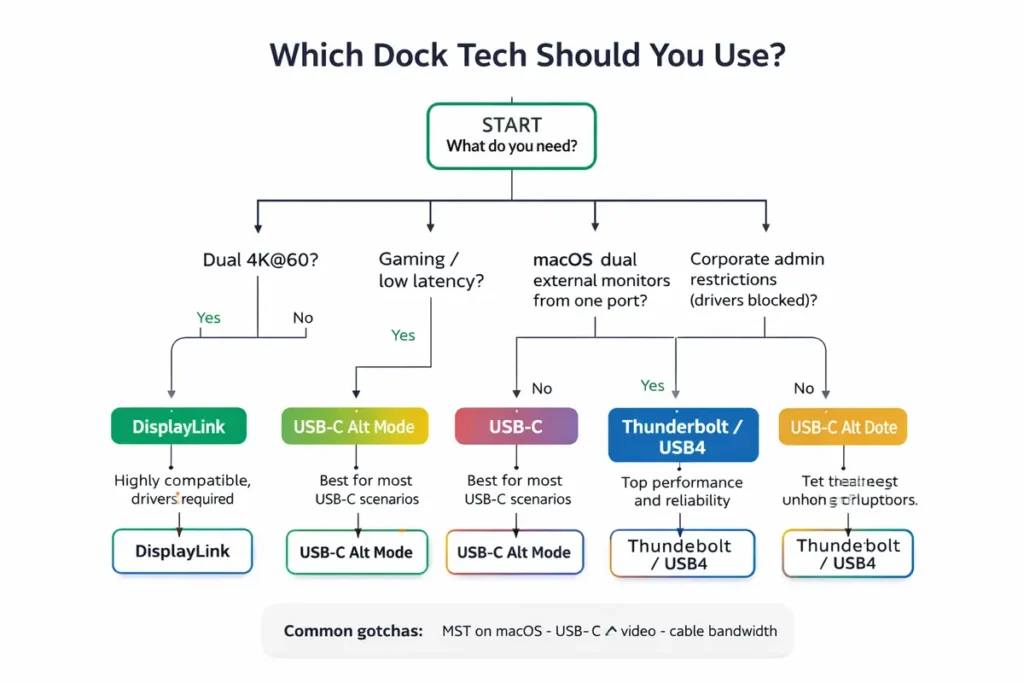
Key takeaways (save this before you buy)
- USB‑C is the plug shape, not a promise. Always confirm what your USB‑C port supports.
- USB‑C Alt Mode uses your laptop’s native display engine. It’s usually the smoothest path for video.
- Thunderbolt docks are typically the most predictable for power + ports + displays, especially on laptops that support them.
- DisplayLink docks can be a lifesaver for extra screens, but they rely on drivers and can behave differently on different systems.
- Cables matter. A weak or wrong cable can limit video, data, or charging even if the dock is excellent.
Mini glossary (quick definitions)
MST: A DisplayPort feature used by some docks to run multiple displays from one link.
Thunderbolt: High‑bandwidth USB‑C‑shaped port ecosystem for premium docks and fast peripherals.
DisplayLink: USB graphics that needs a driver; great for extra office screens.
DP Alt Mode: Video over USB‑C using DisplayPort signals (native).
Just enough vocabulary to avoid confusion while you shop:
What each technology really is
DisplayLink docks (USB graphics with drivers)
A DisplayLink dock sends video over regular USB data. A driver on your computer captures the screen, compresses it, and sends it to a chip inside the dock, which turns it into HDMI or DisplayPort outputs. Think of it like streaming your desktop to a device that plugs into your monitors.
- Why people buy it:
- You can often run more monitors than your laptop would normally allow.
- Many models work through USB‑A, which is handy for older laptops.
- It can be a cost-effective way to get a ‘multi‑monitor’ desk setup.
- Where it can disappoint:
- It needs drivers. If drivers can’t be installed or updated, the dock may not work well.
- Fast motion (gaming, high‑FPS video) can show compression artifacts or feel less responsive.
- It can add CPU overhead because your system helps encode the video stream.
USB‑C DisplayPort Alt Mode (native video over USB‑C)
USB‑C Alt Mode is not “USB video.” It’s your USB‑C port switching into a mode that carries DisplayPort signals. That means the video is generated by your GPU and travels as a normal display signal—just through the USB‑C connector.
- It’s usually plug‑and‑play with no special graphics drivers.
- Lower latency and fewer visual artifacts compared with USB graphics.
- Great for a single monitor or a clean laptop + monitor + charging setup.
- Where buyers get trapped:
- Not every USB‑C port supports video output.
- Some USB‑C docks limit display options depending on how lanes are allocated.
- Dual monitor support can depend on MST support and OS behavior.
👉 Read the guide: Dual monitors over USB-C: what’s possible (and why it often fails)
Thunderbolt docks (high bandwidth, certified ecosystem)
Thunderbolt is a high‑bandwidth connection that can carry data and displays in a very capable, standardized way. Thunderbolt docks tend to be premium, but they often deliver the most predictable ‘one cable’ experience—especially when you need fast storage, many ports, and multiple high‑resolution displays.
- Strong bandwidth headroom for displays + peripherals at the same time.
- Good match for external SSDs and pro docks that need PCIe bandwidth.
- Certification and branding reduce guesswork (though you still should check display limits).
DisplayLink vs USB‑C Alt Mode vs Thunderbolt (comparison table)
| Feature | DisplayLink | USB‑C Alt Mode | Thunderbolt |
|---|---|---|---|
| Needs special drivers? | Yes (DisplayLink software) | No (typically) | No (typically) |
| Video is native GPU output? | No (compressed USB graphics) | Yes | Yes |
| Best for | Office productivity, extra screens, USB‑A compatibility | Simple monitor + charging, travel setups | Pro docks, multi‑display + fast peripherals |
| Latency risk | Medium (varies by workload) | Low | Low |
| Fast motion / gaming | Not ideal | Good | Good |
| Works if your USB‑C port has no video? | Often yes (still USB data) | No | No (needs TB/USB4 support) |
| Corporate / locked‑down machines | Depends on driver policy | Usually fine | Usually fine |
| Typical dock cost | Low to medium | Low to medium | Medium to high |
Deep dive: performance, CPU load, and “why it feels different”
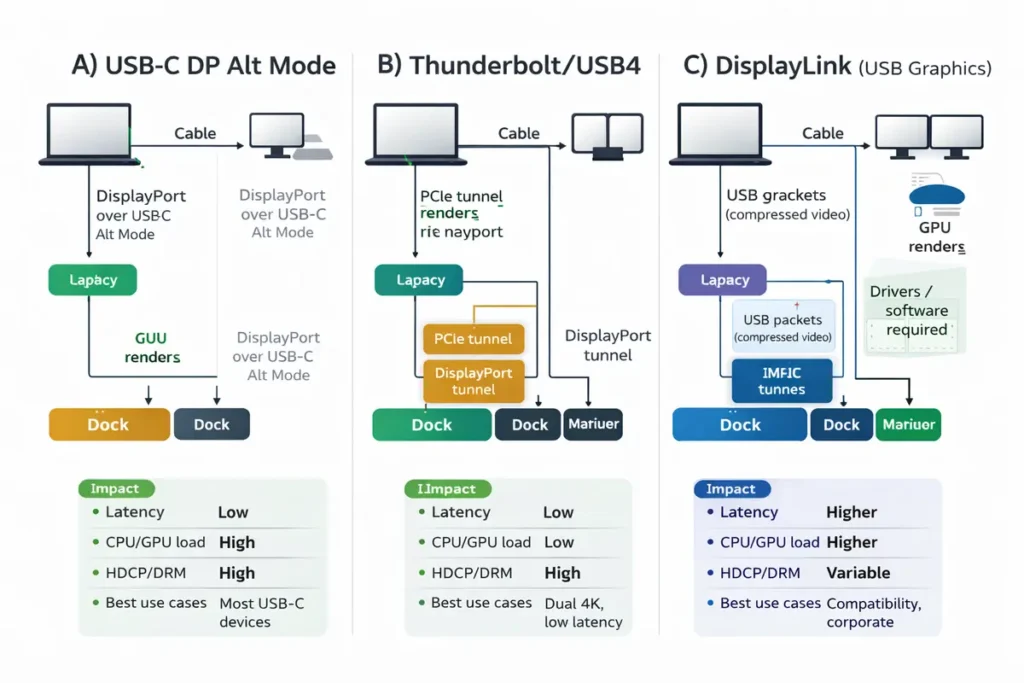
If two docks both show a picture on your monitor, you might think they’re doing the same job. They aren’t. The “feel” of a dock setup—mouse smoothness, window dragging, video playback, even the time it takes for a monitor to wake—comes down to how the pixels travel from your laptop to the screen.
Why DisplayLink can feel heavier on some laptops
DisplayLink relies on your computer to package the screen into a stream that fits over USB. That work is usually small for basic office tasks, but it can increase when you push high resolutions, fast refresh rates, or a lot of motion (scrolling big spreadsheets, editing video, fast animations). On newer CPUs you may never notice. On older or low-power laptops, you might feel it as higher fan noise, slightly delayed window movement, or a softer-looking image during motion.
Why USB‑C Alt Mode and Thunderbolt often look “cleaner”
USB‑C Alt Mode and Thunderbolt typically carry a native display signal from the GPU. That means fewer steps and fewer places to introduce artifacts. For creators, this matters: gradients, fine text, and fast motion tend to look more like a direct HDMI/DisplayPort connection. If you do color-critical work, or you simply hate visual quirks, native video paths are the safest choice.
Security and policy notes for IT teams (plain-English)
Most home users focus on “does it work?” IT teams also have to think about “can we support it safely?” Here’s the practical difference: DisplayLink docks are more like installing a new graphics component in software, while USB‑C Alt Mode and Thunderbolt are more like using a standard monitor connection.
- If your environment blocks driver installs, DisplayLink can become a support headache.
- If you require predictable results across many laptop models, Thunderbolt docks often reduce edge cases.
- If you want the simplest support story, choose native video (USB‑C Alt Mode or Thunderbolt) and publish a short approved-cable list.
Tip for fleet rollouts: pilot first. Test one dock with each laptop model and each common monitor model. Write down the exact cable used and the exact port used. Many “dock problems” are actually “wrong port” or “wrong cable” problems.
👉 Read the guide: Enterprise IT guide: dock architecture, standards & deployment considerations
👉 Read the guide: USB Accessories Security Risks (Bad USB, Unknown Devices) + Practical Mitigations
Cable reality check: the invisible reason docks fail
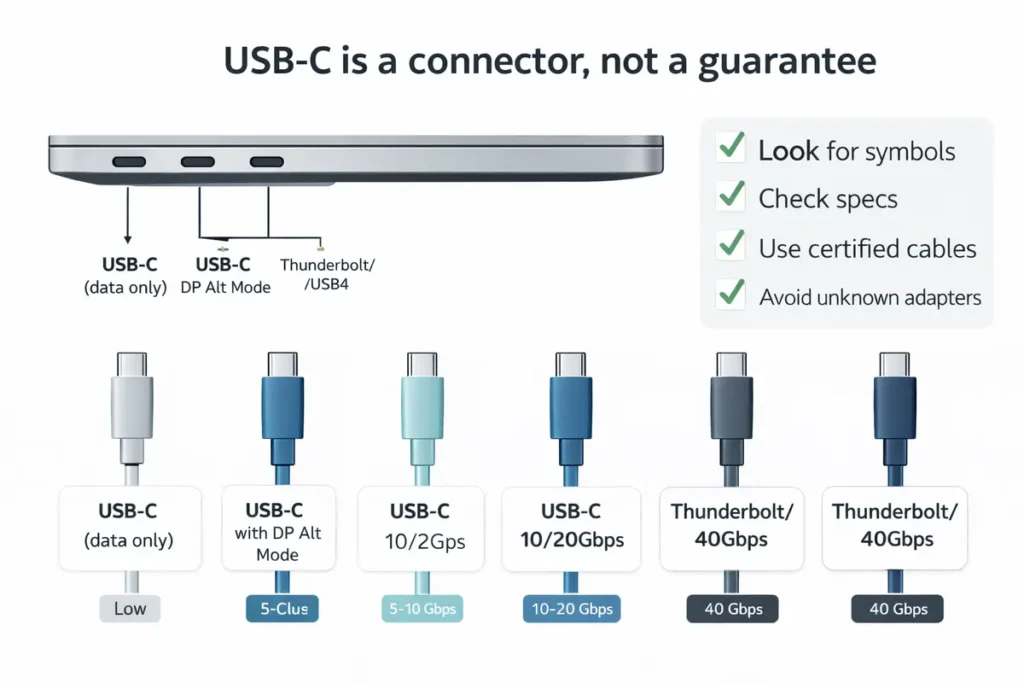
Cables are boring—until they cost you an afternoon. A cable can support charging but still be unreliable for video. It can also cap data speed, which matters if you connect an external SSD through the dock. If the dock includes a cable, use it first. If you replace it, buy from a reputable brand and match the cable to the dock type.
Quick cable guidance
- For Thunderbolt docks, prefer a cable marketed as Thunderbolt (and from a known brand).
- For USB‑C Alt Mode docks, use a full-feature USB‑C cable that supports video/data (avoid “charge-only” cables).
- For DisplayLink docks, the USB cable still matters for stability, but the video path is mostly limited by USB link quality and driver performance.
Compatibility rules that prevent 90% of dock headaches
- A USB‑C connector does not guarantee video. Your laptop must support DisplayPort Alt Mode (or Thunderbolt) for native video over USB‑C.
- If you need multiple high‑resolution monitors, check the dock’s exact limits. “Dual 4K” may mean 2×4K at 30Hz, or it may require Thunderbolt.
- If your dock is DisplayLink, plan for drivers and updates. On corporate laptops, ask IT before you buy.
- Cables can cap performance. A cheap USB‑C cable might support charging but not high-speed data or stable video.
- USB‑C docks often share bandwidth between video and data. Heavy SSD transfers can sometimes affect display stability on some setups.
Monitor math: resolution, refresh rate, and why “dual 4K” isn’t one thing
Two monitors can mean a thousand combinations. A dock that feels perfect for dual 1080p office screens might struggle with a 4K ultrawide plus a second 4K monitor at 60Hz. Refresh rate matters too: 4K at 60Hz pushes far more data than 4K at 30Hz, and 1440p at 144Hz can be surprisingly demanding.
Office work is forgiving. Creative work and gaming are not. If you do color‑critical work, fast motion editing, or high refresh gaming, lean toward native video paths (USB‑C Alt Mode or Thunderbolt) rather than USB graphics.
Safe, common setups (good starting points)
- Office: 2×1080p or 2×1440p at 60Hz (USB‑C Alt Mode, Thunderbolt, or DisplayLink can work).
- Creator: 1×4K at 60Hz + fast SSD (prefer Thunderbolt or strong USB‑C Alt Mode docks).
- Power productivity: 3 monitors at 60Hz (often easiest with DisplayLink or Thunderbolt, depending on laptop limits).
- High refresh: 1080p/1440p at 120–240Hz (prefer native video via USB‑C Alt Mode or Thunderbolt).
👉 Read the guide: Want to go deeper on monitors? Dive in here
Which dock tech is best for Windows, macOS, and Linux/ChromeOS?
Windows
Windows systems typically offer the widest dock compatibility. If your USB‑C port supports DP Alt Mode, a USB‑C Alt Mode dock can be simple and smooth. Thunderbolt is great when you want predictable multi‑monitor support plus fast peripherals. DisplayLink is popular for office setups that need extra displays, especially when the laptop’s GPU limits native outputs.
macOS
macOS can be very smooth with native displays over Thunderbolt or USB‑C Alt Mode, but your best option depends on the Mac model and how many external displays it natively supports. In many mixed home/office setups, DisplayLink docks are used when someone needs more screens than the system normally drives. That convenience comes with a trade‑off: driver dependency and a video path that isn’t fully native.
MST and macOS: why dual monitors can be tricky
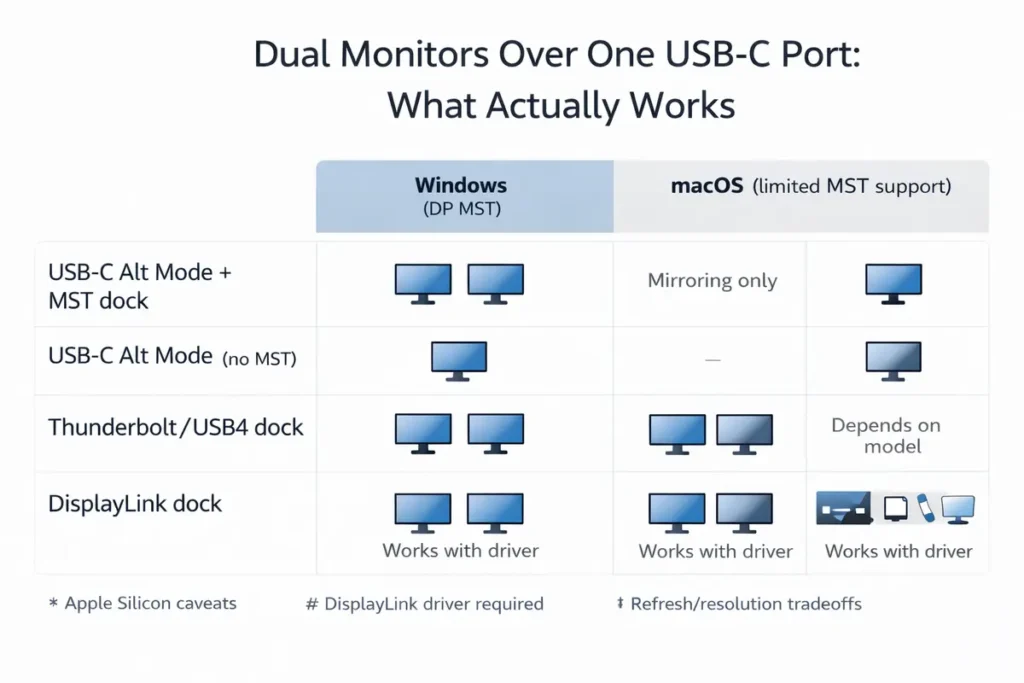
MST (Multi‑Stream Transport) is a DisplayPort feature that can split one video connection into multiple displays. Some USB‑C docks rely on MST to run two monitors from one USB‑C Alt Mode link. The catch: operating systems handle MST differently, and your laptop’s hardware also matters. If your goal is two external monitors and your setup is picky, Thunderbolt docks often reduce guesswork. If you’re blocked by native limits and you only need office-style productivity screens, a DisplayLink dock can be a practical workaround—as long as drivers are allowed.
ChromeOS and Linux (quick notes)
On ChromeOS and Linux, the safest path is usually native video (USB‑C Alt Mode or Thunderbolt) because it relies less on third‑party graphics drivers. DisplayLink can work, but compatibility depends on distro, kernel/driver support, and whether your environment allows installing and updating the needed software.
How to check what your laptop supports (before you buy)
Windows: quick checks
- Look for a Thunderbolt lightning icon near the USB‑C port. If it’s there, you likely have Thunderbolt.
- Open Device Manager and look for a Thunderbolt or USB4 controller entry (names vary by system).
- Check the laptop’s spec sheet for exact wording: “Thunderbolt 4,” “USB4,” “DisplayPort over USB‑C,” or “DP Alt Mode.”
macOS: quick checks
- Open System Information (via About This Mac).
- Look for a Thunderbolt/USB4 section and see what the system reports.
- For multi‑monitor goals, confirm your exact Mac model’s external display support in Apple documentation.
Corporate devices: don’t skip this step
If you’re on a managed laptop (work device), confirm whether you can install drivers. If not, avoid DisplayLink and choose USB‑C Alt Mode or Thunderbolt. This single step can save you from buying a dock that ‘should work’ but can’t be activated.
Return‑proof checklist (use this before clicking “Buy”)
| Check | What to look for |
|---|---|
| Your laptop’s port | Thunderbolt 4/5, USB4, or USB‑C with DisplayPort Alt Mode (video support). |
| Monitor needs | How many monitors, which resolution, and which refresh rate (60Hz vs 120Hz matters). |
| Dock display spec | Exact supported combinations (e.g., dual 4K@60 vs dual 4K@30). |
| Charging | Power Delivery wattage: match or exceed your laptop’s charger rating when possible. |
| Cable | Use reputable cables; avoid unknown “charge-only” cables for docks. |
| IT policy | If DisplayLink drivers are required, confirm you can install and update them. |
👉 Read the guide: USB-C Dock Deployment Checklist (2026): Drivers, Firmware, Compatibility (Enterprise IT)
Dock troubleshooting table (symptom → cause → fix)
| Symptom | Likely cause | What to do |
|---|---|---|
| Dock charges the laptop but no monitor shows up | USB‑C port supports charging but not video (no DP Alt Mode) | Use HDMI/DP directly, or choose DisplayLink, or upgrade to a Thunderbolt-capable setup. |
| Only one monitor works on a dual-monitor dock | Laptop/OS limitation or bandwidth/mode limits | Confirm dock’s supported monitor combos; consider Thunderbolt or DisplayLink for extra displays. |
| Monitor flickers or blanks during heavy file transfers | Shared bandwidth or weak cable | Try a better cable; reduce display load; consider Thunderbolt for more headroom. |
| Video looks soft during fast motion | DisplayLink compression artifacts | Use USB‑C Alt Mode/Thunderbolt for native video, or lower resolution/refresh on DisplayLink. |
| DisplayLink dock works on personal laptop but not work laptop | Driver install blocked by IT policy | Ask IT for approval, or switch to USB‑C Alt Mode/Thunderbolt dock. |
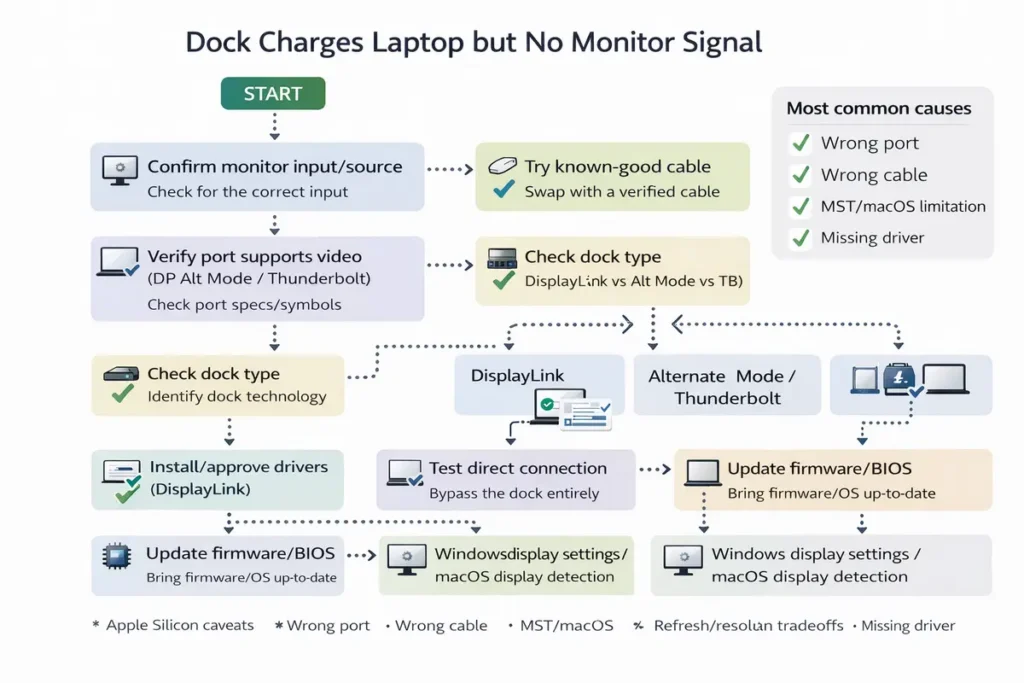
👉 Read the guide: Dock not detecting monitors? Step-by-step fixes (Windows & Mac)
Shopping criteria (green flags and red flags)
Use these quick filters when you’re comparing docks on a product page. They help you avoid vague listings and buyer regret.
Green flags (good signs)
- Cable not included and no recommended cable spec listed.
- No PD wattage stated (or only “charging supported” with no number).
- “Dual 4K” with no refresh rate (30Hz vs 60Hz) or no host requirements.
- “USB‑C dock” with no mention of DP Alt Mode, Thunderbolt, or DisplayLink.
Red flags (skip or verify carefully)
- A known controller/brand and an included cable matched to the dock type.
- Power Delivery wattage listed (65W/90W/100W/140W).
- Explicit display combinations (for example: “2×4K@60Hz on specific hosts”).
- Clear port wording on the dock: “Thunderbolt 4/5,” “USB4,” or “USB‑C with DisplayPort Alt Mode.”
Which dock tech should you buy? (by use case)
Best for simple one-monitor travel setups
If you mostly need one external display, some USB ports, and charging, a USB‑C Alt Mode dock (or even a multiport USB‑C hub) is often the simplest and most affordable. Your main job is to confirm your USB‑C port supports video (DP Alt Mode).
Look for: USB-C hub/dock that explicitly lists DisplayPort Alt Mode support and adequate Power Delivery for your laptop.
Best for dual monitors in an office
For a reliable dual‑monitor desk, Thunderbolt docks and strong USB‑C Alt Mode docks both work well. Choose Thunderbolt when you want extra bandwidth for peripherals, or when you want fewer surprises across different laptops. Choose DisplayLink if you know your laptop has limited native display outputs but you need two or three screens for productivity.
Look for: a dock that lists your exact dual-monitor resolution/refresh combo (and host requirements) plus enough PD wattage.
Best for triple monitors (productivity-focused)
Triple monitors can be a minefield. If your laptop natively supports multiple external displays over Thunderbolt, a Thunderbolt dock is usually the cleanest solution. If your laptop can’t natively drive three displays the way you want, DisplayLink can be the practical workaround—especially for office apps, dashboards, and research workflows.
Look for: Thunderbolt dock on compatible laptops, or a DisplayLink dock if you need extra office screens beyond native limits.
Best for creators (video editing, design, large files)
Creators benefit from native display output and fast storage at the same time. Thunderbolt docks often shine here because they handle displays plus high-speed external SSDs without feeling cramped. USB‑C Alt Mode docks can also work, but read the fine print: some docks trade data speed for display lanes.
Look for: Thunderbolt dock with documented display limits plus strong storage/peripheral bandwidth (and high PD if needed).
Best for gaming or high refresh monitors
For gaming, high refresh, or anything latency-sensitive, native video is the goal. Prefer USB‑C Alt Mode or Thunderbolt. DisplayLink can be fine for a side monitor (chat, tools), but it’s not the first choice for a main high‑FPS display.
Look for: native video output (USB-C Alt Mode or Thunderbolt) with explicit refresh-rate support; avoid USB graphics for the main display.
Best for IT fleets and corporate rollouts
In fleets, predictability and support tickets matter. If users can’t install drivers, avoid DisplayLink. Standardize on Thunderbolt docks for compatible laptops, or USB‑C Alt Mode docks with clearly documented display support. Build a small compatibility matrix: laptop models × dock model × monitor model.
IT tip: Use a tiny compatibility matrix to standardize results across laptop models.
Look for: driver-light standardization (USB-C Alt Mode/Thunderbolt) unless IT approves DisplayLink deployment and updates.
| Laptop model | Dock model | Monitors (count + res/Hz) | Cable/port used | Result / notes |
|---|---|---|---|---|
| Dell Latitude 7440 (TB4) | Thunderbolt 4 dock | 2×27″ 1440p@60Hz | TB cable → TB4 port | Stable; full res/Hz; Ethernet + USB OK |
| Lenovo ThinkPad T14 (USB-C DP Alt) | USB-C Alt Mode dock | 1×34″ 3440×1440@60Hz | USB-C full‑feature → USB-C port | Works; avoid heavy SSD transfers during calls |
| MacBook Pro (Thunderbolt) | DisplayLink dock (approved) | 2×24″ 1080p@60Hz | USB-C → TB/USB-C port | Requires driver; good for office apps; slight motion softness |
Common myths (quick reality checks)
- Myth: “USB‑C dock” means it will run any monitor. Reality: video requires DP Alt Mode, Thunderbolt, or DisplayLink.
- Myth: A dock with HDMI ports will work with any USB‑C laptop. Reality: the USB‑C port might be data-only.
- Myth: A Thunderbolt cable makes a USB‑C port into Thunderbolt. Reality: the laptop port must support Thunderbolt.
- Myth: More ports means better dock. Reality: bandwidth and display support matter more than port count.
Freshness note (2025–2026): USB4 v2 and newer Thunderbolt docks
You may see docks and laptops advertised with newer wording like “USB 80Gbps,” “USB4 Version 2.0,” or performance “boost” modes. Newer generations can raise the bandwidth ceiling, but you only benefit when your laptop, dock, and cable all support the same mode. If one piece is older, the connection usually falls back to the older speed.
Buyer tip: don’t pay extra for the biggest number unless you also own (or plan to buy) matching gear. For most office setups, a solid Thunderbolt 4 dock or a well-documented USB‑C Alt Mode dock is still the best value.
Frequently Asked Questions
What is the biggest difference between DisplayLink and USB‑C Alt Mode?
DisplayLink sends video over USB data using drivers and compression. USB‑C Alt Mode sends native DisplayPort video over the USB‑C connector.
Is Thunderbolt the same as USB‑C?
No. USB‑C is the connector shape. Thunderbolt is a higher‑capability connection that often uses USB‑C ports and cables.
Do I need drivers for a Thunderbolt dock?
Usually no special graphics drivers are needed for displays, but you may need system updates and dock firmware tools depending on the vendor.
Can a DisplayLink dock work on a laptop with no video over USB‑C?
Often yes, because DisplayLink can send video over regular USB data. That’s one reason people use it as a workaround.
Why does my USB‑C dock charge my laptop but not show video?
Your USB‑C port might support charging but not DisplayPort Alt Mode video, or the dock/cable/port combo isn’t compatible.
Is DisplayLink good for gaming?
It can work for a secondary screen, but it’s not ideal for a main gaming display due to compression and potential latency.
Is DisplayLink okay for office work?
Yes. For email, documents, web apps, and dashboards, DisplayLink is often a practical way to add extra monitors.
What’s the best dock tech for dual 4K monitors?
Thunderbolt is often the most predictable for dual 4K at 60Hz, but some USB‑C Alt Mode docks can do it on compatible laptops. Verify the exact dock spec.
Why does my dock only allow one external monitor?
Some laptops and OS setups limit how displays are handled over certain dock types, and the dock may rely on MST support.
Can I mix DisplayLink with native video?
Yes. Many people use native video for the main monitor and DisplayLink for extra screens used for chat, email, or tools.
Does Thunderbolt guarantee triple monitors?
Not automatically. Thunderbolt helps, but display count depends on the laptop, GPU, OS, and the dock design.
What is DP Alt Mode?
It’s DisplayPort Alternate Mode—an industry method for carrying DisplayPort video over a USB‑C connector.
How do I know if my USB‑C port supports DP Alt Mode?
Check the spec sheet for DisplayPort over USB‑C/DP Alt Mode wording, and look for port icons. When in doubt, test with a known-good USB‑C display cable.
Are USB‑C hubs and USB‑C docks the same thing?
Not always. Hubs are simpler and cheaper, while docks usually add more ports, power delivery, and display features.
Do docks reduce external SSD speed?
They can. Some dock designs share bandwidth between displays and data. Thunderbolt docks usually offer more headroom for fast storage.
What cable should I use with my dock?
Use the cable included by the dock maker when possible. Otherwise choose a reputable cable rated for the needed data speed and video stability.
Why does my monitor flicker through a dock?
Common causes include a weak cable, bandwidth limits, or a monitor mode the dock can’t sustain. Try a better cable and reduce refresh rate as a test.
Is DisplayLink safe for corporate use?
It can be, but corporate environments may restrict driver installs. Follow your organization’s security and device management policies.
Will a Thunderbolt dock work in a regular USB‑C port?
It may work with limited features depending on the dock and host, but you may lose displays or performance. For full features, you need Thunderbolt support.
Which is the best choice if I’m not sure?
If your laptop supports it and budget allows, Thunderbolt is often the safest option. If you can’t install drivers, avoid DisplayLink.
Conclusion
If you want the least guesswork and the most headroom, Thunderbolt is usually the premium, predictable path. If you want a simple, native display connection and your USB‑C port supports video, USB‑C Alt Mode is clean and smooth. If you need extra screens beyond what your laptop normally supports—or you’re working with older USB‑A ports—DisplayLink can be the practical workaround, as long as driver support fits your environment.
Use the chooser, the checklist, and the troubleshooting table to avoid common mistakes. Then pick a dock that’s boringly compatible—and enjoy the one‑cable desk life.