| Discover the best Mac mouse gestures for productivity in 2026. Improve navigation, app switching, Mission Control, side scrolling, and custom actions on macOS. |
Table of Contents
- Quick answer
- Why Mac-specific mouse gestures matter
- Best Mac mouse gestures at a glance
- Start with built-in macOS gestures first
- Best Mac mouse gestures for faster workflows
- Example workflows you can copy
- Choose the right tool for your Mac workflow
- Best productivity ideas for Mac-specific mouse gestures
- Make gestures reliable, not flashy
- Ergonomics still matter
- Common mistakes to avoid
- FAQ
- References
Quick answer
The fastest Mac mouse gestures for daily work are usually the built-in ones first: one-finger or two-finger scrolling, two-finger swipes between pages, Mission Control, App Exposé, and swipe-based navigation on a Magic Mouse or trackpad.
For more advanced workflows, Mac users usually get the best results by combining built-in macOS gestures with BetterTouchTool or Mac Mouse Fix, then mapping a few high-frequency actions such as Mission Control, paste plain text, launchers, navigation, screenshots, or per-app gestures.
Use the lightest setup that solves the problem: built-in gestures for system navigation, keyboard shortcuts for predictable actions, and third-party gesture tools only when you need extra logic or app-specific behavior.
Why Mac Mouse Gestures for Productivity Matter
On a Mac, fast work is rarely about one dramatic trick. It usually comes from dozens of tiny actions that happen all day: moving between browser tabs, revealing the desktop, opening Mission Control, switching spaces, going back in Finder, previewing files, or getting to the right app without breaking concentration. When those actions rely on long pointer travel and repeated clicks, your workflow feels slower than it should.
Mac-specific mouse gestures reduce that friction because macOS already supports gesture-driven navigation on Apple hardware, especially the Magic Mouse and trackpad. Apple’s current support documentation explains that you can view and customize available gestures in Mouse or Trackpad settings, and that common built-in gestures include scrolling, zooming, swiping between pages, and quickly showing the desktop or other windows. For many users, that already covers a large part of daily navigation.
The bigger opportunity comes when you pair those built-in gestures with workflow-aware customization. Apps such as BetterTouchTool and Mac Mouse Fix let Mac users assign extra actions to mouse buttons, swipes, wheel tilts, or drawing gestures. That can turn a basic mouse into a more efficient workflow tool without forcing you to memorize dozens of new commands at once.
This guide focuses on practical, office-first mouse gestures for faster workflows on Mac. It covers built-in gestures, third-party customization, app examples, reliability tips, and the gestures that usually make the biggest difference first.
👉 Read the guide: For a broader look at how your whole desk setup affects speed and comfort, see 10 powerful ways a keyboard and mouse setup can transform your productivity.
Best Mac mouse gestures at a glance
| Gesture or action | Best tool | Example setup | Why it helps |
|---|---|---|---|
| Two-finger swipe left/right | Magic Mouse / trackpad | Magic Mouse two-finger swipe left or right for browser or Finder navigation. | Cuts repeated clicks on back and forward controls. |
| Mission Control gesture | Built-in macOS or BetterTouchTool | Use a swipe or assign a mouse button to Mission Control. | Shows every open window fast when you are switching between tasks. |
| App Exposé | Built-in macOS or BetterTouchTool | Trigger App Exposé for the current app to see all its windows. | Useful when one app has many documents or browser windows open. |
| Paste plain text | BetterTouchTool / Mac Mouse Fix | Map a button to Shift + Option + Command + V where supported; test in your editor or CMS. *Varies by app. | Removes formatting friction when pasting into email, docs, or content tools. |
| Screenshot shortcut | Any gesture tool | Map a side button to Shift + Command + 4 for region capture. | Speeds up support work, content notes, and reporting. |
| Open launcher / Spotlight | BetterTouchTool | Map a button to Command + Space. | Launches apps, files, and settings without moving to the menu bar or Dock. |
| Desktop reveal | Built-in gesture | Use a built-in desktop reveal gesture or assign a custom button for Show Desktop. | Fast for dragging files or grabbing items from the desktop. |
| Per-app swipe action | BetterTouchTool | In Mail, swipe to archive. In Finder, use a button for Quick Look or New Tab. | Turns the same mouse into a context-aware tool for different workflows. |
| Wheel tilt horizontal scroll | Mouse hardware or BetterTouchTool | Use wheel tilt, if supported, for horizontal scrolling in spreadsheets, timelines, or wide documents. | Cuts repeated pointer grabs on horizontal scroll bars. |
*Some shortcut-based actions vary by app. Test plain-text paste and app-specific navigation in the tools you use most.
Use this quick-reference starting point: keep two-finger scroll enabled, use Magic Mouse two-finger swipe left or right for browser or Finder back and forward, map Command + Space to an easy button for Spotlight, and map Shift + Command + 4 to a spare button for region screenshots. If your app supports it, map Shift + Option + Command + V for paste plain text. On mice with wheel tilt, horizontal scroll can also be useful in spreadsheets, timelines, and wide documents.
Steps and examples were reviewed against current Apple, BetterTouchTool, and Mac Mouse Fix documentation as of March 2026.
| Workflow action | Built-in option | Custom trigger option | Best use case |
|---|---|---|---|
| Back / Forward | Magic Mouse two-finger swipe left or right | Map side button or wheel gesture to browser back / forward. | Browser tabs, Finder history, knowledge bases. |
| Mission Control | Trackpad gesture or configured pointer gesture where supported | Mouse button or gesture mapped to Mission Control. | Window-heavy multitasking across Mail, Safari, Slack, Finder. |
| App Exposé | Trackpad gesture where enabled | Mouse gesture mapped to App Exposé. | Finding one specific window inside Safari, Finder, or Mail. |
| Spotlight | Keyboard shortcut: Command + Space | Map side button to Command + Space. | Launching apps, finding files, quick calculations. |
| Screenshot / Quick Look | Keyboard shortcuts: Shift + Command + 4 or Space in Finder | Map spare button to Shift + Command + 4 or Space in Finder. *Varies by app. | Support captures, content editing, file preview. |
| Horizontal scroll | Wheel tilt on supported mouse | Use wheel tilt or a side gesture for sideways movement in spreadsheets or timelines. | Wide sheets, dashboards, long timelines, and page builders. |
Start with built-in macOS gestures first
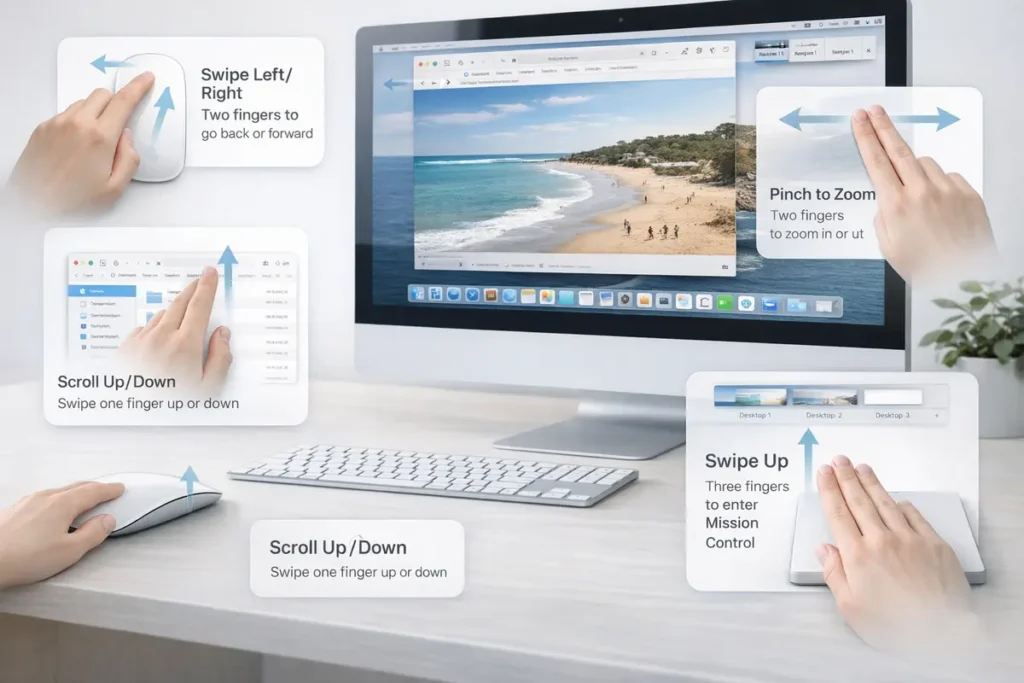
The best Mac mouse gestures for faster workflows usually start with what macOS already supports. Apple’s current Mac Help pages explain that available gestures can be viewed and customized in Mouse or Trackpad settings. For a Magic Mouse, common built-in options include scrolling and two-finger swipes between pages, photos, or other supported views. On a trackpad, you also get gestures such as Mission Control, App Exposé, Show Desktop, switching between full-screen apps or Spaces, pinch-to-zoom, Smart Zoom, and Launchpad-style navigation depending on hardware and settings.
To enable or customize built-ins, open System Settings, then go to Mouse or Trackpad. Check the Point & Click and More Gestures tabs to review what is active, adjust swipe behavior, and turn individual gestures on or off. That quick settings pass is worth doing before you install anything else because it often unlocks the fastest no-maintenance improvements.
That matters because built-in gestures are usually the most reliable. They do not depend on extra software permissions, background utilities, or vendor-specific profiles. If you can get the workflow improvement you want from Apple’s native settings, that is usually the cleanest approach.
A simple setup for many users looks like this: keep smooth scrolling enabled, enable page swipes if you rely on browser back and forward, use Mission Control to reduce window hunting, and combine that with a few keyboard shortcuts such as Command + Space or Command + Tab. This already removes a large amount of pointer travel from a typical Mac workday.
- Page back and forward: On a Magic Mouse, a two-finger swipe left or right can move through web pages, Finder history, Photos, PDFs, and other supported views. It is one of the easiest ways to cut repeated clicks on tiny browser arrows.
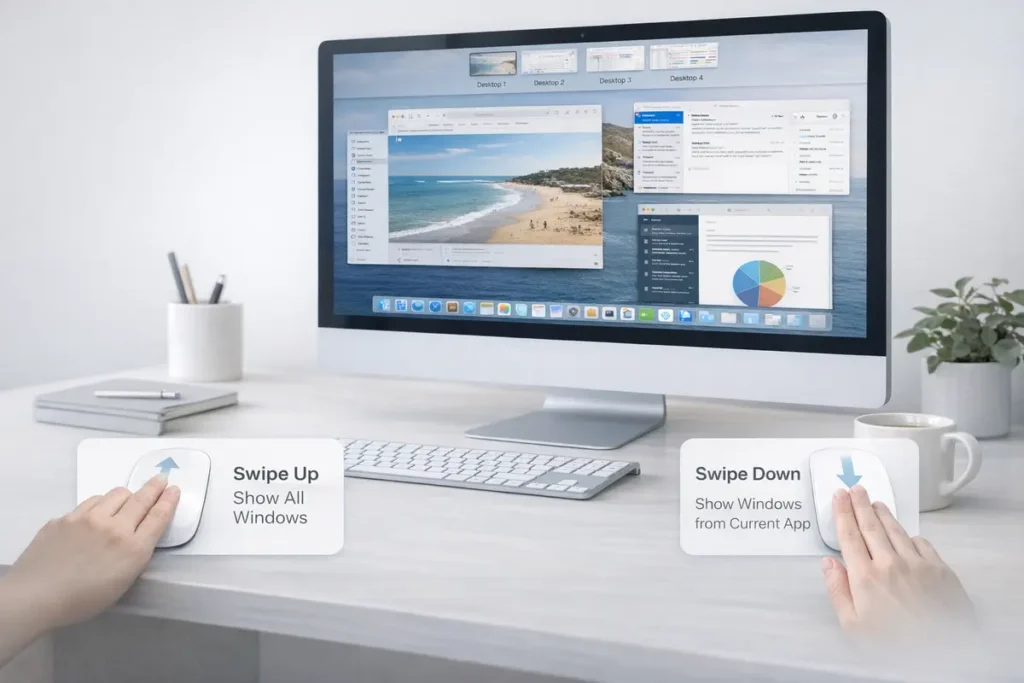
- Mission Control: Mission Control is ideal when you keep multiple apps open at once and need to locate the right window quickly. On a trackpad, many users rely on a three-finger or four-finger swipe up where enabled; with BetterTouchTool, you can assign the same action to a mouse button or gesture.
- App Exposé: App Exposé is underrated for Mac work. It shows all open windows of the current app, which is perfect when Safari, Finder, Mail, or a document app has several overlapping windows. On a trackpad it can be a swipe-down gesture where enabled, while BetterTouchTool can map it to a button or drawn gesture.
- Show Desktop: Desktop reveal is useful when you frequently move files, grab screenshots, or drag items into a temporary desktop workspace. On a trackpad this is often a spread gesture with thumb and three fingers; on a mouse it is often easier to assign Show Desktop to a spare button.
- Spotlight and launcher gestures: If you assign a mouse button or gesture to Command + Space, your mouse becomes a launcher for apps, files, settings, and quick calculations. This is one of the highest-value custom actions because it works across almost every Mac workflow.
- Region screenshot: Mapping a gesture to Shift + Command + 4 is one of the best Mac-specific productivity upgrades for support, editing, bug reporting, and documentation. It is faster than moving the pointer to menus or memorizing a more complex capture flow.
- Quick Look on demand: Assigning a side button to Space when Finder is active is another high-impact Mac-specific shortcut. It turns file preview into a one-button action, which is especially useful when you review downloads, image folders, PDFs, or client assets.
- Quick Look on demand: Assigning a side button to Space when Finder is active is another high-impact Mac-specific shortcut. It lets you preview documents, images, and downloads instantly without opening each file, which is especially valuable in admin, content, and support workflows.
Example workflows you can copy
Customer support workflow
- Side button 1: Shift + Command + 4 for screenshots.
- Side button 2: Command + Space to launch Help Desk, Notes, or a customer record fast.
- Gesture swipe left: browser back in the knowledge base.
- Gesture swipe right: browser forward or return to the previous Finder view.
- Why it works: support teams repeat the same navigation and screenshot actions hundreds of times a week.
Content editing workflow
- Side button 1: Shift + Option + Command + V for paste plain text where supported.
- Side button 2: Command + K or a CMS shortcut for inserting links, if your editor supports it.
- Wheel tilt or spare button: Shift + Command + 4 for image capture.
- Gesture up: Mission Control to find reference windows.
- Why it works: content workflows often stall on formatting cleanup, tab switching, and source gathering.
Research and admin workflow
- Side button 1: Command + Space for Spotlight.
- Side button 2: Space for Quick Look when Finder is active, or a BetterTouchTool conditional action for file preview.
- Swipe left/right: back and forward in Safari and Finder.
- Gesture down: App Exposé for the active app.
Sample workflow: content editor on a normal mouse
- Thumb button: Space for Quick Look when Finder is active.
- Secondary thumb button: Shift + Option + Command + V for paste plain text where supported.
- Wheel tilt left or right, if your mouse supports it: horizontal scroll in spreadsheets, content calendars, or wide page builders.
- BetterTouchTool gesture: Mission Control on button hold plus scroll. Why it works: this setup keeps file preview, clean paste, horizontal movement, and window finding under the same hand without forcing a complicated gesture vocabulary.
BetterTouchTool is the more advanced option. Its current documentation shows support for Magic Mouse, trackpad, and normal mouse triggers, including custom actions, keyboard shortcuts, sequences, app-specific conditions, and gesture recognition. It is a paid app with a trial, and it is usually the best choice when you want one gesture to behave differently in Finder, Safari, Mail, or a specific productivity app.
Mac Mouse Fix is lighter and easier for many users. Its official site highlights Mac-like gestures for normal mice and emphasizes simple gesture-based actions such as holding a mouse button and dragging to trigger trackpad-like swipes or app actions. It is low-cost rather than fully free, with a 30-day free trial, and it is often a good fit when you want your non-Apple mouse to feel more at home on macOS without building a very complex automation system.
Built-in macOS gestures are excellent for native navigation, but they are limited if you want per-app behavior, normal mouse button customization, wheel-tilt actions, drawing gestures, or more complex workflows. That is where BetterTouchTool and Mac Mouse Fix become useful.
For very advanced needs, combine gesture tools with Keyboard Maestro. Gesture software is often the best layer for navigation, triggers, and context changes, while Keyboard Maestro is stronger when you need longer automation chains, conditions, or app-to-app workflows.
BetterTouchTool is the more advanced option. Its current documentation shows support for Magic Mouse, trackpad, and normal mouse triggers, including custom actions, keyboard shortcuts, sequences, app-specific conditions, and gesture recognition. It is usually the best choice when you want one gesture to behave differently in Finder, Safari, Mail, or a specific productivity app.
Mac Mouse Fix is lighter and easier for many users. Its official site highlights Mac-like gestures for normal mice and emphasizes simple gesture-based actions such as holding a mouse button and dragging to trigger trackpad-like swipes or app actions. It is often a good fit when you want your non-Apple mouse to feel more at home on macOS without building a very complex automation system.
A simple rule works well here: use built-in gestures first, Mac Mouse Fix for lightweight gesture upgrades, and BetterTouchTool when you need more logic, app conditions, or a deeper workflow layer.
Choose the right tool for your Mac workflow
Use built-in macOS gestures if you want the simplest, most reliable setup and your Mac workflow already revolves around Magic Mouse or trackpad navigation. This is usually enough for page swipes, scrolling, Mission Control, App Exposé, and space switching.
Use Mac Mouse Fix if you have a normal mouse and want Mac-like swipes, smooth scrolling improvements, and a few quick productivity actions without building a deep automation system. It is the lighter option when you want faster everyday navigation with minimal setup overhead.
Use BetterTouchTool if you need app-specific behavior, more trigger types, or logic such as ‘Quick Look in Finder but Spotlight everywhere else.’ It takes longer to set up, but it is the stronger choice for power users, editors, support teams, and anyone who wants one mouse to behave differently across apps.
Best productivity ideas for Mac-specific mouse gestures
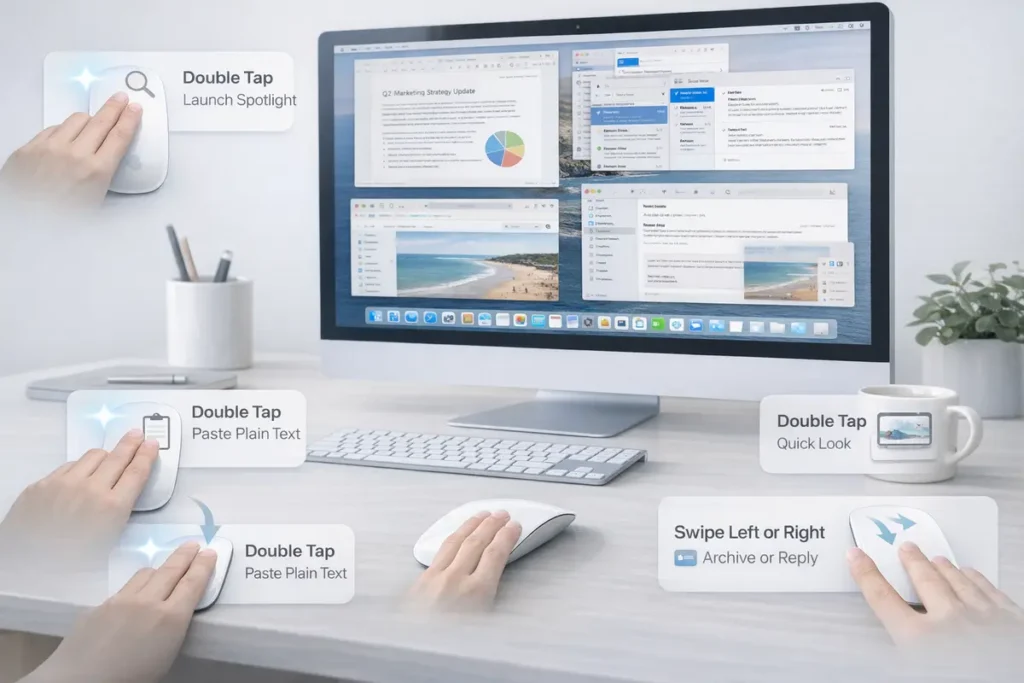
Finder preview and navigation: Assign a mouse button to Space for Quick Look when Finder is active, then use a swipe for back or forward navigation. This is one of the cleanest Mac-specific setups because Finder and Quick Look are central to daily file work.
Mission Control plus App Exposé pairing: Use one gesture for Mission Control and another for App Exposé. The first shows everything; the second narrows the view to the current app. Together they reduce a lot of window hunting.
Spotlight on a mouse button: Mapping Command + Space to an easy button turns your mouse into an app launcher, file finder, and calculator trigger. This is faster than moving to the Dock for many users.
Paste plain text for writing workflows: Use Shift + Option + Command + V where the app supports it, and test it in your editor, email client, and CMS. This is especially useful for marketers, editors, and support teams who paste from multiple sources.
Swipe-to-archive or swipe-to-reply in communication tools: In Mail or chat tools, per-app gestures can save time on repetitive triage. Keep these simple and reversible so they stay reliable.
Wheel tilt or spare button for screenshots: A screenshot gesture reduces friction in support documentation, bug reporting, training notes, and internal communication.
Show Desktop for drag-and-drop tasks: When you regularly move files between Finder, email, and cloud storage, a desktop reveal gesture makes staging files much quicker.
Make gestures reliable, not flashy
The fastest Mac workflow is usually not the one with the most gestures. It is the one where the most common actions are mapped to the easiest, most dependable triggers. A single gesture that always opens Mission Control is usually better than a complicated multi-step action that sometimes misfires.
Keep your first setup small. Choose three to five gestures you already repeat all day. Good candidates are back and forward, Mission Control, screenshot capture, Spotlight, Quick Look, and paste plain text. Use them for a week before adding more.
If you use third-party tools, keep accessibility permissions and input monitoring permissions in mind. Those apps often need the right macOS permissions before advanced actions work correctly. On managed work Macs, security policies can also limit behavior.
A practical checklist helps: keep the mouse close to the keyboard, place the monitor roughly at eye level and about an arm’s length away, and use a document holder if you regularly reference printed pages beside the screen. Small workstation changes often make gesture-heavy work feel less tiring, especially when you are reviewing documents or switching between paper notes and the display.
Ergonomics still matter
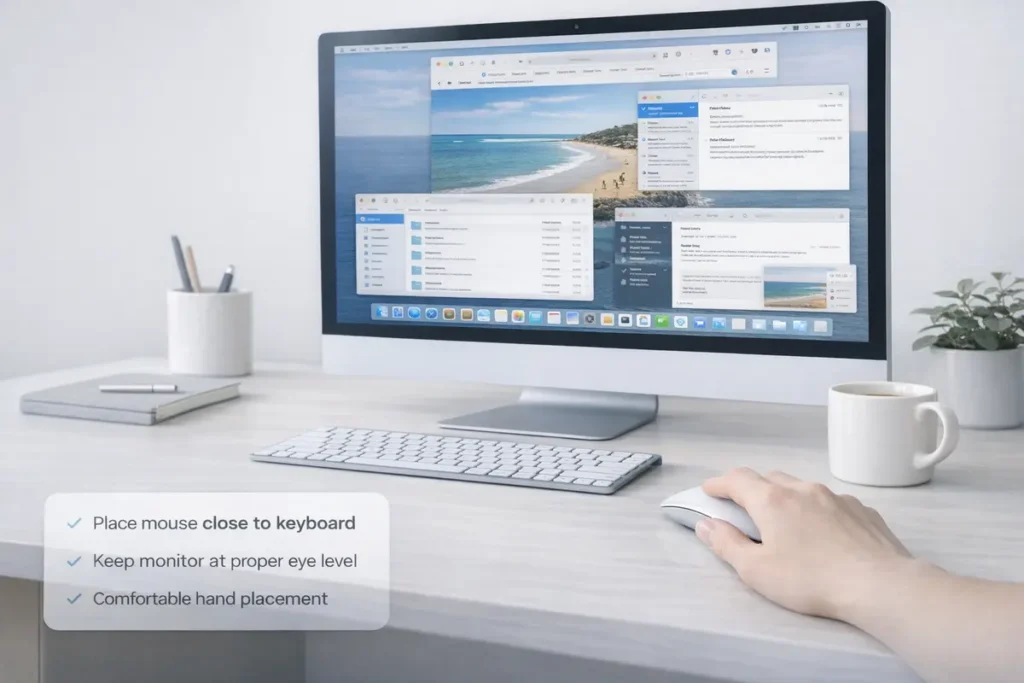
Mouse gestures can reduce friction, but they do not replace good ergonomics. Apple’s accessibility settings also include options such as pointer control changes, mouse scrolling behavior, and three-finger drag on trackpads. Those settings can make gesture-driven work more comfortable depending on your hardware and workflow.
For longer work sessions, keep your mouse close to the keyboard, avoid overreaching, and keep the gestures you use most on the easiest buttons. If a standard mouse still feels awkward on macOS, a well-supported ergonomic mouse combined with a lightweight gesture utility can be a better option than forcing yourself into a setup that never feels natural.
A practical checklist helps: keep the mouse close to the keyboard, place the monitor roughly at eye level and about an arm’s length away, and use a document holder if you regularly reference printed pages beside the screen. Small workstation changes often make gesture-heavy work feel less tiring.
If gestures still feel awkward after a week or two, that is a hardware signal as much as a workflow signal. A more ergonomic mouse, a vertical mouse, or even a trackball can be a better long-session choice than forcing an uncomfortable gesture setup.
Common mistakes to avoid
Using too many gestures at once. Start small and build from your actual daily tasks.
Replacing reliable keyboard shortcuts with slower gestures. Some actions are still faster from the keyboard.
Ignoring app support. Navigation, plain-text paste, and custom actions can vary by app.
Copying a power-user setup that does not match your job. Support, design, editing, admin, and development work all have different high-frequency actions.
Choosing complexity over consistency. The best gesture setup feels boring in a good way because it keeps working.
Frequently Asked Questions
The most useful gestures are usually scrolling, page back and forward, Mission Control, App Exposé, Show Desktop, Spotlight launch, Quick Look in Finder, and screenshot capture. Those are fast, repeatable, and easy to remember.
For many people, yes. Built-in macOS gestures already cover scrolling, swiping, and some navigation tasks well. Extra software is usually only needed for normal mouse customization, app-specific actions, or more advanced workflows.
Magic Mouse gestures are Apple’s built-in options in macOS settings. BetterTouchTool adds a much deeper layer of customization, including per-app actions, normal mouse button mapping, drawing gestures, and sequences.
Not universally. Mac Mouse Fix is lighter and easier for simple gesture upgrades on a normal mouse. BetterTouchTool is usually better when you need complex logic, more triggers, or app-specific behavior.
Yes. Built-in Apple gesture support is strongest on Apple hardware, but third-party tools can add gesture-like behavior and button customization to many normal mice.
Back and forward navigation is usually the quickest win because it removes a large amount of repeated pointer travel to toolbar controls.
Quick Look on a button or gesture is often the best Finder productivity upgrade. It speeds up file preview without opening items fully.
Mission Control is usually the most useful because it helps you find the right window quickly when several apps are open.
Yes. Command + Tab switches apps, but App Exposé is better when you need one specific window inside the current app.
Yes, usually by assigning Shift + Option + Command + V or another app-specific shortcut. Support varies, so test it in your editor, browser, email client, and CMS.
Light customization usually has minimal impact, but any background utility uses some system resources. Keep your setup simple if efficiency matters.
Yes. Managed Macs may restrict accessibility or input-monitoring permissions, which can stop advanced actions from working until approved.
Use both. Gestures are excellent for navigation and context changes, while keyboard shortcuts are usually better for precise, repeatable commands.
Start with built-in gestures first, then add one or two custom button actions such as Spotlight or screenshots. Expand only after those feel natural.
Yes, but only for tasks you repeat often. Per-app gestures are most valuable in Finder, Mail, Safari, editing tools, and support workflows.
Yes. Mapping Shift + Command + 4 to an easy button is one of the most useful Mac productivity upgrades.
No. Apple notes that gestures and shortcuts can vary by app and keyboard layout. Navigation behavior also differs depending on what the app supports.
That is normal. Use only a few high-frequency gestures at first and practice them during real tasks instead of trying to memorize everything at once.
Rumors and speculation about future Magic Mouse hardware do not change the practical guidance in this guide. Apple’s currently documented built-in gestures remain the baseline to learn first, and any future hardware changes should be checked against Apple’s official support pages before you rebuild your workflow.
Yes. If mouse gestures are not enough, tools such as BetterTouchTool combined with keyboard automation, or separate automation apps, can handle more complex workflows.
Choose built-in gestures for the cleanest setup, Mac Mouse Fix for simple upgrades on a normal mouse, and BetterTouchTool when you need deeper customization or app-specific logic.
References
- Apple Support — Use Multi-Touch gestures on your Mac
- Apple Support — View and customize mouse or trackpad gestures on Mac
- Apple Support — Mac keyboard shortcuts
- Apple Support — Change Pointer Control settings for accessibility on Mac
- BetterTouchTool documentation — Magic Mouse & Trackpad Triggers
- BetterTouchTool documentation — Assigning actions to your mouse
- Mac Mouse Fix official site