Learn the real USB accessories security risks (Bad USB, unknown devices, rogue adapters) and apply practical mitigations for home and enterprise—plus checklists, tables, and FAQs.
Author & technical review
Last Updated: March 2026
Author: Editorial Productivity & Computing Team
Technical review: Cross-checked against publicly available standards and vendor documentation listed in “Sources”.
Scope note: This is a defensive guide. It explains risks at a high level and focuses on prevention and response.
How we evaluate USB accessory risk (our methodology)
USB security is full of scary headlines, but good defense is mostly practical habits and sensible controls. This guide focuses on what reduces real-world risk without breaking productivity.
- We separate device types (storage, keyboard-like devices, network adapters, cables/docks) because the risk and controls differ.
- We favor mitigations that scale: allowlists, device control policies, least privilege, and consistent procurement.
- We avoid “security theater” advice that sounds good but doesn’t address firmware-level or impersonation risks.
- We include actions for three audiences: everyday users, power users, and enterprise admins.
- We reference platform guidance from Microsoft, Apple, and NIST where it helps clarify best practice.
Do this now: if you plugged in an unknown USB device
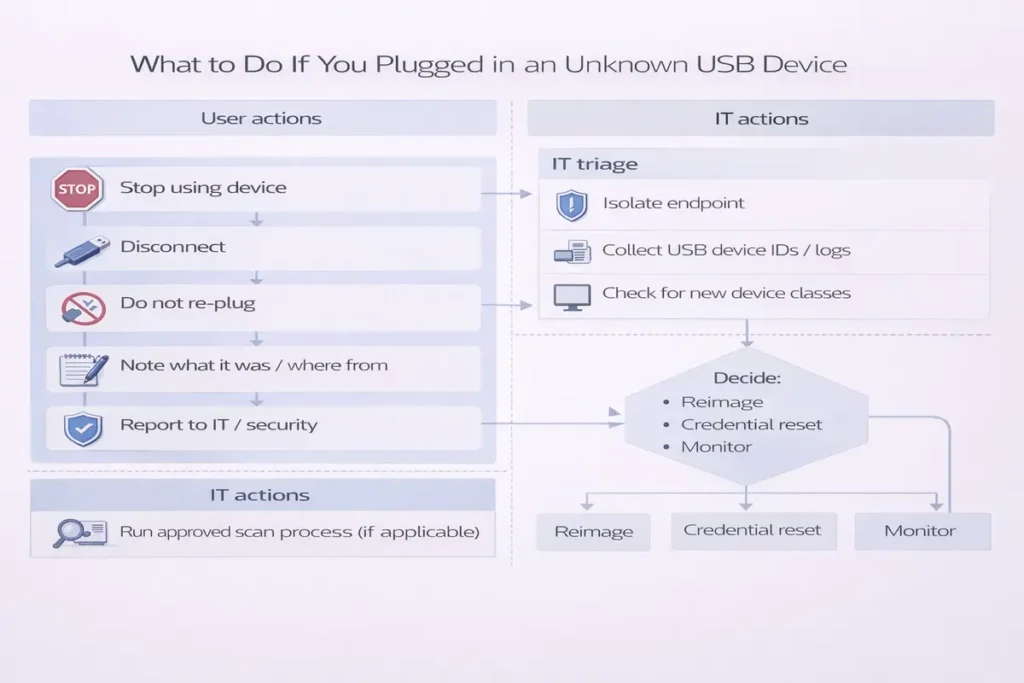
If you’re unsure whether a USB device or cable is safe, treat it like a potentially untrusted input device. Your goal is to reduce exposure quickly and preserve evidence if it’s a work device.
| Action | Why it matters |
|---|---|
| Unplug the device immediately. | Stops further interaction, including potential keystroke injection or network changes. |
| Don’t type passwords until you’ve rebooted. | Prevents a rogue keyboard-like device from injecting input while you’re signing in. |
| Run your endpoint protection scan. | Catches common malware, even if it can’t detect every firmware-level trick. |
| If it’s a work device, report it. | IT may need to check logs, policies, and whether other users were targeted. |
| For public charging, use a USB data blocker. | Reduces risk from data-line exposure when all you need is power. |
Why USB accessories can be risky (plain English)
USB is designed to be convenient. Your computer often trusts a newly connected USB device enough to start talking to it immediately. That’s great for keyboards and storage drives—but it’s also why unknown devices can be dangerous. The biggest misconception is thinking “USB threats are only about infected files.” Some USB threats don’t rely on files at all.
A second misconception is that “USB-C is safer.” USB-C is just a connector shape. A USB-C cable or dongle can still carry data lines, and some devices can impersonate other device types. The defense is not fear; it’s process: know what you’re connecting, and control what the endpoint allows.
👉 Read the guide: Thunderbolt vs USB4 vs USB-C: What the Labels Really Mean
Threat map: the main USB accessory risks
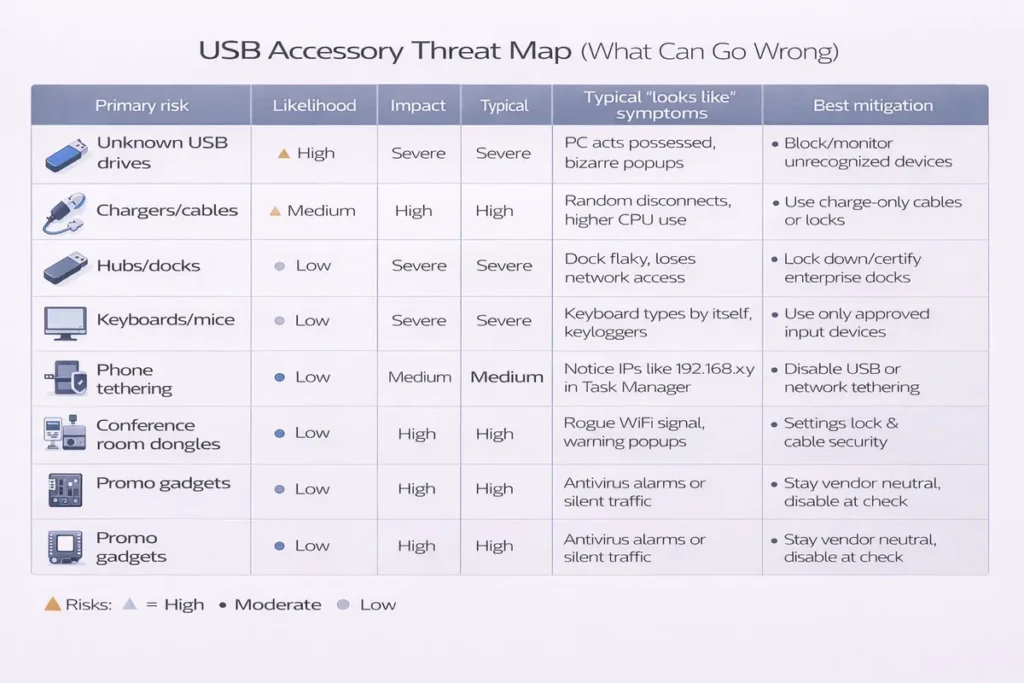
| Risk type | What it looks like | Why it’s dangerous | Best mitigation |
|---|---|---|---|
Bad USB / firmware-level reprogramming | Normal-looking USB drive/cable/dongle | Device can impersonate trusted classes | Block unknown devices; allow-list; avoid untrusted freebies |
HID impersonation (keyboard-like) | Acts like a keyboard/mouse | Can inject input because HID is trusted | Control new HID; require approval in high-risk orgs |
Unknown storage devices | USB stick/external drive | Data ex-filtration or file-based malware | Block storage by default; use approved encrypted media |
Rogue USB network adapters | USB Ethernet/Wi‑Fi | Adds alternate network path | Restrict new NICs; allow-list approved adapters |
Public USB charging ports | Airport/venue USB port | Data-line exposure when you only need power | Use data blocker; prefer AC adapter |
Cheap hubs/docks/cables | Off-brand accessories | Harder to trust provenance + quality issues | Approved procurement; inventory; vendor support |
👉 Read the guide: DisplayLink vs USB-C Alt Mode vs Thunderbolt: Which Dock Tech Should You Use?
Bad USB: what it is (and what it isn’t)
Bad USB is shorthand for a class of problems where a USB device’s firmware can be modified so it behaves differently than you expect. Instead of acting like “just a storage drive,” a device could present itself as a keyboard-like device or another USB class. The key point is that this doesn’t depend on opening a file. That’s why “I scanned the USB drive” is not a complete defense.
The practical takeaway: don’t treat unknown USB devices as harmless just because they look like storage. Treat the first connection as the risky moment, and use controls that restrict what new devices are allowed to do.
Unknown devices: the biggest real-world risk is trust, not tech
In day-to-day life, the most common USB risk isn’t a Hollywood-grade attack — it’s untrusted devices entering your environment. Think: free giveaway USB sticks, conference swag cables, unknown dongles in meeting rooms, or ‘found’ drives.
In enterprise settings, unknown USB devices also create compliance and data leakage risk. Even if there’s no malware, plugging in unmanaged storage can violate policy, and plugging in an unknown adapter can create support tickets and shadow IT. A good policy protects both security and productivity.
Practical mitigations for home and personal devices
You don’t need to live in fear of USB. You just need a few habits and a couple of low-cost tools that remove the riskiest scenarios.
1) Treat unknown USB devices as untrusted
If you didn’t buy it, didn’t approve it, or can’t verify its origin, don’t plug it in. That includes “found” drives and random charging cables.
2) Use a data blocker for public charging
If you only need power, remove the data risk. A USB data blocker (sometimes called a charge-only adapter) prevents data pins from connecting. It’s a simple way to reduce exposure from public ports and unfamiliar chargers.
3) Prefer AC power + your own cable
When possible, use an AC adapter you trust and your own cable. Public USB charging ports are convenient, but you control less about what’s behind them.
4) Keep your OS and security tools updated
Updates won’t prevent every possible USB risk, but they reduce the common ones and improve logging and device handling.
5) Use least privilege for daily work
If you browse and plug peripherals in as a standard user (not admin), a lot of accidental damage becomes harder. It’s a boring control—but it works.
Enterprise mitigations that scale (admins)
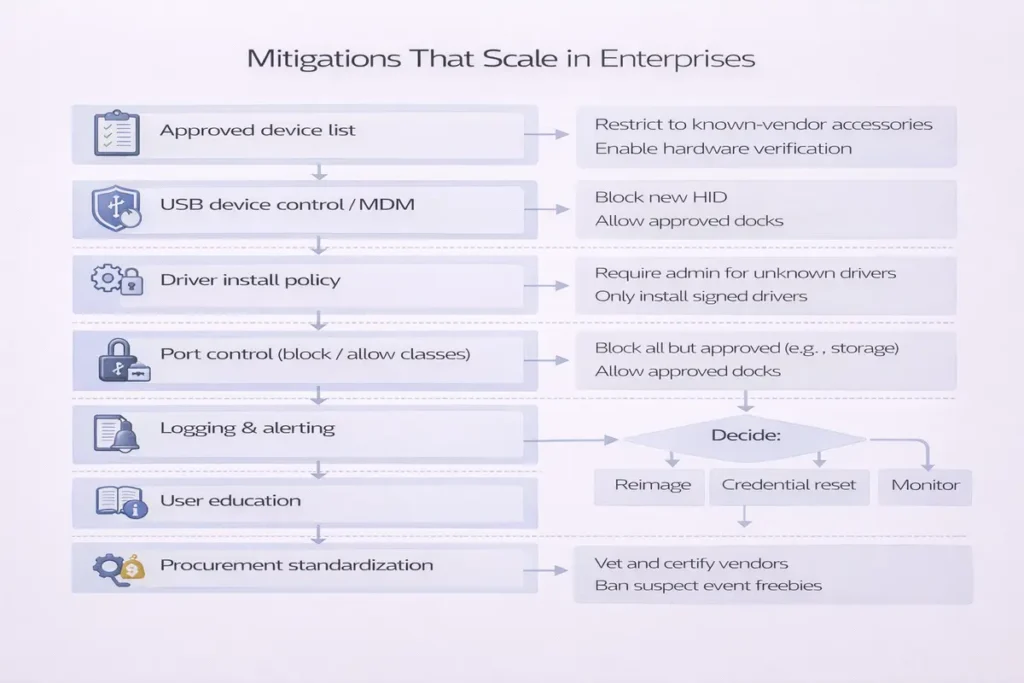
Enterprise USB security is about controlling categories of devices, logging, and having an exception process. The goal is to enable approved work (keyboards, approved docks) while blocking common exfiltration or impersonation paths.
👉 Read the guide: Enterprise IT Guide to Docks & Hubs: Architecture, Standards, Security, Performance & Deployment
Device control policy: block by default, allow by need
A strong starting point is to block unapproved USB storage devices and control what new device classes are allowed. Then allow exceptions for specific roles (for example, imaging labs, IT, or secure transfer workflows).
Allowlisting: the most practical long-term strategy
Allowlisting means users can only use devices your org has approved (by vendor, device ID, or certificate). This reduces both security risk and support chaos. It also makes procurement easier: buy the same approved model and stock spares.
Separate policies by device class
- Mass storage: often block by default; allow encrypted approved media when needed.
- HID (keyboard/mouse): allow known devices; consider alerts or approval for new HIDs in high-security environments.
- Network adapters (USB Ethernet/Wi‑Fi): restrict to approved models; monitor for new NIC creation.
- Composite devices (multi-function): treat carefully; they can combine storage + HID + network behavior.
Logging and incident response: make USB visible
Even the best policy won’t block every scenario, so logging matters. You want to know: which device was connected, by whom, when, and what policy decision was applied.
Mitigations by scenario (quick reference)
| Scenario | Risk level | Best mitigation | What to avoid |
|---|---|---|---|
| Public charging (airports/hotels) | High | Use AC power or a USB data blocker | Plugging unknown cables directly into laptop |
| Found USB drive | High | Do not connect; follow org quarantine workflow | Checking contents on a production machine |
| Conference swag cable/dongle | Medium–High | Use approved cables; avoid freebies | Trusting unbranded accessories |
| Meeting room shared dongles | Medium | Approved dongle kit; label + inventory | Random adapters drifting between rooms |
| Enterprise endpoints | High | Device control + allowlisting + logging | Open USB ports with no policy |
👉 Read the guide: Dock Not Detecting Monitors: Step-by-Step Fixes for Windows & Mac
For travel and personal devices
- USB data blocker / charge-only adapter (for public charging).
- Reputable, labeled USB-C cables you keep in your bag (avoid unknown cables).
- USB port blockers/locks (physical deterrent for shared environments).
- A small, trusted USB hub/dock from a reputable vendor (reduces random dongle swapping).
For enterprise environments
- Endpoint device control tooling (storage/HID/network controls, logging, allowlists).
- Asset-tagged approved dongles, docks, and cables (reduces drift and support tickets).
- Secure media workflow (approved encrypted USB drives, checkout process, audit trail).
- Spare pool of approved cables/adapters (most incidents start as cable chaos).
Return-proof buying checklist (security edition)
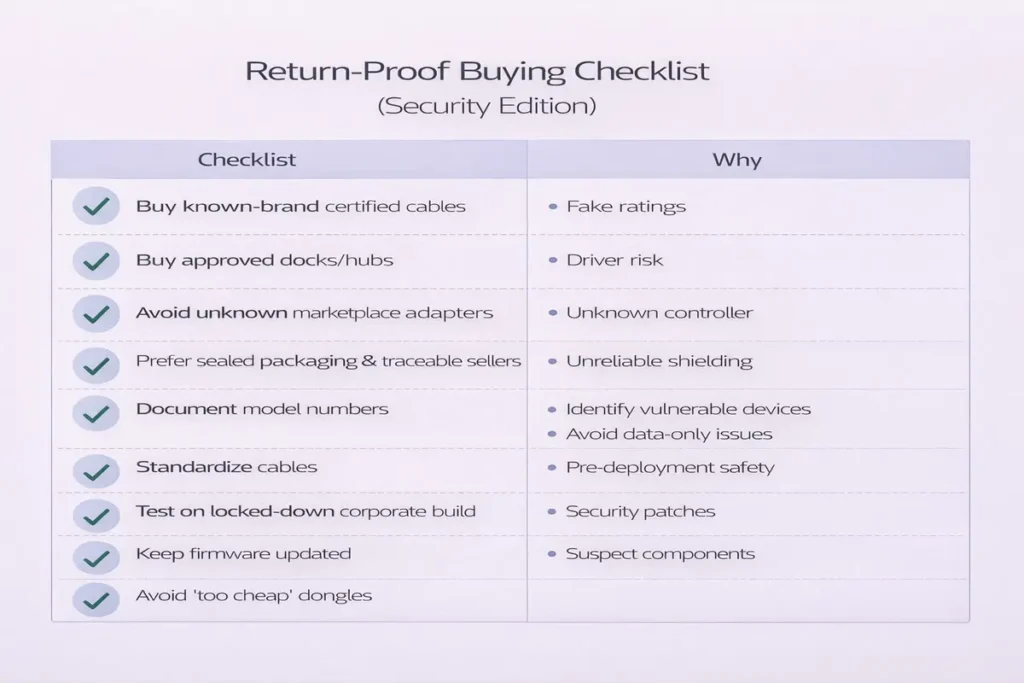
| Check | Why it matters |
|---|---|
| Define what you must allow | Keyboards? storage? smartcards? docks? Your policy should match real work needs. |
| Confirm OS support | Windows/macOS device control and driver behavior differ; plan accordingly. |
| Plan exception handling | If you block storage, how will approved transfers happen safely? |
| Require vendor transparency | Prefer reputable vendors with firmware support and documentation. |
| Audit and inventory | Approved gear plus inventory reduces both security risk and helpdesk churn. |
Incident response mini-playbook (admins)
If a user reports plugging in an unknown USB device, your first job is to capture context without panic. Your second job is to prevent repeat events with better controls.
- Collect: device description, time, endpoint name, and what was connected (USB drive, cable, dongle).
- Isolate if required by policy and risk level (for example, suspected compromise).
- Review device control logs: what class was detected and whether it was blocked or allowed.
- Run endpoint scan and collect telemetry per your EDR process.
- Close the loop: update training and procurement rules to reduce unknown devices entering the environment.
Training and culture: the cheapest mitigation that actually works
Most USB incidents start with normal people trying to be helpful: sharing a cable, borrowing a dongle, or plugging in a drive to print a file. A short, friendly training message can cut risk dramatically—especially when it explains the ‘why’ without scaring people.
A good training approach is to define an ‘approved accessories kit’ and a simple rule: if it’s not in the kit, don’t plug it in. For meeting rooms, keep a labeled bag with approved adapters and cables. For travelers, provide a small kit with a trusted charger, a data blocker, and a known-good cable.
Copy/paste policy language (plain English)
- Only approved USB storage devices may be used for work data. Unapproved storage is blocked.
- Unknown USB accessories (cables, dongles, drives) must not be connected to work devices.
- Public charging should use AC power or an approved USB data blocker.
- All USB connections are logged and may be audited for security and compliance.
- Exceptions require approval and must use approved encrypted media with an audit trail.
Procurement and standardization: reduce risk by reducing variety
From a security and support standpoint, variety is the enemy. When every desk has a different dock and every drawer has random USB-C cables, you get more failures, more unknown devices, and more ‘just try this one’ behavior.
Standardize a small set of approved docks, adapters, and cables. Asset tag them. Stock spares. This approach improves security and reduces helpdesk churn at the same time.
- Myth: “If I scan the files, I’m safe.” Reality: scanning helps with file malware, but some risks involve device behavior, not files.
- Myth: “USB-C is safer than USB-A.” Reality: USB-C is a connector shape. Data lines still exist unless you use a charge-only adapter.
- Myth: “It’s just a cable.” Reality: some accessories contain chips; the safest approach is to use reputable, known-good cables.
- Myth: “Blocking all USB solves it.” Reality: it often creates workarounds. Target the riskiest classes first (storage), then allowlist what users need.
- Myth: “Public USB ports are fine if I’m careful.” Reality: you can’t see what’s behind the port. Use AC power or a data blocker.
The safest rule is simple: don’t connect unknown devices to production machines. But people will find drives and try anyway, so it helps to publish a clear workflow. Keep it defensive and repeatable.
What NOT to do
- Don’t share the device with coworkers (‘try it on your machine’).
- Don’t use personal devices as a testing ground if they contain sensitive accounts or work data.
- Don’t plug unknown drives into your work laptop ‘just to see what’s on it.’
What to do instead (defensive approach)
The safest rule is simple: don’t connect unknown devices to production machines. But people will find drives and try anyway, so it helps to publish a clear workflow. Keep it defensive and repeatable.
What NOT to do
The safest rule is simple: don’t connect unknown devices to production machines. But people will find drives and try anyway, so it helps to publish a clear workflow. Keep it defensive and repeatable.
Found USB drives and mystery dongles: a safe quarantine workflow
Below is a simple policy template you can adapt. It’s written in plain English on purpose so users understand it. Tighten wording as needed for regulated environments.
Policy statements
- Meeting rooms must use an approved, labeled adapter kit. Mystery adapters are removed and replaced.
- Exceptions require manager + IT approval and must follow the secure transfer workflow with an audit trail.
- All USB device connections are logged. Repeated policy violations may trigger security review.
- Public charging should use AC power or an approved USB data blocker. Corporate devices should not be charged from unknown USB ports when possible.
- Unknown USB accessories (free cables, found drives, untagged dongles) must not be connected to corporate devices.
- Approved USB storage must be encrypted and issued by IT (or purchased from an approved vendor list).
- Unapproved USB storage devices are blocked on corporate endpoints.
Exception workflow (keep it simple)
Below is a simple policy template you can adapt. It’s written in plain English on purpose so users understand it. Tighten wording as needed for regulated environments.
Policy statements
Below is a simple policy template you can adapt. It’s written in plain English on purpose so users understand it. Tighten wording as needed for regulated environments.
Enterprise USB policy template (copy/paste)
Most organizations don’t need exotic tools to reduce USB risk. The biggest wins come from using platform-native controls, logging device connections, and restricting the highest-risk device classes (especially unapproved storage). The goal is to block the common bad outcomes without breaking keyboards, mice, smartcards, or approved docks.
Windows and macOS practical controls (what to enable, what to log)
Windows: practical controls to start with
Operational tip: don’t jump straight to “block all USB.” That usually creates workarounds. Instead, block storage by default, allow common peripherals, and build an exception workflow.
Practical steps that scale: block unapproved removable storage, require encryption for approved media, and log every connection attempt. In higher-security environments, you can also alert on new HID devices (keyboard-like) because they can be used for rapid input injection.
Start by deciding what you actually want to prevent. For most environments, the priority is stopping unknown USB storage from showing up as a plug-and-play data exfiltration path. From there, you can tighten controls on other classes like new network adapters or unusual composite devices.
- Maintain an approved accessories list (cables, docks, adapters) and stock spares to reduce ‘borrow a random cable’ behavior.
- Alert on new or unusual HID devices in sensitive teams (finance, admins, engineering).
- Restrict new USB network adapters unless explicitly approved (prevents surprise NIC paths).
- Log device connections (who/when/what) and review spikes after major events (conferences, travel, contractor onboarding).
- Block unapproved USB mass storage; allow approved encrypted devices for specific roles.
macOS: practical controls to start with
Most organizations don’t need exotic tools to reduce USB risk. The biggest wins come from using platform-native controls, logging device connections, and restricting the highest-risk device classes (especially unapproved storage). The goal is to block the common bad outcomes without breaking keyboards, mice, smartcards, or approved docks.
Windows: practical controls to start with
Most organizations don’t need exotic tools to reduce USB risk. The biggest wins come from using platform-native controls, logging device connections, and restricting the highest-risk device classes (especially unapproved storage). The goal is to block the common bad outcomes without breaking keyboards, mice, smartcards, or approved docks.
Myths vs reality: quick answers that prevent bad decisions
- Treat the device as untrusted and report it to IT/security if you’re in an organization.
- If your org has a media intake process, send it there. If not, dispose of it according to policy.
- If analysis is required (legal/incident work), use an isolated environment managed by security staff and record chain-of-custody.
- Communicate the outcome: if it’s benign, update training; if it’s suspicious, use it as a real example to reinforce policy.
- User requests exception → selects reason (vendor delivery, field work, lab workflow).
- IT approves device type and issues approved encrypted media (or approved adapter).
- Device is asset-tagged and recorded (serial, user, date, role).
- Exception expires automatically unless renewed (prevents permanent drift).
- Use managed settings to control accessory access where supported; avoid leaving it fully open by default on high-risk devices.
- Standardize approved docks/adapters and publish a short ‘safe accessory kit’ list for travelers.
- Pilot OS updates with your dock baseline (especially if DisplayLink is in scope).
- Use inventory/asset tags on approved dongles and replace mystery adapters rather than reusing them.
macOS has built-in protections around new accessories on supported systems, including prompts and managed settings that can restrict accessory access. In a managed fleet, the key is consistency: decide what accessories are allowed, pre-approve what users need, and log exceptions.
If your organization uses DisplayLink docks, plan the permission model carefully. Driver-based display solutions can require approvals and can behave differently after OS updates. Pilot first, then baseline the version you deploy.
Operational tip: for executives and frequent travelers, the most effective mitigation is often cultural and physical: a trusted cable kit, a data blocker for public charging, and a policy that discourages borrowing random adapters in meeting rooms.
Frequently Asked Questions
What is Bad USB in simple terms?
Bad USB refers to USB devices whose firmware can be altered so they behave differently than expected, such as impersonating other device types.
Can a USB drive be dangerous even if I don’t open files?
Yes. Some risks involve how the device identifies itself to the computer, not the files stored on it.
Are USB-C cables safer than USB-A cables?
Not automatically. USB-C is a connector shape. A USB-C cable can still carry data lines unless it is designed as charge-only.
What is a USB data blocker and does it work?
A data blocker is a small adapter designed to prevent data pins from connecting so you can charge without exposing a data connection.
Is public USB charging really risky?
It can be, because you control less about what is behind the port. Using your own charger or a data blocker reduces exposure.
What should I do if I plugged in an unknown USB device?
Unplug it, reboot before typing passwords, run security scans, and report it to IT if it’s a work device.
Can a USB device pretend to be a keyboard?
Yes. Some devices can present themselves as a keyboard-like device class, which is why unknown devices are risky.
Should I block USB ports entirely in an office?
Not always. A better approach is to block risky device classes and allow approved devices, with logging and exceptions.
How do enterprises reduce USB storage data leakage?
Common methods include blocking unapproved storage, using encrypted approved media, and logging all device connections.
What’s the best single mitigation for enterprises?
Device control with allowlisting and logging is the most practical long-term control.
Does antivirus stop all USB threats?
It helps with file-based malware, but it may not address every firmware-level or impersonation risk.
Are cheap USB hubs and docks a security risk?
They can be harder to trust and may lack firmware support or quality controls. Prefer reputable vendors and approved procurement.
What’s the difference between blocking storage and blocking all USB?
Blocking storage allows keyboards/mice and many peripherals while preventing common exfiltration paths.
Why do policies separate HID from storage
Because keyboards/mice are common and needed, while storage devices present higher data exfiltration risk.
Can I safely use a found USB drive if I’m careful?
The safest approach is not to connect it to a production device. Use a controlled quarantine workflow if your organization has one.
How do I handle USB exceptions for specific teams?
Create an approval process with a limited set of approved encrypted devices and keep an audit trail.
What should a ‘secure cable kit’ include for travel?
A reputable charger, known-good cables, and a USB data blocker for public charging.
Do Macs have protections against unknown accessories?
macOS includes accessory security prompts and management options on supported systems; enterprises can manage these settings.
Do USB device control tools work with docking stations?
Often yes, but you should pilot docks to ensure the policy allows approved docks while blocking risky classes.
What’s the safest default for a new organization?
Block unapproved USB storage, log USB connections, and allowlist approved peripherals and docks.
Conclusion
USB security is solvable. The biggest wins come from reducing unknown devices, using simple tools like data blockers when you only need power, and adopting enterprise controls like device allowlisting and logging. When you pair policy with consistent procurement and a clear exception process, USB stops being a constant risk story and becomes a manageable part of IT hygiene.