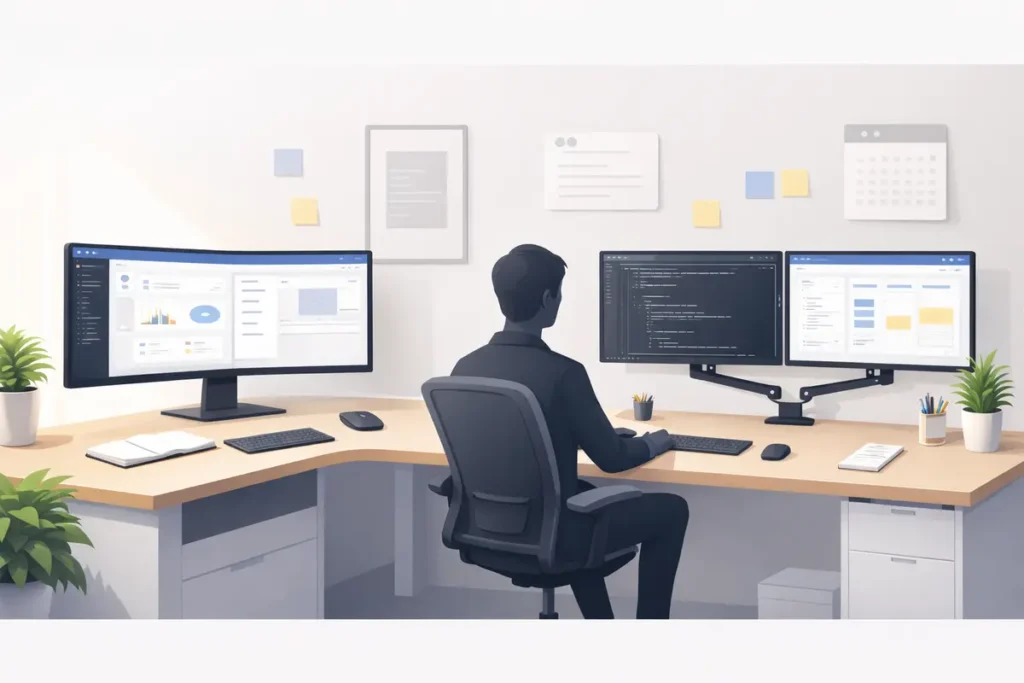
Ultrawide vs dual monitors: discover which setup actually boosts productivity. Compare real-world workflows, ergonomics, performance, and ideal use cases before you buy.
Last Updated: February 2026
Author: Editorial Productivity & Computing Team
Introduction: Why Your Monitor Setup Matters More Than You Think
If you spend most of your day in front of a screen, your monitor setup is not just a nice-to-have—it’s core work equipment. The difference between a cramped display and the right multi-screen setup can be the gap between constant tab-switching frustration and a smooth, focused workflow. That’s why so many people today are comparing two popular options: ultrawide monitors and dual monitors.
At first glance, both seem to offer the same promise: more screen real estate and better multitasking. But when you look closer, the way they change your working habits, ergonomics, and even your long-term productivity can be surprisingly different. For some users, an ultrawide monitor feels like a clean, immersive canvas that keeps everything in one place. For others, dual monitors create a clear separation between tasks and make it easier to organize complex workflows.
In this guide, we’ll dive deep into ultrawide vs dual monitors: Which setup actually boosts productivity in the real world? We’ll look at how each performs for different types of users—developers, designers, gamers, remote workers, traders, and more. We’ll also factor in things like desk space, ergonomics, GPU performance, and long-term costs so you can make a decision that fits both your work and your budget.
Whether you’re upgrading your home office, building a new workstation, or trying to decide what to recommend to your team, this guide is designed to give you practical, experience-backed insight—not just specs and marketing jargon.
👉 Read the guide: Monitors Made Easy: 25 Essential Tips to Choose the Perfect Screen
Quick TL;DR: Ultrawide vs Dual Monitors at a Glance
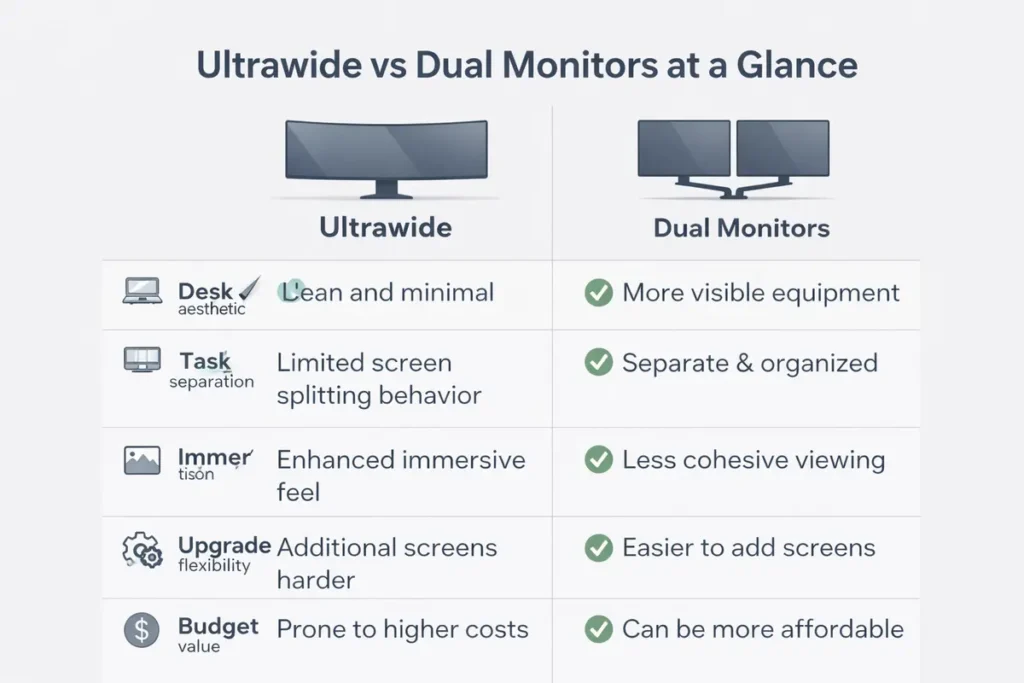
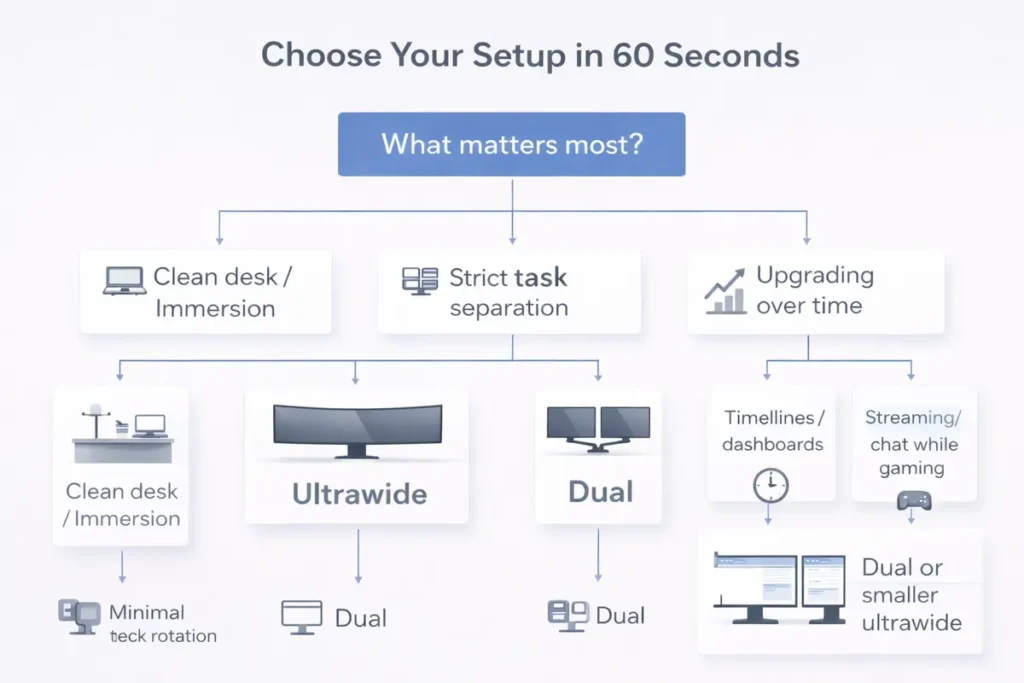
If you want the short answer: an ultrawide monitor is usually best when you want a clean, immersive, all-in-one workspace, while a dual monitor setup is usually best when you want strict task separation, maximum flexibility, and easier incremental upgrades. Here’s how ultrawide vs dual monitors stack up at a glance.
| Aspect | Ultrawide Monitor | Dual Monitors | Often Best For |
|---|---|---|---|
| Desk aesthetic | Very clean, single-screen look | Can look busy without arms and cable management | Ultrawide for minimal, modern setups |
| Task separation | Requires window snapping and discipline | Physical split between screens is very clear | Dual monitors for strict separation |
| Immersion (work + gaming) | Excellent, especially with curved panels | Good, but bezel gap breaks the image | Ultrawide for immersive work and play |
| Upgrade flexibility | Replace the whole display when upgrading | Swap or add individual screens as needed | Dual monitors for gradual upgrades |
| Best overall for budget setups | Can be pricier upfront | Often more cost-effective to expand | Dual monitors for budget-conscious users |
Who Should Choose Ultrawide vs Dual Monitors?
To make the decision easier, think in terms of your real day-to-day work rather than just specs and screen size. Here’s a quick guide to who typically gets the most out of each setup.
Choose an ultrawide monitor if:
- You want the best ultrawide monitor for productivity in a clean, minimalist workspace.
- You regularly work with wide timelines, complex dashboards, or multiple documents side by side.
- You want one main display that works well for both focused work and immersive gaming.
- You’d rather invest in one premium screen than manage two separate panels.
Choose a dual monitor setup if:
- You want the best dual monitor setup for work from home or office environments where task separation matters.
- You often keep email, chat, or dashboards open while working full-screen in another app.
- You prefer upgrading one screen at a time instead of replacing a single large display.
- You’re building a highly modular workstation and might add a third or fourth screen later.
What This Guide Will Help You Decide
This isn’t just a specs comparison. By the end of this guide, you will be able to:
- Understand the key differences between ultrawide and dual monitor setups.
- Decide which setup is best for your specific work style and tasks.
- Recognize the common pitfalls that quietly hurt productivity, like poor placement or mismatched displays.
- Know what specs actually matter for productivity, not just gaming buzzwords.
- Make a confident, future-proof choice that balances performance and cost.
We’ll also include a detailed FAQ section to address the most common questions people have before choosing between ultrawide and dual monitors.
Understanding Your Monitor Setup Options
What Is an Ultrawide Monitor?
An ultrawide monitor is a display with a wider aspect ratio than the traditional 16:9 screen. The most common ultrawide aspect ratios are 21:9 and 32:9, giving you a much wider horizontal field of view. In practical terms, a 34-inch ultrawide can feel similar to having two 24–27 inch monitors side by side, but without the gap where the bezels meet.
Ultrawide monitors are especially popular among video editors, content creators, multitaskers, and gamers who value a more immersive and continuous visual experience. Modern operating systems also make it easy to split an ultrawide display into multiple virtual windows, effectively turning one physical screen into several working zones. This makes ultrawide monitors an attractive option for users who want a clean, single-monitor setup that still behaves like multiple displays.
What Is a Dual Monitor Setup?
A dual monitor setup uses two separate displays placed side by side (or occasionally one above the other) to expand your workspace. Each monitor has its own stand or mount, power cable, and video connection, but together they act as one extended desktop. This kind of setup has been popular in offices, trading floors, and programming environments for years.
Dual monitors offer a clear advantage for people who like to keep different categories of work completely separate. For example, you might keep your code editor or main application on the primary screen and your documentation, communication tools, or monitoring dashboards on the secondary display. The physical gap created by the bezels actually helps some users mentally divide tasks and stay organized.
Key Differences at a Glance
While both setups increase your available screen space, they do so in noticeably different ways:
- Continuity vs Separation: Ultrawide monitors give you one uninterrupted workspace, while dual monitors divide your view into two distinct screens.
- Hardware Complexity: Dual monitors require more cables, more mounting hardware, and more GPU outputs. An ultrawide uses a single connection and stand.
- Window Management: Ultrawide setups rely more heavily on window snapping tools to organize your workspace, while dual monitors take advantage of full-screen apps on each display.
- Physical Footprint: Depending on size, dual monitors can take up more horizontal space and be trickier to align ergonomically.
- Immersion: For media consumption and gaming, ultrawide monitors tend to feel more immersive, especially those with curved panels.
Why Productivity Is About More Than Just Screen Size
It’s easy to assume that more pixels automatically equals more productivity—but it’s not that simple. Real productivity depends on how easily you can see, organize, and interact with the information you use every day. A poorly configured multi-monitor setup can actually slow you down if you’re constantly losing windows, fighting awkward layouts, or straining your neck and eyes.
Independent productivity research, including multi-monitor studies commissioned by Microsoft and work from the University of Utah, has shown that expanding usable screen space can significantly improve output and reduce errors for certain kinds of tasks. While published figures vary from single-digit gains to improvements of 40–50% in specific scenarios, the consistent takeaway is that the way information is laid out in front of you has a measurable impact on both speed and cognitive load.
Three major factors influence whether ultrawide or dual monitors will truly make you more productive:
- Your primary tasks: Are you coding, editing timelines, writing, designing, analyzing data, or gaming between meetings?
- Your working style: Do you prefer strict separation and structure, or a flexible canvas where you can drag and resize freely?
- Your physical workspace: Do you have a deep, sturdy desk and space for arms and mounts, or are you working in a tight home office corner?
The right choice for a developer who lives inside a code editor and terminal all day might be completely different from what works best for a video editor with long timelines, or a support agent juggling chat windows and CRM tools. That’s why it’s important to look beyond simple “bigger is better” thinking and match the setup to your real-world workflow.
Ultrawide vs Dual Monitors: Which Setup Actually Boosts Productivity?
So, ultrawide vs dual monitors: Which setup actually boosts productivity in daily use? The honest answer is that it depends heavily on who you are and what you do—but we can still draw some clear patterns from real-world usage.
In general, ultrawide monitors tend to shine when:
- You work with wide timelines or horizontal content, like video or audio editing.
- You want a clean, minimal desk setup with fewer cables and stands.
- You value immersion for both work and after-hours gaming.
- You’re comfortable using window snapping tools to organize multiple apps.
Dual monitors tend to be more productive when:
- You want strict separation between different tasks or types of information.
- You frequently run apps full-screen on separate displays, such as code on one and previews or logs on the other.
- You prefer flexibility in upgrading one monitor at a time.
- You already own one monitor and want to expand your workspace cost-effectively.
Instead of chasing a one-size-fits-all answer, the smarter approach is to evaluate how each option fits specific workflows. In the next sections, we’ll break down how ultrawide and dual monitors compare for different user types and real-world use cases.
Real-World Productivity: Different Types of Users
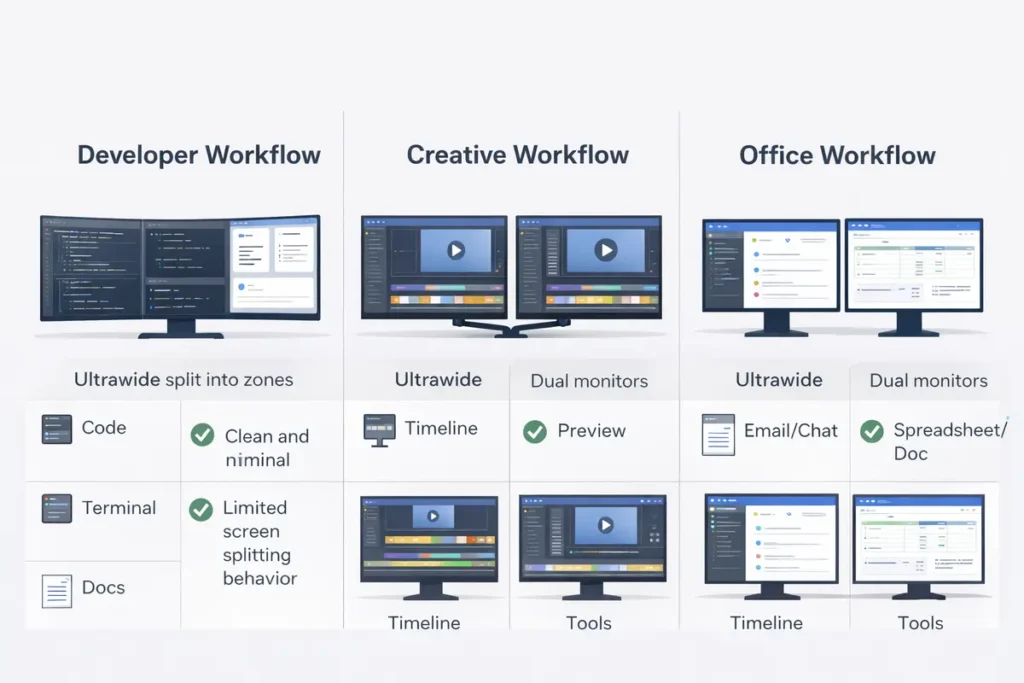
Over time, patterns emerge when you listen to how real people use their screens. Feedback from developers, designers, traders, support teams, and remote workers who have tried both ultrawide and dual monitor setups shows that different workflows clearly favor different layouts—even when the total number of pixels is similar. The following breakdown focuses on what tends to work best in day-to-day use, not just on paper specs.
For Programmers and Developers
Developers often benefit from multiple panes of information visible at once: code editor, terminal, documentation, logs, and sometimes browser windows. A dual monitor setup makes it easy to dedicate one screen to the main code editor and another to everything else—such as documentation, browser dev tools, or build pipelines.
However, an ultrawide monitor can be just as effective if you’re comfortable dividing the screen into columns. With a good tiling window manager or built-in snapping tools, you can keep your editor central, with terminal and documentation visible on the sides. Some developers prefer ultrawide because there’s no bezel breaking the view when comparing files side by side.
If you’re a developer who often switches between projects or needs multiple full-screen views, dual monitors might feel more natural. If you prefer one huge, flexible workspace where you arrange windows exactly how you like, an ultrawide can be incredibly productive.
For Creatives and Video Editors
For video editors, photographers, and designers, an ultrawide monitor is often a game-changer. The extended horizontal space is perfect for long video timelines, complex photo editing layouts, or wide design canvases. With a curved ultrawide, the edges of the screen feel more natural and within your peripheral vision, reducing the need to constantly turn your head.
That said, many creative professionals still like having a second monitor dedicated to tools, media bins, or preview windows. In these cases, the ideal setup might even be a hybrid: an ultrawide as the main display plus a secondary standard monitor for extra tools or communication apps.
If your work revolves around wide timelines and layered visual content, ultrawide usually offers a more fluid workflow than dual standard monitors alone.
For Office and Knowledge Workers
Office workers, project managers, analysts, and general knowledge workers often live inside email, spreadsheets, documents, and web apps. For them, both ultrawide and dual monitor setups can provide a huge productivity boost compared to a single small laptop screen.
Dual monitors make it straightforward to place communication tools like email or chat on one screen and main work documents on the other. This reduces context switching and makes it easier to monitor ongoing conversations without constantly minimizing windows.
An ultrawide monitor can be equally effective if you intentionally structure your workspace—perhaps dedicating the left third to communication, the middle to primary tasks, and the right third to reference materials. The key for knowledge workers is not the hardware itself but the discipline of assigning roles to specific parts of the screen so your workflow feels structured rather than chaotic.
For Traders and Data Analysts
Traders and data analysts often work with dozens of data streams, charts, and dashboards at once. In these cases, more screens often do mean more visibility and potentially faster reactions. Dual monitors—and in many cases, triple or quad-monitor setups—are common in trading environments.
Ultrawide monitors can still play a role, especially as central displays for the most important charts or dashboards, but traders tend to benefit more from the flexibility and sheer number of discrete screens provided by multiple monitors. For serious multi-stream monitoring, dual monitors (or more) generally outperform a single ultrawide in terms of practical productivity.
For Gamers Who Also Work From Home
immersion and productivity. Ultrawide monitors are beloved by many gamers because they expand the field of view and make supported games feel cinematic. At the same time, they’re excellent for side-by-side work windows during the day.
Dual monitors are still a strong choice if you like to game on one screen while keeping chat, music, or streaming tools on the other. This is particularly useful for streamers or people who need to keep an eye on Discord, OBS, or monitoring tools while playing.
If gaming immersion is a top priority and you also want a clean desk setup, an ultrawide is hard to beat. If you prioritize flexibility and multi-tasking while gaming or streaming, dual monitors may win.
Pros and Cons of Ultrawide Monitors
Ultrawide monitors bring a lot to the table, but they’re not perfect for everyone.
Key advantages include:
- Immersive, continuous workspace: No bezel gap in the middle of your view.
- Cleaner desk setup: One stand, one power cable, and one video cable.
- Great for timelines and wide content: Ideal for editing, DAWs, and complex dashboards.
- Excellent for split-screen multitasking: Modern OS tools make it easy to snap windows into usable layouts.
However, there are some downsides to consider:
- Higher upfront cost: Quality ultrawide monitors are often more expensive than a single standard monitor.
- Less flexible upgrades: You can’t upgrade “half” an ultrawide the way you can replace one of two monitors.
- Compatibility issues: Not all games or applications handle ultrawide resolutions perfectly.
- Desk depth requirement: Large ultrawides can feel overwhelming on shallow desks.
Pros and Cons of Dual Monitor Setups
Dual monitor setups are popular for a reason—they’re flexible, affordable, and easy to scale.
Key advantages include:
- Strong task separation: Each screen can be dedicated to a specific category of work.
- Flexible upgrades: You can replace or upgrade one monitor without touching the other.
- Cost-effective expansion: Adding a second monitor is often cheaper than buying one large ultrawide.
- Great for mixed usage: Run full-screen apps on one screen and supporting tools on the other.
Potential downsides include:
- Bezel gap: The physical frame between screens can be distracting in some workflows.
- More cables and clutter: Two stands, two power cables, and at least two video connections.
- Alignment and ergonomics: It can be tricky to align both monitors perfectly and avoid neck strain.
- Inconsistent color or brightness: If the monitors are different models, your visual experience may feel uneven.
Ergonomics, Eye Strain, and Long-Term Comfort
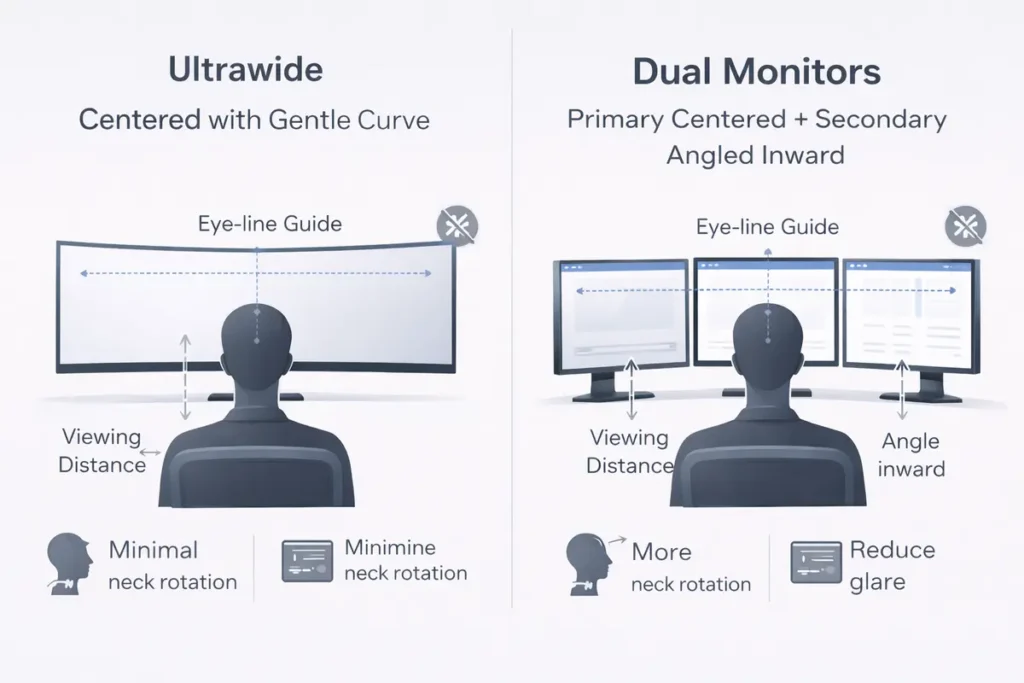
No matter how impressive your monitor setup looks on paper, it won’t boost productivity if it leaves you with neck pain or eye strain. Ergonomics should always be part of the decision.
With ultrawide monitors, the main considerations are height and curve. You want the top of the screen at or slightly below eye level and the center of the display directly in front of you. If the monitor is too large and too close, you may find yourself turning your head excessively to see the edges.
With dual monitors, think about whether you’re using one as the primary focus and the other as a secondary display. Your primary monitor should be directly in front of you, with the secondary angled slightly inward to reduce neck rotation. If you split your time 50/50 between both screens, consider centering the bezel gap and angling both monitors equally.
Investing in proper monitor arms, an adjustable chair, and correct desk height can make either setup dramatically more comfortable—and by extension, more productive—over months and years of daily use.
👉 Read the guide: IPS vs VA vs OLED for Work: Which Is Best for Your Eyes? (7 Key Truths)
Desk Space, Cable Management, and Aesthetics
Your desk size and layout can quietly dictate which setup makes more sense. A large ultrawide on a shallow desk can feel overwhelming and push your keyboard too close to the edge. Dual monitors can take up more horizontal space, especially with bulky stands.
Ultrawide monitors tend to look cleaner and more minimalist. With only one stand and one set of cables, it’s easier to maintain a tidy, professional-looking workspace. This can make a big difference if your desk is visible on video calls or you simply work better in a clutter-free environment.
Dual monitors almost always benefit from monitor arms. These free up desk space, allow better positioning, and make cable routing easier. If you’re willing to invest a bit more into arms and cable management accessories, you can make a dual setup look nearly as clean as an ultrawide.
For many people, the psychological impact of a clean, well-organized desk is significant. It can improve focus, reduce stress, and make sitting down to work feel more inviting.
👉 Read the guide: 27 vs 32 Inch Monitor for Productivity – 2026 Ultimate Guide for Work, Coding & Spreadsheets
Cost, Upgradability, and Long-Term Value
When comparing ultrawide vs dual monitors, it’s tempting to look only at the sticker price. But real long-term value also includes upgradability, power usage, and how long the setup will meet your needs.
Ultrawide monitors typically cost more upfront, especially if you’re looking at high refresh rates, high resolutions, or color-accurate panels. However, you’re also paying for a premium, unified experience that may serve as your main display for many years.
Dual monitors can be more budget-friendly, especially if you already own one good screen and only need to add another. They’re easier to upgrade incrementally: you can replace the older or lower-quality monitor first, then upgrade the second later.
From a long-term value perspective, choose the option that you can see yourself using comfortably and effectively for at least 3–5 years. It’s better to slightly over-invest in the right monitor setup than to save a little now and end up replacing everything in a year.
Cost and Value at a Glance
| Aspect | Ultrawide Monitor | Dual Monitors |
|---|---|---|
| Initial hardware cost | Higher upfront for a single, premium panel | Often lower, especially if you already own one monitor |
| Upgrade path | Replace the entire display when upgrading | Upgrade one screen at a time as budget allows |
| Desk accessories | Usually fine with one stand or a single monitor arm | Often benefits from dual arms and more cable management |
| Power usage | One larger display drawing power | Two panels, potentially slightly higher total draw |
| Long-term flexibility | Less modular, but very stable as a main screen | Highly modular, easy to reconfigure or expand |
Performance, GPU Load, and Compatibility
Driving an ultrawide monitor at a high resolution can be demanding on your graphics card, especially for gaming or 3D workloads. Resolutions like 3440×1440 or 5120×1440 push more pixels than a standard 1080p display and may require a more capable GPU for smooth performance.
Dual monitors can also increase GPU load if you’re running intensive applications on both screens at the same time. However, for everyday office work, emails, and web browsing, most modern integrated and entry-level GPUs can handle dual 1080p or 1440p monitors without issue.
Before committing to a higher-resolution ultrawide or dual high-refresh displays, check your system’s GPU capabilities. If you plan to game, look for benchmarks at your target resolution and refresh rate. For purely productivity-focused setups, the GPU requirement is usually much lower, but it’s still important to ensure your machine supports the resolutions and refresh rates you want.
👉 Read the guide: Why You Can’t Get 60Hz/120Hz: HDMI vs DisplayPort vs USB-C Explained
How to Choose the Right Setup for Your Workflow
To decide between ultrawide vs dual monitors, walk through these practical questions:
- 1. What are my top three daily tasks? List the apps and activities where you spend most of your time.
- 2. Do I prefer strict separation or one flexible canvas? If separation helps you focus, dual monitors may feel more natural.
- 3. How big is my desk, really? Measure the width and depth before choosing a huge ultrawide or wide dual-monitor layout.
- 4. Will I game or edit video on this setup? If yes, ultrawide may deliver a better experience in supported titles and tools.
- 5. Do I plan to upgrade in stages? If you like incremental hardware upgrades, dual monitors offer more flexibility.
Based on your answers, you’ll likely find yourself leaning clearly toward one setup. Remember that there’s no universally “best” option—only the best match for your workflow, space, and budget.
Recommended Monitor Specs for Productivity
Regardless of whether you choose an ultrawide or dual monitors, certain specs matter more for productivity than others:
- Resolution: Aim for at least 1440p vertical resolution for sharp text and comfortable reading.
- Panel Type: IPS panels generally offer better color accuracy and viewing angles than TN; VA panels can provide deeper contrast.
- Refresh Rate: For productivity, 60–75 Hz is usually sufficient, though higher refresh rates can feel smoother.
- Brightness and Anti-Glare: A non-reflective screen with adequate brightness helps reduce eye strain.
- Adjustability: Height, tilt, and swivel adjustments—or monitor arms—are essential for ergonomics.
Also consider blue-light filtering modes and flicker-free technology if you’re sensitive to eye fatigue. For more detailed ergonomics advice, organizations like OSHA and trusted health sites provide guidelines on proper monitor height and distance.
👉 Read the guide: 1080p vs 1440p vs 4K for Office Work: What to Choose by Screen Size
Common Mistakes That Sabotage Multi-Screen Productivity
Even the best hardware can underperform if it’s set up badly. Some common mistakes to avoid include:
- Placing monitors too high or too low, causing neck strain.
- Sitting too close to a very large ultrawide, forcing constant head movement.
- Using mismatched monitors with very different resolutions or color profiles, which can feel jarring.
- Ignoring cable management, leading to a cluttered, stressful workspace.
- Not configuring window snapping or virtual desktops, which leads to constant manual resizing.
Take an extra hour to set up your monitors thoughtfully, adjust your chair, and tidy your cables. That small investment of time can pay off every day in smoother, less tiring work sessions.
👉 Read the guide: Text Looks Blurry on Your Monitor? Fix Scaling, Sharpness & Cable Issues (Win/Mac)
Recommended Ultrawide Monitor Setups for Productivity
If you’re looking for the best ultrawide monitor for productivity, start by matching the screen to your space and workload. Most people are happiest with a 34-inch class ultrawide at 3440×1440, which balances sharp text with plenty of horizontal space.
Best Ultrawide Monitor Setup for Work From Home
For a work-from-home office, aim for a 34-inch curved ultrawide with at least 1440p vertical resolution, height adjustment, and a sturdy stand or arm. Pair it with a comfortable chair, external keyboard, and mouse so you’re not hunched over a laptop all day. This kind of setup is often the best monitor setup for working from home if you want one screen that can handle everything.
Best Ultrawide Monitor Setup for Hybrid Work and Gaming
If you split your time between productivity apps and modern games, look for an ultrawide with a higher refresh rate—100 Hz or above—and good color coverage. This gives you a smooth desktop experience and more fluid gaming in titles that support ultrawide resolutions, without sacrificing clarity for text-heavy tasks.
Best Budget Ultrawide Monitor for Productivity
On a tighter budget, consider a smaller ultrawide with a slightly lower refresh rate but solid ergonomics and at least a 1440p-class resolution. You may not get every premium feature, but you still benefit from wide screen real estate and fewer distractions than a mismatched dual setup.
Recommended Dual Monitor Setups for Productivity
If you decide a dual monitor layout is the best dual monitor setup for productivity in your work, think in terms of matching resolution and size first. Two 24-inch or 27-inch monitors with the same resolution usually feel smoother to use than a mix of different panels.
Best Dual Monitor Setup for Office and Remote Work
For general office and remote work, two 24-inch or 27-inch 1080p or 1440p monitors mounted on a dual arm is a reliable, cost-effective choice. Keep your main work apps on the primary screen and communication tools on the secondary so you always know where to look.
Best Dual Monitor Setup for Programmers
Developers often prefer two 27-inch 1440p monitors: one for the IDE or editor and the other for terminals, logs, or browser windows. This layout makes it easy to keep your coding environment front and center while still having plenty of space for supporting tools.
Best Dual Monitor Setup for Stock Trading and Data Analysis
For traders and analysts, dual monitors—or even more—make it easier to dedicate entire screens to charts, order tickets, or dashboards. Start with two reasonably large, matching displays and expand later if you find that more visible data genuinely improves your decision-making.
Essential Accessories for Any Multi-Monitor Workspace
No matter which path you choose in the ultrawide vs dual monitors decision, a few key accessories can dramatically improve comfort, cable management, and overall productivity.
- A sturdy monitor arm or dual arm to dial in height, distance, and angle.
- A USB-C or Thunderbolt dock to simplify connections to laptops and reduce cable clutter.
- Decent cable management (clips, sleeves, or trays) so your workspace looks clean and intentional.
- An ergonomic chair and keyboard to support long work sessions without strain.
- Optional extras like a laptop stand, desk lamp, and wrist rests to fine-tune comfort.
Frequently Asked Questions About Ultrawide vs Dual Monitors
Is an ultrawide monitor better than dual monitors for productivity?
Not always. Ultrawide monitors are excellent for wide timelines, immersive work, and clean setups. Dual monitors are better if you prefer clear task separation or need to run full-screen apps on separate screens. The best choice depends on your workflow.
Do dual monitors really increase productivity?
For many people, yes. Dual monitors reduce the need to constantly switch windows and make it easier to keep reference material, communication tools, or dashboards visible while you work on your main task.
Is a 34-inch ultrawide the same as two 27-inch monitors?
Not exactly. A 34-inch ultrawide offers similar horizontal space to two smaller monitors but with fewer total pixels than two 27-inch 1440p displays. The experience also feels different because an ultrawide is one continuous screen without a bezel gap.
Which is better for coding: ultrawide or dual monitors?
Both work well. Dual monitors are great if you want your code on one screen and documentation or logs on another. An ultrawide excels if you like side-by-side file comparisons and a continuous coding workspace.
Which setup is better for gaming?
For immersion, an ultrawide monitor usually wins—especially in games that support wider aspect ratios. For streamers or multitaskers who want chat or tools visible while gaming, dual monitors can be more practical.
Are ultrawide monitors harder on the GPU?
They can be. Higher ultrawide resolutions mean more pixels to render, which can reduce frame rates in games or GPU-heavy applications. For office work, this is rarely an issue, but gamers should check performance benchmarks.
Do all games support ultrawide resolutions?
No. Many modern games do, but some titles either don’t support ultrawide resolutions or require tweaks. If gaming is important, check compatibility for your favorite games before buying an ultrawide.
Can I use an ultrawide and an extra monitor together?
Yes. A popular setup is one ultrawide as the main display plus a smaller secondary monitor for chat, tools, or reference content. Just be sure your GPU supports multiple outputs at your desired resolutions.
Are dual monitors bad for your neck?
They can be if positioned poorly. If you’re constantly turning your head, you may experience neck strain. Position your primary monitor directly in front of you and angle the secondary so it’s easy to glance at without twisting.
Is a curved ultrawide better than a flat one?
Curved ultrawide monitors can feel more natural because the edges of the screen are slightly wrapped toward you, reducing head movement and improving immersion. However, curve preference is personal—some people prefer flat panels.
Do I need special software to manage windows on an ultrawide?
Most operating systems have basic window snapping built in, but many users benefit from third-party tools that offer advanced tiling and custom layouts. These tools can turn an ultrawide into a highly organized multi-column workspace.
What size desk do I need for an ultrawide monitor?
For a 34-inch ultrawide, a desk at least 120 cm wide and 70–80 cm deep is recommended for comfortable viewing distance and room for your keyboard, mouse, and other gear.
Can I mix different monitor sizes in a dual setup?
Yes, but it’s not ideal. Mismatched sizes and resolutions can make moving windows between screens awkward. For best results, use monitors with the same size and resolution or as close as possible.
Are dual monitors better for stock trading?
Generally yes. Traders often need multiple charts and platforms visible at once. Dual (or multi) monitor setups provide more discrete screen areas, which can be easier to manage than a single ultrawide.
Will a second monitor slow down my computer?
For basic office tasks, the performance impact is usually minimal. For gaming or GPU-intensive workloads, multiple monitors can slightly affect performance, especially if running demanding content on both screens.
Is ultrawide or dual better for remote work and meetings?
Both are excellent. Many remote workers enjoy ultrawide monitors for a clean, flexible workspace. Others prefer dual monitors so they can keep video calls on one screen and documents or notes on the other.
Do I need a monitor arm for ultrawide or dual setups?
You don’t need one, but monitor arms can greatly improve ergonomics and desk space. They make it easier to adjust height, distance, and angle for both ultrawide and dual monitor setups.
Is 1080p enough for an ultrawide monitor?
For smaller ultrawides, 1080p can be acceptable, but text and interface elements may appear less sharp on larger screens. For productivity, a higher vertical resolution like 1440p is usually more comfortable.
Can I mount two monitors vertically instead of side by side?
Yes. A vertical dual monitor setup can save horizontal space and is popular with developers who like to see more lines of code. Just ensure you can still maintain a comfortable neck position.
So, which should I choose if I still can’t decide?
If you value a clean, immersive, all-in-one workspace and do creative or timeline-based work, start with an ultrawide. If you prioritize flexibility, task separation, and incremental upgrades, dual monitors are likely a better fit.
Final Verdict: The Best Setup Is the One That Matches Your Reality
At the end of the day, the question isn’t just ultrawide vs dual monitors: Which setup actually boosts productivity? The real question is: Which setup best supports the way you already work—or want to work?
If you thrive on a clean, unified workspace and frequently work with wide content or enjoy immersive gaming, an ultrawide monitor is a powerful, modern choice. If you depend on strict task separation, want to upgrade gradually, or need as many discrete screen areas as possible, dual monitors will likely serve you better.
Whichever path you choose, focus on ergonomics, thoughtful window organization, and a tidy desk. Those factors often matter just as much as the hardware itself in determining how productive, focused, and comfortable you feel throughout your workday.
Sources
If you’re optimizing for comfort and consistency, basic monitor ergonomics and correct OS display setup make the biggest difference.