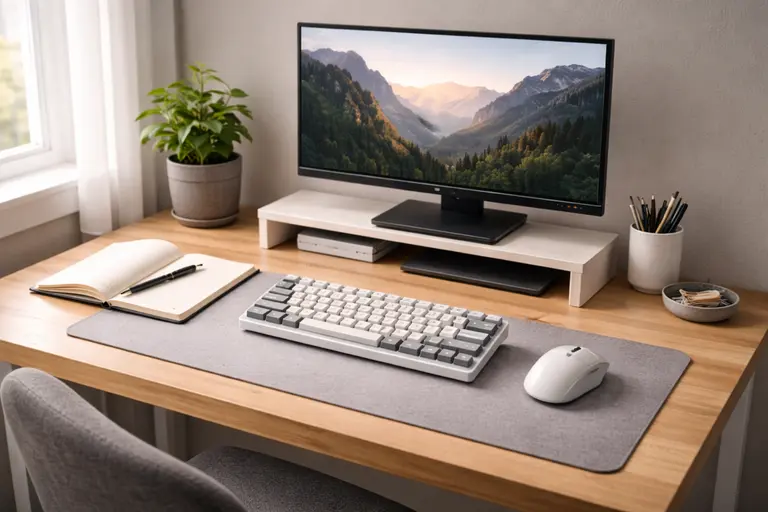
Keyboard & Mouse are the tools you touch the most every day. This in-depth guide explains how to choose, set up, and care for your keyboard & mouse so you can work, game, and create more comfortably, efficiently, and safely.
This guide is for general educational purposes. It draws on commonly recommended ergonomic practices and widely used setup patterns in workplaces, gaming setups, and home offices. It isn’t a substitute for professional medical or ergonomics advice—if you have pain, numbness, or other symptoms, speak to a qualified healthcare or ergonomics professional for personalised guidance.
A great computer experience starts long before you open your favourite app or launch your favourite game. It starts with the physical tools under your hands: your keyboard & mouse. These two devices translate every idea, command, and reaction from your mind into digital action.
If your keyboard & mouse are slow, uncomfortable, or unreliable, everything you do on your computer feels harder. On the other hand, a well-chosen, well-configured setup can transform how fast you work, how accurately you play, and how comfortable you feel after a long day at your desk.
In this foundational guide, you’ll learn how keyboard & mouse technology works, what different types exist, how to choose the right combination for your needs, and how to pair them with the right monitor and desk setup for maximum comfort and performance.
Understanding the Role of Your keyboard & mouse in Modern Computing
Your keyboard & mouse are often called “input devices,” but that phrase doesn’t fully capture how important they really are. They’re your primary interface with your computer, just like a steering wheel and pedals are your interface with a car.
Although touchscreens, voice assistants, and pen input have become more common, keyboard & mouse remain the most precise and flexible way to control a desktop or laptop. They allow you to type long documents, execute complex shortcuts, and perform fine-grained actions like photo retouching or pixel-perfect aiming in games.
A good keyboard & mouse setup offers:
– **Speed** – Fast, responsive keys and clicks reduce lag between your intention and the computer’s reaction.
– **Accuracy** – Clear feedback and reliable tracking help you type and point where you mean to, with fewer errors.
– **Comfort** – Ergonomic shapes and proper positioning reduce strain on your hands, wrists, and shoulders.
– **Control** – Extra buttons, shortcuts, and customization give you more ways to streamline your daily tasks.
When you upgrade or optimize your keyboard & mouse, you often notice benefits immediately: fewer typos, smoother cursor movement, less hand fatigue, and a feeling that your computer is finally “keeping up” with you.
Types of Keyboards: Finding the Right Feel
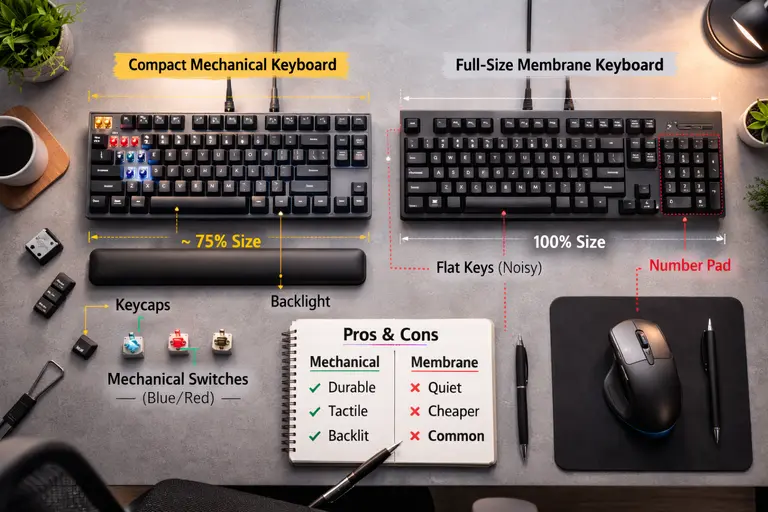
Keyboards may look similar at a glance, but they can feel dramatically different once you start typing. Choosing the right type can make your work and play more enjoyable and less tiring.
Mechanical vs. Membrane Keyboards
Most keyboards fall into two broad categories:
– **Membrane keyboards** use rubber domes or flexible sheets that press contacts together when you push a key. They’re inexpensive, usually quiet, and commonly found on office desks and laptops.
– **Mechanical keyboards** use individual mechanical switches under each key. They offer more precise feedback, longer lifespan, and a huge variety of switch types (tactile, clicky, linear) to match your preference.
Mechanical keyboards are popular with programmers, writers, and gamers because they can be more comfortable for long typing sessions and offer a satisfying, consistent feel. However, they’re often louder and more expensive than membrane models.
Full-Size, Tenkeyless, and Compact Layouts
Keyboards also differ in size and layout:
– **Full-size (100%)** keyboards include function keys, navigation keys, and a number pad.
– **Tenkeyless (TKL, ~80%)** keyboards remove the number pad, so your mouse can sit closer, which can improve ergonomics.
– **Compact (75%, 65%, 60%)** layouts shrink or rearrange keys to save desk space and encourage better mouse placement, at the cost of some dedicated keys.
If you work heavily with spreadsheets or number entry, a full-size keyboard might be best. If you value ergonomics and mouse space, a TKL or 75% board can be a smart move.
Ergonomic, Split, and Low-Profile Keyboards
Ergonomic designs aim to reduce strain on your hands and wrists:
– **Split keyboards** separate the left and right halves, allowing your shoulders and wrists to stay more natural and relaxed.
– **Tented designs** tilt the halves inward, reducing forearm twisting.
– **Low-profile keyboards** have shorter key travel and a slimmer profile, which can help some people reduce wrist extension.
If you’ve experienced wrist pain, numbness, or fatigue, an ergonomic keyboard can be a meaningful upgrade—especially when combined with a correctly positioned monitor and chair.
Types of Mouse: Precision, Comfort, and Control
Just like keyboards, mice come in many shapes and technologies. The right mouse depends on your hand size, grip style, and main activities.
Optical vs. Laser Sensors
Modern mice generally use optical or laser sensors to track movement:
– **Optical mice** use an LED to illuminate the surface and a sensor to track changes. They perform well on most mouse pads and some bare desks.
– **Laser mice** use a laser diode, which can read more types of surfaces, sometimes including glass, but may be more sensitive to surface imperfections.
For most users, a good-quality optical sensor on a proper mouse pad is more than enough for accurate tracking.
Wired vs. Wireless Mouse
Both options have strong points:
– **Wireless mice** reduce cable clutter, let you move more freely, and many modern models offer near-zero lag and long battery life.
Some wireless mice use a **USB dongle** (often with a 2.4 GHz connection) for low-latency performance. Others connect via **Bluetooth**, which is convenient for laptops, tablets, and multi-device setups.
Ergonomic, Vertical, and Trackball Mouse
Mouse shape matters more than many people realize. If your mouse doesn’t fit your hand or grip style, you may develop pain or fatigue over time.
Common ergonomic shapes include:
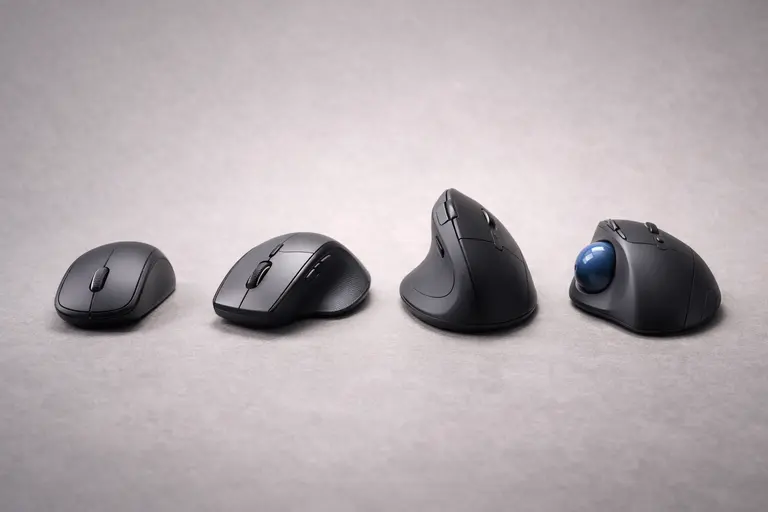
– **Sculpted right-handed mice** that support your palm and thumb.
– **Ambidextrous mice** that are symmetric and usable in either hand.
– **Vertical mice** that rotate your hand into a handshake position, reducing forearm twist.
– **Trackball mice** where you roll a ball with your thumb or fingers while the mouse body stays still, useful for small desks and some ergonomic needs.
Trying different shapes, if possible, can help you find a mouse that feels natural and effortless to move.
👉 Read the guide: The Ultimate Guide to Productivity Gadgets for Home & Office
Connectivity and Compatibility: Making Sure Everything Just Works
A great keyboard & mouse setup should feel invisible—you sit down, and everything connects reliably every time.
Wired USB Connections
Most wired devices connect via USB-A, though USB-C keyboards and mice are growing more common. Wired connections are simple: plug in and go. They’re ideal if you don’t want to worry about batteries or wireless interference.
Wireless Dongles and Bluetooth
Wireless keyboard & mouse options usually connect in one of two ways:
– **2.4 GHz USB dongle** – Offers low-latency, stable performance with a small receiver you plug into your computer. Many combos share a single dongle for both devices.
– **Bluetooth** – Lets you pair with multiple devices, such as a laptop, tablet, or even a phone, without using a USB port.
For travel, a Bluetooth keyboard & mouse can be convenient because you can switch between devices quickly and avoid carrying extra dongles.
Multi-Device and Cross-Platform Use
Many modern input devices support multi-device pairing and platform-specific layouts:
– **Multi-device buttons** let you switch between, for example, a laptop, desktop, and tablet at the press of a key.
– **OS-aware key legends** (for Windows, macOS, or ChromeOS) ensure your modifier keys match your operating system.
If you often work between a laptop and a desktop, or between your computer and a tablet tethered near your monitor, a multi-device keyboard & mouse can significantly simplify your workflow.
Ergonomics and Health: Protecting Your Hands, Wrists, and Shoulders
Comfort isn’t a luxury; it’s a long-term investment in your health. Poorly chosen or poorly positioned keyboard & mouse devices can contribute to repetitive strain injuries (RSI), tendonitis, or carpal tunnel syndrome.
Imagine two people doing the same job: one hunches over a small laptop on a dining table with a cheap bundled keyboard & mouse, while the other uses a properly sized desk, an external monitor at eye level, and an ergonomic input setup. After a few hours, the first person’s neck and wrists often feel tight, while the second usually finishes the day with far less discomfort—even though they did the same amount of work. Small ergonomic choices compound over time.
Neutral Posture and Alignment
Good ergonomics focuses on keeping your joints in neutral positions:

– Your wrists should be straight, not sharply bent up, down, or sideways.
– Your elbows should be close to your body and bent around 90 degrees.
– Your shoulders should feel relaxed, not hunched or reaching forward.
Your keyboard should sit at a height where your wrists can stay flat or slightly declined. Your mouse should be at the same height, directly beside the keyboard so you’re not reaching outward.
Working with Your Monitor for Better Ergonomics
Ergonomics isn’t just about your keyboard & mouse; your monitor plays a big part too. If your screen is too low or too high, you may crane your neck, which in turn changes how you hold your shoulders and arms.
Aligning your keyboard & mouse with an appropriately sized and positioned monitor helps your whole body stay in balance while you work.
Breaks, Micro-Movements, and Stretching
Even the best setup can become uncomfortable if you never move. Make a habit of:
– Taking short breaks to stand, stretch, and roll your shoulders.
– Relaxing your hands and resting them lightly on the keyboard & mouse instead of gripping tightly.
– Doing occasional wrist and forearm stretches recommended by health professionals (see resources like Mayo Clinic’s office ergonomics guidance at https://www.mayoclinic.org/).
These suggestions are consistent with many widely published office ergonomics guidelines and general occupational health advice. For any ongoing pain or specific medical condition, though, it’s important to get personalised input from a professional rather than relying only on generic tips.
Small changes in your daily habits can significantly reduce discomfort over time.
👉 Read the guide: Ergonomic Home Office Setup: Step‑by‑Step Guide to Pain‑Free Work
Keyboard & Mouse for Productivity and Office Work
If you spend most of your day in email, documents, spreadsheets, and web apps, your ideal keyboard & mouse will prioritize comfort, accuracy, and shortcuts.
Keyboard Priorities for Office Use
For office productivity, look for:
– **Comfortable key feel** – Whether mechanical or membrane, you want a consistent, not-too-heavy actuation force.
– **Quiet operation** – Silent or low-noise switches are helpful if you share a workspace.
– **Useful layout** – Dedicated arrow keys, function keys, and possibly a number pad if you handle a lot of numerical data.
– **Shortcut-friendly design** – Media keys, volume controls, and programmable function keys can speed up daily tasks.
A tenkeyless or compact keyboard & mouse combo can free desk space, but be sure you’re not giving up keys you use daily.

Mouse Priorities for Productivity
A productivity-focused mouse should offer:
– **Comfortable shape** for long sessions.
– **Reliable scroll wheel** for reading long documents or web pages.
– **Back and forward buttons** for quick web navigation.
– **Configurable buttons** to launch apps, trigger copy/paste, or control virtual desktops.
Imagine a remote worker who spends most of their day switching between a CRM, email, and spreadsheets. By mapping one mouse button to “copy,” another to “paste,” and using keyboard shortcuts for virtual desktops, they can shave seconds off hundreds of tiny actions every day. Over a year, that adds up to hours of time saved and noticeably less mental friction.
Combining a shortcut-friendly keyboard & mouse with your favourite productivity apps can make daily tasks feel smoother and more controlled.
Keyboard & Mouse for Gaming
For gaming, your keyboard & mouse become performance gear. Latency, accuracy, and layout can all affect your results and enjoyment.
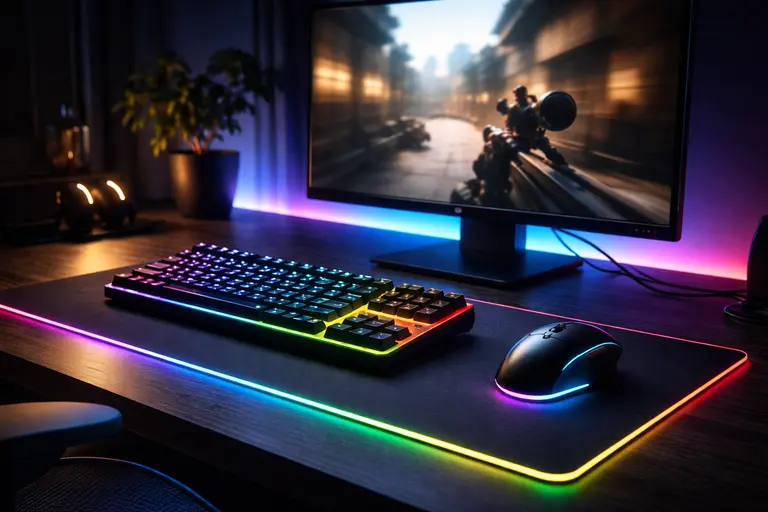
Gaming Keyboards
Gaming keyboards often feature:
– **Mechanical switches** tuned for fast response and clear feedback.
– **N-key rollover and anti-ghosting** so multiple key presses register reliably.
– **Customizable RGB lighting** to highlight important keys or just match your setup.
– **Dedicated macro keys** for complex in-game commands.
A solid, stable keyboard & mouse gaming setup helps you react quickly without worrying about missed inputs.
Gaming Mouse
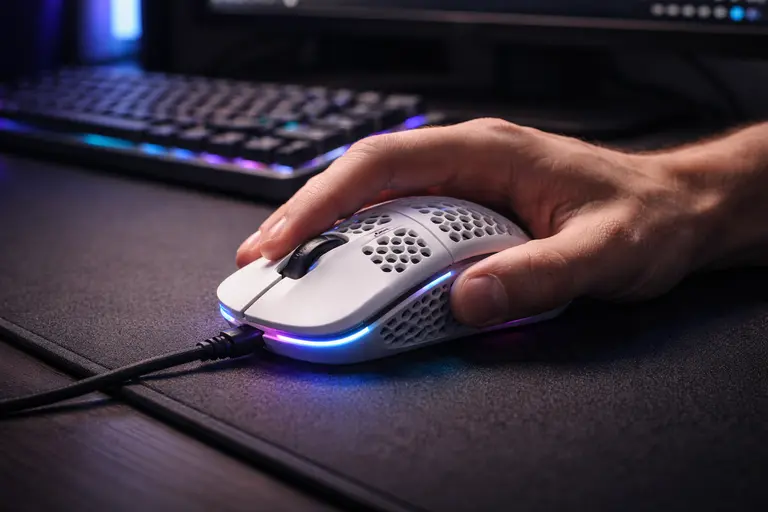
Gaming mice typically offer:
– **Adjustable DPI (dots per inch)** to change pointer sensitivity on the fly.
– **High polling rate** (e.g., 1000 Hz) for reduced input lag.
– **Extra buttons** for abilities, weapons, or quick actions.
– **Onboard memory** to store profiles for different games.
One common scenario is a player struggling with aim in fast-paced shooters. They might start with a very high DPI and tiny physical movements. After switching to a well-shaped gaming mouse, lowering their DPI a bit, and giving themselves more mouse pad space, their aim often becomes more consistent. It’s not magic—just better ergonomics and sensor control working together.
If you play fast-paced shooters or competitive games, a high-quality gaming mouse, paired with a smooth mouse pad and a responsive monitor, can make a very noticeable difference.
Keyboard & Mouse for Creative and Professional Use
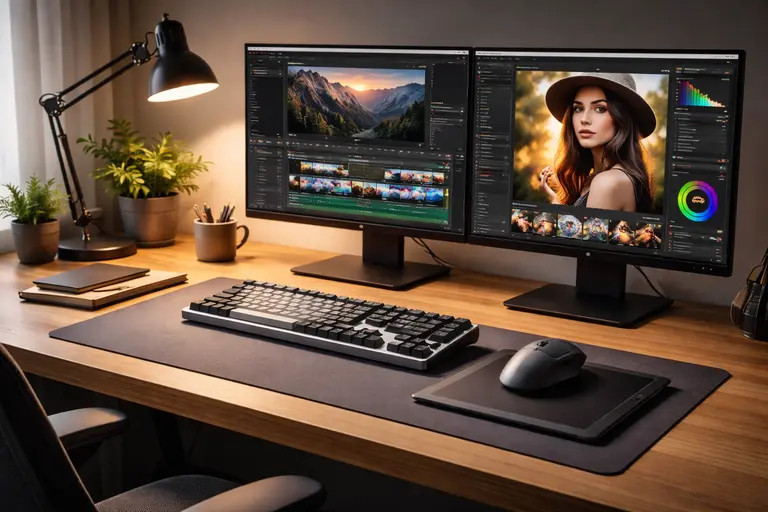
Designers, video editors, musicians, and other creative professionals have unique needs from their keyboard & mouse setups.
Creative-Friendly Keyboards
Creators often benefit from:
– **Comfortable full-size layouts** for shortcuts in software like Photoshop, Premiere, or DAWs.
– **Programmable macro keys or layers** to trigger complex actions or effect chains.
– **High-contrast legends or backlighting** to help you find lesser-used shortcuts in low light.
A reliable keyboard & mouse combination can become an extension of your creative tools, reducing friction between your ideas and the software.
Precision Mouse and Alternative Input Devices
For creative work:
– A **high-precision mouse** with good tracking is ideal for detailed editing.
– **Horizontal scroll wheels** or tilt wheels are useful for long timelines or large canvases.
– Some creators like **pen tablets** or **3D navigation devices** alongside a standard mouse.
Setting Up Your Desk: Positioning keyboard & mouse with Your Monitor
Even the best keyboard & mouse can feel wrong if they’re not placed correctly on your desk. Your monitor, chair, and desk height all interact.
Ideal Desk Layout
Aim for this baseline layout:
– Your keyboard is centered directly in front of you, aligned with your belly button.
– Your mouse sits immediately to the right (or left, if you’re left-handed) at the same height.
– Your monitor is centered above the keyboard, with the top of the screen around eye level.
– There’s enough space to rest your forearms lightly on the desk.
👉 Read the guide: Monitors Made Easy: 25 Essential Tips to Choose the Perfect Screen
Cable Management and Surface Choices
A smooth, consistent surface helps your mouse track accurately. A dedicated mouse pad often feels better than a bare desk. Choose one large enough that you don’t keep bumping into the edges.
Tidy cables for your keyboard & mouse so they don’t drag or snag. This is especially important for wired gaming mice where cable drag can affect your aim.
Customization, Macros, and Software Tweaks
Many modern keyboard & mouse models come with configuration software. Learning how to use it can unlock a lot of extra power.
👉 Read the guide: What Is Software? The Ultimate 2026 Foundational Guide to Understanding Digital Power (Beginner to Pro Mastery)
Keyboard Customization
Common options include:
– **Remapping keys** to move rarely used keys out of the way and bring useful keys closer.
– **Creating macros** that perform a sequence of actions with one key press.
– **Adjusting backlight brightness or colour** to highlight certain keys or reduce distraction.
– **Switching layouts** (for example, between QWERTY, Dvorak, or Colemak).
If your keyboard & mouse both support software profiles, you can create per-app setups—for example, one profile for writing, another for editing video, and another for gaming.
Mouse Customization
Mouse software often lets you:
– Change **DPI settings** and switch between them with a button.
– Set **per-application button mappings** (e.g., zoom in/out in one app, next/previous track in another).
– Adjust **scroll wheel behaviour**, such as smooth vs. notched scrolling.
Taking 20–30 minutes to tune your keyboard & mouse for your most-used apps can pay off with hours saved over time.
Maintenance, Cleaning, and Longevity
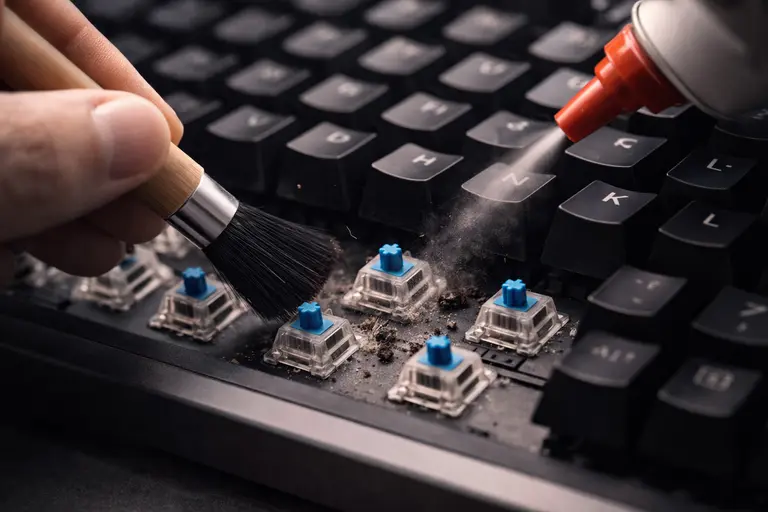
Your keyboard & mouse work hard every day. A bit of maintenance keeps them feeling new and avoids issues.
Cleaning Your Keyboard
Over time, dust, crumbs, and skin oils build up on your keys. To clean:
– Turn the keyboard upside down and gently shake out loose debris.
– Use a can of compressed air to blow dust from between keys.
– Wipe the key tops and case with a slightly damp microfiber cloth (or a cloth lightly moistened with a mild cleaner).
– For deeper cleaning on many mechanical keyboards, you can remove keycaps and clean around the switches carefully.
Avoid soaking your keyboard or using harsh chemicals that could damage the plastic or legends.
Cleaning Your Mouse
Your mouse feet and sensor area can collect dust, which affects tracking. Periodically:
– Wipe the bottom of the mouse with a dry or slightly damp cloth.
– Clean the sensor opening gently with a cotton swab if needed.
– Wipe the top surfaces to remove oils and improve grip.
If your keyboard & mouse use batteries, keep spares on hand or recharge regularly so they don’t die mid-task.
Budget, Brands, and What to Look For When Buying
A strong keyboard & mouse setup doesn’t have to be extremely expensive, but very cheap options can be false economy if they break quickly or cause discomfort.
Setting a Realistic Budget
As a rough guide:
– Entry-level setups can be very affordable but may lack durability or advanced features.
– Mid-range options often strike the best balance between quality, comfort, and features.
– High-end gear adds premium materials, advanced sensors, more customization, and brand reputation.
Think about how many hours per day you use your keyboard & mouse. If you’re on your computer 6–10 hours daily, these tools are central to your work and health, so it may be worth investing more.
Consider a common real-world path: someone starts with the cheapest bundled keyboard & mouse that came with their PC. After a year of daily use and growing wrist discomfort, they upgrade to a mid-range ergonomic keyboard, a better-shaped mouse, and a properly sized monitor. The upfront cost is higher, but over the next few years they often experience fewer issues, better comfort, and more consistent performance—a long-term trade that usually feels worth it.
Key Features Checklist
When comparing options, consider:
– Switch type and feel (for keyboards)
– Shape, size, and weight (for mice)
– Wired vs. wireless and battery life
– Extra buttons and programmability
– Compatibility with your operating systems
– Warranty and support
Common Mistakes to Avoid with Your Keyboard & Mouse
Avoiding a few common errors can save you time, money, and discomfort.
– **Ignoring ergonomics** – Don’t choose solely based on looks or RGB lighting. Comfort should come first, especially for long-term use.
– **Using a mouse that’s too small or too large** – An ill-fitting mouse forces awkward grip positions and leads to strain.
– **Letting your keyboard & mouse sit too high or too low** – This can cause wrist extension or shoulder tension.
– **Overlooking compatibility** – Make sure any required software supports your operating system and that wireless receivers are compatible with your ports.
– **Neglecting monitor alignment** – If your monitor is off-center or too low, you may twist or crane your neck, which affects how you reach for your keyboard & mouse.
By sidestepping these pitfalls, you set yourself up for a much more pleasant daily computing experience.
Keyboard & Mouse Buying Checklist
Before you hit “buy,” run through this quick checklist:
1. Does the keyboard layout (full-size, TKL, or compact) fit your needs?
2. Are you comfortable with the switch type and key feel?
3. Does the mouse shape fit your hand and grip style?
4. Have you chosen wired or wireless based on your latency and clutter preferences?
5. Are extra buttons and macros available for your key apps and games?
6. Is everything compatible with your operating system and devices?
7. Will your chosen keyboard & mouse work well with your current or planned monitor setup?
8. Do you have a plan for ergonomic placement at your desk?
9. Is the price aligned with how many hours per day you’ll use the gear?
10. Are reviews and warranties solid enough to give you confidence in your choice?
If you can comfortably say “yes” to most of these, you’re likely making a smart choice.
Frequently Asked Questions About Keyboard & Mouse
What is the biggest difference between mechanical and membrane keyboards?
Mechanical keyboards use individual mechanical switches under each key, giving stronger feedback, better durability, and a more consistent feel. Membrane keyboards use rubber or flexible membranes and tend to be quieter and cheaper but often feel softer and less precise.
Are wireless keyboard & mouse setups good for gaming?
Modern wireless devices with 2.4 GHz dongles can perform nearly as well as wired gear, with very low latency. For casual and even many competitive gamers, a high-quality wireless keyboard & mouse setup is perfectly fine. However, some e-sports players still prefer wired devices for absolute consistency.
How do I know if a keyboard is ergonomic?
Ergonomic keyboards are designed to keep your wrists and arms in more neutral positions. Look for features like split or curved layouts, gentle tenting (raising the center of the keyboard), and low-profile keycaps that reduce wrist extension. Pairing them with a properly adjusted chair and monitor increases the benefits.
What’s the best mouse DPI for everyday use?
There’s no single “best” DPI. Many people find 800–1600 DPI comfortable for regular desktop work. For gaming or large monitors, higher settings can be helpful, especially if you lower in-game sensitivity. The key is to choose a DPI that lets you move across your screen without constantly lifting the mouse.
Do I need a special mouse pad?
You don’t need a fancy pad, but a quality mouse pad can improve tracking, comfort, and consistency. It provides a uniform surface, protects your desk, and can reduce wear on your mouse feet. Larger pads that sit under both your keyboard & mouse can also help with consistent ergonomics.
How often should I clean my keyboard & mouse?
Light cleaning every week or two—such as wiping surfaces and shaking out crumbs—keeps things pleasant. A deeper clean every few months, especially for mechanical keyboards, helps prevent sticky keys and sensor issues. If you eat at your desk or share your computer, more frequent cleaning is a good idea.
Can using the wrong keyboard & mouse cause wrist pain?
Yes, poorly designed or poorly positioned devices can contribute to discomfort and strain. If your wrists are bent, your shoulders are raised, or your hands feel cramped, you’re more likely to develop issues over time. Choosing an ergonomic keyboard & mouse and aligning them with a properly set monitor and chair can significantly reduce risk.
Should I choose a full-size keyboard or a smaller layout?
If you rely heavily on the number pad, a full-size keyboard might be essential. If you don’t, a tenkeyless or compact layout can pull your mouse closer to your body, improving shoulder and wrist comfort. Try to balance convenience with ergonomics.
Are vertical mice actually better?
Vertical mice can help some people by reducing forearm twisting and encouraging a more neutral wrist posture. They may feel strange at first, and they’re not ideal for every use case, but many users with wrist or forearm discomfort find them more comfortable over time.
What’s the difference between optical and laser mice in real use?
In everyday use on a mouse pad, both optical and laser mice can perform very well. Optical sensors are extremely common and accurate on most surfaces. Laser sensors can be more sensitive to surface variations and may track on more types of surfaces, but you may not notice a big difference for typical tasks.
How do I reduce noise from my keyboard?
To reduce keyboard noise, you can choose quieter switches (such as linear or specially dampened switches), use O-rings on mechanical keycaps, type more gently, or choose a membrane keyboard designed for quiet operation. A desk mat or thicker mouse pad under the keyboard can also absorb some sound.
Is it worth paying extra for RGB lighting?
RGB lighting is mostly aesthetic, but it can have practical uses like highlighting important keys or improving key visibility in low light. If you enjoy customizing your setup and the extra cost fits your budget, it can be a fun feature—but it’s not essential for performance.
Can I use one keyboard & mouse with multiple devices?
Yes, many modern keyboards and mice support multi-device pairing. They often let you connect via Bluetooth to multiple devices and switch between them with a button or key combination. Some models also combine 2.4 GHz dongle and Bluetooth options for flexibility.
What’s the best way to position my keyboard & mouse relative to my monitor?
Center your keyboard in front of your body and align your monitor so it’s centered above it. Place your mouse at the same height and directly beside the keyboard. The top of your monitor should be roughly at eye level, and you should be able to keep your wrists straight and shoulders relaxed. Adjustments to your monitor height or stand often make a big difference.
How do I know if my mouse is the right size for my hand?
When you grip the mouse, your fingers should naturally rest on the buttons without stretching or bunching, and your palm should feel supported without excessive arching. If you constantly pinch the sides or feel tension in your fingers, the mouse may be too small. If you struggle to reach the buttons comfortably, it may be too large.
Are compact keyboards bad for typing speed?
Compact layouts can feel unfamiliar at first, especially if keys are in different locations or combined with function layers. After a short adjustment period, many people type just as fast—or even faster—on smaller keyboards because their hands move less overall. The key is to practice and give yourself time to adapt.
Do I need special drivers or software for my keyboard & mouse?
Basic functions like typing and pointer movement typically work without extra software. However, if you want to use advanced features like macros, RGB lighting control, or per-app profiles, you’ll usually need the manufacturer’s software. Always download it from the official website and check compatibility with your operating system.
How long do keyboard & mouse devices usually last?
Lifespans vary by quality and usage, but a well-made mechanical keyboard can last many years, even a decade or more, thanks to durable switches. Good mice can also last several years, though heavy gaming use may wear out buttons or switches sooner. Cheaper devices may fail more quickly in demanding environments.
Can I use my TV as a monitor with a wireless keyboard & mouse?
Yes, many people connect a PC or media device to a TV and control it from the couch using a wireless keyboard & mouse. Look for devices with strong wireless range and consider a compact keyboard with an integrated touchpad for convenience. Be aware that some TVs introduce input lag, so this isn’t ideal for fast-paced gaming.
How often should I replace my keyboard & mouse?
There’s no fixed schedule. Replace them when you notice persistent issues like stuck keys, double-clicking buttons, unreliable wireless connections, or ongoing discomfort that a better ergonomic design could solve. If your keyboard & mouse no longer support your work style or your monitor and desk setup, an upgrade can be a smart investment.
Conclusion: Building Your Ideal keyboard & mouse Setup
Your keyboard & mouse are more than simple accessories—they’re the tools you touch every time you sit down to work, create, or play. By choosing the right types, shapes, and technologies, and by aligning them with a comfortable desk and monitor setup, you can unlock faster work, better performance, and improved long-term comfort.
Start by deciding how you spend most of your time—office work, gaming, creative projects, or a mix—and prioritise features that support those tasks. Pay attention to ergonomics, experiment with layouts and shapes, and don’t underestimate the value of a well-placed, high-quality monitor to complement your input devices.
Over time, your keyboard & mouse setup will feel less like a collection of gadgets and more like a finely tuned instrument that helps you do your best work, every single day.