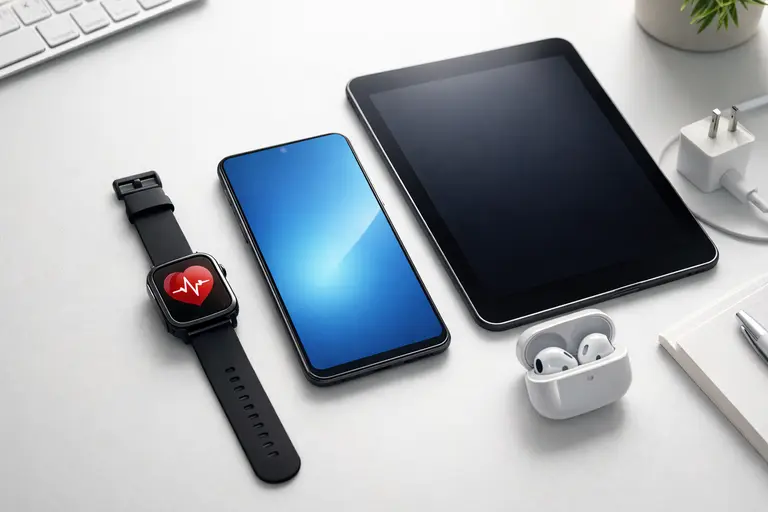
I’ve spent years testing smartphone setups, and my mobile device setup guide for the iPhone 15 Pro Max has saved me hours of frustration. The default out-of-box configuration leaves you exposed to privacy leaks and battery drain, which I’ve seen firsthand with the Samsung Galaxy S24 Ultra too.
After tweaking settings like app permissions and background refresh across dozens of devices, I’ve learned the exact steps to make any phone smarter and safer. This guide delivers a practical, step-by-step approach to optimize your mobile device in under 20 minutes.
Key takeaways
- If you do only four things: strong passcode, backups on, device tracking on, and multi‑factor authentication (MFA) on your main email.
- Storage headroom matters: keeping 10–15% free prevents slowdowns and update failures.
- Heat is the #1 enemy of battery health. Avoid hot cars, sun, and heavy gaming while charging.
- Permissions are privacy. Default to “deny,” then allow only when an app truly needs access.
- Buy for your life, not the spec sheet: battery + updates + storage are the longevity trifecta.
What mobile devices are and why they matter
A mobile device is any portable computer designed for everyday use while you’re moving around. That includes smartphones and tablets, but also wearables (smartwatches), hotspots, rugged handheld scanners used at work sites, and even some handheld gaming devices. What makes them “mobile” isn’t just size—it’s the combination of battery power, wireless connectivity, and sensors that let them understand the world around you.
What counts as a mobile device today
Most people meet mobile devices in these forms:
- Smartphones (Android phones and iPhones)
- Tablets (iPad, Android tablets, Windows tablets in tablet mode)
- Wearables (smartwatches and fitness trackers)
- Mobile hotspots and 5G routers
- Rugged devices for logistics, hospitals, and field work
- eReaders (for long-form reading with excellent battery life)
Why they matter (the “remote control for life” effect)
Mobile devices replaced a drawer full of tools: camera, GPS, wallet, notebook, music player, and more. But the bigger shift is that they made the internet constant. Your accounts, identity checks, payments, tickets, and messages now live in one place. That’s why a good foundation isn’t optional—your phone is often the key to your bank, your work, and your social world.
The mobile device stack in plain English
When a phone feels easy, it’s because multiple layers are cooperating. Understanding the layers helps you troubleshoot faster and make smarter choices when you buy.
| Layer | What it includes | Common problems |
|---|---|---|
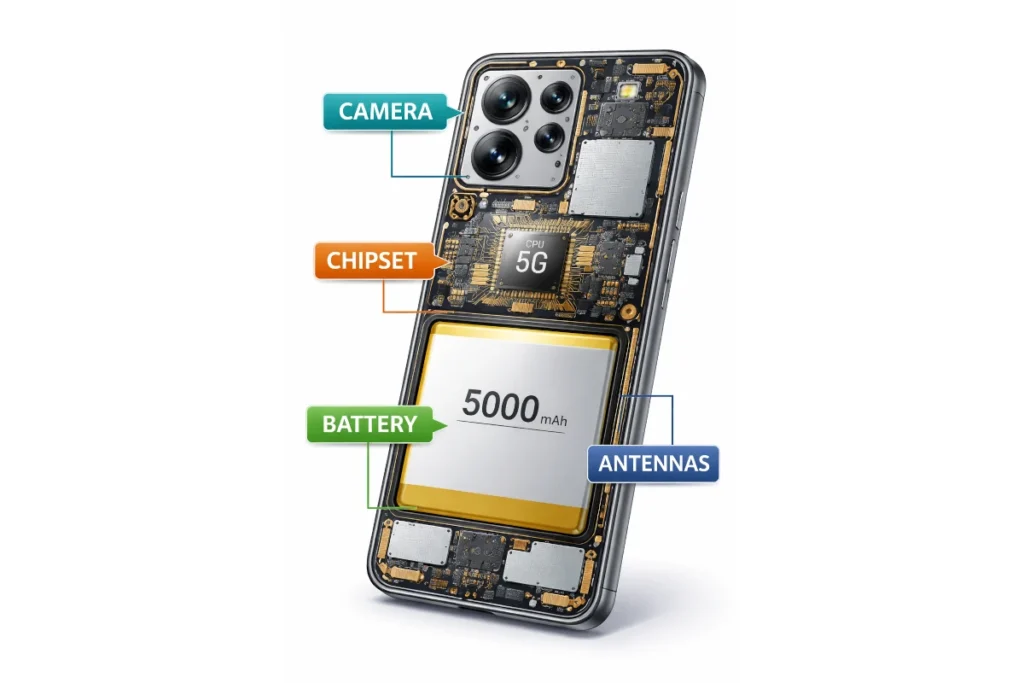
| Hardware | Battery, screen, chips, antennas, camera, sensors | Overheating, physical damage, weak signal |
| Operating system | iOS/Android core software | Update failures, battery drain after updates, glitches |
| Apps | Your installed software | Crashes, popups, privacy overreach |
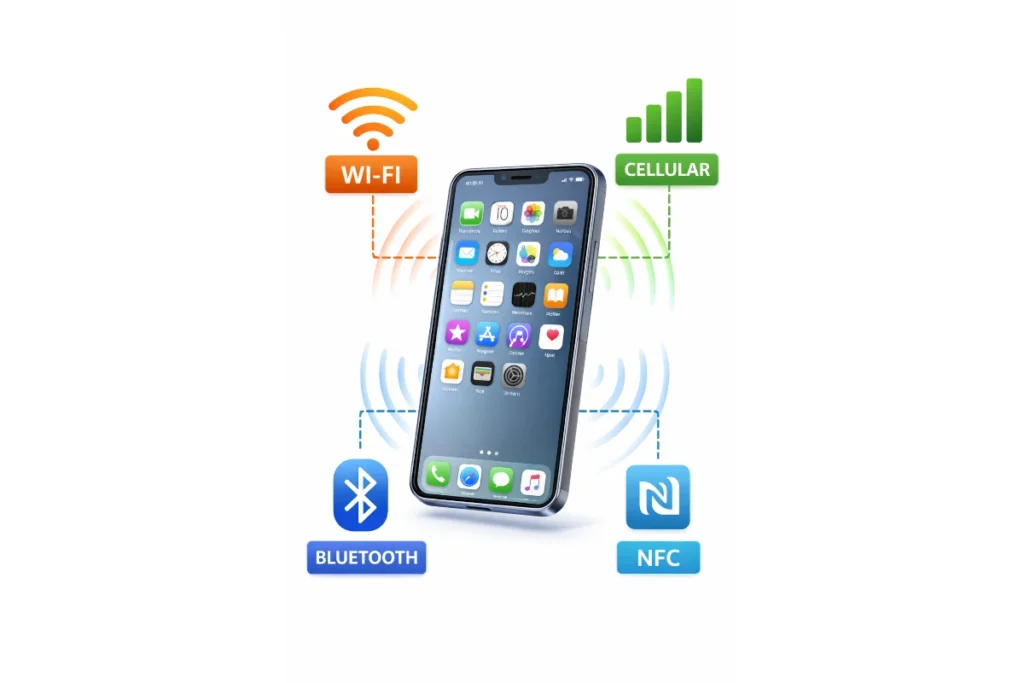
| Networks | Wi‑Fi, cellular, Bluetooth, NFC | Slow data, call drops, pairing issues |
| Cloud/services | Backups, sync, accounts, storage | Login problems, missing photos, restore confusion |
Sensors and the data loop (why phones feel “smart”)
Sensors are the secret sauce. GPS, cameras, microphones, accelerometers, and gyroscopes collect signals. Apps interpret those signals. Sometimes processing happens on the device; sometimes it uses cloud services. That loop powers navigation, step counting, photo enhancement, voice typing, and even fraud detection. It also explains why permissions matter: if an app can access more sensors than it needs, it can infer more about your habits.
Core hardware you actually need to understand
You don’t need to memorize spec sheets. You do need to know which components affect the things you feel every day: speed, battery, photos, durability, and how long the device stays useful.
CPU, GPU, and NPU: the brain trio
The CPU is the general-purpose brain, handling system tasks and app logic. The GPU handles graphics—games, animations, and video effects. Many modern phones also include an NPU (or similar AI engine) that accelerates tasks like speech recognition, camera scene detection, and on-device photo and video enhancement. In plain terms: CPU keeps things running, GPU makes it pretty and smooth, and NPU helps with “smart” features.
RAM vs storage: speed vs space
RAM is short-term working memory. More RAM usually means smoother multitasking—switching between apps without constant reloading. Storage is long-term space for apps, photos, videos, and downloads. When storage is nearly full, phones often slow down and updates can fail. If you’re choosing between upgrades, storage is frequently the better investment for average users, especially if you take lots of photos and videos.
Displays: LCD vs OLED, refresh rate, brightness
A display isn’t just about looks; it affects comfort. OLED screens often produce deeper blacks and can be efficient with dark themes. LCD can still be excellent and is often cheaper. Refresh rate (like 90Hz or 120Hz) can make scrolling feel smoother, but it may use more power. Brightness is crucial if you use your device outdoors—high brightness improves readability and reduces eye strain.
👉Read the guide: Monitors Made Easy: 25 Essential Tips to Choose the Perfect Screen
Cameras: beyond megapixels
Megapixels are only one ingredient. Camera quality depends heavily on sensor size, lens quality, stabilization, and software processing. That’s why two phones with the same megapixel count can produce very different photos—especially in low light or during motion.
Battery fundamentals: capacity, cycles, and heat
Battery capacity is often listed in mAh, but what matters is real-world endurance in your usage pattern. Batteries wear over charge cycles, and heat speeds up that wear. If you want a phone to last 3–5 years, treat heat like the enemy: don’t bake your phone on dashboards, and avoid heavy gaming while fast charging.
Durability: IP ratings and what they don’t promise
An IP rating indicates resistance to water and dust under test conditions, not a lifetime guarantee. Resistance can degrade with drops, repairs, and wear. A simple case-and-protector setup prevents most “day one” disasters.
Operating systems and ecosystems: choosing your home base
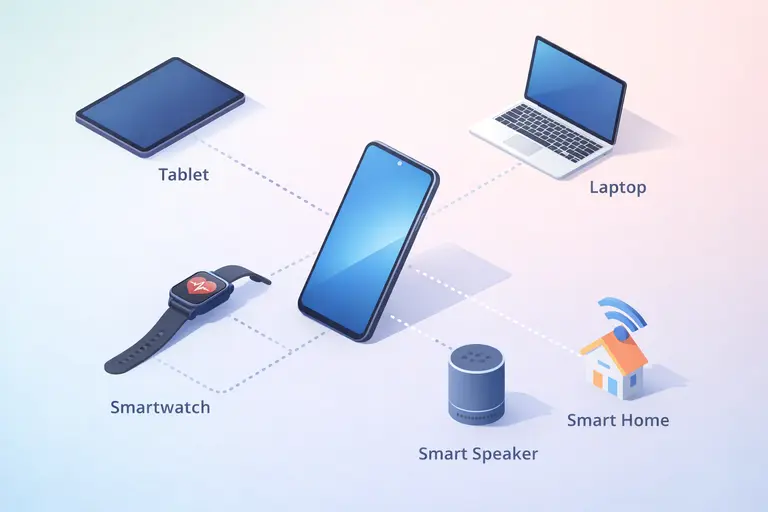
Your operating system (OS) is the rulebook your device follows. It affects privacy controls, app availability, how updates arrive, and how well your phone works with other devices like watches, earbuds, and laptops.
Android vs iOS: the practical differences that matter
Android offers more hardware variety, more customization, and more price points. Update timing can vary by manufacturer and model. iOS offers a more uniform experience and typically receives updates across supported devices at the same time. In everyday life, the best choice depends on your budget, your need for customization, and what other devices you already use.
| Category | Android (typical strengths) | iOS (typical strengths) |
| Choice | Many brands and price tiers | Fewer models, consistent lineup |
| Customization | High (launchers, defaults, UI tweaks) | Lower, but streamlined |
| Updates | Varies by brand/model | Consistent for supported devices |
| Ecosystem | Flexible across brands | Tight integration with Apple devices |
| File handling | Often more open | More guided and controlled |
👉 Read the guide: What Is Software? The Ultimate 2026 Foundational Guide to Understanding Digital Power (Beginner to Pro Mastery)
Ecosystems: convenience vs lock-in
Ecosystems are the invisible glue: how your phone syncs photos, hands off calls, shares passwords, and controls smart-home devices. The upside is convenience. The downside is that switching later may mean replacing accessories or learning new workflows. If you plan to keep your device for years, choose an ecosystem you can live with.
Connectivity 101: Wi‑Fi, cellular, Bluetooth, NFC
Most day-to-day frustrations come from connectivity: slow data, call drops, Bluetooth hiccups, and payment taps that fail at the worst moment. A little understanding prevents a lot of hassle.
Wi‑Fi vs cellular: how to isolate the problem fast
If Wi‑Fi is slow but cellular is fine, the issue is likely your router or internet provider. If cellular is slow but Wi‑Fi is fine, it’s likely coverage, congestion, or a carrier issue. If both are slow, look at device-wide settings, storage, or an OS problem.
5G and LTE: why coverage beats the logo
5G can be fast, but performance depends on signal strength, indoor coverage, and congestion. In real life, consistent LTE can feel better than flaky 5G. When buying, prioritize network compatibility and your carrier’s real coverage where you live and work.
Bluetooth: pairing rules that reduce headaches
Bluetooth is convenient but finicky. If audio cuts out: unpair and re‑pair, reboot both devices, and update accessory firmware when available. Crowded spaces can create interference; a small change in position can improve stability.
NFC: tap‑to‑pay basics and safe habits
NFC works at very short range. Mobile payments usually rely on device authentication and tokenization, which helps protect your card number. A safe habit is to keep a screen lock enabled and disable lock-screen access to sensitive notifications.
SIM, eSIM, locked vs unlocked, plans, and roaming
A SIM identifies you to a carrier network. A physical SIM is a removable chip; an eSIM is a digital SIM stored in your device. Both do the same job: connect your phone number and data plan to the network.
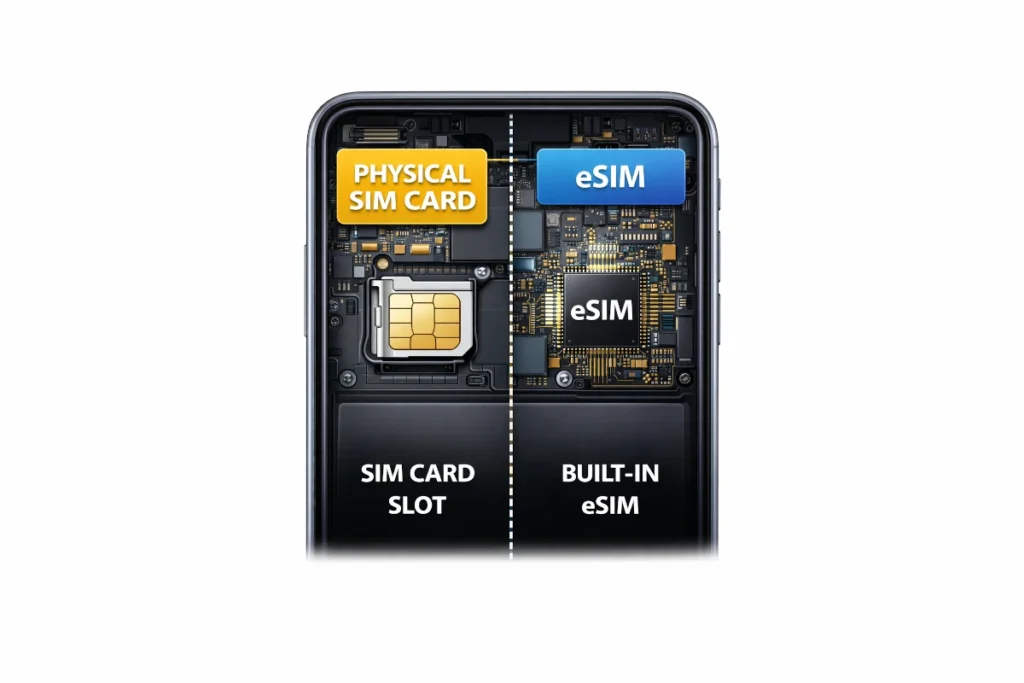
SIM vs eSIM: quick comparison
| Feature | Physical SIM | eSIM |
|---|---|---|
| Swap between phones | Easy to move the card (if device supports) | Depends on carrier transfer process |
| Travel | May need to buy/insert local SIM | Can add travel data plans digitally |
| Damage/loss risk | Tiny card can be lost | No card to lose |
| Dual SIM | Often one slot + one eSIM | Often supports multiple eSIM profiles |
Locked vs unlocked: what it means in practice
Locked phones are restricted to a carrier, often due to financing or promotional deals. Unlocked phones are more flexible for switching carriers or traveling. However, carrier deals can be cheaper up front. Decide whether flexibility or short-term savings matters more to you.
Roaming strategy that avoids surprise bills
Before traveling, check your carrier’s roaming rules, consider an eSIM data plan, download offline maps, and bring a power bank. If you rely on two-factor codes via SMS, plan how you’ll receive them abroad.
Setup: the first 60 minutes that decide everything
A clean setup saves you from most future headaches. Think of setup as building the safety rails: authentication, backups, and tracking. Once those are in place, everything else becomes easier.
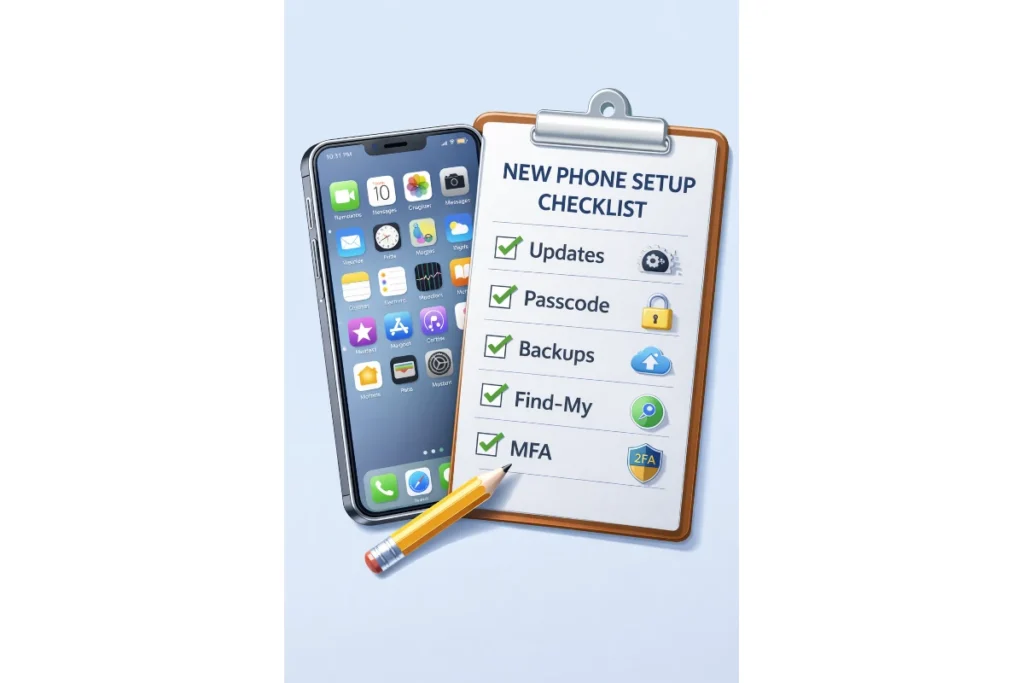
The clean setup checklist (do this in order)
- Update the operating system (and then update apps).
- Set a strong passcode/PIN; add biometrics for convenience.
- Turn on device tracking (Find My / Find My Device).
- Enable automatic backups (cloud or local) and verify one successful backup.
- Secure your main email with MFA—email is the master key for account resets.
- Install only essential apps first; add the rest over time.
- Review permissions as you install: deny by default, allow when needed.
- Configure lock-screen notifications to hide sensitive content.
- Add emergency contacts/medical info if your platform supports it.
A sane permission rule (default deny)
When an app asks for access, ask: “Will the app break without this?” If the answer is no, deny it. You can always allow later. This one habit quietly improves both security and privacy.
Security fundamentals: protect your data like a pro
Security doesn’t need panic. Most incidents come from a small set of predictable problems: lost phones, weak authentication, phishing, outdated software, and risky app installs. Address those well and you eliminate most everyday risk.
The realistic threat model (what usually goes wrong)
The most common risks for everyday users are:
- Loss or theft (someone gains physical access to your unlocked or weakly locked device)
- Phishing (fake logins through texts, email, or ads)
- Account takeover via reused passwords
- Malicious or overly-permissive apps
- Unsafe public charging or unknown accessories (rare, but avoidable)
- Unpatched software vulnerabilities when devices are not updated
Baseline security checklist (the high-impact settings)
- Use a long PIN/passcode (6+ digits) and enable biometrics.
- Turn on device encryption (usually enabled by default when a lock screen is set).
- Enable automatic OS updates and keep apps updated.
- Enable backups and test that you can restore a file/photo.
- Use MFA for email, banking, password manager, and cloud storage.
- Install apps only from official stores; avoid side-loading unless you know exactly why.
- Review app permissions monthly—especially location, microphone, contacts, and accessibility access.
- Use a password manager to avoid reuse and to generate strong passwords.
- Turn on security alerts in your main accounts (sign-in notifications).
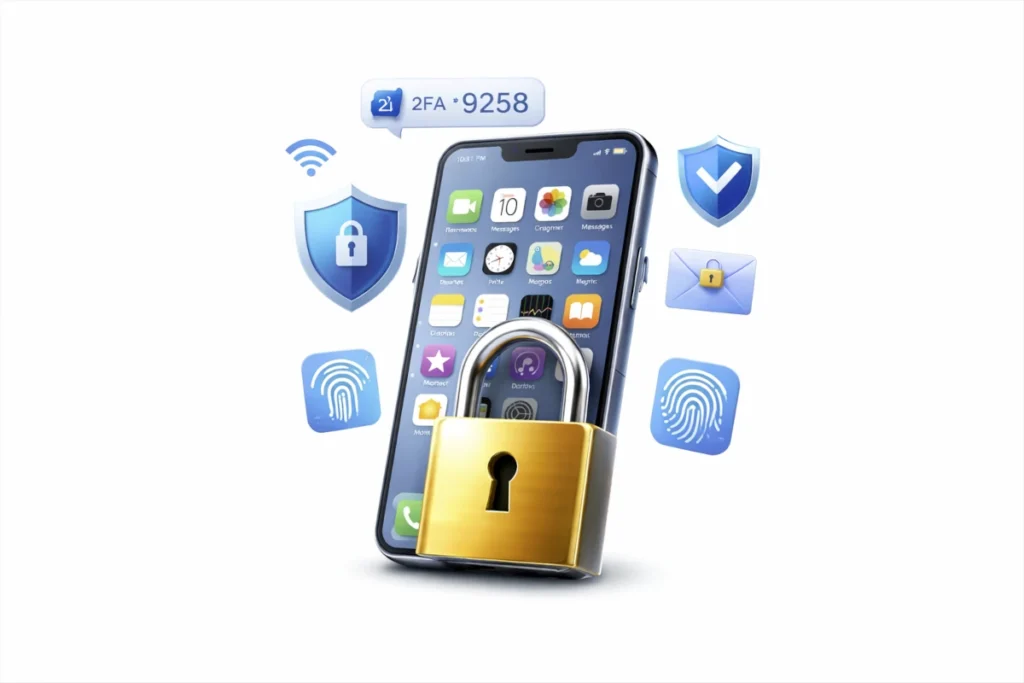
Phishing defense you can actually follow
Phishing works by rushing you. The safest habit is to avoid logging in from links. Instead, open the official app or type the website yourself. If a message threatens urgency (“verify now,” “final notice”), pause and verify through a second channel. You don’t need to be perfect—just slow down the attacker’s timeline.
If your phone is lost or stolen: the first-hour action plan
- Use device tracking to locate it; if nearby, play sound.
- Lock the device remotely (Lost Mode).
- Change your main email password immediately and review account recovery options.
- Revoke active sessions in email/security settings (sign out other devices).
- Contact your carrier to suspend service and prevent SIM misuse.
- If recovery is unlikely, remotely erase the device.
- Check banking and payment apps; set transaction alerts and review recent activity.
- File a police report if appropriate; keep IMEI/serial number for reference.
Work phones, BYOD, and MDM (what it is and why it exists)
If your phone touches work email or files, your organization may use Mobile Device Management (MDM). MDM can enforce passcodes, require encryption, separate work and personal data, and enable remote wipe of corporate content. This reduces risk when devices are lost or employees leave. The key for users is understanding boundaries: what is managed, what is monitored, and what actions the organization can take if the device is compromised.
Privacy fundamentals: control what you share
Privacy is about limiting unnecessary collection and sharing of your data. The goal isn’t to hide from the world—it’s to prevent apps and services from collecting more than they need. In practice, privacy is a series of small settings and habits: permissions, location, ad personalization, and cloud choices.
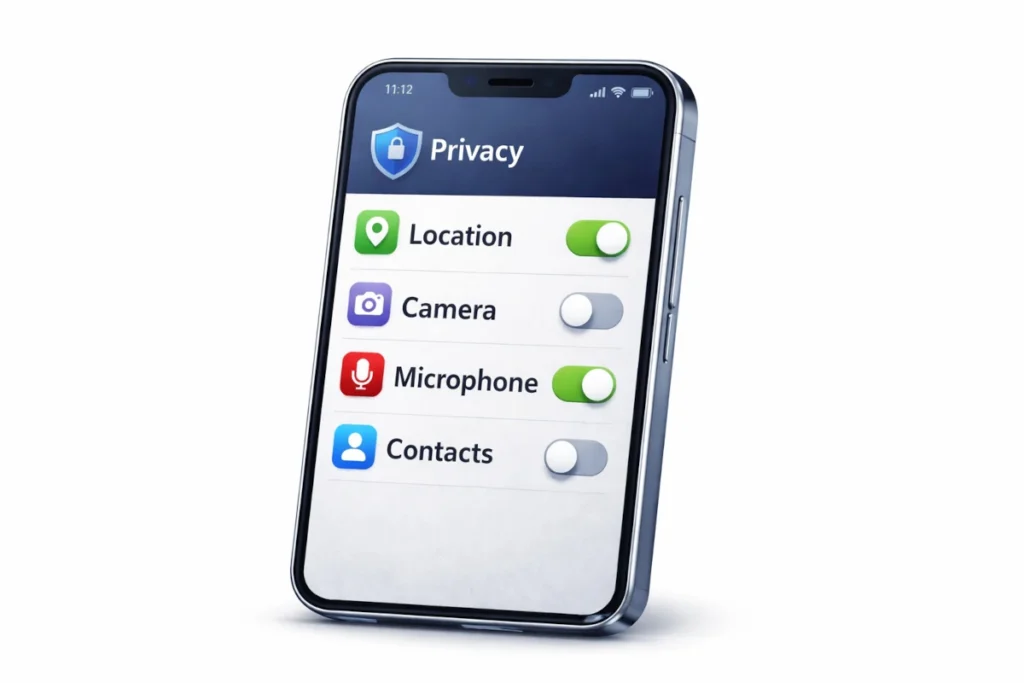
Permission hygiene (the monthly 5‑minute audit)
- Location: change “Always” to “While using” unless truly needed (e.g., navigation, safety apps).
- Microphone/camera: allow only for calling, recording, or scanning apps.
- Photos: prefer “selected photos” when available instead of full library access.
- Contacts/calendar: share only with apps that genuinely require it.
- Accessibility access: treat as high-risk permission; grant only to trusted tools.
Location data: why it’s sensitive and how to limit it
Location reveals routines: home, work, travel patterns, and frequent stops. Even approximate location can be revealing over time. A practical approach is to keep location services enabled (so maps and safety features work), but restrict access app-by-app. If an app offers “approximate location,” use it when precise location isn’t necessary.
Ad tracking and personalization (reduce without breaking everything)
Most platforms offer controls to limit ad personalization and tracking identifiers. Turning these off won’t remove ads, but it can reduce cross‑app profiling. Also, review browser privacy settings and consider limiting third-party cookies where applicable.
Performance: keep your device fast without gimmicks
Phones slow down for boring reasons: storage pressure, background processes, old batteries, and heat. You don’t need magic cleaner apps. You need a simple maintenance routine and a way to identify the real bottleneck.
The three most common causes of “slow phone”
- Storage is nearly full (system has little room for updates and temporary files).
- A misbehaving app is running heavy background tasks.
- The device is overheating (performance throttles to cool down).
Safe cleanup strategy (what to delete first)
Start with the biggest wins: unused apps, large videos, and downloaded files. Messaging apps often store huge media caches—cleaning those can free gigabytes. Aim to keep 10–15% storage free. After cleanup, restart the phone and check whether performance improves.
When to restart, update, or reset
Restart when your phone acts oddly—random lag, stuck Bluetooth, or unusual battery drain. Update when you’re behind on OS/app patches. Factory reset is a last resort for persistent issues, and it works best when you restore selectively instead of reinstalling every old app automatically.
Battery health and charging: what actually works
Battery life is part hardware, part habits. Over time, batteries lose capacity. Your job is to slow that aging so your device stays usable for years.
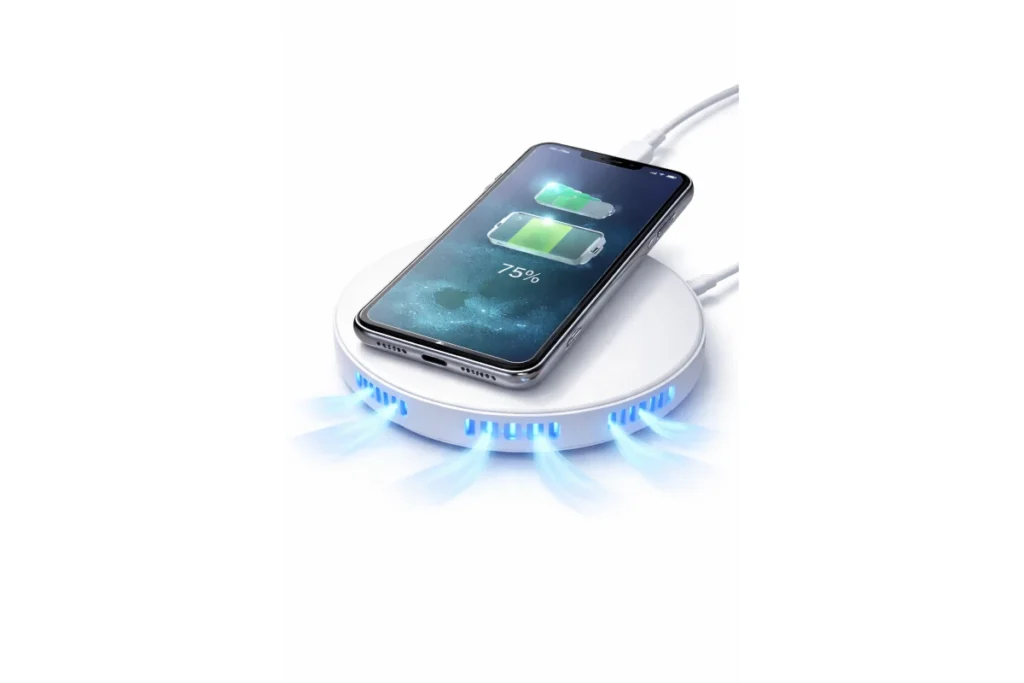
What really harms battery health
- Heat (high temperature accelerates chemical aging).
- Constant high charge in hot conditions (e.g., 100% in a hot car).
- Heavy use while charging (gaming + fast charging creates heat).
- Very deep discharges repeatedly (running to 0% constantly).
Practical charging habits (easy wins)
- Use optimized charging features if available.
- Charge earlier rather than living at 1%—especially before travel.
- Avoid charging under pillows or thick blankets.
- Prefer reputable chargers and cables to reduce heat and instability.
- If battery health drops significantly after years, consider a battery replacement before replacing the whole device.
Power banks and travel power planning
A power bank removes stress. Choose one with enough capacity for at least one full recharge and keep a short, durable cable in your bag. If you’re traveling, consider bringing a small multi-port charger so you can charge phone, watch, and earbuds from one outlet.
👉 Read the guide: The Ultimate Guide to Productivity Gadgets for Home & Office 2026
Accessibility and digital well-being
Accessibility features make devices easier for everyone—not just people with disabilities. Digital well-being tools help you control attention and interruptions.
Accessibility features worth turning on
- Text size and display zoom for comfortable reading
- Captions and live transcription for noisy environments
- Voice dictation and voice control when hands are busy
- One-handed mode and reachability settings
- High contrast and color filters for visibility
Digital wellbeing: focus without misery
Start by reducing notification noise. Keep messages and security alerts; mute everything else. Use focus modes for work, school, and sleep. Move tempting apps off the home screen. These changes don’t require willpower—they change the environment.
Buying guide: choose the right device without regrets
Buying a phone is easier when you stop shopping for specs and start shopping for outcomes. Decide what you want the device to do, then buy the features that support that outcome.
The buyer decision framework (5 questions)
- What are my top three priorities (battery, camera, size, durability, performance, budget)?
- How long do I plan to keep this device (1–2 years vs 3–5 years)?
- How much storage do I realistically need (photos/videos, downloads, apps)?
- Do I rely on specific ecosystem features (watch, laptop, family sharing, smart home)?
- What’s my risk tolerance for repairs (do I want easy battery replacement or extended warranty)?
Budget vs mid-range vs flagship (what you get)
| Tier | Best for | What to prioritize | Common trade-offs |
| Budget | Calls, messaging, basics | Battery, enough storage, reliable updates | Lower camera quality, slower performance |
| Mid-range | Most people | Balanced camera, good display, solid battery | Not the absolute best video/gaming |
| Flagship | Creators, power users | Top camera processing, peak performance, premium build | Diminishing returns, higher cost |
Longevity checklist (how to get 3–5 good years)
- Choose strong update support (security patches matter).
- Buy enough storage so you don’t live at 95% full.
- Protect the device physically (case + protector).
- Plan for a battery replacement at year 2–4 if needed.
- Avoid overheating habits that accelerate battery wear.
Mobile devices for different people (use-case playbooks)
Two people can buy the same phone and have totally different experiences. Use cases determine which features matter.
Students
Students benefit from battery life, durability, and simple backup workflows. If you take notes, consider a device that supports stylus input or a tablet + keyboard setup for reading and writing. Keep school accounts secured with MFA to reduce the chaos of lost passwords.
Seniors and first-time smartphone users
Prioritize readability, loud speakers, scam protection, and emergency features. Simplify the home screen, increase text size, and reduce notifications. Teach one key habit: never log in from links in texts. That single lesson prevents many scams.
Creators (photo/video)
Creators should prioritize camera processing, stabilization, storage, and accessory support (microphones, mounts, gimbals). Also prioritize fast transfers and reliable backups—losing footage hurts more than losing a device.
Travelers
Travelers should set up offline maps, confirm roaming strategy, and carry a power bank. If your phone is your boarding pass and translator, battery planning is safety planning.
Work and BYOD
If you use your phone for work, understand your organization’s expectations: passcodes, encryption, MDM, and data separation. Keep personal and work accounts cleanly separated where possible, and ask what happens if your device is lost—can IT wipe only work data or the whole device?
Care, repair, and resale (get more years out of your device)
Most phones die early from accidents and battery wear, not from “getting old.” A small amount of care protects your investment.
Everyday care that pays off
- Use a case that protects corners (corner drops are common).
- Use a screen protector (cheap insurance).
- Keep charging ports clean; avoid metal tools.
- Avoid water exposure even if you have an IP rating.
- Avoid heat: dashboards, sun, and thick blankets while charging.
When repair makes sense
Repairs often make sense when the phone is otherwise solid: battery replacement, screen replacement, charging port repairs, or speaker fixes. A battery replacement can make a two-year-old phone feel new again.
Resale and trade-in: the safe checklist
- Back up everything and confirm the backup worked.
- Sign out of cloud accounts and turn off activation locks (Find My).
- Remove payment cards from your digital wallet.
- Factory reset the device.
- Remove the physical SIM and ensure eSIM profiles are removed per carrier instructions.
- Provide proof of purchase if you have it (boosts resale trust).
Troubleshooting library: fix common issues fast
Troubleshooting works best when you follow a repeatable flow. The goal is to isolate whether the problem is the device, the app, or the network.
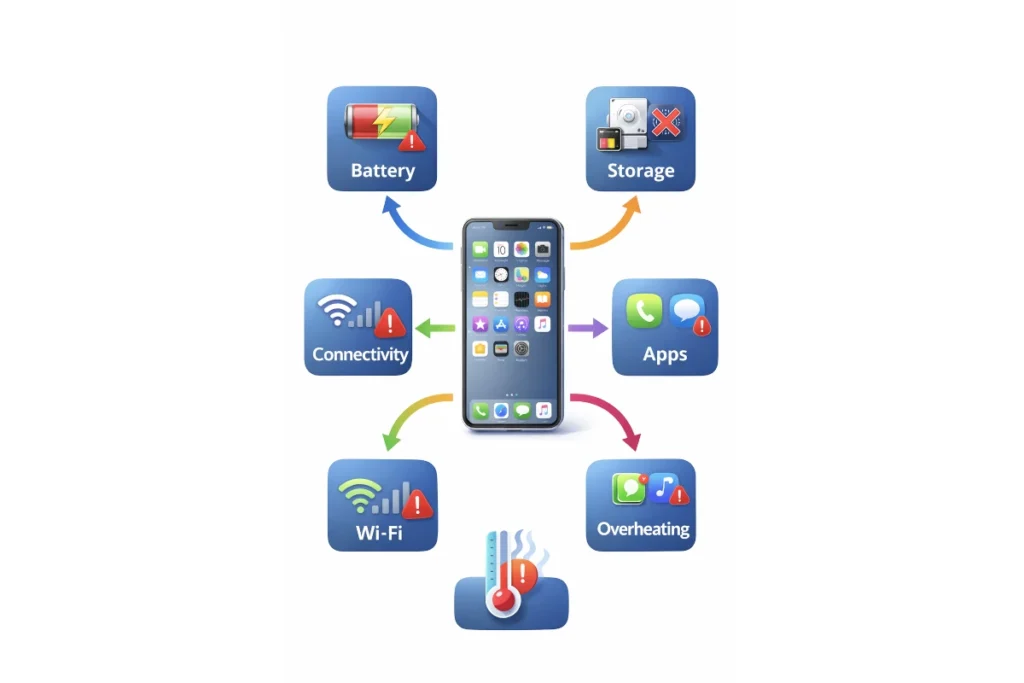
The 6-step quick diagnostic flow
- Restart the phone.
- Update OS and apps.
- Check storage (keep 10–15% free).
- Test on another network (Wi‑Fi vs cellular).
- Remove or disable one suspect app/accessory and retest.
- If still broken, back up and consider a reset or professional repair.
Troubleshooting decision table (symptom → likely cause → fastest fix)
| Symptom | Likely cause | Fastest fix | If it persists |
|---|---|---|---|
| Wi‑Fi connected, no internet | Router/ISP, DNS issues | Restart router; forget/rejoin network | Test another Wi‑Fi; reset network settings |
| Cellular slow everywhere | Carrier congestion/outage, plan cap | Toggle airplane mode; reboot | Contact carrier; check APN settings |
| Bluetooth drops | Interference, stale pairing | Un-pair/re‑pair; reboot | Update firmware; test other headphones |
| Overheating | Heat + heavy load | Stop charging; close camera/games | Check battery health; service check |
| Apps crashing | App bug, low storage | Update app; free storage | Reinstall; OS update; report bug |
| Battery drains fast | Bad signal, background apps | Check battery usage; reduce background | Battery health check; replace battery |
| No storage | Large videos, caches | Delete large media; clear downloads | Move photos to backup; upgrade storage next time |
Backups and disaster recovery: don’t learn this the hard way
Backups are the difference between a bad day and a disaster. A phone can be lost, stolen, dropped, or simply fail. A good backup strategy means you can replace the device without losing years of photos, messages, and account access.
The 3‑2‑1 mindset (simple version)
A practical backup mindset is: keep more than one copy of important data, and make sure at least one copy isn’t on the phone. For most people, that means cloud backup plus an occasional local copy of critical photos/documents.
What to back up first (priority list)
- Photos and videos (verify cloud sync is working)
- Contacts and calendar
- Authenticator recovery codes / backup method
- Notes and documents
- Important chats (where export/backup is supported)
Test a restore (yes, really)
A backup you’ve never tested is a hope, not a plan. Once a quarter, confirm you can restore a file or photo, and ensure your account recovery methods are current.
Avoid these 10 common mistakes (and what to do instead)
| Common mistake | Why it’s risky | Better move |
|---|---|---|
| Using a 4-digit PIN | Easy to guess or shoulder-surf. | Use a longer PIN/passcode and enable biometrics. |
| Turning off updates | Missed security patches. | Keep OS/app updates on; schedule a weekly check if you prefer manual. |
| Installing “cleaner” apps with broad permissions | Privacy risk; often unnecessary. | Use built-in storage tools; uninstall unused apps. |
| Granting ‘Always’ location to random apps | Creates detailed movement profiles. | Use ‘While using’ or deny; audit monthly. |
| No backups | Loss/theft becomes catastrophic. | Turn on backups and verify one successful backup. |
| Reusing passwords | One breach cascades to other accounts. | Use a password manager and MFA. |
| Logging in from text/email links | Phishing becomes easier. | Open the app/site directly instead of tapping links. |
| Charging in hot environments | Accelerates battery wear and throttling. | Keep the device cool; avoid heavy use while charging. |
| Ignoring storage warnings | Leads to slowdowns and update failures. | Maintain 10–15% free storage and clean media caches. |
| Selling a phone without signing out | Causes lockouts and data exposure. | Disable activation lock, remove accounts, then reset. |
FAQs (People Also Ask)
How long should a phone last?
Is public Wi‑Fi safe?
Do I need antivirus on a phone?
What’s the simplest security setup?
Why does my battery drain when I’m not using my phone?
Should I close all apps to save battery?
What’s the difference between device storage and cloud storage?
Is unlocked better than carrier-locked?
How do I reduce spam calls and texts?
What’s an eSIM and should I use it?
What permissions are the most risky?
Can my employer read my personal texts on BYOD?
Does factory reset remove everything?
Why is my phone slow after an update?
How much storage do I need?
Is fast charging bad?
What’s the safest way to handle password resets?
What should I do before traveling?
Secure app installs and scam defense (real-world playbook)
If security is the seatbelt, scams are the slippery roads. Most real-world compromises now come from social engineering: convincing messages, fake support calls, look‑alike websites, and apps that pretend to be something they’re not. The good news is that scam defense is mostly pattern recognition and a few repeatable habits.
A safe app-install rule you can follow every time
Before installing an app, do a quick three-step check. It takes 20–30 seconds and prevents most bad installs:
- Check the developer name and spelling. Scammers often use look‑alike names that are “close enough.”
- Scan recent reviews for patterns (e.g., “stole my account,” “unexpected charges,” “lots of ads,” “stopped working after payment”). Ignore overly generic praise.
- Review permissions before you commit. If a simple app asks for contacts, SMS, or accessibility access, treat that as a red flag unless the function truly requires it.
If you’re installing a banking, government, or healthcare app, go one step further: start from the institution’s official website and follow their app-store link. That reduces the chance you pick a fake app in search results.
High-risk permissions (when to pause and think)
These permissions can create outsized risk if granted to the wrong app:
- Accessibility access (can observe actions and automate taps in some contexts).
- Device admin / management privileges (can block uninstalling or change security settings).
- SMS access (can read verification codes on some devices and intercept account recovery).
- Notification access (can read message previews and some one-time codes).
- Full photo library access (exposes personal documents, IDs, and private photos).
Common scam scripts (and the one-liner response that saves you)
Scams often follow predictable scripts. Here are common ones and a simple response that keeps you safe:
| Scam script | What they want | Safe response |
|---|---|---|
| “Your bank account is locked—verify now.” | Your login and MFA approval | Open your bank app directly; don’t tap the link. |
| “We’re tech support—your device is infected.” | Remote access or payment | Hang up. Contact support via official website number. |
| “Confirm delivery—pay a small fee.” | Card details and personal info | Track via the merchant’s official site/app. |
| “You won a prize—claim it today.” | Personal data and subscription fees | Ignore; prizes don’t require urgency. |
| “A relative is in trouble—send money.” | Money transfer | Verify with a direct call to the person or trusted contact. |
Safe browsing and payments on mobile
Mobile browsing is convenient, but small screens make it easier to miss subtle clues like misspelled domains. A few habits keep you safer:
- Prefer saved bookmarks for important sites (banking, government services, utilities).
- Be cautious with QR codes in public spaces—treat them like links.
- Use mobile payments (tap‑to‑pay) when available; they often reduce card-number exposure compared to swiping.
- Avoid installing “profiles,” “certificates,” or “configuration apps” unless you understand why—they can change how your device connects.
- When a site asks for unusual permissions or prompts you to call a number, pause and verify through official channels.