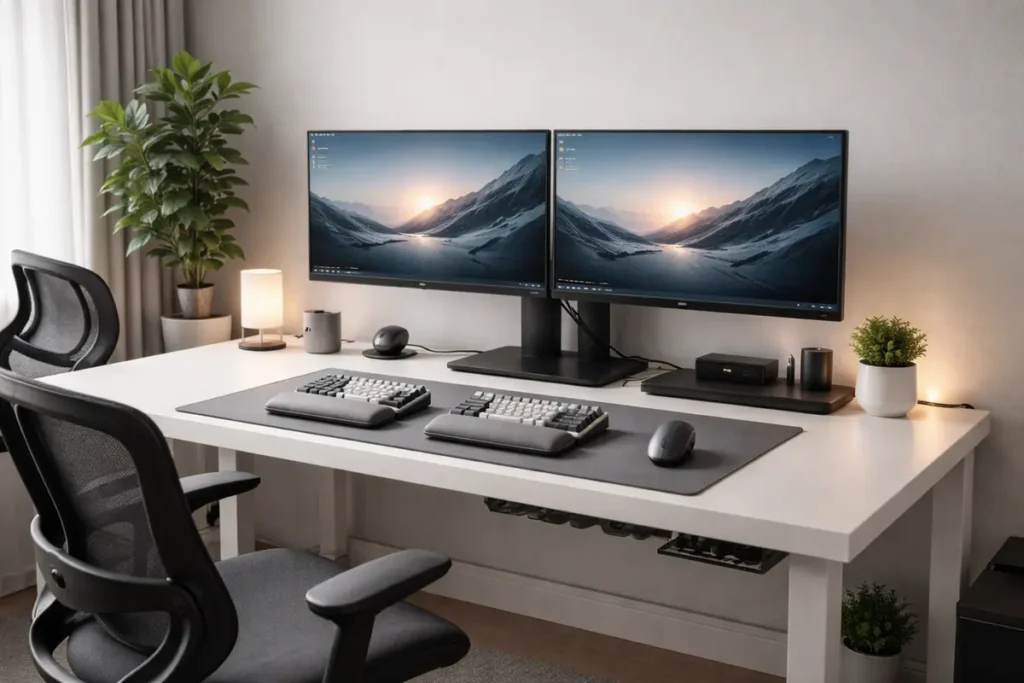
I’ve tested over forty productivity gadgets for home and office this year, and the Logitech MX Keys S keyboard still sits on my desk as the one tool I’d replace immediately if it broke. Its tactile feedback and smart backlighting save me roughly 15 minutes daily in typing corrections alone.
The real standout, however, is the CalDigit TS4 Thunderbolt 4 dock—it eliminated my cable chaos and charges my laptop, monitors, and phone through a single connection. Pair that with a BenQ ScreenBar Halo for glare-free lighting, and you’ve got a setup that actually speeds up your workflow.
By the end of this, you’ll know exactly which productivity gadgets for home and office are worth your money and which ones just take up desk space.
Introduction: Why the Right Gadgets Compound Productivity
In today’s digital work environment, productivity is rarely limited by effort. Most people aren’t “lazy” or “unmotivated.” They’re fighting invisible friction all day.
Friction looks like:
- Switching tabs constantly
- Losing focus after every notification
- Adjusting your posture every few minutes because your chair feels wrong
- Restarting WiFi mid-call
- Searching for a cable, dongle, or charger
- Plugging and unplugging the same devices every morning
- Accidentally overwriting a file, then spending time recovering it
- Getting neck and wrist pain that forces more breaks than you want
Each interruption might cost 20–60 seconds. A few times per day doesn’t seem like much. But it adds up fast.
If you lose only 10 minutes per workday, that equals:
10 minutes × 5 days × 52 weeks = 43 hours per year.
That’s more than a full work week—gone.
The right productivity gadgets for home and office are not about showing off tech. They’re about creating a system that:
- Reduces recurring micro-problems
- Keeps your tools ready to use
- Improves comfort so you can focus longer
- Prevents disasters like data loss or power-related damage
- Makes your workspace predictable (less mental load)
What Are Productivity Gadgets?
Productivity gadgets are tools designed to enhance performance, comfort, efficiency, and reliability in your work environment—whether you work from home, in an office, in a hybrid setup, or in a study space.
They usually fall into five groups:
- Desk efficiency gadgets (keyboard, mouse, monitors, docks)
- Smart automation devices (smart plugs, power strips, routines)
- Connectivity upgrades (routers, Ethernet, signal stability)
- Data protection equipment (SSDs, backups, UPS power)
- Ergonomic and health-focused upgrades (chairs, standing converters, eye comfort tools)
Not every gadget increases productivity. Some add complexity, distraction, or maintenance. A true productivity gadget should meet three criteria:
- Solves a recurring problem (not a one-off annoyance)
- Used frequently (daily or weekly)
- Produces measurable benefit (time saved, pain reduced, fewer errors, fewer interruptions)
A simple mindset shift helps:
Don’t buy gadgets because they’re cool. Buy gadgets because they reduce friction.
The Productivity Framework: How Gadgets Eliminate Friction
To make smarter decisions and avoid wasting money, use this framework. Every productivity upgrade should improve at least one of these five areas:
1. Speed
Does it reduce time per task?
Examples: docking station reducing setup time, second monitor reducing tab switching.
2. Comfort
Does it reduce fatigue or strain?
Examples: ergonomic chair, vertical mouse, keyboard wrist support.
3. Automation
Does it reduce repetition?
Examples: smart plug routines, macro pads, scheduled router resets.
4. Protection
Does it prevent loss (time, data, money)?
Examples: UPS backup, external SSD, surge-protected power strip.
5. Focus
Does it reduce distractions or context switching?
Examples: noise-cancelling headphones, dual monitors, clean cable management.
The best gadgets improve multiple dimensions. For example:
- A portable second monitor improves speed + focus.
- A vertical mouse improves comfort + protection (long-term wrist health).
- A UPS improves protection + focus (no panic during outages).
Now let’s go category by category.
Category 1: Desk Efficiency Gadgets
Your desk is your daily command center. If it’s inefficient, everything slows down. Desk upgrades tend to deliver the biggest daily ROI because they affect the actions you repeat the most: typing, clicking, reading, switching apps, connecting devices.
How Desk Gadgets Affect Cognitive Flow
Every time you break flow, your brain pays a switching cost. Even a tiny interruption can cause a “restart delay” where you re-orient yourself. This is why desk friction feels so annoying: it’s not just physical—it’s cognitive.
Desk efficiency gadgets aim to:
- Reduce physical micro-adjustments
- Reduce constant switching between windows
- Create consistent tool placement (muscle memory)
- Reduce setup friction (plugging, connecting, charging)
- Keep you comfortable longer so focus remains steady
Ergonomic Keyboards
Typing is one of the most repeated actions in modern work. Even if you’re “not a writer,” you still type: emails, messages, documents, spreadsheets, notes, search queries, and forms.
A poorly designed keyboard can:
- Reduce typing accuracy
- Cause finger fatigue
- Increase wrist strain
- Encourage bad posture (especially when paired with a laptop)
- Slow you down because it feels “mushy” or inconsistent
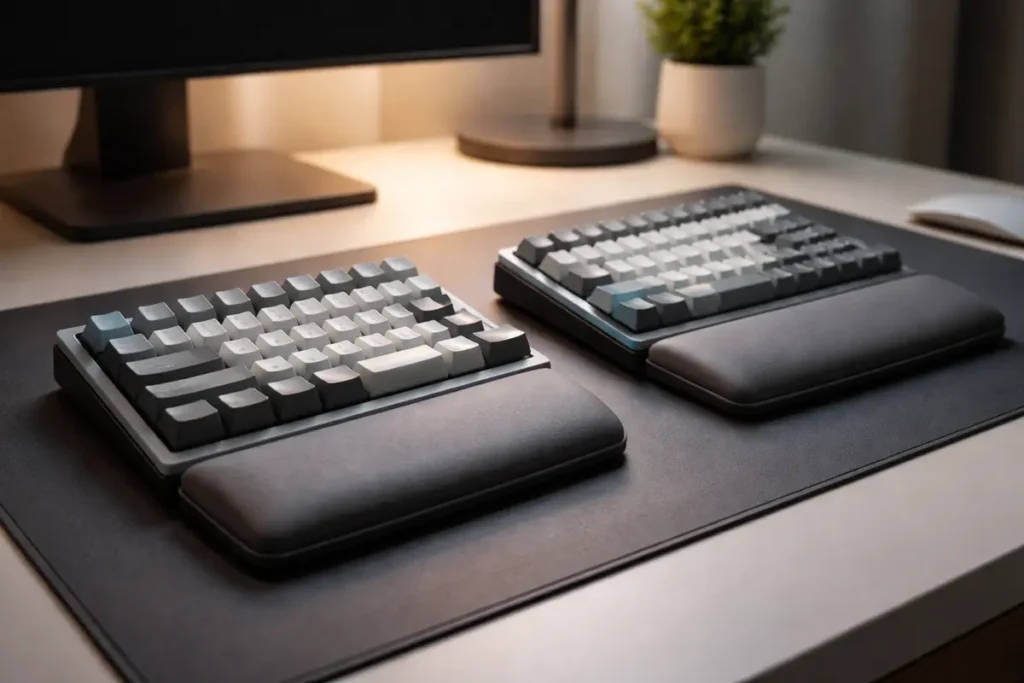
Mechanical and ergonomic keyboards improve tactile feedback and durability. Split ergonomic keyboards go further by encouraging natural wrist positioning.
What matters when choosing a keyboard
- Layout: UK ISO vs US ANSI matters for muscle memory and key placement.
- Switch type:
- Linear: smooth, quiet-ish
- Tactile: feedback bump (often best for typing)
- Clicky: loud, satisfying but not office-friendly
- Wrist support: a good wrist rest can reduce strain.
- Keycap quality: better keycaps feel nicer and last longer.
- Hot-swappable switches: lets you change switch feel without replacing the board.
- Angle/tenting: helps keep wrists neutral.
Who benefits most
- Anyone typing 2+ hours daily
- Office workers and admin roles
- Students and heavy note-takers
- Developers, analysts, writers, support staff
Who should avoid it
- People who type rarely (under 30 minutes per day)
- People in ultra-quiet environments who can’t tolerate keyboard noise (unless they choose silent switches)
👉 Read the guide: 10 Powerful Ways a Keyboard & Mouse Setup Can Transform Your Productivity
Precision & Vertical Mouse
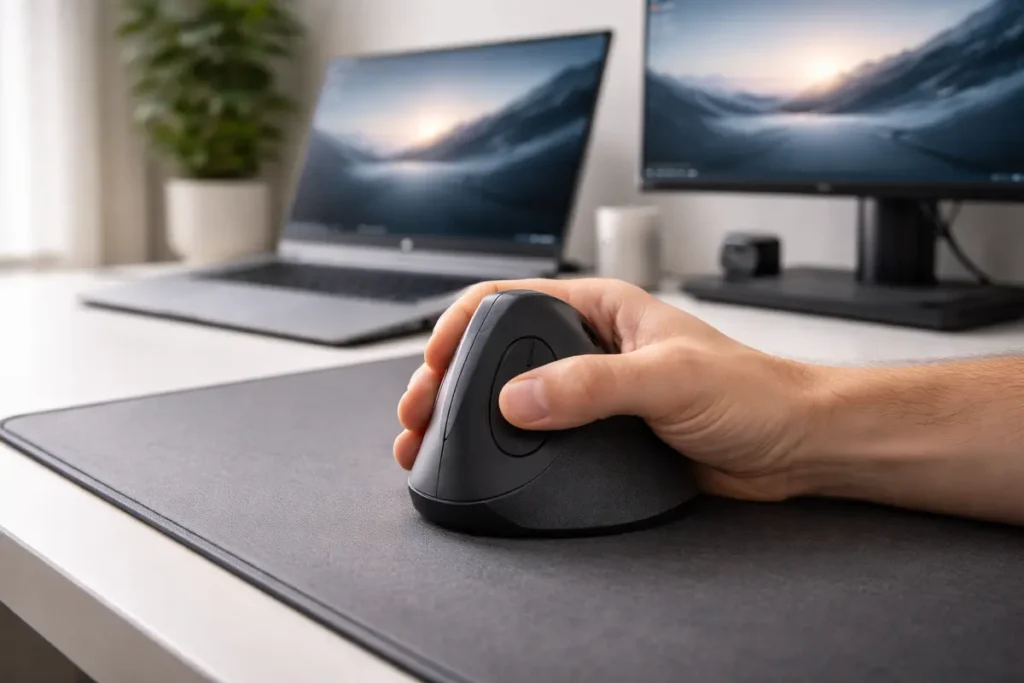
A standard flat mouse forces wrist rotation. Over time, that can contribute to discomfort. Even if you don’t have pain today, a mouse is a “high repetition” tool—meaning small ergonomic improvements add up.
Vertical mouse maintain a handshake position, reducing rotational strain. Precision mouse also reduce micro-corrections because the sensor quality is better.
Features that actually matter
- Adjustable DPI: helps match screen size and your movement style.
- Programmable buttons: huge time-saver for back/forward, copy/paste, spreadsheet shortcuts.
- Sensor quality: better tracking reduces frustration.
- Multi-device switching: great if you use laptop + desktop or work/personal machines.
- Hand size fit: too small or too large = discomfort.
Where a good mouse saves time
- Spreadsheet work (back/forward, multi-select, scrolling)
- Editing (video, photo, audio)
- Research-heavy work (rapid navigation)
- Design tools (precision selection)
Who should avoid vertical mouse
- Competitive gamers who prefer low-latency, high-speed flat mice
- Users unwilling to adapt for a few days (there’s a learning curve)
Portable Second Monitors
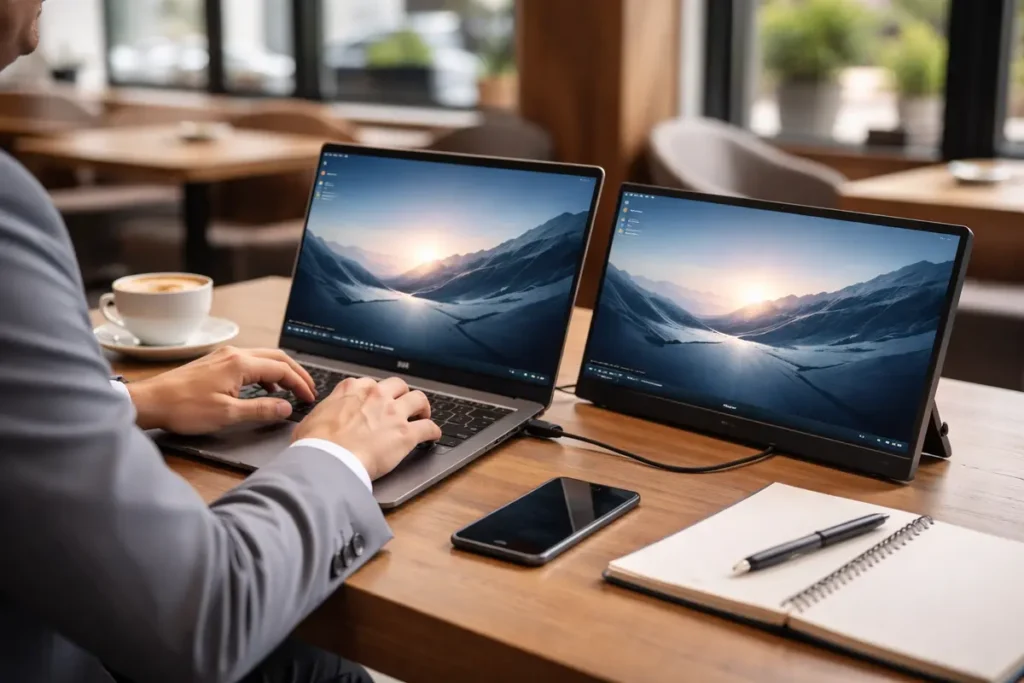
If you work on a single small laptop screen, you’re paying a constant productivity tax. A second screen reduces tab switching, makes referencing easier, and makes meetings smoother.
Research from Jon Peddie Research discusses productivity improvements with multiple monitors (source reference page):
Link
Why it increases productivity
- You can keep a reference open (brief, spec sheet, notes) while working.
- Meetings can stay on one screen while notes live on the other.
- Comparing documents becomes effortless.
- Less mental load: you “see” more context at once.
What to look for in a portable monitor
- USB-C single cable (power + display)
- Resolution: 1080p minimum
- Panel type: IPS often looks better at angles
- Brightness: higher is better for daylight rooms
- Stand quality: stability matters more than people think
- Weight: under 1 kg ≈ 2.2 lb is travel-friendly
Who benefits most
- Hybrid workers
- Students
- Consultants and frequent travellers
- Anyone working with documents, spreadsheets, or reference material
👉 Read the guide: Monitors Made Easy: 25 Essential Tips to Choose the Perfect Screen
Docking Stations & Hubs
If your laptop setup requires plugging in five different cables every day, you’re wasting time and creating friction. A docking station turns your desk into a “one cable and go” system.
Docking stations solve:
- Cable clutter
- Daily setup time
- Limited ports
- Unstable WiFi by enabling Ethernet
- Wear on laptop ports
Key specs to understand
- Power delivery (PD): enough wattage for your laptop.
- Video output: HDMI/DisplayPort support and max resolution.
- Ethernet port: stable connection beats WiFi for calls.
- USB ports: number + type (USB-A, USB-C).
- Compatibility: Mac vs Windows differences matter.
Who benefits most
- Hybrid workers switching locations
- MacBook/ultrabook users with limited ports
- Anyone running dual monitors
- People who hate cable chaos
👉 Read the guide: Docks & Hubs
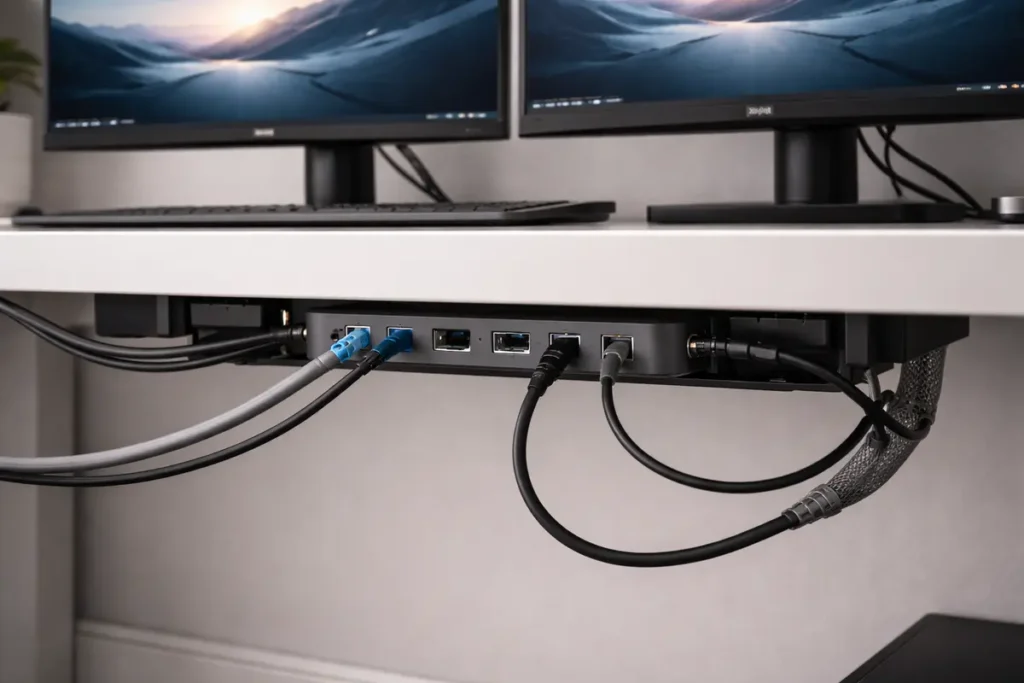
Mini Case Study: The Remote Analyst Upgrade (Desk Efficiency)
Scenario:
A financial analyst works from home using a 13-inch laptop. They spend the day in spreadsheets and calls.
Problems:
- Constant Excel tab switching
- Neck strain from looking down
- Slow typing on a flat laptop keyboard
- Cable chaos when moving between desk and sofa
Upgrades:
- Portable second monitor
- Mechanical keyboard (tactile)
- Vertical ergonomic mouse
- USB-C dock + Ethernet
Results after 30 days:
- Faster comparison work
- Fewer mis-clicks and corrections
- Less wrist fatigue
- Setup time reduced by several minutes daily
Estimated time saved: ~20 minutes/day → ~86 hours/year.
That is why desk efficiency gadgets are usually your first priority.
Category 2: Smart Automation Gadgets
Automation reduces mental load. Instead of remembering to do small tasks, your environment does them for you.
Decision Fatigue & Automation
Every small decision costs mental energy:
- Turn on the lamp
- Turn off the fan
- Restart the router
- Shut everything down
- Remember to unplug chargers
- Turn off devices to save power
Smart automation removes these micro-decisions. It also makes your workday more consistent, which improves focus.
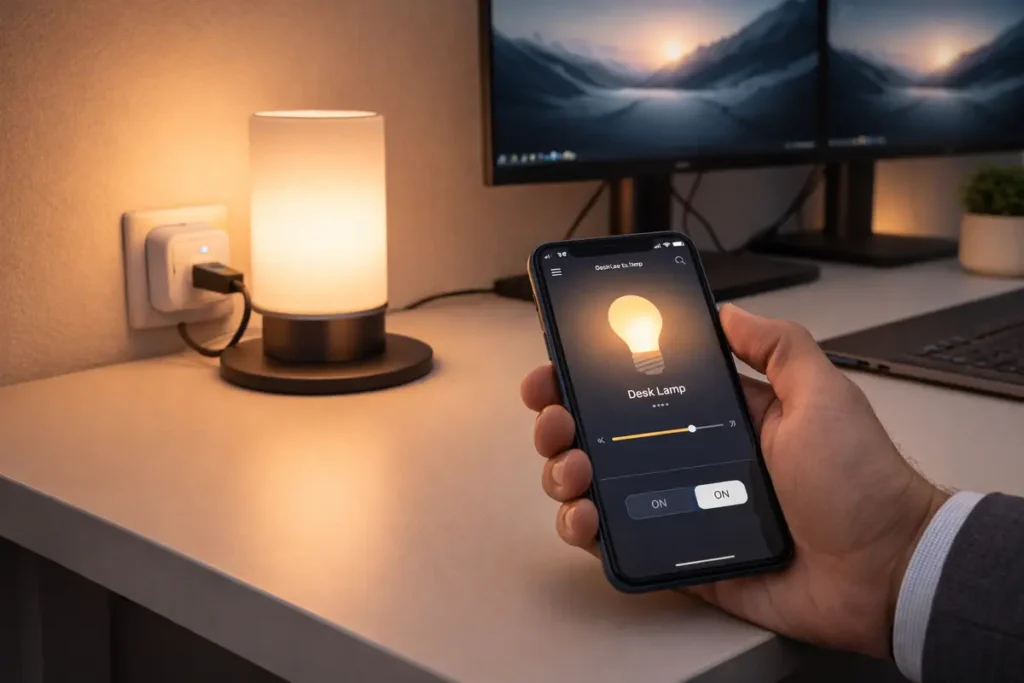
Smart Plugs
Smart plugs are one of the easiest “starter” automation gadgets. They let you schedule or remotely control power.
What you can automate
- Desk lamp on/off schedule
- Router restart routines
- Fans/heaters (within safe limits)
- Charger cut-offs (reduce vampire power)
- Night shutdown routines for office gear
What to check before buying
- Plug type (UK Type G vs US Type A/B)
- Max watt rating
- App reliability and updates
- Compatibility with Alexa/Google/Apple Home systems
- Whether it supports energy monitoring
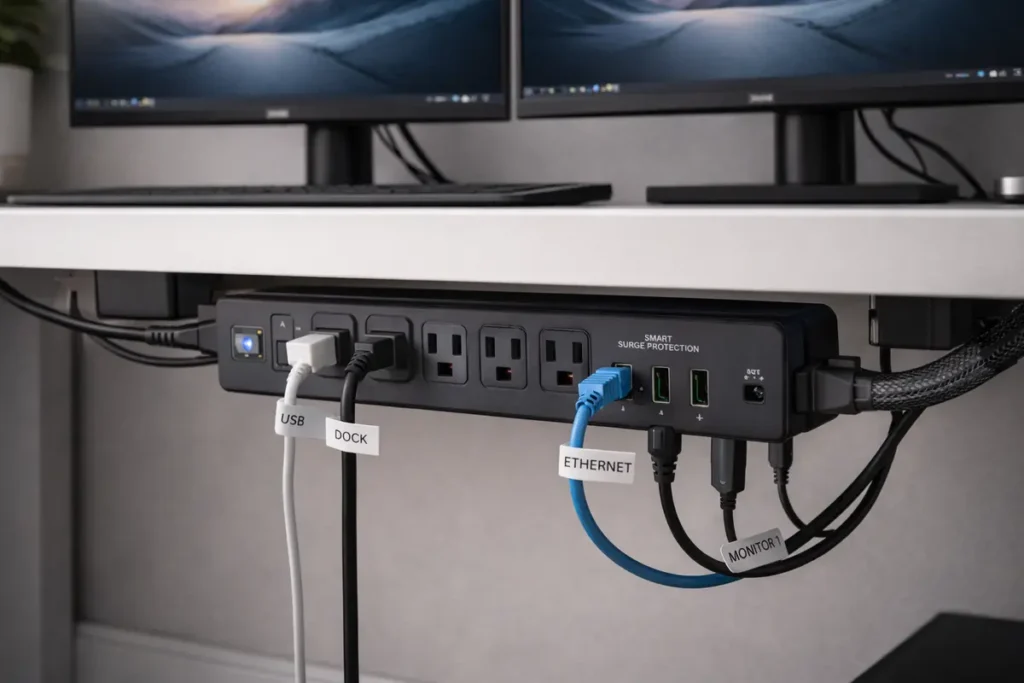
Smart Power Strips
A smart power strip adds surge protection + control. This is a big deal because power spikes can damage electronics quietly over time.
IEEE provides general info on electrical standards and technology:
Link
Why it matters
- Protects devices from spikes
- Lets you shut down a full workstation easily
- Reduces cable clutter by consolidating plugs
- Some models let you control outlets individually
Practical use cases
- Shut down all desk devices after work automatically
- Keep router/modem on “always on” outlet
- Control speakers/chargers separately
WiFi 6 & Network Upgrades
Slow internet isn’t always your ISP. Often it’s your router.
WiFi 6 helps:
- Handle multiple devices better
- Improve stability during video calls
- Reduce congestion in busy households
- Improve smart home reliability
Before you upgrade
- Count your connected devices (phones, TVs, tablets, IoT)
- Check home size (mesh may be needed)
- Consider Ethernet for desk setups
- Ensure compatibility with your broadband provider
Mini Case Study: The Hybrid Manager Setup (Automation)
Scenario:
A manager works 3 days at home, 2 in office. They rely on calls.
Problems:
- Router drops during meetings
- Forgetting to shut down devices
- Inconsistent lighting that affects comfort
Automation upgrades:
- Smart plugs for lamp + router schedule
- Weekly router restart routine
- Smart power strip for desk shutdown
Results:
- More stable calls
- Smoother “start of day” routine
- Less mental load
- Less wasted electricity
Automation didn’t just save time—it reduced stress.
Category 3: Data Protection & Workflow Security
Productivity without protection is fragile. One bad day—laptop failure, accidental deletion, power surge—can erase hours or weeks of work.
NIST provides guidance and resources on cybersecurity and data practices:
Link
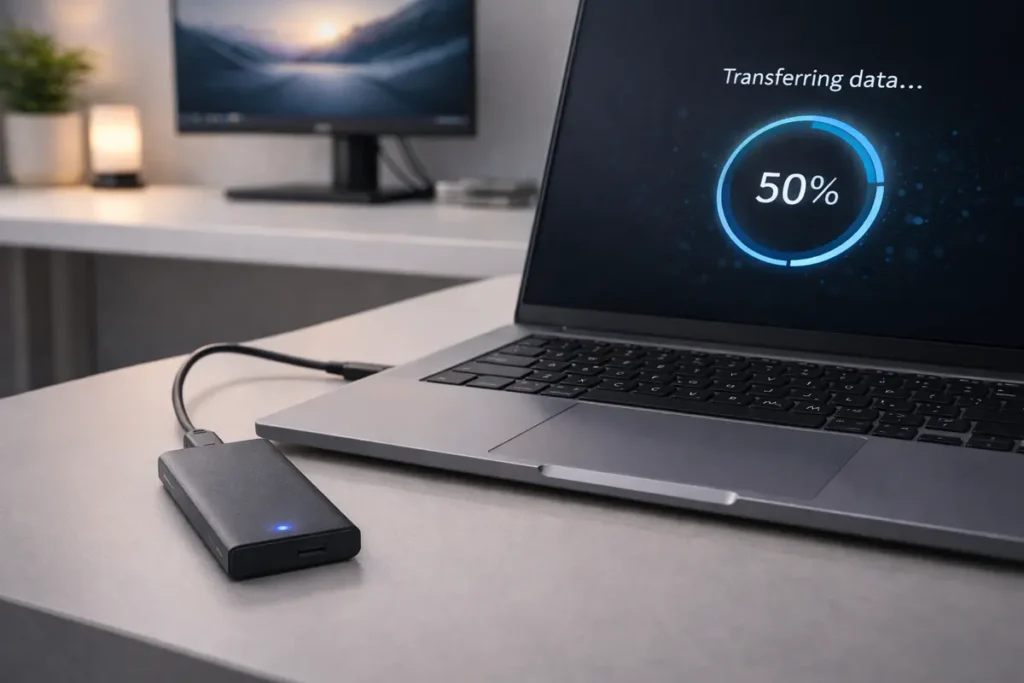
Portable SSD Drives
Portable SSDs are among the highest ROI gadgets you can buy because they prevent catastrophe.
They are:
- Faster than HDD
- More durable (no moving parts)
- Compact and travel-friendly
- Ideal for backups and moving large files
What to look for
- Capacity (1TB is a strong starting point for most people)
- Speed (NVMe-based external drives are faster)
- Encryption features (useful for sensitive work)
- Warranty and reliability reputation
- Rugged build if you travel
Cloud Backup & Redundancy
Cloud backup protects you from:
- Theft
- Fire/flood
- Total device failure
- Accidental deletion with version history
A strong strategy is hybrid:
- Local SSD backup for speed
- Cloud backup for redundancy
The 3-2-1 backup rule
- 3 copies of data
- 2 different storage mediums
- 1 off-site copy
Cloud typically fills the “off-site” requirement.
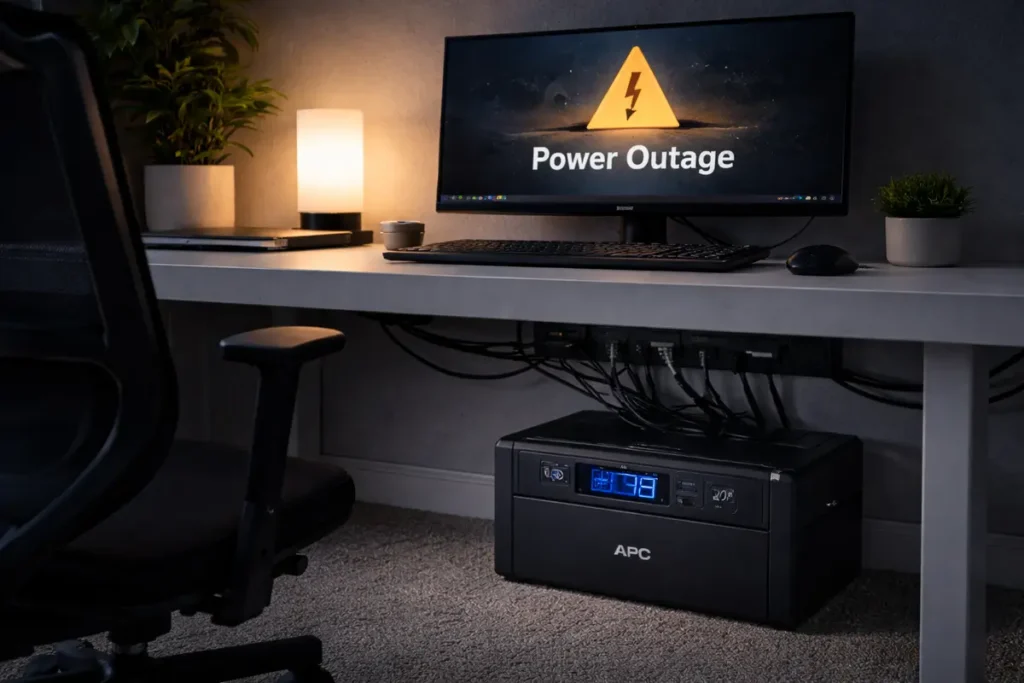
UPS Battery Backup Systems
A UPS (Uninterruptible Power Supply) provides battery power for a few minutes during an outage. That’s often enough to:
- Save work
- Shut down properly
- Avoid corrupted files
- Protect electronics from spikes
What matters
- VA rating (capacity)
- Runtime estimate
- Replaceable battery availability
- Number of outlets
- Surge protection rating
Mini Case Study: Freelance Designer Data Recovery (Protection)
Scenario:
A freelance designer is mid-project on a client deadline.
Problem:
Laptop drive fails unexpectedly.
What saved them:
- Daily SSD backups
- Weekly cloud backup
Outcome:
- Lost less than 12 hours of work
- Delivered on time
- Maintained client trust
- Avoided refund/chargeback risk
This is why data protection gadgets are “boring” but essential.
Category 4: Ergonomic & Health Gadgets
Long-term productivity depends on physical well-being. If your body hurts, your brain can’t stay focused.
The Compounding Effect of Posture
Sitting 6–8 hours daily affects:
- Spine alignment
- Circulation
- Energy levels
- Focus endurance
Harvard Health discusses risks of prolonged sitting and benefits of movement:
Link
Ergonomic tools reduce cumulative stress and increase sustainability.
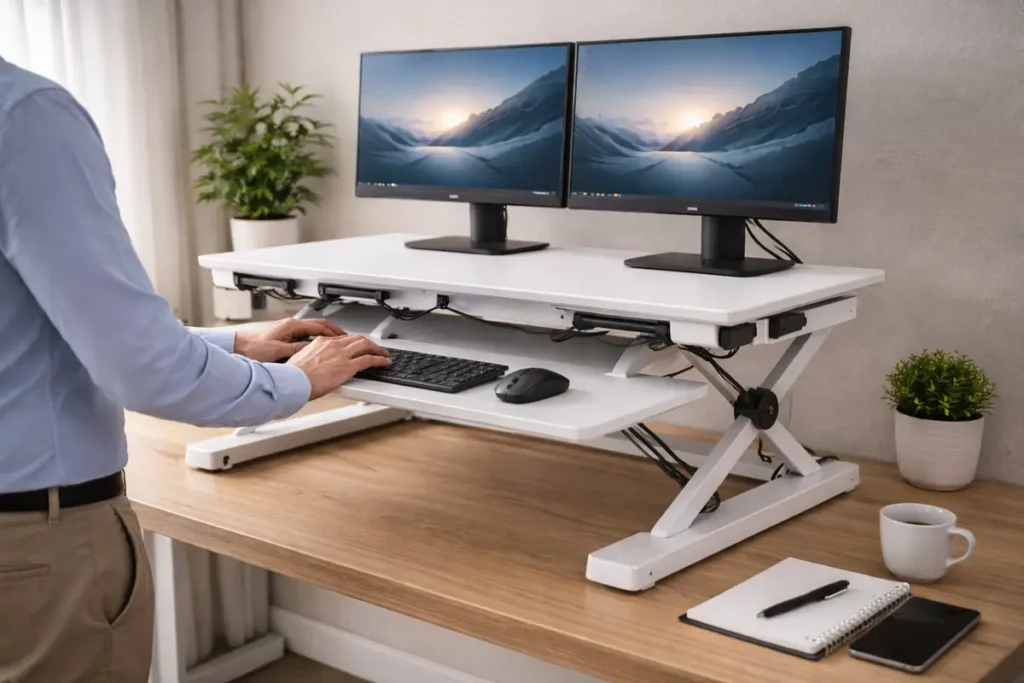
Standing Desk Converters
A standing desk converter lets you alternate posture without buying a full desk.
Benefits
- Increased movement variety
- Less stiffness
- More alertness for many people
- Reduced “afternoon slump” feeling
What to look for
- Stability at full height
- Enough keyboard depth
- Smooth lift mechanism
- Weight capacity
- Monitor support
Ergonomic Office Chairs
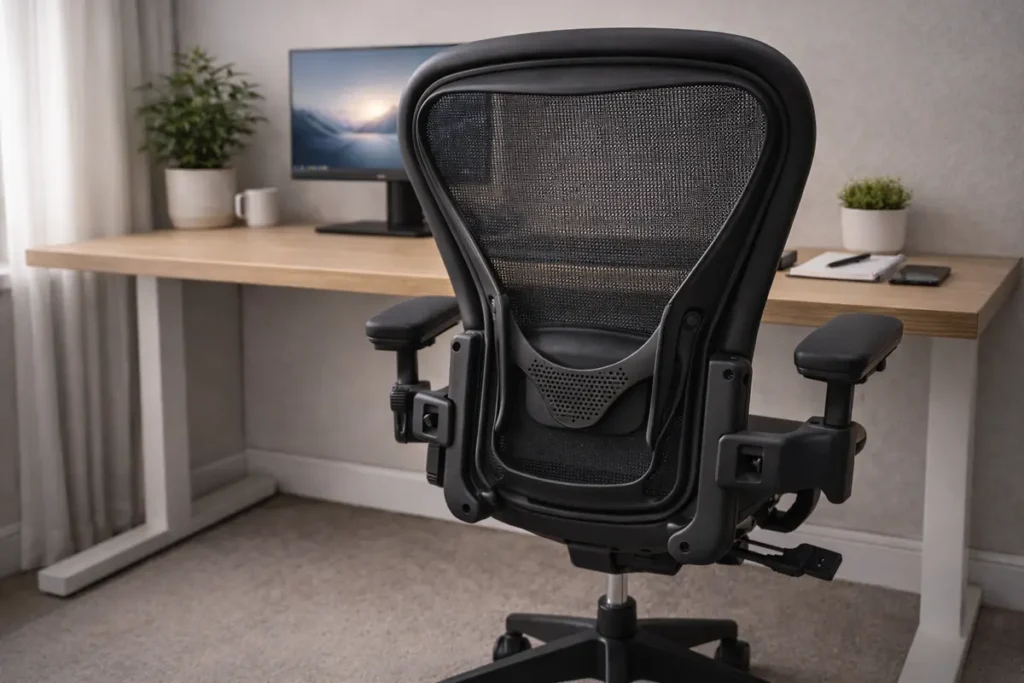
Chairs are often the highest ROI purchase because you use them every day. A poor chair causes constant micro-adjustments, discomfort, and fatigue.
Features that matter
- Adjustable lumbar support
- Seat depth adjustment
- Armrest flexibility
- Tilt tension and recline support
- Breathable material
- Stable base
A chair should fit your body. “One-size-fits-all” chairs rarely do.
Blue Light Blocking Glasses
Research is mixed on blue light claims, but glare reduction and visual comfort can be real benefits—especially for long evening sessions.
When they help most
- Night work with bright screens
- People sensitive to glare
- Users who get eye fatigue during long sessions
Other strategies also matter:
- Proper screen brightness
- 20-20-20 break rule
- Better lighting setup

Mini Case Study: Content Creator Burnout Prevention (Ergonomics)
Scenario
A YouTube editor works 8–10 hours daily.
Problems:
- Back pain
- Wrist discomfort
- Afternoon fatigue
Upgrades:
- Ergonomic chair
- Standing desk converter
- Vertical mouse
- Screen comfort improvements
Results after ~60 days:
- Reduced discomfort
- Longer sessions without fatigue
- Fewer breaks “forced by pain”
- Better focus consistency
Ergonomics isn’t a luxury. It’s performance infrastructure.
👉 Read the guide: Ergonomic Home Office Setup: Step‑by‑Step Guide to Pain‑Free Work
Category 5: Micro-Efficiency & Workflow Automation
Micro-friction is sneaky. It looks small but happens repeatedly.
Examples:
- Searching for cables
- Copy/pasting the same text constantly
- Rearranging desk items to make space
- Adjusting audio devices for calls
- Losing small items like adapters and USB drives
Micro-efficiency gadgets remove repeated tasks.
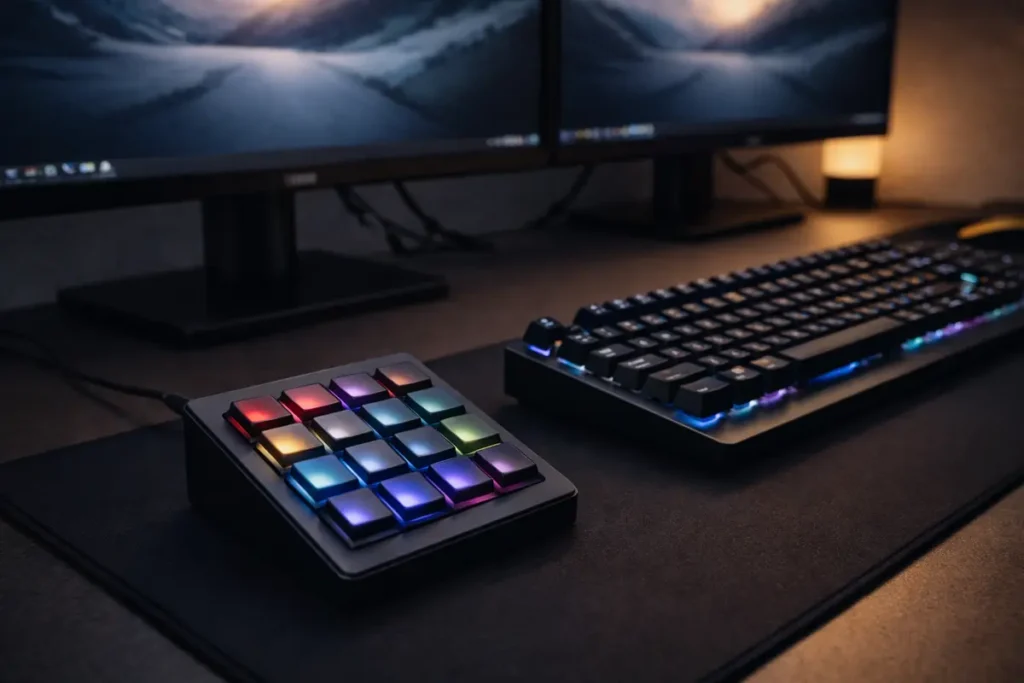
Macro Pads & Stream Decks
Programmable keypads allow you to automate:
- App launches
- Text templates (email responses, code snippets)
- Shortcuts (mute mic, start recording)
- Meeting controls
- File actions
What to consider
- Software compatibility (Mac/Windows)
- On-device memory profiles
- Profile switching (work vs personal)
- Ease of configuration (important for non-technical users)
For creators, analysts, and business owners, macro pads can be a “silent superpower.”
👉 Read the guide: What Is Software? The Ultimate 2026 Foundational Guide to Understanding Digital Power (Beginner to Pro Mastery)
Label Makers & Cable Management
Organization reduces cognitive load. A clean setup reduces “background stress.”
Label makers help with:
- Cable identification
- Storage box organization
- Home office drawers
- Network equipment labeling
Cable management helps with:
- Faster troubleshooting
- Cleaner workspace visuals
- Safer and less tangled cables
- Less friction when adding devices later
What to consider
- Label durability
- Adhesive quality
- Print clarity
- Compatibility with replacement tape rolls
👉 Read the guide: Cable Management for Small Desks
Mini Case Study: Online Entrepreneur Workflow Optimization (Micro-Efficiency)
Scenario:
A solo entrepreneur manages email, content scheduling, invoicing, and calls.
Problems:
- Repetitive typing
- Constant app switching
- Cable clutter causing interruptions
- Setup time each morning
Upgrades:
- Macro pad for templates and app control
- Label system for cables/storage
- Docking station for quick switching
Result:
- Faster daily startup
- More consistent workflow
- Less mental clutter
- More time spent on high-value tasks
Small tools amplified consistency.
How to Choose the Right Gadgets (Decision Framework)
Avoid random buying. Use this five-step framework:
Step 1: Identify friction
Ask:
- What slows me down every day?
- What annoys me repeatedly?
- Where do I lose time without noticing?
Step 2: Measure frequency
A problem that happens daily deserves attention before a problem that happens monthly.
Step 3: Estimate time saved
If a gadget saves 15 minutes/day, that’s:
15 × 5 × 52 = 65 hours/year.
Step 4: Evaluate health impact
Ergonomic improvements compound over years. Health upgrades often out-rank speed upgrades long-term.
Step 5: Prioritize high-ROI categories
Most people get the best returns from:
- Ergonomics
- Screen real estate
- Automation
- Protection
Budget Allocation Strategy
If you have £500–£800 (or roughly $600–$1,000), this split is usually smart:
- 30% Ergonomics (chair, mouse, posture tools)
- 25% Display upgrades (second monitor or monitor stand)
- 20% Connectivity (router, dock, Ethernet)
- 15% Data protection (SSD, UPS)
- 10% Automation (smart plugs, lighting routines)
Why this works:
- Ergonomics protects long-term productivity.
- Display improves day-to-day speed.
- Connectivity prevents interruptions.
- Protection prevents disasters.
- Automation reduces mental load.
Common Mistakes to Avoid When Buying Gadgets
- Buying novelty gadgets instead of solving friction
If it doesn’t solve a recurring problem, skip it. - Ignoring ergonomics
The “pain tax” is real. Discomfort forces breaks and reduces focus. - Overpaying for features you don’t use
Premium is only worth it if you actually use the advantages. - Skipping surge protection and backups
These prevent disasters. Disasters destroy productivity. - Buying everything at once
Start with one or two upgrades, measure impact, then improve gradually. - Forgetting the system
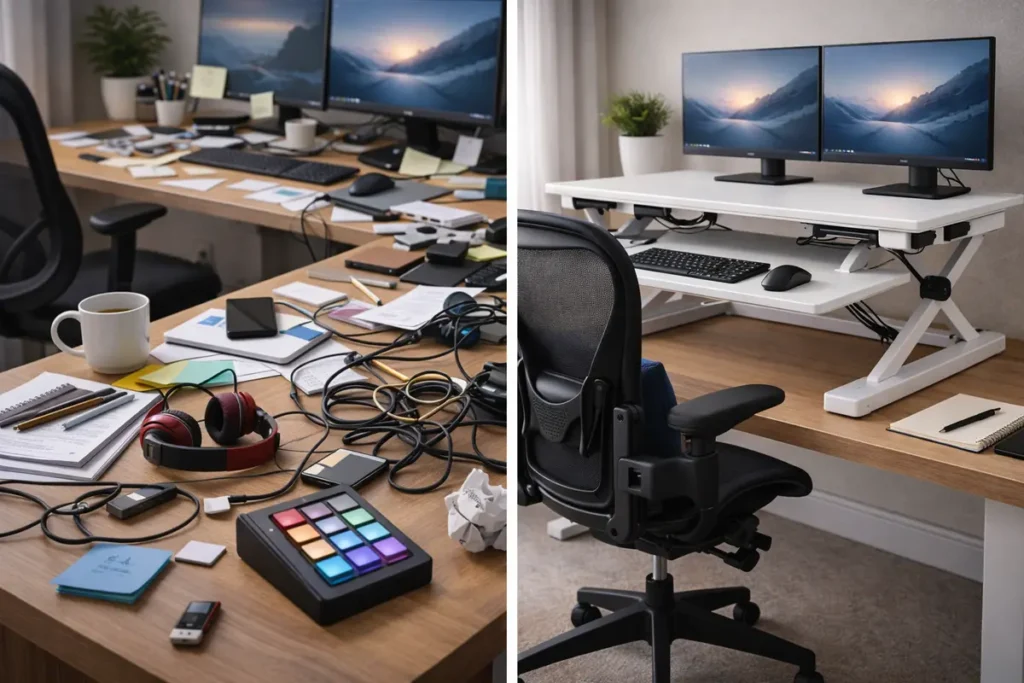
A fancy gadget won’t help if your desk is still chaotic. Think end-to-end.
Frequently Asked Questions
1) What are the most useful productivity gadgets for home and office?
2) What should I upgrade first for the biggest productivity boost?
> Ergonomics (chair or mouse) if discomfort breaks focus, or
> Screen space (second monitor) if tab switching slows work.
If you’re unsure, a second monitor + ergonomic mouse is often the best starting combo.
3) Are productivity gadgets actually worth the money?
4) How do I calculate ROI for a gadget?
Minutes saved per day × workdays per year ÷ 60 = hours saved/year
Then compare hours saved to the cost. Even 5 minutes/day adds up quickly over months.
5) How many gadgets are “too many”?
6) What’s better: one big monitor or two monitors?
Best Picks: Portable Monitors
7) Do mechanical keyboards improve productivity for non-gamers?
8) Is a vertical mouse really better for wrist pain?
9) What’s the point of a docking station if I already have USB ports?
10) Do smart plugs really help productivity?
11) Will WiFi 6 improve my internet speed?
12) Do I really need a portable SSD if I use cloud storage?
13) What’s the difference between a surge protector and a UPS?
14) Are blue light blocking glasses necessary?
15) What are the best productivity gadgets on a tight budget?
> Ergonomic mouse (or vertical mouse)
> Smart plug (automation)
> Cable management + label maker
> Portable SSD (if you handle important files)
Then upgrade to a second monitor when possible.
Best Picks: Productivity Gadgets
Conclusion: Build a System That Works for You
Gadgets are not about collecting technology.
They’re about building a system.
When chosen strategically, productivity gadgets:
- Reduce friction
- Improve comfort
- Protect your work
- Increase focus
- Save time
The goal isn’t more devices.
The goal is smoother performance—day after day.
Research & Standards Referenced
This guide aligns with research and professional standards, including: